
 External Display Browser
XeOS: External Display Browser Blog
Articles and step-by-step guides for getting the most out of your iPhone or iPad on an external monitor, TV or portable display.
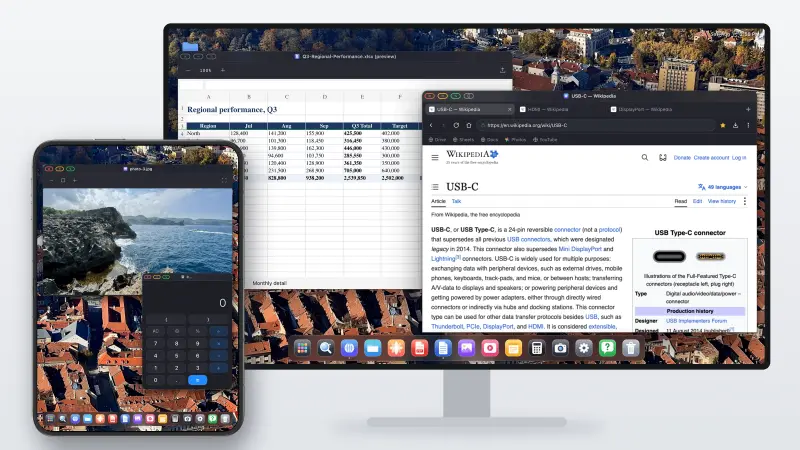
Does iPhone Duo Support Desktop Mode? What Changed, and What Didn't
Short version: no. The iPhone Duo brought Split View to the iPhone for the first time, so you can have two apps open side by side on the inner screen. That's it for multitasking. Plug it into a monitor and you still get a mirror of the phone, two windows at most, scaled up and surrounded by black space. Below is what the Duo actually adds, what happens on an external display, and how the XeOS app finally gives you a real multi-screen desktop mode.
Read the article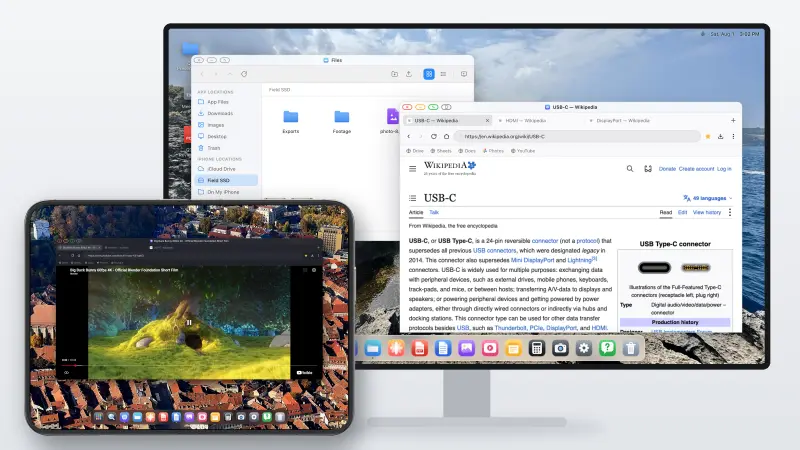
iPhone Duo: Here's an Alternative to Samsung DeX
The iPhone Duo finally lets an iPhone show two apps at once. What it still doesn't do is what Samsung DeX has done since 2017: turn the phone into a desktop when you plug it into a monitor. Here's where the Duo stops, and how to get a DeX-style desktop on an external display with it today, with the Duo's own screen working as a second display alongside.
Read the article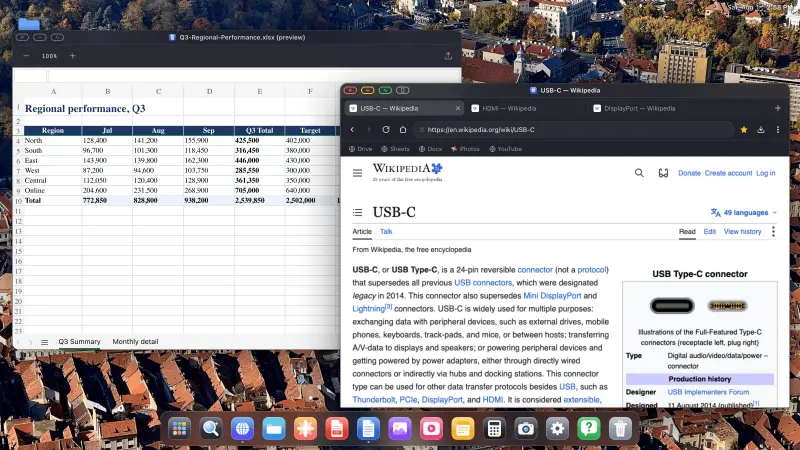
Did iOS 27 Add Desktop Mode to the iPhone? The Real Answer, and What to Use Instead
Short version: no. iOS 27 did add a few multitasking features, but only for the iPhone Duo, and nothing for any other iPhone. Plug a regular iPhone into a monitor with iOS 27 and you still get a mirror, phone-shaped, floating between two black bars. Below is what iOS 27 actually changed, what it didn't, and how to get a desktop on a big screen without waiting for Apple.
Read the article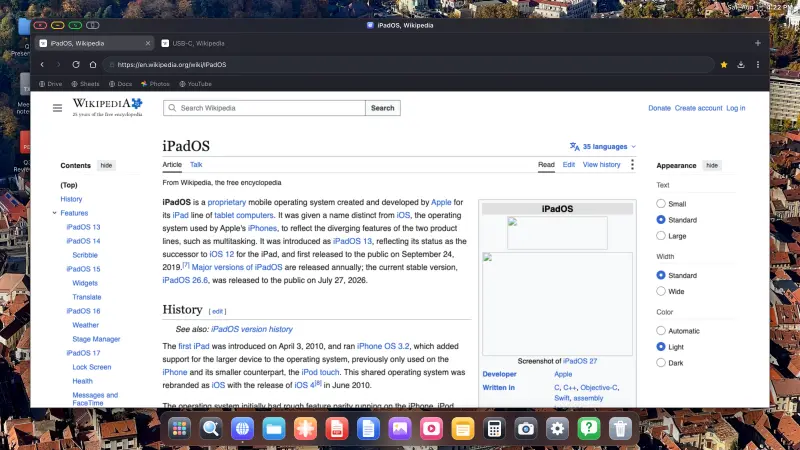
Did iOS 26 Add Desktop Mode to the iPhone? The Real Answer, and What to Use Instead
Short version: no. There is still no desktop mode on the iPhone in 2026. Plug your phone into a monitor with stock iOS and you get a mirror, phone-shaped, floating between two black bars. Below is what happened with the rumours, what iOS does and doesn't give you today, and how to get a desktop on a big screen without waiting for Apple.
Read the article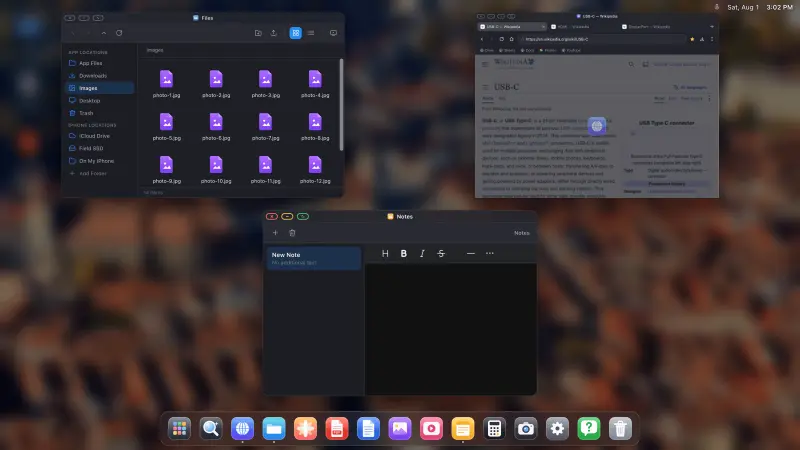
Turn Your iPhone Into a Desktop: What's Possible in 2026
Modern iPhones have more processing power than the laptops most people were perfectly happy with a few years ago, a port that can drive a 4K display, and no desktop mode. This is a straight audit of what you can and can't do today: what works, what doesn't, what it costs, and who it's for.
Read the article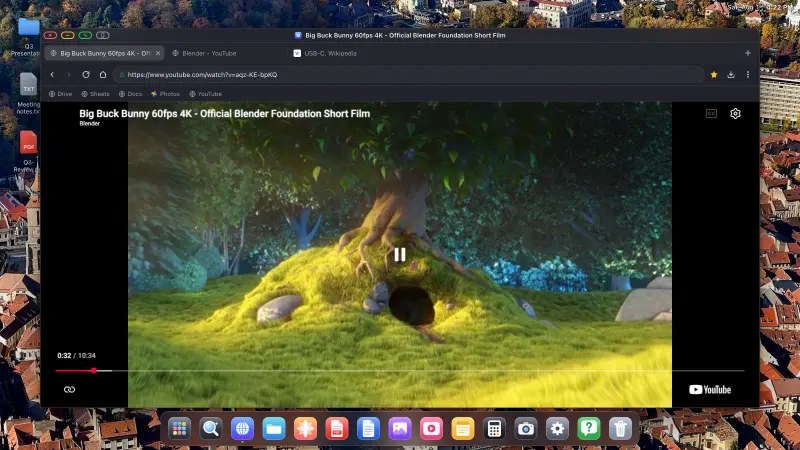
How to Watch YouTube on a TV From Your iPhone, Full Screen, No Black Bars, No Ads
There's a cable in the drawer, a TV on the wall, and YouTube on your phone. Getting the video to fill the whole TV rather than a phone-shaped rectangle in the middle of it, without an ad every four minutes, takes one app and about five minutes.
Read the article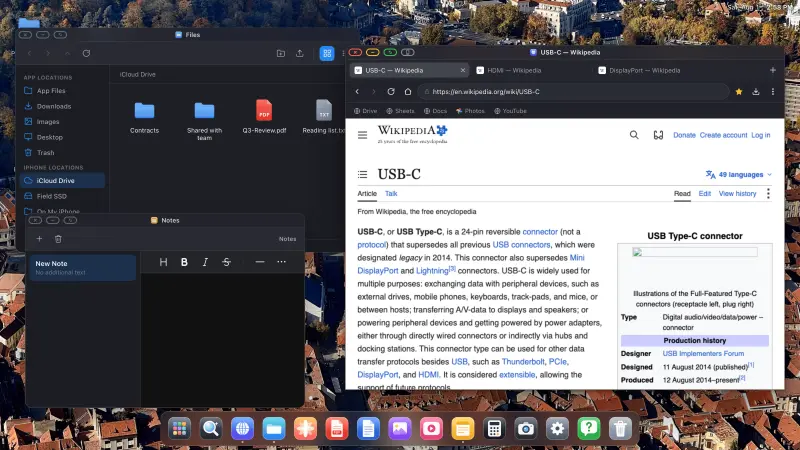
iPad External Display Without Stage Manager: Full-Screen on Any Model
If your iPad doesn't have an M-series chip, Apple gives you exactly one option on an external monitor: mirroring. There's no way to extend the desktop rather than duplicate it, so what reaches the monitor is a copy of your iPad's screen, in your iPad's shape, on a panel that isn't that shape. This is why that happens, and how to get a full-screen desktop on any iPad regardless of what's inside it.
Read the article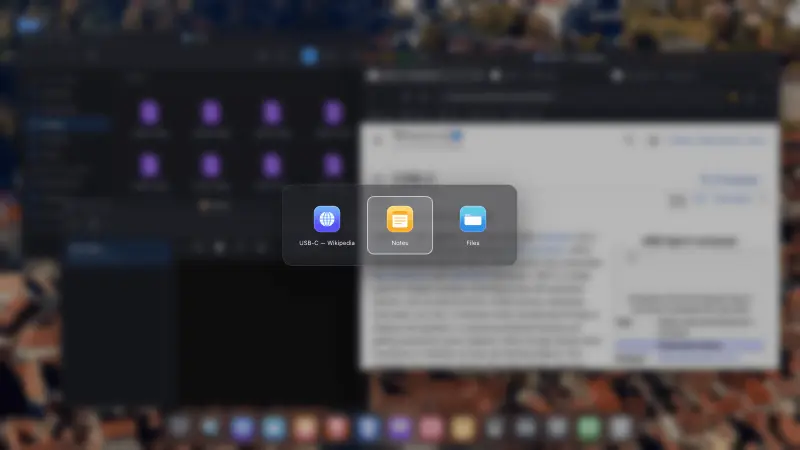
Looking for a shiftscreen Alternative? Here's What Full-Screen External Display Browsing Looks Like in 2026
If you've searched for a shiftscreen alternative you already know the problem: you want your iPhone or iPad to put something useful on an external monitor, filling the screen, without the black bars mirroring leaves behind. Below are the options that exist, why most "alternative" lists send you the wrong way, and where XeOS fits.
Read the article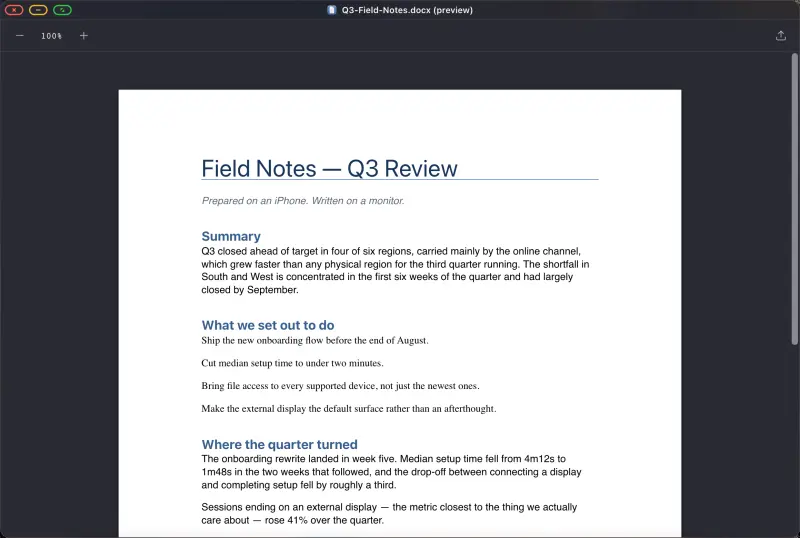
Using an iPhone as a Laptop for Travel: The No-Computer Setup That Works
Leaving the laptop at home is a good idea right up until you need to do something that needs a real screen. This is the setup that closes the gap: a phone, a small bag of accessories, and a desktop that appears on whatever monitor or TV is in the room. Under half a kilo, and it fits in a jacket pocket.
Read the article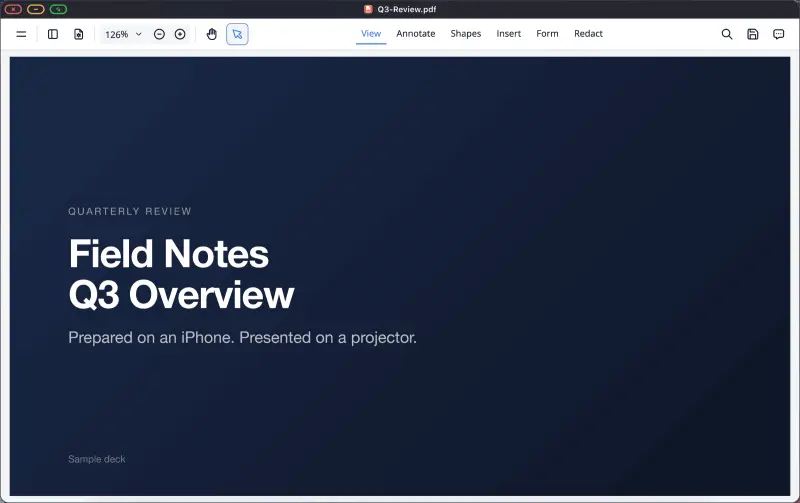
How to Present a PDF Full-Screen From Your iPhone to a Projector
Teachers, students, and anyone who has ever been handed a room and a projector five minutes before speaking: you don't need a laptop. A phone, an adapter and a PDF of your slides make a complete presenting setup, and unlike the browser route it works with no network at all.
Read the article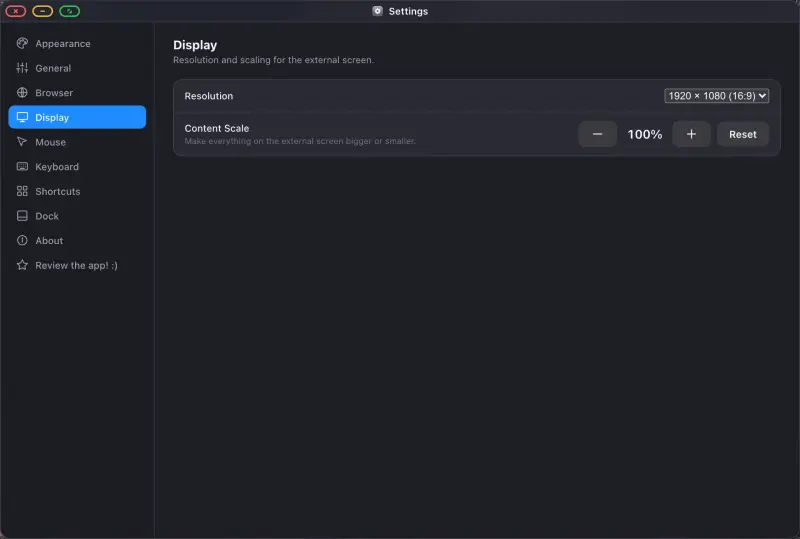
iPhone External Monitor Setup: Which Cable You Need, by Model
Every iPhone made in the last decade can put a picture on a monitor. What changes by model is the connector, the adapter, and how much you should expect from the result. Find your phone below, buy the right thing once, and get a screen that's full rather than a phone-shaped strip in the middle of one.
Read the article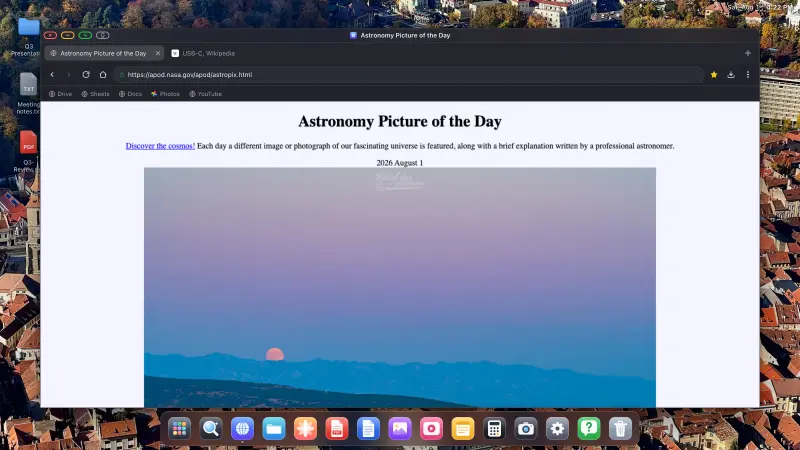
Can You Plug an iPhone Into a Portable Monitor? Yes, Here's How to Do It Right
Portable monitors are cheap now, and the question comes up constantly: will one work with an iPhone? Yes. One USB-C cable, and plenty of portable monitors will carry both video and power over it. But there's a catch nobody puts in the product listing, and it's worth knowing before you buy.
Read the article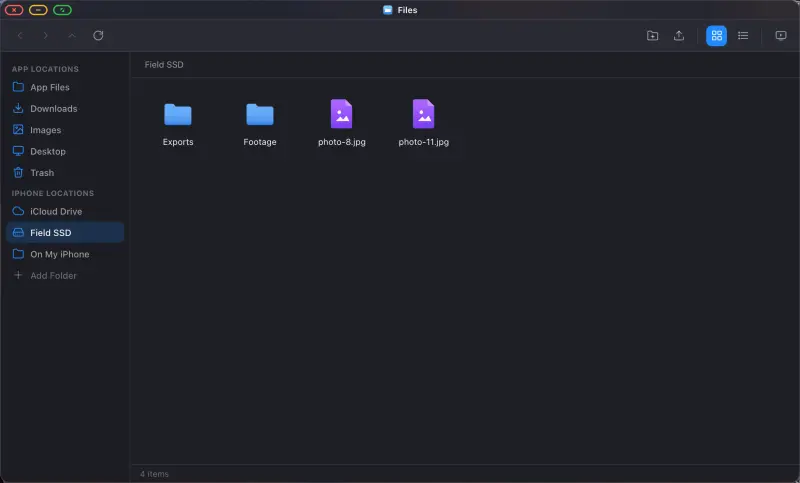
iPhone + USB-C Hub + External SSD: The Power-User Setup for Working Off a Phone
A phone with one port makes you choose: screen, or storage, or power. A hub removes the choice, and once you can mount a drive next to a monitor you've stopped using a phone and started using a small computer. What to buy, what to avoid, and how the mounted drives work.
Read the article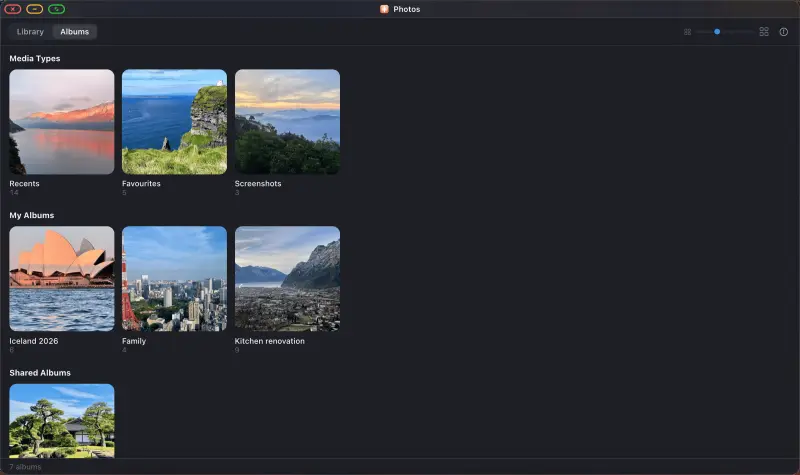
How to Put a Photo Slideshow on a TV From Your iPhone, for Homes, Shops and Events
A screen showing your photos on a loop: at Christmas, at a wedding reception, in a shop window, on a stand at a trade show. You don't need a media player, a smart TV app, or a computer humming away in a back room. An iPhone, a cable and a display will do it, and it can run all day.
Read the article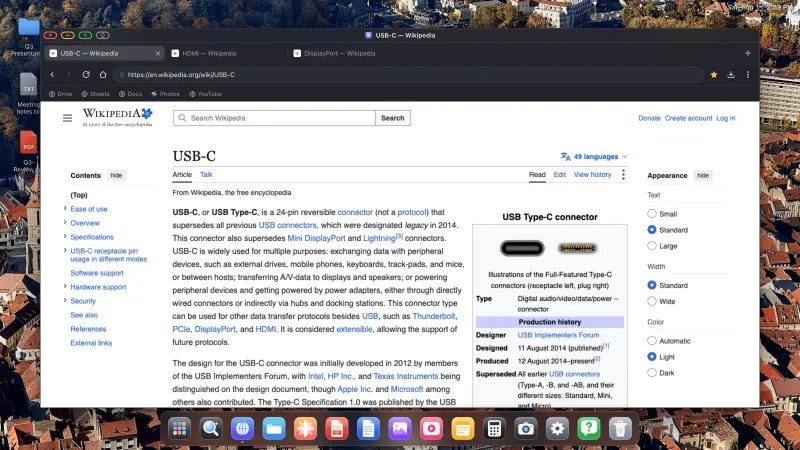
How to Use Your iPhone with an External Monitor, Full Screen
Most people wire an iPhone to a monitor once, see a tall phone-shaped picture floating between two black bars, and never try again. The monitor is fine. The cable is fine. That's just what stock iOS does. Below is the setup that uses the whole panel instead: a desktop, at the monitor's own resolution, driven from the phone in your hand.
Read the article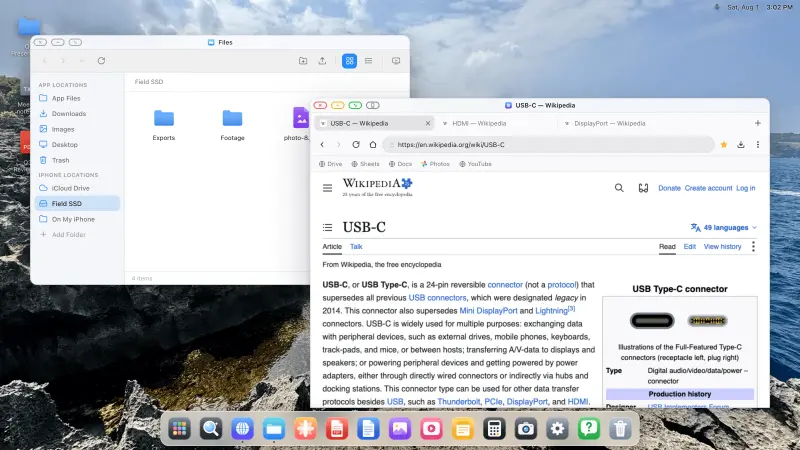
How to Connect Your iPhone to a Portable Monitor, Full Screen
Portable monitors fold flat, weigh almost nothing, and give you a real screen anywhere. Most people carry a laptop to drive one. You don't have to. A phone, a cable and the right app get you a full desktop on that panel, edge to edge, with no laptop in the bag at all.
Read the article
The Best Way to Extend Your iPhone to a TV or Monitor
AirPlay, an HDMI adapter, a smart TV's own apps. There are several ways to get an iPhone onto a big screen, and most of them hand you the same disappointing thing: a phone-shaped picture with black bars either side. This is what each route gives you, and which one fills the panel.
Read the article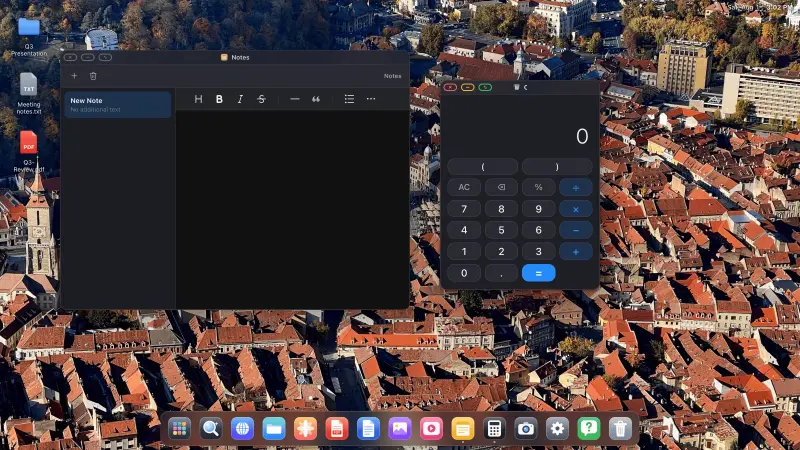
There Is Now a Real Samsung DeX Alternative for iPhone
Plug a Galaxy into a monitor and Samsung DeX gives you a taskbar, resizable windows and a cursor. Plug an iPhone in and iOS gives you a mirror. Apple still hasn't shipped a desktop mode, but the gap is no longer unbridgeable: there's an app that puts a windowed desktop on the external screen.
Read the article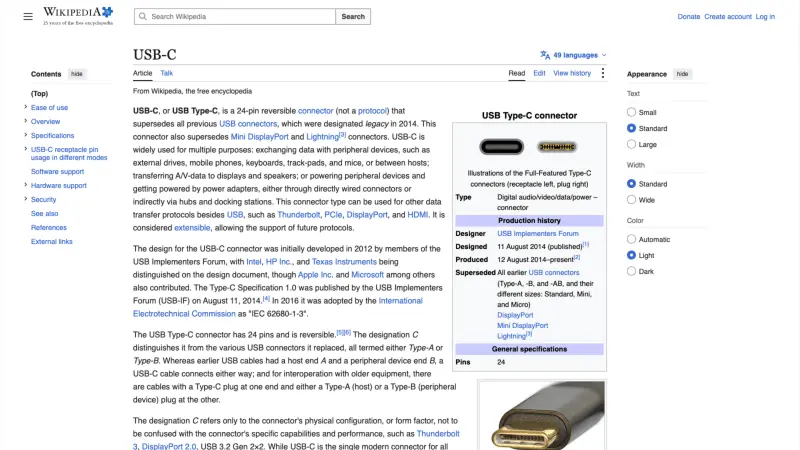
How to Get Rid of Black Bars on Your iPhone External Display
You plug a phone into a monitor and get a small portrait window floating in a sea of black. The monitor isn't broken, the cable isn't wrong, and there's no hidden iOS setting you've missed. Black bars are a software behaviour, and exactly two things cause them. Both are fixable.
Read the article
Broken iPhone or iPad Screen? Give It a Second Life on a Monitor
A green line down an iPhone screen. A black strip across an old iPad. A display that flickers, has dead touch, or stays black while the phone still rings. If the device still powers on and can output video, it does not have to become drawer clutter. Connect a monitor and XeOS gives it a usable desktop, often with more room to work than it had when its screen was perfect.
Read the articleHow to
Guides
How to Connect Your iPhone or iPad to a Monitor, TV or Projector, and Fill the Screen
Plugging an iPhone into a TV is easy. Getting a usable screen out of it is the hard part. Stock iOS mirrors your phone, so a 16:9 monitor shows a tall phone-shaped picture floating between two black bars. XeOS replaces that mirror with a desktop that uses every pixel the panel has. Do the setup on this page once and the rest of the guides here will assume you've done it.
Read the full guide
How to Watch YouTube Full Screen on a TV or Monitor From Your iPhone or iPad
You have a TV, an iPhone and a cable, and you want the video to fill the screen rather than sit in a phone-shaped rectangle in the middle of it. With XeOS that takes about five minutes: sign in, go full screen, and leave the built-in ad blocker doing its job.
Read the full guide
How to Run a Photo Slideshow on a TV From Your iPhone or iPad, Two Ways
Holiday photos on the living room TV, or a looping display in a shop window. Either way you don't need a computer, a media player or a smart TV app. An iPhone, a cable and XeOS will fill any screen with your photos. There are two routes, your own photo library or a Google Photos album in the browser, and they suit different jobs.
Read the full guide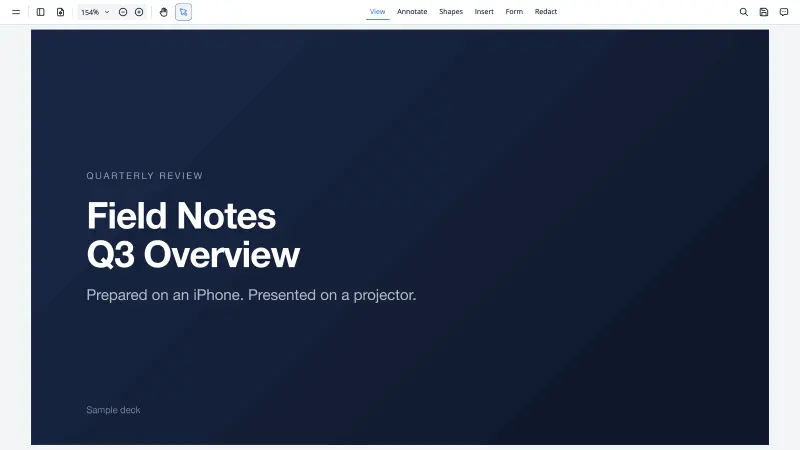
How to Present From Your iPhone or iPad When You Didn't Bring a Laptop
The projector is on, the room is waiting, and your laptop is somewhere else. With your phone and a cable you can still present properly, full screen, from the slides you already have. Two routes below: Google Slides in the browser, and the built-in viewer for a PDF you exported before you left. The second one works with no network at all.
Read the full guide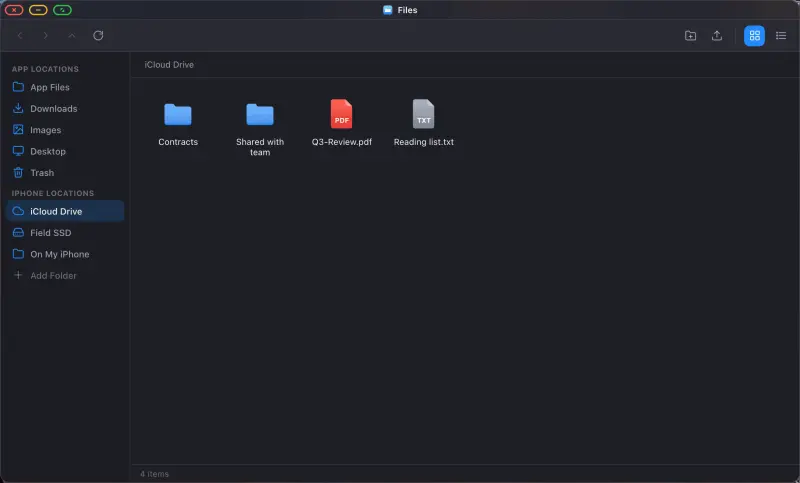
How to Browse Your Files, iCloud Drive and External Drives From Your iPhone or iPad
iOS keeps files at arm's length. The Files app is fine for grabbing one document, but it isn't a place you can work. XeOS gives you a file manager on the big screen, with a sidebar, two view modes, drag and drop and a trash, and it can mount folders from your phone, from iCloud Drive, and from a USB drive plugged into your adapter. Everything then opens in place, the way it does on a computer.
Read the full guideHow to Study and Work From Your iPhone: Google Drive, Docs, Sheets and Office Files on a Big Screen
Writing an essay in a phone-sized text box is miserable. On a 24-inch monitor with a real keyboard it's just writing. This guide covers using Google Drive, Docs and Sheets from an iPhone or iPad, opening the Word and Excel files people email you, and keeping your documents somewhere you can get at them.
Read the full guideTry XeOS: External Display Browser
Full screen on any external monitor, TV or portable display. No black bars. Download on the App Store.
