
 External Display BrowserSetup by Model3 min read
iPhone External Monitor Setup: Which Cable You Need, by Model
Every iPhone made in the last decade can put a picture on a monitor. What changes by model is the connector, the adapter, and how much you should expect from the result. Find your phone below, buy the right thing once, and get a screen that's full rather than a phone-shaped strip in the middle of one.
By connector
| iPhone | Port | What you need |
|---|---|---|
| iPhone 15 and later (including Pro, Plus, Pro Max) | USB-C | USB-C to HDMI cable, USB-C to USB-C for a USB-C monitor, or a USB-C multiport adapter |
| iPhone 14 and earlier, back to iPhone 5 | Lightning | Lightning Digital AV Adapter (HDMI), or Lightning to VGA Adapter for older projectors |
| Any iPhone, no cable | , | AirPlay to an Apple TV, a Mac, or an AirPlay-capable smart TV |
USB-C iPhones (15, 16, 17 and later)
These carry a DisplayPort signal over USB-C, so you have three good options. A USB-C to HDMI cable is the cheapest thing that works, though it carries no power and adds no extra ports. USB-C to USB-C suits a monitor that takes USB-C directly, and many such monitors send power back down the same cable, which is the ideal arrangement. A USB-C multiport adapter gives you HDMI plus USB plus pass-through charging, and it's the one to buy if you'll do this regularly or want to plug in an external drive.
Lightning iPhones
The Lightning Digital AV Adapter is the standard route. It gives you HDMI plus a Lightning port for charging, and that second part matters, because driving a display drains a battery quickly. For older meeting rooms and school halls that only have VGA, the Lightning to VGA Adapter covers it.
Third-party Lightning-to-HDMI adapters vary enormously in quality. Unbranded ones are the usual cause of a flickering or intermittent picture.
AirPlay, any model
Control Centre → Screen Mirroring → pick your Apple TV or smart TV. No cable, slightly more latency, and it depends on your network. Fine for video and slideshows. A cable feels better for anything interactive.
The part the cable doesn't solve
Buy any of the above, plug it in, and iOS mirrors your phone: a 19.5:9 image on a 16:9 monitor, black bars filling the difference, everything scaled for a hand rather than a desk. That isn't a cable problem. iOS has no desktop mode, so it copies the phone's screen rather than drawing for the monitor.
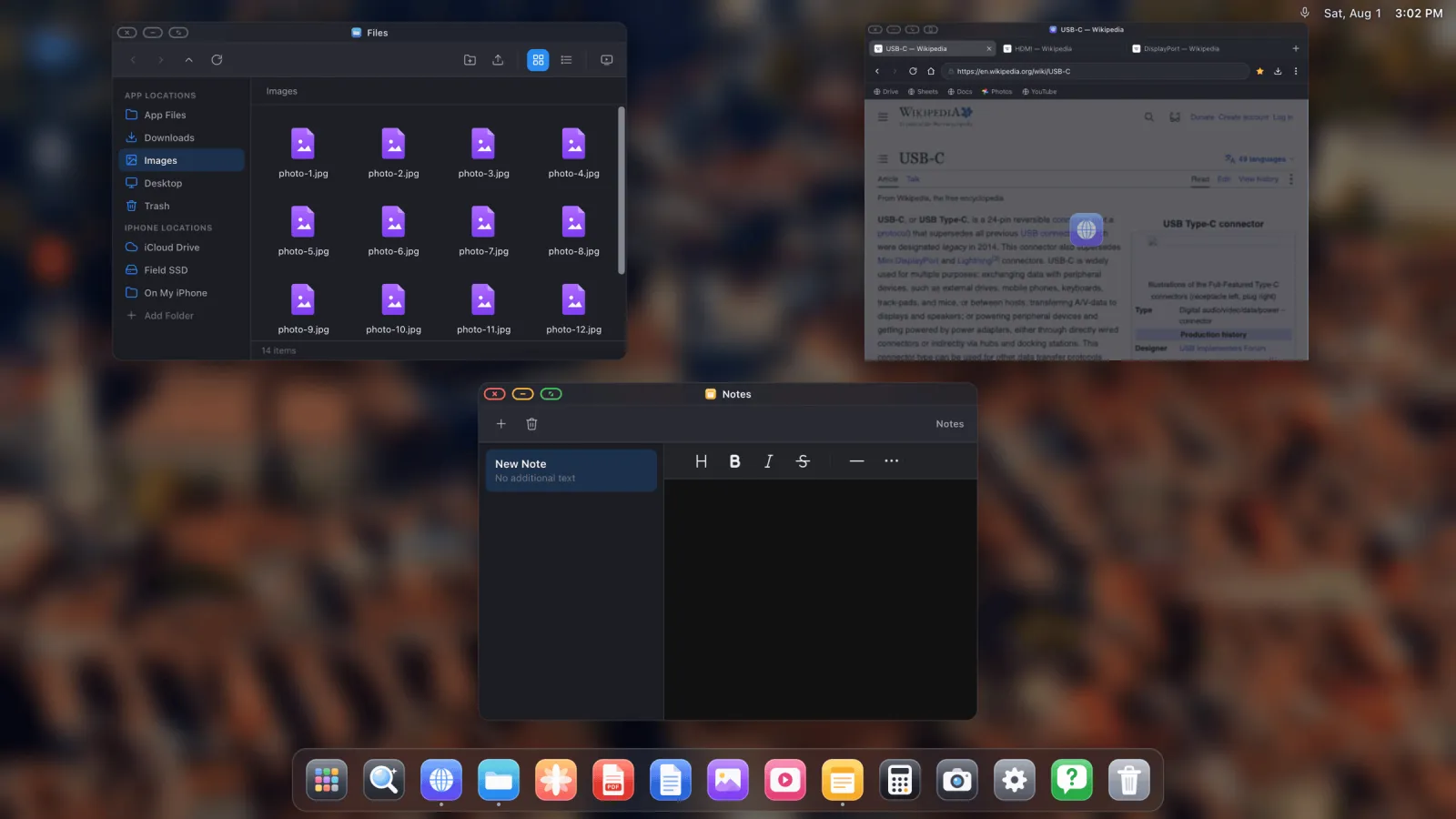
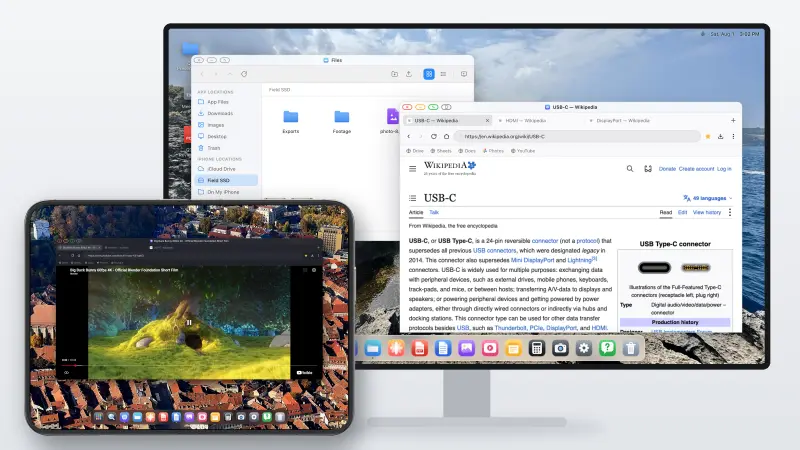
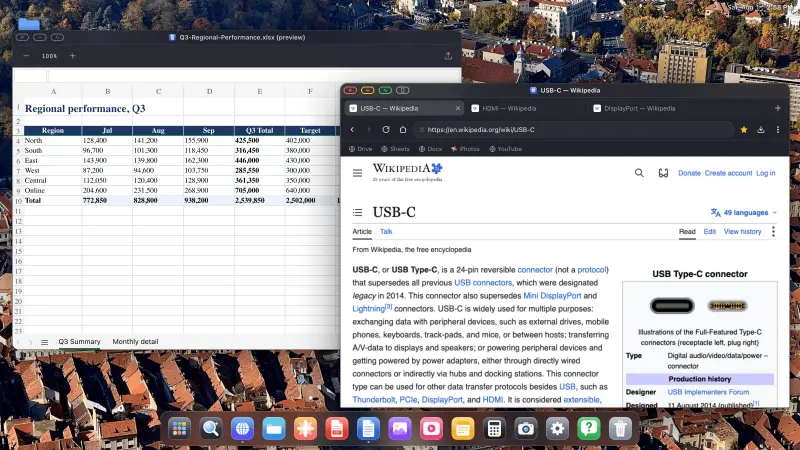
XeOS: External Display Browser closes that gap. It renders its own desktop at the monitor's own resolution, so the panel gets fully used.
Getting the picture right
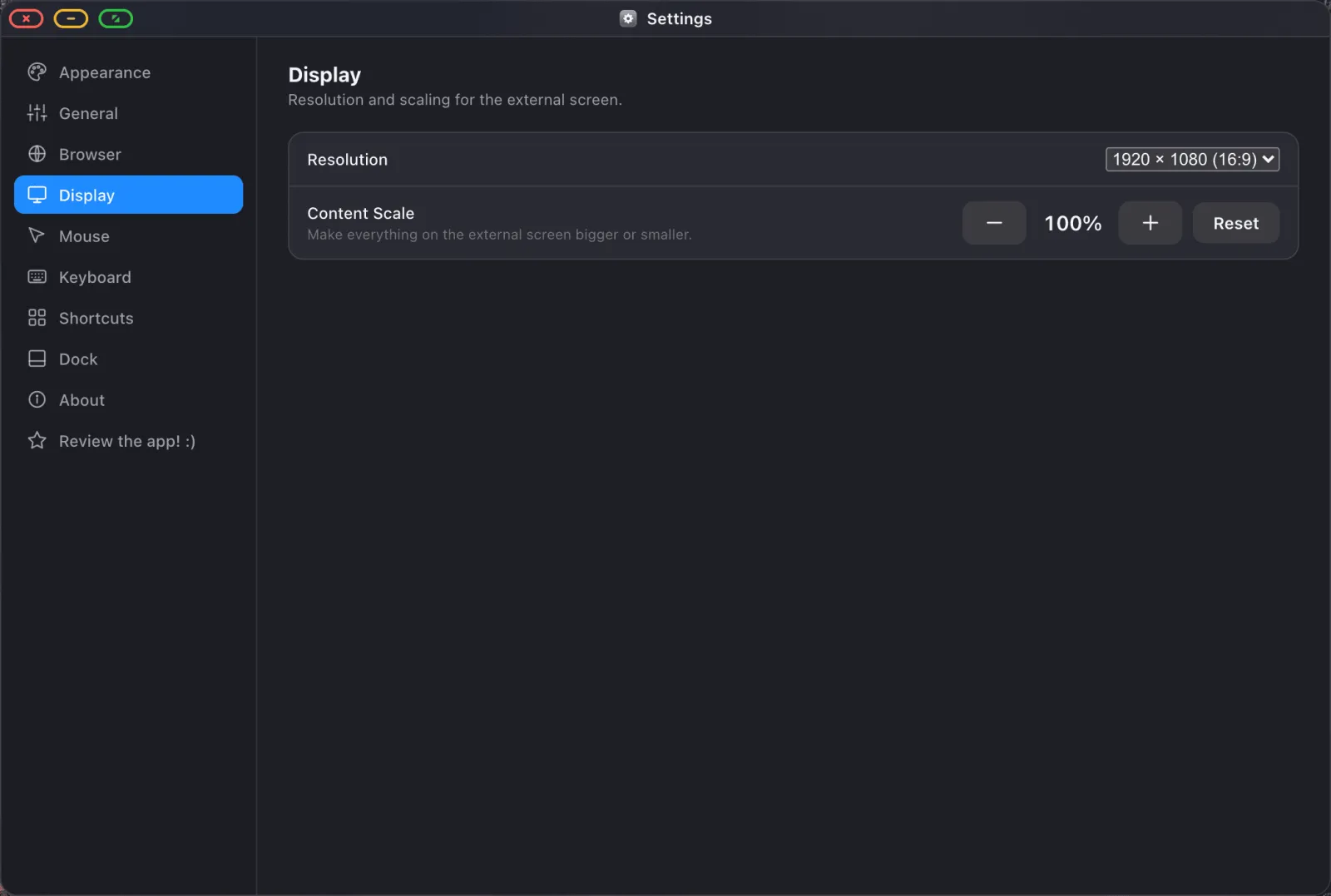
- Connect and open the app. It detects the display.
- In Settings › Display, choose the resolution your monitor reports. 1920 × 1080 for most, higher if the panel supports it.
- Set content scale: around 100% at desk distance, 130–150% for a TV across a room.
- If a border remains, that's the display's own overscan. Set its picture size to "Just Scan", "Screen Fit" or "1:1".
What you can do once it's working
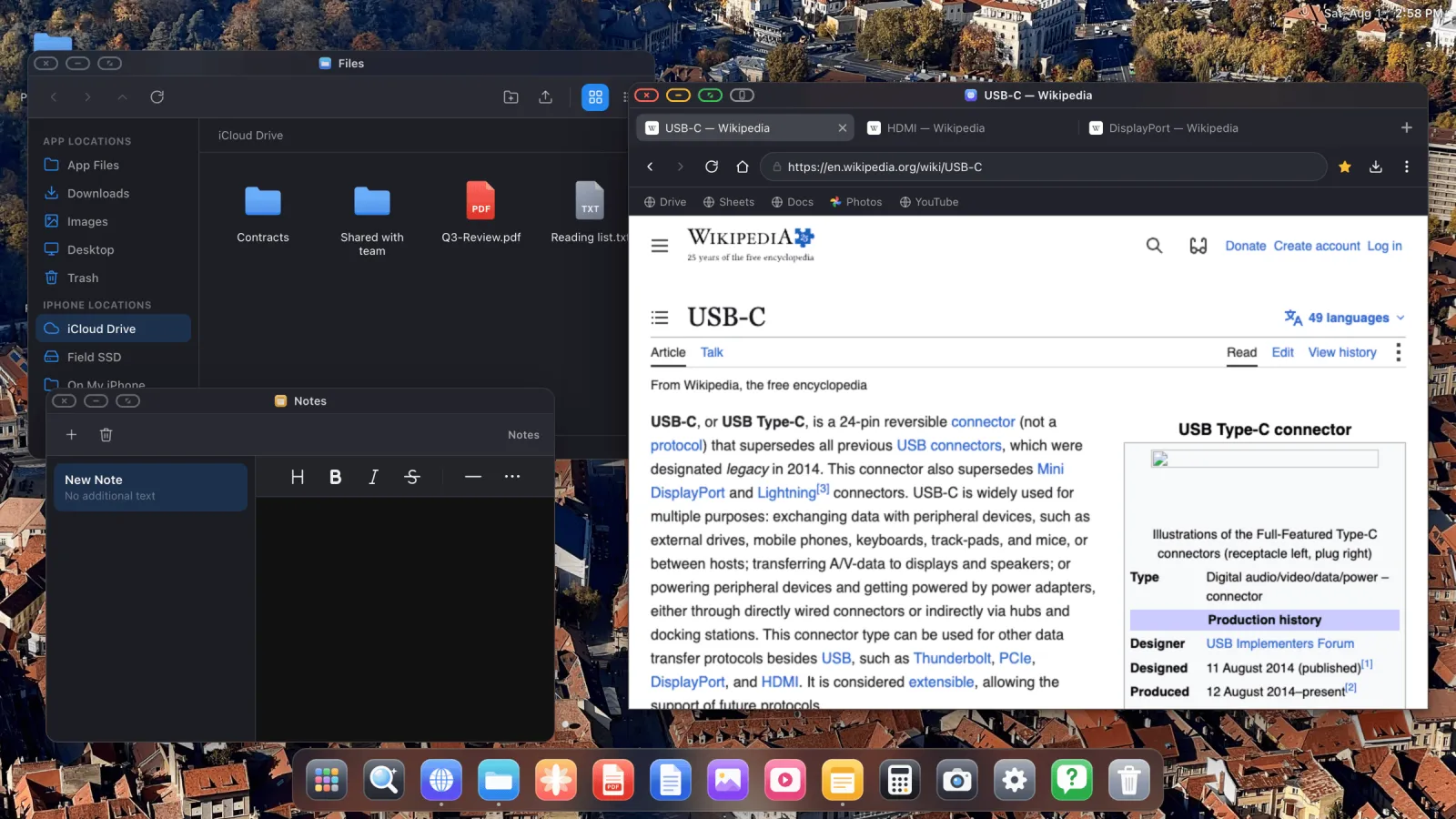
- Full-screen YouTube with ads blocked
- Present a PDF to a projector
- Run a photo slideshow on a TV
- Work in Google Docs and Sheets at full desktop scale
- Browse iCloud Drive and external drives
Buying advice, briefly
Get pass-through power unless you'll only ever use this for ten minutes at a time. Carry a short HDMI cable, because the room has the port and the cable is always plugged into something else. Avoid the very cheapest adapters, since flicker, dropouts and "no signal" are almost always the adapter rather than the phone. And buy a cheap Bluetooth mouse, which changes the experience more than any cable will.
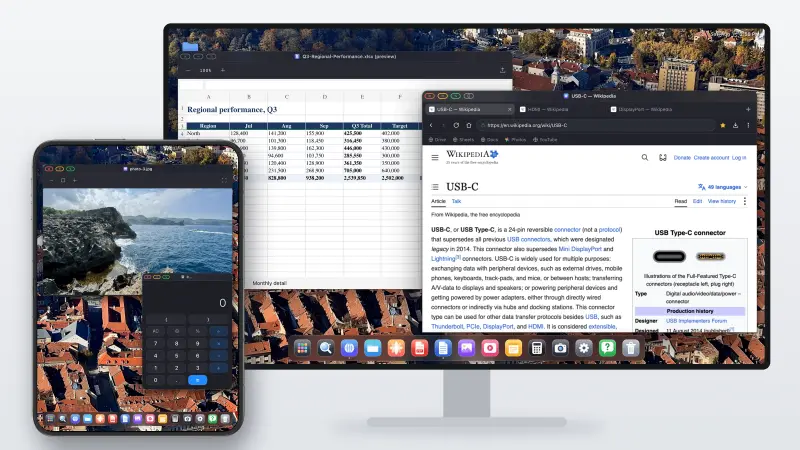
XeOS: External Display Browser turns an iPhone or iPad into a full desktop on any monitor, TV or projector.
Frequently asked
Will an iPhone charge while connected to a monitor?
Only if the connection carries power. That means a multiport adapter with a pass-through port, a Lightning Digital AV Adapter with its Lightning port in use, or a USB-C monitor that supplies power.
Can an iPhone drive two monitors?
No. One external display at a time.
What resolution can an iPhone output?
Modern models handle 4K comfortably. The app lists whatever modes your specific display reports, so you pick from what's available.
Do I need a specific brand of adapter?
No, but quality matters more than brand. Very cheap unbranded adapters cause most connection problems.
More from the blog

Try XeOS: External Display Browser
Full screen on any external monitor, TV or portable display. No black bars. Download on the App Store.