 External Display BrowseriPhone Duo5 min read
iPhone Duo: Here's an Alternative to Samsung DeX
The iPhone Duo finally lets an iPhone show two apps at once. What it still doesn't do is what Samsung DeX has done since 2017: turn the phone into a desktop when you plug it into a monitor. Here's where the Duo stops, and how to get a DeX-style desktop on an external display with it today, with the Duo's own screen working as a second display alongside.
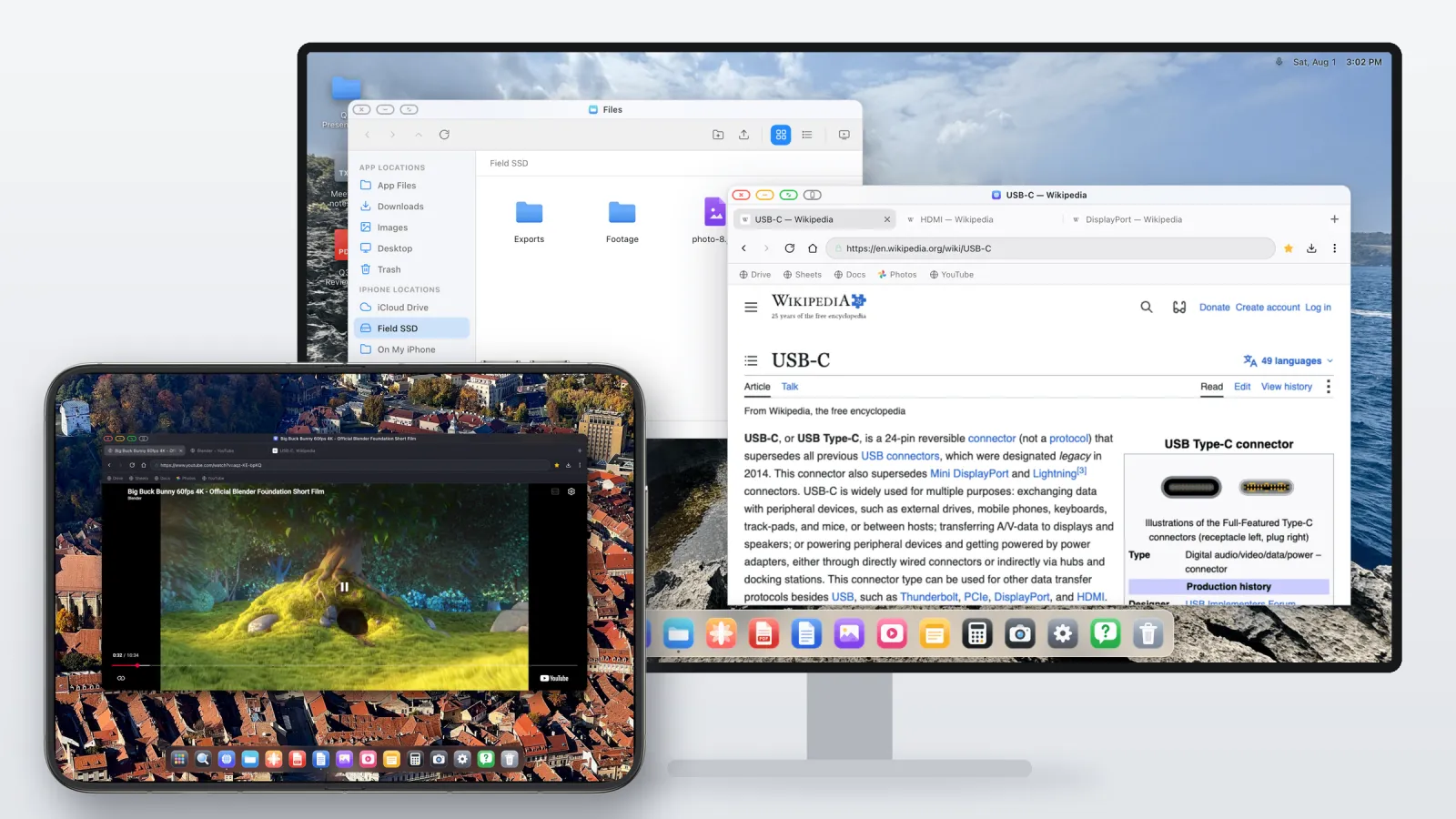
What DeX does that the Duo doesn't
Connect a recent Galaxy to a monitor and DeX replaces the mirror with a desktop: a taskbar, resizable windows you can stack and overlap, a cursor, keyboard shortcuts. The monitor is used at its own resolution and apps lay themselves out for it.
The Duo's big multitasking feature is Split View. It's a clear step forward on the phone itself, two apps side by side on the inner screen, two windows of the same app, saved app pairs. But it stops at two panes, and it doesn't change what happens on an external display.
What you see on the monitor
Plug the Duo into a monitor and iOS mirrors it. You get the phone's screen, Split View included, scaled up to the display. The image keeps the inner screen's near-square shape, so it doesn't reach the edges of a 16:9 panel. The two apps keep their phone layout, just larger. There's no third window, no free positioning, no taskbar, nothing laid out for a desk, and the phone and the monitor show the same image, so you don't gain a second screen either.
| On an external display | Samsung DeX | iPhone Duo |
|---|---|---|
| Uses the whole screen | Yes | No, a mirror of the phone |
| Windows at once | Many | Two, side by side |
| Resizable, overlapping windows | Yes | No |
| Taskbar or dock | Yes | No |
| Layout sized for a monitor | Yes | No, the phone's layout scaled up |
None of this is a setting you've missed. iOS doesn't draw anything separate for the monitor, and Apple hasn't shipped a desktop mode for the iPhone, foldable or not. More on what the Duo does and doesn't support here.
A desktop on the monitor, a second screen on the Duo
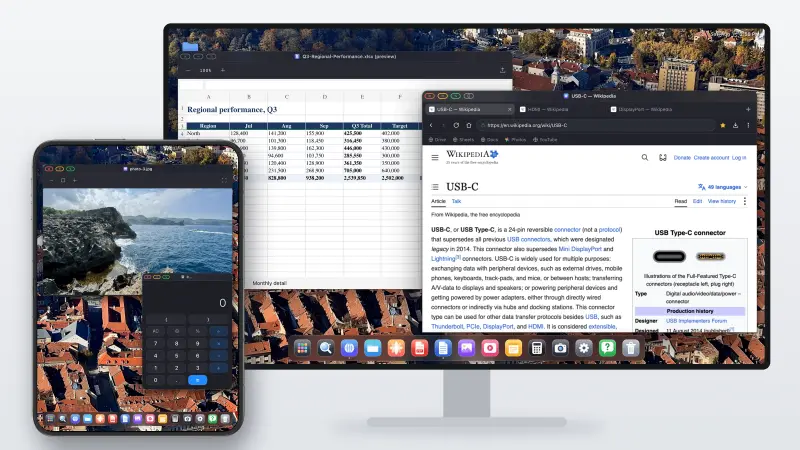
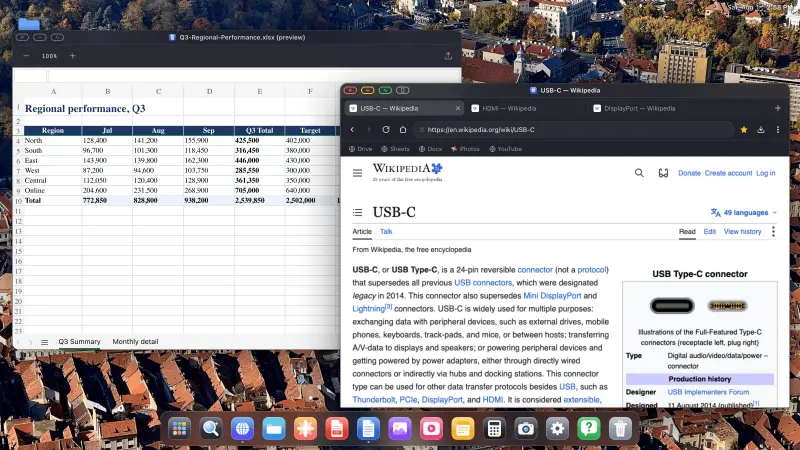
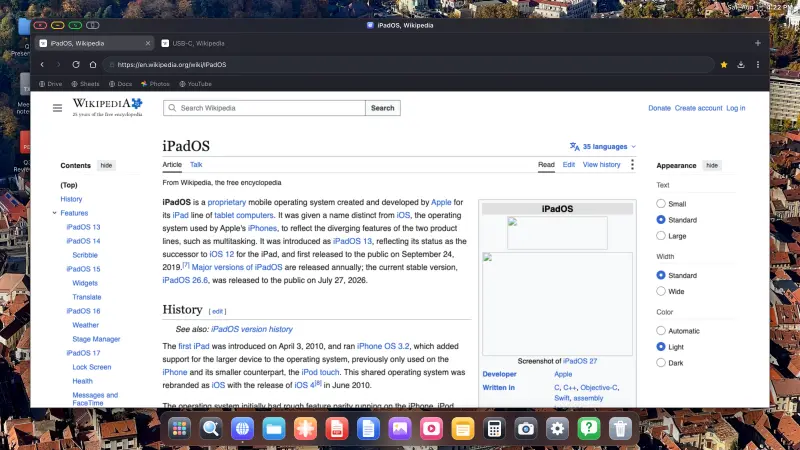
The alternative is an app that takes the external display over and draws a desktop into it. XeOS: External Display Browser works this way. It renders at the display's native resolution, fills the screen edge to edge, and gives you windows, a dock and its own apps.
On the Duo it goes one step further than DeX usually does with a phone. Instead of leaving the inner display as a remote control, XeOS can use it as a second screen with its own workspace. The monitor holds your main windows, the Duo holds a video, a chat, notes or a reference page, and you drag windows from one screen to the other whenever you want something bigger or out of the way. With a mouse paired, one cursor moves seamlessly across both screens.
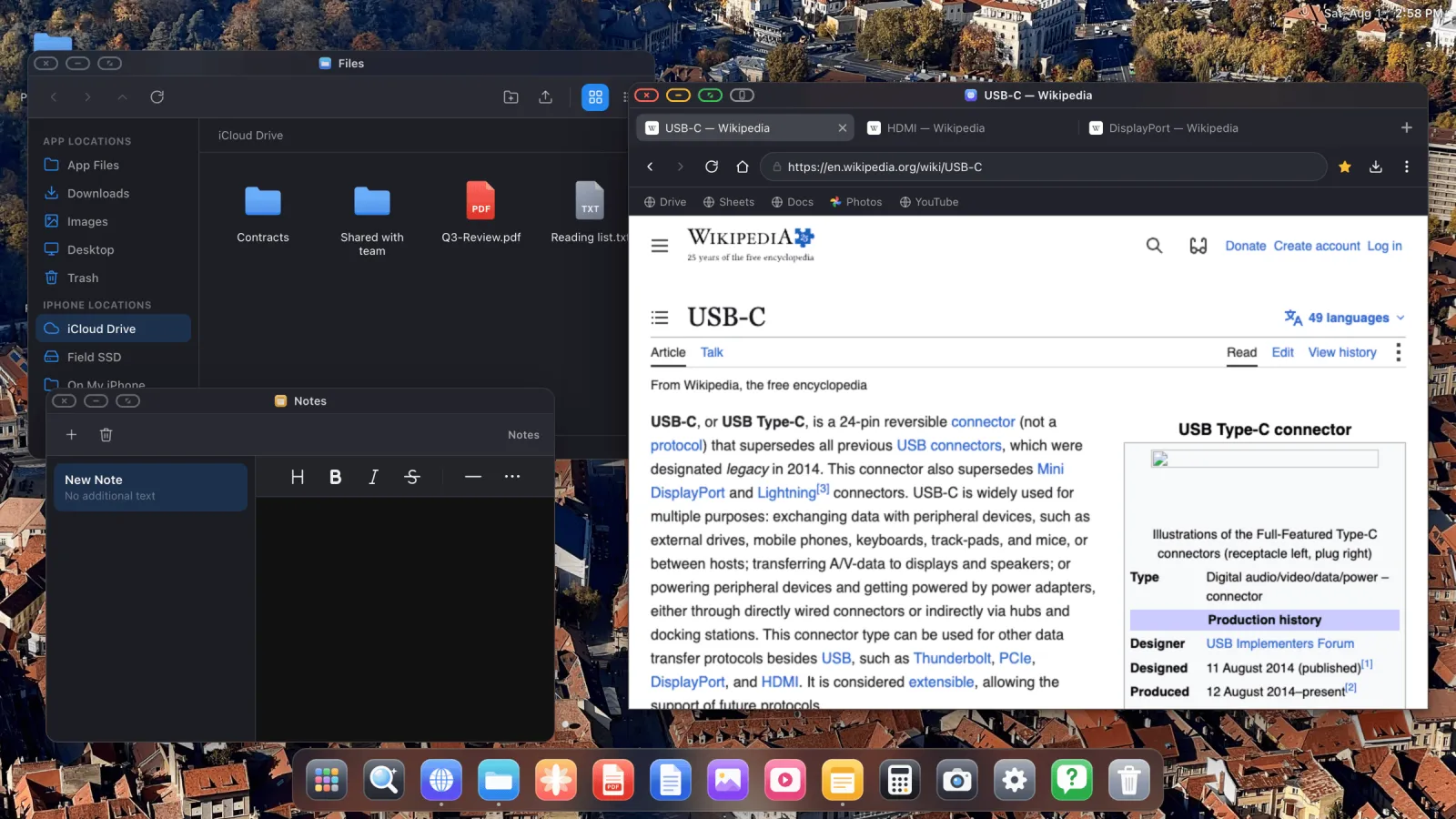
In DeX terms, it covers the parts people actually use:
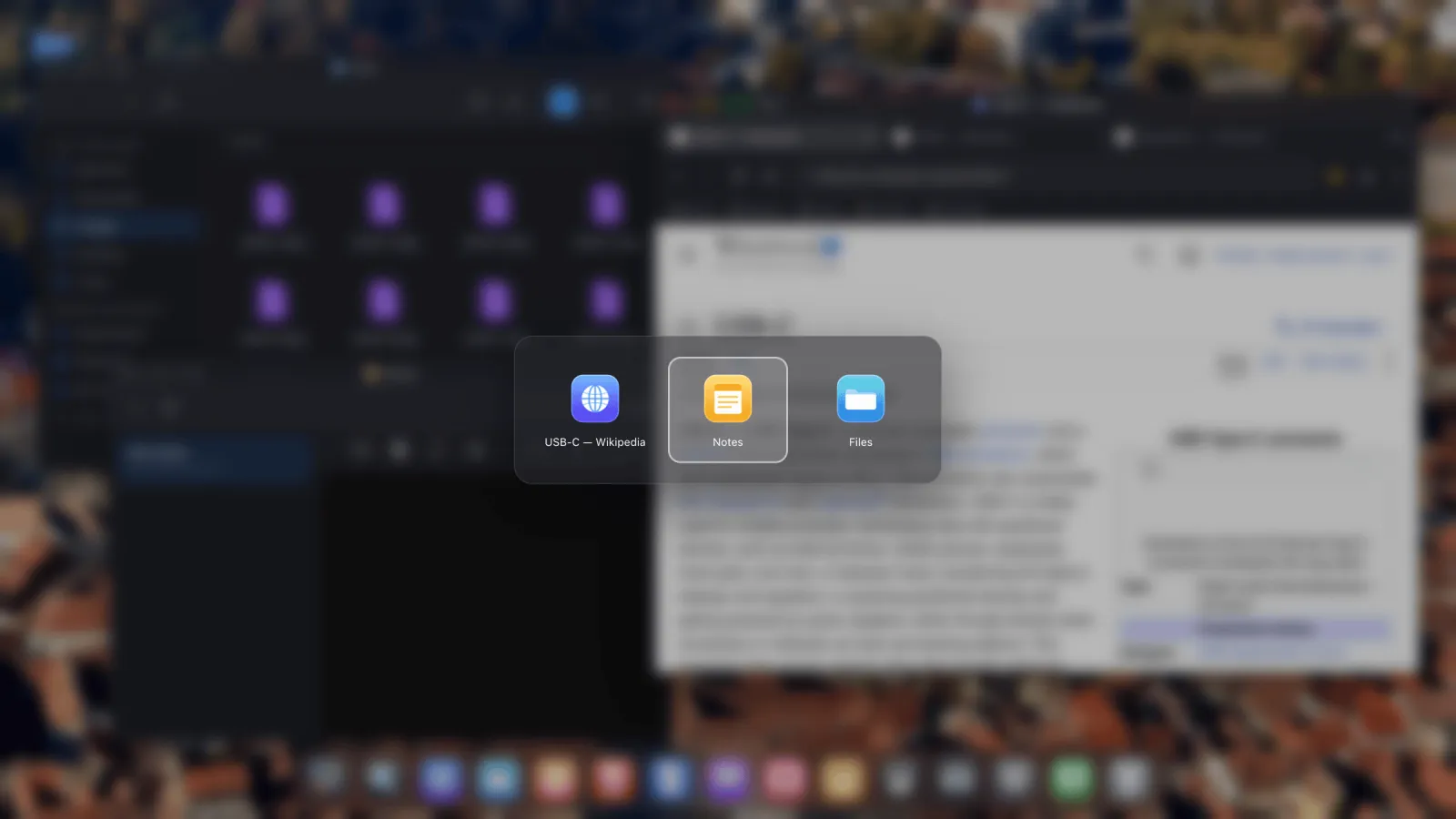
- Windows. As many as you need, moved, resized, snapped or sent full screen, with an app switcher and an overview.
- Two screens. The monitor and the Duo's inner display as separate workspaces, with windows and the cursor moving freely between them.
- A desktop browser. Tabs, a bookmarks bar, downloads, a password manager, reader mode and an ad blocker on by default.
- Files. A file manager with iCloud Drive, folders on the phone and USB drives mounted in the sidebar.
- Documents. A PDF viewer with annotation, and Word, Excel and PowerPoint preview.
- Web apps in the dock. Gmail, Docs, Sheets or YouTube installed as apps with their own icons and windows. How that works.
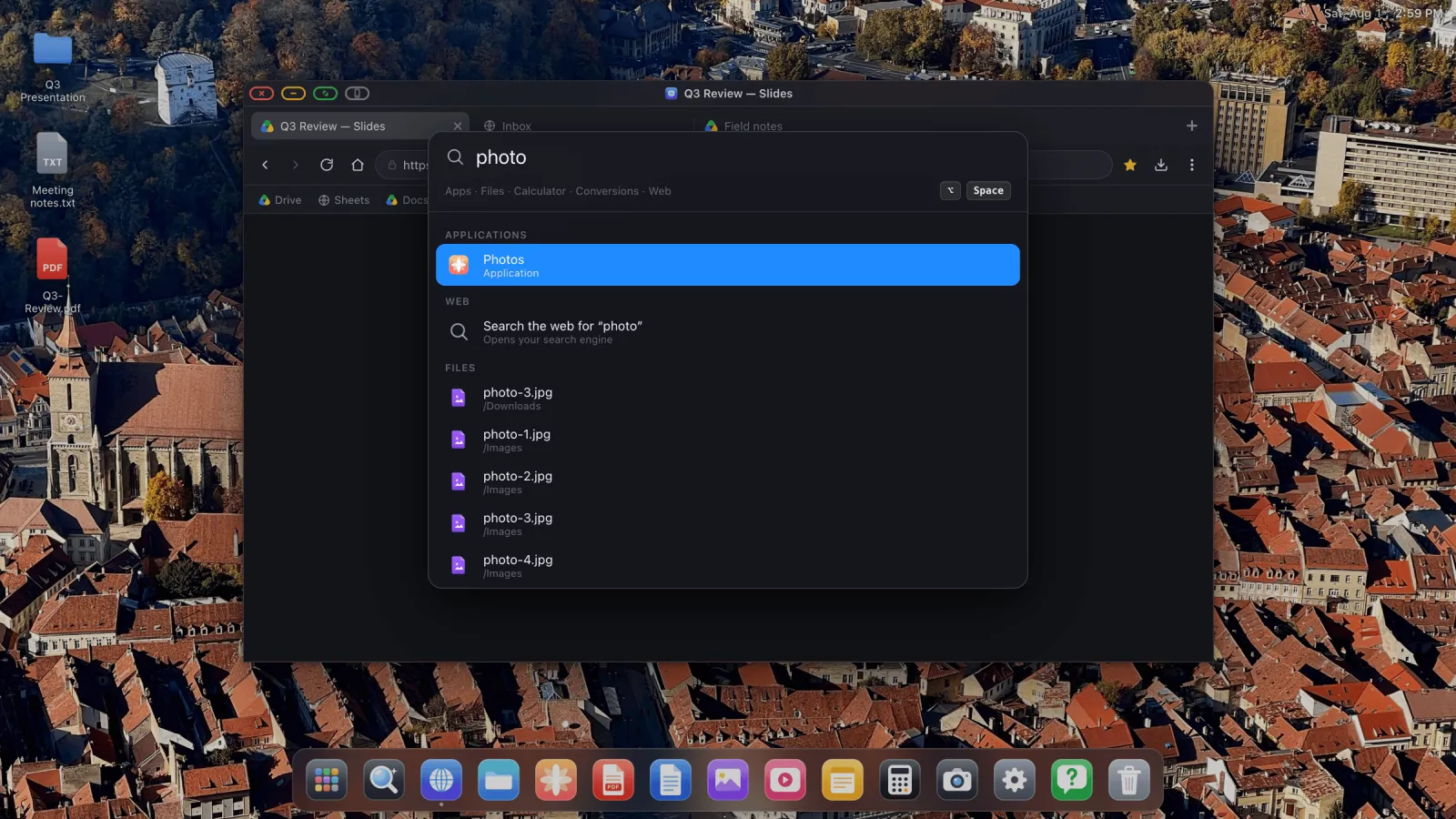
- Search. One shortcut finds apps, files and web results.
- Media. YouTube, Netflix, Disney+ and more, playing edge to edge on the big screen.
- Cloud gaming. Xbox Cloud Gaming, GeForce NOW or Amazon Luna in full screen on the big screen, with a controller.
Where it differs from DeX
DeX is part of Samsung's operating system, so it can put any Android app in a window. No iOS app can host another iOS app, so XeOS can't do the same with your iPhone apps. What it offers is its own set of apps plus the entire web, on both screens, which for browsing, email, documents and video covers most desk work.
Setting it up with the Duo
- Connect the display with a USB-C to HDMI cable or adapter, or over AirPlay.
- Open XeOS. It takes over the external display in landscape at the resolution you pick.
- Unfold the Duo to use its inner display as the second screen.
- Pair a mouse and keyboard in iOS Settings › Bluetooth. The cursor moves between the monitor and the Duo's screen, and typing goes to whichever window has focus.
- Add the sites you use to the dock so they open as apps. Full setup guide here.
XeOS: External Display Browser turns an iPhone or iPad into a full desktop on any monitor, TV or projector, and on the iPhone Duo it can use the inner display as a second screen.
Common questions
Is there Samsung DeX for the iPhone Duo?
Not from Apple. The Duo mirrors to an external display. Third-party apps are the only way to get a desktop on it.
How can I still use Desktop Mode on the Duo?
With XeOS: External Display Browser. It puts a full desktop on the monitor, with resizable windows, a dock, a desktop browser and a file manager, and uses the Duo's inner display as a second screen, with one cursor moving between the two.
Isn't Split View the same thing?
No. Split View shows two apps side by side on the phone, and the monitor gets a larger copy of that. DeX uses the whole display with as many windows as you want.
Can the Duo's screen be a second display next to the monitor?
With XeOS, yes. The inner display gets its own workspace, and windows and the cursor move freely between it and the external screen.
Does XeOS need the Duo?
No. The desktop on the monitor works on any iPhone or iPad that can output video, including older Lightning models through a Digital AV Adapter.
Can I run my iPhone apps in its windows?
No. iOS doesn't let one app host another. You get the built-in apps and any website, installed as an app if you like.
More from the blog

Try XeOS: External Display Browser
Full screen on any external monitor, TV or portable display. No black bars. Download on the App Store.