External Display BrowserBlack Bars Fix3 min read
How to Get Rid of Black Bars on Your iPhone External Display
You plug a phone into a monitor and get a small portrait window floating in a sea of black. The monitor isn't broken, the cable isn't wrong, and there's no hidden iOS setting you've missed. Black bars are a software behaviour, and exactly two things cause them. Both are fixable.
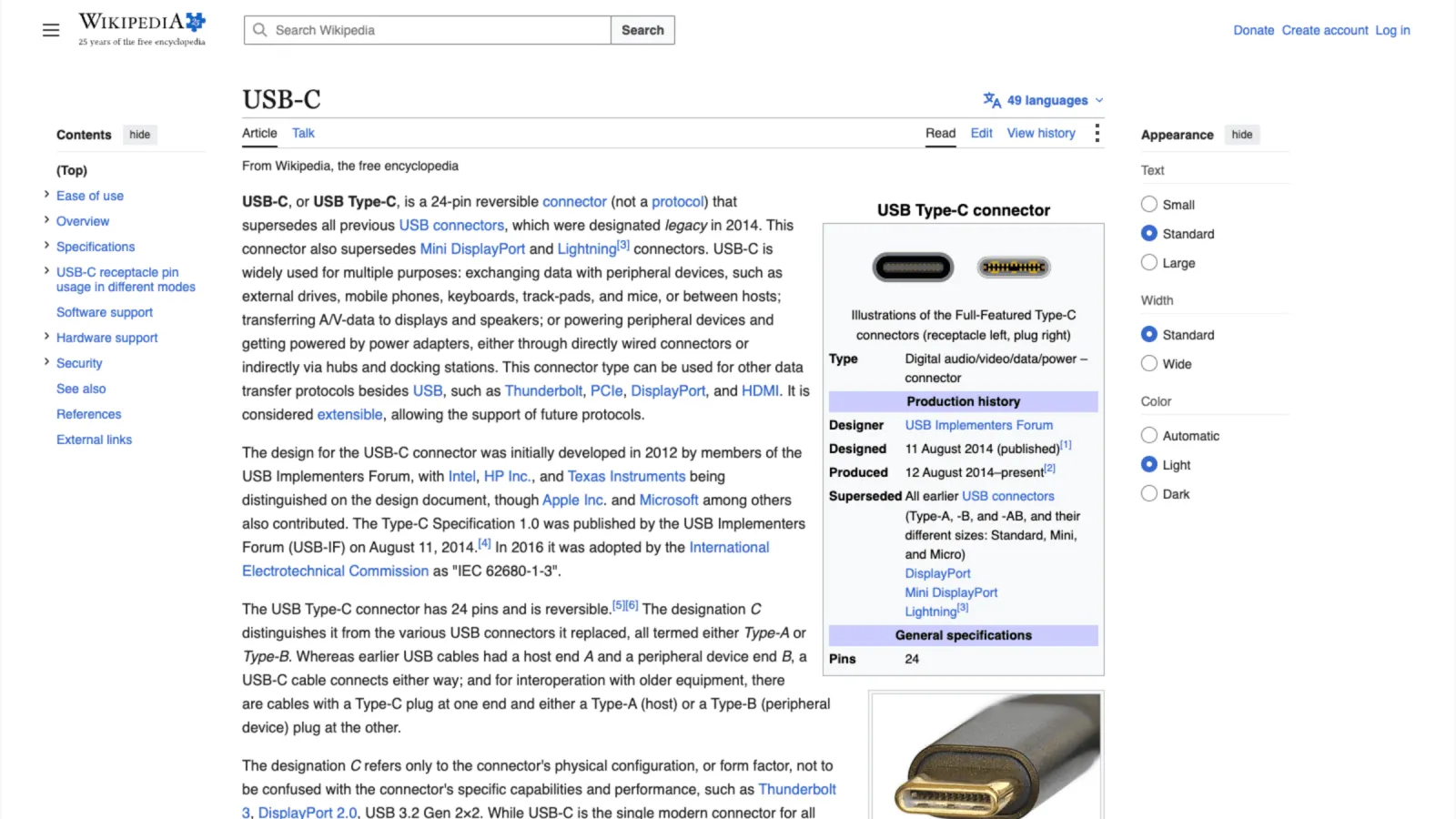
Cause one: mirroring is the wrong shape
An iPhone screen is roughly 19.5:9, tall and narrow. A monitor or TV is 16:9. When iOS mirrors, it scales the phone's picture up as far as it will go while keeping its proportions, then pads whatever's left with black. On a 16:9 panel that costs you around 40% of the screen.
Standard apps can't opt out of this. Safari has no way to tell iOS "render this for the external display in landscape", so what goes to the monitor is always a copy of what the phone is drawing for itself. The bars come from the default behaviour, not from your hardware.
Cause two: the display's own overscan
The second cause is the screen rather than the phone. TVs in particular ship with overscan on, a leftover from analogue broadcast, which crops the edges of the incoming picture and pads it back out again. That shows up as a thin black frame all the way round even when the source is correct.
If you see a thin border on all four sides rather than two thick bars, that's overscan. Look in the TV's picture menu for "Just Scan", "Screen Fit", "Full Pixel" or "1:1" and turn it on.
The fix: stop mirroring
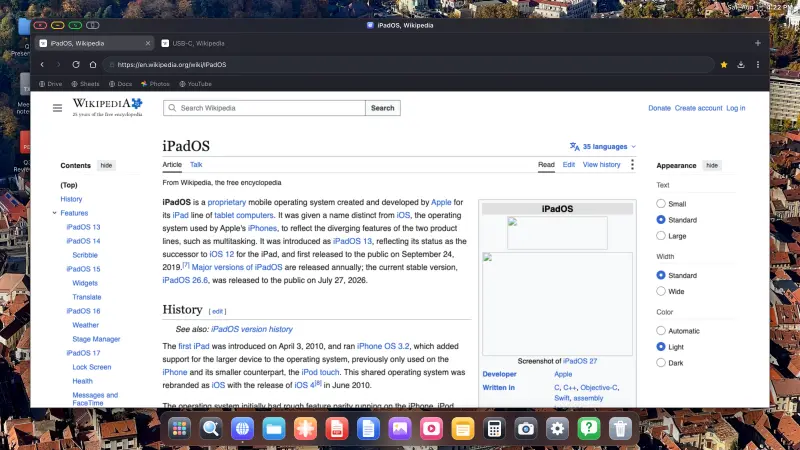
XeOS: External Display Browser doesn't copy the phone's screen. It renders its own desktop directly for the external display, in landscape, at whatever resolution the panel reports, and switches overscan compensation off on its side so the image reaches the edges. The phone's screen becomes a trackpad and a controller while the monitor gets the environment.
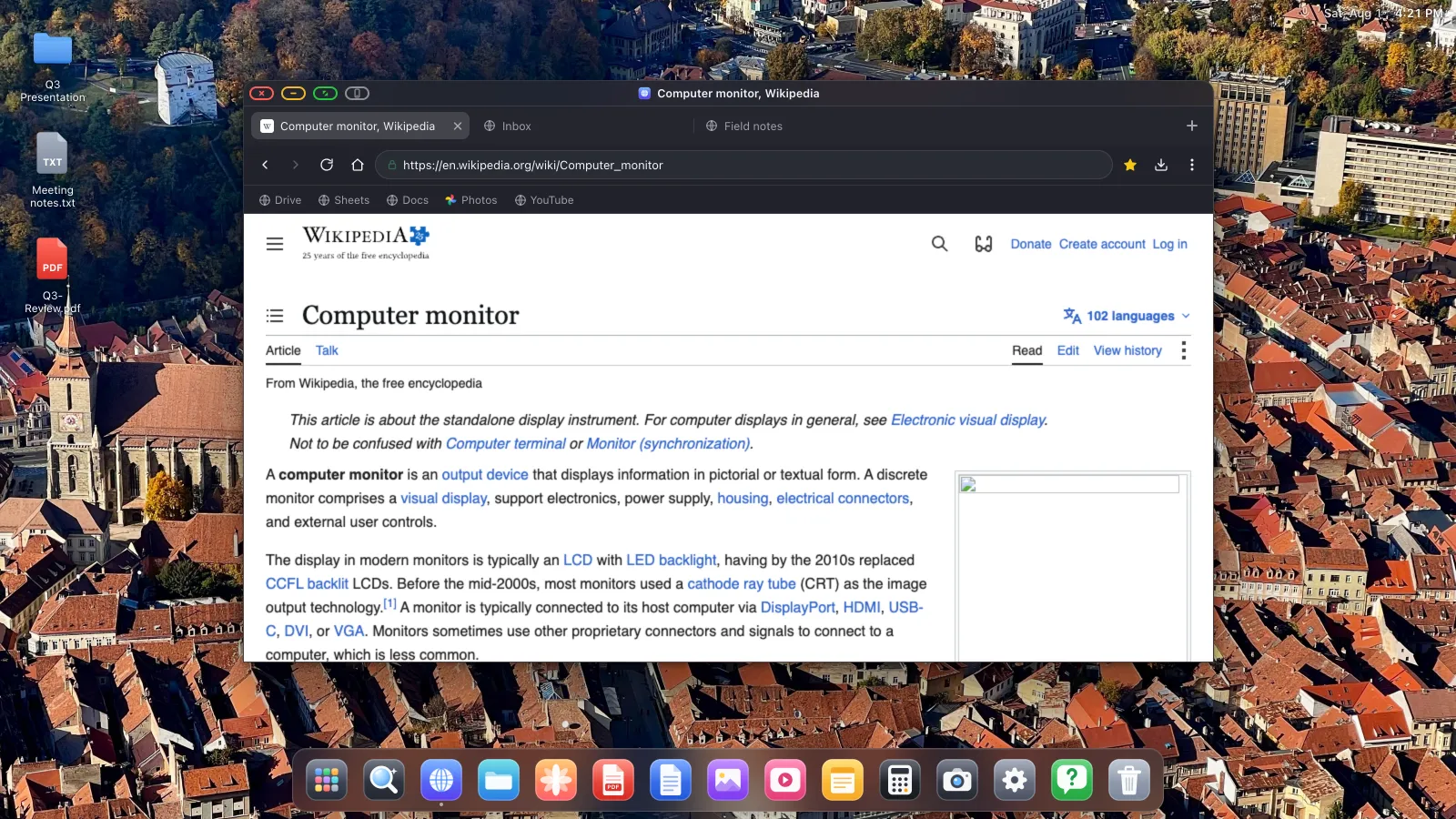
- Connect the display with a USB-C to HDMI cable (iPhone 15 and later, all USB-C iPads), a Lightning Digital AV Adapter (iPhone 5 to 14), or AirPlay.
- Open XeOS with the display connected. It detects the screen and takes it over.
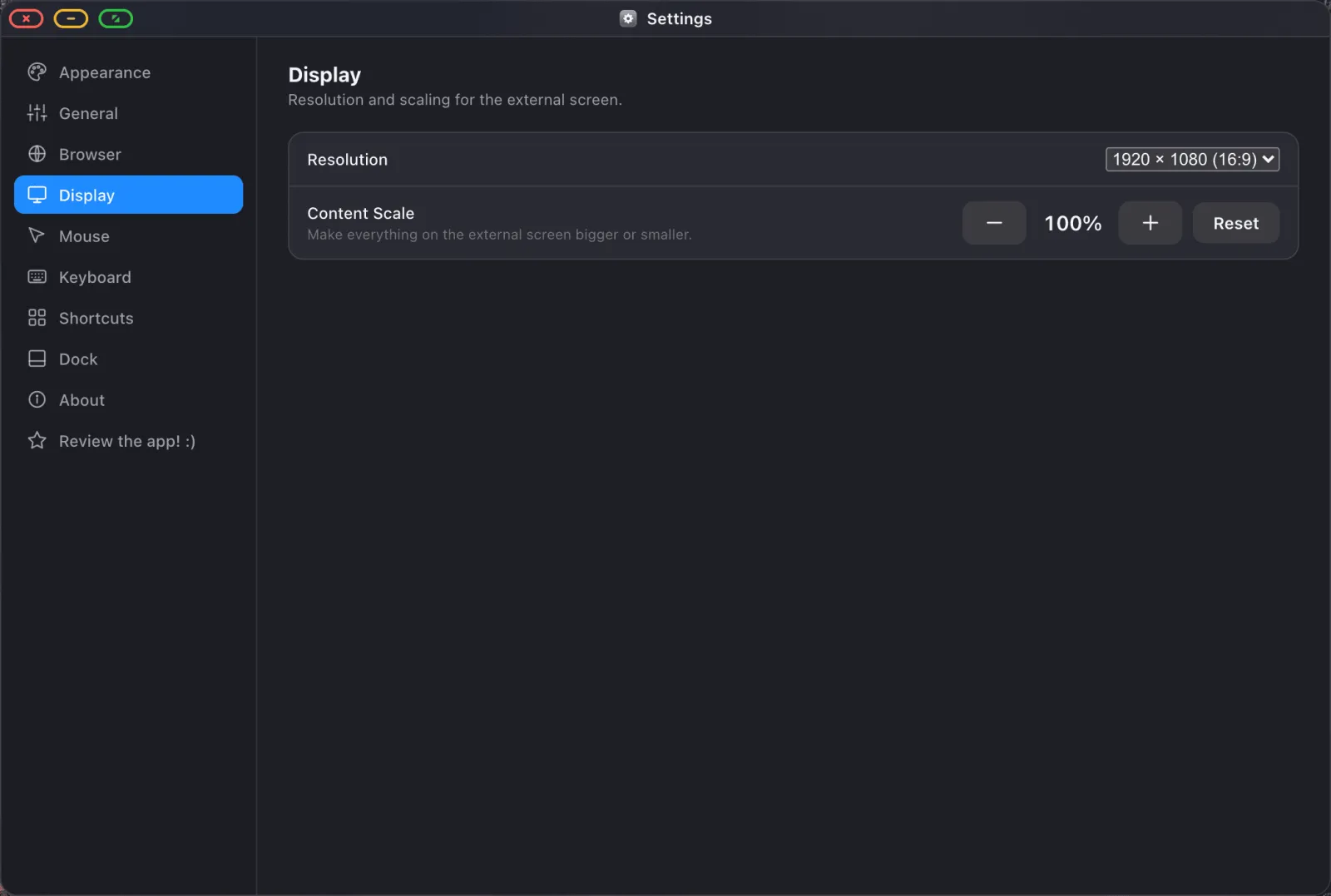
- Pick the resolution the panel reports in Settings › Display, usually 1920 × 1080. Choosing a mode the display natively understands is what removes the padding.
- Set the content scale so text is the right size for how far away you're sitting: 100% at a desk, 130–150% across a room.
- If a thin frame remains, fix the TV's picture size setting. That last one is on the display, not the phone.
Going further than "no bars"
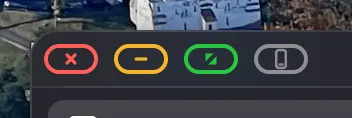
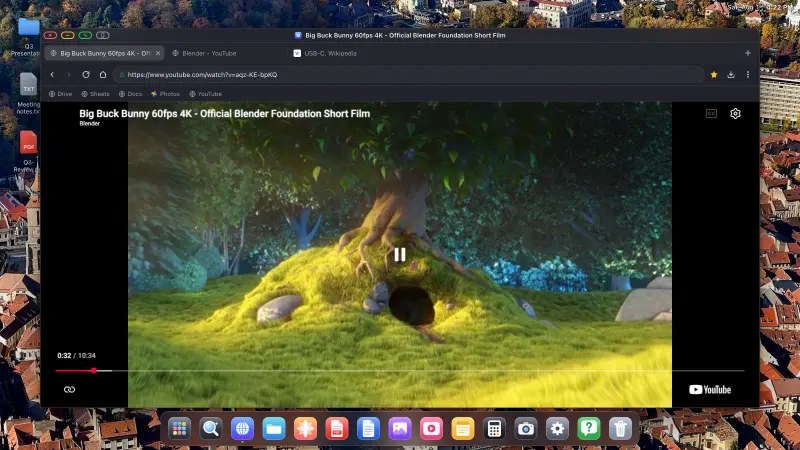
Once the picture fills the panel, the green button on any window strips the interface off it as well, so the title bar, the tabs, the dock and the status overlay come away and the content occupies every pixel. That's how video and slides are meant to be watched.
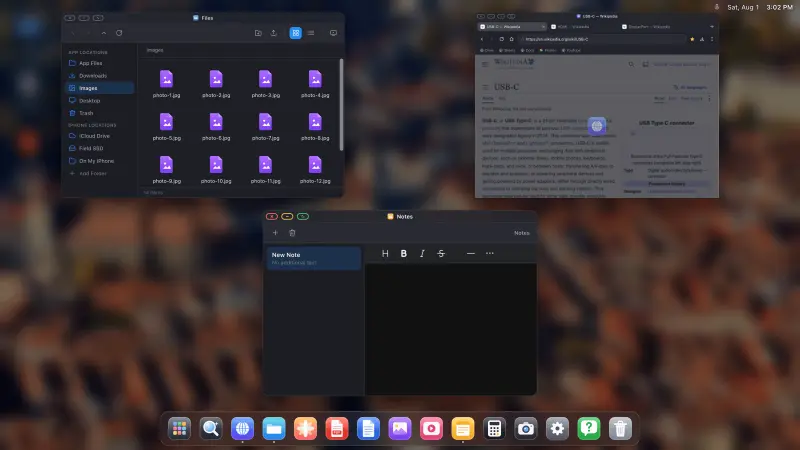
And because it's a desktop rather than a mirror, you can use the screen you just reclaimed: windows side by side, a file manager, document viewers, a browser with an ad blocker on by default.
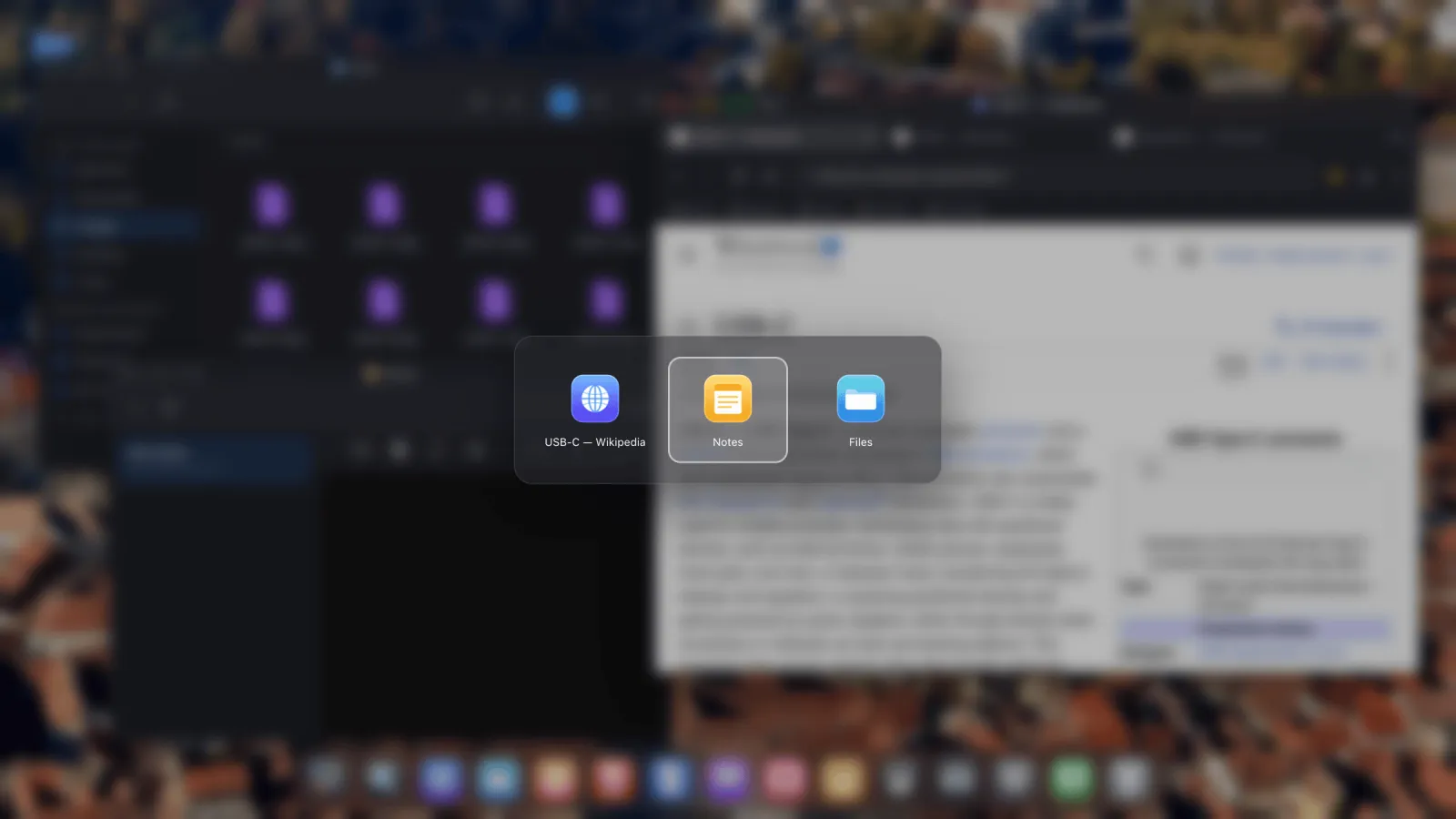
XeOS: External Display Browser turns an iPhone or iPad into a full desktop on any monitor, TV or projector.
Common questions
Do I need a different cable or a newer phone?
No. Any iPhone or iPad that can output video at all is enough, and the cable you already have is fine. The bars were never a hardware limit.
Does this work over AirPlay as well?
Yes. Mirror to the Apple TV first, then go back to XeOS and it picks the display up and draws its own desktop to it. A cable is lower latency and charges at the same time.
Why does one particular site still show bars?
That's the site's own video player letterboxing content that isn't 16:9, which is correct behaviour. A 4:3 video genuinely has nothing to put in the corners. The app's own output has no bars.
Will they come back after I unplug?
No. The resolution choice is remembered per display, so the next time you connect the same screen you're straight back to a full picture.
The whole connection process, with every screenshot, is in the setup guide.
More from the blog
Try XeOS: External Display Browser
Full screen on any external monitor, TV or portable display. No black bars. Download on the App Store.