
 External Display BrowserPhotos on TV3 min read
How to Put a Photo Slideshow on a TV From Your iPhone, for Homes, Shops and Events
A screen showing your photos on a loop: at Christmas, at a wedding reception, in a shop window, on a stand at a trade show. You don't need a media player, a smart TV app, or a computer humming away in a back room. An iPhone, a cable and a display will do it, and it can run all day.
What people try first, and why it disappoints
AirPlay from Photos works, but it leans on your network, it stops when something interrupts the phone, and mirroring puts a phone-shaped picture on a widescreen panel with black bars either side.
A USB stick in the TV works if the TV has a media player, but you're copying files around and the TV's slideshow settings are usually poor: fixed timing, no transitions, and an unpredictable order.
Casting from an app leaves you with whatever that app decided a slideshow should be.
What you want is control over duration, transition, fill and looping, on a screen that's fully used.
The setup
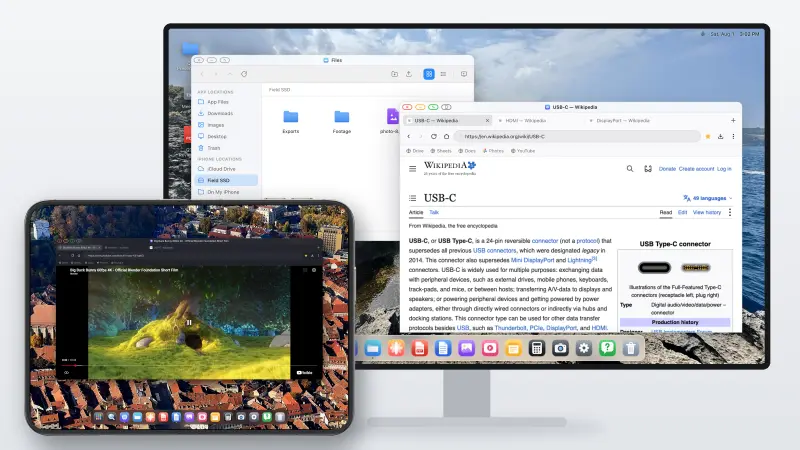
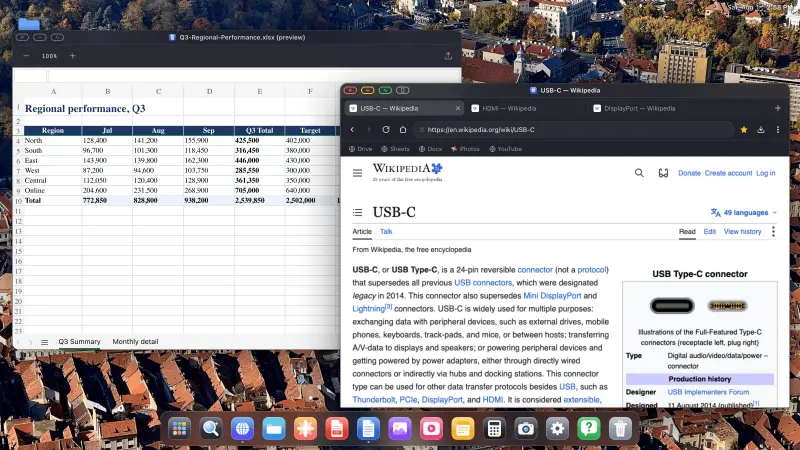
XeOS: External Display Browser renders a desktop at the display's own resolution rather than mirroring the phone, and it has a Photos app that reads your iOS library directly. Same albums, same favourites, with a full-screen slideshow on top.
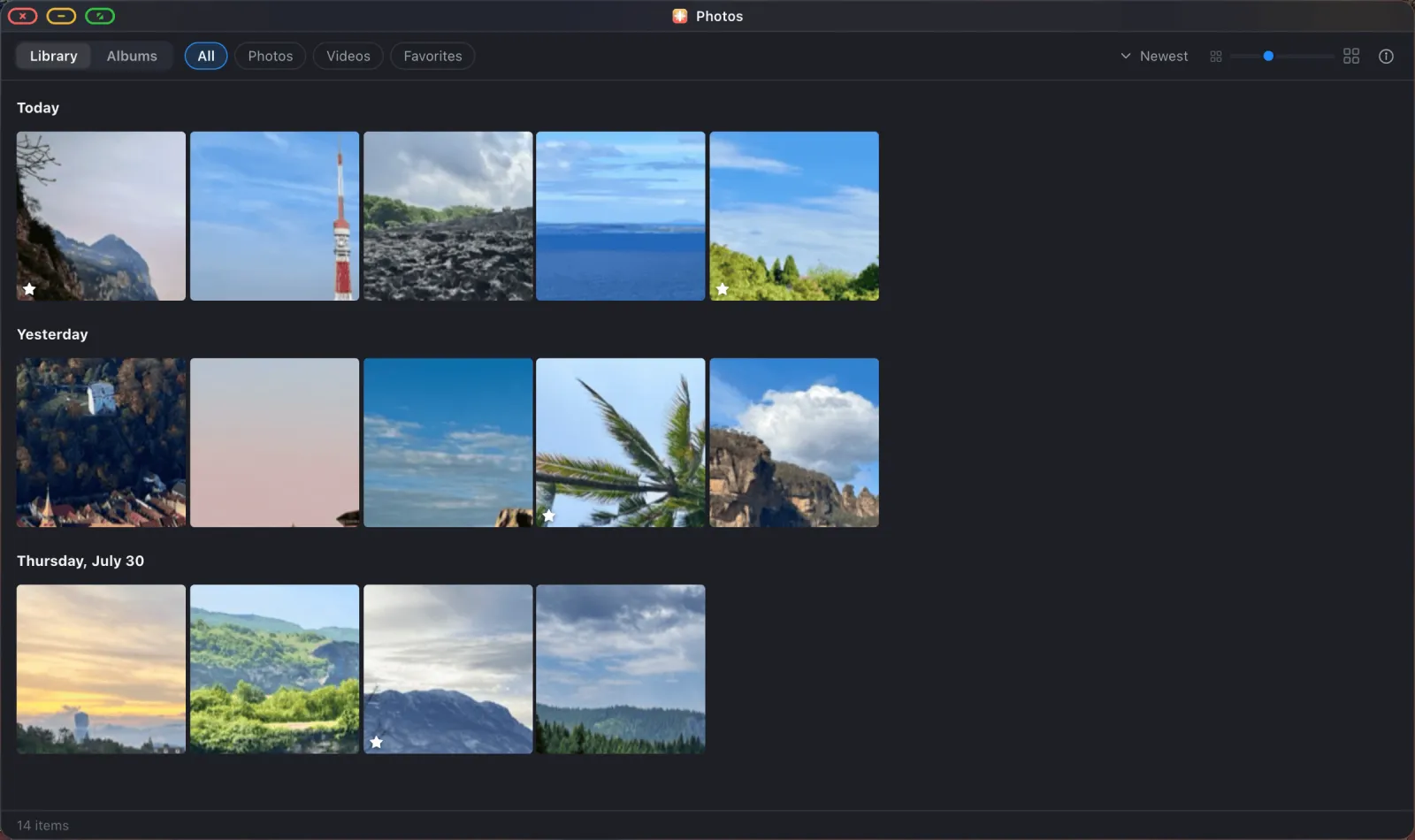
1. Connect and grant access
USB-C to HDMI, or a Lightning Digital AV Adapter on older iPhones. Use a multiport adapter with pass-through power, since this is a job that runs for hours.
Open the Photos app and grant full photo library access when iOS asks. Limited access, where you hand-pick a few photos, doesn't work here: only the photos you picked are visible, so albums come up empty.
2. Pick the album
Switch to Albums. Everything you made on your phone is there, with covers and counts.
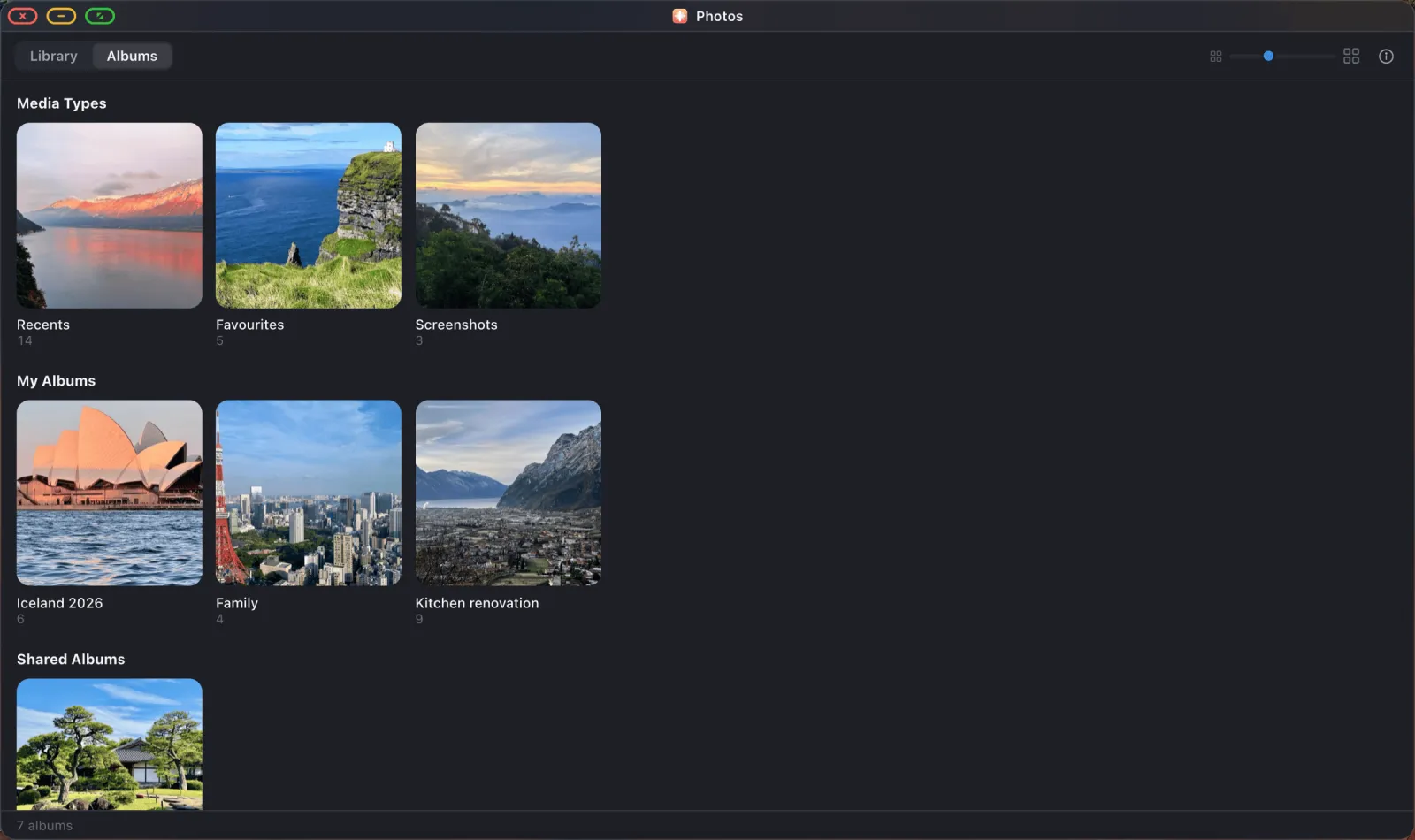
3. Set it up properly
Starting a slideshow opens an options sheet before anything plays, which is what a TV's own media player never gives you:
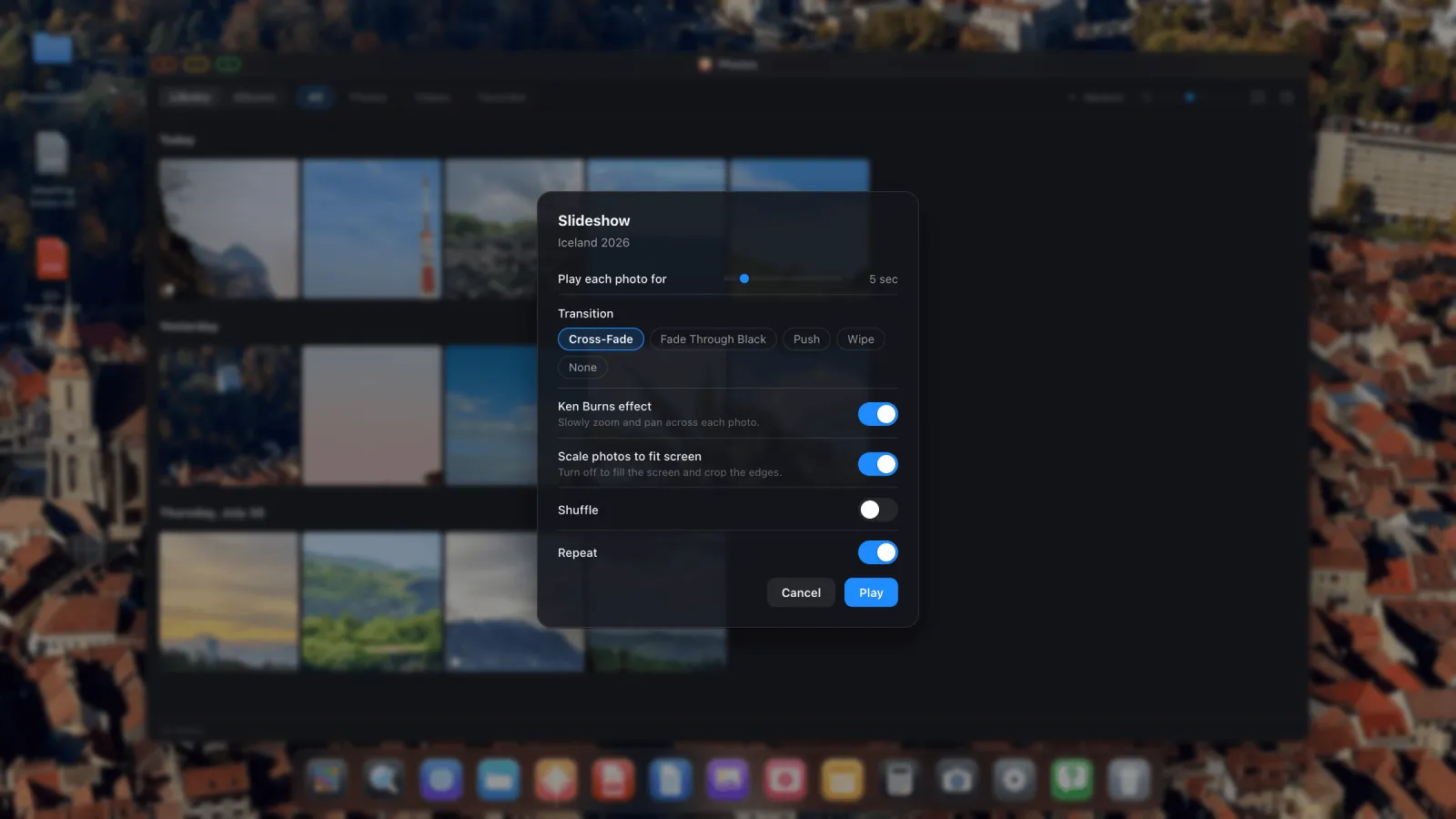
For an unattended display, these are the settings that matter:
- Repeat: on. Otherwise it stops after one pass and you've got a black screen in the window.
- Scale photos to fit: off. This is the one people miss. On, photos fit inside the screen and letterbox where the shape doesn't match. Off, they fill the screen and crop the edges, with no black anywhere, which is what a shop window needs.
- Duration: 8–10 seconds for a public display. Five feels hurried when people are only glancing.
- Transition: Cross-Fade. Calm, and it works with any mix of photos.
- Ken Burns: on for atmosphere, off for product shots where slow drift is distracting.
- Shuffle: on if the same people will see it repeatedly.
4. Play
The slideshow takes over the whole display. Controls fade away after a few seconds and come back on input. Photos still in iCloud are downloaded a couple of slides ahead, so a library that lives mostly in the cloud still plays smoothly.

Leaving it running all day
- Power. Multiport adapter with pass-through charging, into a proper charger.
- Auto-lock off. iOS Settings › Display & Brightness › Auto-Lock › Never.
- Do Not Disturb on, so a notification doesn't turn up in a shop window.
- Cable, not AirPlay. Over a whole day, network hiccups will find you.
- Check the TV's picture size. Set it to "Just Scan", "Screen Fit" or "1:1" so the TV isn't adding a border of its own.
Photos that aren't in your library
Two other routes get you there. Mount a folder from iCloud Drive, from the phone, or from a USB drive, and run the same slideshow on it, which covers the case where someone else supplied the photos (the drives guide covers mounting). Or open a shared album in Google Photos in the browser, start Google's own slideshow, and press the green button so the window fills the display, covered in the slideshow guide.
XeOS: External Display Browser turns an iPhone or iPad into a full desktop on any monitor, TV or projector.
Frequently asked
Can I include videos?
Yes. They play in place, and there's a switch to skip them if you'd rather.
Will it work if my photos are in iCloud, not on the phone?
Yes. Each photo is fetched a couple of slides before it's needed.
Can I run it on a projector instead of a TV?
Yes. Any HDMI or VGA display works.
How do I stop it?
Press Escape, or move the pointer to the top edge and use the green button.
Why does the Photos app say it can only see a few items?
iOS is set to limited photo access. Switch to full library access in iOS Settings › Privacy › Photos.
More from the blog
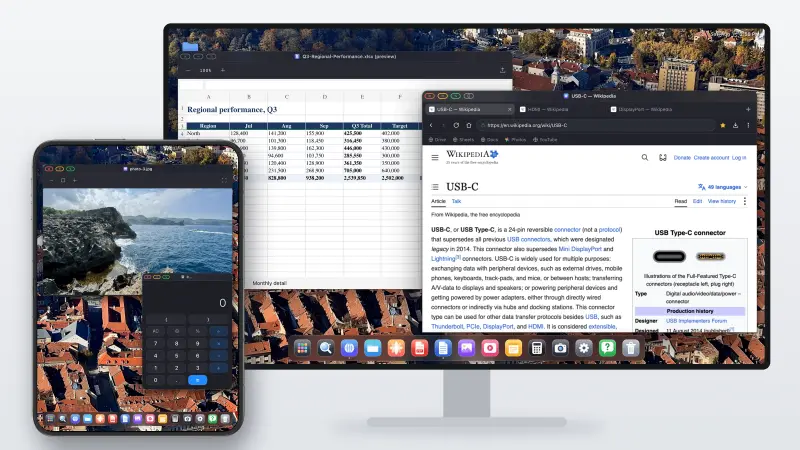

Try XeOS: External Display Browser
Full screen on any external monitor, TV or portable display. No black bars. Download on the App Store.