 External Display BrowserBroken Display6 min read
Broken iPhone or iPad Screen? Give It a Second Life on a Monitor
A green line down an iPhone screen. A black strip across an old iPad. A display that flickers, has dead touch, or stays black while the phone still rings. If the device still powers on and can output video, it does not have to become drawer clutter. Connect a monitor and XeOS gives it a usable desktop, often with more room to work than it had when its screen was perfect.
First: repair problem or reuse opportunity?
A cracked display, lines, blotches and failed touch are reasons to get a daily phone repaired. Back up important data first, and get service advice if the device is swollen, gets unusually hot, smells odd, or has been badly wet. Do not keep charging or using a damaged battery.
But an older spare device is different. If it turns on and can send a picture to a TV or monitor, a broken panel does not stop it being useful. It does not even need to run for long on battery: in a permanent desk or TV setup it can stay on power all the time. That makes a tired old phone with battery health well below 70% useful again, provided its battery is physically safe. The external screen is not a repair for the internal display; it is a way to keep a working computer, media player or display device in service.
The most common display issues
A failed display does not always look like a shattered screen. These are the problems that most often make an otherwise working iPhone or iPad difficult to keep using, and where moving the workspace to a monitor can help.
| Display issue | What you may notice | What an external display changes |
|---|---|---|
| Green, pink or white vertical line | A bright stripe running from the top to the bottom of the panel: “green line on iPhone screen”, “pink line on iPhone screen”, “white vertical line on iPhone”. | You work on the monitor instead of around the line. |
| Black bars, bands or vertical lines | Dark columns or horizontal strips that hide part of the picture: “black bars on iPhone screen”, “vertical black lines on iPad screen”, “horizontal line on iPhone screen”. | The monitor avoids the damaged area altogether. |
| Flickering or a purple/green picture | The image flashes, jitters or changes colour: “iPhone screen flickering”, “iPhone screen glitching”, “iPhone screen turning green”. | Often usable, provided the device stays running. |
| Black screen, but the device is still on | Calls, sounds, charging noises or vibration still work: “iPhone black screen but still works”, “iPad screen black but device is on”, “iPhone screen not turning on but phone works”. | A much easier route to use or copy your files. |
| Dead touch or missed taps | The picture is visible but part or all of the panel ignores you: “iPhone touch screen not working”, “iPad dead touch area”, “iPhone screen works but cannot tap”. | A mouse and keyboard replace touch completely. |
| Cracks, ink-like patches or a spreading black spot | Damage grows slowly from a crack or pressure point: “iPhone LCD bleed”, “black spot spreading on iPhone screen”, “iPad black ink spot on screen”. | Useful for a spare device until the phone itself stops working. |
One restart is worth trying for a sudden software-looking glitch. Apple’s support steps cover force-restarting an iPhone or iPad whose screen is black or unresponsive. Persistent lines, blotches and dead areas after a drop or pressure are commonly physical display faults, so do not count on a reset to make them disappear.
What you need to prove the device still has a life
- Power it on and give it time. Listen for alerts, feel for vibration, or call it from another phone. If it appears dead rather than merely screen-blind, deal with that problem first.
- Connect a display and power at the same time. The best one-cable setup is a USB-C monitor that supplies power to the phone. Otherwise use a dock or hub with both video output and a USB-C power-input port, then connect a charger to the hub. Lightning iPhones need a Digital AV Adapter with its Lightning power port connected. That way a weak battery is not a limitation: the device stays powered while it is in use.
- Unlock it once. A screen that is fully black may still need its passcode after a restart. If touch works at all, enter it carefully; if it does not, connect a keyboard before restarting whenever possible.
- Pair a mouse and keyboard. They turn an awkward rescue setup into something you can actually use.
- Open XeOS. It takes over the external display and makes the monitor the desktop rather than a giant copy of the damaged phone screen.
Important: if the device was restarted and you cannot unlock it, no external-display app can bypass the passcode. Get it unlocked first, then use the monitor setup for recovery or reuse.
Why XeOS is the useful part, not just a bigger mirror
Stock iOS mirroring carries every limitation of the phone screen onto the monitor: portrait shape, black side bars, and controls built for a hand. That is particularly frustrating when the screen you are escaping is already unreliable.
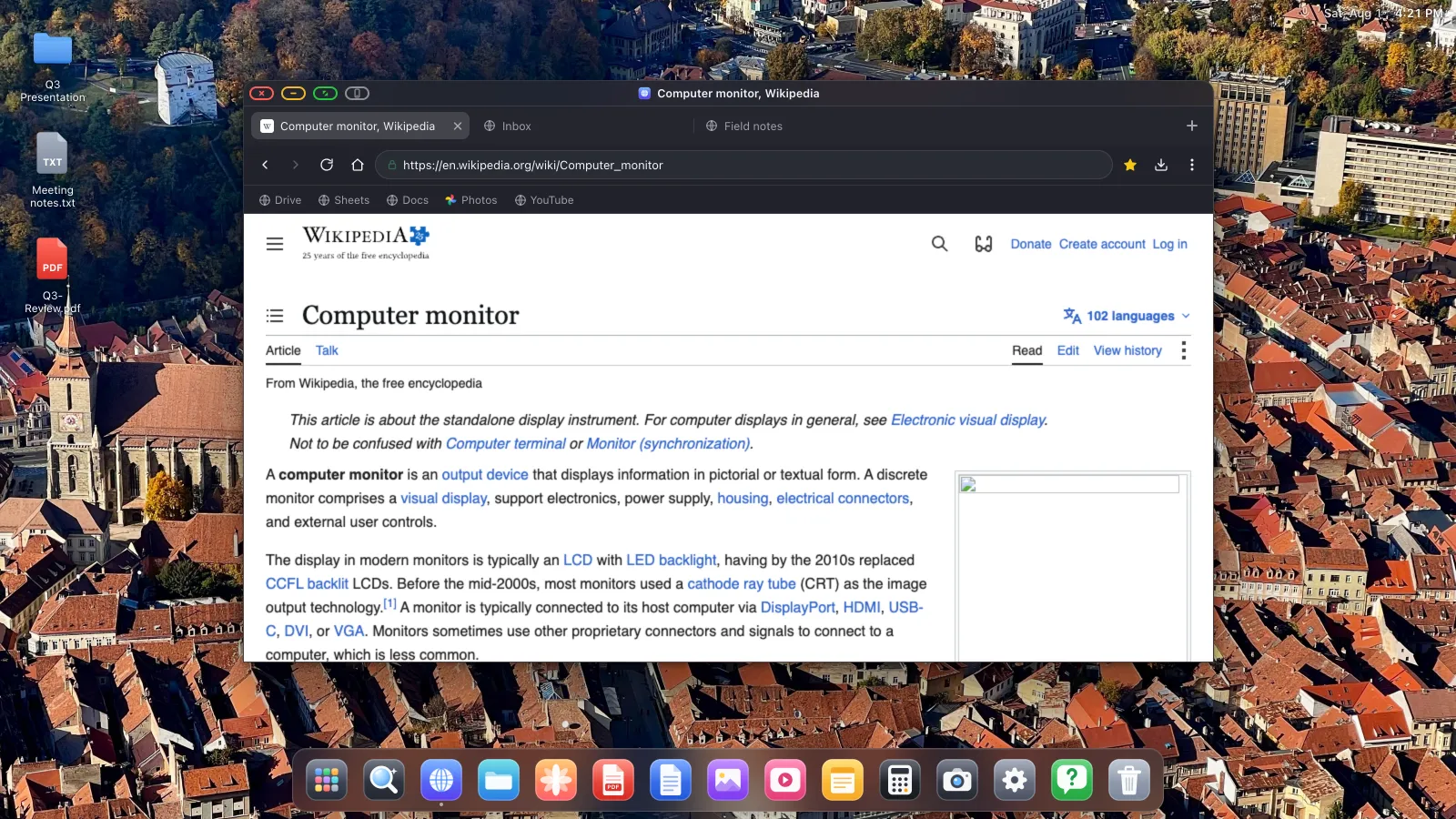
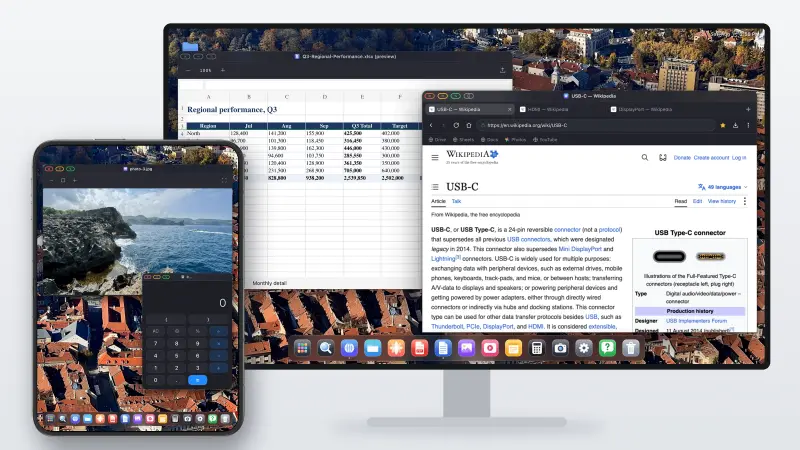
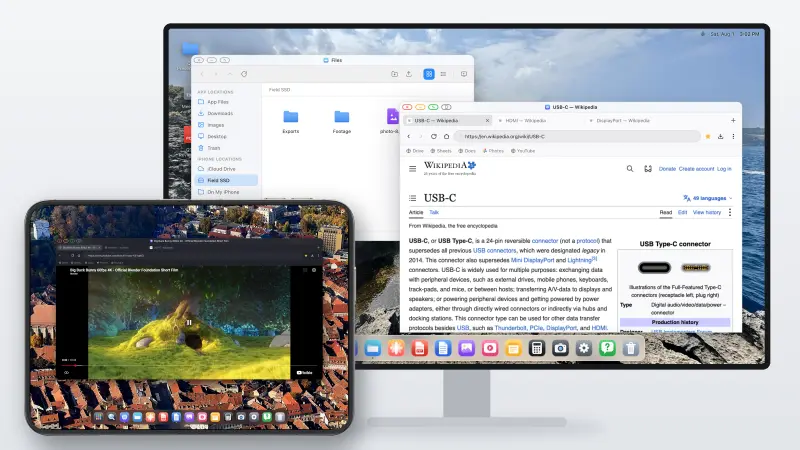
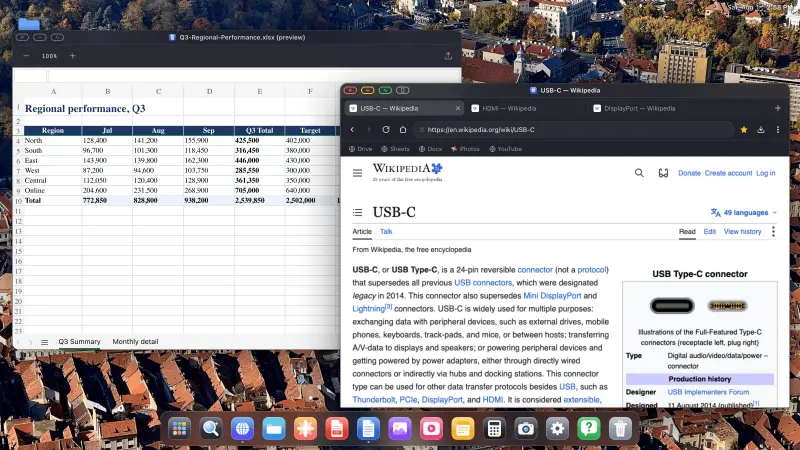
XeOS: External Display Browser draws a full landscape desktop at the monitor’s own resolution. The phone can stay face down or become a trackpad; the external display gets resizable windows, a desktop browser, a file manager and a proper pointer. A cheap damaged iPhone becomes a small desktop machine instead of an expensive paperweight.
Use it like a desktop: mouse, keyboard and a real screen
This does not have to be a setup where you keep reaching for a broken phone. Pair a Bluetooth mouse and keyboard once, or plug wired USB versions into the same dock or hub that feeds the monitor. The mouse gives you a normal pointer for windows, buttons and scrolling; the keyboard handles typing, shortcuts and search. On a USB-C display with a built-in hub, they can often connect directly to the display.
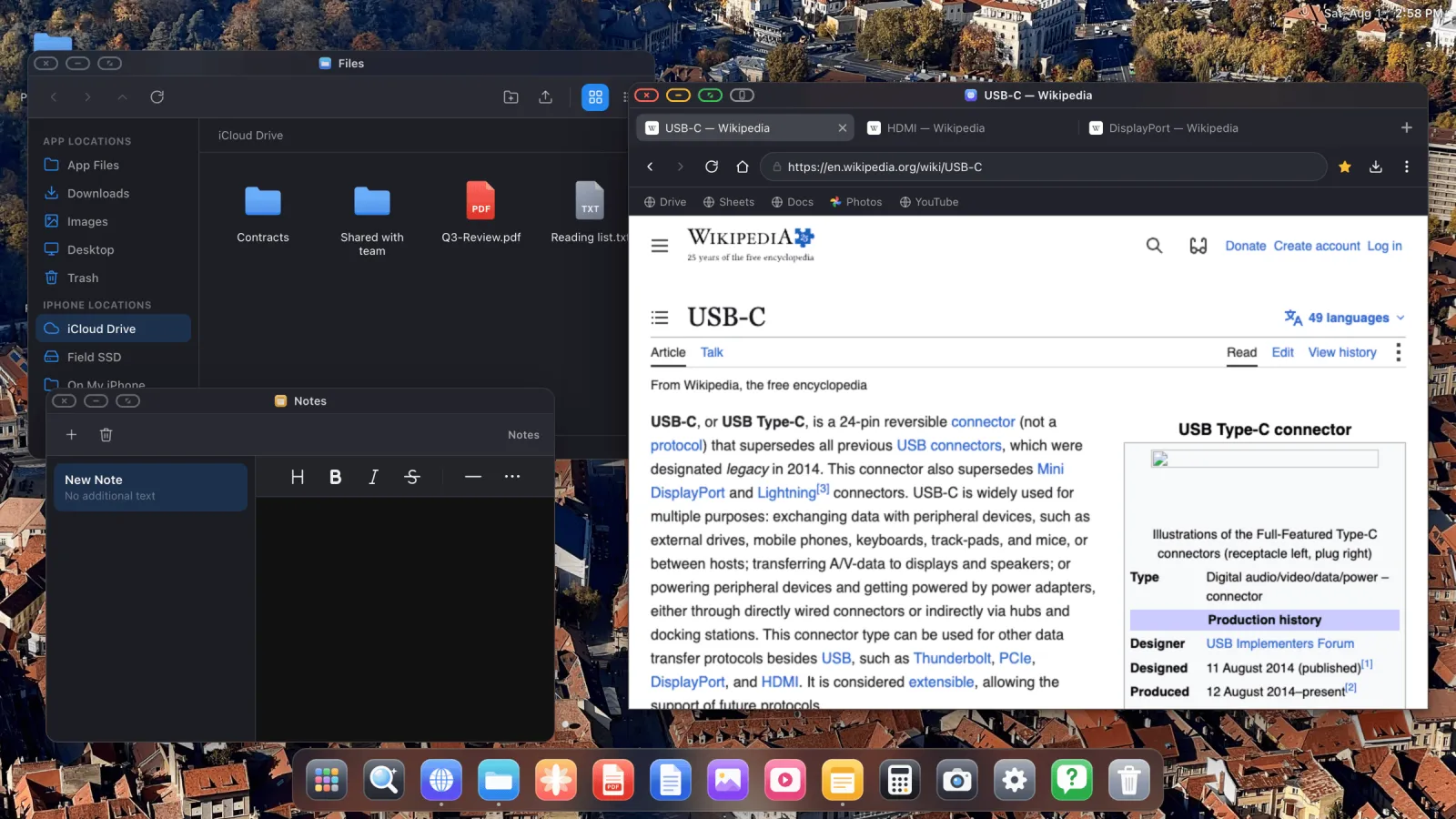
With XeOS, the external monitor is where you see the desktop and work. You can move and resize windows, open several tabs, manage files, write in Google Docs and watch video full screen. If the phone’s touch still works, it can also act as a trackpad, but it is optional once a mouse is connected. The mouse, keyboard and shortcuts guide covers the small iOS settings that make the pointer feel right.
Good second lives for a screen-damaged device
- A simple desk computer. Browse with tabs, download files, use Google Docs and Sheets, and keep documents in iCloud or on a USB drive. The work-and-study guide shows the setup.
- A TV YouTube box with no laptop. Full-screen video fills the television, and XeOS includes ad blocking. See the TV setup.
- A photo display for a home, shop or event. Put an album on loop on a spare monitor or TV. The slideshow guide covers both local photos and Google Photos.
- A lightweight travel desktop. Add a portable monitor and a folding keyboard, rather than carrying a laptop for browsing, documents and files. Here is the practical travel kit.
- A presentation or PDF machine. An old iPad with a bad screen can still drive a projector and show a saved PDF full screen, even without Wi-Fi. Use this projector walkthrough.
Set it up once, then stop looking at the broken screen
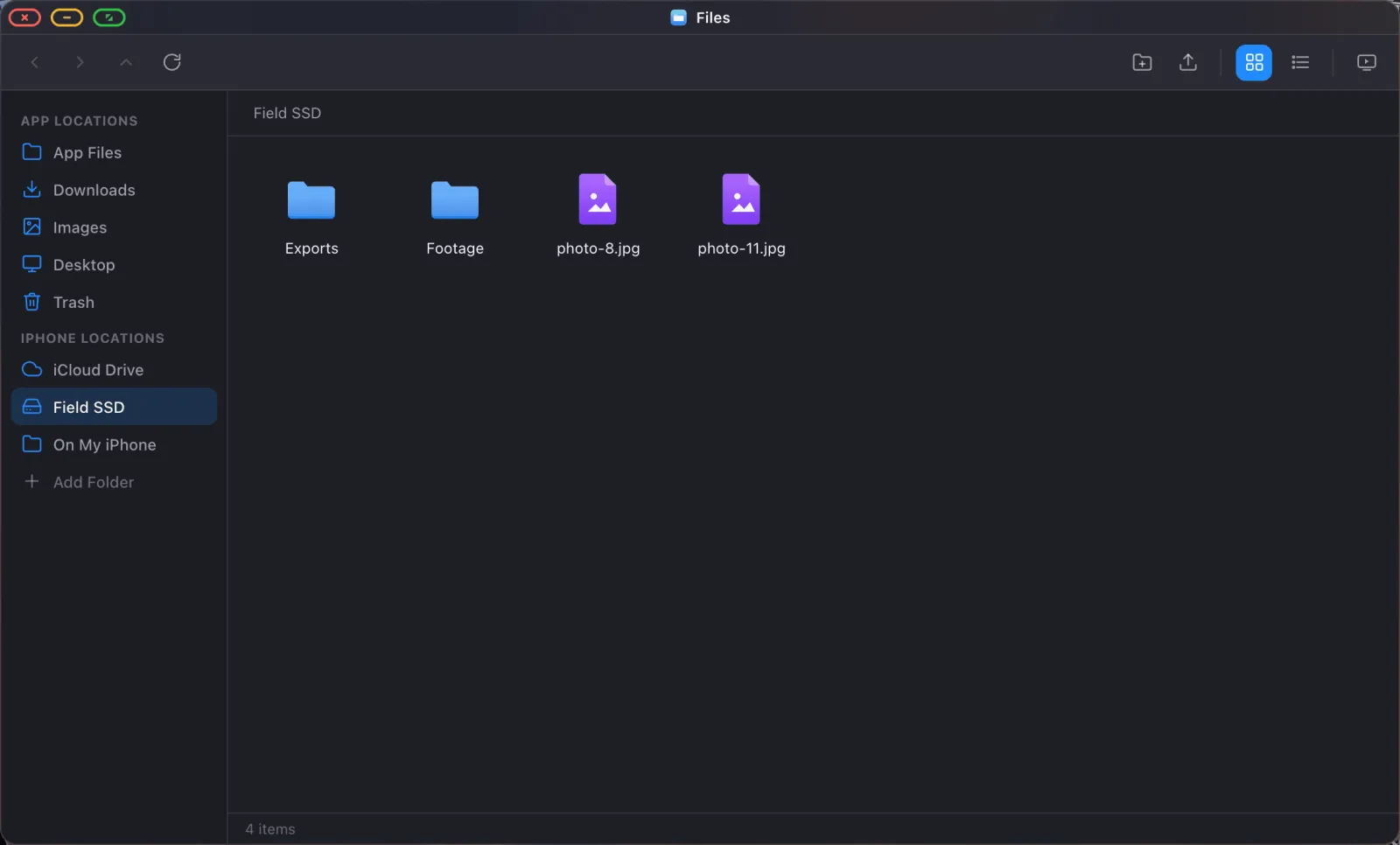
Choose the resolution the monitor reports in XeOS Settings › Display, then set a comfortable content scale. A keyboard and mouse make the setup feel like a computer, while the phone screen is optional. The detailed connection choices, USB-C, Lightning adapter, HDMI and AirPlay, are in our iPhone/iPad monitor setup guide.
XeOS: External Display Browser gives a working iPhone or iPad with a damaged display a full desktop on any monitor, TV or projector.
Common questions
Can I use an iPhone with a completely black screen on a monitor?
Possibly, if the phone itself still runs and you can unlock it. The external screen may show the phone’s output, but it cannot bypass the passcode required after a restart.
Will connecting a monitor fix the green line or black bar on my phone?
No. It does not repair the built-in panel. It gives you another screen to use, which is often enough for a spare device or to move your data safely.
Does an old iPad need Stage Manager for this?
No. XeOS renders its own desktop on the external display, so it is useful on iPads that only mirror with Apple’s built-in display support.
Can I use the normal iPhone apps on the monitor?
iOS does not let one app put every other iPhone app into an external desktop. XeOS provides its own desktop tools plus the web, files, PDFs and installed web apps.
More from the blog

Try XeOS: External Display Browser
Full screen on any external monitor, TV or portable display. No black bars. Download on the App Store.