
 External Display BrowserPresenting3 min read
How to Present a PDF Full-Screen From Your iPhone to a Projector
Teachers, students, and anyone who has ever been handed a room and a projector five minutes before speaking: you don't need a laptop. A phone, an adapter and a PDF of your slides make a complete presenting setup, and unlike the browser route it works with no network at all.
Why a PDF, and why full screen matters
A PDF is the most reliable presentation format there is. It doesn't need an account, a signal, or the room's Wi-Fi to hold up. Your fonts are embedded and nothing reflows. Export your deck to PDF before you leave and the only variable left is the cable.
The full-screen part is what stock iOS won't give you. Mirror an iPhone to a projector and you get a phone-shaped picture floating in the middle of the screen with black down both sides, so your slides occupy maybe half the wall. That's a shape mismatch between a 19.5:9 phone and a 16:9 projector, and no setting in iOS fixes it, because iOS is copying the phone rather than drawing for the projector.
The setup
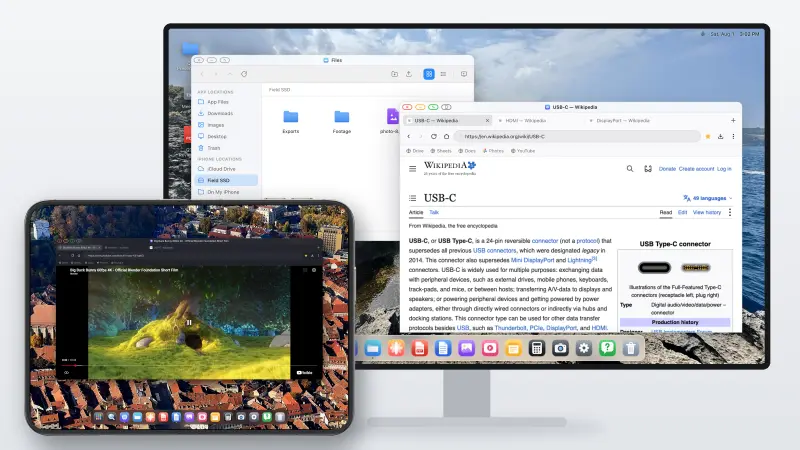
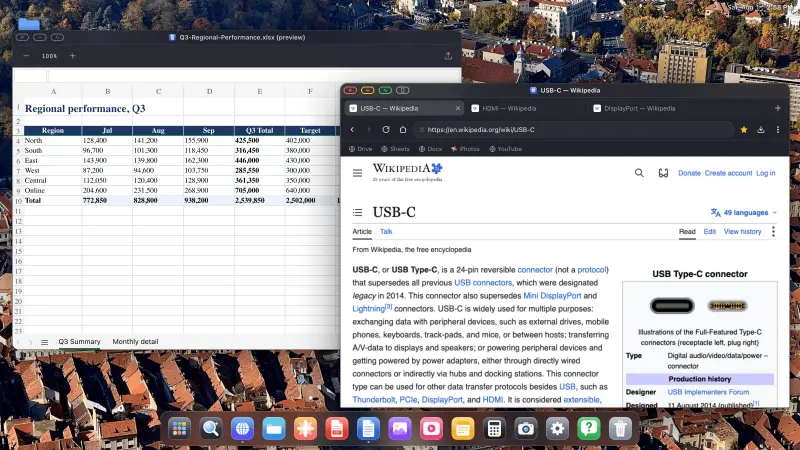
XeOS: External Display Browser renders its own desktop at the projector's resolution, and every window has a full-screen button that strips away all interface. A slide fills the wall.
1. Get the PDF onto the device
The Files app has an Import button that opens the iOS Files picker. Or mount a folder, whether that's on iCloud Drive, the phone itself, or a USB stick in your adapter, and open the file in place (the drives guide covers that). Or download it from email or the web.
2. Connect to the projector
| Room has | You need |
|---|---|
| HDMI, USB-C iPhone | USB-C to HDMI cable, or a multiport adapter |
| HDMI, Lightning iPhone | Lightning Digital AV Adapter |
| VGA only (older rooms) | Lightning to VGA Adapter |
| An Apple TV or AirPlay screen | Nothing, mirror from Control Centre |
Carry a short HDMI cable. Rooms have the port; the cable is usually plugged into something else.
3. Open the PDF
Double-click it in Files. The built-in viewer opens, with page thumbnails, zoom, search and annotation tools.
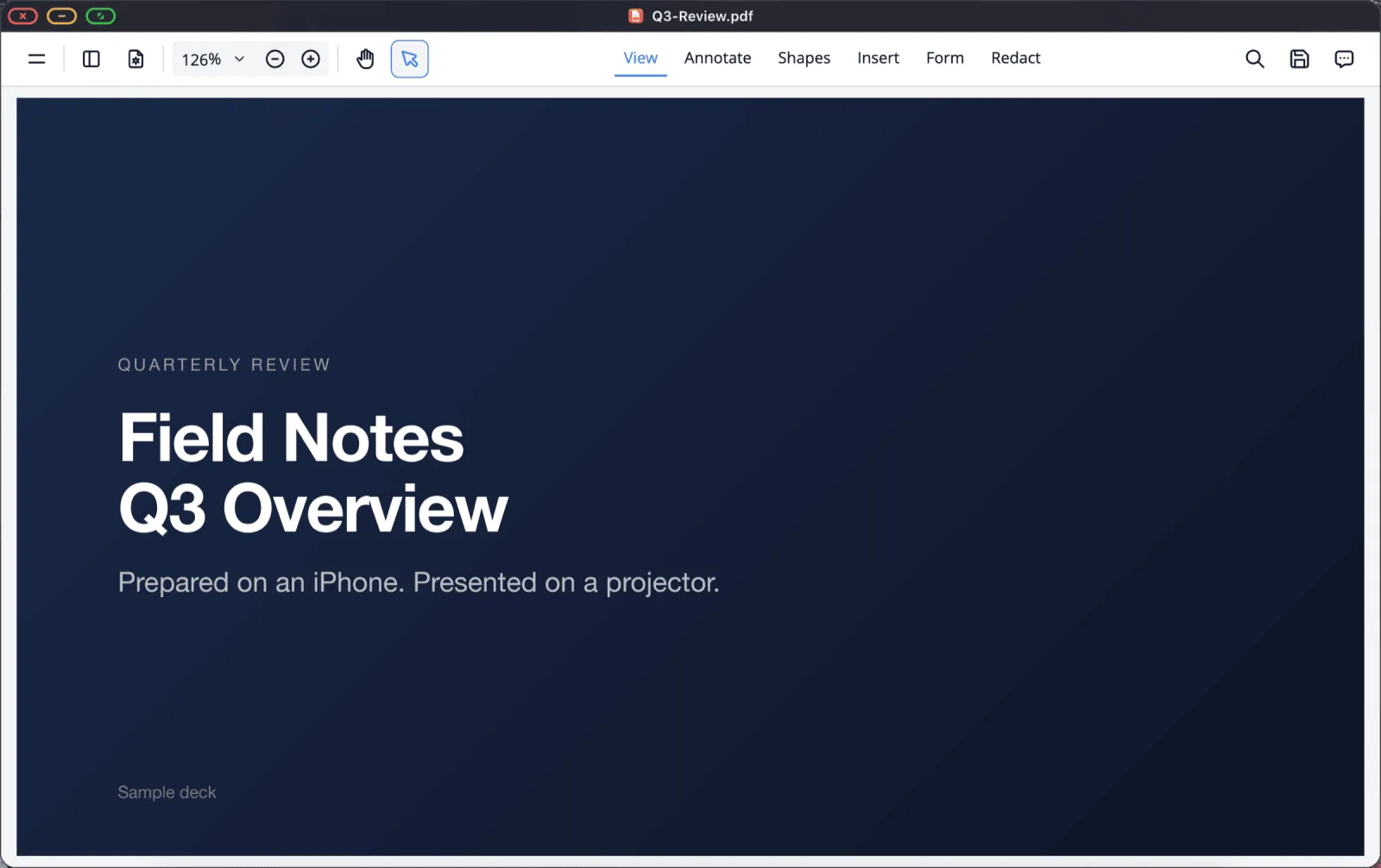
4. Go full screen
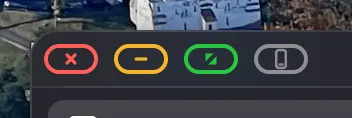
Click the green button in the window's corner.
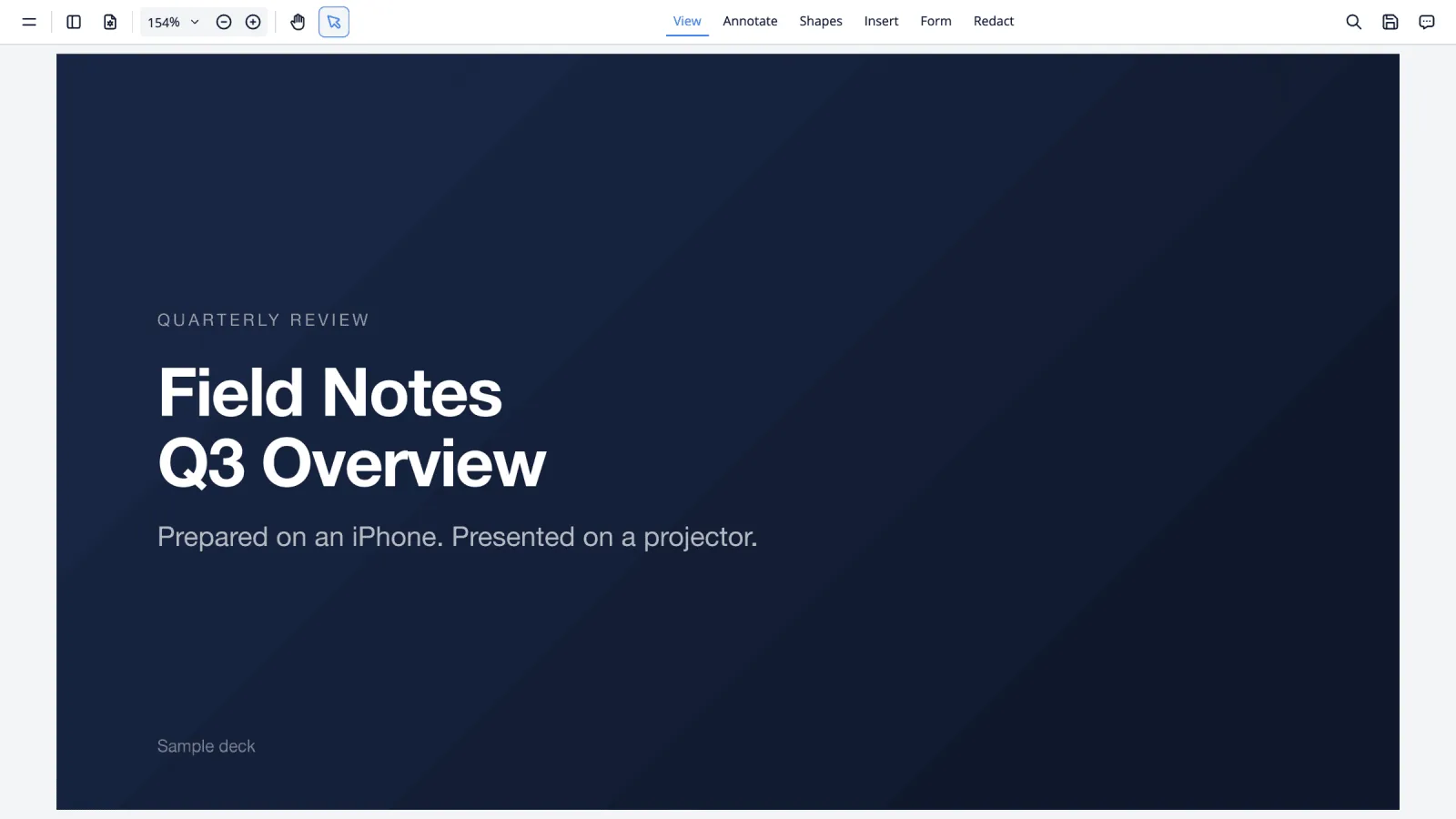
Page through with the arrow keys on a Bluetooth keyboard, Page Up / Page Down, a mouse wheel, or a swipe on the phone-as-trackpad. Move the pointer to the top edge to bring the title bar back at the end.
Getting the slide to fill the frame
Decks exported at 16:9 match most projectors exactly. A 4:3 deck will have a band each side, and that's the deck's shape rather than anything the app is doing. If there's still a border, check the projector's own picture-size setting for "Just Scan", "Screen Fit" or "1:1", because overscan ships on by default on a lot of hardware. Then check Settings › Display and pick the resolution the projector reports. Older projectors are happiest at 1280 × 720 or 1920 × 1080.
The other route: Google Slides
If the room has Wi-Fi and your deck lives in Google Slides, the browser gives you the desktop site with its own presenting controls. Open the deck, press Present, then the green button. Full walkthrough in the presenting guide.
Use that when you have connectivity. Use the PDF when you can't count on it, which in a school hall or a client's meeting room is most of the time.
Pre-flight checklist
- Deck exported to PDF and on the device.
- Adapter and a short HDMI cable.
- Multiport adapter if the session runs long, so the phone charges.
- Do Not Disturb on, so a notification doesn't appear on a four-metre screen.
- Auto-lock off in iOS Settings › Display & Brightness.
- Content scale checked, so the back of the room can read it.
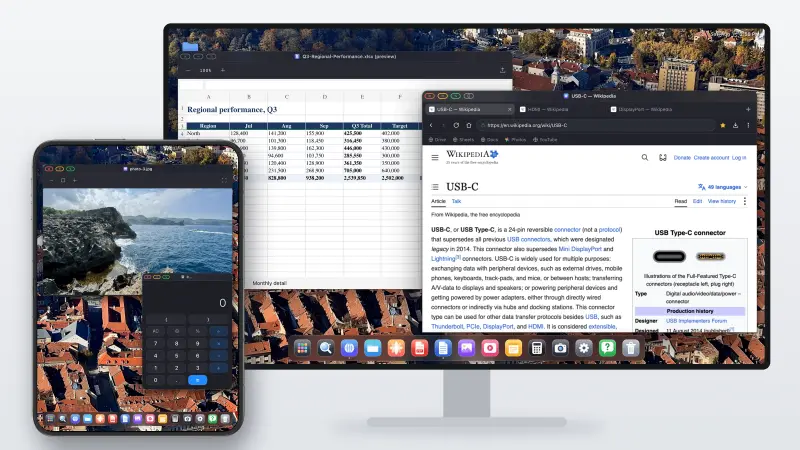
XeOS: External Display Browser turns an iPhone or iPad into a full desktop on any monitor, TV or projector.
Frequently asked
Do I need internet?
Not for the PDF route. The file and the app are both on the device.
Can I annotate during the talk?
Yes. The viewer has annotation tools, and changes can be saved back to the file.
Can I present a PowerPoint file directly?
There's a preview for Office files that's good enough to present from, but PDF is the safer bet when exact layout matters.
Does this work on an iPad?
Yes, on any iPad that can output video, with no Stage Manager needed.
Can I see my notes on the phone?
Not as a separate presenter view, since the phone is acting as your trackpad. Notes on paper or on a second device is the practical answer.
More from the blog

Try XeOS: External Display Browser
Full screen on any external monitor, TV or portable display. No black bars. Download on the App Store.