External Display BrowserTV & Monitor3 min read
The Best Way to Extend Your iPhone to a TV or Monitor
AirPlay, an HDMI adapter, a smart TV's own apps. There are several ways to get an iPhone onto a big screen, and most of them hand you the same disappointing thing: a phone-shaped picture with black bars either side. This is what each route gives you, and which one fills the panel.
The three routes compared
1. AirPlay to an Apple TV or smart TV
Wireless, quick, and fine for throwing one video or a handful of photos at a screen. But it mirrors: the TV receives a copy of a tall phone screen and pads the sides with black. You also need an AirPlay receiver and a network good enough to carry it.
2. An HDMI adapter plus stock iOS
Wired, reliable, and still mirroring. Safari and most apps hand the TV the same phone-shaped picture. A handful of apps take the screen over themselves, video players and Keynote among them, but no system setting makes general browsing fill the display.
3. A desktop rendered for the TV
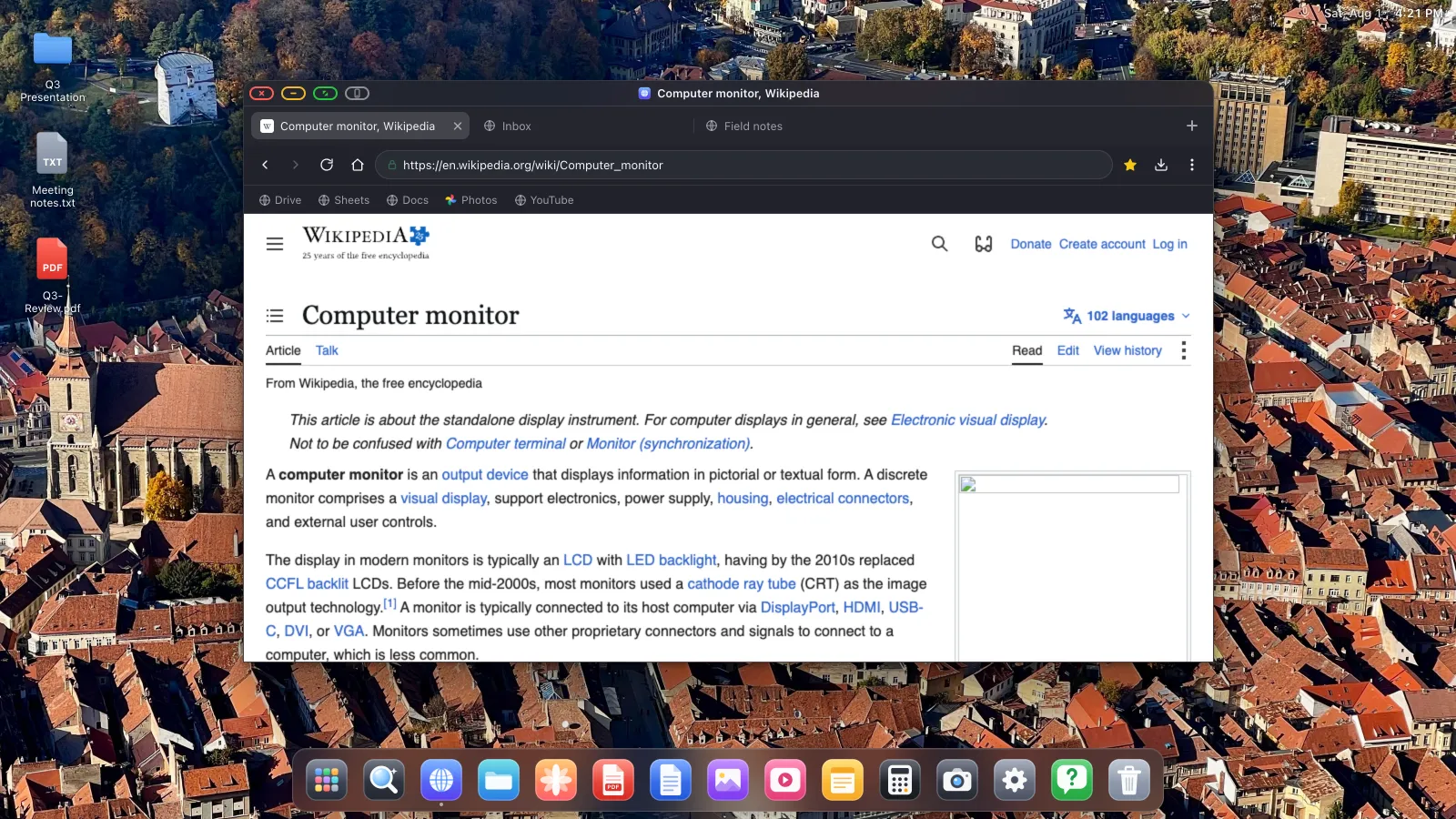
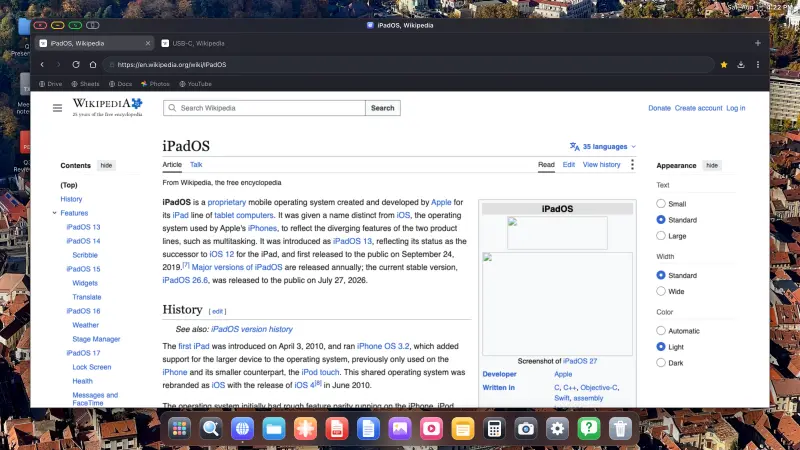
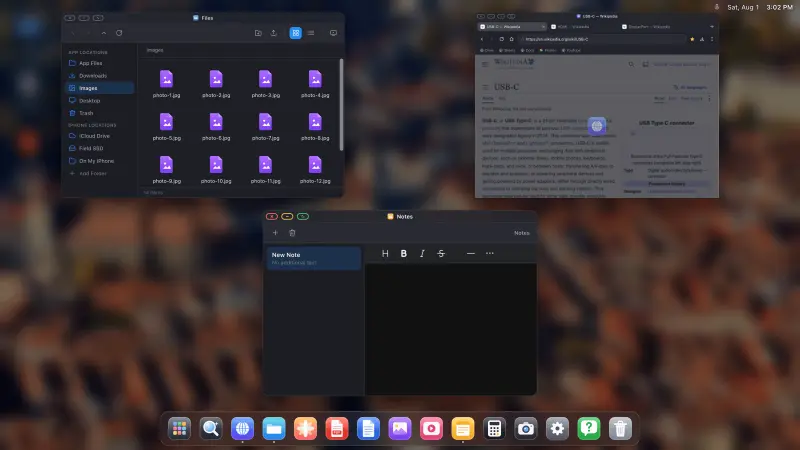
XeOS: External Display Browser takes the other approach. Rather than copying the phone's screen, it draws its own desktop at the TV's own resolution and drives the display directly, so there's nothing left to letterbox. You get windows, a dock, a desktop browser, media players, document viewers, and a cursor once you pair a mouse.
| Method | Fills the screen | No black bars | Mouse and keyboard | Needs |
|---|---|---|---|---|
| AirPlay mirroring | No | No | No | Apple TV or AirPlay TV, good Wi-Fi |
| HDMI adapter + stock iOS | No | No | No | Cable or adapter |
| XeOS: External Display Browser | Yes | Yes | Yes | Cable or AirPlay, plus the app |
XeOS runs over AirPlay too, so the wireless route isn't ruled out. You get the desktop instead of the mirror. Cable is lower latency and charges at the same time; AirPlay is fine for video and slideshows and saves you a wire across the room.
Setting up the wired route
- Get the right cable. USB-C to HDMI for iPhone 15 and later and every USB-C iPad. A Lightning Digital AV Adapter for iPhone 5 to 14. A USB-C multiport hub does HDMI, power and USB-A at once.
- Connect and switch the TV to that input. You'll see the standard mirror first, bars and all. That's the before picture.
- Open XeOS with the cable in. It detects the display and takes it over in landscape.
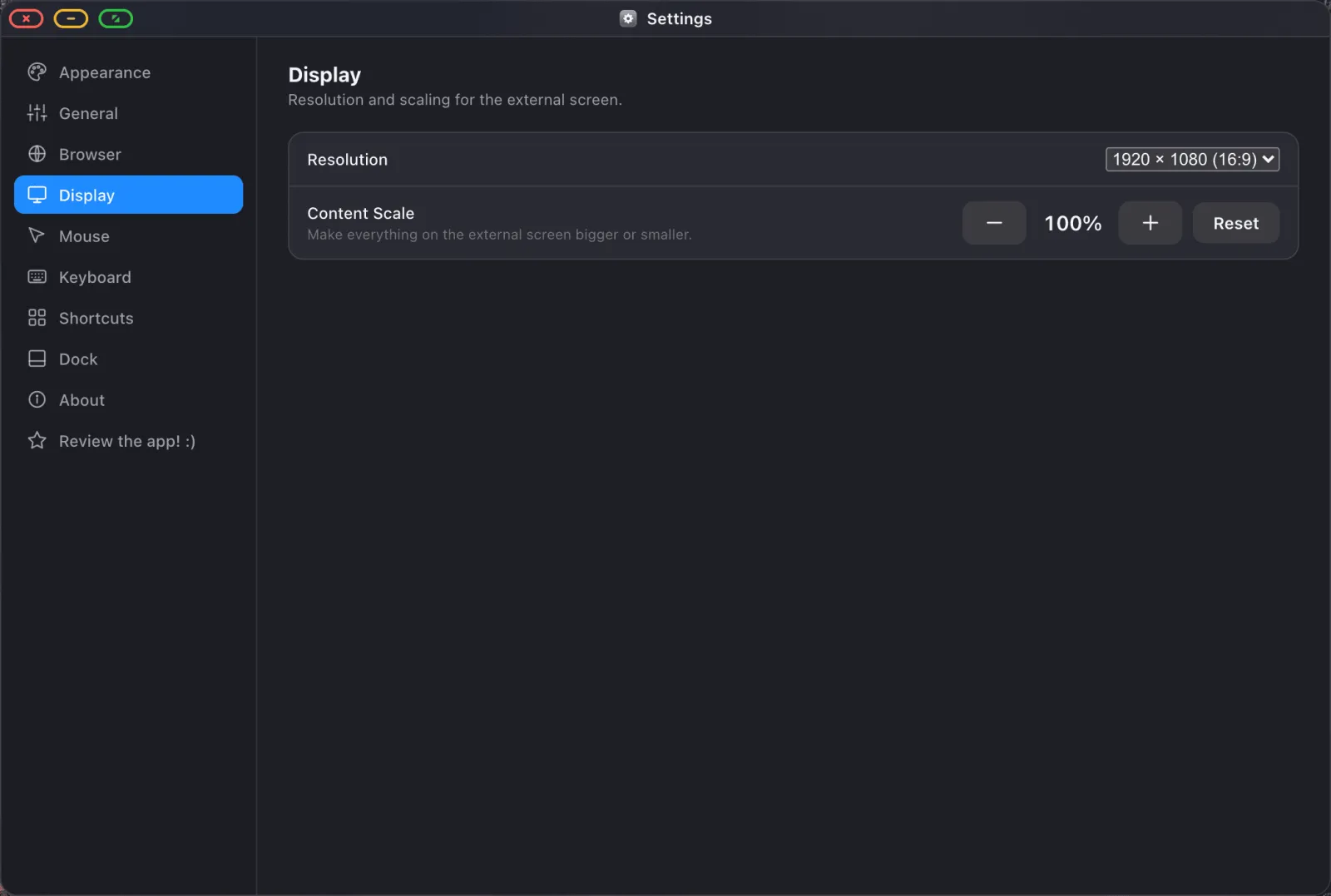
- Pick the resolution the TV wants, usually 1920 × 1080, and raise the content scale to 130–150% so text is readable from a sofa.
- Press the green button on any window to strip the interface entirely when you're watching something.
Watching things on it
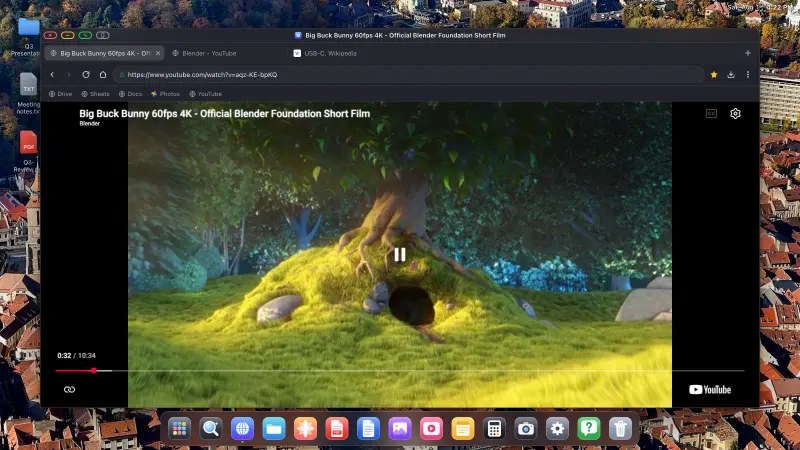
Video is why most people plug a phone into a TV in the first place. In the browser, sites behave the way they do on a computer: sign in, pick something, press full screen, and the picture fills the panel. The ad blocker is compiled into the browser engine and on by default, which counts for a lot on a screen you're watching from across a room.

Photos work the same way. The Photos app reads your iOS library and runs a configurable slideshow full screen, covered in the slideshow guide.
Big TVs, old TVs, projectors
All the same. A 75-inch panel and a meeting-room projector both report the modes they support, and the app renders to whichever one you pick. If a black border survives, it's almost always the TV's own overscan setting. Look for "Just Scan", "Screen Fit" or "1:1" in its picture menu.
XeOS: External Display Browser turns an iPhone or iPad into a full desktop on any monitor, TV or projector.
Common questions
Does it work over AirPlay, or only with a cable?
Both. Mirror to the Apple TV first, then go back to XeOS and it picks the display up on its own. Cable is lower latency and charges the phone at the same time.
Can I control it from the sofa?
Yes. With no mouse connected the phone's screen is a trackpad, so pausing and scrubbing never means getting up.
Do I need a smart TV?
No. Any TV with an HDMI input works, including old ones with no apps at all.
What about sound?
Over HDMI, audio travels down the same cable to the TV's speakers. Over AirPlay it follows the AirPlay target. A Bluetooth speaker or headphones also work.
More from the blog
Try XeOS: External Display Browser
Full screen on any external monitor, TV or portable display. No black bars. Download on the App Store.