
 External Display BrowserYouTube5 min read
How to Watch YouTube Full Screen on a TV or Monitor From Your iPhone or iPad
You have a TV, an iPhone and a cable, and you want the video to fill the screen rather than sit in a phone-shaped rectangle in the middle of it. With XeOS that takes about five minutes: sign in, go full screen, and leave the built-in ad blocker doing its job.
If your display isn't connected yet, do the setup guide first.
Why mirroring doesn't cut it
iOS screen mirroring sends the TV a copy of your phone's screen. A phone is roughly 19.5:9 and a TV is 16:9, so the TV pads out the difference with black bars down both sides. YouTube's own video then sits inside that padded picture, letterboxed a second time. Tapping YouTube's full-screen button doesn't help, because the constraint sits one level above YouTube.
XeOS doesn't mirror. It renders a desktop at the display's own resolution, so a full-screen video fills the panel.
Step 1: sign in to YouTube
Open the Browser from the dock and go to youtube.com. Sign in with your Google account the way you would on a computer. You get the desktop site: your subscriptions, your history, your Watch Later.
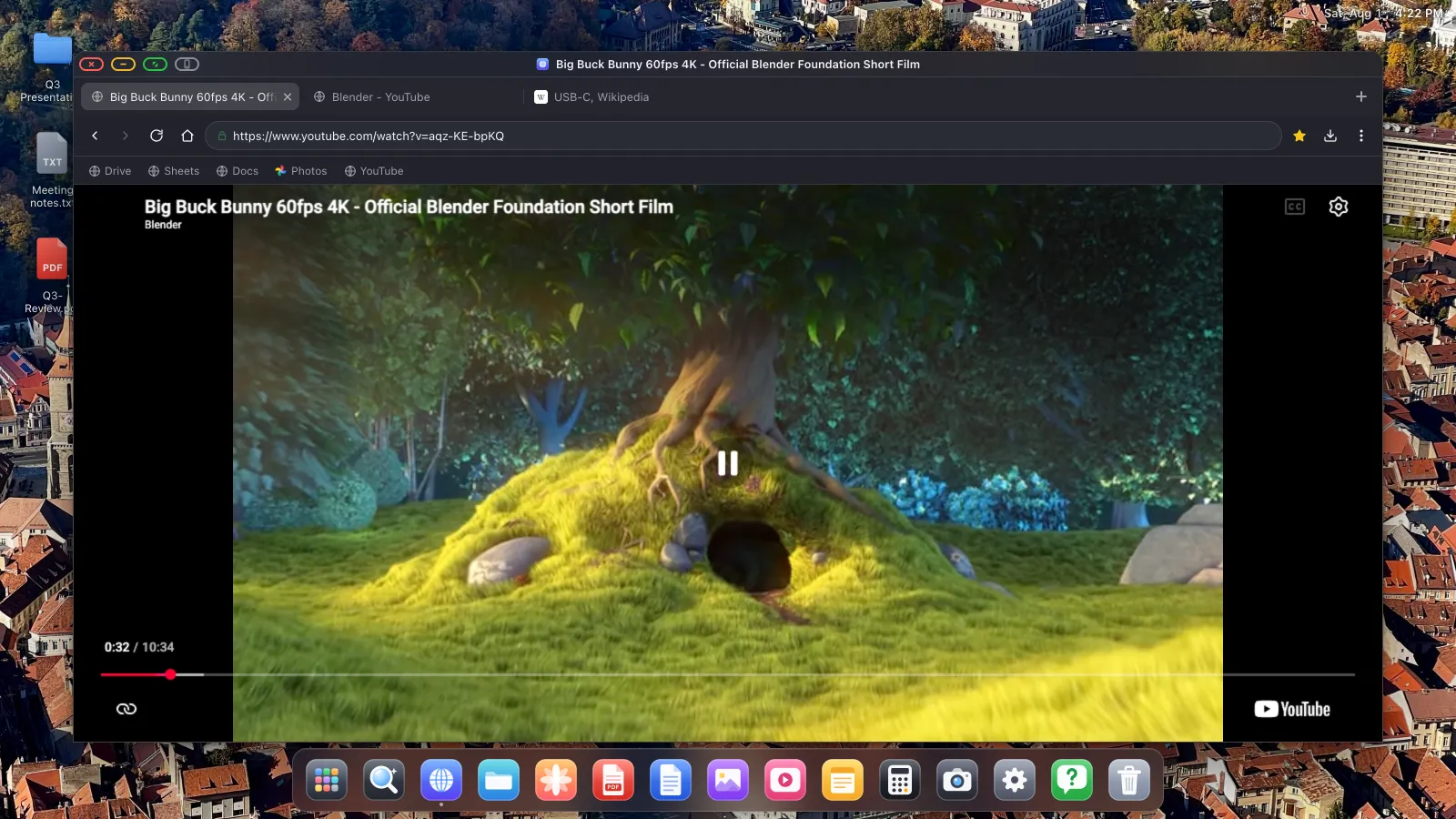
Two things make signing in less painful. First, import your passwords from Safari, Chrome, Firefox or Edge, after which logging in is a tap. Second, your session persists: XeOS keeps site cookies and storage across restarts, so you sign in once rather than every time you plug in.
If Google's sign-in page won't accept a click on something, usually a consent box or an embedded frame, that's the iOS engine limitation described in Device Layout Mode. Tap the grey button, do that one step on the phone's screen, come straight back.
Step 2: turn on ad blocking
XeOS ships with an ad blocker built from EasyList and uBlock filter lists, compiled into the browser engine itself. It's on by default, so there's usually nothing to do, but the switch is here if you need it.
Click the ⋯ button at the right of the toolbar:
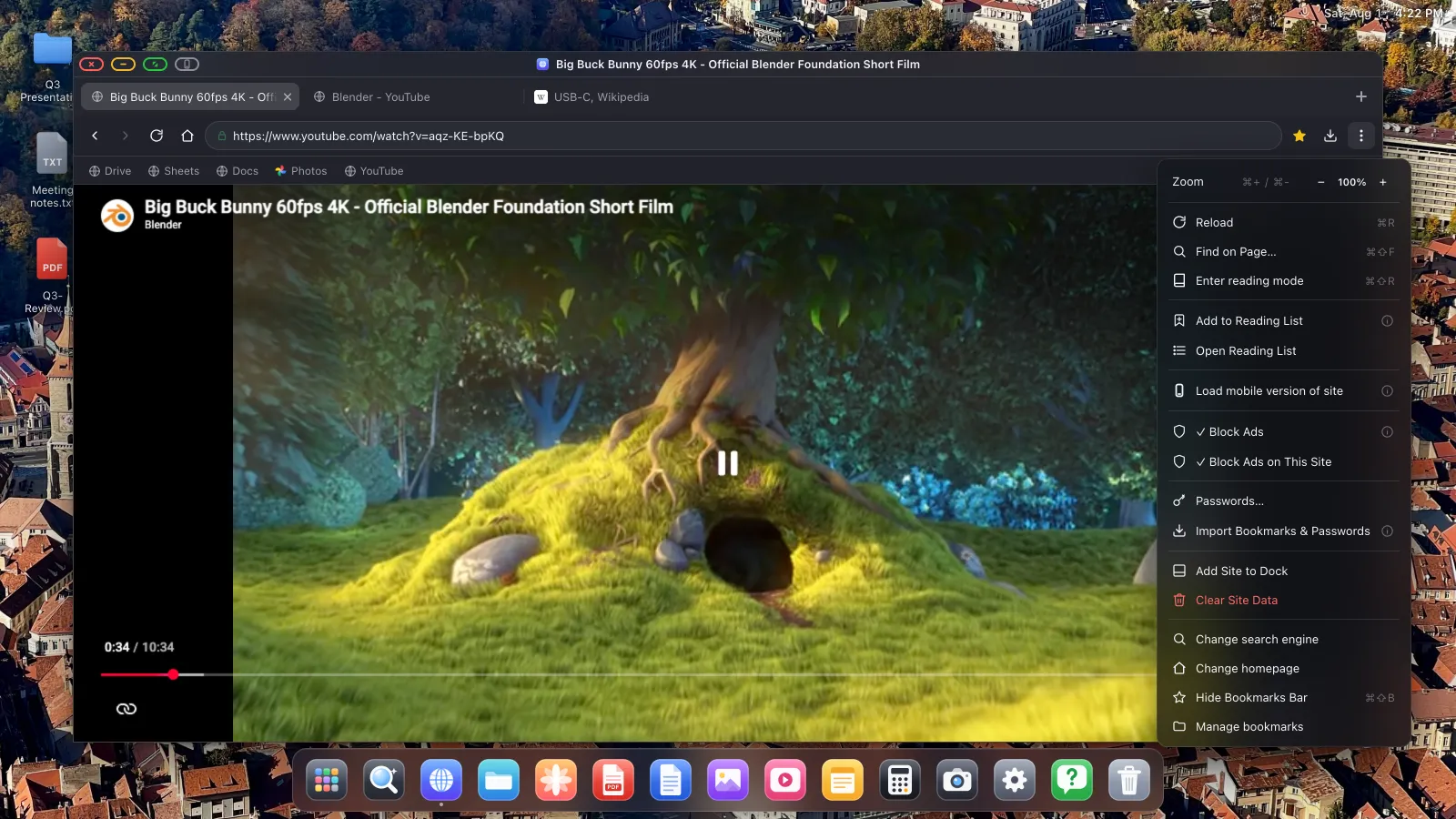
Block Ads is the global switch, covering ads and trackers on all sites, YouTube video ads included. The page reloads when you change it. Block Ads on This Site turns blocking off for one site only, for when something you rely on breaks without its ads.
On YouTube there's an extra bit of housekeeping: when a skippable ad does appear, the skip button gets pressed for you, so an unattended screen won't sit on an ad countdown all evening.
Step 3: go full screen
There are two full screens in play here, and they do different things.
YouTube's own full-screen button
The button in the player's bottom-right corner works as it does on a computer, expanding the video to fill the browser's page area. XeOS handles this correctly even when a site runs its video inside an embedded frame, where a lot of mobile browsers fall over.
The window's green button
For the cleanest result, put the window full screen too. Click the green button in the top-left corner:
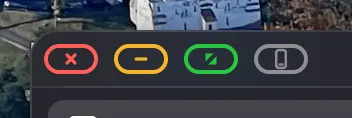
The browser chrome, the dock and the status overlay come away, YouTube's player fills the browser, and the browser fills the display, so every pixel of your TV is showing video.
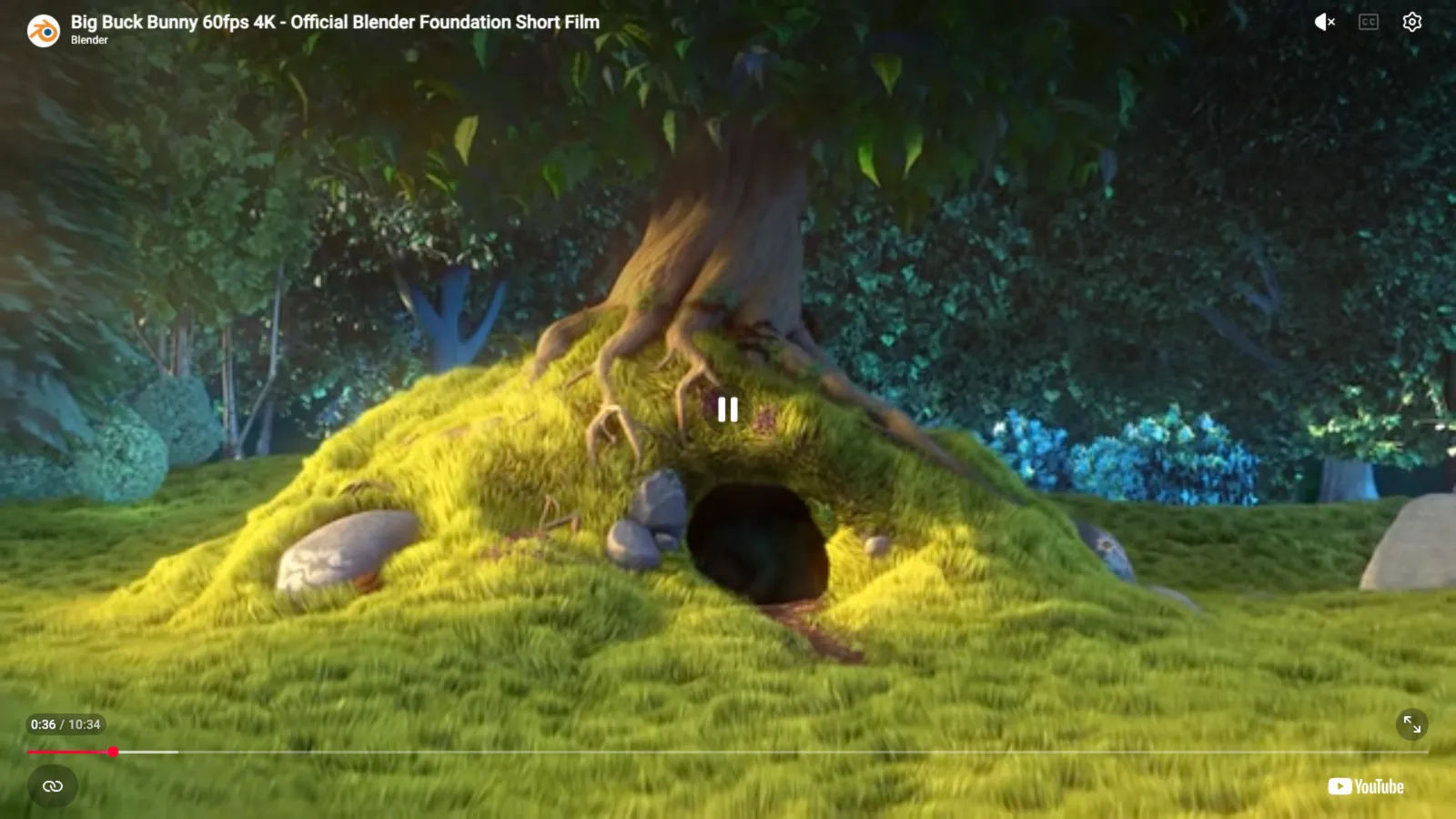

To come back, move the pointer to the top edge of the screen. The title bar slides down and the green button takes you out.
Step 4: get the sound right
Over HDMI, audio travels down the same cable as the picture, so the TV's speakers play it and there's nothing to configure. Over AirPlay, sound follows the AirPlay target. If you'd rather hear it through a Bluetooth speaker or headphones, connect them in iOS as usual; XeOS mixes with whatever iOS is routing.
Making it a one-tap experience
If this becomes a habit, install YouTube as its own dock app. Open it, then ⋯ › Add Site to Dock. It gets an icon in the dock and opens in its own window, so you skip the browser entirely.

You can also detach a tab into its own floating window, which lets you keep a video playing in one window while you work in another.
Useful extras while you watch
- Zoom. Cmd + and Cmd − adjust page zoom per site, and the setting is remembered. Handy for reading comments from the sofa.
- Reading mode. Cmd Shift R strips a page down to its text. No use for video, useful for the article you opened next.
- Reading list. Save a video page to watch later from the ⋯ menu.
- Downloads. The download button in the toolbar keeps a download list with progress and speeds.
XeOS: External Display Browser turns an iPhone or iPad into a full desktop on any monitor, TV or projector.
Common questions
Does the ad blocker work on YouTube video ads?
Yes. Blocking is compiled into the browser engine from EasyList and uBlock filter lists, and skippable ads get skipped for you when they do appear.
Does this work with other video sites?
Yes. Anything with a website plays the same way. The green button takes it full screen and the picture fills the panel.
Do I need to sign in every time?
No. Sessions survive restarts. Cookies and site storage are preserved deliberately, so you stay signed in.
Can I use the phone as a remote while it plays?
Yes. With no mouse connected the phone's screen is a trackpad, so you can pause and scrub without touching the TV.
Why is there still a black border on my TV?
That's usually the TV's own overscan or picture-size setting rather than the app. Set the TV's picture size to "Just Scan", "Screen Fit" or "1:1", and check that the resolution in Settings › Display matches what the TV reports.
More guides



Try XeOS: External Display Browser
Full screen on any external monitor, TV or portable display. No black bars. Download on the App Store.