
 External Display BrowseriPhone Desktop4 min read
Turn Your iPhone Into a Desktop: What's Possible in 2026
Modern iPhones have more processing power than the laptops most people were perfectly happy with a few years ago, a port that can drive a 4K display, and no desktop mode. This is a straight audit of what you can and can't do today: what works, what doesn't, what it costs, and who it's for.
The hardware is not the problem
A current iPhone will happily push a 4K signal down a USB-C cable. It has fast storage, a lot of memory by phone standards, and it pairs with any Bluetooth keyboard and mouse. Nothing about the hardware stands in the way of a desktop experience.
The software is the problem
iOS mirrors. Connect a display and it copies the phone's screen onto it: a 19.5:9 image on a 16:9 panel, black bars filling the difference, everything sized for a hand rather than a room. A handful of apps take over the external display themselves, video players and Keynote among them, but there's no system-level desktop.
iPads with M-series chips get Stage Manager on an external display, which is an extended desktop in the proper sense. Everything else, every iPhone and every iPad without that chip, mirrors.
A desktop mode for iPhone has been rumoured for years. Unfinished code turned up in iOS 26.1 and was closed off again in the 26.2 betas. Nothing has shipped. The longer version of that story is here.
So what is possible?
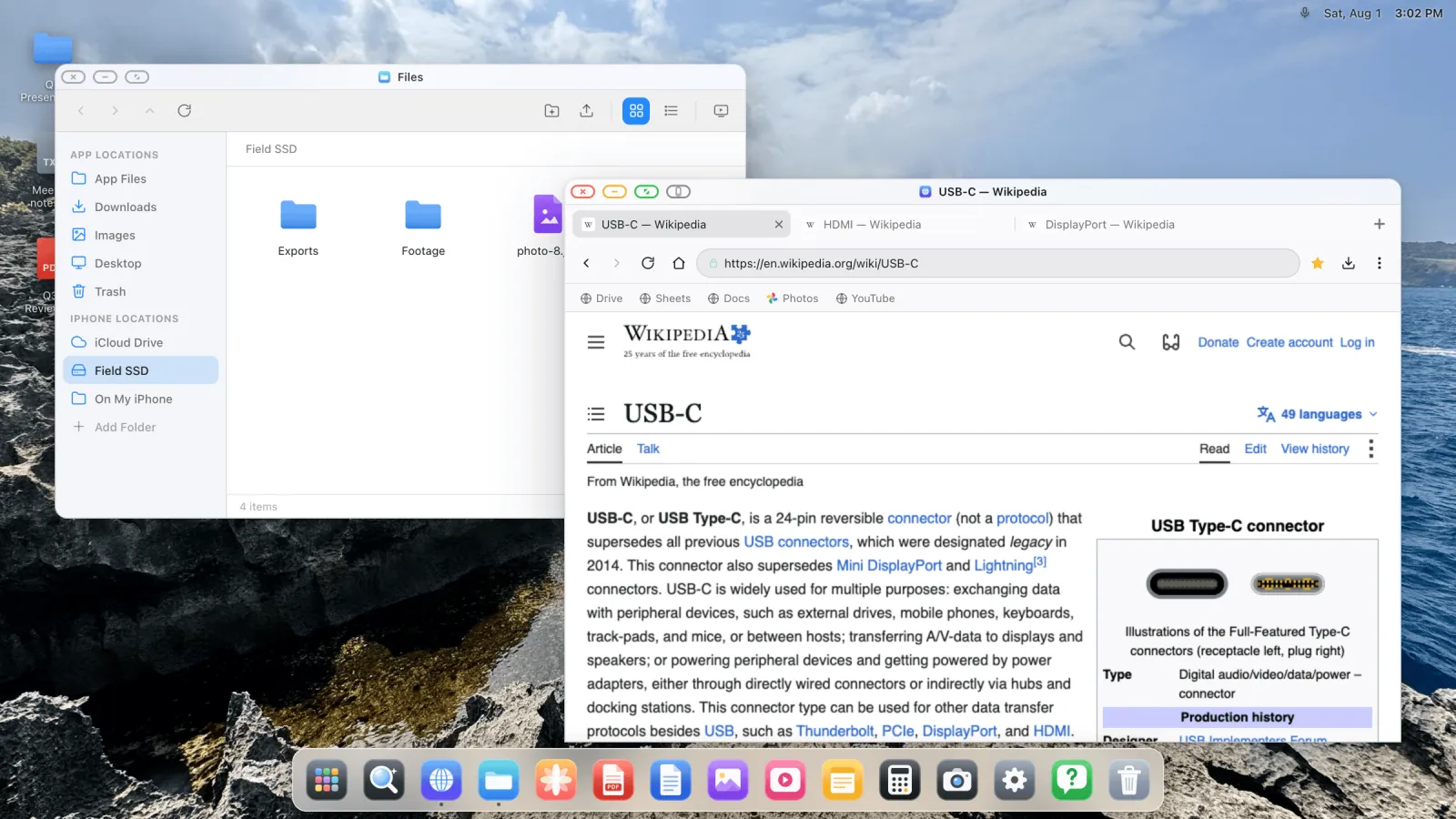
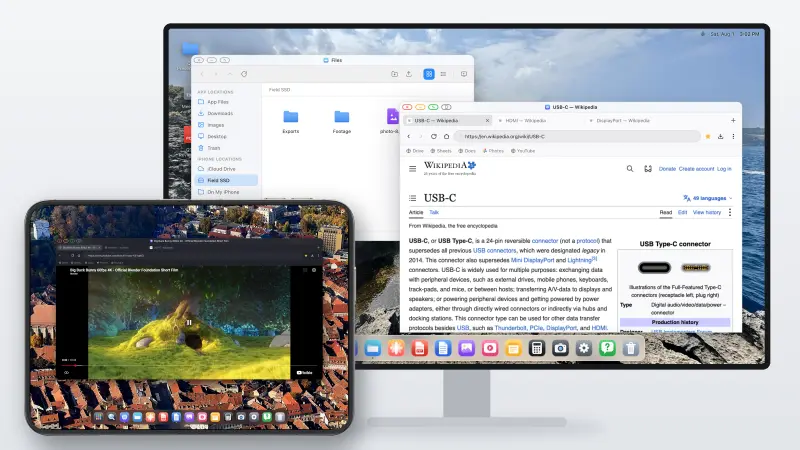
The gap gets filled by apps that take over the external display and draw something built for its shape. The most complete of them is XeOS: External Display Browser, which renders a full desktop environment at the monitor's own resolution.
What works today
| Task | Status |
|---|---|
| Windowed multitasking on the external display | Yes, move, resize, snap, full screen, switch, overview |
| Desktop web browsing | Yes, tabs, bookmarks bar, downloads, password manager, reader mode |
| Ad blocking, including YouTube video ads | Yes, built in, on by default |
| Full-screen video with no black bars | Yes |
| Google Docs, Sheets, Drive at full desktop scale | Yes |
| File management across iCloud Drive, phone folders, USB drives | Yes, mounted, persistent, edit in place |
| PDF viewing, annotation, form filling | Yes |
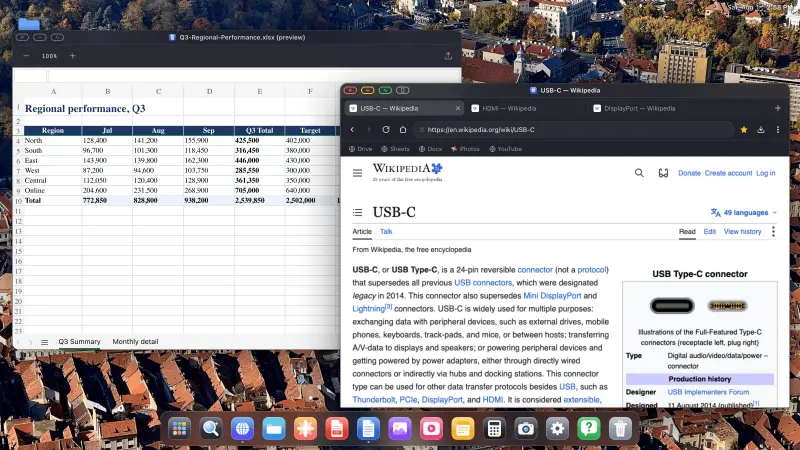
| Word / Excel / PowerPoint | Preview only |
| Photo library and full-screen slideshows | Yes |
| Presenting to a projector | Yes, PDF offline, or Google Slides online |
| Websites installed as dock apps | Yes |
| Mouse, keyboard, dictation | Yes, or the phone screen as a trackpad |
| Session restored on reconnect | Yes |
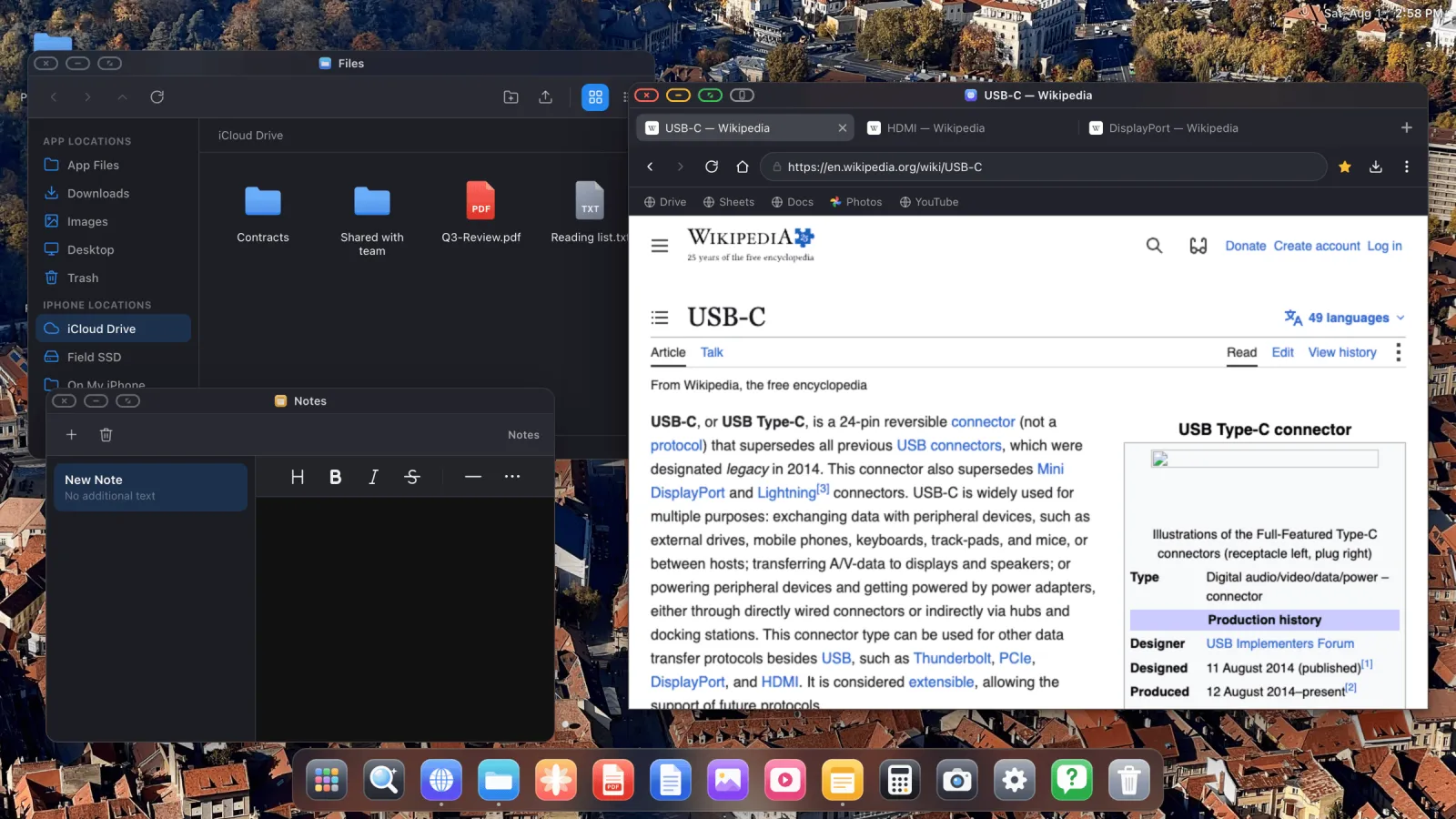
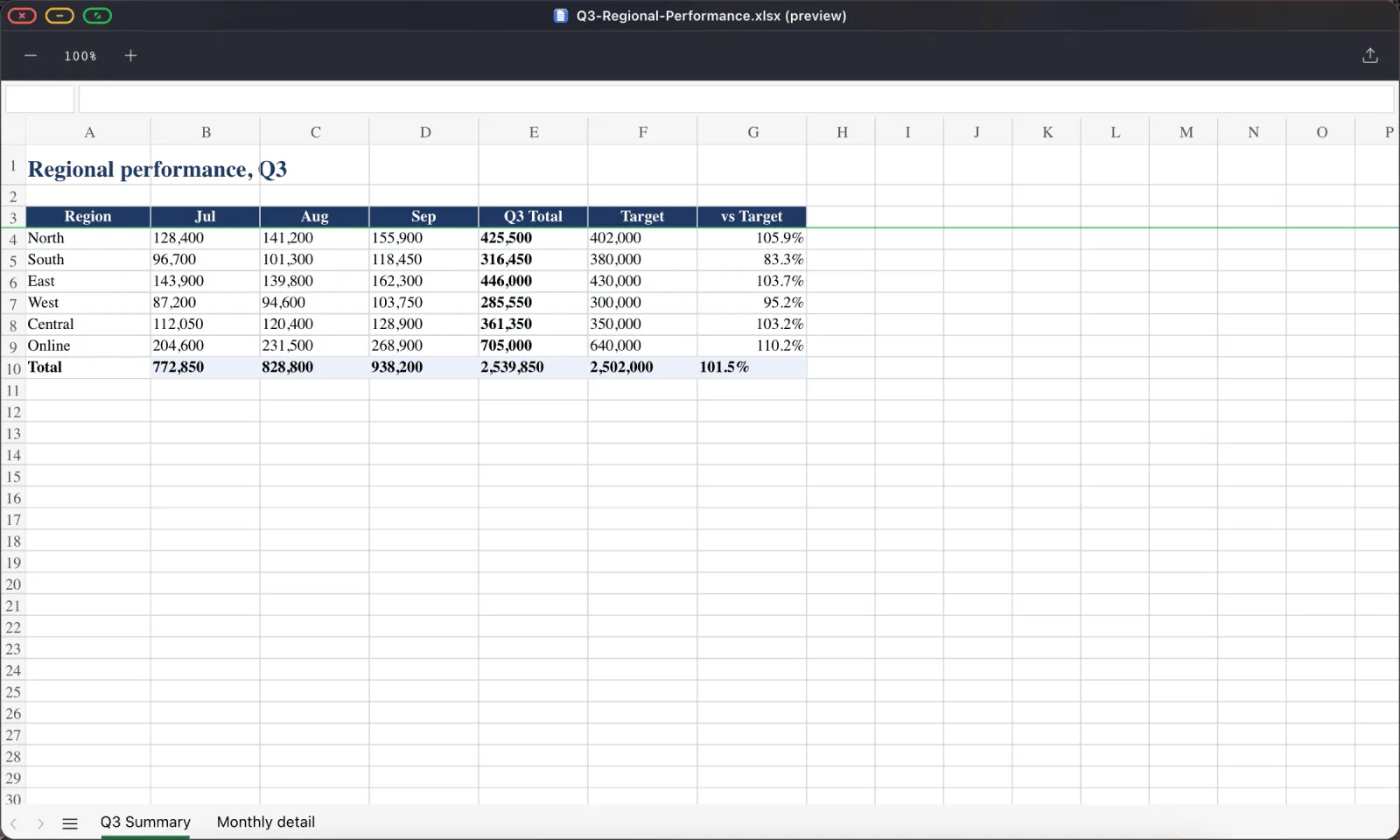
.xlsx workbook opened straight from the file, without signing in to anything.What doesn't
Your other iPhone apps on the big screen. This is a desktop environment with its own apps plus the web. Instagram, your banking app and your games stay on the phone, because iOS gives no app the ability to host another one.
Heavy creative work. Video editing, audio production, large design files. Not what this is for.
Some embedded page controls. Every iOS browser has to use WebKit, and cross-domain frames, consent banners, some sign-in and payment boxes, are deliberately hardened against programmatic input to stop fraud. That catches a cursor from a second screen too. The workaround is a button that hands the page to your phone's screen for one tap, explained here.
What it costs
A cable or adapter, where a plain USB-C to HDMI cable is cheap but a multiport adapter with pass-through charging is the one worth buying. A Bluetooth mouse, optional and inexpensive and the thing that changes how the whole setup feels. A keyboard, also optional, and a folding one is fine. Then the app.
Total, if you already own a monitor: less than a phone case and a screen protector.
Who this is for
- Travellers who don't want to carry a laptop. The travel setup is here.
- Students writing in Google Docs on a borrowed monitor.
- Anyone who has to present without a laptop in the room.
- People with an old iPad Apple never gave external display support to.
- Anyone with a TV who wants full-screen YouTube without ads or bars.
- Shops and events that need a looping display and don't want a PC in a cupboard.
Who it isn't for
If your work is a specific native macOS or Windows application, or heavy media editing, a phone plus a monitor is not a laptop replacement and no app is going to make it one.
Where to start
Plug in, install, run the setup once. Pick the resolution your display reports and set content scale for your viewing distance. That's the step that removes the black bars, and it takes about a minute. Full walkthrough here.
XeOS: External Display Browser turns an iPhone or iPad into a full desktop on any monitor, TV or projector.
Frequently asked
Do I need the newest iPhone?
No. Any iPhone that can output video works. USB-C directly, Lightning through a Digital AV Adapter.
Is this Samsung DeX for iPhone?
It's the closest equivalent that exists. DeX is built into Samsung's own OS, and Apple ships nothing comparable, so this is an app rather than a system feature.
Can I run my normal iPhone apps on the monitor?
No. iOS doesn't allow one app to host another. You get the built-in apps and the entire web.
Does it work over AirPlay?
Yes, though a cable is lower latency and charges at the same time.
More from the blog
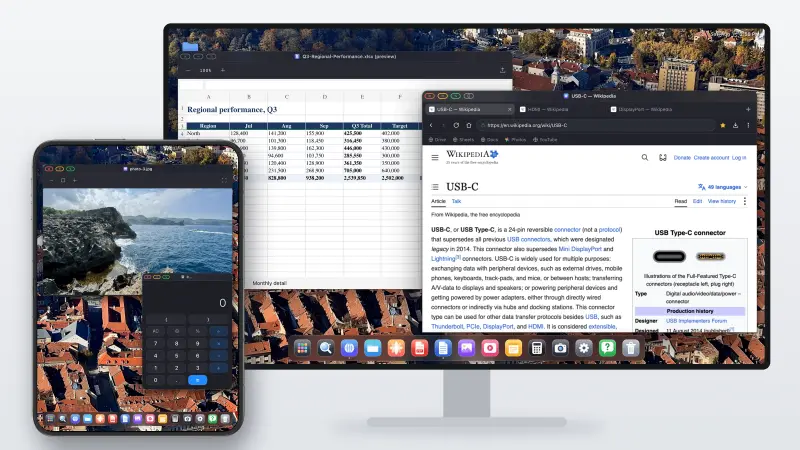

Try XeOS: External Display Browser
Full screen on any external monitor, TV or portable display. No black bars. Download on the App Store.