
 External Display BrowseriPad3 min read
iPad External Display Without Stage Manager: Full-Screen on Any Model
If your iPad doesn't have an M-series chip, Apple gives you exactly one option on an external monitor: mirroring. There's no way to extend the desktop rather than duplicate it, so what reaches the monitor is a copy of your iPad's screen, in your iPad's shape, on a panel that isn't that shape. This is why that happens, and how to get a full-screen desktop on any iPad regardless of what's inside it.
The Stage Manager situation, briefly
When Stage Manager arrived, external display support came with it, then got pulled back to M1-and-later iPads only. Everything below that line kept basic mirroring. Years later, that's still the shape of it:
| iPad | External display |
|---|---|
| M-series iPad Pro / Air | Stage Manager: extended desktop, real windows |
| A-series iPad Pro (2018, 2020…) | Mirroring only |
| iPad Air (pre-M1), iPad, iPad mini | Mirroring only |
A 2020 iPad Pro is a fast machine with a USB-C port that can drive a 4K display. It just isn't allowed to put anything different on that display. That's a software line rather than a hardware one, which is what makes it irritating.
Why mirroring looks wrong on a monitor
An iPad is 4:3 and a monitor is 16:9. Mirroring hands the monitor a 4:3 picture and the monitor pillarboxes it, black down both sides, sometimes a third of the panel. Everything inside that box is then scaled for a tablet held at arm's length rather than a screen across a desk.
You can't fix it in iPadOS, because iPadOS isn't drawing for the monitor. It duplicates the tablet's own screen.
The workaround: an app that draws its own desktop
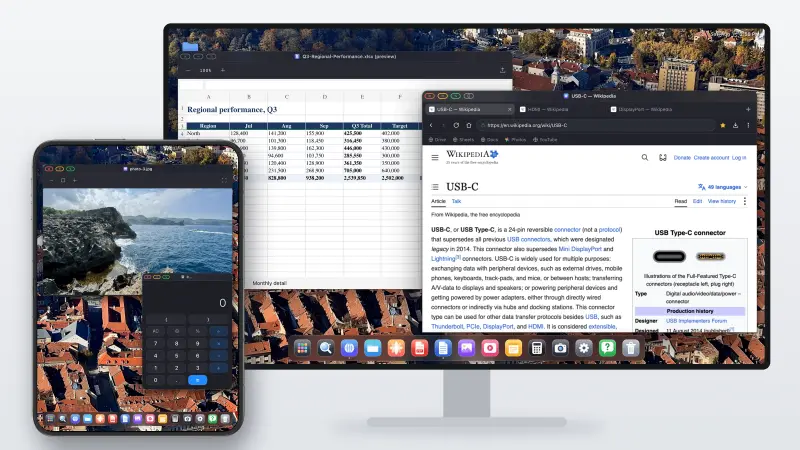
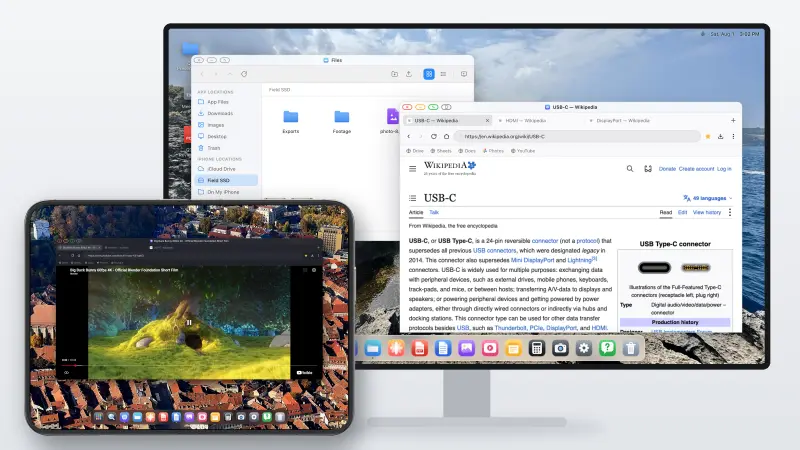
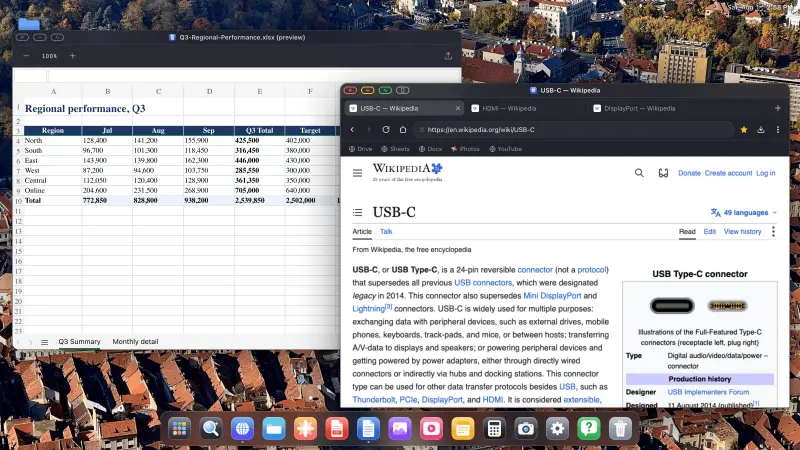
XeOS: External Display Browser doesn't mirror. It takes over the external display and renders a desktop at the monitor's own resolution, so a 16:9 monitor gets a 16:9 desktop, edge to edge. The iPad's own 4:3 shape stops being relevant to what appears there.
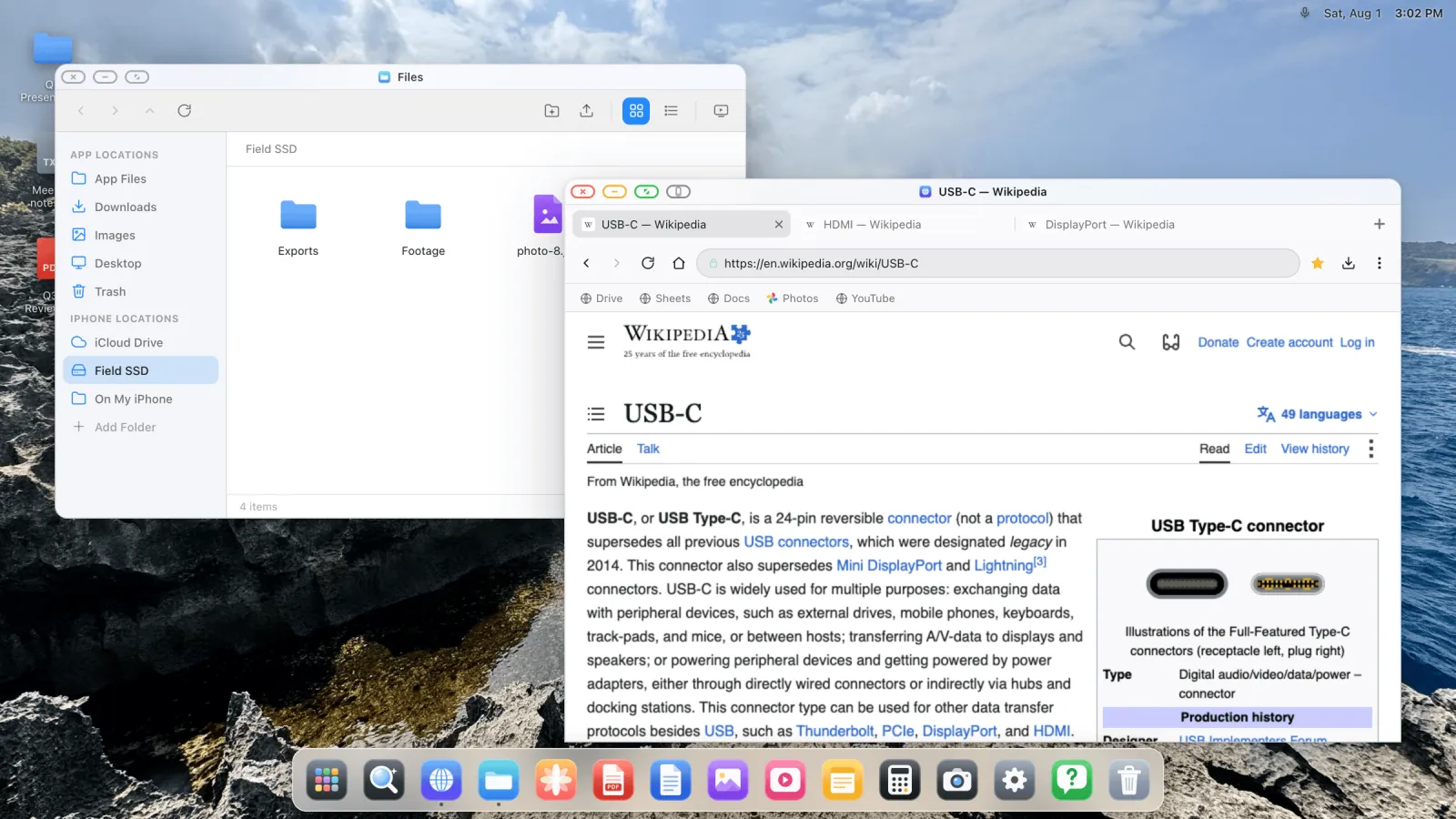
Because it draws its own environment, it never asks iPadOS for Stage Manager and doesn't care which chip you have. Any iPad that can output video gets the same result.
What you get
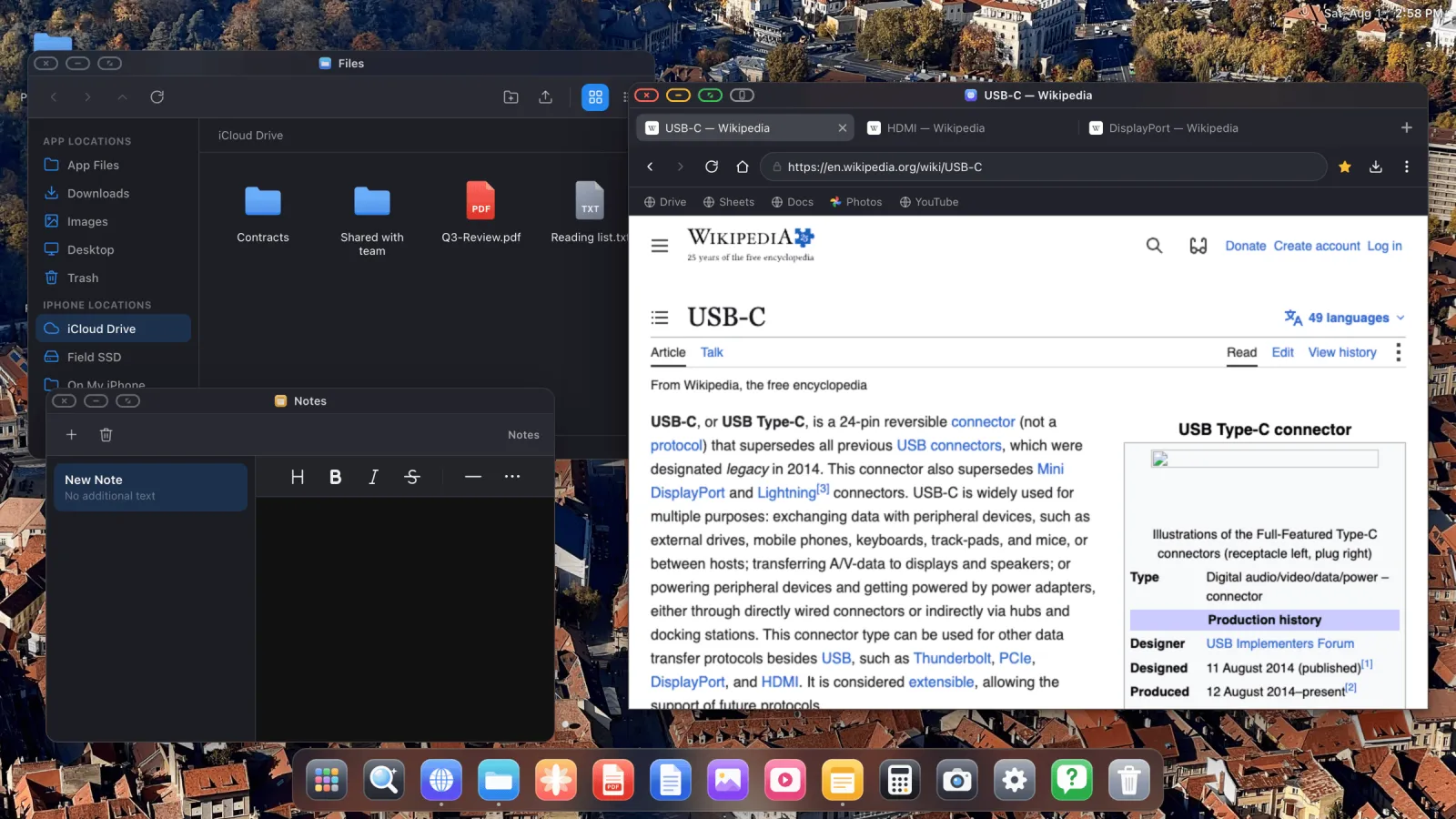
- Windows you can move, resize, snap to edges and put full screen, several at a time.
- A desktop browser with tabs, a bookmarks bar, downloads, saved passwords, reader mode and a built-in ad blocker.
- A file manager that mounts iCloud Drive folders, folders from the iPad itself, and external USB drives.
- A full PDF viewer with annotation, plus Office file preview.
- A Photos app with a full-screen slideshow.
- Installable websites in the dock, each with its own icon and window.
Getting set up
- Connect the iPad to the display. USB-C to HDMI, USB-C to USB-C, or a multiport adapter if you also want power and a USB port. AirPlay works too.
- Open XeOS. It detects the display and runs through setup.
- Pick the resolution the monitor reports and set content scale for your viewing distance.
- Pair a Bluetooth mouse and keyboard, or use the iPad's screen as a trackpad.
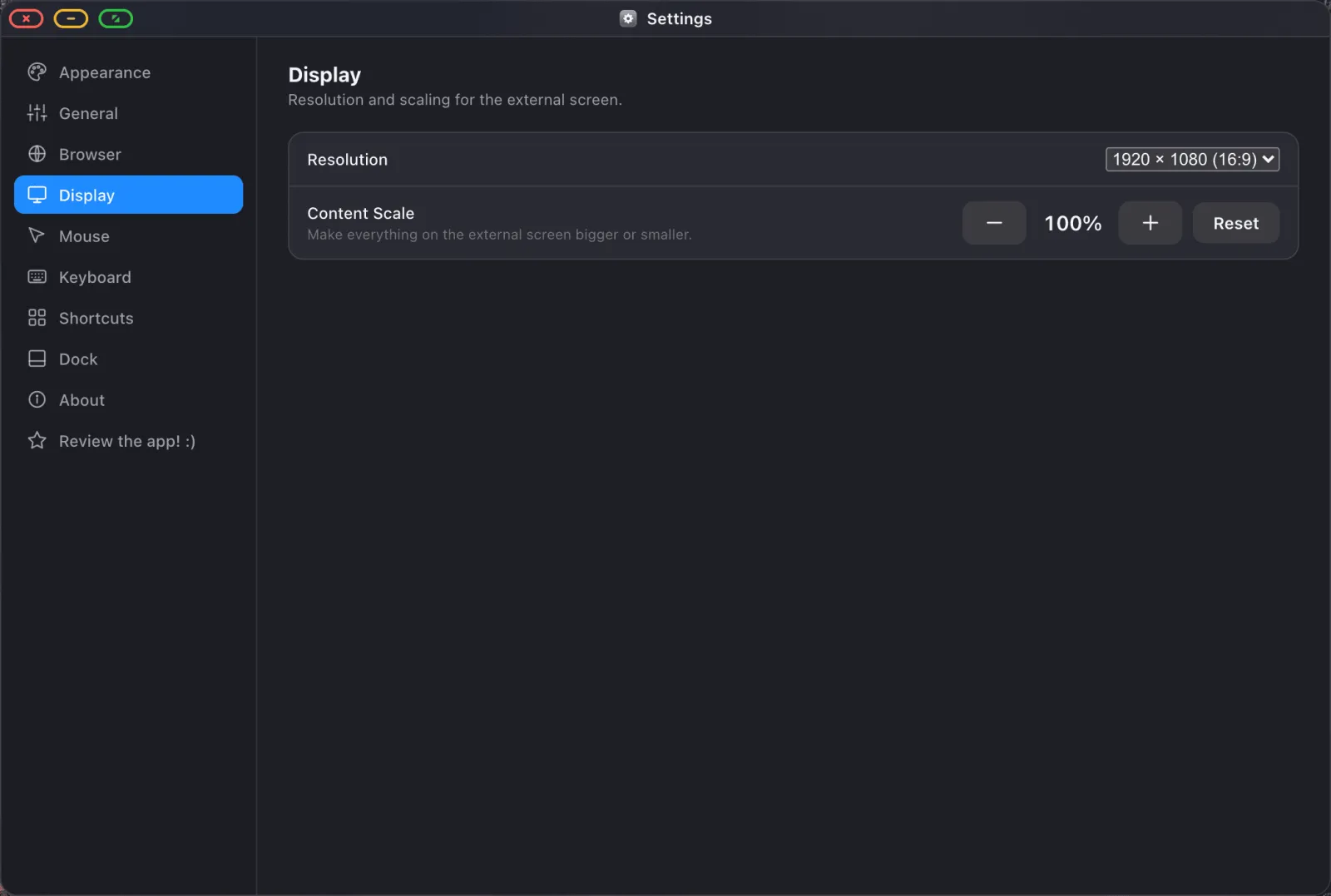
The full walkthrough is in the setup guide.
iPad-specific notes
The window overview is Option ↑ on iPad rather than Ctrl ↑, because iPadOS reserves the Ctrl combination. An iPad's larger screen also makes the screen-as-trackpad fallback comfortable enough that you can skip carrying a mouse if you want to. And a Magic Keyboard, or any Bluetooth keyboard, works normally: typing goes to whichever field is focused on the external display.
What it isn't
It's a desktop environment rather than iPadOS on a monitor. Your other iPad apps don't run inside it. What runs is the browser, the built-in apps, and any website you install. For a lot of work that's the whole job. If you specifically need Procreate or Final Cut on a big screen, this isn't that.
And some embedded page elements, consent banners, certain sign-in and payment frames, won't take a click from the external display, because iOS's browser engine hardens cross-domain frames against programmatic input. There's a one-tap workaround built in, described in the Device Layout Mode guide.
XeOS: External Display Browser gives any iPad a full-screen desktop on any monitor, no Stage Manager, no M-series chip required.
Frequently asked
Will this work on a 2018 iPad Pro?
Yes. Anything that can output video to a display works.
Does it need Stage Manager turned on?
No, it doesn't use Stage Manager at all.
Can I use it on an M-series iPad too?
Yes. Some people prefer it there for the full-screen browser and the built-in ad blocker.
Will the iPad charge while connected?
Only if the connection carries power. That means a multiport adapter with pass-through charging, or a USB-C monitor that supplies power.
More from the blog

Try XeOS: External Display Browser
Full screen on any external monitor, TV or portable display. No black bars. Download on the App Store.