
 External Display BrowserPhotos4 min read
How to Run a Photo Slideshow on a TV From Your iPhone or iPad, Two Ways
Holiday photos on the living room TV, or a looping display in a shop window. Either way you don't need a computer, a media player or a smart TV app. An iPhone, a cable and XeOS will fill any screen with your photos. There are two routes, your own photo library or a Google Photos album in the browser, and they suit different jobs.
If your display isn't set up yet, start with connecting your iPhone or iPad to a monitor or TV and come back.
Method 1: the Photos app, from your own library
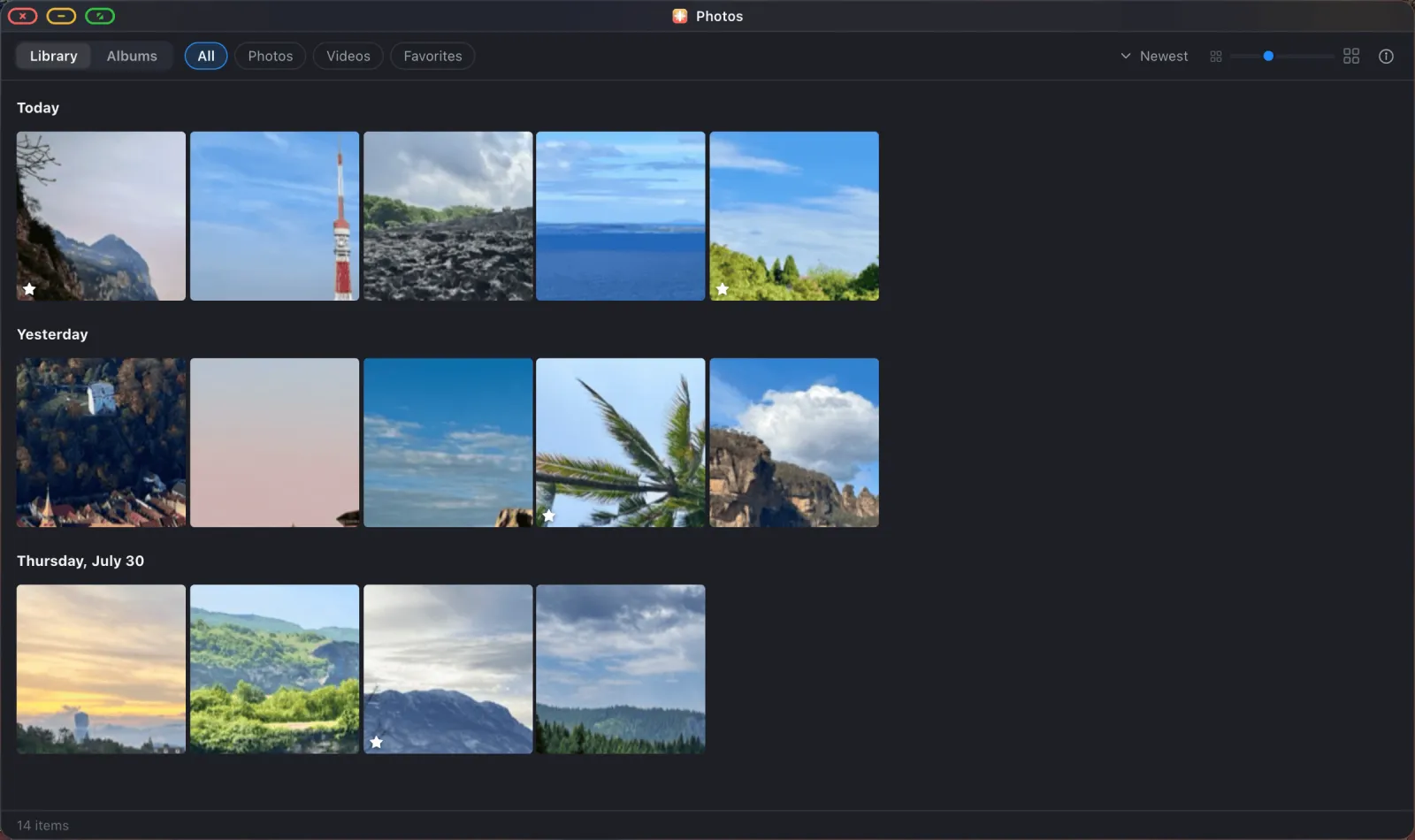
XeOS has a Photos app that reads your iOS photo library directly. Same albums, same favourites, played full screen with the options Apple's own Photos gives you.
Grant photo access first
Open Photos from the dock. The first time, iOS asks what the app may see, and you want full photo library access. Limited access, where you hand-pick a few photos, doesn't work here: XeOS only sees the handful you picked, so albums and the gallery come up empty. Tapped the wrong option? iOS Settings › Privacy › Photos will change it.
Open the album you want
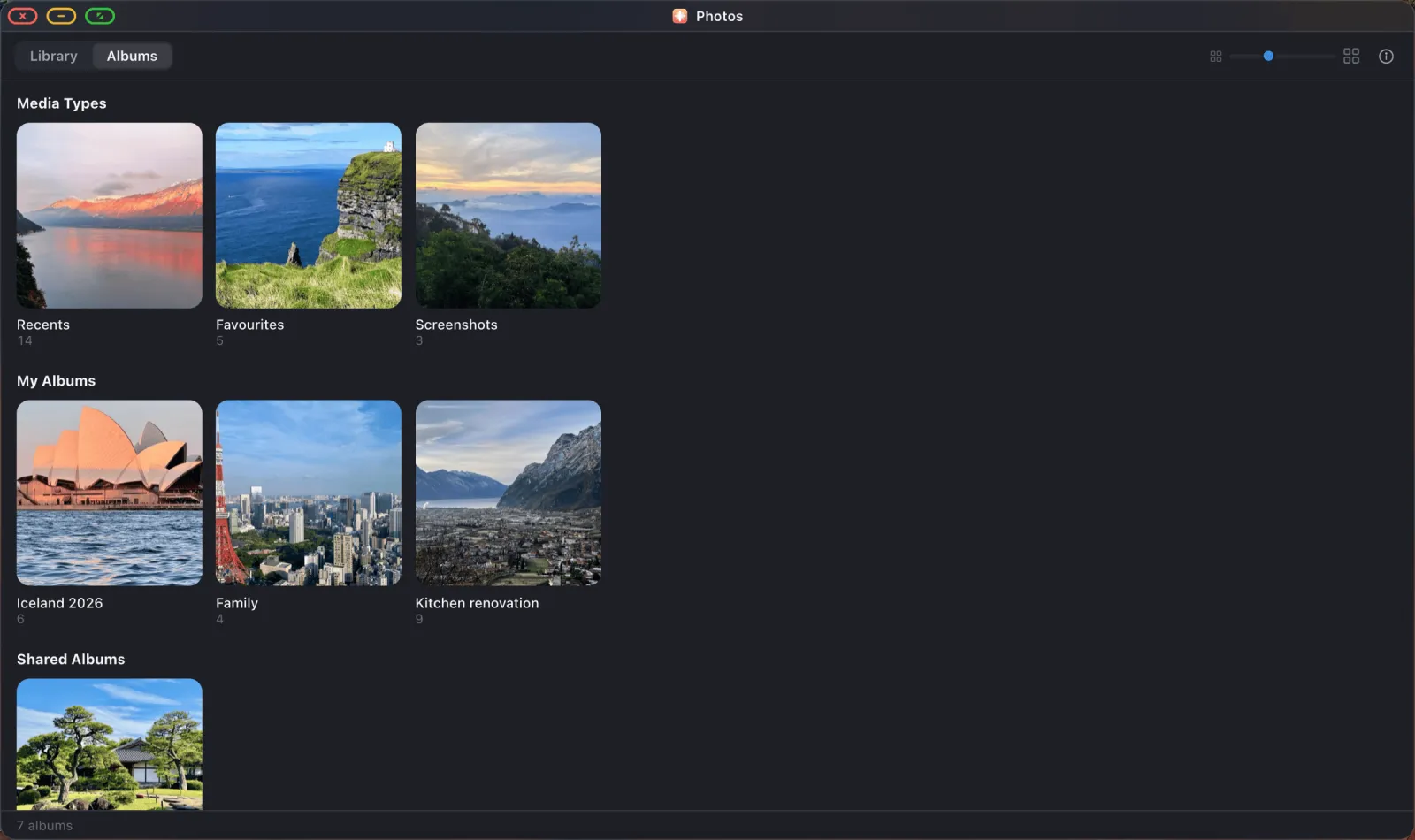
Switch to the Albums tab. Your smart albums (Recents, Favourites, Screenshots) and every album you've made on your phone are here, each with a cover and a count.
Configure the slideshow
Open the album, then start the slideshow. An options sheet appears before anything plays, so you can get it right once rather than fiddling mid-show:
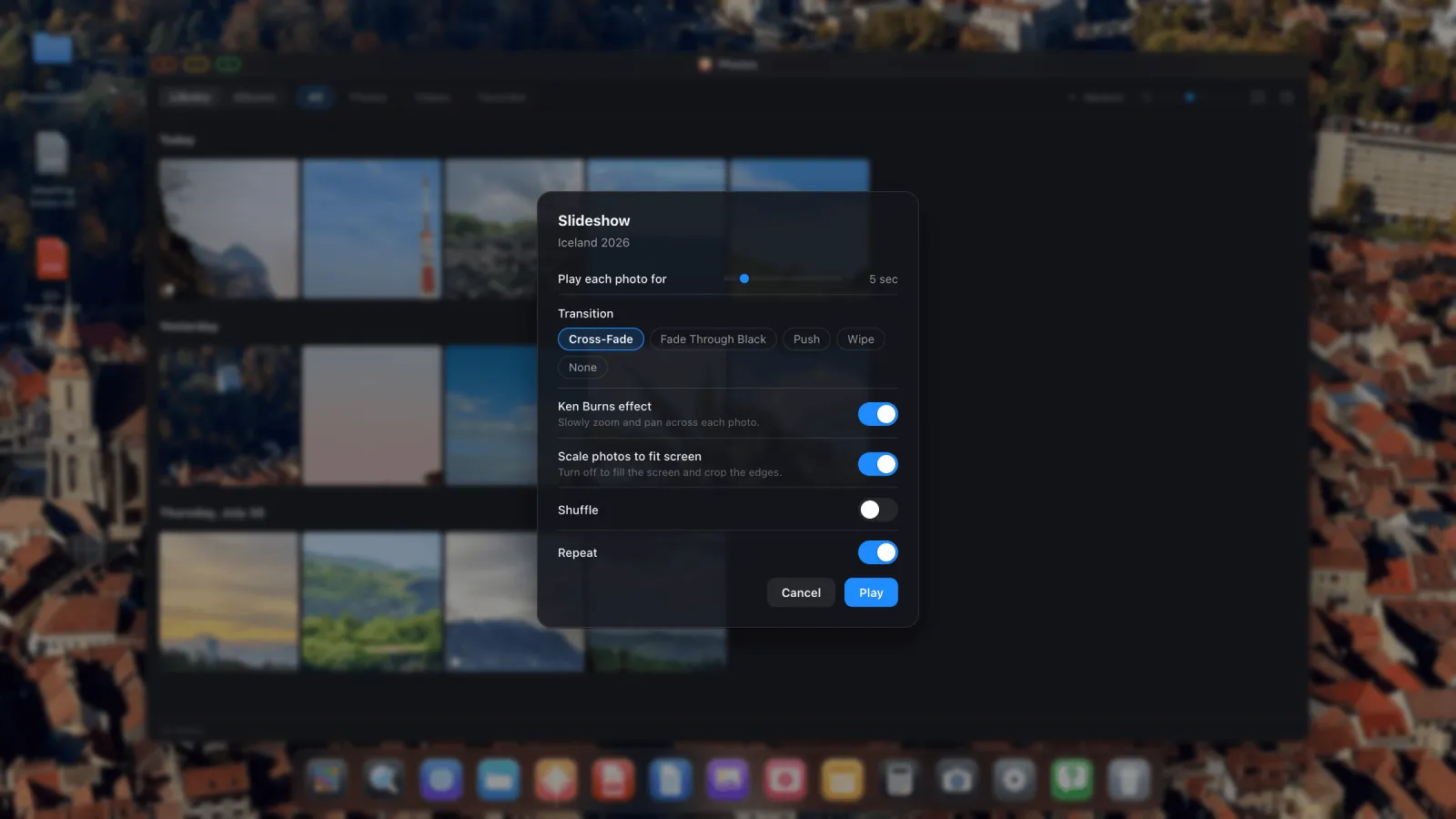
- Play each photo for anything from 1 to 30 seconds. Five is a good default. For an unattended display in a shop, eight to ten reads more calmly.
- Transition is Cross-Fade, Fade Through Black, Push, Wipe or None. Cross-Fade suits almost any mix of photos.
- Ken Burns effect slowly zooms and pans across each photo. Good in a living room. Switch it off for product shots or documents, where the drift is distracting.
- Scale photos to fit screen decides what happens when a photo's shape doesn't match the screen's. On, it letterboxes. Off, the photo fills the screen and the edges get cropped. For a commercial display where you want no black at all, turn it off.
- Shuffle randomises the order.
- Repeat loops forever. Leave it on for anything unattended.
Hit Play
Playback takes over the whole display. The control bar fades away after a few seconds of no input and comes back when you move the mouse. Photos that live only in iCloud are downloaded a couple of slides ahead, so a half-downloaded album still plays smoothly.

To stop, press Escape, or move the pointer to the top edge to bring back the title bar and click the green button.
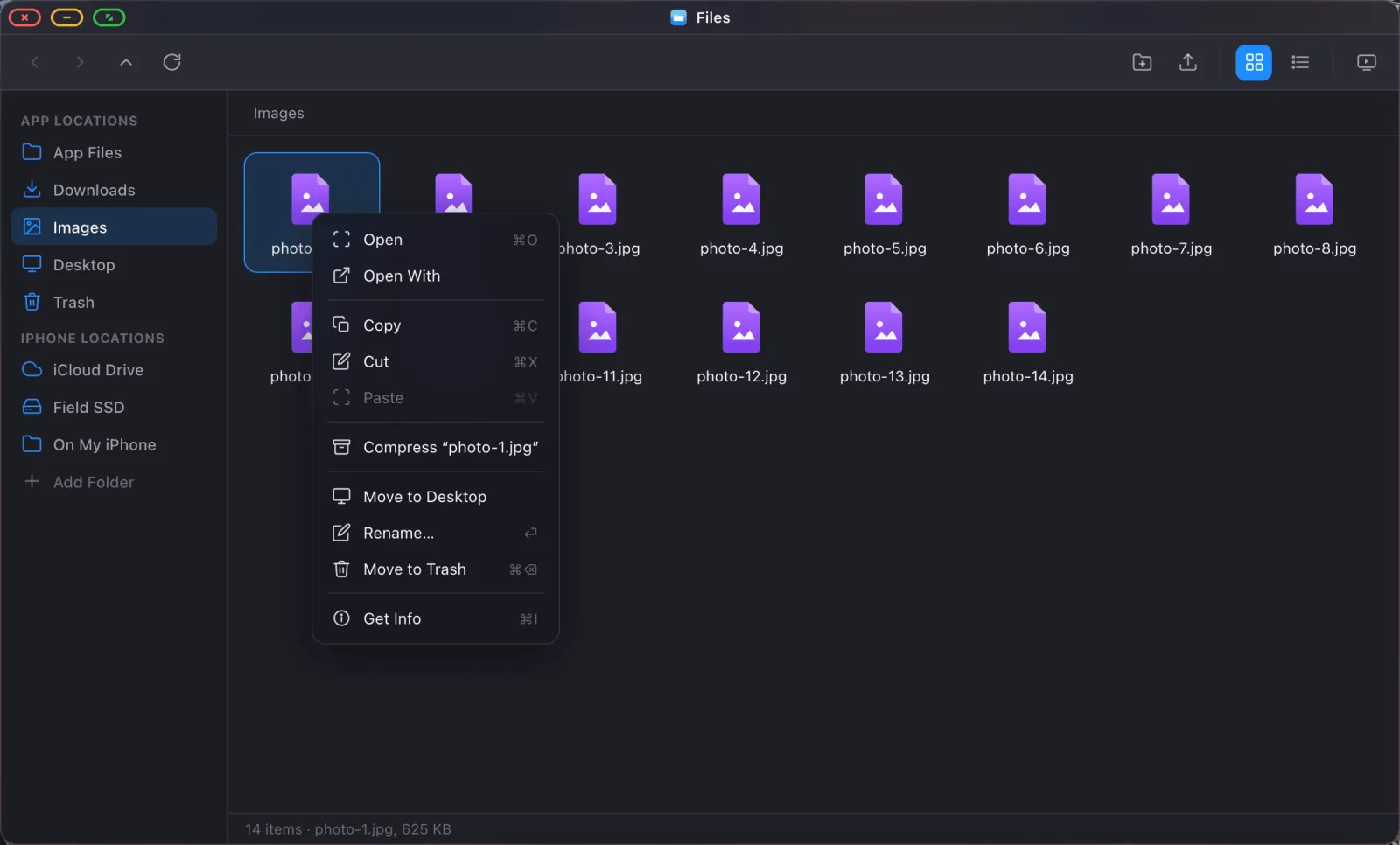
Slideshow from a folder, not an album. The same player works from the Files app. Open any folder of images, including one on iCloud Drive or an external drive, and choose Slideshow from the toolbar or right-click menu. Handy when the photos aren't in your library at all.
Method 2: Google Photos in the browser
If your photos live in Google Photos, or you want to show a shared album that was never on your phone, use the browser instead.
- Open the Browser from the dock and go to
photos.google.com. - Sign in. If you imported your passwords, that's a couple of taps.
- Open the album you want to show.
- Start Google Photos' own slideshow from its menu on the first image.
- Click the green full-screen button in the window's top corner. The browser window loses its title bar, tabs and toolbar, and the slideshow fills the display.

Full screen in XeOS is a window state rather than something the website has to ask for, so this works on any site with a gallery or slideshow view. Google Photos is just the common case.
Which method should you use?
| Photos app | Google Photos in the browser | |
|---|---|---|
| Source | Your iOS photo library | Anything in your Google account, including shared albums |
| Works offline | Yes, for downloaded photos | No |
| Control over timing and transitions | Full | Whatever Google offers |
| Fill the screen with no black edges | Yes, turn off "Scale photos to fit" | Depends on the photo shapes |
| Best for | Living rooms, events, unattended displays | Shared albums, photos not on this phone |
Tips for leaving it running
- Turn Repeat on and Scale photos to fit off for an unattended screen.
- Plug into a multiport adapter so the phone charges while it plays.
- Turn on Do Not Disturb so notifications don't interrupt the display.
- Use a cable rather than AirPlay for anything running for hours. Over a long stretch, network hiccups will find you.
XeOS: External Display Browser turns an iPhone or iPad into a full desktop on any monitor, TV or projector.
Common questions
Can I include videos in the slideshow?
Yes. Videos in the album play in place, and there's a switch in the options sheet if you'd rather skip them.
My photos are in iCloud and not on the phone. Will it still work?
Yes. Each photo is downloaded just before it's needed, a couple of slides ahead, so playback doesn't stall.
Why does the Photos app say it can only see a few items?
iOS is set to limited photo access. Grant full photo library access in iOS Settings › Privacy › Photos to get your whole gallery and your albums.
Can I run this in a shop window all day?
Yes, that's what Repeat is for. Use a cable with pass-through charging, and turn off auto-lock in iOS Settings › Display & Brightness.
More guides



Try XeOS: External Display Browser
Full screen on any external monitor, TV or portable display. No black bars. Download on the App Store.