
 External Display BrowserAlternatives3 min read
Looking for a shiftscreen Alternative? Here's What Full-Screen External Display Browsing Looks Like in 2026
If you've searched for a shiftscreen alternative you already know the problem: you want your iPhone or iPad to put something useful on an external monitor, filling the screen, without the black bars mirroring leaves behind. Below are the options that exist, why most "alternative" lists send you the wrong way, and where XeOS fits.
First, two very different problems
"Second screen" gets used for two things that have nothing to do with each other, and search results mix them up constantly:
| What you want | What to look for |
|---|---|
| Use your iPad as an extra monitor for your Mac or PC | Duet Display, Luna Display, spacedesk, Sidecar |
| Put your iPhone or iPad's own content on a monitor, full screen | shiftscreen, XeOS |
Most "shiftscreen alternative" lists are stuffed with the first category, which is no help if you're in the second. If there's no computer in the equation, and for most people that's the entire point, you want the second row.
What the category is trying to work around
iOS has no desktop mode. Plug an iPhone into a monitor and iOS mirrors it: a 19.5:9 picture on a 16:9 panel, black bars filling the difference, everything scaled for a hand. iPads mirror too, in 4:3, unless they have an M-series chip and Stage Manager.
Apps in this category get round it by taking over the external display and drawing something built for that shape, instead of copying the phone.
What XeOS does differently
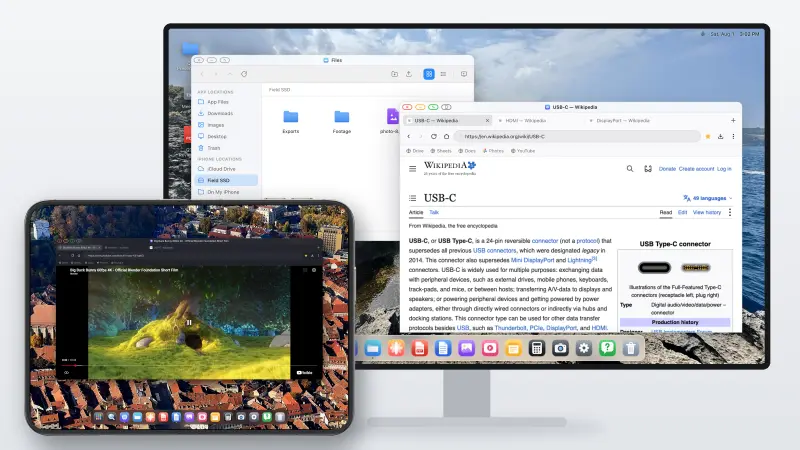
The distinguishing thing is scope. This isn't a full-screen browser with a bigger window. It's a desktop environment.
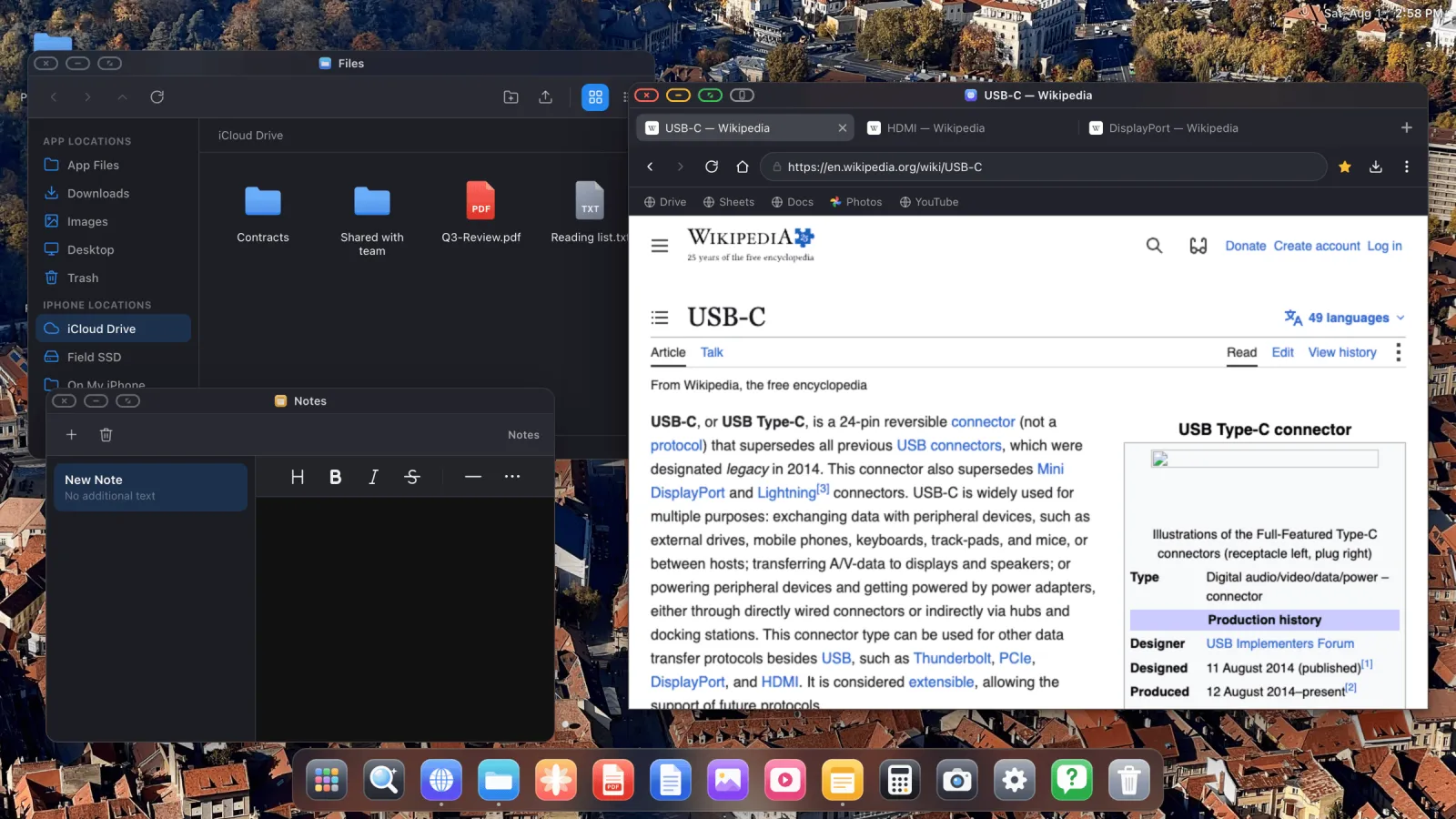
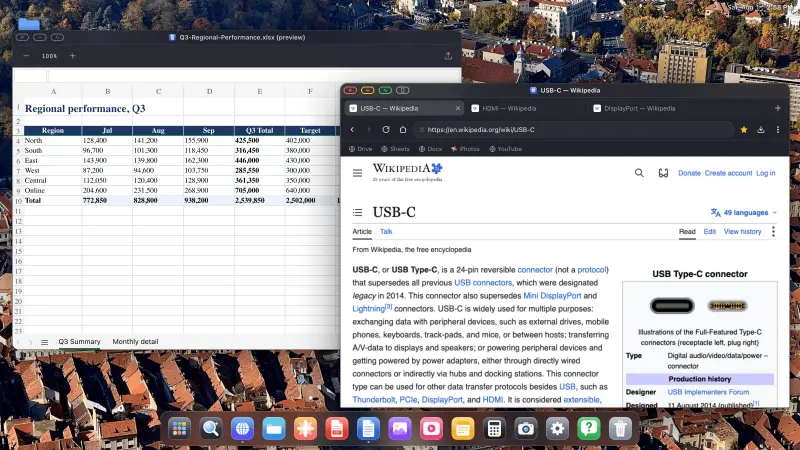
- Windows, several at once, that move, resize, snap to edges, go full screen and minimise, with a switcher and an overview of everything open.
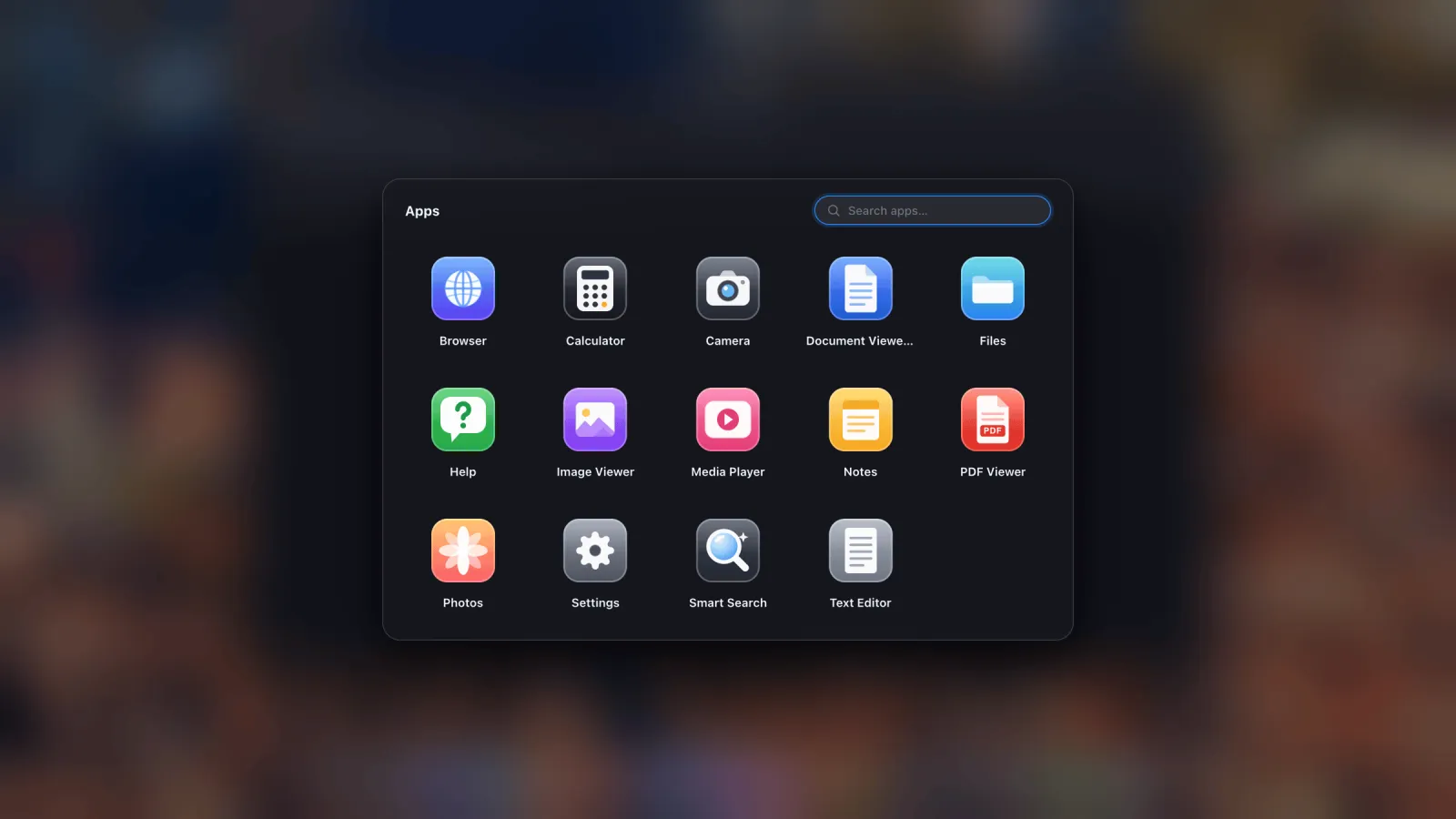
- A dock and an apps drawer, where any website can be installed as its own app with its own icon.
- A file manager that mounts iCloud Drive folders, folders from the device and external USB drives, then opens files in place.
- Built-in apps: PDF viewer with annotation, Office file preview, image viewer, media player, Photos with a full-screen slideshow, notes, text editor, calculator, camera.
- A desktop browser with tabs, a bookmarks bar, downloads with progress, an encrypted password manager, reader mode, reading list, per-site zoom and find on page.
- An ad blocker on by default, built from EasyList and uBlock lists and compiled into the engine, YouTube video ads included.
- Import from Safari, Chrome, Firefox and Edge for bookmarks and passwords, so signing in isn't a chore.
- Mouse and keyboard support, with the device's own screen as a trackpad when you don't have either.
- Session restore, so every window comes back where you left it.
The full-screen part, specifically
Every window has a green button that strips away all interface: title bar, tabs, toolbar, dock. The content then occupies the entire panel, which is what makes video, slideshows and presentations look right rather than boxed in.
What to check before you switch
Two things, so nothing surprises you later.
- Your other iPhone apps don't run inside it. This is a desktop environment with its own apps plus the web, not iOS on a monitor. Fine for most desk work. Not fine if you need one specific native app.
- Some embedded frames resist clicks from the external screen. Every iOS browser has to use WebKit, and cross-domain frames, consent banners, some sign-in and payment boxes, are hardened against programmatic input on purpose. The answer is a button that hands the page to your phone's screen for that one tap and sends it straight back. The guide covers it.
Getting started
You need a cable, either USB-C to HDMI or a Lightning Digital AV Adapter on older iPhones, or an AirPlay receiver. A Bluetooth mouse makes an enormous difference and costs very little. The setup guide walks through the whole thing, including picking the right resolution so you get no black bars.
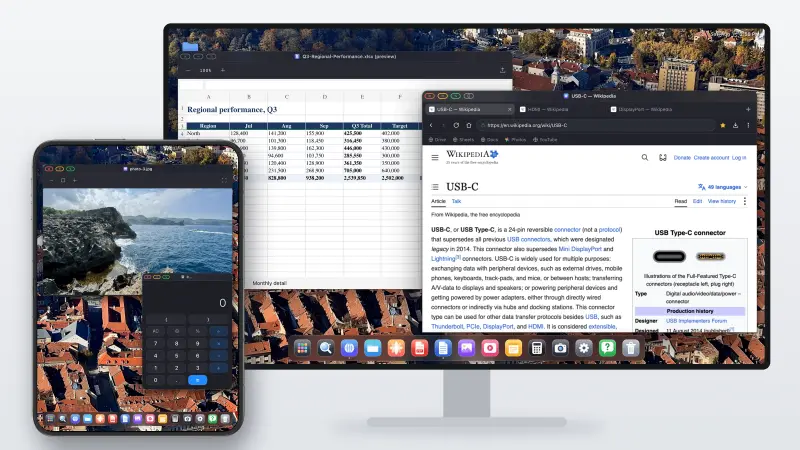
XeOS: External Display Browser turns an iPhone or iPad into a full desktop on any monitor, TV or projector.
Frequently asked
Is this the same category as Duet Display or Luna Display?
No. Those turn an iPad into an extra monitor for a computer. This puts your iPhone or iPad's own content on a monitor, with no computer involved.
Does it need a specific iPhone or iPad?
Any device that can output video to a display. Neither an M-series chip nor Stage Manager is required.
Does it work over AirPlay as well as a cable?
Yes, though a cable is lower latency and can charge at the same time.
Will my logins carry over?
Import bookmarks and passwords from Safari, Chrome, Firefox or Edge. See the import guide.
More from the blog

Try XeOS: External Display Browser
Full screen on any external monitor, TV or portable display. No black bars. Download on the App Store.