External Display BrowserExternal Monitor4 min read
How to Use Your iPhone with an External Monitor, Full Screen
Most people wire an iPhone to a monitor once, see a tall phone-shaped picture floating between two black bars, and never try again. The monitor is fine. The cable is fine. That's just what stock iOS does. Below is the setup that uses the whole panel instead: a desktop, at the monitor's own resolution, driven from the phone in your hand.
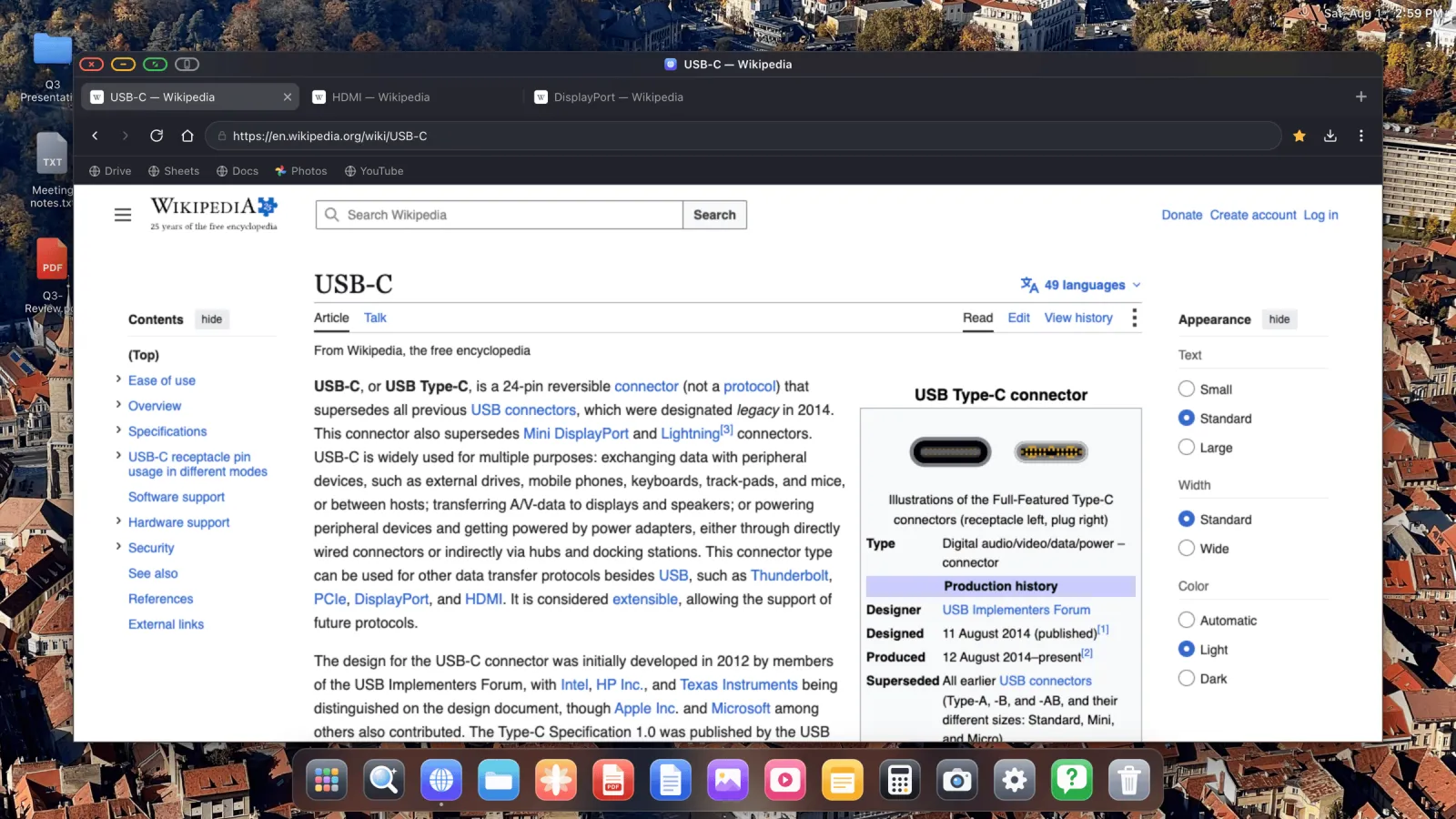
What you need
- An iPhone that can output video, which is almost all of them. The list is below.
- A cable or adapter for your port, or an AirPlay receiver if you'd rather go wireless.
- XeOS: External Display Browser from the App Store.
- A Bluetooth mouse and keyboard. Optional, and they change everything.
| Your iPhone | What to buy |
|---|---|
| iPhone 15 and later (USB-C) | USB-C to HDMI cable, USB-C to USB-C if the monitor takes video over USB-C, or a multiport hub |
| iPhone 5 to 14 (Lightning) | Lightning Digital AV Adapter, then any HDMI cable |
| Any of the above, wireless | Apple TV or an AirPlay-capable TV, no cable at all |
If you plan to sit at this for more than an hour, buy the multiport hub rather than the plain cable. One connector gives you HDMI, power and a USB-A port for a drive or a dongle, and the phone charges while it drives the screen.
Set it up, step by step
- Plug the phone into the monitor. The monitor lights up within a few seconds and shows the standard iOS mirror, black bars and all. That's the starting point, not the result.
- Install XeOS: External Display Browser from the App Store and open it with the display still connected. It detects the screen on its own.
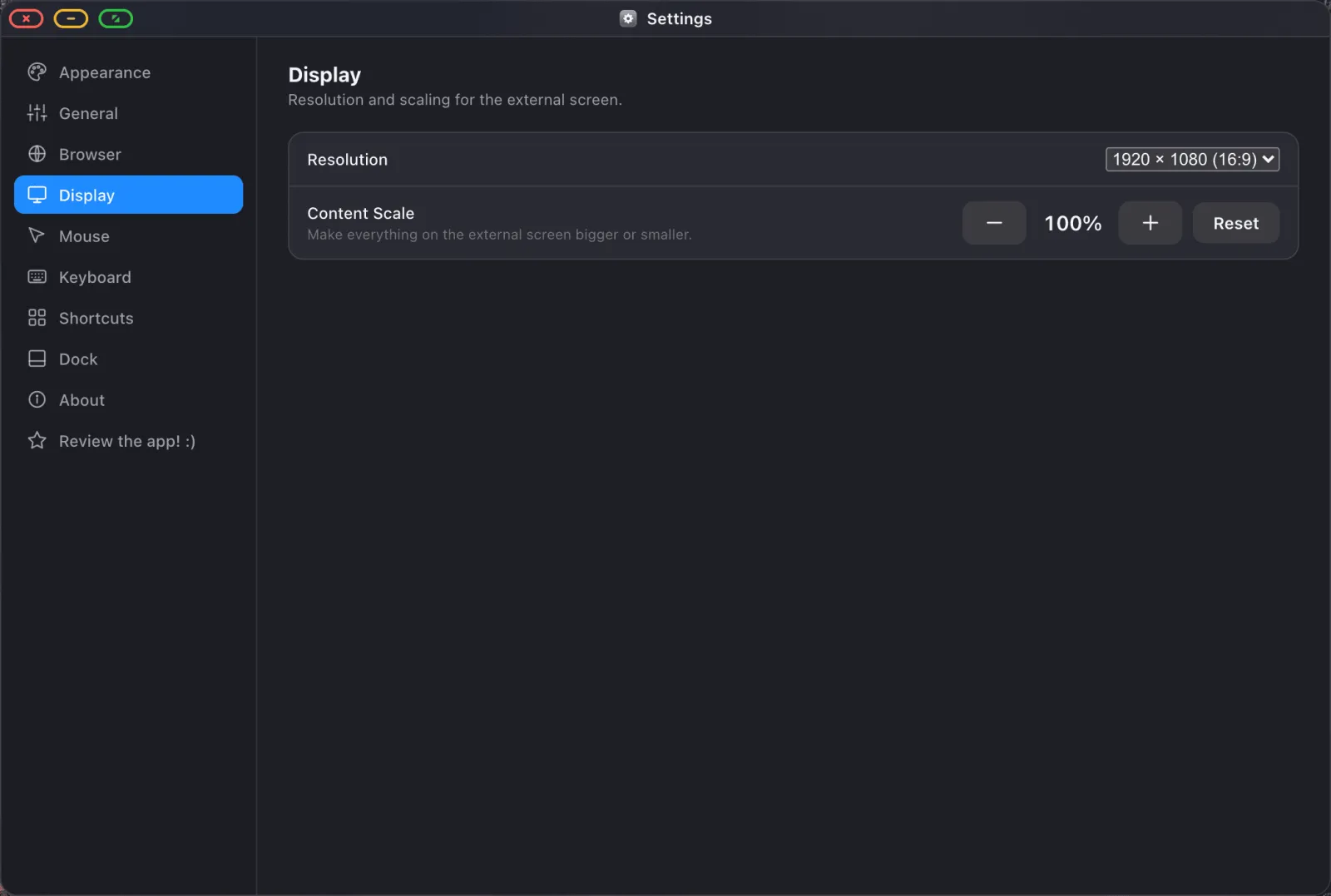
- Pick the resolution. The first-run flow reads the modes your monitor reports and lets you choose, the same way a desktop OS does. 1920 × 1080 is the safe default.
- Set the content scale. Resolution decides how many pixels there are, scale decides how big everything on them looks. 100% at desk distance, 130–150% if the screen is across a room.
- Pair a mouse and keyboard in iOS Settings › Bluetooth before launching. Without them the phone's screen becomes a trackpad, which does work, but a cheap mouse turns this into a computer.
Why mirroring wastes most of your monitor
It comes down to shape. An iPhone screen is roughly 19.5:9 and a monitor is 16:9. Mirroring hands the display a copy of a tall, narrow picture and the display pads the sides out with black to make it fit. You end up using around 60% of the panel, and everything on it is drawn at the size a phone in your hand needs rather than the size a screen a metre away needs.
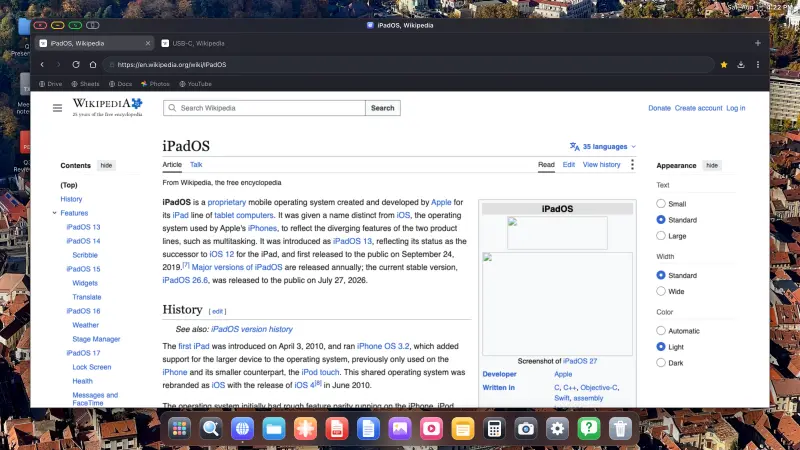
No setting in iOS fixes that, because iOS isn't drawing anything for the monitor. XeOS doesn't mirror at all. It renders its own desktop at the display's native resolution and switches overscan compensation off, so the picture reaches the edges of the panel.
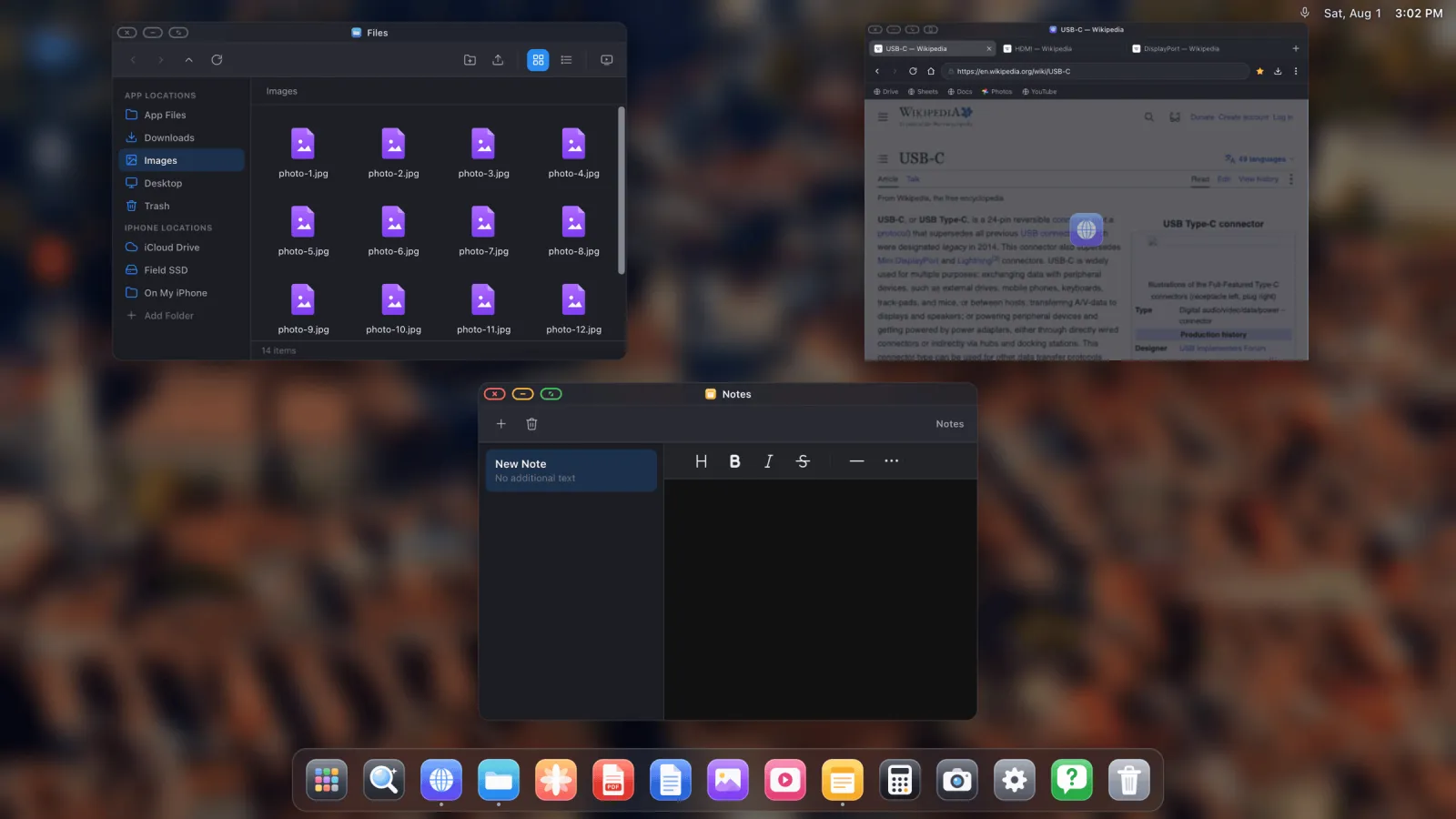
What you get on the big screen
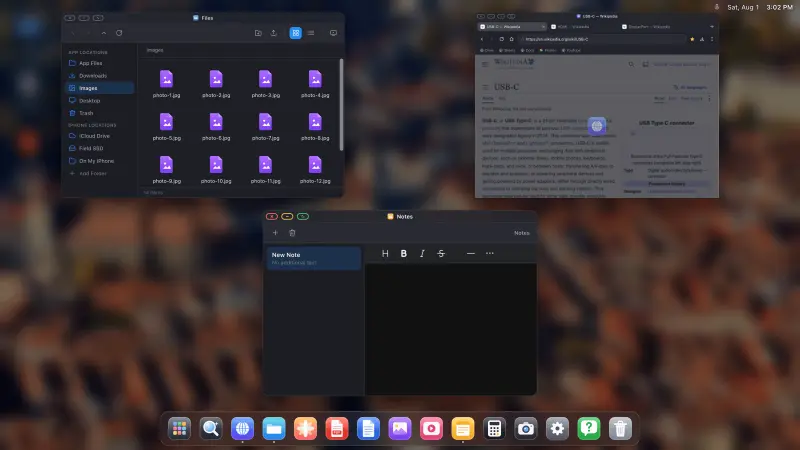
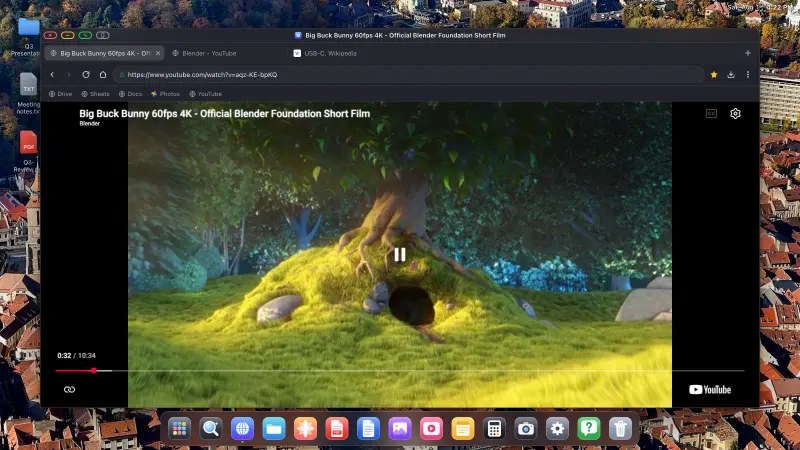
- A desktop browser with tabs, a bookmarks bar, downloads, a password manager, reader mode and an ad blocker that's on by default and handles YouTube's video ads. See the browser guide.
- Full-screen anything. The green window button strips every piece of interface, so video and slides fill the panel corner to corner.
- A file manager that can mount iCloud Drive, folders from the phone and USB drives.
- Document viewers: a PDF viewer with annotation, plus Word, Excel and PowerPoint preview.
- Video calls, with camera and microphone, on Zoom web, Google Meet or Teams.
- Websites installed as apps, so Gmail or Sheets sits in the dock with its own icon. See that guide.
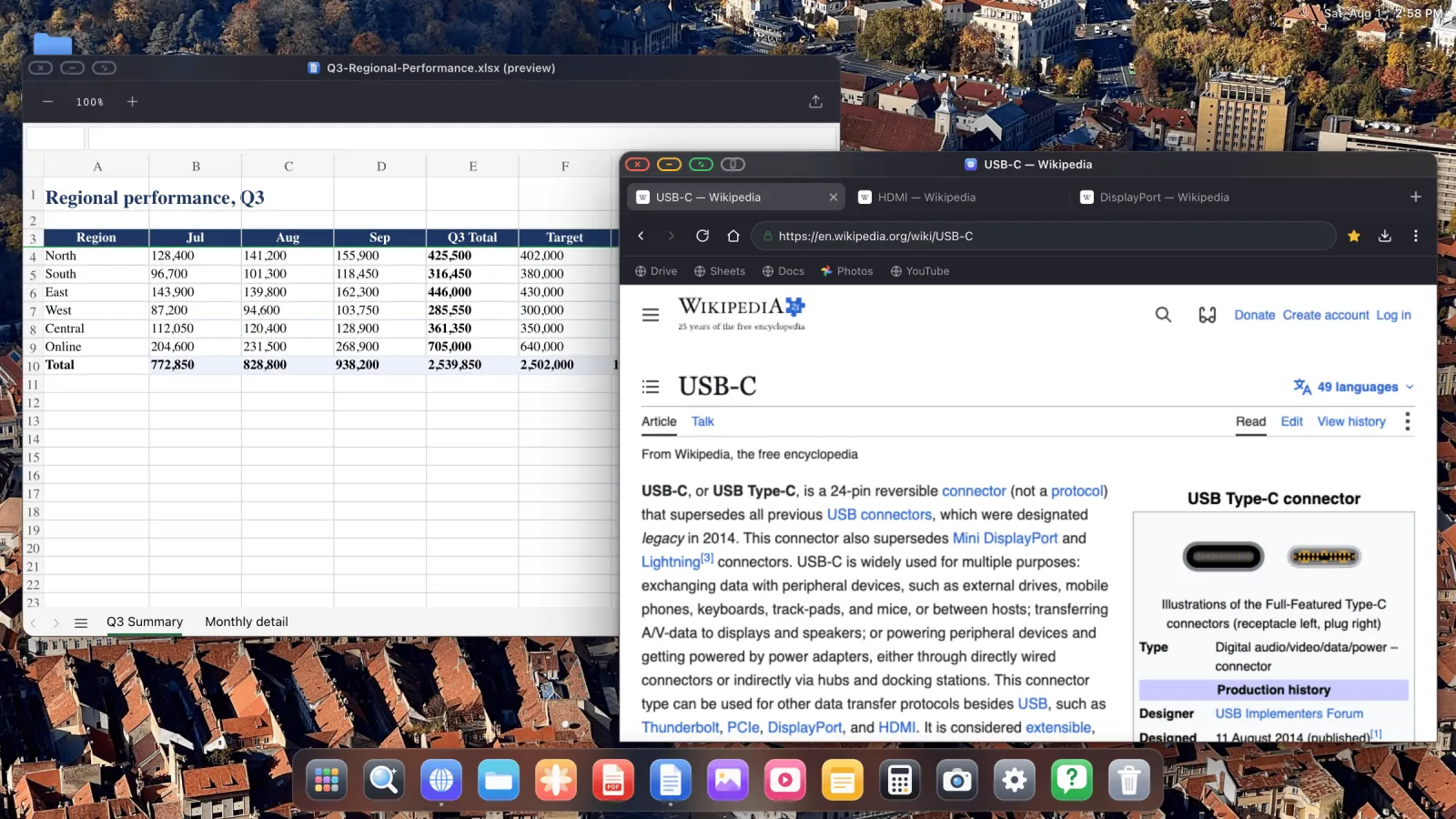
The two buttons you'll use

Green is full screen, and you'll use it constantly. Grey is the escape hatch. A few embedded page controls, consent banners and some sign-in and payment frames, are deliberately hardened against programmatic input, and that catches a cursor coming from a second screen. Tap grey, do that one step on the phone, come straight back. Full explanation here.
iPhone models that can output video
| Port | Models |
|---|---|
| Lightning | iPhone 5, 5c, 5s, 6, 6 Plus, 6s, 6s Plus, SE (1st), 7, 7 Plus, 8, 8 Plus, X, XS, XS Max, XR, 11, 11 Pro, 11 Pro Max, SE (2nd), 12 mini, 12, 12 Pro, 12 Pro Max, 13 mini, 13, 13 Pro, 13 Pro Max, SE (3rd), 14, 14 Plus, 14 Pro, 14 Pro Max |
| USB-C | iPhone 15, 15 Plus, 15 Pro, 15 Pro Max, 16, 16 Plus, 16 Pro, 16 Pro Max, 17, 17 Plus, 17 Pro, 17 Pro Max, 18, 18 Pro, 18 Pro Max |
iPad works the same way, including models Apple never gave Stage Manager to. Nothing here depends on an M-series chip.
XeOS: External Display Browser turns an iPhone or iPad into a full desktop on any monitor, TV or projector.
Common questions
Does this work on an ultrawide or a 4K monitor?
Yes. The app reads the modes the display reports and renders to the one you pick, so ultrawide and 4K panels fill properly.
Can I use it without a mouse?
Yes. With no mouse connected the phone's screen becomes a trackpad, so you can point, click and scroll with a thumb.
Does the phone charge while it's driving the monitor?
On USB-C, through a multiport adapter, yes. On Lightning, use the Digital AV Adapter's spare Lightning port.
Is there still a black border on my screen?
That's usually the display's own overscan setting rather than the app. Set the TV or monitor's picture size to "Just Scan", "Screen Fit" or "1:1", and check the resolution in Settings › Display matches what the panel reports.
The whole setup, in more detail and with every screenshot, is in the connection guide.
More from the blog
Try XeOS: External Display Browser
Full screen on any external monitor, TV or portable display. No black bars. Download on the App Store.