
 External Display BrowserYouTube on TV3 min read
How to Watch YouTube on a TV From Your iPhone, Full Screen, No Black Bars, No Ads
There's a cable in the drawer, a TV on the wall, and YouTube on your phone. Getting the video to fill the whole TV rather than a phone-shaped rectangle in the middle of it, without an ad every four minutes, takes one app and about five minutes.
Why the obvious way disappoints
Plug an iPhone into a TV and iOS mirrors the phone. Your phone's screen is about 19.5:9 and the TV is 16:9, so the TV pads the sides with black and shows a tall narrow picture in the middle. YouTube's video then sits inside that, letterboxed a second time. Two layers of wasted screen.
Tapping YouTube's full-screen button doesn't help, because the constraint is one level above YouTube. It's the mirror.
Going via AirPlay to the TV has the same shape problem, plus ads, plus a dependency on your network.
The setup that works
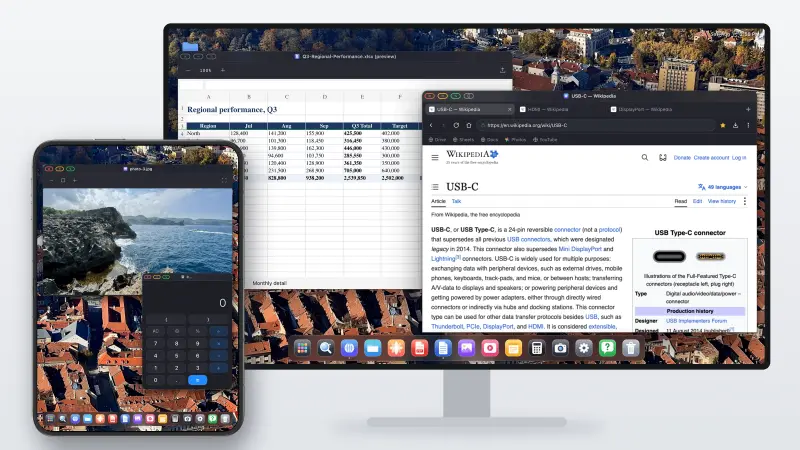
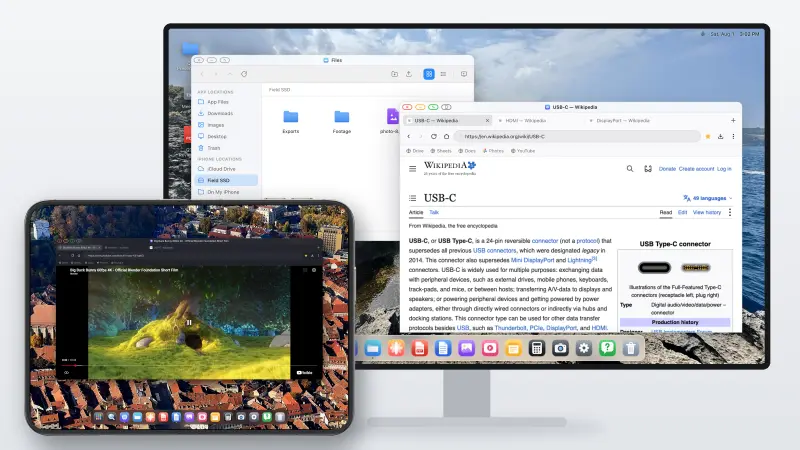
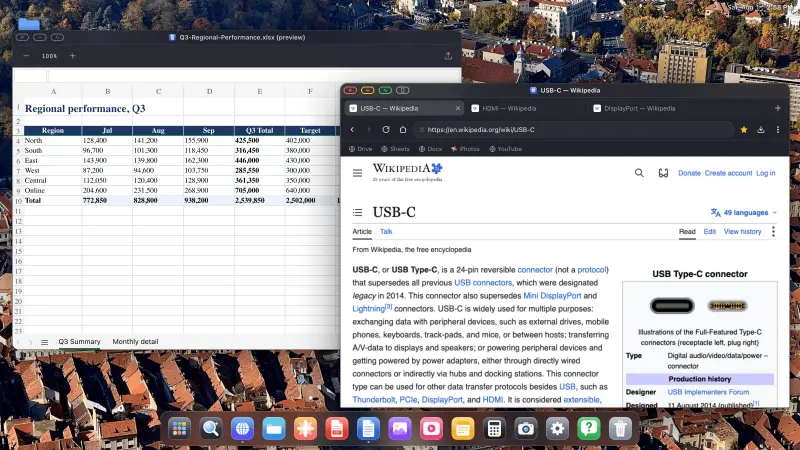
XeOS: External Display Browser doesn't mirror the phone. It renders its own desktop at the TV's own resolution and drives the display directly, so full screen means the full panel.

1. Connect
USB-C to HDMI for a USB-C iPhone, a Lightning Digital AV Adapter for older ones. A multiport adapter is worth the few extra pounds because it charges the phone while it plays, and a long evening of video will otherwise flatten it. AirPlay works too if you'd rather not run a cable across the room.
2. Set the resolution
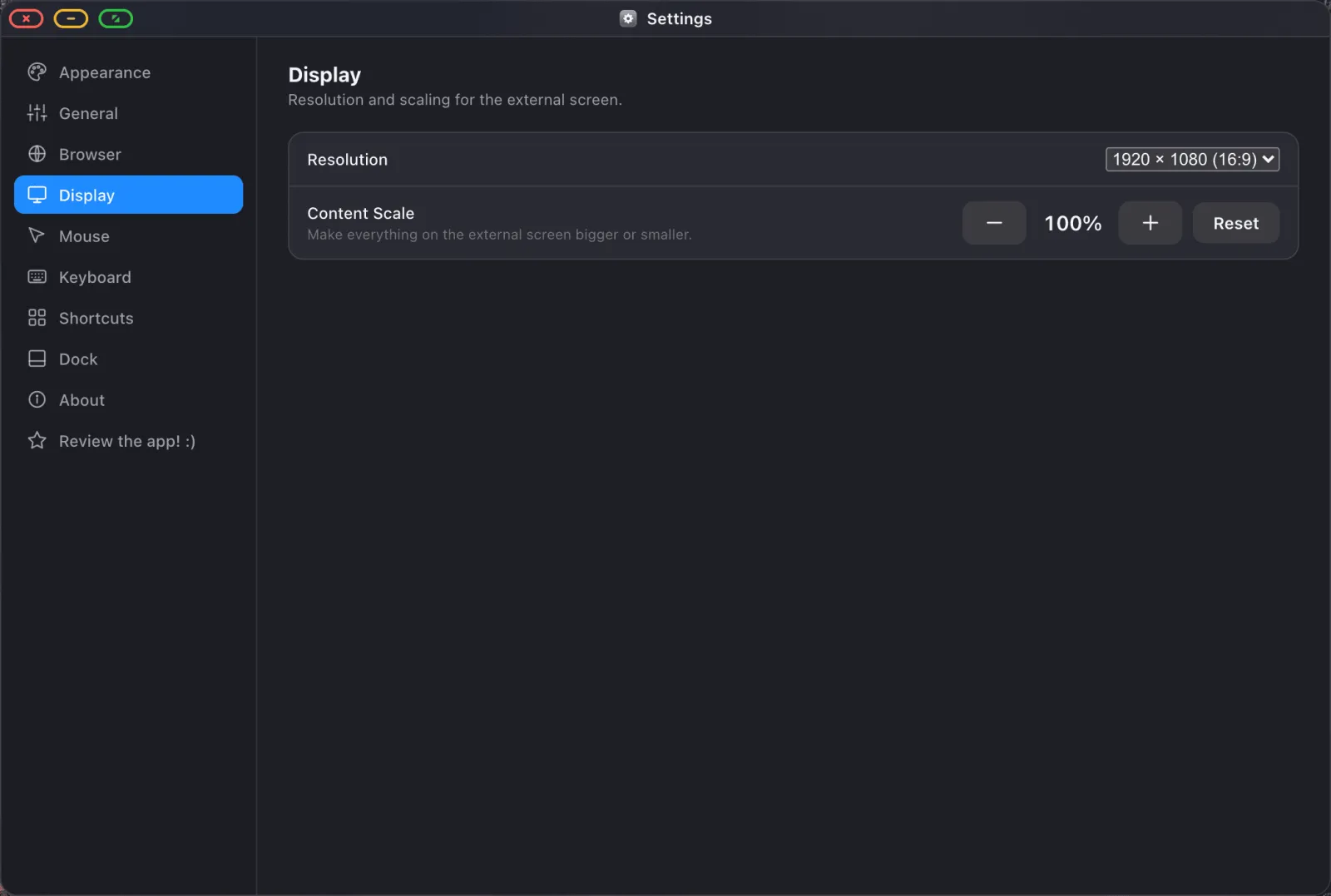
Open Settings › Display and pick the resolution your TV reports. 1920 × 1080 for most, higher if it's a 4K set you sit close to. XeOS switches the output to that mode and turns off overscan compensation, and that's the mechanical reason the black borders go away.
3. Sign in to YouTube
Open the browser and go to youtube.com. You get the desktop site with your subscriptions and history. Sessions persist across restarts, so this is a one-time job, and if you import your passwords first it's a couple of taps instead of typing a password with a trackpad.
4. Check ad blocking is on
It is, by default. The blocker is built from EasyList and uBlock filter lists and compiled into the browser engine, so there's no extension to install. In the ⋯ menu you'll see it ticked:
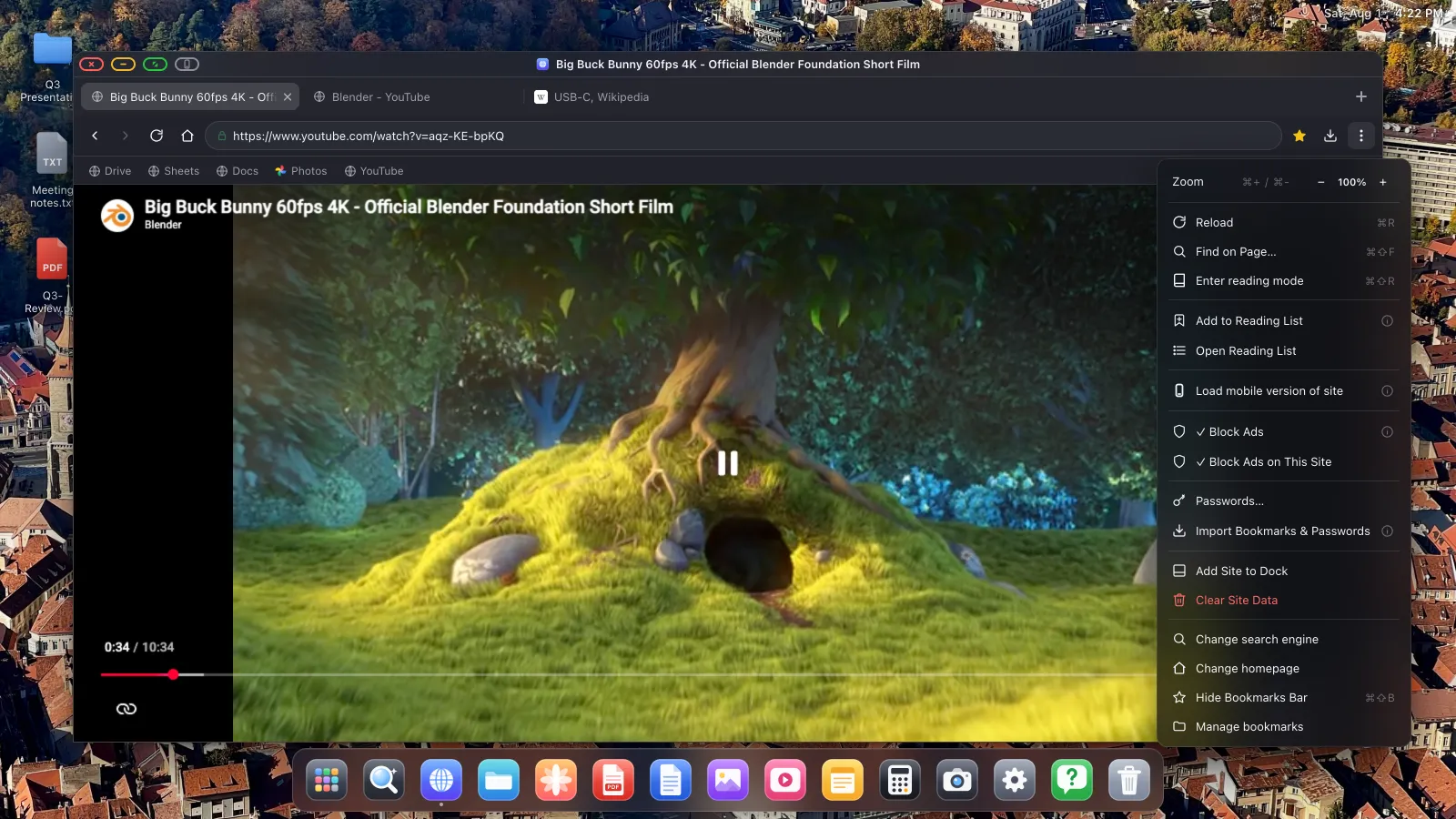
Skippable ads that do get through are skipped automatically, so a screen you've left running doesn't sit on a countdown while you're in the kitchen.
5. Go full screen
Press YouTube's own full-screen button, then click the green button in the window's corner so the window itself goes full screen too. Browser chrome, dock and status overlay all disappear, and every pixel of the TV is video.
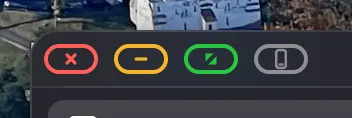
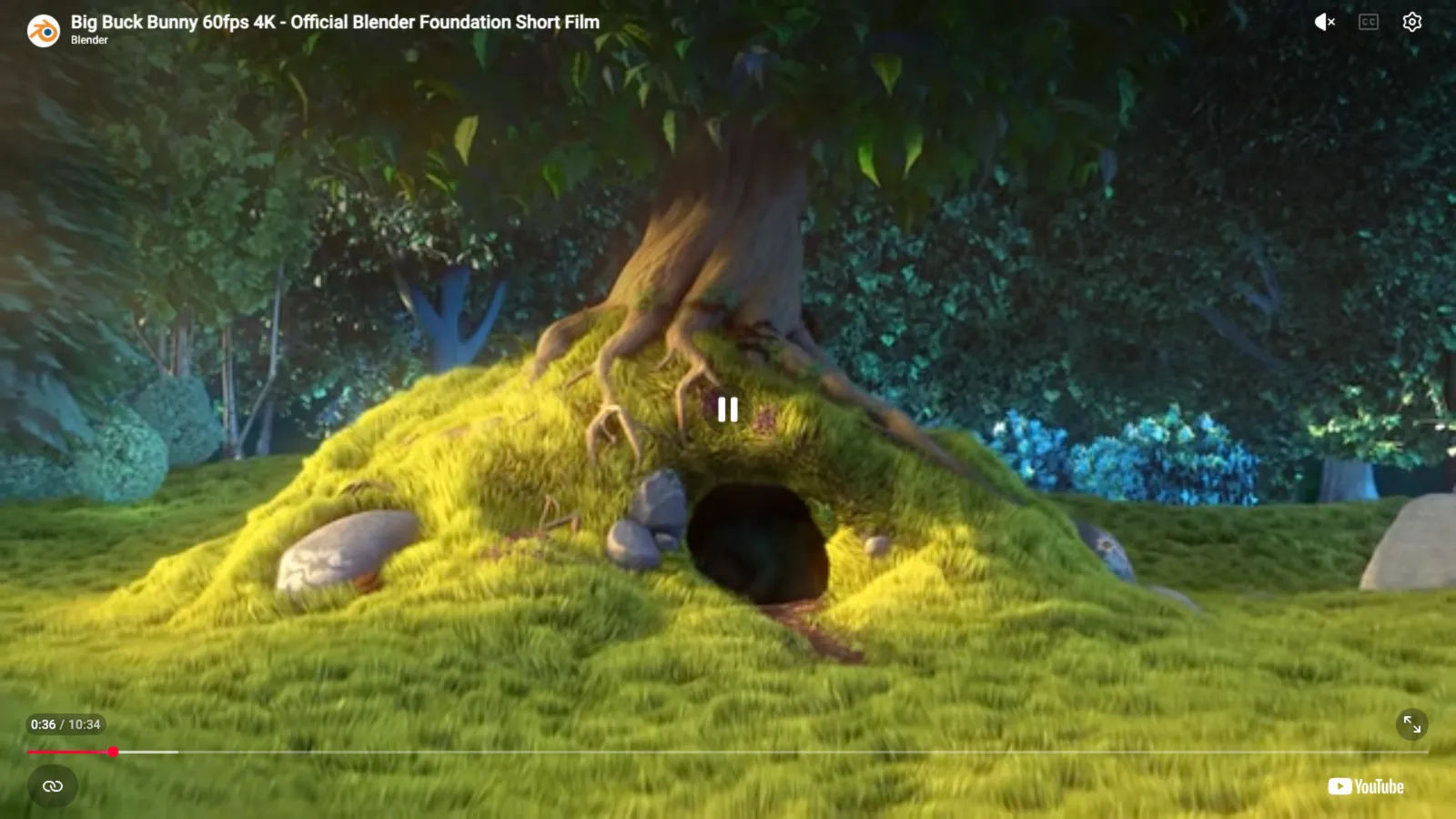
Move the pointer to the top edge to bring the title bar back when you're done.
Making it a one-tap habit
Add YouTube to the dock with ⋯ › Add Site to Dock and it gets its own icon and its own window, so you skip the browser and its tabs entirely. Sound travels down the HDMI cable to the TV speakers with nothing to configure.

With no mouse connected, your phone's screen becomes the trackpad, so it doubles as the remote.
If you still see a border
At that point it's almost always the TV rather than the phone. Check the TV's picture size setting first, looking for "Just Scan", "Screen Fit", "Full Pixel" or "1:1", since TVs ship with overscan on and crop and pad by default. Then check the resolution in Settings › Display matches what the TV natively wants.
XeOS: External Display Browser turns an iPhone or iPad into a full desktop on any monitor, TV or projector.
Frequently asked
Do I need a smart TV?
No. Any TV, monitor or projector with an HDMI input works.
Does the ad blocker really cover YouTube video ads?
Yes, and skippable ads are skipped for you when they appear.
Will the phone charge while I watch?
With a multiport adapter that has a pass-through power port, yes.
Can I keep using my phone while it plays?
Only as your trackpad and on-screen keyboard.
Does this work on an iPad?
Yes, including older iPads with no Stage Manager. See the iPad article.
More from the blog

Try XeOS: External Display Browser
Full screen on any external monitor, TV or portable display. No black bars. Download on the App Store.