External Display BrowserPortable Monitor4 min read
How to Connect Your iPhone to a Portable Monitor, Full Screen
Portable monitors fold flat, weigh almost nothing, and give you a real screen anywhere. Most people carry a laptop to drive one. You don't have to. A phone, a cable and the right app get you a full desktop on that panel, edge to edge, with no laptop in the bag at all.
Why the default result disappoints
Plug a phone into a portable monitor with stock iOS and you get mirroring: a tall, narrow copy of the phone's screen with black bars filling the rest of a 16:9 panel. On a 15-inch portable monitor that leaves you with roughly the usable area of a large tablet, and everything on it sized for a hand rather than a desk.
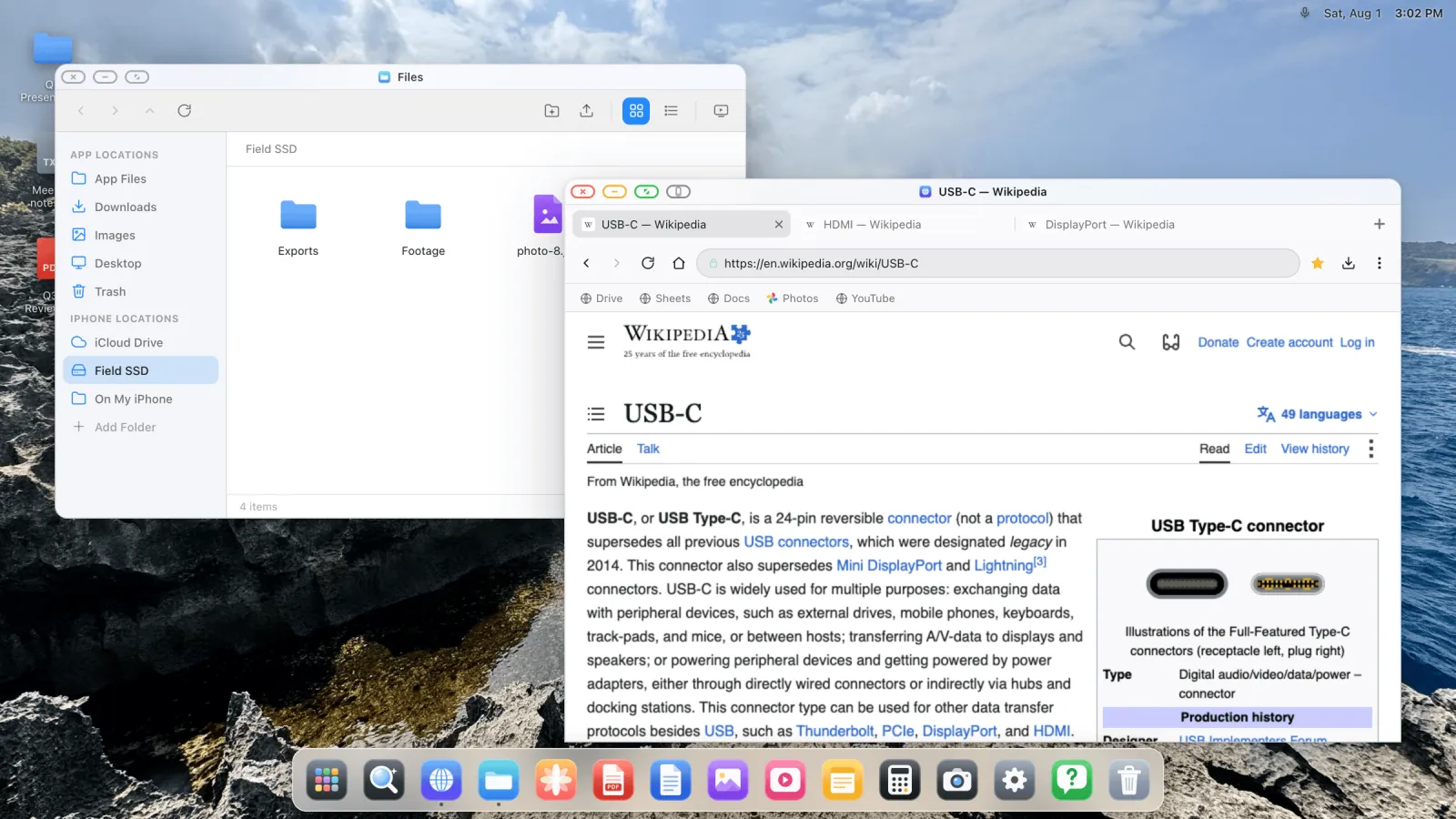
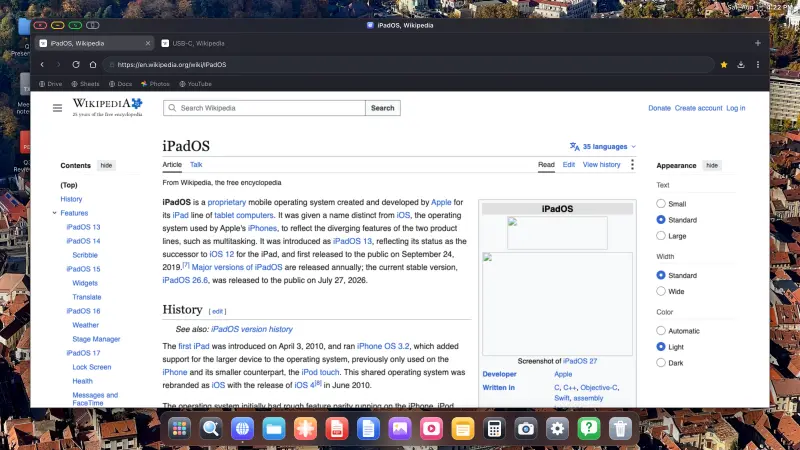
XeOS: External Display Browser doesn't mirror. It renders its own desktop at the monitor's own resolution, so the whole panel is in play.
What you need
- A portable monitor with HDMI or USB-C input.
- A USB-C to HDMI cable, or USB-C to USB-C if the monitor takes video over USB-C (iPhone 15 and later, and every USB-C iPad). Older iPhones need a Lightning Digital AV Adapter.
- XeOS: External Display Browser from the App Store.
- A power bank or a hub with pass-through charging, if you'll be away from a socket for a while.
The best purchase for this setup is a small USB-C multiport hub. One connector gives you the monitor, power into the phone and a USB-A port for a keyboard dongle or a drive, and it costs less than a monitor stand.
Setting it up
- Connect the monitor. On a USB-C monitor with an iPhone 15 or later, one cable carries video and, on many panels, power in the other direction. On HDMI, use the adapter for your port.
- Open XeOS with the monitor plugged in. It finds the display and takes it over, in landscape, at native resolution.
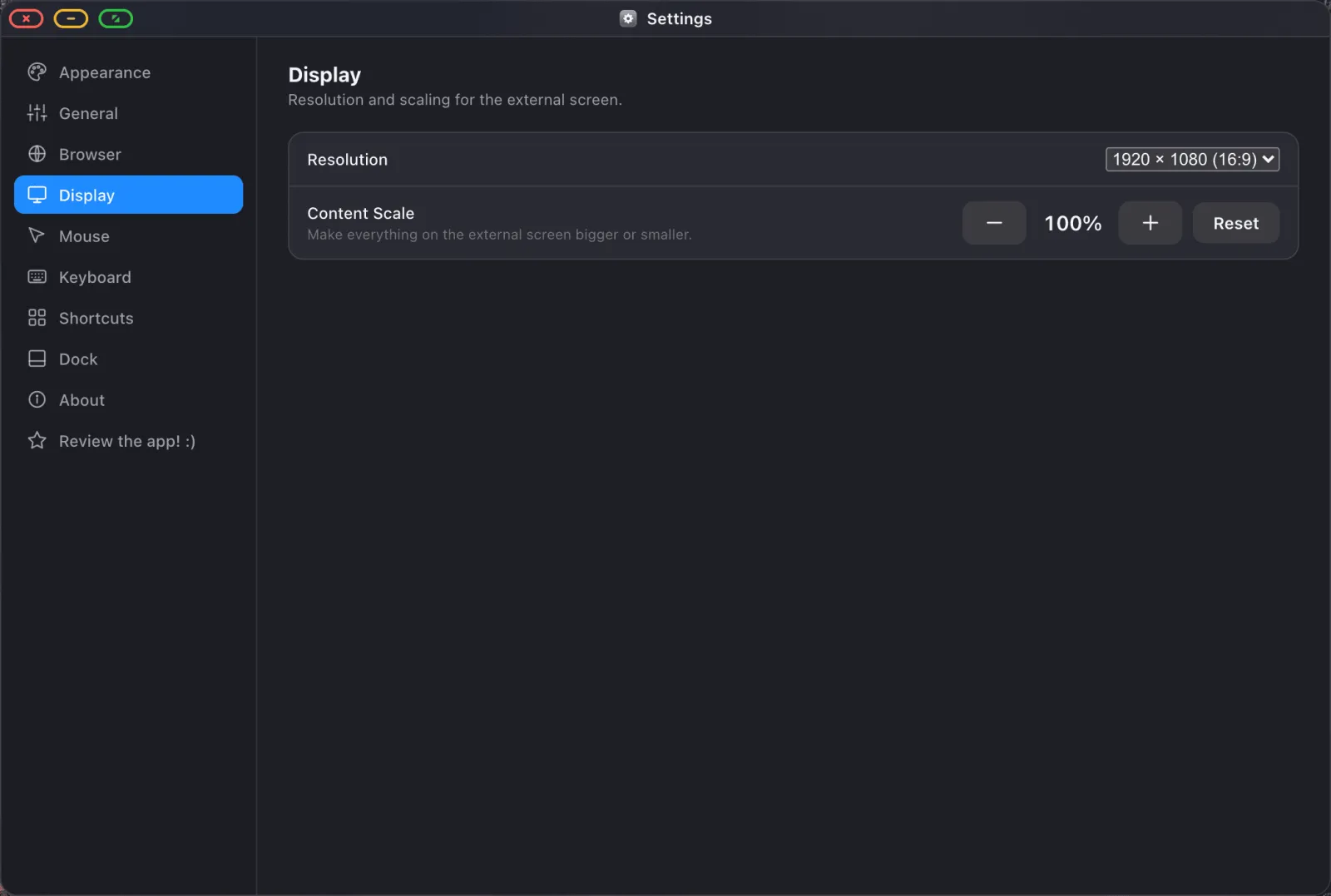
- Choose the resolution and scale. Portable monitors are usually 1920 × 1080, and at the arm's length you sit from one, 100–110% content scale reads well.
- Pair a keyboard and mouse. A compact Bluetooth keyboard and a small mouse fit in the same sleeve as the monitor and turn the whole thing into a workstation.
What it's good for
Working from a café or a co-working desk
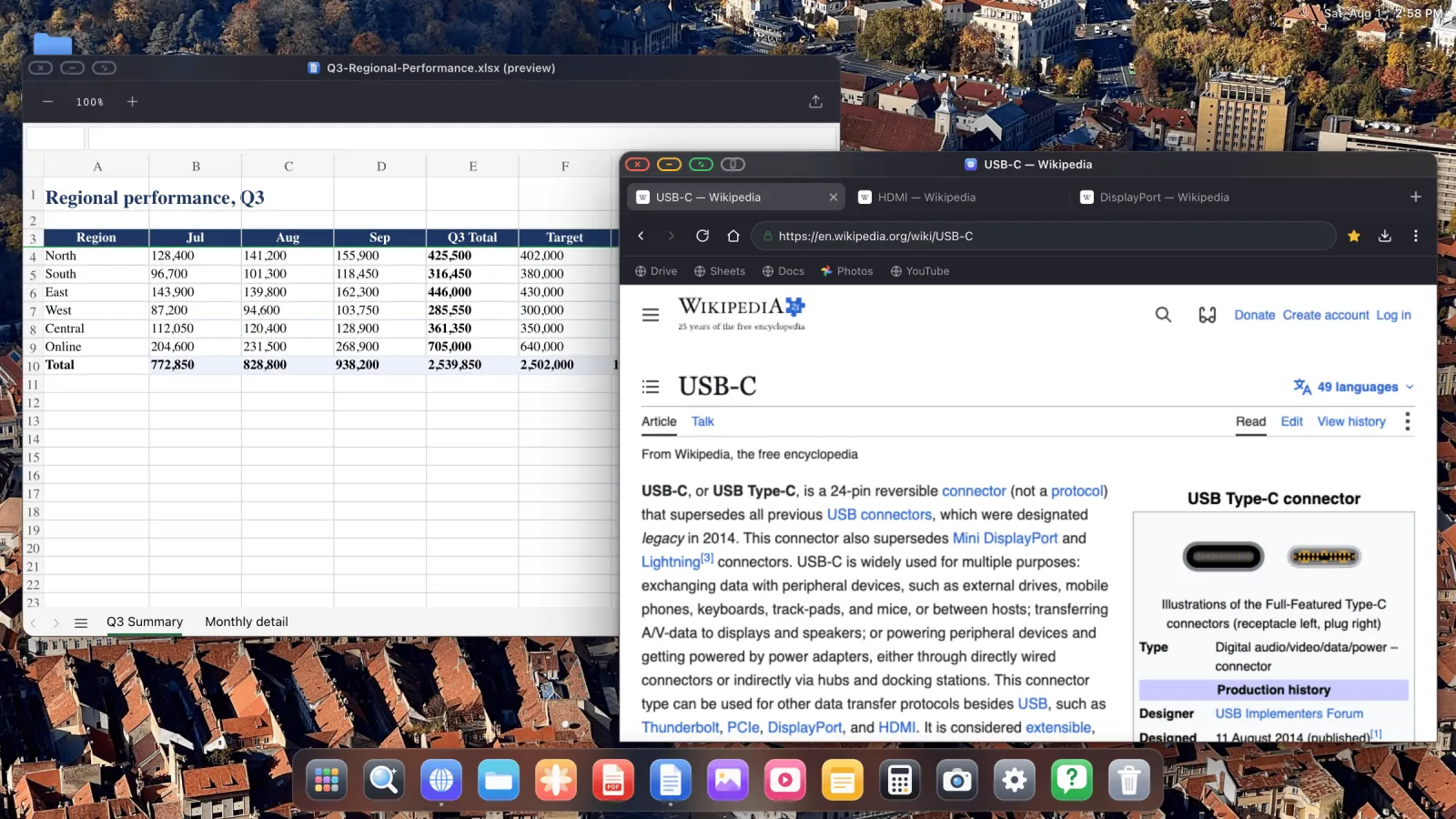
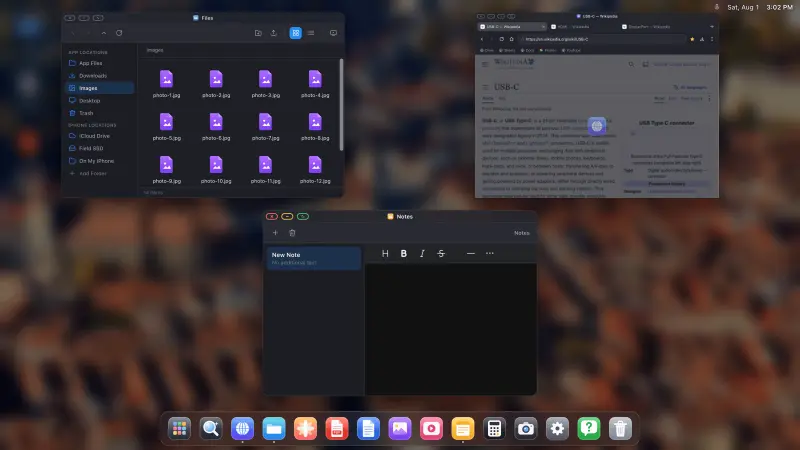
Open the browser on the big panel, put your notes next to it, keep email in a third window. Google Drive, Docs and Sheets behave the way they do on a computer, and Word, Excel and PowerPoint files preview in the built-in viewer. There's a whole guide on working and studying this way.
Video in a hotel room
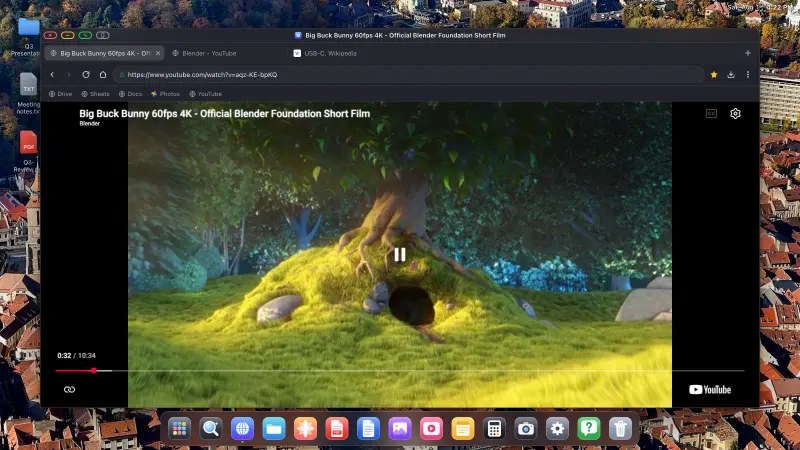
Hotel TVs vary wildly. A portable monitor plus a phone is a known quantity: open the site, press the green button, and the video fills the panel with no interface around it. The ad blocker is on by default, and it counts for more on a small screen than a large one. See the full-screen YouTube guide.
Presenting when there's no projector
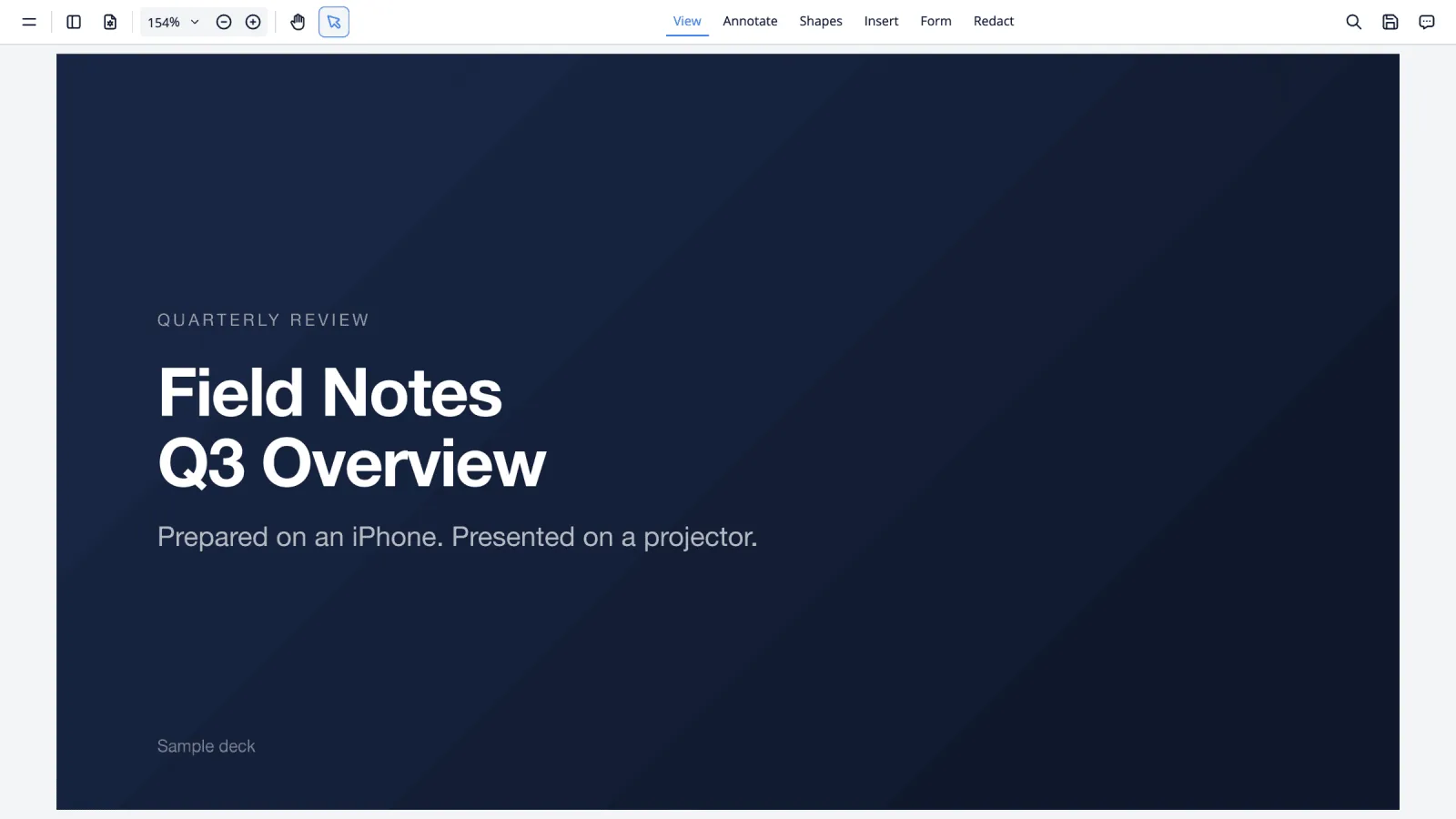
A portable monitor turned to face two or three people is a perfectly good pitch screen. Slides from Google Slides, or a PDF in the built-in viewer with no internet at all, both go full screen from the same green button. Presenting without a laptop covers both routes.
Tips for a smaller bag
- Take the hub, not the loose cable. One connector, three jobs.
- Keep the phone charging while it drives the screen. Video output is the most power-hungry thing your phone does.
- A keyboard with a built-in trackpad saves carrying a mouse and works exactly the same way.
- Install the sites you use as dock apps before you travel, so nothing needs typing at the airport. How to do that.
- Sessions survive restarts, so you sign in to things once rather than every time you plug in.
XeOS: External Display Browser turns an iPhone or iPad into a full desktop on any monitor, TV or projector.
Common questions
Does one USB-C cable carry video and charge the phone?
On monitors that support power delivery back down the same cable, yes. Otherwise use a hub with a separate power input.
Will it work with a USB-C-only portable monitor?
Yes, provided the monitor accepts video over USB-C and your phone has a USB-C port. Check the monitor's spec sheet for "DP Alt Mode".
Do I need Wi-Fi?
For the web, yes, whether that's your phone's connection or hotel Wi-Fi. For local files, PDFs, documents and photos, no. Those work with no connection at all.
Is battery life a problem?
Driving a display uses real power. With a hub that passes charge through, the phone stays topped up while you work. Without one, plan on a power bank for long sessions.
If the display isn't connected yet, start with the setup guide, which covers cables, resolution and scaling once, properly.
More from the blog
Try XeOS: External Display Browser
Full screen on any external monitor, TV or portable display. No black bars. Download on the App Store.