
 External Display BrowserWork & study4 min read
How to Study and Work From Your iPhone: Google Drive, Docs, Sheets and Office Files on a Big Screen
Writing an essay in a phone-sized text box is miserable. On a 24-inch monitor with a real keyboard it's just writing. This guide covers using Google Drive, Docs and Sheets from an iPhone or iPad, opening the Word and Excel files people email you, and keeping your documents somewhere you can get at them.
Set the display up first with the connection guide, and import your passwords so signing in to Google takes a second rather than a minute.
Google Drive, Docs and Sheets
The browser in XeOS is a desktop browser on a desktop-sized screen, and that alone does most of the work. Google's web apps hand you the full interface instead of the cut-down mobile one. Sheets gets its formula bar and full menus. Docs gets the ruler, the outline pane and proper keyboard shortcuts. Drive gets its full grid view.
- Open the Browser from the dock.
- Go to
drive.google.comand sign in. - Open a document. It behaves as it does on a laptop.
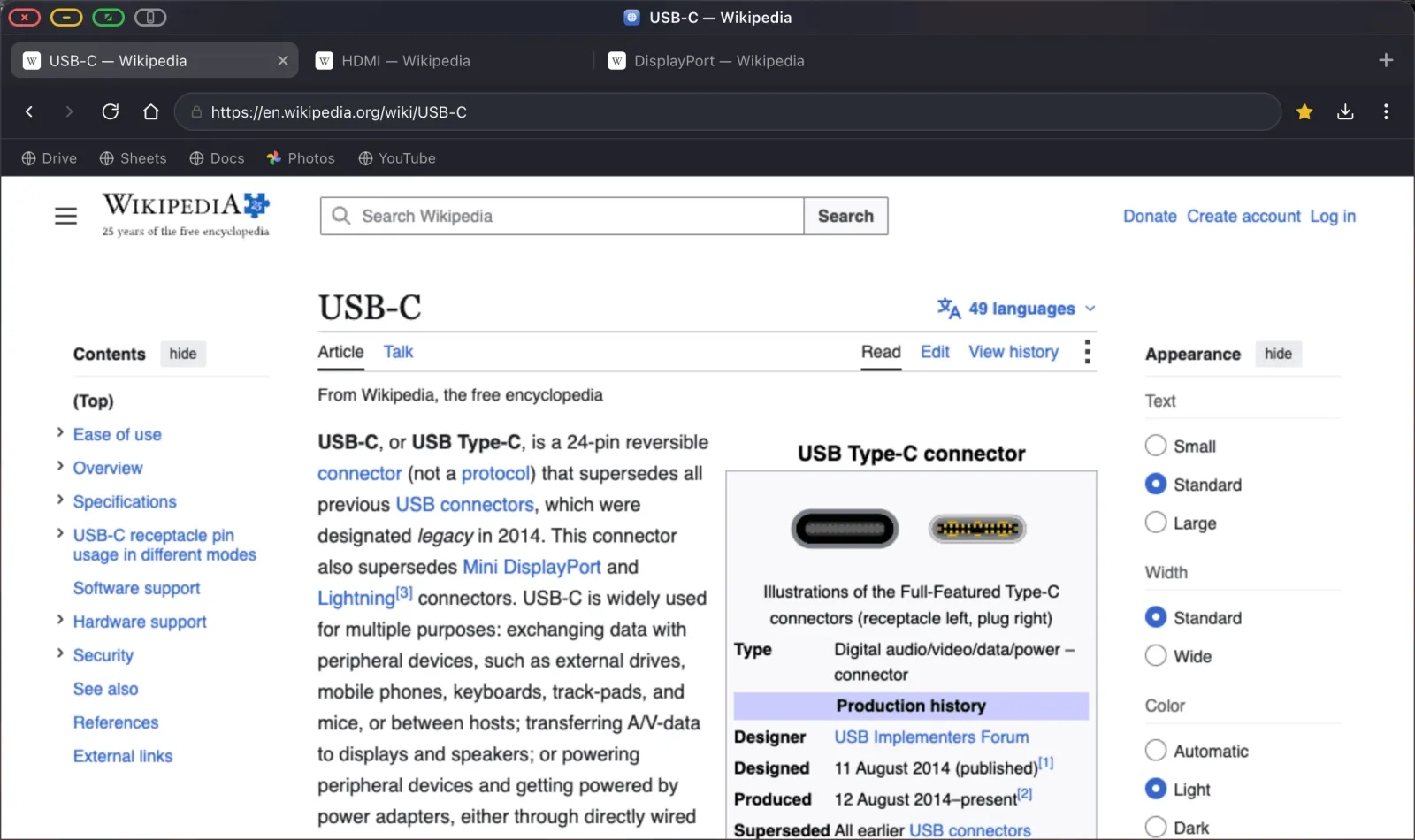
A few habits make this nicer day to day. Put Drive, Docs and Sheets on the bookmarks bar (Cmd Shift B shows it) so any of them is two clicks away. Better still, install them as dock apps with ⋯ › Add Site to Dock, which gives each one its own icon and window so Sheets isn't buried behind six tabs. Use a Bluetooth keyboard and Google's own shortcuts, since that's where most of the speed comes from. And remember that Cmd + and Cmd − set zoom per site and remember it, so a spreadsheet can be sized to read from across a desk.
If a control in Google's interface won't take a click, usually a sign-in step or an embedded add-on, that's the frame limitation described in Device Layout Mode. Grey button, do the step on the phone, come straight back.
Multiple windows, one screen
This is where a big screen earns itself. Detach a tab into its own floating window and you can have your notes beside your source, or the spreadsheet beside the document quoting it.
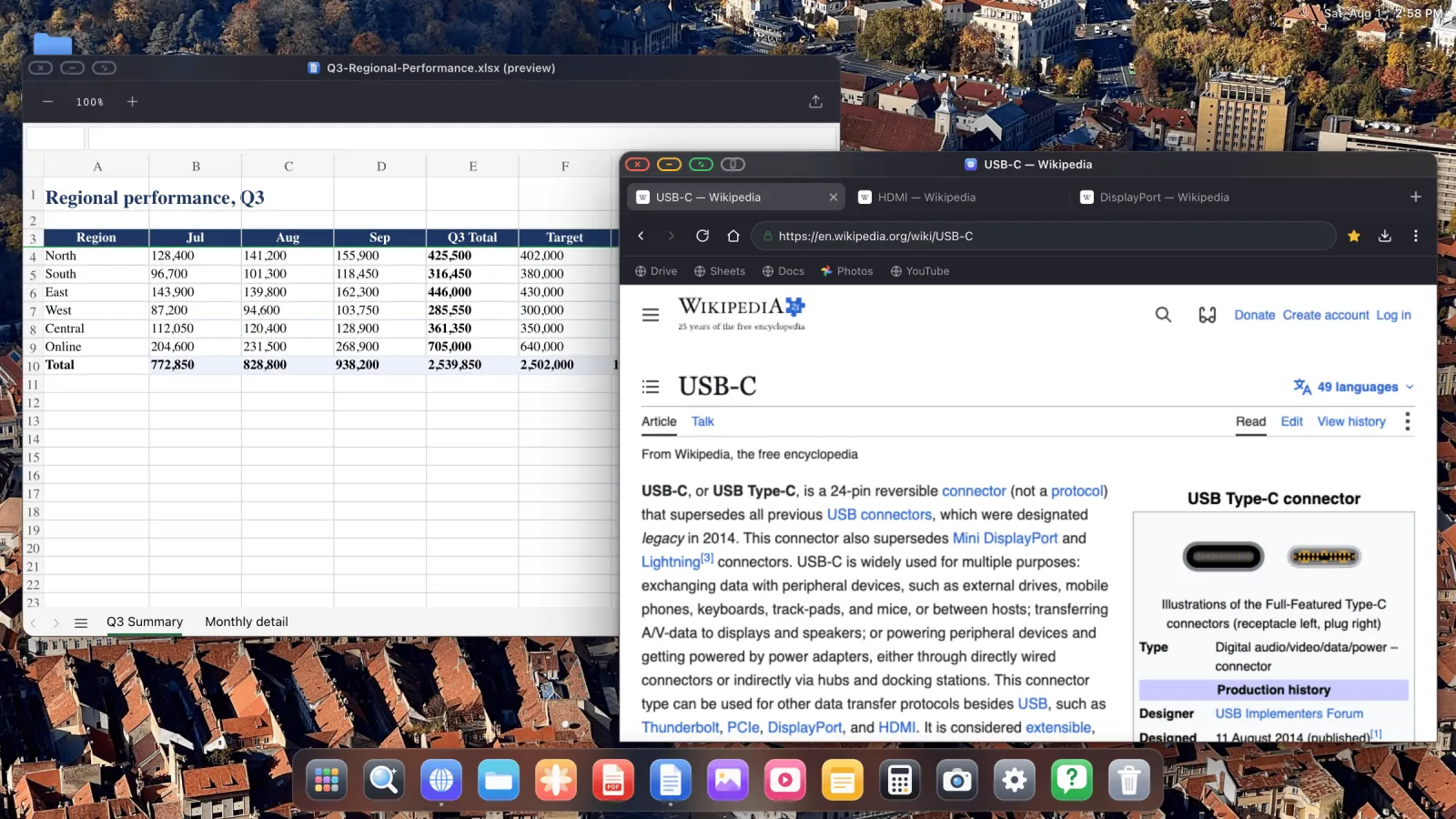
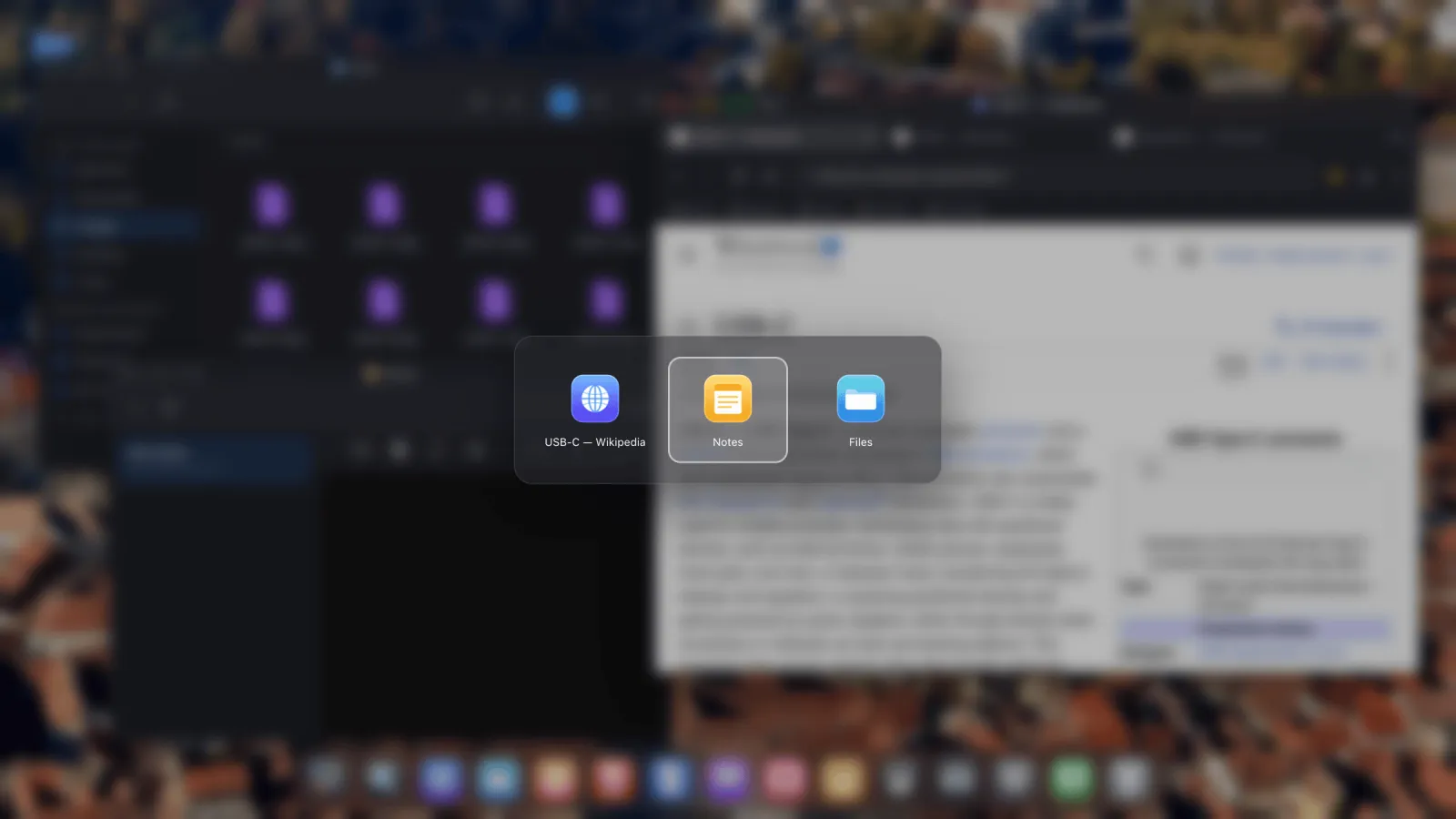
Right-click any tab and choose Open in Floating Window. Windows snap to screen edges when you drag them there, and Ctrl Tab cycles between everything open.
Word, Excel and PowerPoint files
For the files people email you, XeOS previews Office documents directly on the device, so nothing is uploaded and no sign-in is involved. Double-click a .docx, .xlsx or .pptx in Files and it opens.
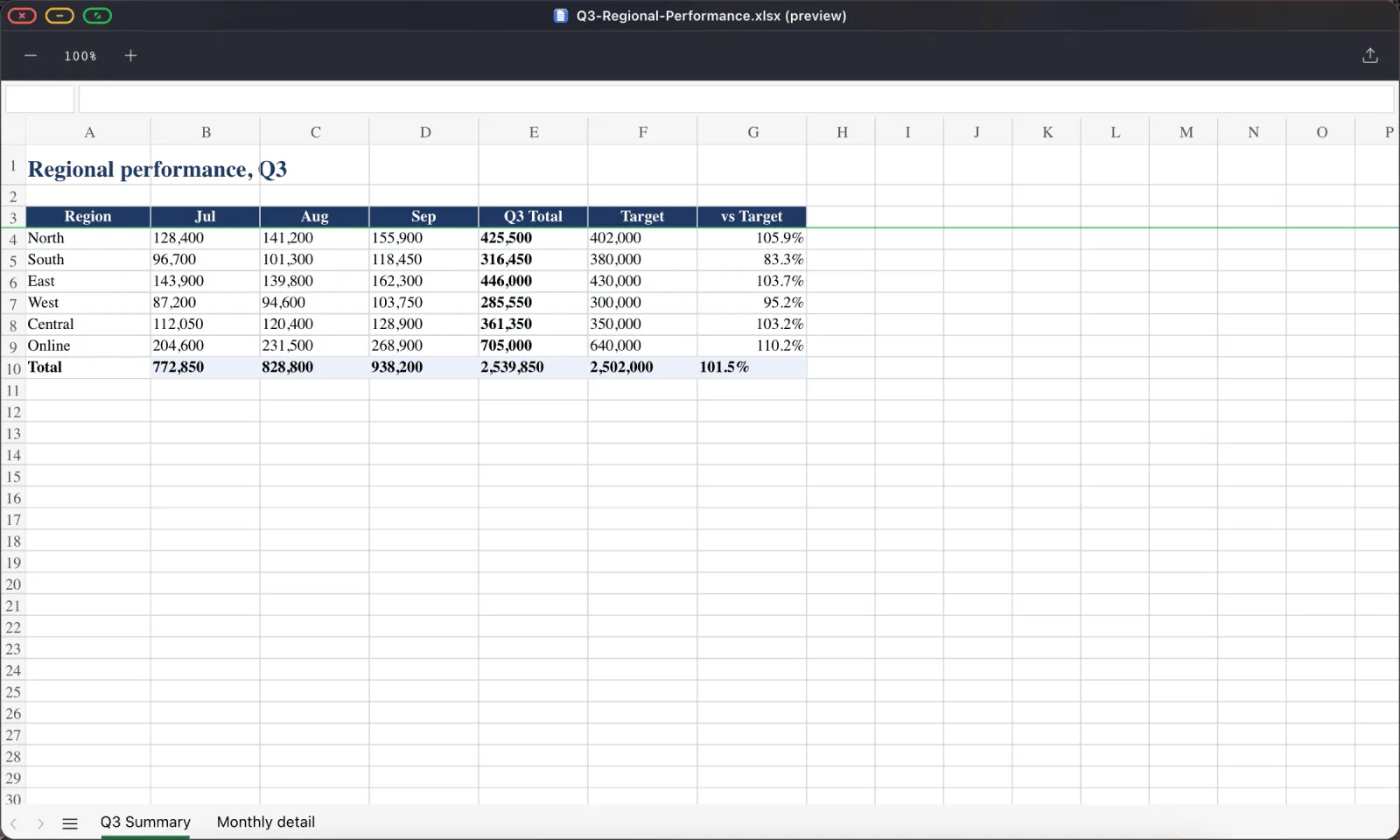
.xlsx workbook with its formatting, number formats and multiple sheets, on a screen big enough to read it.Spreadsheets keep their sheet tabs, so a multi-sheet workbook is fully navigable. Word documents keep their headings, lists and tables:
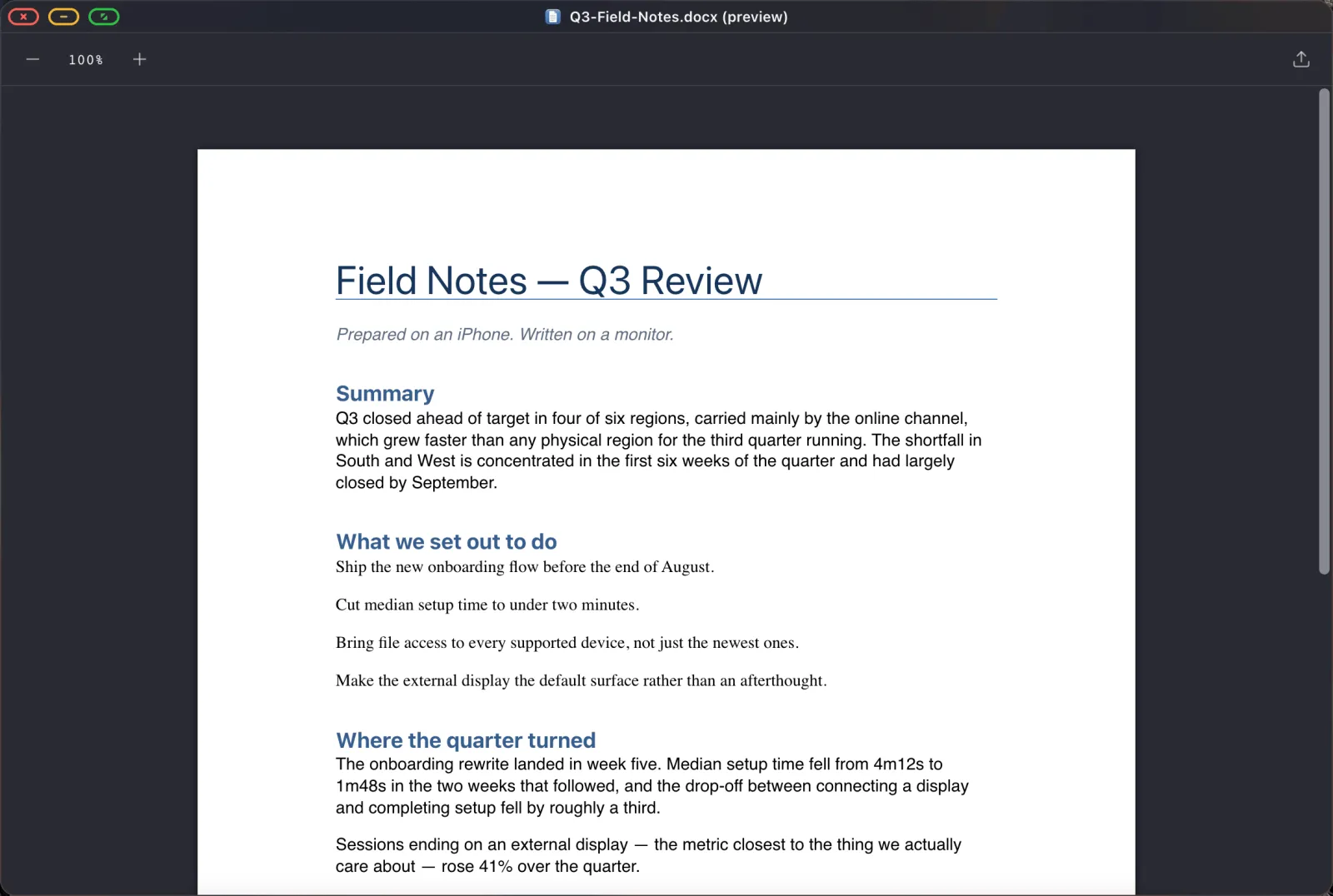
.docx report, rendered with its headings, lists and tables intact.Be clear about what this is, though: a preview. It's built for reading, checking and presenting from, not for heavy editing. When you need to edit an Office file, open it in Google Docs or Sheets in the browser, work there, and export back out.
PDFs, properly
The PDF viewer is a full one rather than a thumbnail preview. Page thumbnails, search, zoom, text selection and copy, and annotation tools.
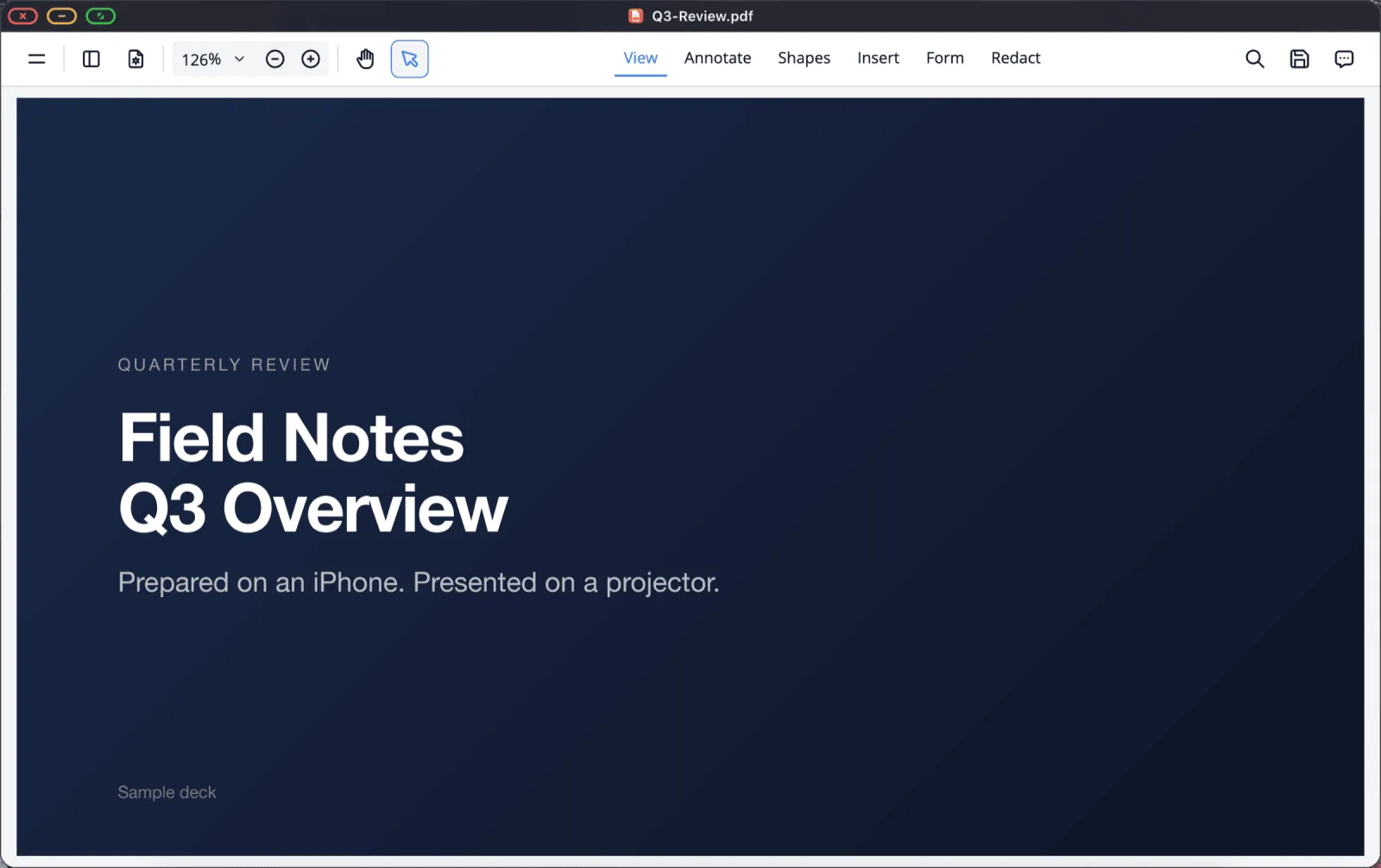
Select text and copy it with Cmd C or the right-click menu. It goes to the system clipboard, so it pastes straight into a Google Doc in the next window. Annotations and filled form fields save back to the file in place, and Cmd S saves like any desktop app.
Where to keep your documents
One step turns this from a demo into a workflow: mount the folder your work lives in.
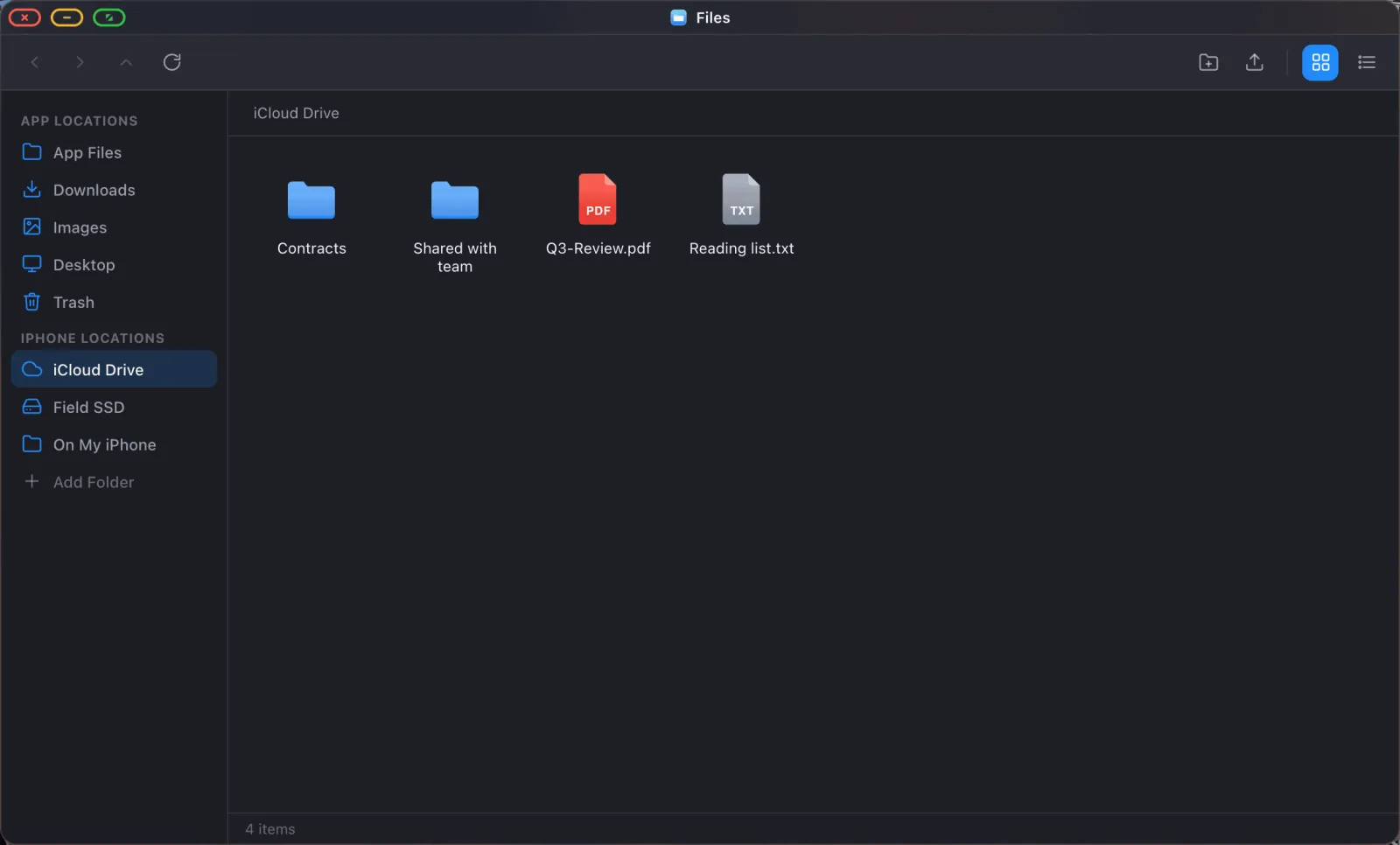
Mount your iCloud Drive documents folder and you can open a file, work on it and save it back, with the change syncing to every other device you own. The same works for a folder on the phone, or a USB drive for anything large.
Notes and quick capture
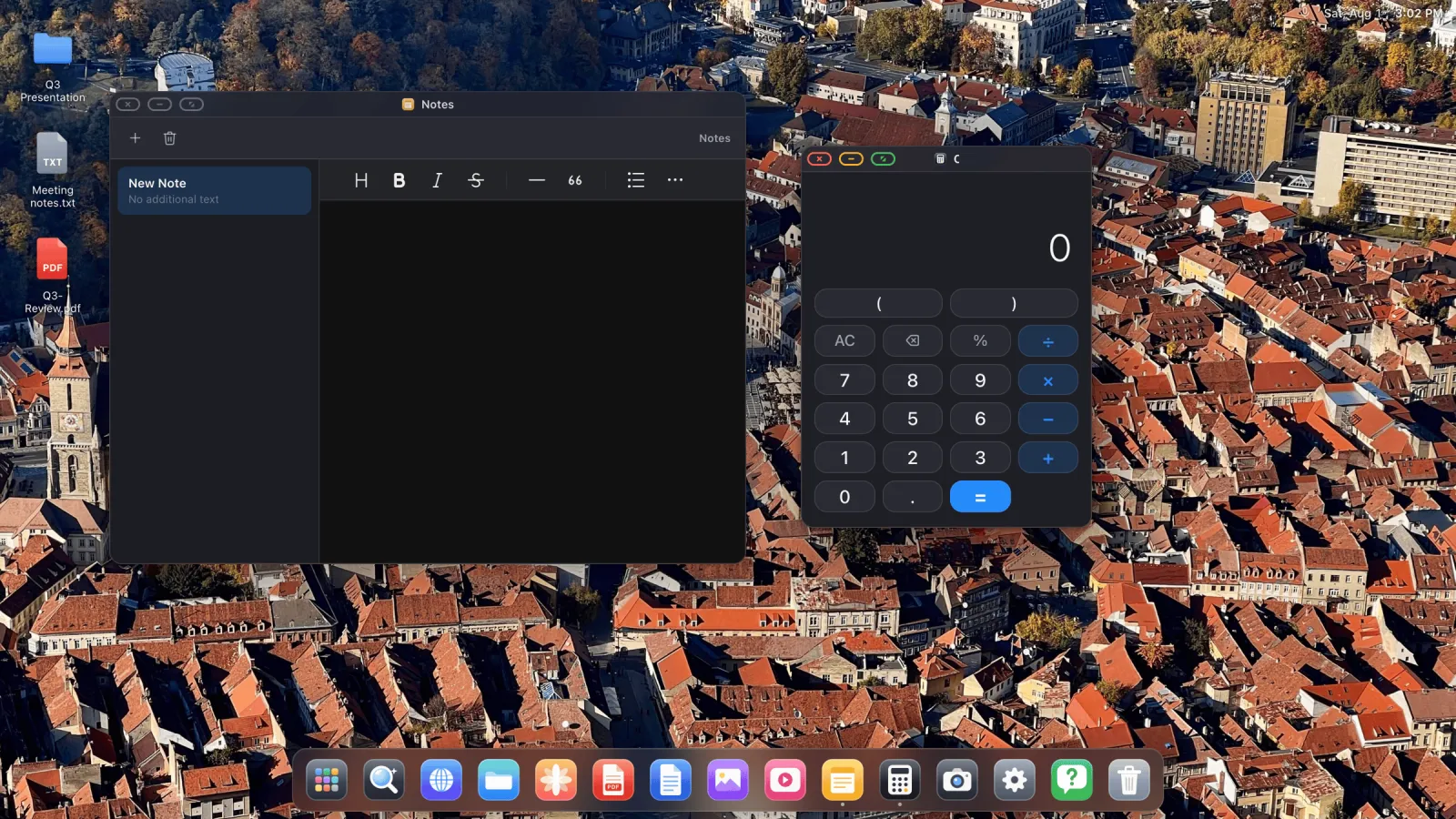
For anything that doesn't deserve a document, there's a built-in Notes app with rich text formatting, plus a plain text editor for code and configuration files.
A study setup that works
- Monitor, USB-C multiport adapter so the phone charges, Bluetooth keyboard and mouse.
- Drive, Docs and Sheets added to the dock as apps.
- Your working folder mounted from iCloud Drive.
- Reading material saved to the reading list as you find it.
- Content scale in Settings › Display tuned so text is comfortable at your desk distance.
That's a workstation you can carry in a pocket and plug into any screen you find.
XeOS: External Display Browser turns an iPhone or iPad into a full desktop on any monitor, TV or projector.
Common questions
Can I edit Word files directly?
The built-in Office support is a preview, meant for reading and presenting. For editing, open the file in Google Docs or Sheets in the browser.
Does Google Docs offline mode work?
Google's own offline support depends on browser storage, and site storage does persist here. But for genuinely offline work, a PDF or a local file is the dependable option.
Can I copy text out of a PDF into a document?
Yes. Select the text, Cmd C, paste it into the other window.
Is there a spreadsheet app built in?
There's a viewer for Excel files, and a calculator. For real spreadsheet work, Google Sheets in the browser is the answer.
More guides




Try XeOS: External Display Browser
Full screen on any external monitor, TV or portable display. No black bars. Download on the App Store.