
 External Display BrowserPresenting4 min read
How to Present From Your iPhone or iPad When You Didn't Bring a Laptop
The projector is on, the room is waiting, and your laptop is somewhere else. With your phone and a cable you can still present properly, full screen, from the slides you already have. Two routes below: Google Slides in the browser, and the built-in viewer for a PDF you exported before you left. The second one works with no network at all.
Set the display up first with the connection guide. In a meeting room you'll usually want USB-C to HDMI, or a Lightning Digital AV Adapter on older iPhones. Plenty of rooms are still VGA only, which a Lightning to VGA adapter covers.
Before you travel: export your deck to PDF and put it somewhere you can reach offline, either the app's own Files or a folder you've mounted. Conference Wi-Fi fails. A PDF on the device doesn't.
Method 1: Google Slides (or PowerPoint on the web)
The browser in XeOS is a desktop browser, so slides.google.com behaves the way it does on a computer, presenter controls and all.
- Open the Browser and go to
slides.google.com(oroffice.comfor PowerPoint). - Sign in. If you imported your passwords this takes seconds.
- Open your deck and start the slideshow from Slides' own Present control.
- Click the green button in the window's corner so the window itself goes full screen, which strips the title bar, tab strip and dock off it and leaves your slides on the projector.

Advance slides with a Bluetooth keyboard's arrow keys, with a mouse click, or by tapping your phone's screen as a trackpad. When you're done, move the pointer to the top edge to bring the title bar back.
If a control inside Google's interface won't respond to a click, that's the embedded-frame limitation covered in Device Layout Mode. Tap the grey button, do that one action on the phone screen, switch straight back to the projector.
Method 2: the built-in viewer, from a PDF, with no network
This is the reliable one. Export your deck to PDF before you leave and you can present from the device itself, without Wi-Fi or a sign-in and with nothing to load.
Get the file onto the device
Three ways in. The Files app has an Import button that opens the iOS document picker. You can mount a folder instead, pointing XeOS at iCloud Drive, a folder on your phone or a USB drive, and open the file where it already lives (the drives guide covers that). Or download it from email or the web, straight into Downloads.
Open it and go full screen
Double-click the PDF. It opens in the built-in viewer, which handles page navigation, zoom, a thumbnail sidebar, search and annotation.
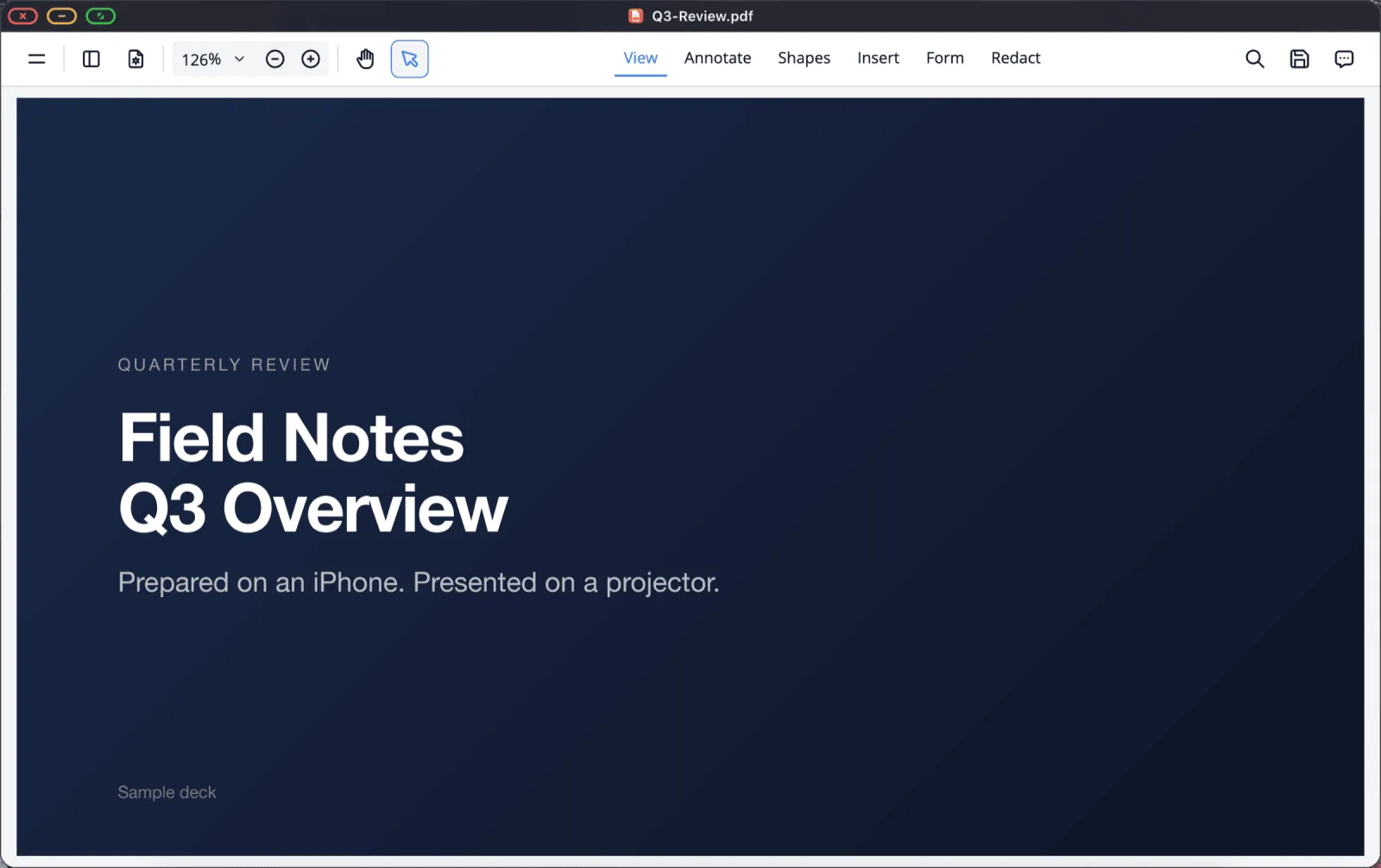
Then click the green button. The slide fills the projector completely:
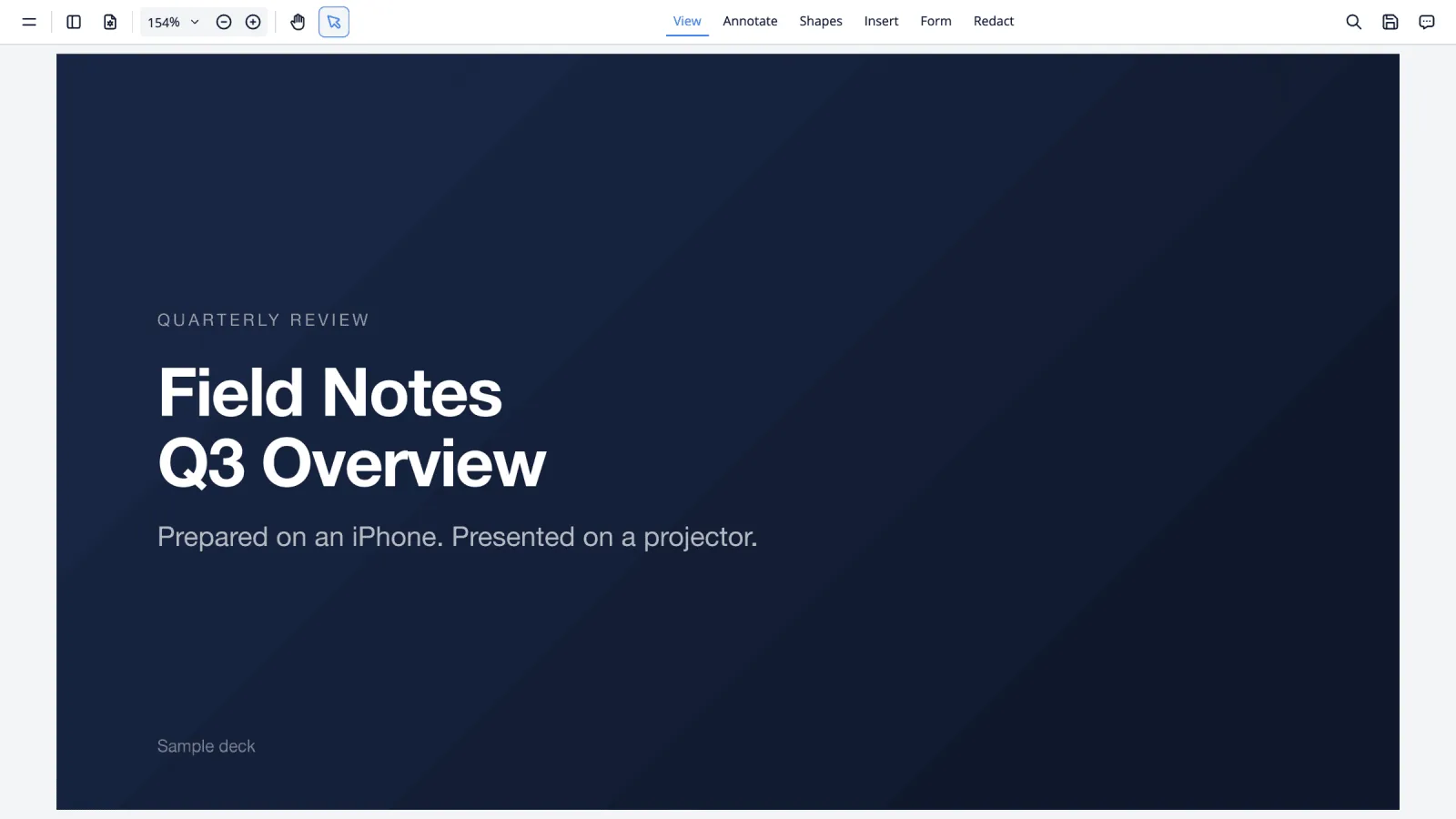
Page through with the arrow keys, Page Up / Page Down, a scroll wheel, or a swipe on the phone-as-trackpad.
Getting the slide to fill the frame
Decks exported to PDF are usually 16:9, which matches most projectors exactly. If yours is 4:3 you'll see a band down each side, and that's the deck's shape rather than anything the app is doing. Set the viewer's zoom to fit the page width. If the projector is adding its own border on top of that, go looking in its picture-size setting for "Just Scan", "Screen Fit" or "1:1".
Presenting other file types
XeOS previews Word, Excel and PowerPoint files directly, which covers the case where someone hands you a .pptx on a USB stick five minutes before you start. It is a preview, though. Fidelity is good enough to present from, but if exact layout matters, PDF is the safer bet.
A short pre-flight checklist
- Deck exported to PDF and on the device.
- Adapter and a spare HDMI cable in the bag. Rooms often have the cable bolted down and the wrong end free.
- Multiport adapter if the talk is long, so the phone charges while it presents.
- Do Not Disturb on, so a notification doesn't appear on a four-metre screen.
- Auto-lock off, in iOS Settings › Display & Brightness.
- Content scale checked in Settings › Display. A room reads better slightly larger.
XeOS: External Display Browser turns an iPhone or iPad into a full desktop on any monitor, TV or projector.
Common questions
Can I see presenter notes on my phone while slides show on the projector?
Not as a separate presenter view. The external display and the phone show the same session, and the phone is acting as your trackpad. Notes on paper or on a second device is the practical answer.
Does it work with old projectors?
Yes. Over VGA with a Lightning to VGA adapter, or HDMI on anything newer. Older projectors often prefer 1280 × 720 or 1920 × 1080, and you can pick the mode in Settings › Display.
Can I annotate a PDF while presenting?
Yes. The viewer has annotation tools, and changes can be saved back to the file in place.
What if the room only has Wi-Fi and no cable?
If there's an Apple TV or AirPlay-capable screen, mirror to it from Control Centre and XeOS will pick up the display automatically.
More guides




Try XeOS: External Display Browser
Full screen on any external monitor, TV or portable display. No black bars. Download on the App Store.