
 External Display BrowserFiles & drives4 min read
How to Browse Your Files, iCloud Drive and External Drives From Your iPhone or iPad
iOS keeps files at arm's length. The Files app is fine for grabbing one document, but it isn't a place you can work. XeOS gives you a file manager on the big screen, with a sidebar, two view modes, drag and drop and a trash, and it can mount folders from your phone, from iCloud Drive, and from a USB drive plugged into your adapter. Everything then opens in place, the way it does on a computer.
Set the display up first with the connection guide.
The two kinds of location
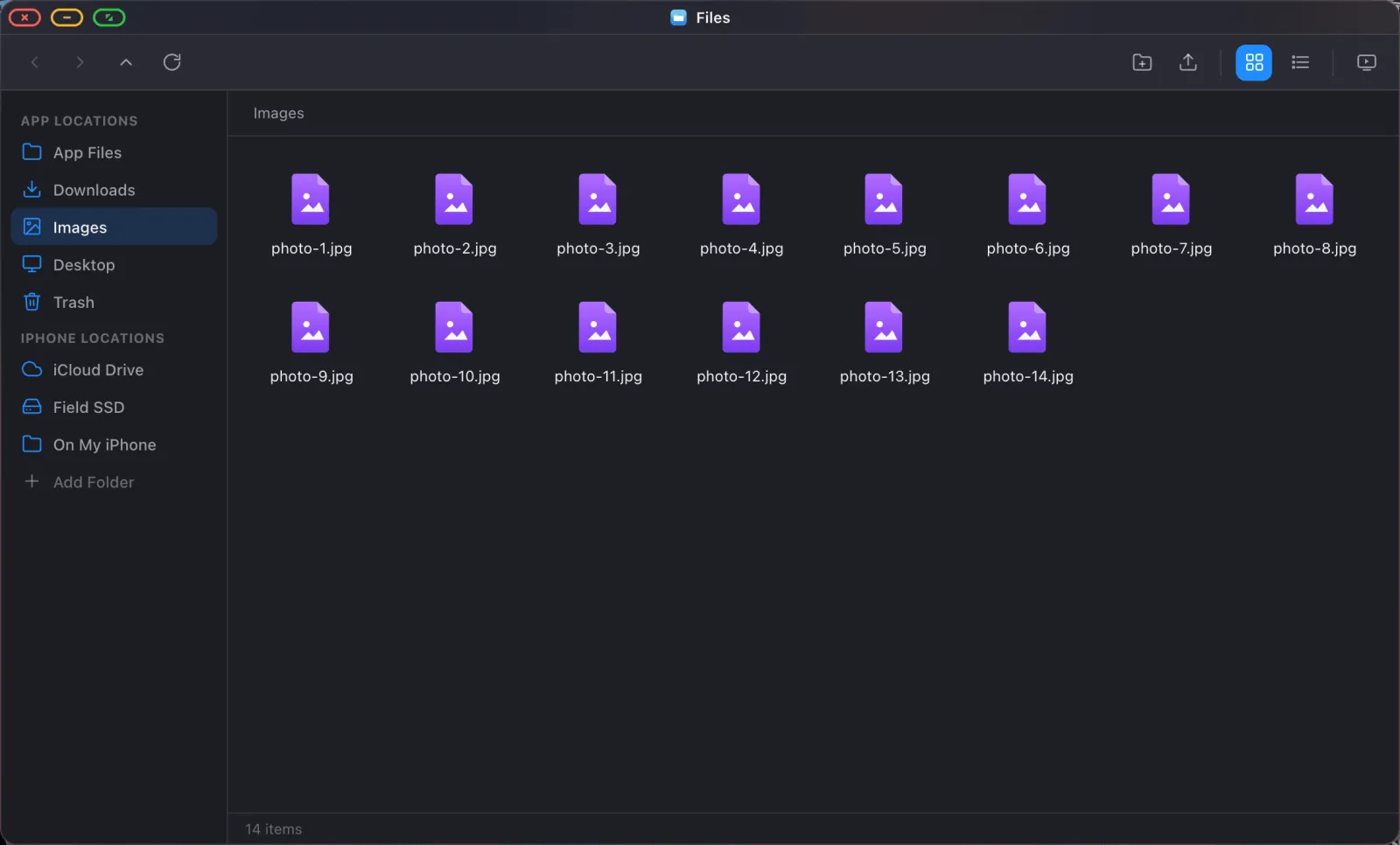
Open Files from the dock. The sidebar has two sections, and the difference between them matters:
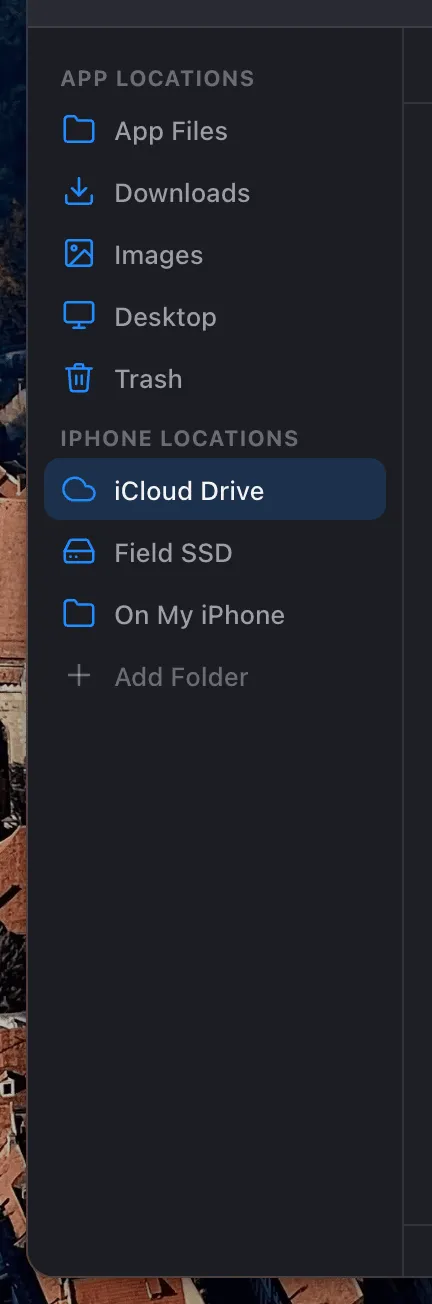
App Locations are App Files, Downloads, Images, Desktop and Trash. These belong to XeOS itself: Downloads is where the browser puts things, Desktop is what you see behind your windows. Your device's locations are folders you've mounted, and that's where iCloud Drive, a folder on your phone and any external drive turn up.
Mounting a folder
Click Add Folder at the bottom of the sidebar, or right-click anywhere in the sidebar and choose Add Folder.
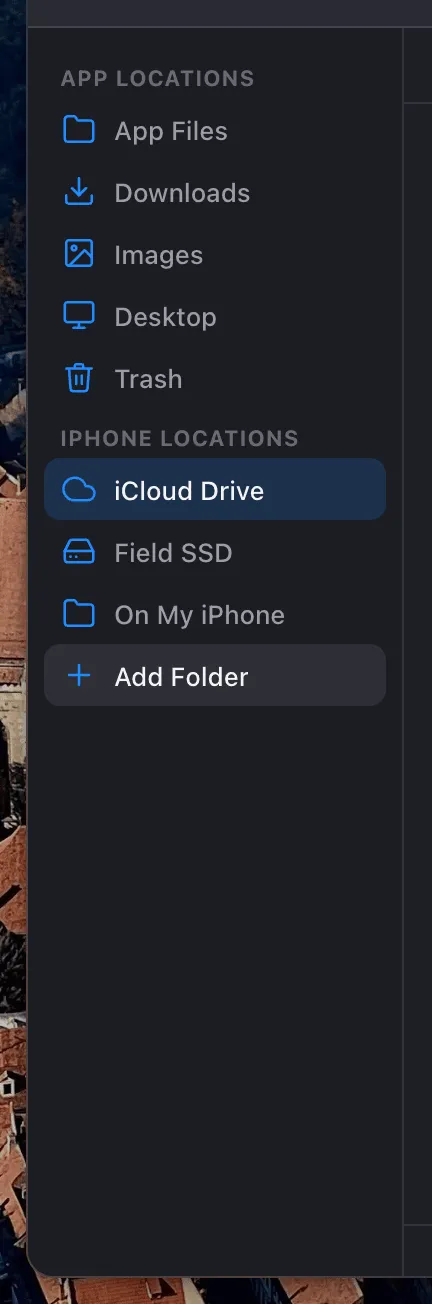
The iOS document picker opens. Navigate to the folder you want and choose it. XeOS works out what kind of folder it is and gives it a matching icon: a cloud for iCloud Drive, a drive glyph for an external disk, a plain folder for local storage. You grant access once and the folder stays there across restarts.
Mounting an iCloud Drive folder
In the picker, go to iCloud Drive and pick the folder you use, whether that's Documents or one project folder. It appears in the sidebar with a cloud icon and you work in it directly: open a file, edit it, save it, and the change syncs back through iCloud the way it would from a Mac.
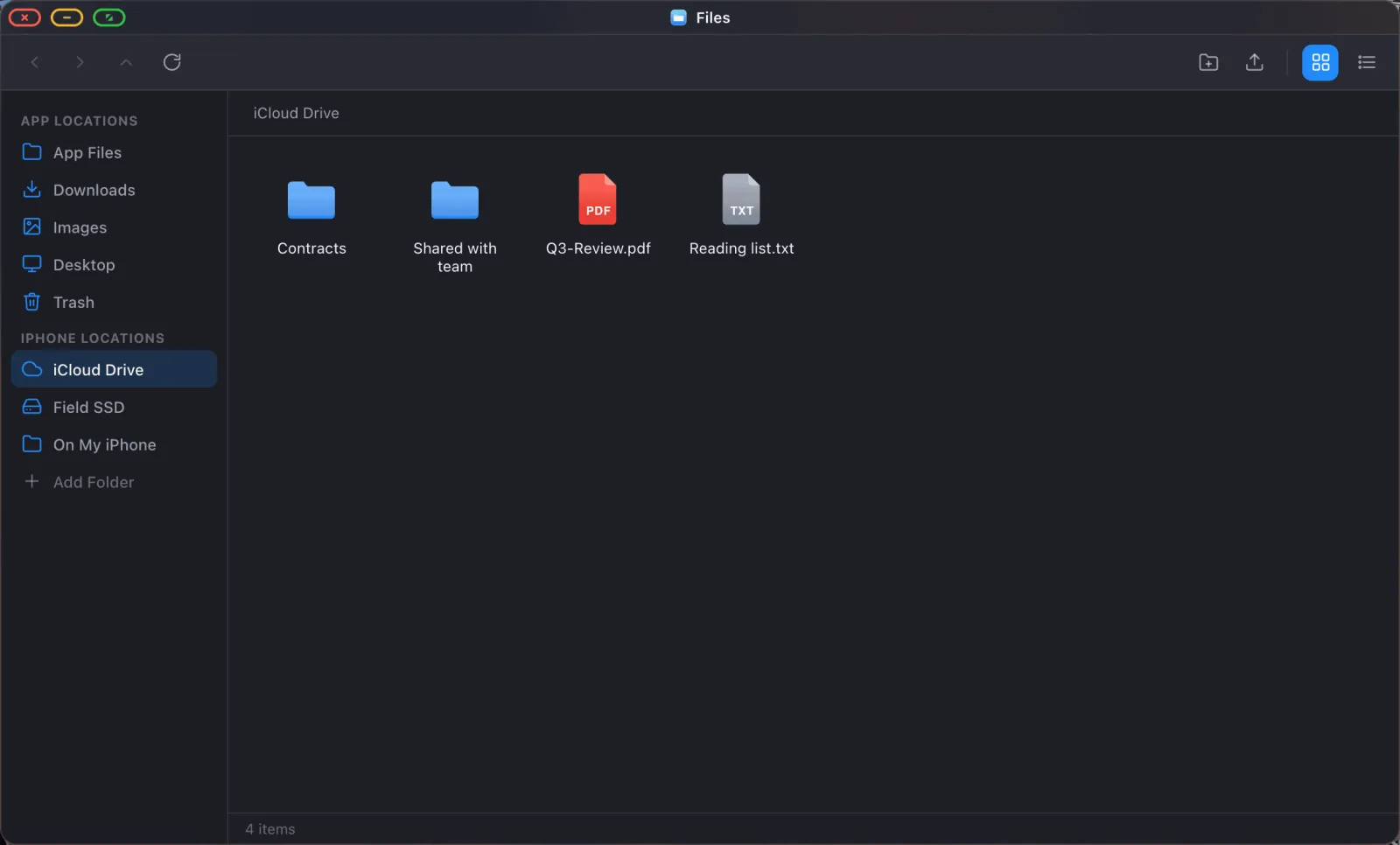
Files that haven't been downloaded from iCloud yet still appear in the listing and get fetched when you open them, so a folder that's mostly still in the cloud behaves like an ordinary one.
Mounting a folder from your phone
Same flow. Pick a folder under On My iPhone (or On My iPad). Anything another app has saved there, a scanner app's output or files another app shares, becomes browsable and openable.
Pick a subfolder, not the root. iOS won't let any app enumerate the whole "On My iPhone" (or "On My iPad") store, because that's a provider root rather than a real folder. Try it and XeOS says so and asks you to mount a subfolder instead. So mount On My iPhone › Documents, not On My iPhone. iCloud Drive doesn't have this limit: you can mount it at the root.
Mounting an external drive
Plug a USB drive or SSD into your adapter's USB port. It shows up in the iOS document picker under Locations, and mounting it works exactly like mounting anything else.
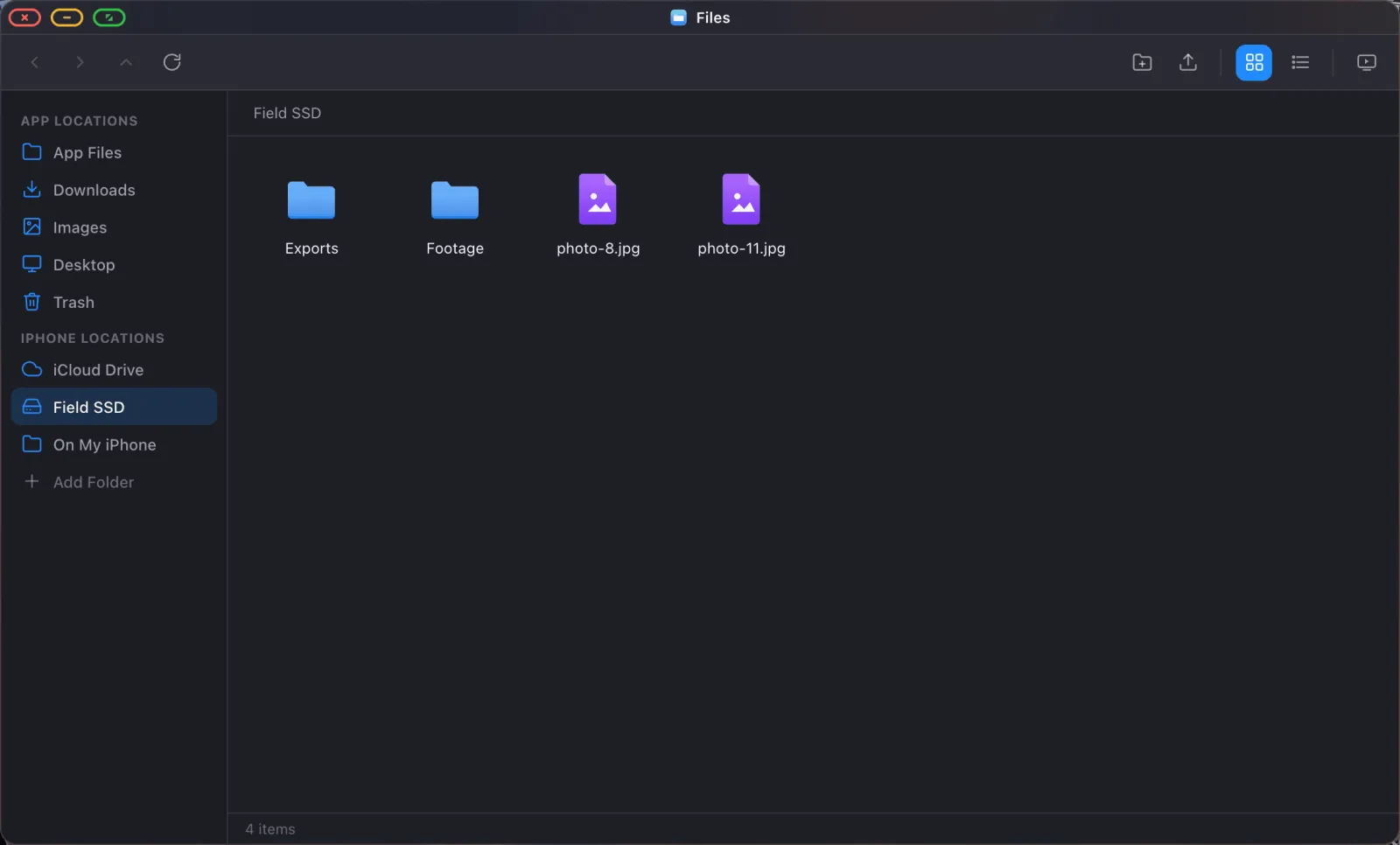
Unplug the drive later and XeOS marks the location unavailable rather than forgetting it, with a Check Again action for when you reconnect.
The hardware side
A drive needs a port and video needs a port. On a phone with one connector, that means a hub. Look for HDMI out for the display, a USB-A or USB-C data port for the drive, and power pass-through, without which the phone won't last long driving a screen and a disk at once.
These are sold as "USB-C multiport adapters" or "USB-C hubs with power delivery". Bus-powered SSDs work well. Large spinning drives may need their own power supply, since a phone supplies limited current.
Working with what you've mounted
Once a location is in the sidebar it behaves like any other folder:
- Open files in place. Double-click a PDF, image, video, text file or Office document and the right viewer opens.
- Drag and drop between windows to copy or move, with a progress bar for large transfers.
- Right-click for rename, duplicate, compress, unzip, delete and the rest.
- Zip and unzip with no extra tool. Double-clicking a
.zipextracts it in place. - Slideshow any folder of images (see the slideshow guide).
- Search across mounted locations with the system search overlay.
Tidying up the sidebar
Right-click any mounted location for its options.
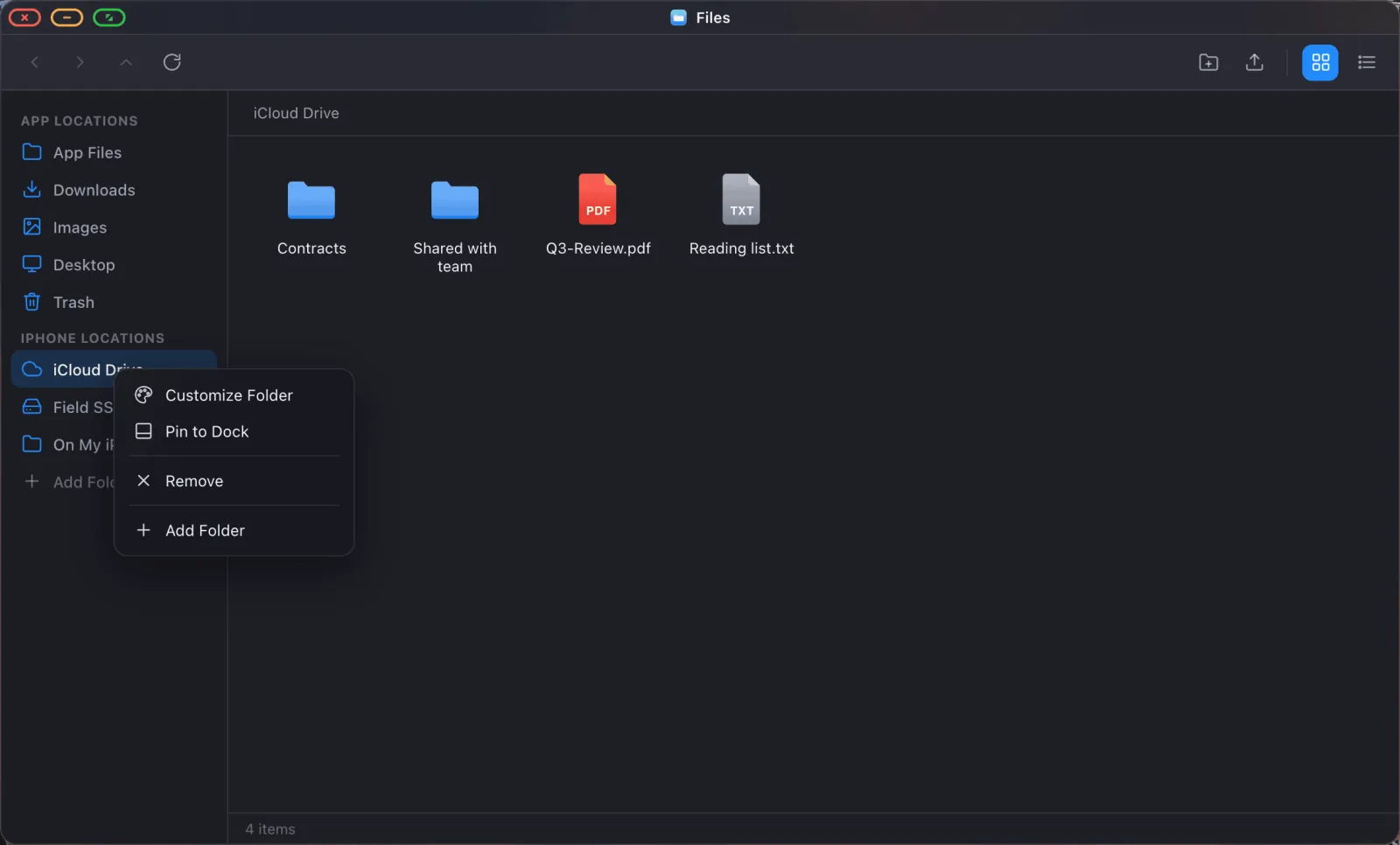
Customize Folder gives it a clearer name, a different icon and a colour, which helps the moment you have three mounts all called "Documents". Pin to Dock puts the folder one click from anywhere. Remove takes it out of the sidebar and leaves the folder itself alone.
Locations can be dragged to reorder them, and you can drag a folder from the file list onto the sidebar to pin it.
XeOS: External Display Browser turns an iPhone or iPad into a full desktop on any monitor, TV or projector.
Common questions
Do I have to re-grant access every time I open the app?
No. A mounted folder is remembered and stays available across restarts.
Can I mount the whole of iCloud Drive?
Yes.
Does editing a file in a mounted iCloud folder sync back?
Yes. You're working on the real file, so saving writes through iCloud like any other app.
My external drive disappeared. Is the mount gone?
No, it's marked unavailable. Plug the drive back in and use Check Again on the sidebar row.
What file systems do external drives need?
Whatever iOS itself can read. exFAT and FAT32 are the safe choices, and APFS and HFS+ drives generally work too. XeOS goes through the system picker, so if the iOS Files app can see the drive, so can XeOS.
More guides




Try XeOS: External Display Browser
Full screen on any external monitor, TV or portable display. No black bars. Download on the App Store.