
 External Display BrowserTravel4 min read
Using an iPhone as a Laptop for Travel: The No-Computer Setup That Works
Leaving the laptop at home is a good idea right up until you need to do something that needs a real screen. This is the setup that closes the gap: a phone, a small bag of accessories, and a desktop that appears on whatever monitor or TV is in the room. Under half a kilo, and it fits in a jacket pocket.
What's in the bag
| Item | Why |
|---|---|
| USB-C multiport adapter | HDMI for the screen, USB for a drive, pass-through power so the phone charges. The most important piece here. |
| Short HDMI cable | Hotel and rental TVs have a port; the cable is usually somewhere else. |
| Folding Bluetooth keyboard | Real typing. Doesn't need to be expensive. |
| Small Bluetooth mouse | Turns a big screen into a workstation. Optional, since your phone's screen is a trackpad. |
| Bus-powered USB-C SSD | Photos, footage, backups. Mounts directly. |
| Charger with enough wattage | Driving a display and a drive uses power faster than you'd think. |
That's under half a kilo, and nothing in it needs its own charger except the phone.
The software half
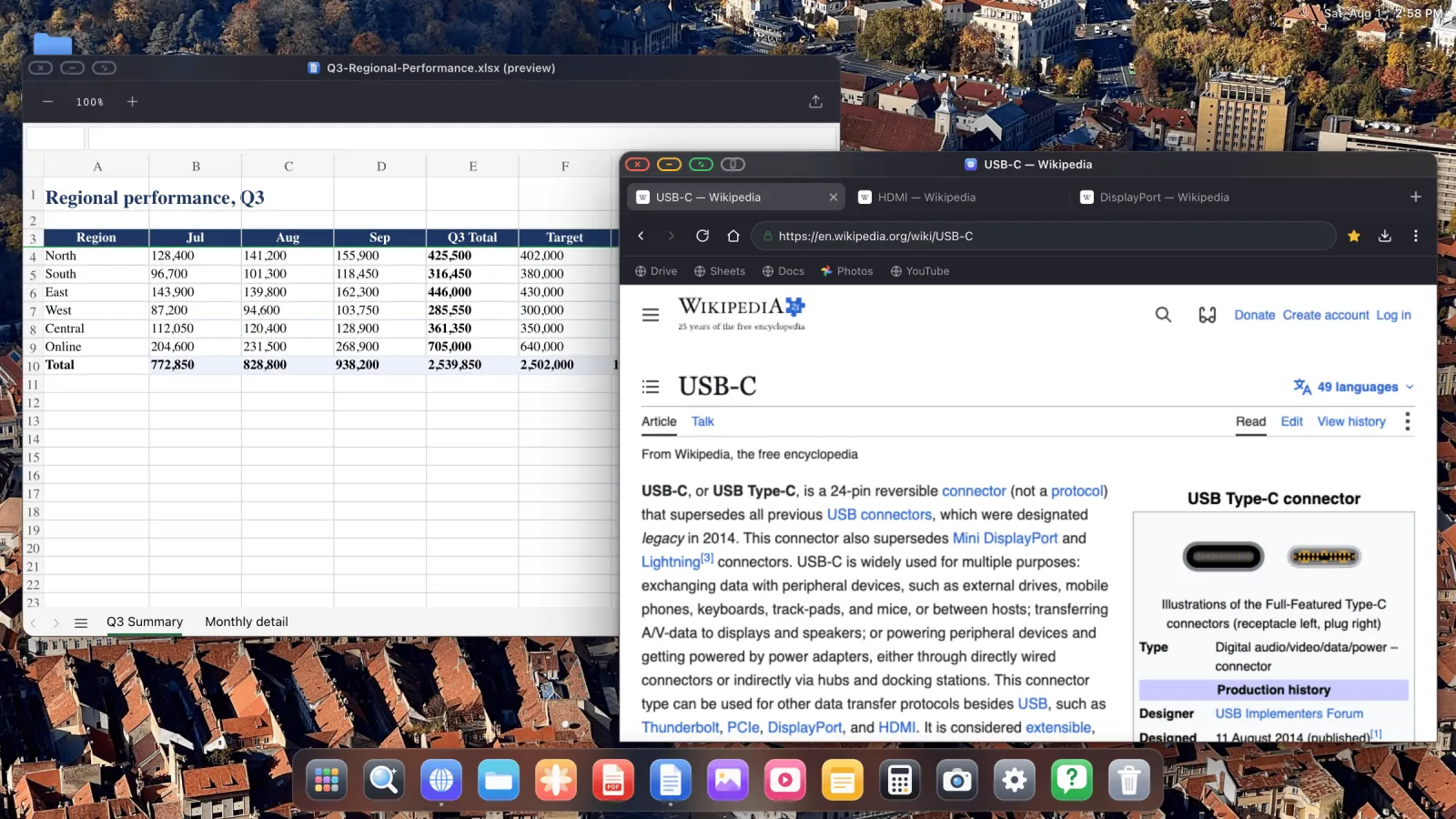
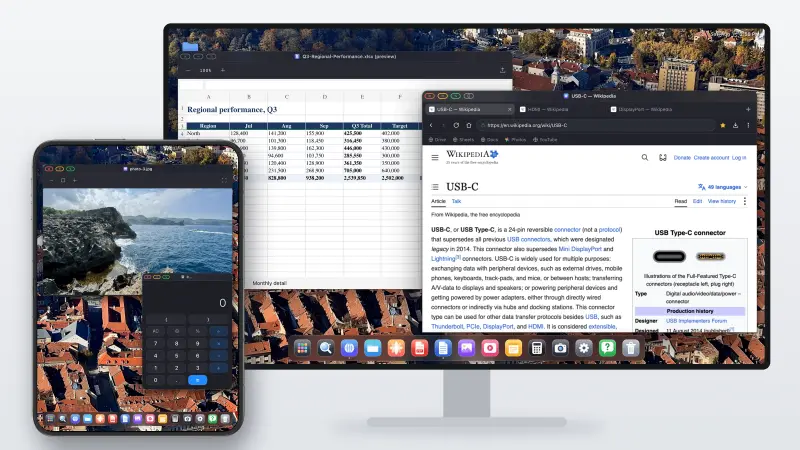
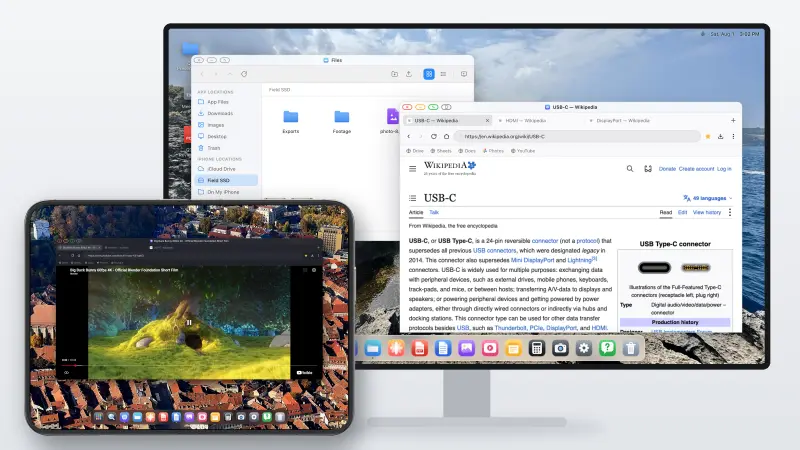
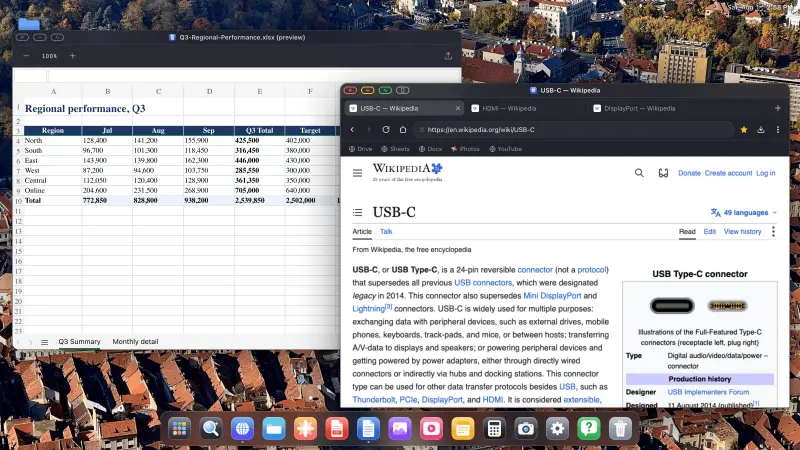
XeOS: External Display Browser is what turns the screen into something usable. Stock iOS mirrors your phone, giving you a phone-shaped picture in the middle of a widescreen panel with black bars either side. XeOS renders a desktop at the display's own resolution instead: windows, a dock, a file manager, a desktop browser.
What a working day looks like
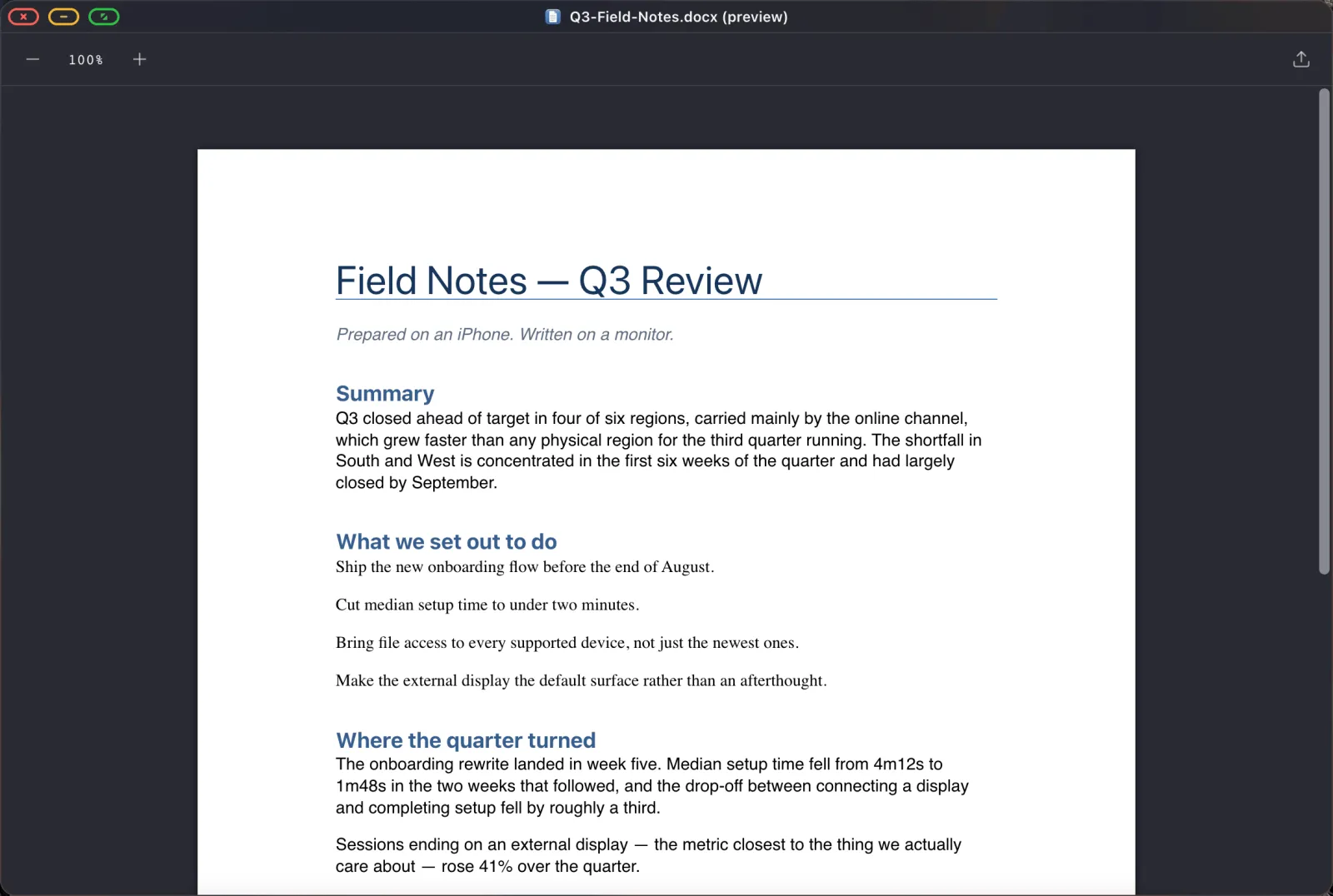
Email, docs and spreadsheets
Because the browser is a desktop browser on a desktop-sized screen, Gmail, Google Docs and Sheets serve their full interfaces rather than the mobile ones. Sheets gets a formula bar. Docs gets proper keyboard shortcuts. Install each as its own dock app and you skip the tab-hunting entirely.
Files, including the SSD
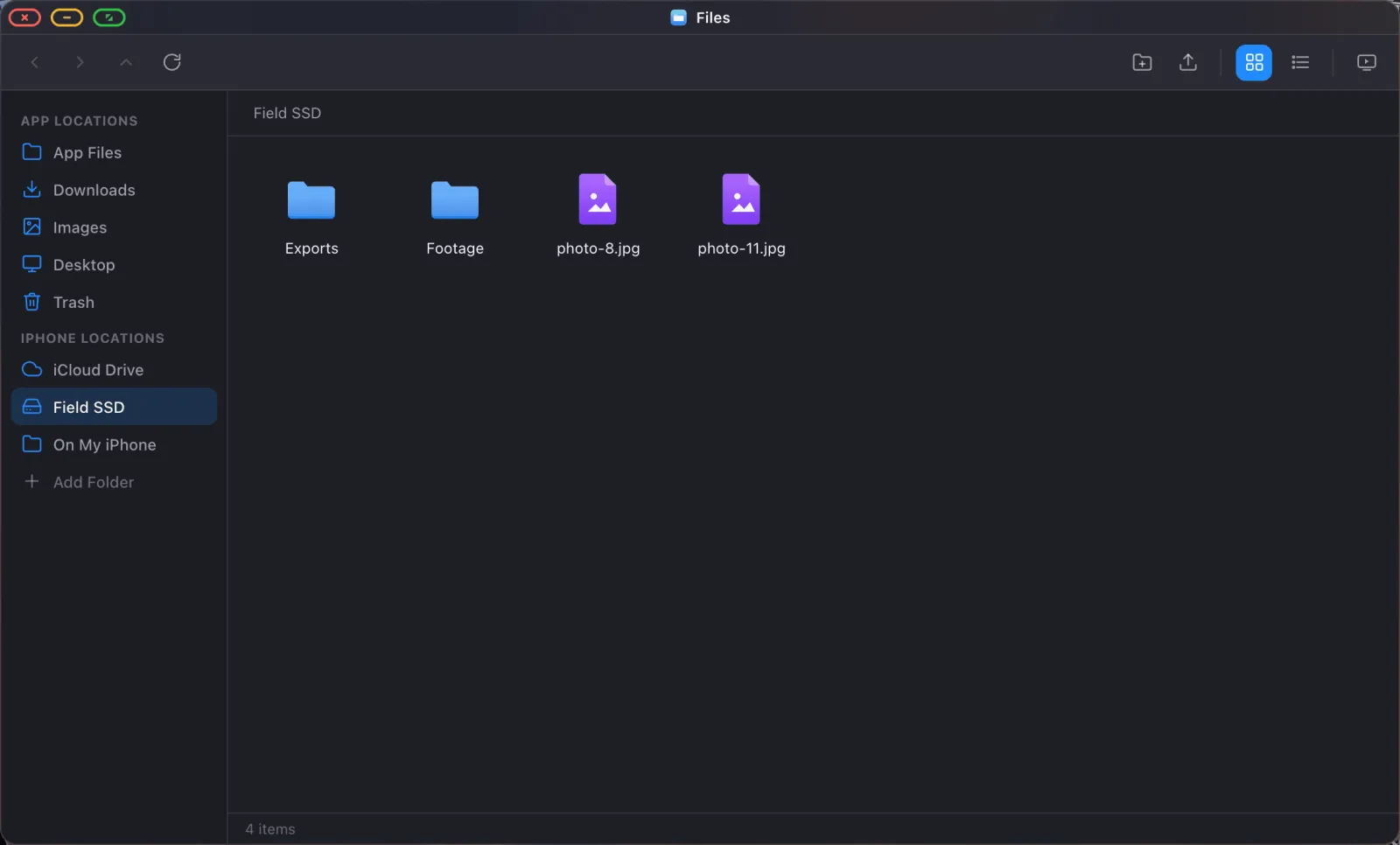
The Files app mounts folders from iCloud Drive, from the phone itself, and from a USB drive in the adapter. Once mounted you open, edit and save in place. A card full of photos becomes browsable. An iCloud folder becomes a working directory.
PDFs and documents
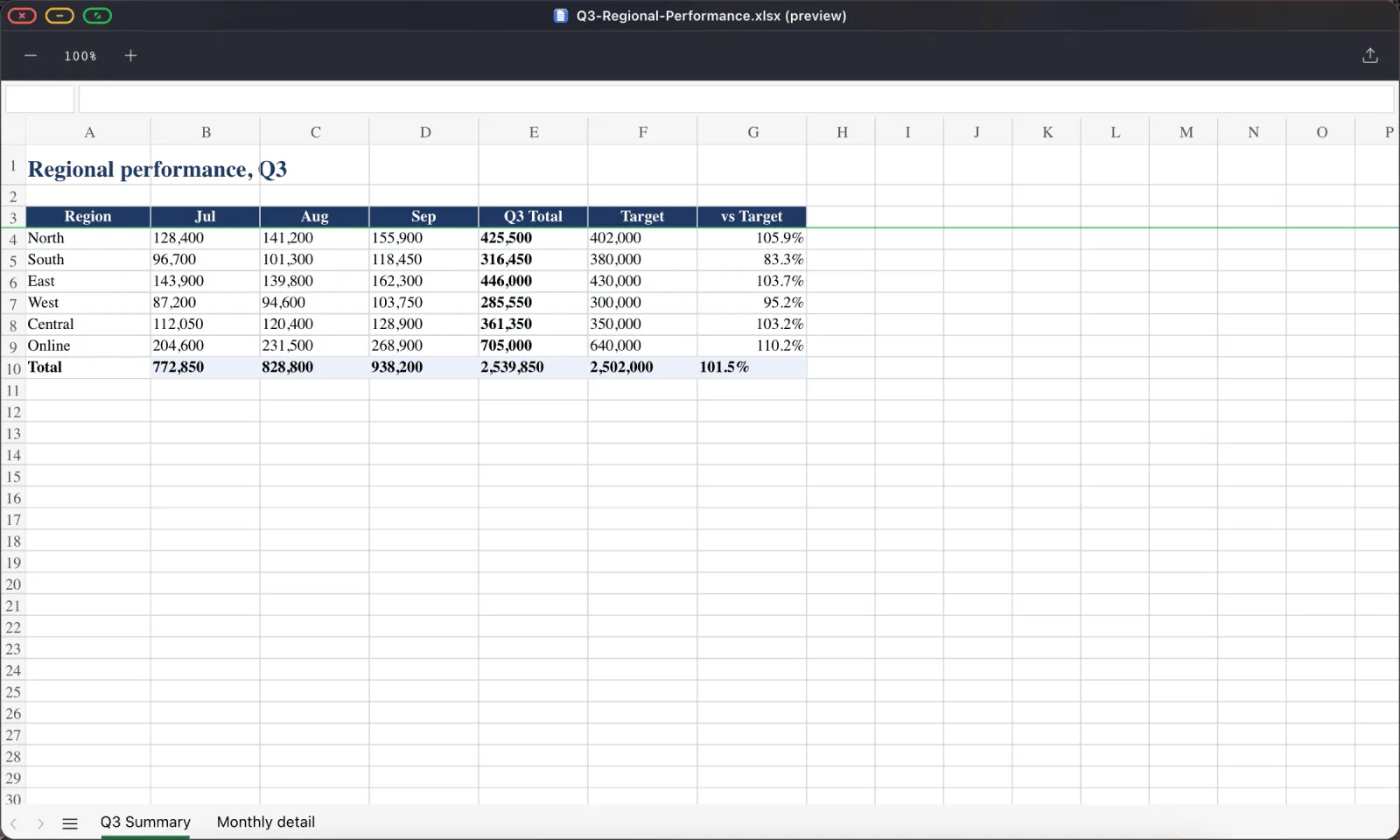
A full PDF viewer with search, annotation and form filling, plus preview for the Word, Excel and PowerPoint files people send you. Signing a contract from a hotel room stops being a problem you have to solve.
Presenting
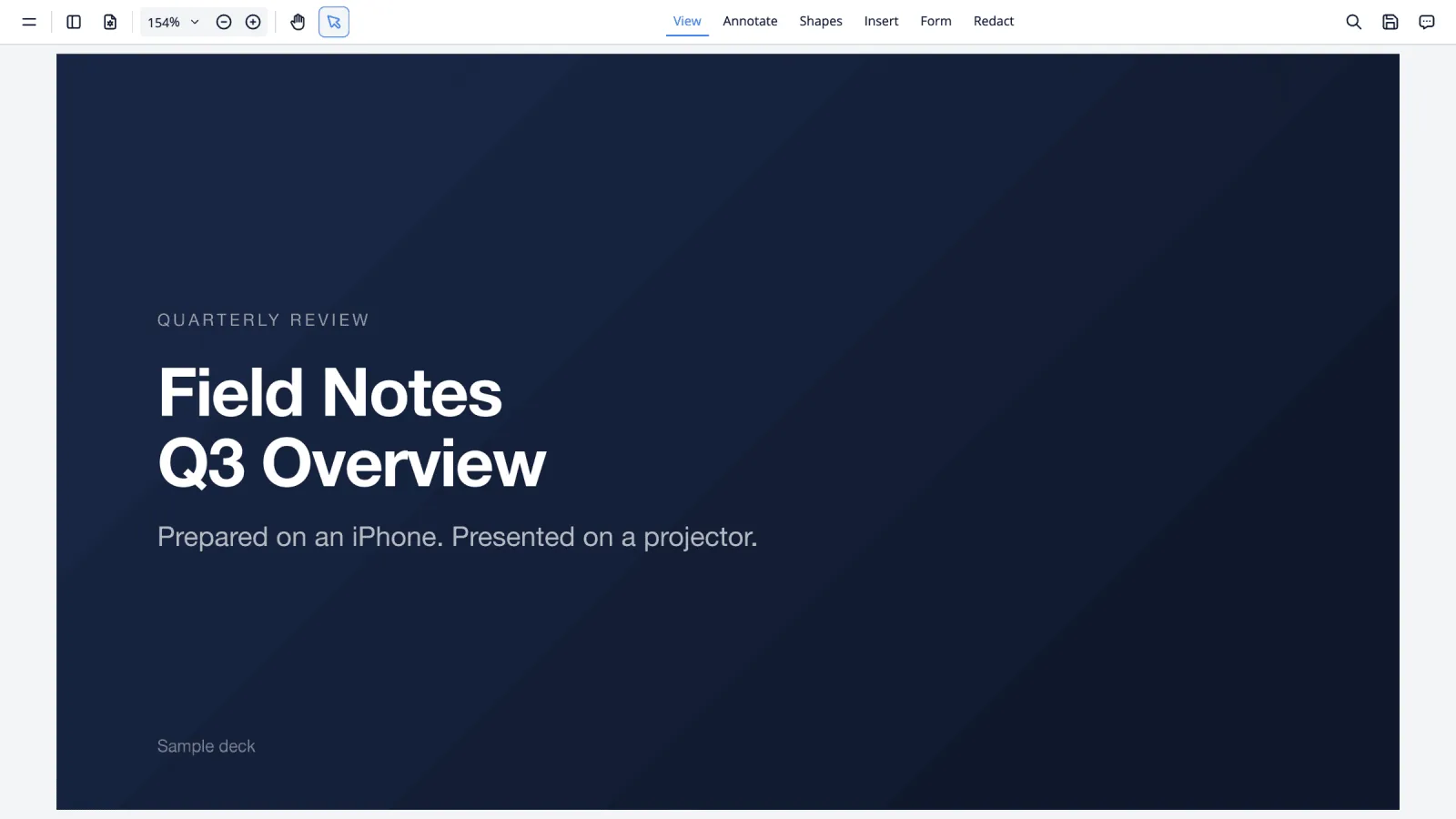
If the trip includes a talk, a PDF of the deck plus the green full-screen button is the entire workflow, and no network is involved. The presenting guide covers this and the Google Slides route.
Evenings
Same setup, TV instead of a monitor. YouTube full screen with the ad blocker on, or a slideshow of the day's photos straight from your library. Full-screen YouTube and slideshows each have their own guide.
Where the phone beats a laptop
Weight and bulk, obviously, and it isn't close. Connectivity, because your data plan is already on it and you're not fighting a hotel Wi-Fi captive portal. Airport security, where there's nothing to take out of the bag. Theft risk, since a phone stays in your pocket and a laptop stays in a room. And battery, because with a pass-through adapter you're charging while you work.
Where it doesn't
Be realistic about this before you commit to a trip.
Your other iPhone apps don't run in the desktop. What runs is the browser, the built-in apps, and websites you install, so if your work needs a specific native app on the big screen, this isn't it. Heavy editing, video and audio and large design files, is likewise not what this is for. And some embedded page controls, consent banners and certain sign-in and payment frames, need one tap on the phone's screen. There's a button for that, described in Device Layout Mode.
For writing, email, spreadsheets, research, documents, presenting, admin and media, which is most of what people carry a laptop to do, it holds up.
Set it up before you go
- Install XeOS and run through setup once at home with your own monitor.
- Import your bookmarks and passwords. Logging in on the road with a trackpad is otherwise miserable.
- Install the sites you use as dock apps.
- Mount your iCloud Drive working folder.
- Export anything you must be able to open offline to PDF.
- Pair the keyboard and mouse and check they reconnect.
Ten minutes at home saves an hour in a hotel room.
XeOS: External Display Browser turns an iPhone or iPad into a full desktop on any monitor, TV or projector.
Frequently asked
Will the phone charge while driving a display?
With a multiport adapter that has pass-through power, yes. A plain USB-C to HDMI cable carries no power.
What if the room only has a TV with no free HDMI cable?
Carry a short one. It's the accessory people forget most often.
Can I work without a mouse?
Yes. The phone's screen acts as a trackpad, with long-press-then-drag for dragging.
Does it work on an iPad too?
Yes, including older iPads with no Stage Manager support. See the iPad article.
More from the blog

Try XeOS: External Display Browser
Full screen on any external monitor, TV or portable display. No black bars. Download on the App Store.