
 External Display Browser
Guías de XeOS
Guías paso a paso para conseguir un escritorio de verdad desde tu iPhone o iPad en un monitor, una tele o un proyector: configuración, YouTube, pases de fotos, presentaciones, archivos y el navegador.

How to Connect Your iPhone or iPad to a Monitor, TV or Projector, and Fill the Screen
Plugging an iPhone into a TV is easy. Getting a usable screen out of it is the hard part. Stock iOS mirrors your phone, so a 16:9 monitor shows a tall phone-shaped picture floating between two black bars. XeOS replaces that mirror with a desktop that uses every pixel the panel has. Do the setup on this page once and the rest of the guides here will assume you've done it.
Empieza aquí
How to Watch YouTube Full Screen on a TV or Monitor From Your iPhone or iPad
You have a TV, an iPhone and a cable, and you want the video to fill the screen rather than sit in a phone-shaped rectangle in the middle of it. With XeOS that takes about five minutes: sign in, go full screen, and leave the built-in ad blocker doing its job.
Leer la guía completa
How to Run a Photo Slideshow on a TV From Your iPhone or iPad, Two Ways
Holiday photos on the living room TV, or a looping display in a shop window. Either way you don't need a computer, a media player or a smart TV app. An iPhone, a cable and XeOS will fill any screen with your photos. There are two routes, your own photo library or a Google Photos album in the browser, and they suit different jobs.
Leer la guía completa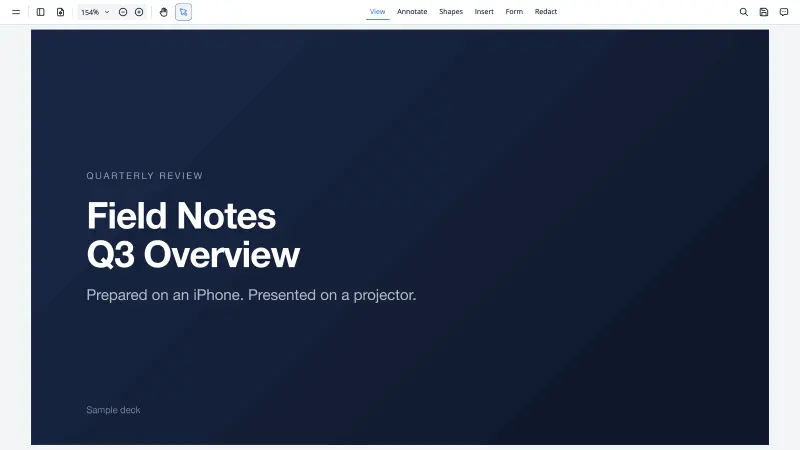
How to Present From Your iPhone or iPad When You Didn't Bring a Laptop
The projector is on, the room is waiting, and your laptop is somewhere else. With your phone and a cable you can still present properly, full screen, from the slides you already have. Two routes below: Google Slides in the browser, and the built-in viewer for a PDF you exported before you left. The second one works with no network at all.
Leer la guía completa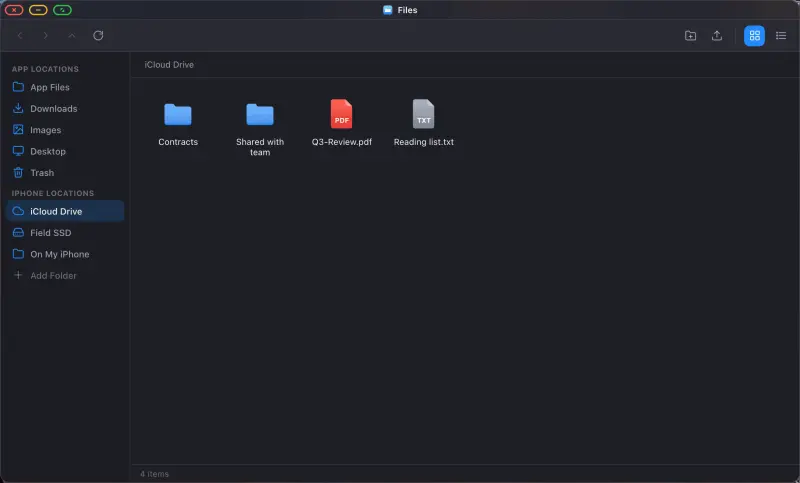
How to Browse Your Files, iCloud Drive and External Drives From Your iPhone or iPad
iOS keeps files at arm's length. The Files app is fine for grabbing one document, but it isn't a place you can work. XeOS gives you a file manager on the big screen, with a sidebar, two view modes, drag and drop and a trash, and it can mount folders from your phone, from iCloud Drive, and from a USB drive plugged into your adapter. Everything then opens in place, the way it does on a computer.
Leer la guía completa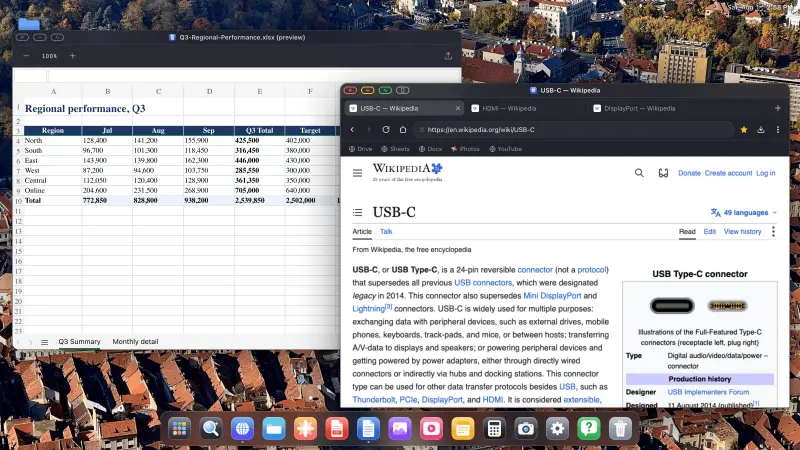
How to Study and Work From Your iPhone: Google Drive, Docs, Sheets and Office Files on a Big Screen
Writing an essay in a phone-sized text box is miserable. On a 24-inch monitor with a real keyboard it's just writing. This guide covers using Google Drive, Docs and Sheets from an iPhone or iPad, opening the Word and Excel files people email you, and keeping your documents somewhere you can get at them.
Leer la guía completa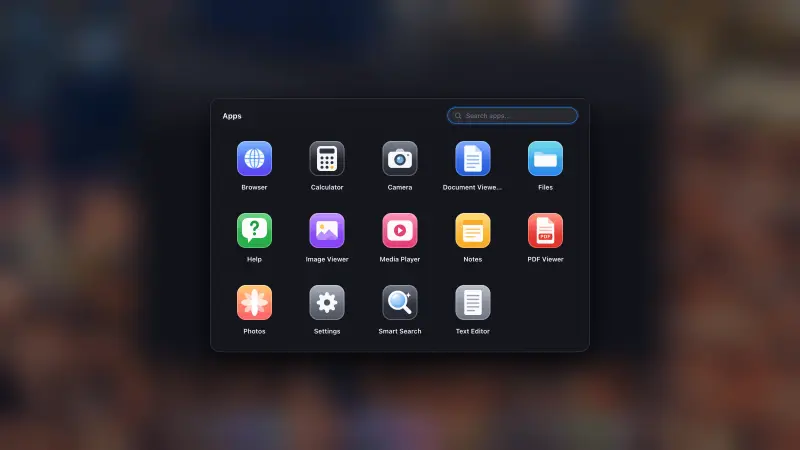
How to Install Websites as Apps in Your Dock
Gmail buried six tabs deep is nobody's idea of a computer. XeOS lets you install a website into the dock, where it gets its own icon and its own window. YouTube, Sheets, Netflix, whatever you keep open all day. It takes a few seconds per site.
Leer la guía completa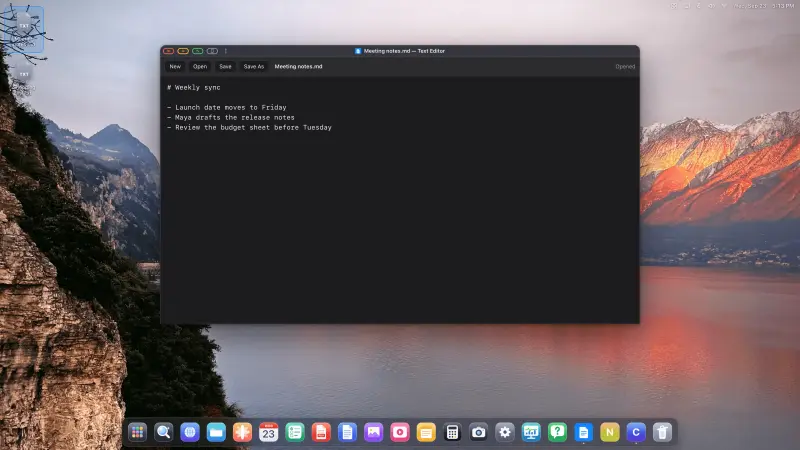
How to Open Files in Installed Web Apps
Any website or web app can live in the XeOS dock. If that app can open and save files in a desktop browser, you can let it open your files in XeOS too: double-click a document and it opens in the app, and Save writes it straight back. It works through open web standards, and it's off until you turn it on for an app.
Leer la guía completa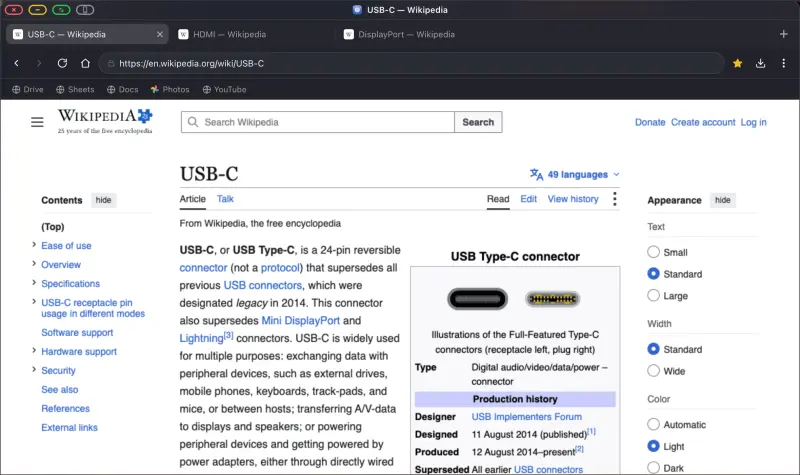
The XeOS Browser: Tabs, Ad Blocking, Downloads, Reading Mode and Everything Else
The browser is where you'll spend most of your time in XeOS, and it behaves like a desktop browser rather than a phone one. Tabs you can drag. A bookmarks bar. A downloads list that tells you the transfer speed. Passwords, ad blocking, reader mode, find-on-page. This page is the reference for all of it, so skim the headings and stop where you need to.
Leer la guía completa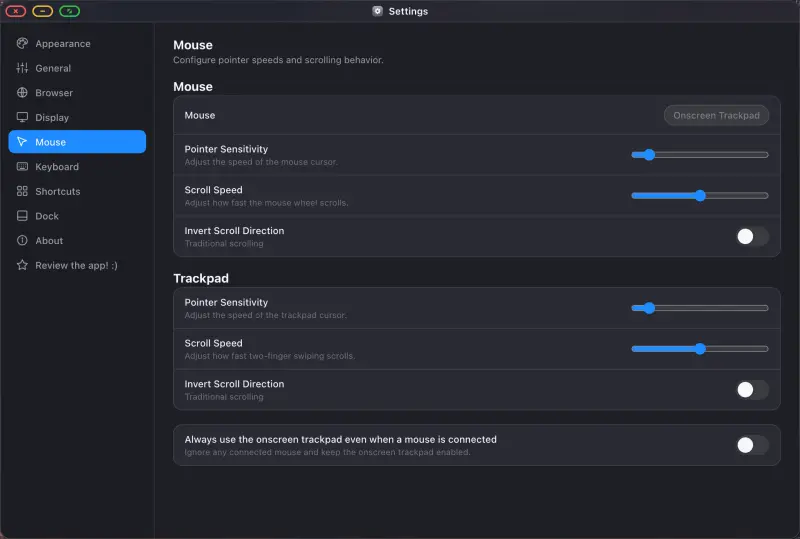
Mouse, Keyboard and Shortcuts: Making It Feel Like a Real Computer
A desktop on a monitor is only half the story. The other half is input: a pointer that goes where you expect, shortcuts that do the obvious thing, and something workable for the evening you left the mouse at home. This page covers how all of that behaves in XeOS, including one iOS setting that catches almost everyone out.
Leer la guía completa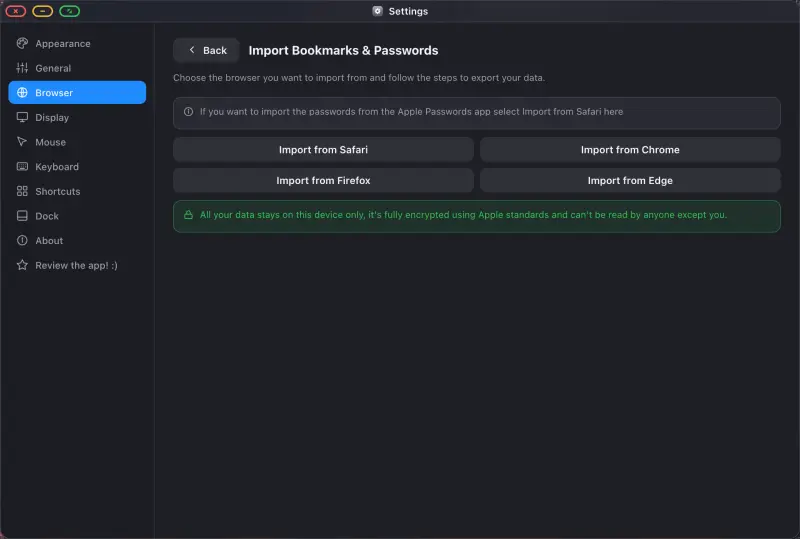
How to Import Your Bookmarks and Passwords From Safari, Chrome, Firefox or Edge
Typing passwords on a TV screen is the fastest way to abandon a setup like this. Ten minutes of preparation fixes it for good. Bring your bookmarks and saved logins across once and signing in to Google, YouTube, your bank or your work tools becomes a tap. Safari, Chrome, Firefox and Edge all have a route in, and they're all below.
Leer la guía completa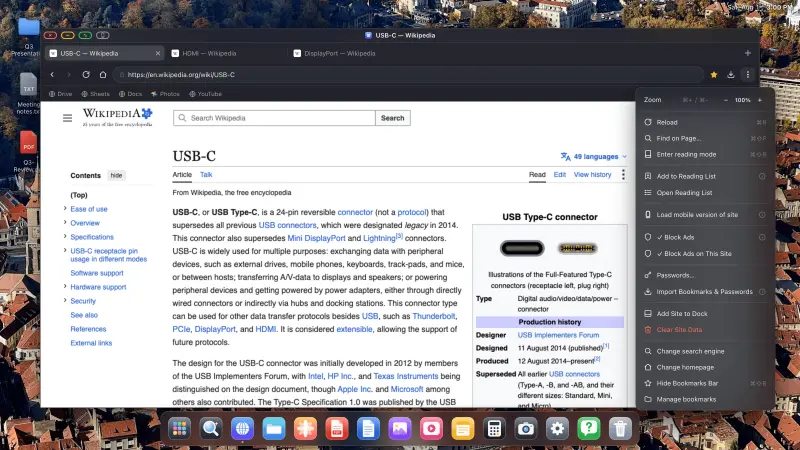
Device Layout Mode: What the Grey Button Does, and Why You Sometimes Need It
Next to the red, yellow and green window buttons sits a fourth one, grey, shaped like a phone. Most days you'll never touch it. Then a page turns up with a consent banner or a sign-in box that ignores your clicks on the external display, and the grey button is the answer. This page explains what goes wrong on those pages and how to get round it in about four seconds.
Leer la guía completaPrueba XeOS: External Display Browser
Pantalla completa en cualquier monitor externo, tele o pantalla portátil. Sin bandas negras. Descárgalo en el App Store.
