
 External Display BrowserMouse & keys3 min read
Mouse, Keyboard and Shortcuts: Making It Feel Like a Real Computer
A desktop on a monitor is only half the story. The other half is input: a pointer that goes where you expect, shortcuts that do the obvious thing, and something workable for the evening you left the mouse at home. This page covers how all of that behaves in XeOS, including one iOS setting that catches almost everyone out.
Using a Bluetooth mouse
Pair it in iOS Settings › Bluetooth before opening XeOS. Once it's connected you get a pointer on the external display, with hover states, right-click menus and a working scroll wheel.
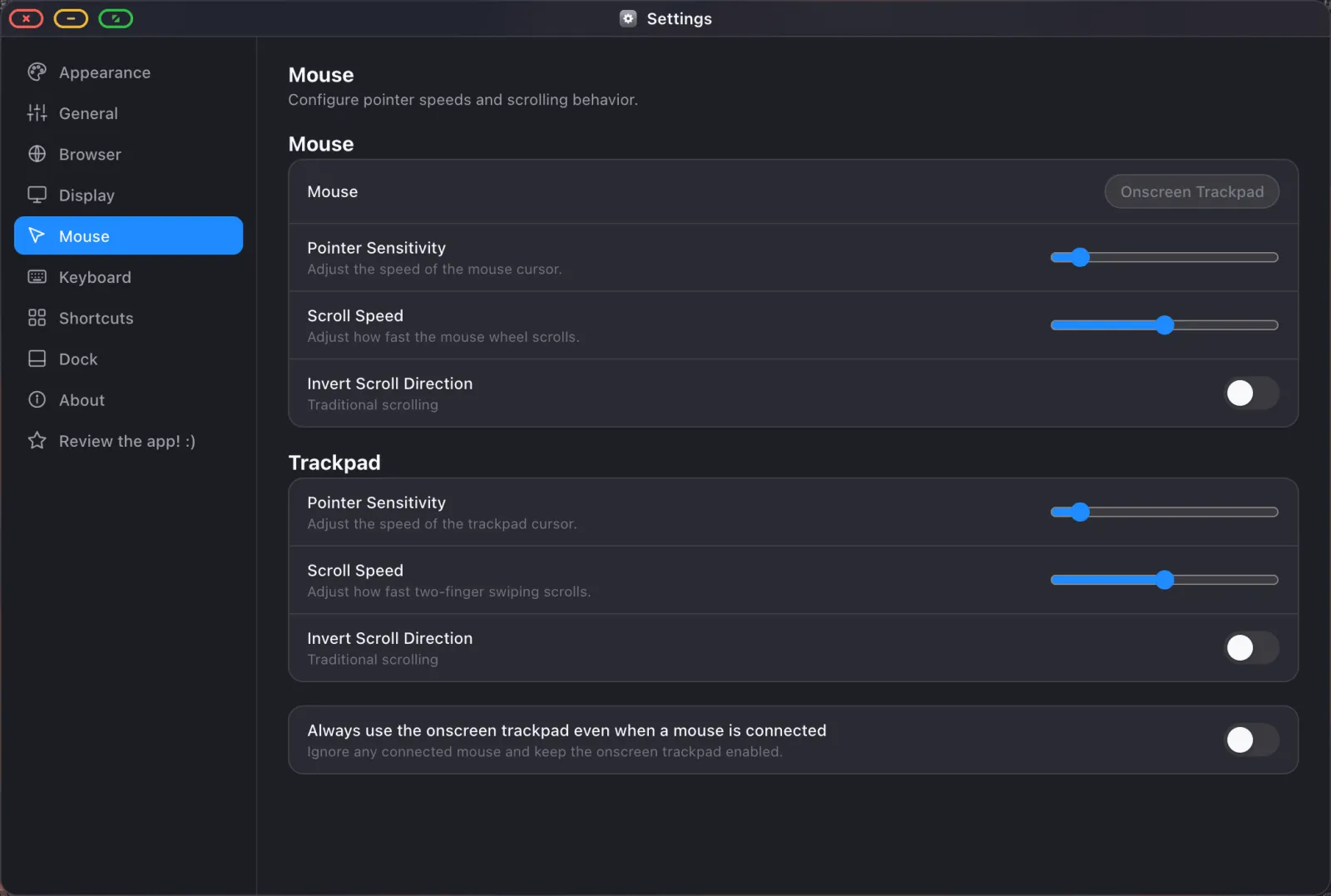
If the cursor feels slow at every setting, this is why. iOS applies its own accessibility tracking speed underneath the app's, and the two multiply. Set iOS Settings › Accessibility › Pointer Control › Tracking Speed high first, then bring the sensitivity in XeOS down until it feels right. Do it the other way round and you're tuning against a ceiling you can't see.
Right-click works everywhere it should. On pages it gives you the browser's context menu, on files the file operations, on tabs and dock items and sidebar entries their own menus, and in any text field Cut, Copy, Paste and Select All.
Using your phone as a trackpad
No mouse? Your device's screen becomes one. Swipe to move the pointer, tap to click, two-finger scroll.
Dragging works by long-press then drag: press and hold until the drag engages, then move. It's deliberately not double-tap-then-drag, which fires by accident far too often. Long-press is how you move windows, resize them and drag files around.
Using a Bluetooth keyboard
Pair in iOS Settings › Bluetooth. Typing goes to whatever field has focus on the external display, and every shortcut below works.
The on-screen keyboard
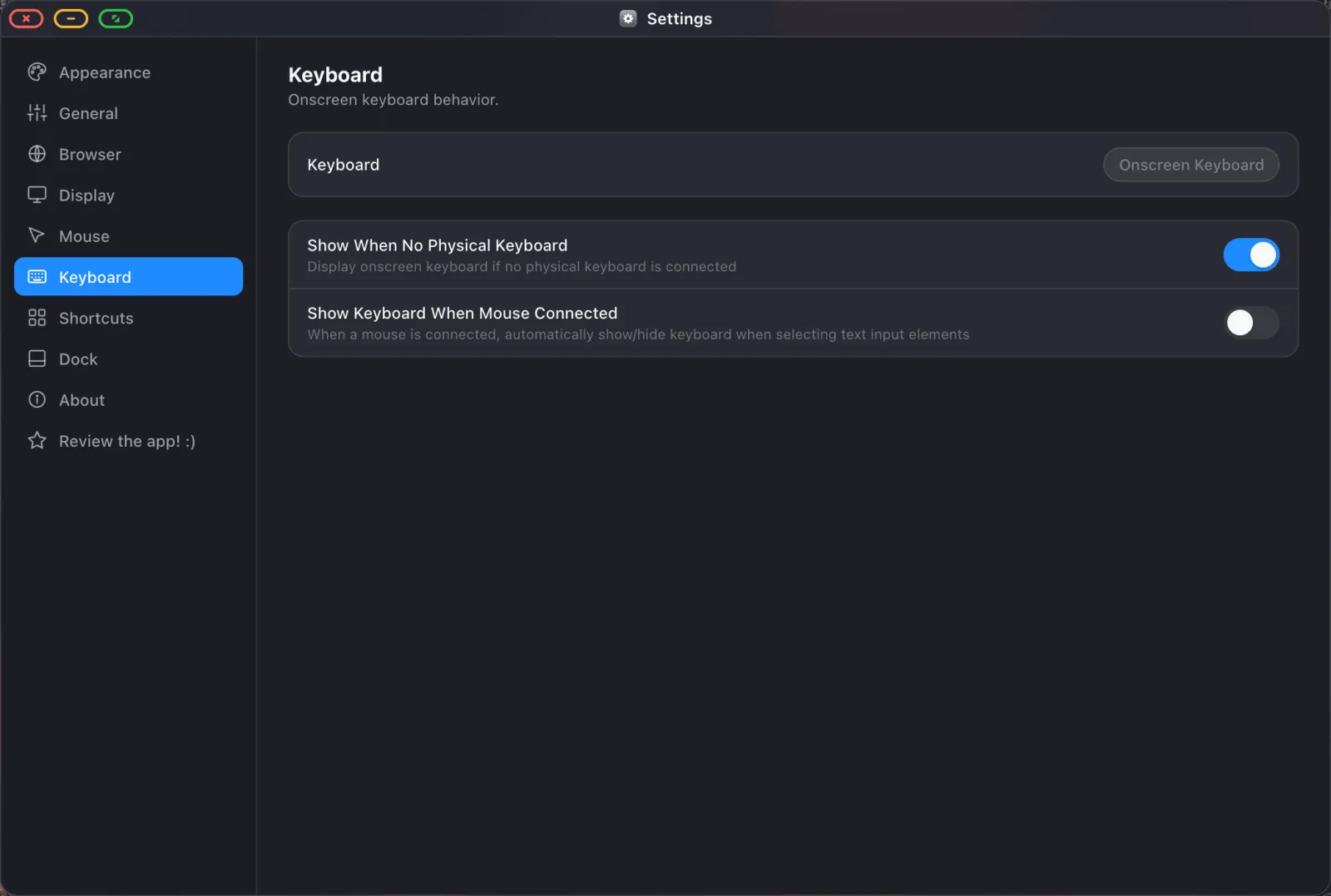
With no physical keyboard, tapping a text field raises the on-screen keyboard on your phone while the field itself stays on the big screen. With a mouse connected the on-screen keyboard is suppressed by default, on the assumption that you have a keyboard too. When that assumption is wrong, the keyboard glyph in the status bar raises it, and there's a setting to keep it available whenever a mouse is connected.
Dictation
The microphone glyph in the status bar starts speech recognition, and what you say is typed into whichever field on the external display has focus. Faster than a trackpad for a long search query or a message.
Shortcuts
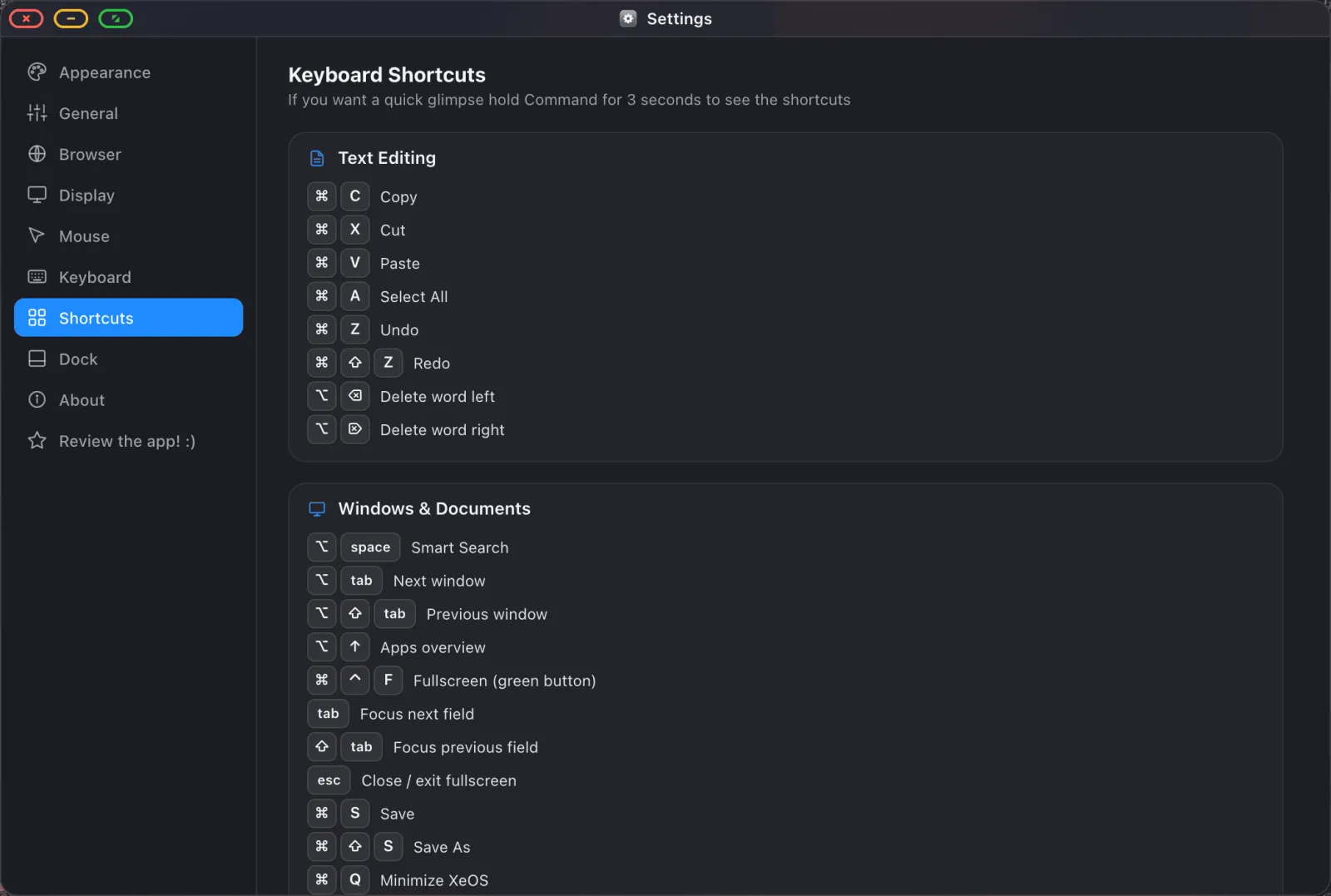
| Shortcut | What it does |
|---|---|
| Option Space | Search overlay, apps, sites, files, web |
| Ctrl Tab / Ctrl Shift Tab | Cycle open windows |
| Ctrl ↑ (Option ↑ on iPad) | Overview of every open window |
| Cmd T / Cmd W / Cmd Shift T | New tab / close / reopen closed |
| Cmd N | New window of the focused app |
| Cmd R | Reload |
| Cmd Shift F | Find on page |
| Cmd Shift R | Reading mode |
| Cmd Shift B | Show / hide bookmarks bar |
| Cmd + / − / 0 | Zoom in / out / reset |
| Cmd S | Save (documents, PDFs, notes) |
| Cmd X / C / V / A | Cut, copy, paste, select all |
Windows
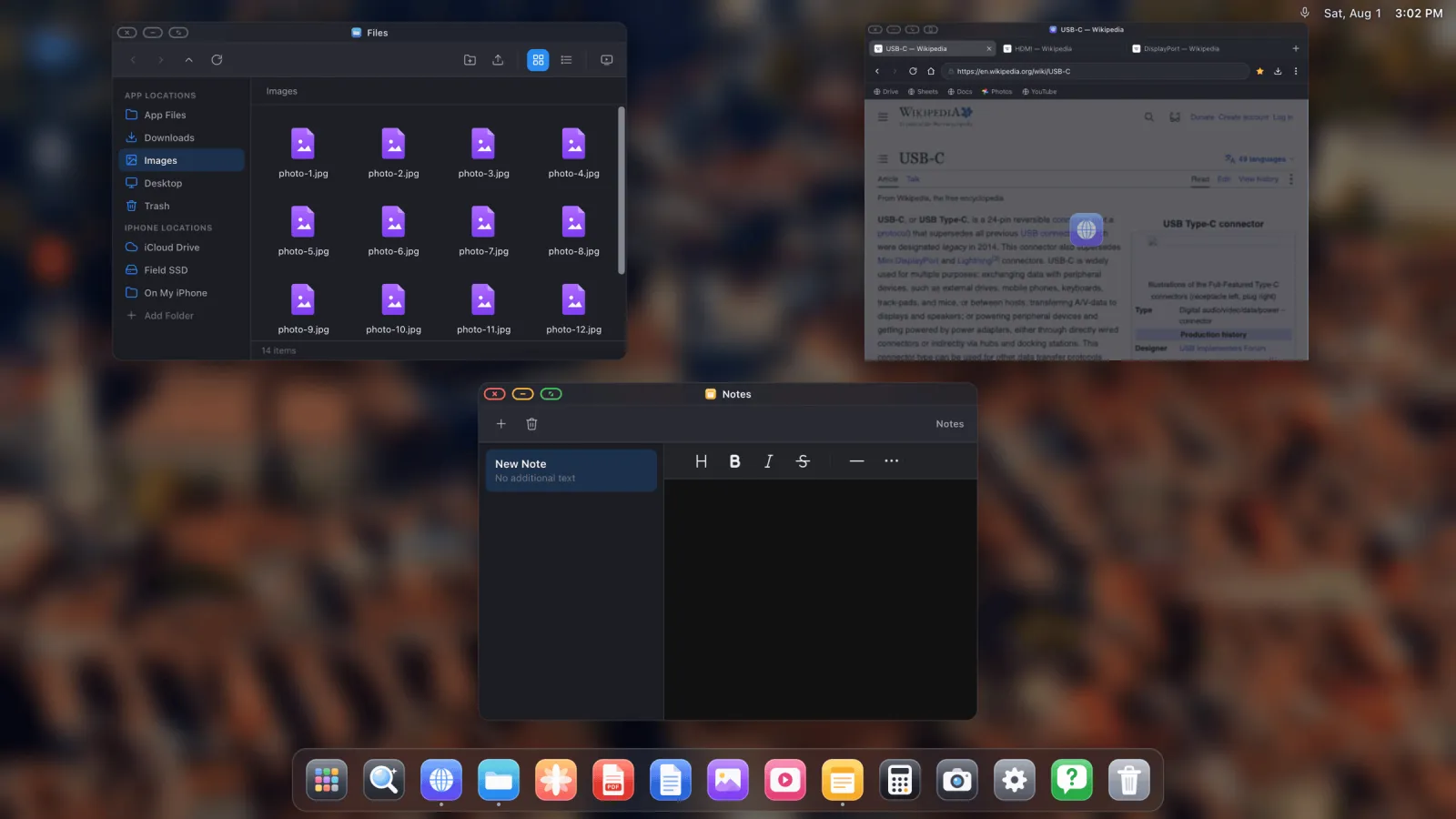
- Drag a title bar to move a window; drag an edge or corner to resize it.
- Drag a window to a screen edge to snap it to that half or corner.
- Double-click a title bar to maximise.
- Windows are kept on screen. Change resolution and nothing gets stranded off the edge.
- Whatever is open when you unplug reopens where it was next time.
Making it yours
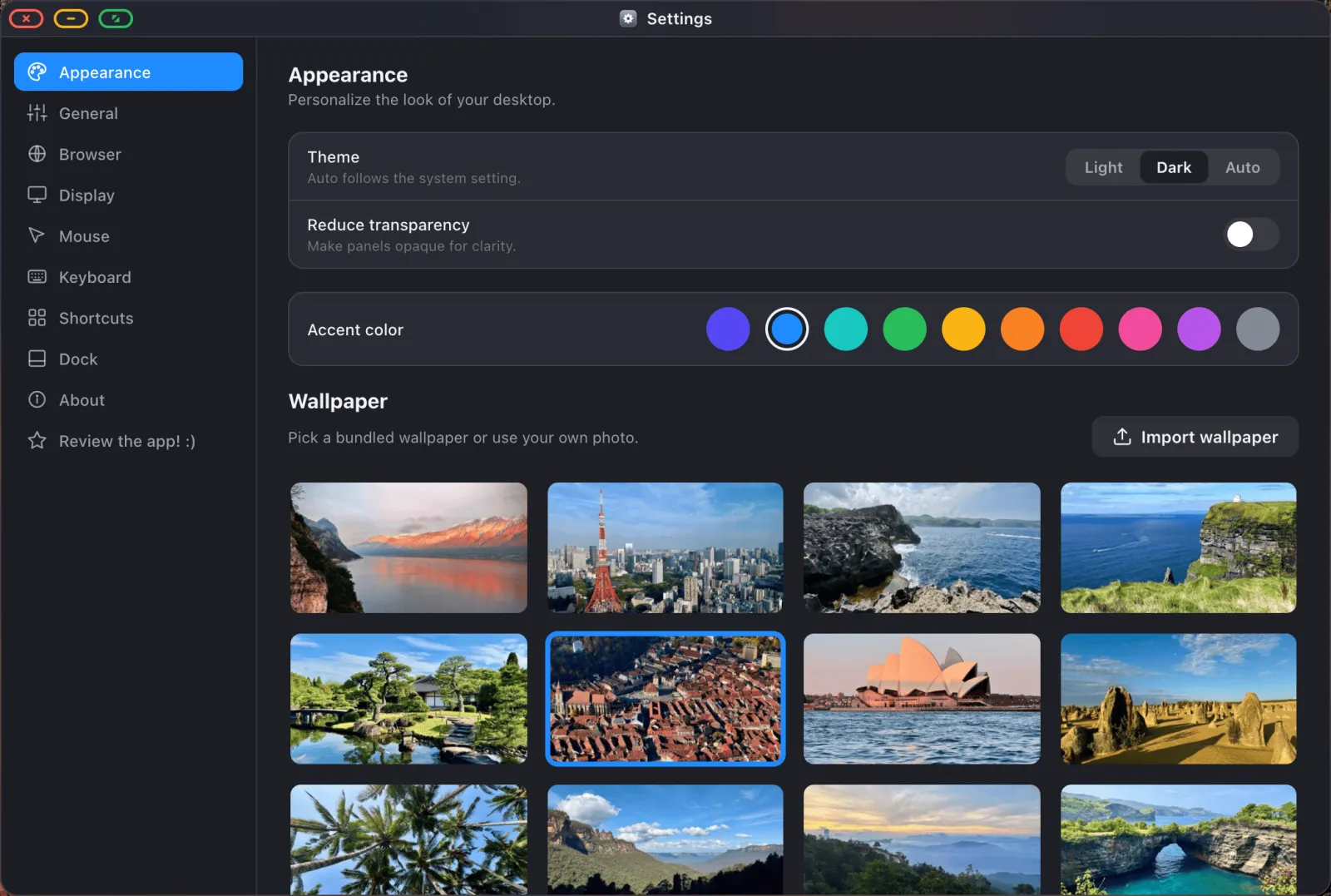
Settings › Appearance covers theme (dark, light or automatic), accent colour, wallpaper and reduced transparency. If you came over from Windows, the window buttons can move to the right-hand side there too.
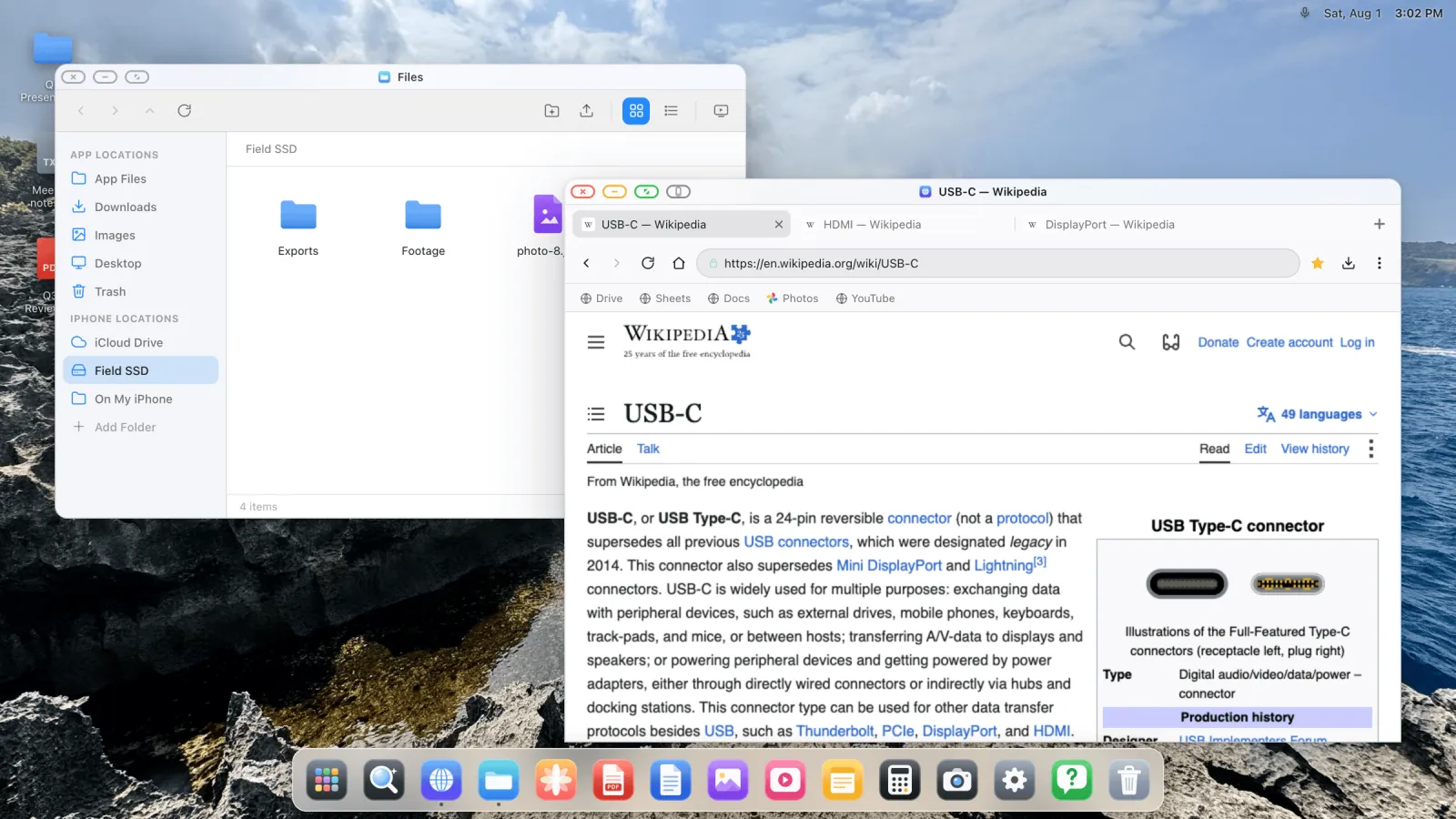
XeOS: External Display Browser turns an iPhone or iPad into a full desktop on any monitor, TV or projector.
Common questions
Does any Bluetooth mouse work?
Yes, anything iOS itself will pair with.
Can I hide the iOS pointer circle on iPhone?
No. On iPhone the AssistiveTouch pointer indicator can't be hidden by an app through any public API. That's an iOS restriction rather than an oversight.
Can I use a keyboard without a mouse?
Yes, and the phone-as-trackpad still works alongside it.
Why does my cursor jump when I change display resolution?
It's re-anchoring to the new screen geometry. Windows get refitted to stay on screen at the same time.
More guides




Try XeOS: External Display Browser
Full screen on any external monitor, TV or portable display. No black bars. Download on the App Store.