
 External Display BrowserBrowser3 min read
The XeOS Browser: Tabs, Ad Blocking, Downloads, Reading Mode and Everything Else
The browser is where you'll spend most of your time in XeOS, and it behaves like a desktop browser rather than a phone one. Tabs you can drag. A bookmarks bar. A downloads list that tells you the transfer speed. Passwords, ad blocking, reader mode, find-on-page. This page is the reference for all of it, so skim the headings and stop where you need to.
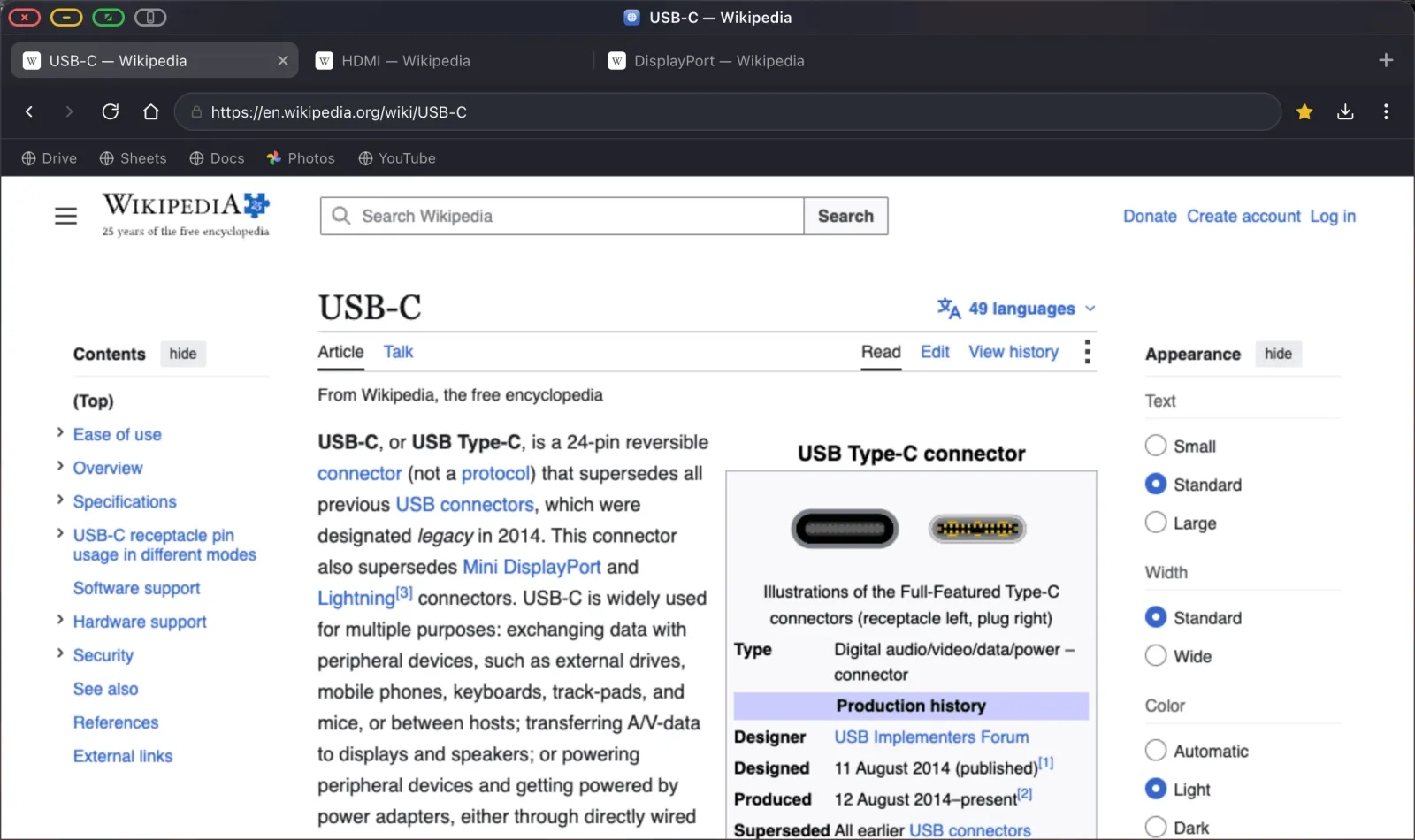
Tabs
- Cmd T opens a tab, Cmd W closes one, Cmd Shift T reopens the last one you closed.
- Drag tabs to reorder them. Middle-click a tab to close it.
- Right-click a tab for reload, duplicate, Open in Floating Window and close.
- Tabs load lazily. Reopening a session with twenty tabs doesn't load twenty pages at once.
The address bar
Type a URL or a search term. The search engine is yours to pick: ⋯ › Change search engine offers Google, DuckDuckGo, Bing, Yahoo, Ecosia, Brave and Startpage. ⋯ › Change homepage sets what the home button goes to. Leave it empty and the home button takes you to your search engine.
Ad blocking
The blocker is built from EasyList and uBlock filter lists and compiled into the browser engine, so there's no extension to install. It's already running.
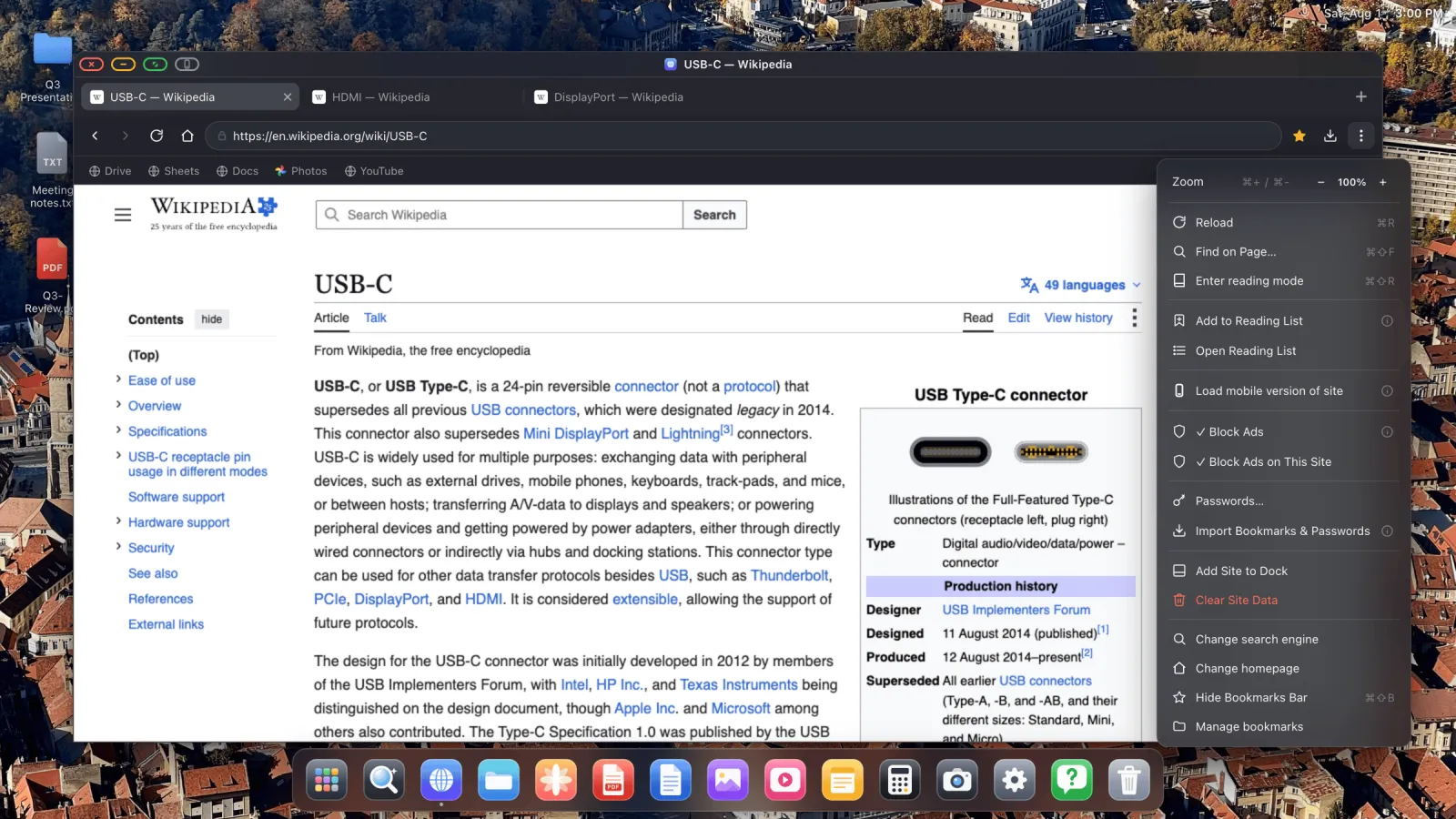
Block Ads is the global switch, and it covers YouTube video ads. The page reloads when you change it. Block Ads on This Site is there for the occasional site that breaks when its ads don't load.
Bookmarks
- The star in the toolbar bookmarks the current page.
- Cmd Shift B shows and hides the bookmarks bar.
- Drag bookmarks on the bar to reorder them, or onto a folder to file them.
- Right-click a bookmark to open it in a new tab, edit it, or remove it.
- Manage bookmarks opens the full manager in Settings, with folders and drag-and-drop.
Bringing bookmarks over from another browser is covered in the import guide.
Passwords
⋯ › Passwords opens the saved-logins panel, where you can search, reveal, copy and delete.
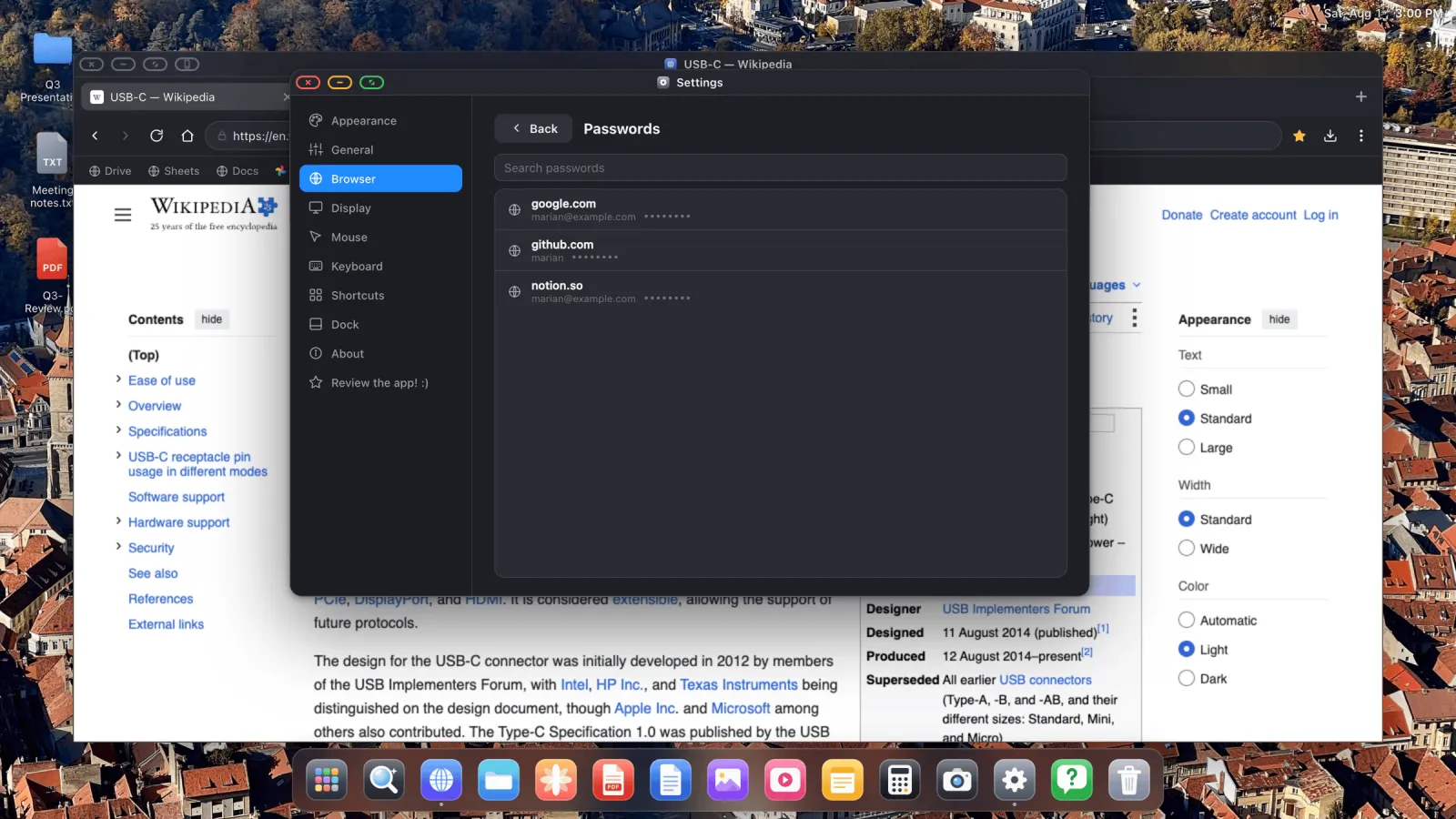
Saved logins are offered as autofill on sign-in forms. They're encrypted on the device with the key held in the iOS Keychain, and they're never uploaded anywhere.
Downloads
The download button in the toolbar opens a download list with progress, transfer speed, time remaining and a cancel button.
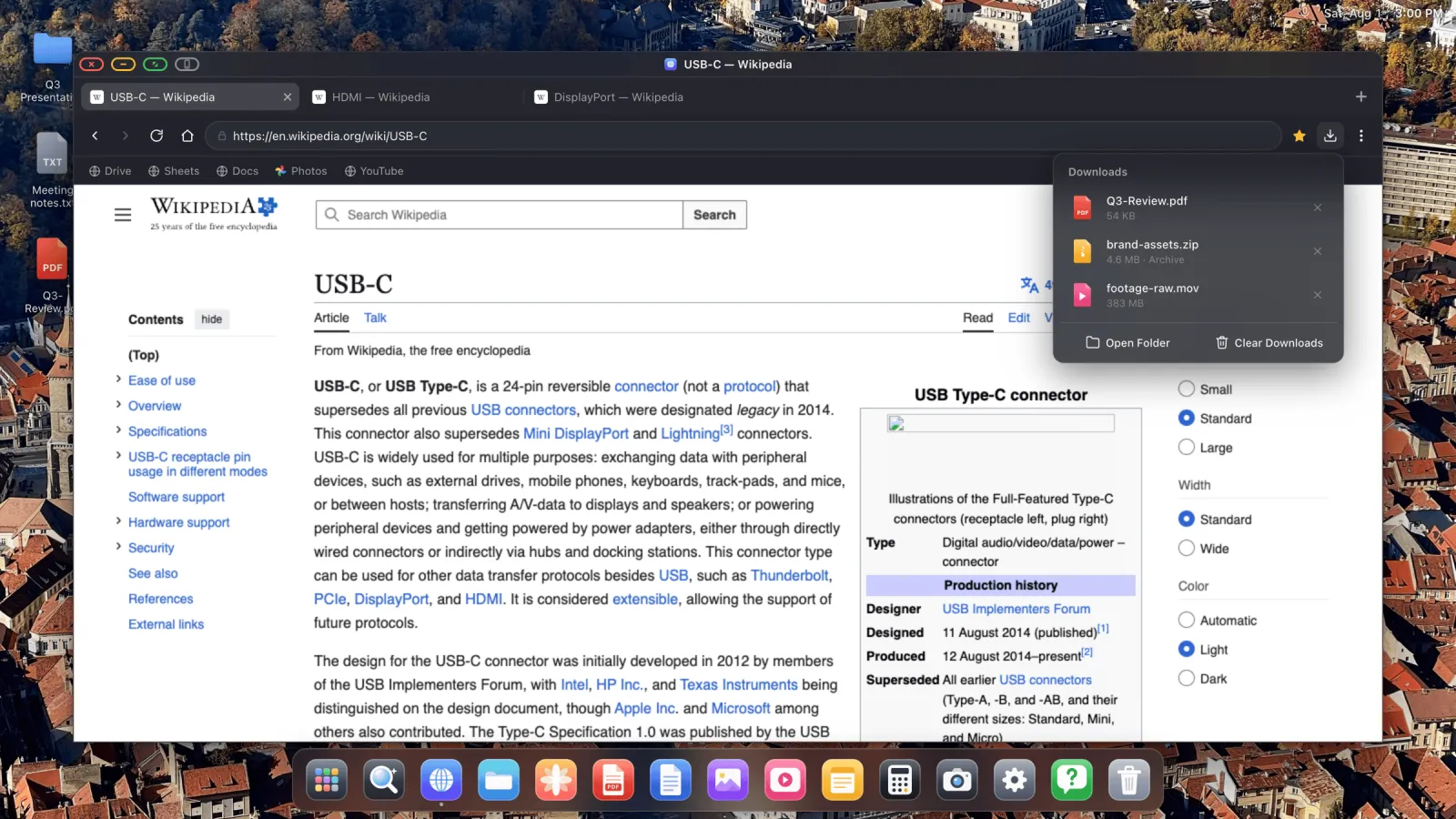
- Finished files are not opened automatically. You decide when.
- Archives get an Unzip action instead of Open.
- Cancelling a download deletes the partial file rather than leaving debris behind.
- Open Folder jumps to Downloads in Files.
Reading mode
Cmd Shift R, or the reader button in the address bar when a page supports it, strips a page down to its text and images. On a large screen at a distance, that's the difference between reading an article and squinting at one.
Reading list
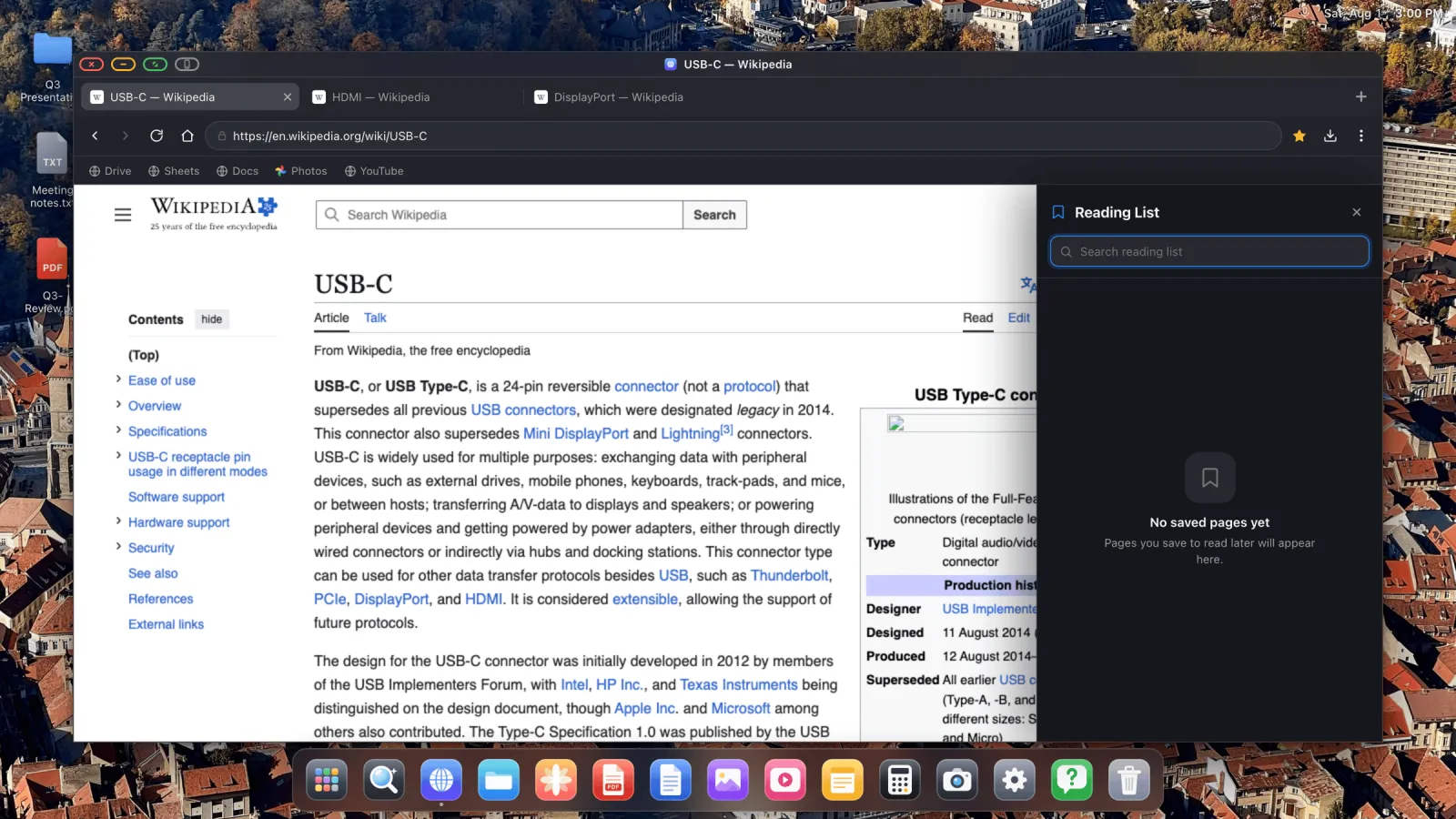
⋯ › Add to Reading List saves a page for later. Open Reading List shows what you've saved, with a search box. Entries open in a new tab.
Find on page
Cmd Shift F opens the find bar. Enter jumps to the next match, Shift Enter to the previous one.
Zoom
Cmd +, Cmd − and Cmd 0. Zoom is remembered per site and survives navigation, so a site with small type stays enlarged every time you visit it.
Desktop and mobile versions
You get the desktop version of sites by default, which is rather the point of the whole app. But ⋯ › Load mobile version of site switches one site to its phone layout, and that's occasionally the quickest way to unstick a page that's behaving badly.
Saving a page
Right-click a page and choose Save As… to keep a full copy in Files: the HTML plus a folder of its assets. Saved pages reopen in the browser.
Clearing a site's data
⋯ › Clear Site Data erases everything one site has stored on the device, cookies and caches and local and session storage, then reloads it from scratch. This is the fix when a site gets stuck in a login loop.
Staying signed in
Site sessions survive restarts by design. Sign in once and you stay signed in, on every site, across unplugging and plugging back in.
Keyboard shortcuts
| Shortcut | Action |
|---|---|
| Cmd T | New tab |
| Cmd W | Close tab |
| Cmd Shift T | Reopen closed tab |
| Cmd R | Reload |
| Cmd Shift F | Find on page |
| Cmd Shift R | Reading mode |
| Cmd Shift B | Show / hide bookmarks bar |
| Cmd + / Cmd − / Cmd 0 | Zoom in / out / reset |
| Ctrl Tab | Cycle windows |
| Option Space | Search overlay |
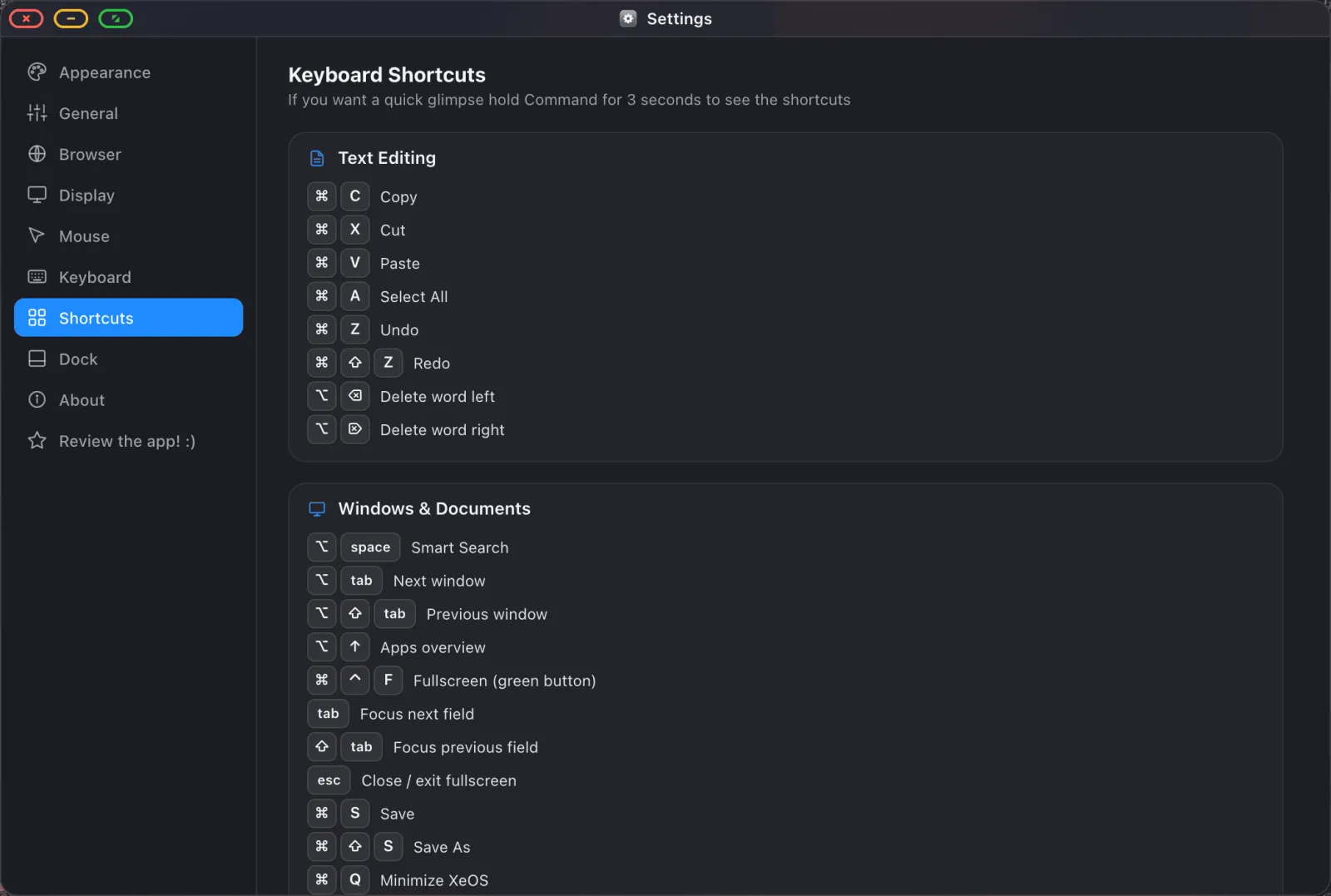
The full list, including anything you can remap, is in Settings › Shortcuts.
XeOS: External Display Browser turns an iPhone or iPad into a full desktop on any monitor, TV or projector.
More guides




Try XeOS: External Display Browser
Full screen on any external monitor, TV or portable display. No black bars. Download on the App Store.