
 External Display BrowserApps3 min read
How to Install Websites as Apps in Your Dock
Gmail buried six tabs deep is nobody's idea of a computer. XeOS lets you install a website into the dock, where it gets its own icon and its own window. YouTube, Sheets, Netflix, whatever you keep open all day. It takes a few seconds per site.
Adding a site
- Open the Browser and navigate to the site.
- Click ⋯ in the toolbar.
- Choose Add Site to Dock.
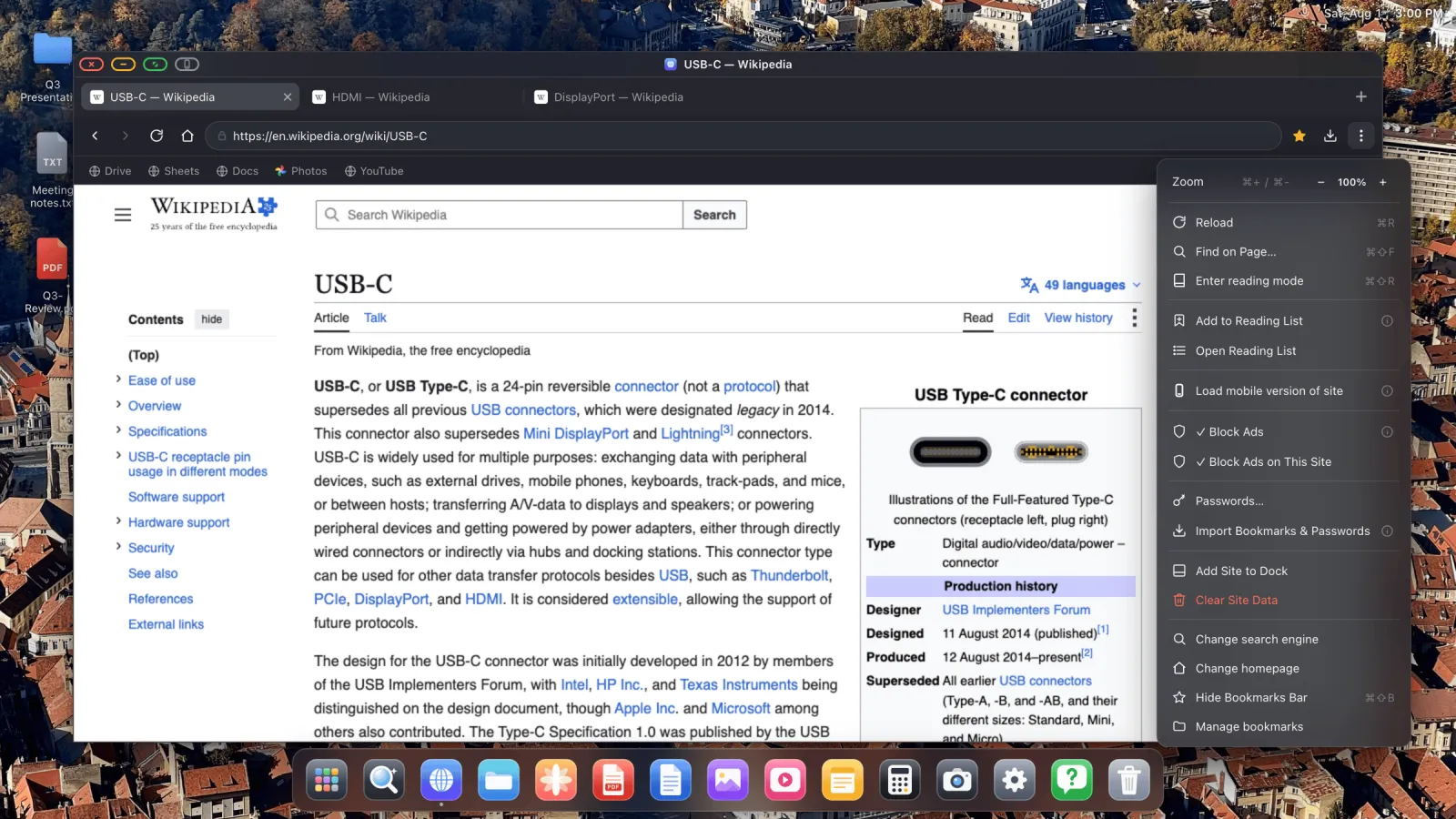
The site lands in the dock using its own favicon as the icon. Click it and it opens in a dedicated window of its own, showing the site without a tab strip or address bar wrapped around it.

Rearranging and customising
Right-click any dock item to rename it, swap the icon, move it or take it off.
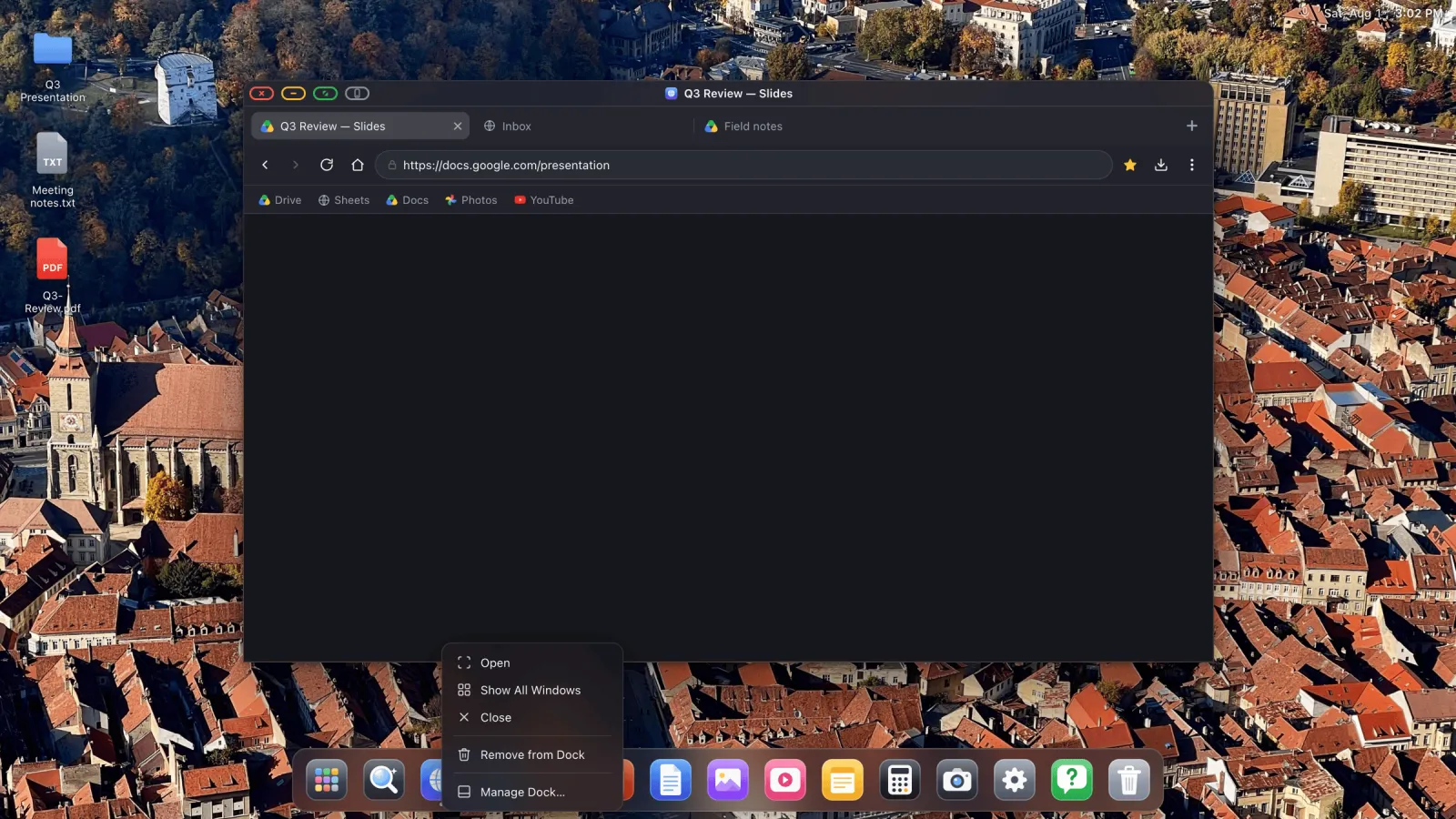
Advanced Options in the same menu lets an installed web app open your files, if it supports that. See how to open files in installed web apps.
Removing comes in two strengths. Hide from dock takes the tile away but leaves the site installed. Uninstall Site gets rid of it properly.
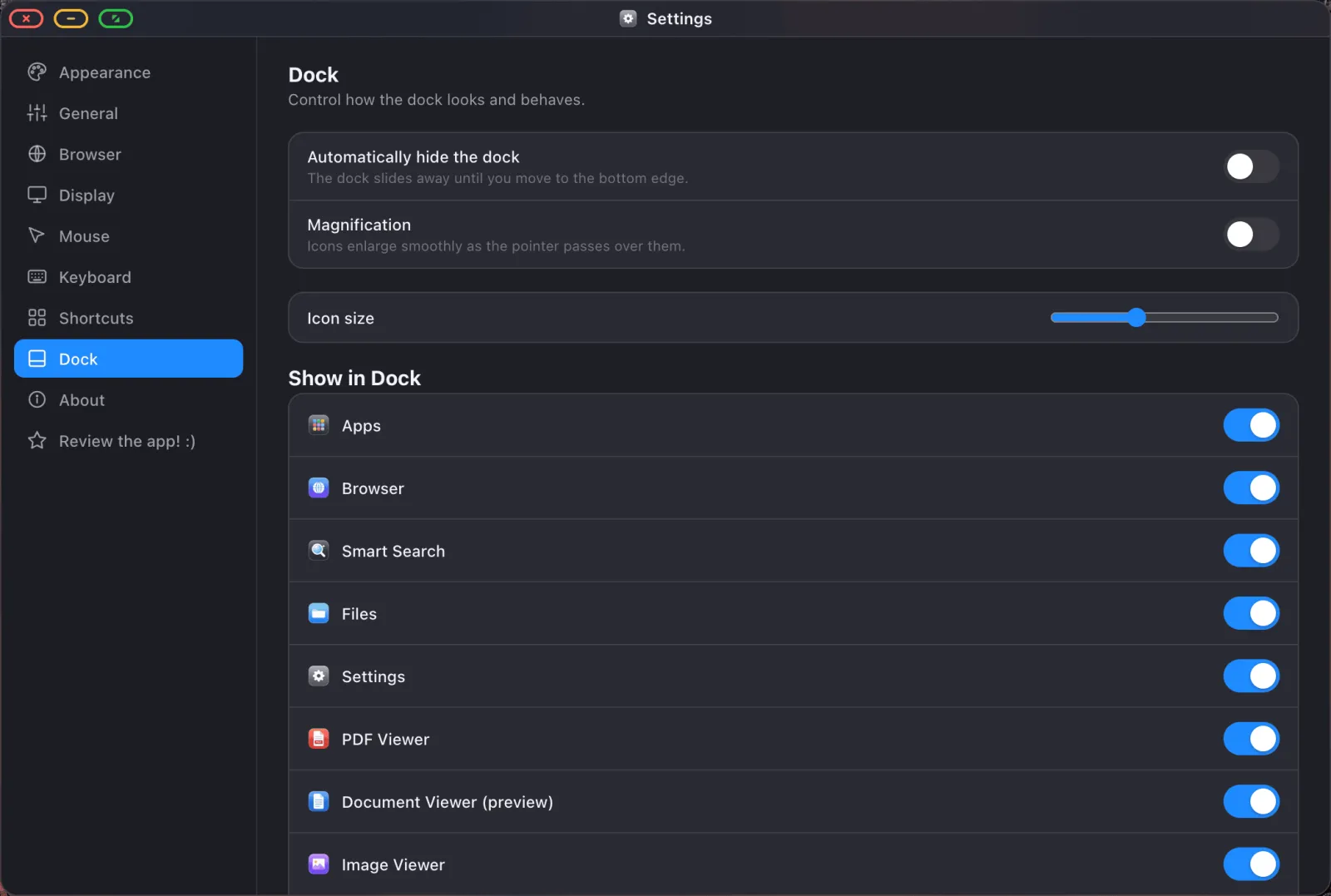
Built-in apps you never touch can be hidden the same way, and anything in the dock can be dragged into whatever order suits you. Size, magnification and auto-hide are in Settings › Dock.
The Apps drawer
The first tile in the dock opens the Apps drawer: everything installed, in one grid, with a search box. Useful once you've added more sites than the dock can hold without shrinking them to nothing.
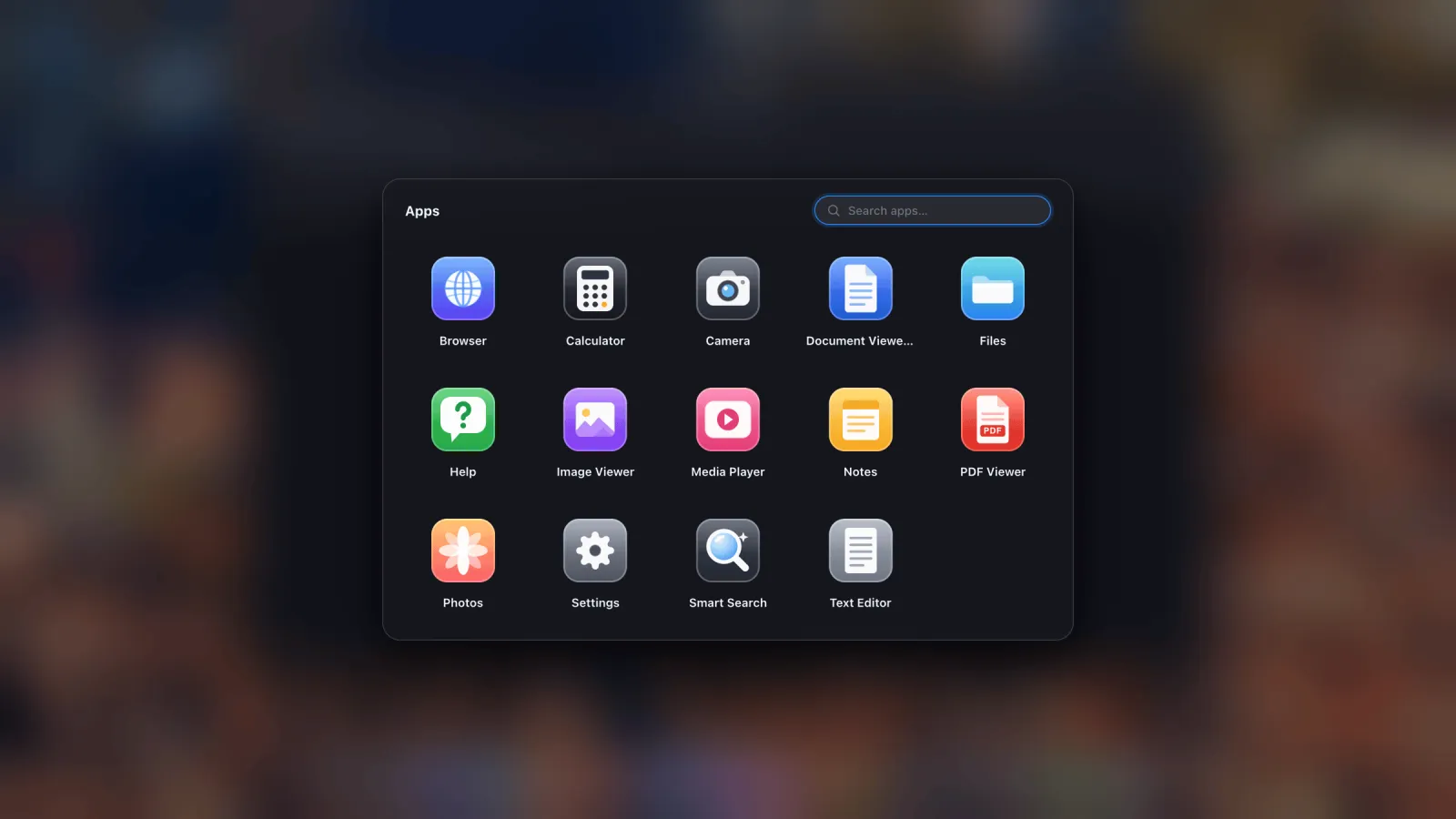
Right-clicking an icon in the drawer gives you the same rename, re-icon, hide and uninstall options as the dock does.
Floating windows and detached tabs
Any tab can become a window of its own. Right-click it and choose Open in Floating Window. You get a separate window you can move, resize or push full screen, so a video can play in one corner while you work in the rest of the screen.
An installed site can also be set to open as a floating window by default, so clicking its dock icon goes straight there.
Finding things fast
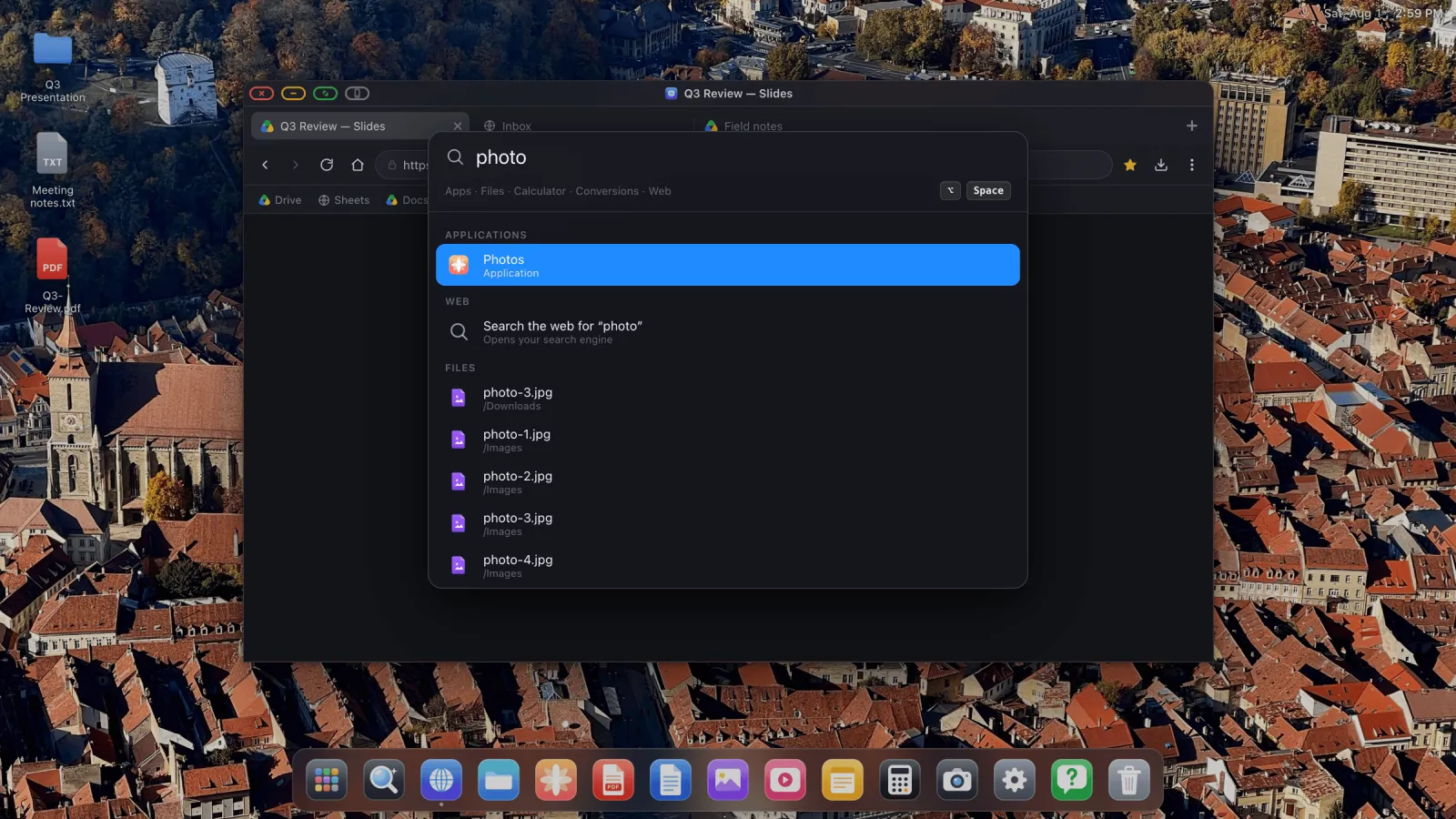
Press Option Space for the search overlay. It covers your apps, your installed sites and your files across every mounted location. Anything it doesn't recognise, it hands to a web search.
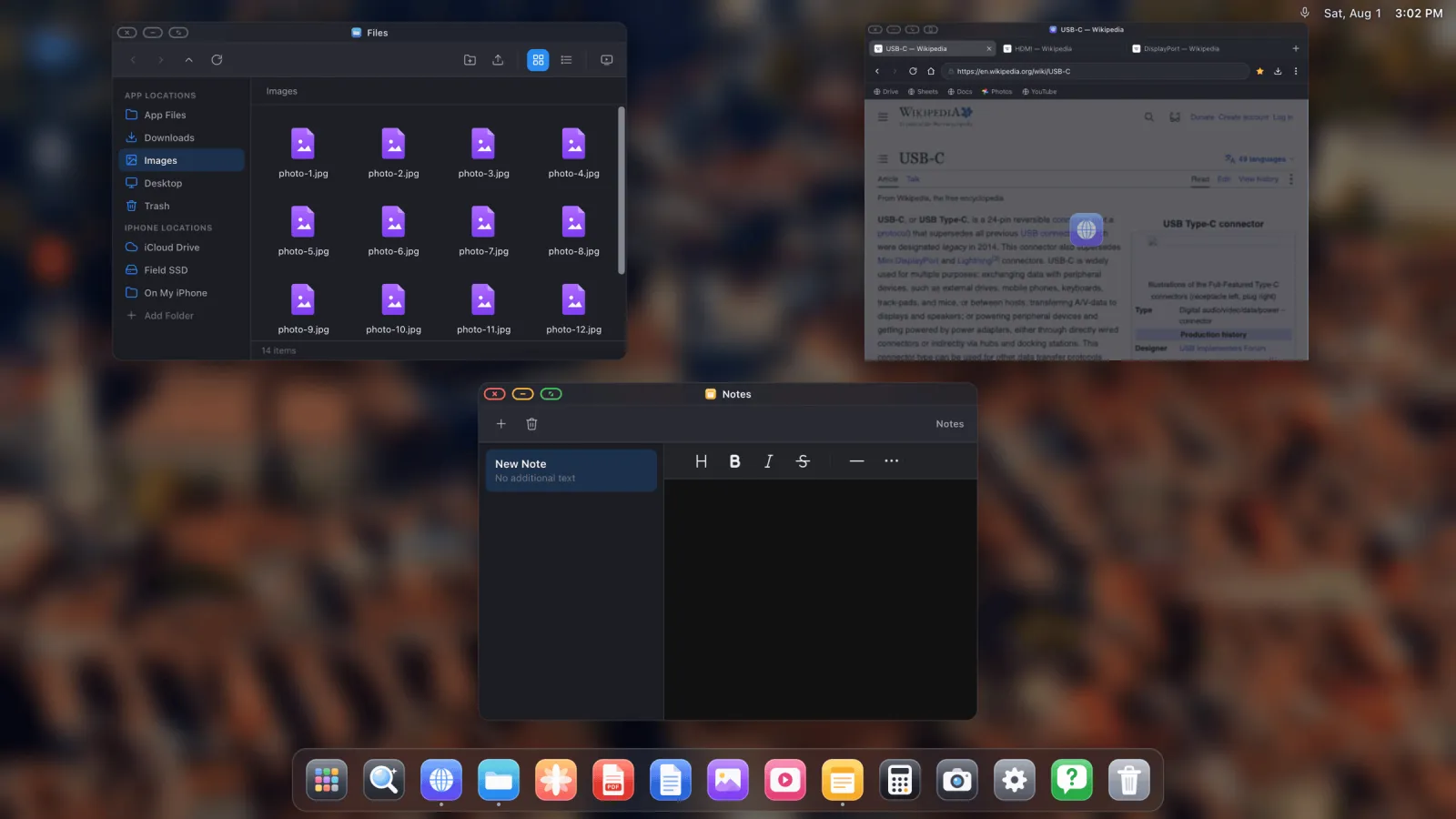
To see everything currently open, press Ctrl ↑ (Option ↑ on iPad) for the overview, or hold Ctrl and press Tab to cycle windows.
Your session comes back
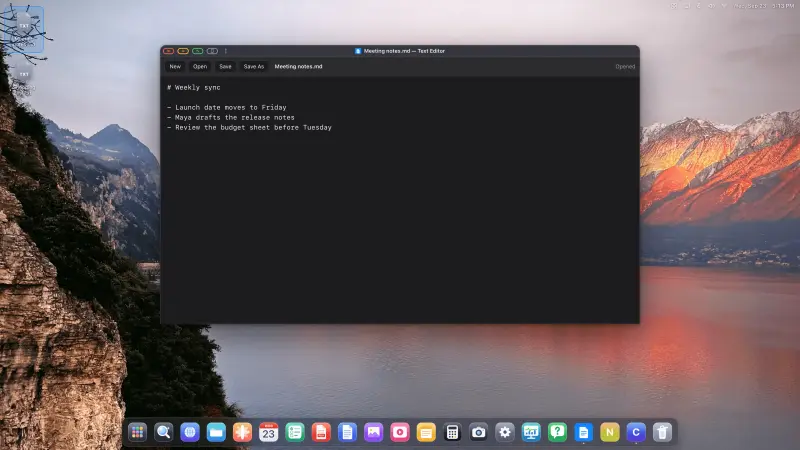
Leave windows open and they return: same size, same position, same place on the page, the next time you plug a display in. Installed sites and detached tabs included. You arrange the desktop once and then stop thinking about it.
XeOS: External Display Browser turns an iPhone or iPad into a full desktop on any monitor, TV or projector.
Common questions
Are installed sites separate from the browser's tabs?
Yes, each one gets its own window. They share your logins and site data, so you're not signing in twice.
Can I change an installed site's icon?
Yes. Right-click it in the dock or the Apps drawer and set a custom icon and name.
How do I get a built-in app back after hiding it?
Settings › Dock lists the built-in apps and lets you show them again.
Can I pin a folder to the dock too?
Yes. Right-click a folder in the Files sidebar and choose Pin to Dock.
More guides



Try XeOS: External Display Browser
Full screen on any external monitor, TV or portable display. No black bars. Download on the App Store.