
 External Display BrowserImport3 min read
How to Import Your Bookmarks and Passwords From Safari, Chrome, Firefox or Edge
Typing passwords on a TV screen is the fastest way to abandon a setup like this. Ten minutes of preparation fixes it for good. Bring your bookmarks and saved logins across once and signing in to Google, YouTube, your bank or your work tools becomes a tap. Safari, Chrome, Firefox and Edge all have a route in, and they're all below.
Where the import lives
Two routes to the same screen. In the browser it's ⋯ › Import Bookmarks & Passwords. In Settings it's Browser › Import Bookmarks & Passwords.
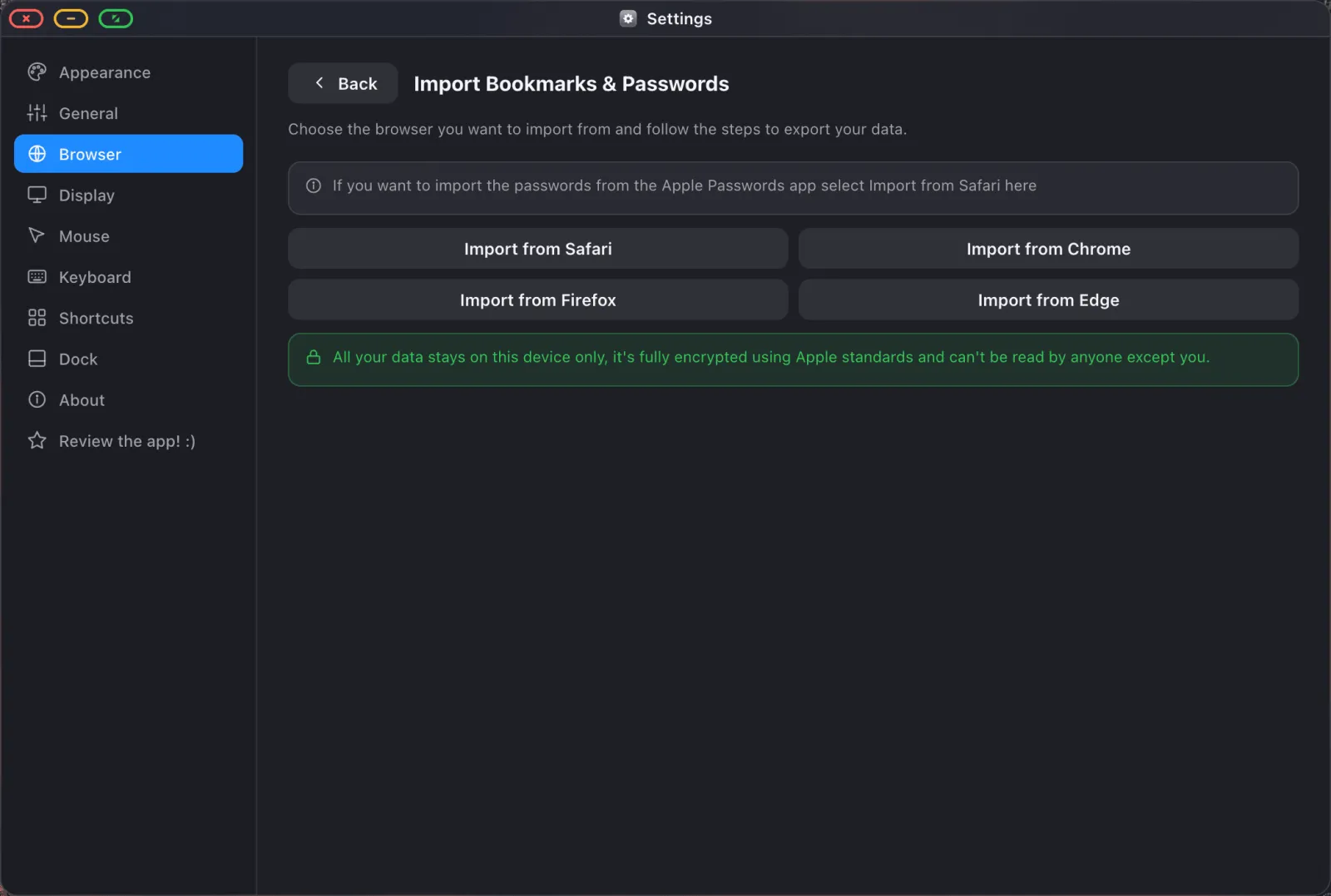
Each button walks you through exporting from that browser, then reads the file back in. The shape is the same everywhere: export on the device where your data lives → get the file to your iPhone → open it in XeOS.
Where your data goes. Everything imported stays on the device. Passwords are encrypted with Apple's own cryptography, with the key held in the iOS Keychain. Nothing is uploaded to XeOS or anywhere else.
From Safari, and the Apple Passwords app
If your logins live in iCloud Keychain or the Apple Passwords app, this is your route. Choose Import from Safari.
- On a Mac, open Safari and choose File › Export › Bookmarks for bookmarks, and export passwords from the Passwords app (or Safari's Passwords settings) as a CSV.
- On an iPhone or iPad alone, open the Passwords app and use its own export option.
- Get the exported file onto your device by AirDrop, iCloud Drive, or email to yourself.
- In XeOS, choose Import from Safari and pick the file.
From Chrome
- On a computer, open Chrome and go to
chrome://password-manager/settings. Choose Export passwords. Chrome asks you to confirm with your device password, then saves a CSV. - For bookmarks, open Bookmarks › Bookmark manager, then the ⋮ menu and Export bookmarks, which saves an HTML file.
- Transfer both files to your iPhone or iPad.
- In XeOS, choose Import from Chrome and select each file.
From Firefox
- In Firefox, open Passwords from the menu, then the ⋯ menu and Export Logins to save a CSV.
- For bookmarks, open the Library, then Import and Backup › Export Bookmarks to HTML.
- Transfer both to your device.
- Choose Import from Firefox in XeOS.
From Edge
- In Edge, open Settings › Profiles › Passwords, then the ⋯ menu and Export passwords.
- For bookmarks, open Favourites, then the ⋯ menu and Export favourites.
- Transfer both to your device.
- Choose Import from Edge in XeOS.
Delete the exported files afterwards. An exported password CSV is plain text. That's true of every browser's export, not a quirk of this one. Once the import has finished, delete the file from your device and from whatever you transferred it through.
What you get afterwards
Bookmarks, with folders intact
Imported bookmarks keep their folder structure. They show up in the bookmarks bar under the address bar (Cmd Shift B toggles it) and in Settings › Browser › Bookmarks, where you can rename things, drag them between folders and create new ones.
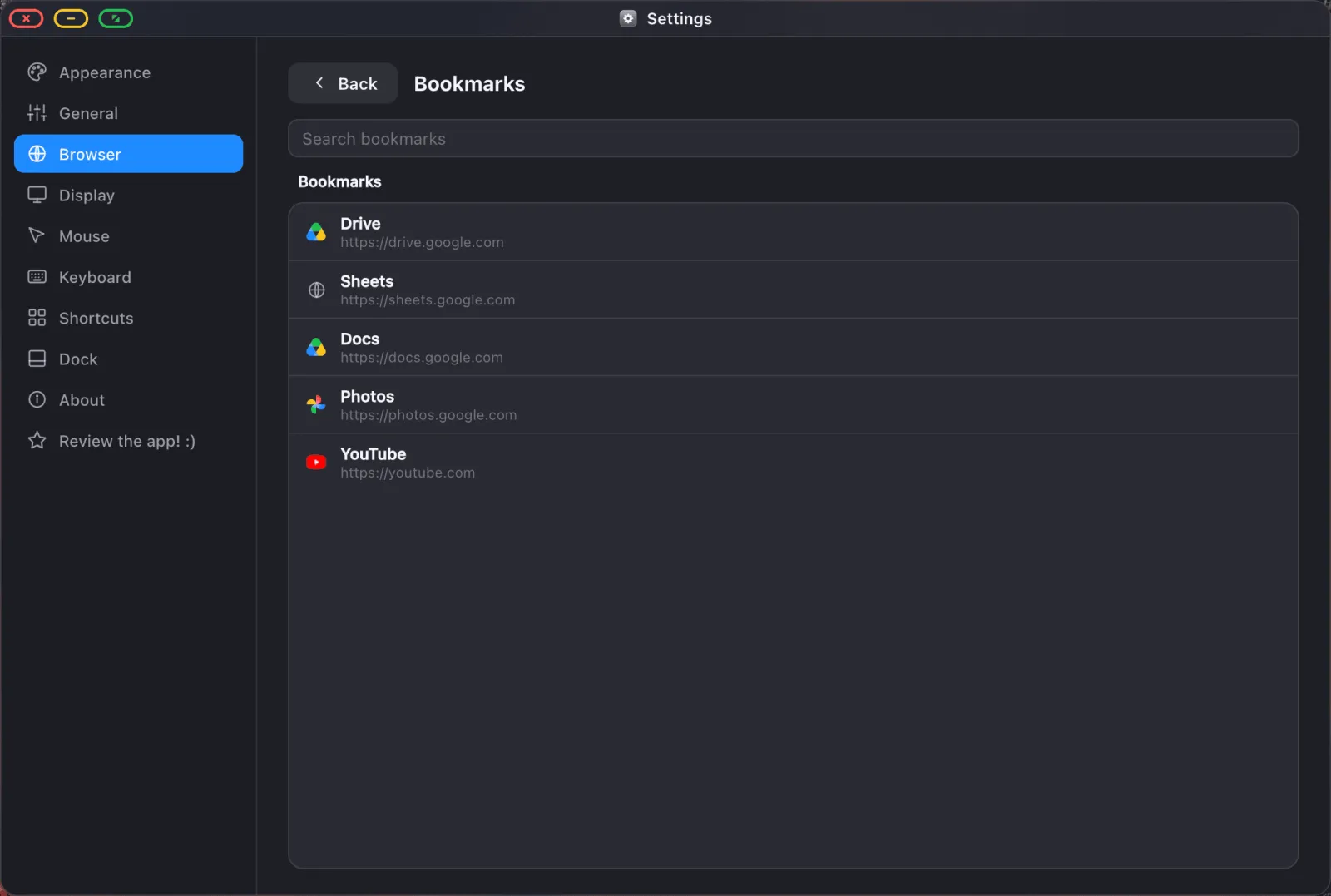
Passwords, filled in for you
Saved logins land in the browser's password panel (⋯ › Passwords), where you can search them, reveal one, copy it or delete it.
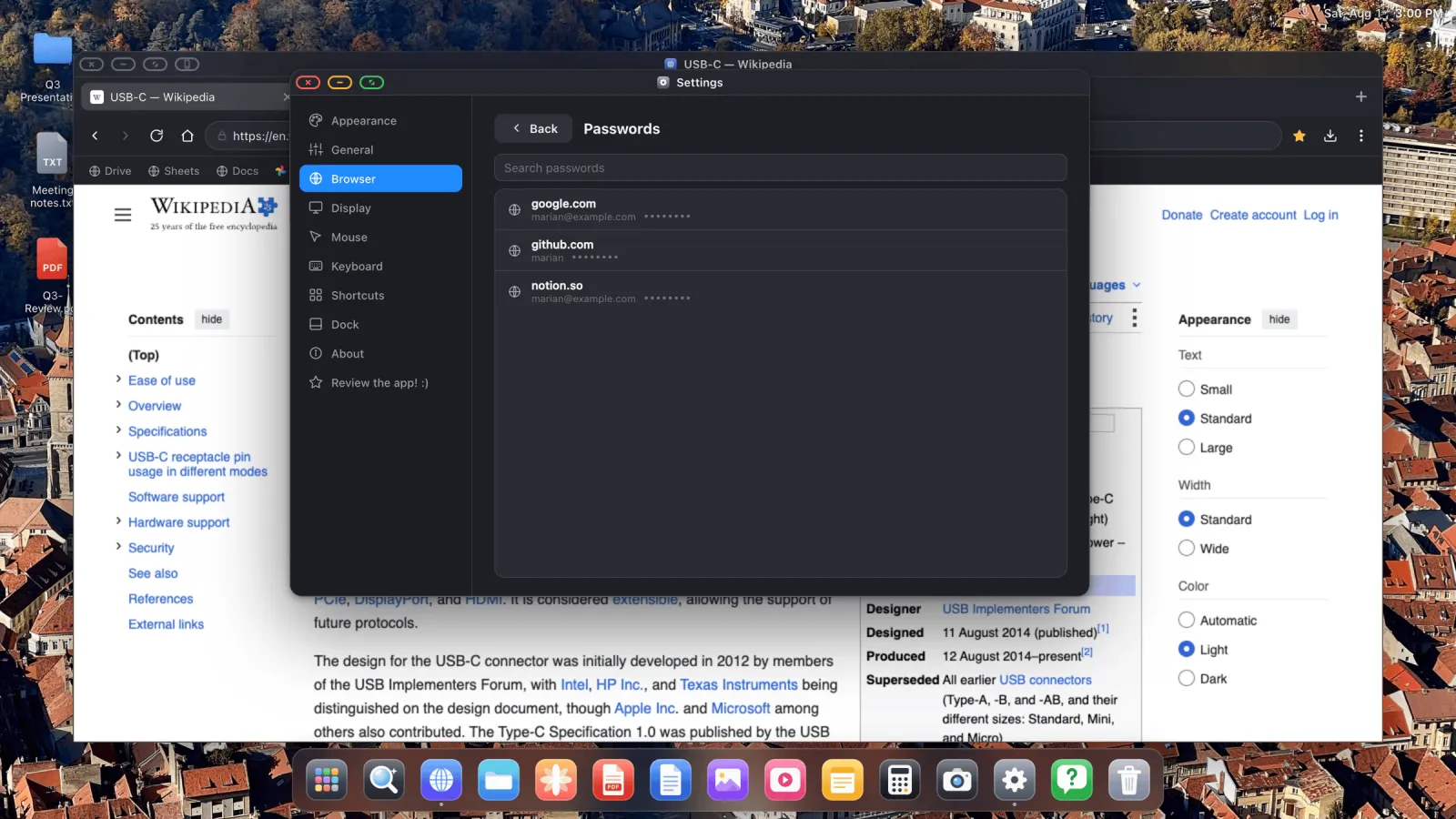
More usefully, they're offered as autofill when you land on a sign-in form.
Why this matters more than it sounds
Most of what makes an iPhone-on-a-monitor setup feel like a toy rather than a computer is friction at the login screen. Entering a long password with a trackpad, on a screen across the room, is enough to put anyone off the whole idea. Get your logins in and the rest of the guides here stop being aspirational: YouTube on the big screen, presenting from Google Slides, working in Drive and Sheets.
XeOS: External Display Browser turns an iPhone or iPad into a full desktop on any monitor, TV or projector.
Common questions
Are my passwords sent anywhere?
No. They're stored encrypted on the device, with the encryption key in the iOS Keychain.
I use the Apple Passwords app, not Safari. Which button?
Import from Safari. That's the route for Apple's password store.
Can I import bookmarks without importing passwords?
Yes. Separate files, separate steps. Do either, or both.
Can I import more than once?
Yes. Importing again adds anything new without wiping what's already there.
Can I still use my phone's own password picker?
Yes. The system password sheet is available on the phone side too, so you're not locked into one or the other.
More guides




Try XeOS: External Display Browser
Full screen on any external monitor, TV or portable display. No black bars. Download on the App Store.