
 External Display BrowserTroubleshooting4 min read
Device Layout Mode: What the Grey Button Does, and Why You Sometimes Need It
Next to the red, yellow and green window buttons sits a fourth one, grey, shaped like a phone. Most days you'll never touch it. Then a page turns up with a consent banner or a sign-in box that ignores your clicks on the external display, and the grey button is the answer. This page explains what goes wrong on those pages and how to get round it in about four seconds.
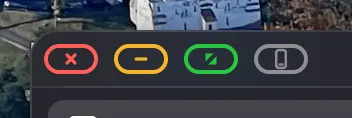
What's going on
Every browser on iOS, this one included, is required to use Apple's WebKit engine. That's the platform rule, not a shortcut anyone took. WebKit on iOS makes assumptions about touch input that stop holding when the page is being driven by a synthetic cursor on a second screen.
The friction concentrates in embedded frames. When a site loads part of itself inside an iframe from another domain, that frame is sandboxed and receives events only through the browser engine's own input path. Cookie consent managers do this. So do payment forms, identity providers' sign-in boxes and embedded video players. Sometimes a click generated on an external display doesn't make it inside.
The sites aren't doing this by accident either. Isolating sensitive controls inside a cross-domain frame is deliberate anti-fraud work: an automated script running in the page can't reach in and press "Pay" or "Sign in". It does its job well, and it catches a legitimate cursor coming from a second screen along with everything else.
XeOS goes to some lengths to make this rare. Clicks are hit-tested through Shadow DOM, closed shadow roots included, which covers most cookie banners. Focus is directed at the right editable host rather than a nested child, so text fields on chat and note-taking sites behave. But a cross-origin frame that refuses synthetic input is a wall the app can't climb.
The workaround, in four seconds
Rather than making you unplug or give up on the page, XeOS hands that window to the screen it can drive perfectly: your phone's.
- Click the grey phone button in the window's corner.
- The page appears on your iPhone or iPad's own screen, in its normal touch layout.
- Do the one thing that wouldn't work. Accept the banner, tap the sign-in button, fill the card field.
- Tap the return button on the phone and the window goes back to the external display, exactly where it was.
Nothing reloads. You keep your place, your scroll position and whatever you'd typed.
Portrait or landscape?
You choose which way the page appears on the phone. Setup asks, and Settings lets you change your mind later.
Go with landscape if you're using a physical mouse, since you get more usable width on the phone for the moment you're over there. Go with portrait if you're using the on-screen trackpad, because that's how you're already holding the device.
When you'll need it
In practice it comes down to a handful of situations. Cookie and consent banners from third-party consent managers. Sign-in flows that hand off to an identity provider in a frame, where "Sign in with…" buttons are the usual culprit. Payment fields, which live in a frame from the payment processor for exactly the reasons above. And embedded widgets from a different domain than the page around them, like maps, booking calendars and chat pop-ups.
Everything else, the site itself and its menus and forms and videos, works normally on the external display.
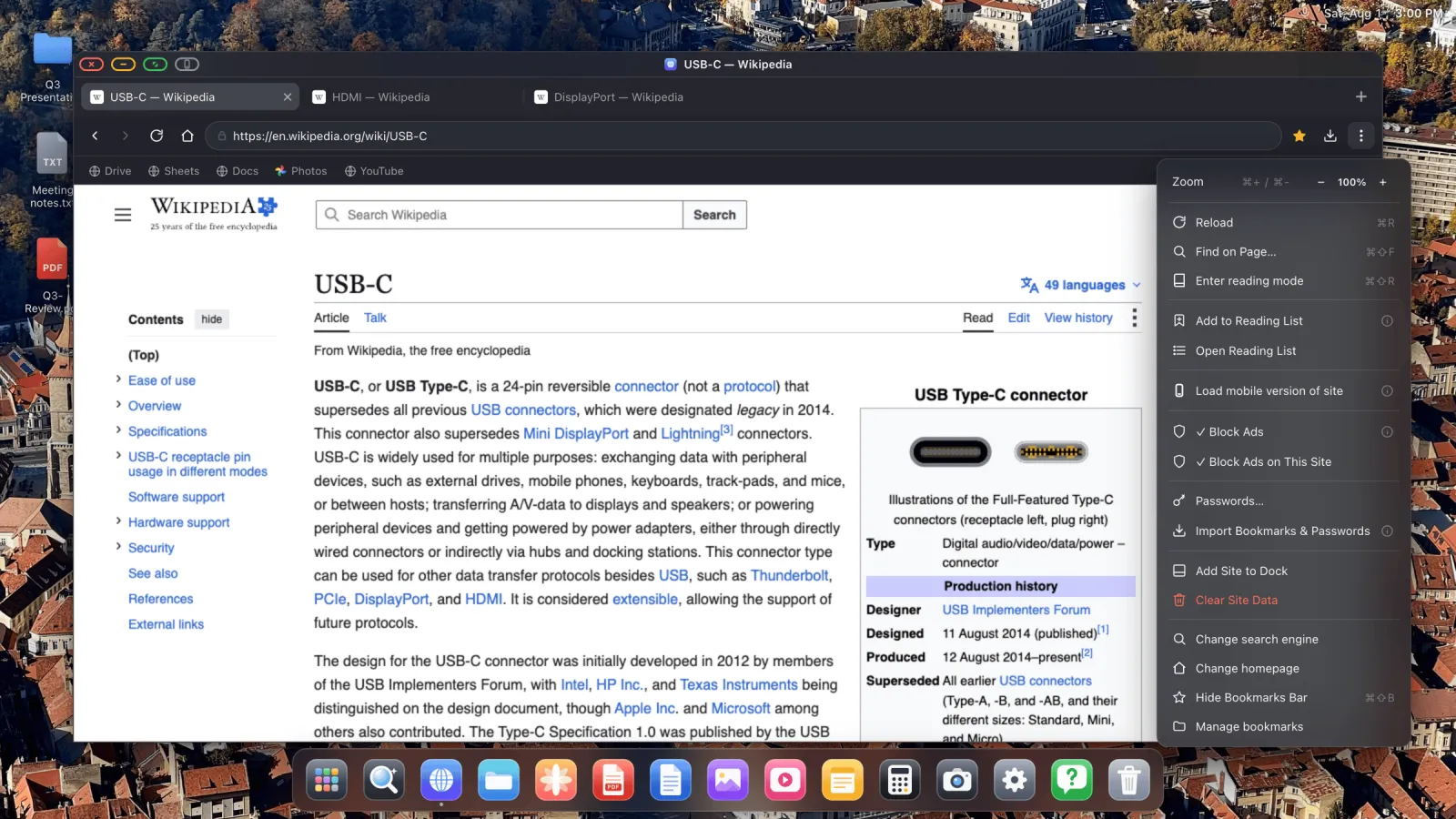
Try this first. Before reaching for the grey button, two things fix a surprising share of stubborn pages. ⋯ › Load mobile version of site sometimes swaps a frame-heavy desktop layout for a simpler mobile one, and a plain reload does more than you'd expect. If neither helps within a few seconds, use the grey button rather than fighting it.
Why this isn't a bug
A page that won't take a click isn't a feature XeOS forgot to build. It's a boundary of the browser engine every iOS app is required to use, and an update to this app can't move it, because the app doesn't control that layer. What it can do is keep the detour short and lossless.
And the detour is short. You're on the phone for one tap, then back on the big screen.
XeOS: External Display Browser turns an iPhone or iPad into a full desktop on any monitor, TV or projector.
Common questions
Will I lose what I typed when I switch?
No. The page isn't reloaded. The same live page is shown on the other screen and handed back.
Can I switch back and forth as often as I like?
Yes, there's no cost to it.
Does this affect the whole desktop or just one window?
The button acts on the window you clicked it in. Everything else stays on the external display.
Why can't the app just simulate a more realistic click?
Because the frame's own boundary is what rejects it, and that boundary exists specifically to stop programmatic input from reaching sensitive controls. Defeating it isn't possible from inside the sandbox, and it isn't something a legitimate app should be attempting.
More guides




Try XeOS: External Display Browser
Full screen on any external monitor, TV or portable display. No black bars. Download on the App Store.