
 External Display BrowserConfiguración por modelo3 min de lectura
Configurar un monitor externo en el iPhone: qué cable necesitas, según el modelo
Todos los iPhone fabricados en la última década pueden mostrar una imagen en un monitor. Lo que cambia según el modelo es el conector, el adaptador y cuánto deberías esperar del resultado. Busca tu teléfono abajo, compra lo correcto una sola vez, y consigue una pantalla completa en lugar de una franja con forma de móvil en medio de una.
Por conector
| iPhone | Puerto | Qué necesitas |
|---|---|---|
| iPhone 15 en adelante (incluidos Pro, Plus, Pro Max) | USB-C | Cable USB-C a HDMI, USB-C a USB-C para un monitor USB-C, o un adaptador multipuerto USB-C |
| iPhone 14 y anteriores, hasta el iPhone 5 | Lightning | Adaptador AV digital Lightning (HDMI), o adaptador Lightning a VGA para proyectores antiguos |
| Cualquier iPhone, sin cable | , | AirPlay a un Apple TV, un Mac, o una smart TV compatible con AirPlay |
iPhones USB-C (15, 16, 17 en adelante)
Estos llevan una señal DisplayPort por USB-C, así que tienes tres buenas opciones. Un cable USB-C a HDMI es lo más barato que funciona, aunque no lleva corriente ni añade puertos extra. USB-C a USB-C conviene a un monitor que reciba USB-C directamente, y muchos de esos monitores envían corriente de vuelta por el mismo cable, lo cual es el arreglo ideal. Un adaptador multipuerto USB-C te da HDMI más USB más carga de paso, y es el que hay que comprar si vas a hacer esto habitualmente o quieres conectar una unidad externa.
iPhones Lightning
El adaptador AV digital Lightning es la vía estándar. Te da HDMI más un puerto Lightning para cargar, y esa segunda parte importa, porque controlar una pantalla agota la batería rápido. Para salas de reuniones y salones de actos antiguos que solo tienen VGA, el adaptador Lightning a VGA lo cubre.
Los adaptadores Lightning a HDMI de terceros varían enormemente en calidad. Los sin marca son la causa habitual de una imagen parpadeante o intermitente.
AirPlay, cualquier modelo
Centro de control → Duplicar pantalla → elige tu Apple TV o smart TV. Sin cable, algo más de latencia, y depende de tu red. Va bien para vídeo y pases de fotos. Un cable se siente mejor para cualquier cosa interactiva.
La parte que el cable no resuelve
Compra cualquiera de lo anterior, conéctalo, y iOS duplica tu teléfono: una imagen 19,5:9 en un monitor 16:9, bandas negras rellenando la diferencia, todo escalado para una mano en lugar de un escritorio. Eso no es un problema del cable. iOS no tiene modo escritorio, así que copia la pantalla del teléfono en lugar de dibujar para el monitor.
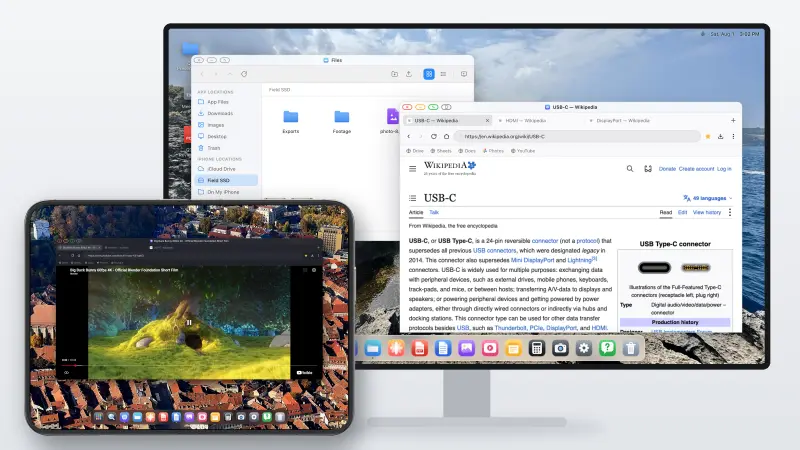
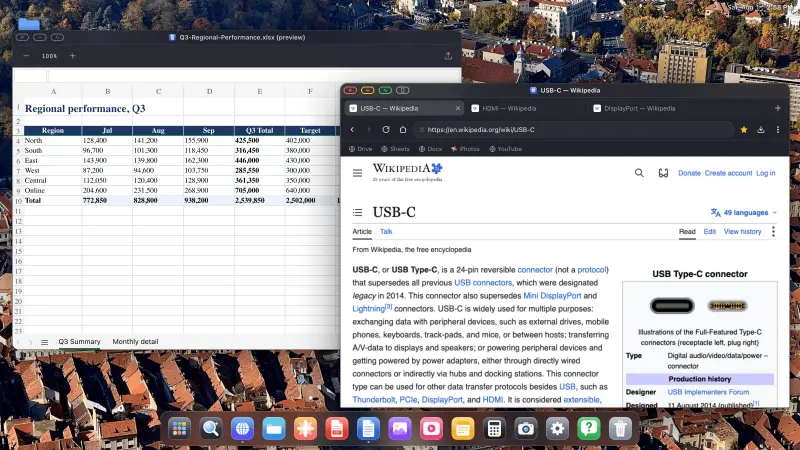
XeOS: External Display Browser cierra ese hueco. Renderiza su propio escritorio a la propia resolución del monitor, así que el panel se aprovecha por completo.
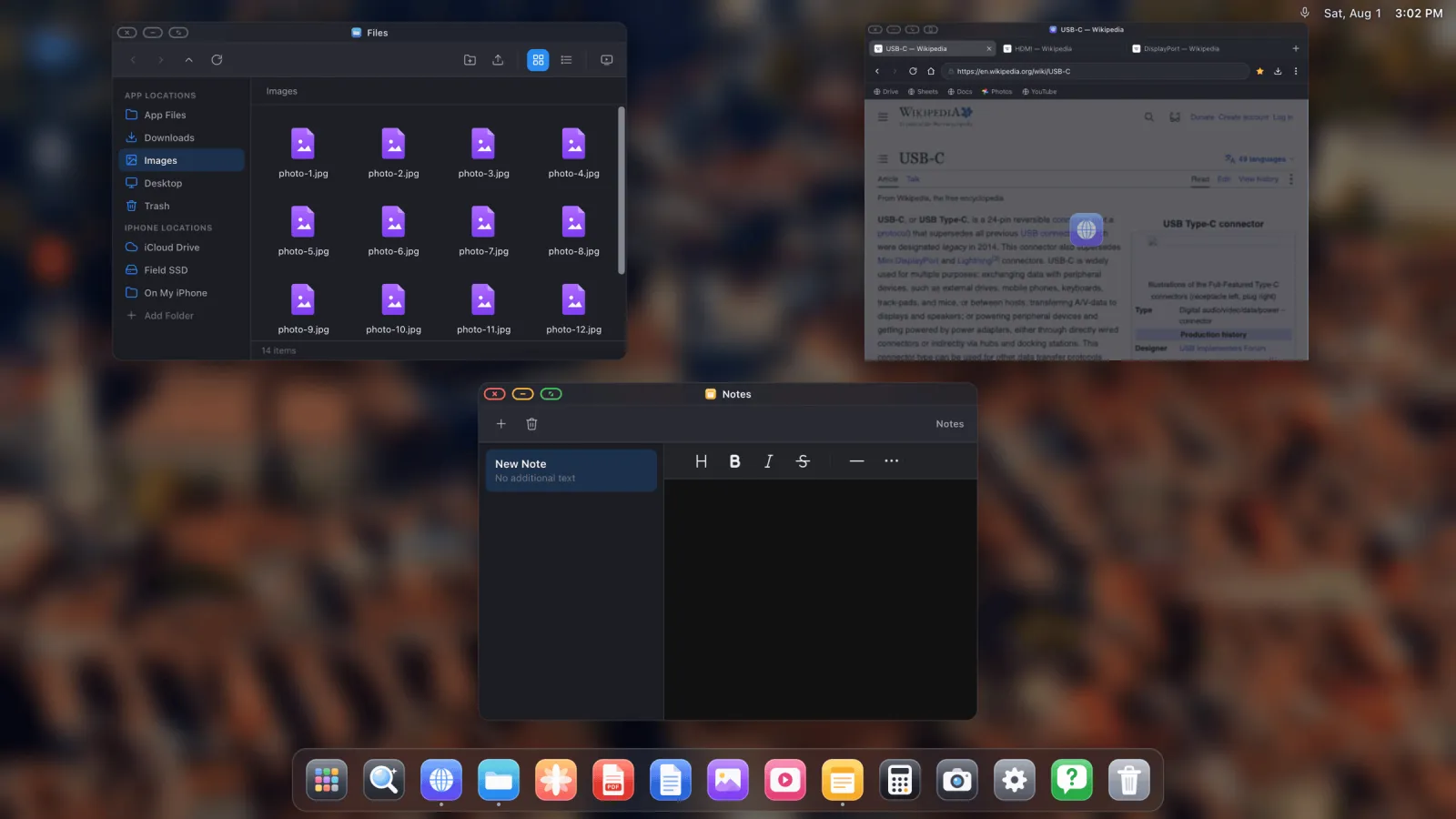
Conseguir la imagen correcta
- Conecta y abre la app. Detecta la pantalla.
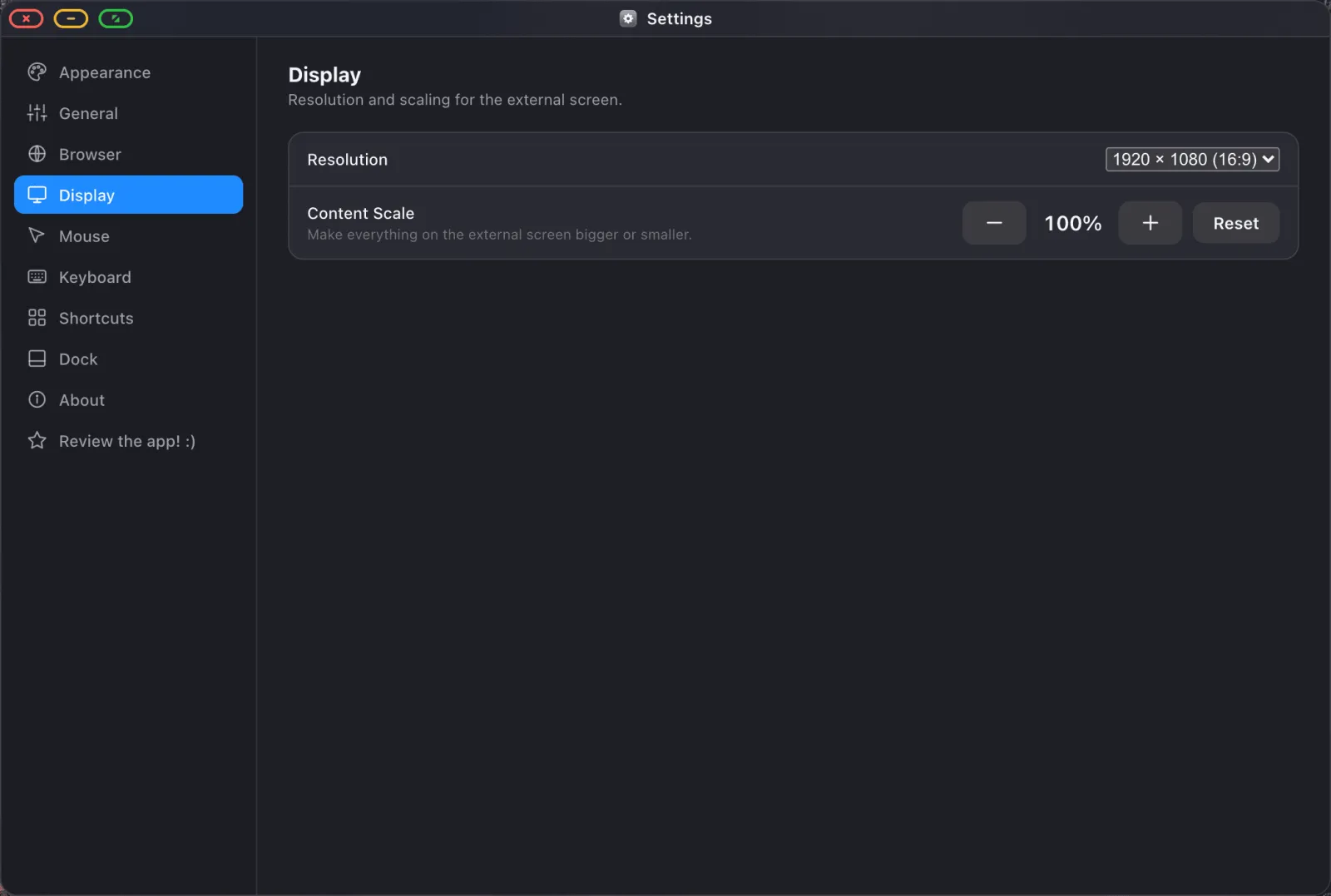
- En Ajustes › Pantalla, elige la resolución que indica tu monitor. 1920 × 1080 para la mayoría, más alta si el panel lo admite.
- Ajusta la escala del contenido: alrededor del 100 % a distancia de escritorio, 130–150 % para una tele al otro lado de una habitación.
- Si queda un borde, es el propio sobrebarrido de la pantalla. Configura su tamaño de imagen en «Just Scan», «Screen Fit» o «1:1».
Qué puedes hacer una vez que funciona
- YouTube a pantalla completa con los anuncios bloqueados
- Presentar un PDF en un proyector
- Poner un pase de fotos en una tele
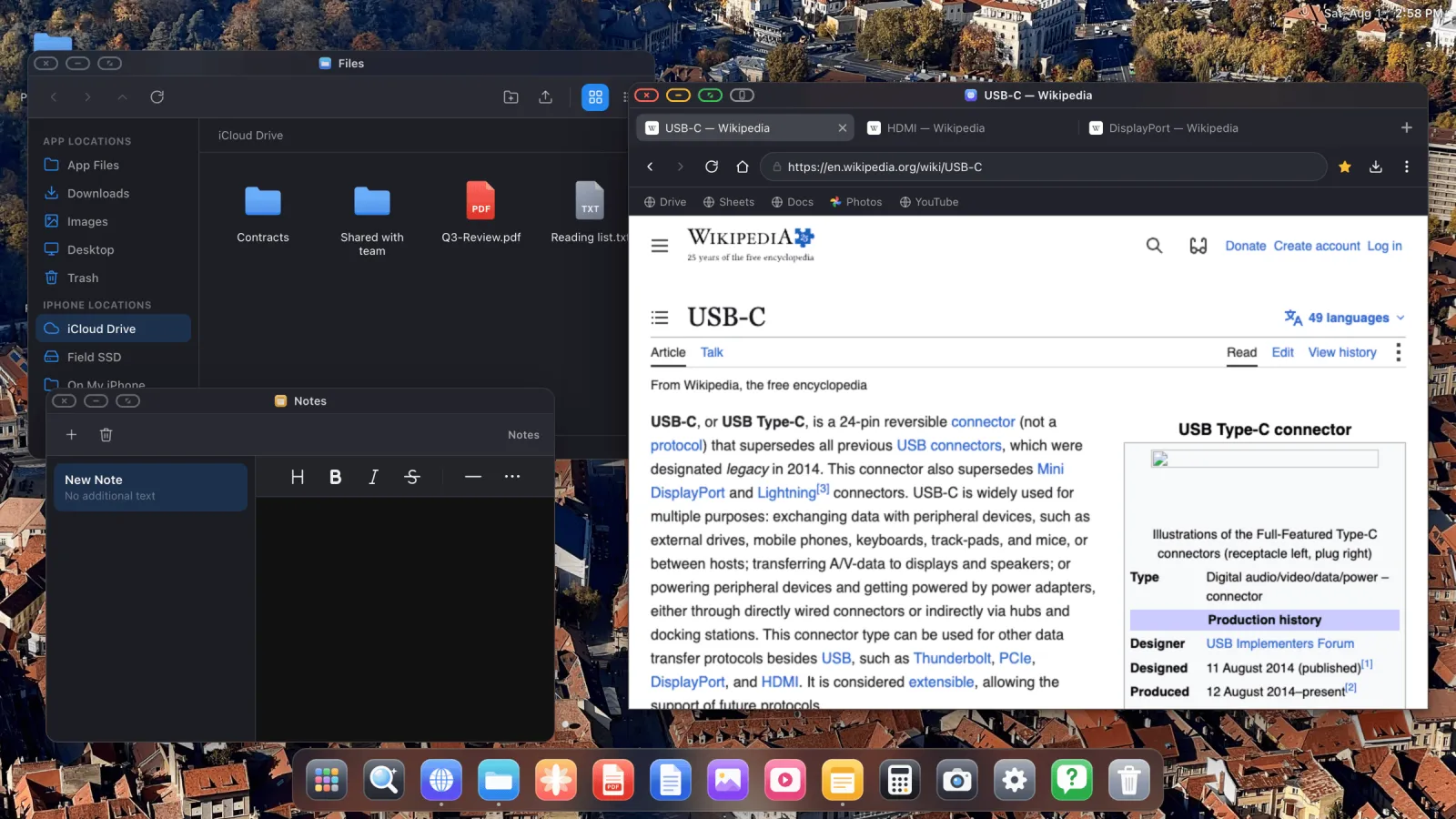
- Trabajar en Google Docs y Sheets a tamaño de escritorio completo
- Explorar iCloud Drive y unidades externas
Consejos de compra, en breve
Consigue corriente de paso a menos que vayas a usar esto solo diez minutos de vez en cuando. Lleva un cable HDMI corto, porque la sala tiene el puerto y el cable siempre está conectado a otra cosa. Evita los adaptadores más baratos de todos, ya que el parpadeo, los cortes y el «sin señal» casi siempre son el adaptador y no el teléfono. Y compra un ratón Bluetooth barato, que cambia la experiencia más que cualquier cable.
XeOS: External Display Browser convierte un iPhone o un iPad en un escritorio completo en cualquier monitor, tele o proyector.
Preguntas frecuentes
¿Se cargará un iPhone mientras está conectado a un monitor?
Solo si la conexión lleva corriente. Eso significa un adaptador multipuerto con un puerto de paso, un adaptador AV digital Lightning con su puerto Lightning en uso, o un monitor USB-C que suministre corriente.
¿Puede un iPhone controlar dos monitores?
No. Una pantalla externa a la vez.
¿Qué resolución puede sacar un iPhone?
Los modelos modernos gestionan 4K con soltura. La app lista los modos que indica tu pantalla concreta, así que eliges entre lo disponible.
¿Necesito una marca específica de adaptador?
No, pero la calidad importa más que la marca. Los adaptadores sin marca muy baratos causan la mayoría de los problemas de conexión.
Más del blog

Prueba XeOS: External Display Browser
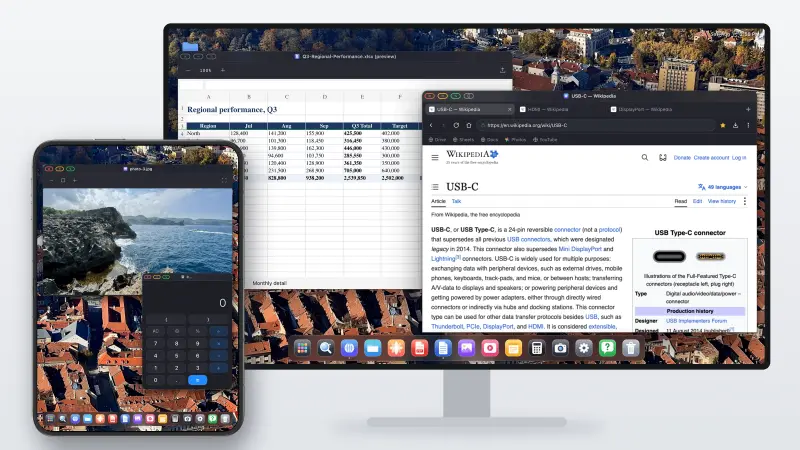
Pantalla completa en cualquier monitor externo, tele o pantalla portátil. Sin bandas negras. Descárgalo en el App Store.