 External Display BrowserMonitor externo5 min de lectura
Cómo usar tu iPhone con un monitor externo, a pantalla completa
La mayoría de la gente conecta un iPhone a un monitor una vez, ve una imagen alta con forma de móvil flotando entre dos bandas negras, y no vuelve a intentarlo. El monitor está bien. El cable está bien. Eso es simplemente lo que hace el iOS de serie. A continuación, la configuración que usa todo el panel en su lugar: un escritorio, a la propia resolución del monitor, controlado desde el teléfono que tienes en la mano.
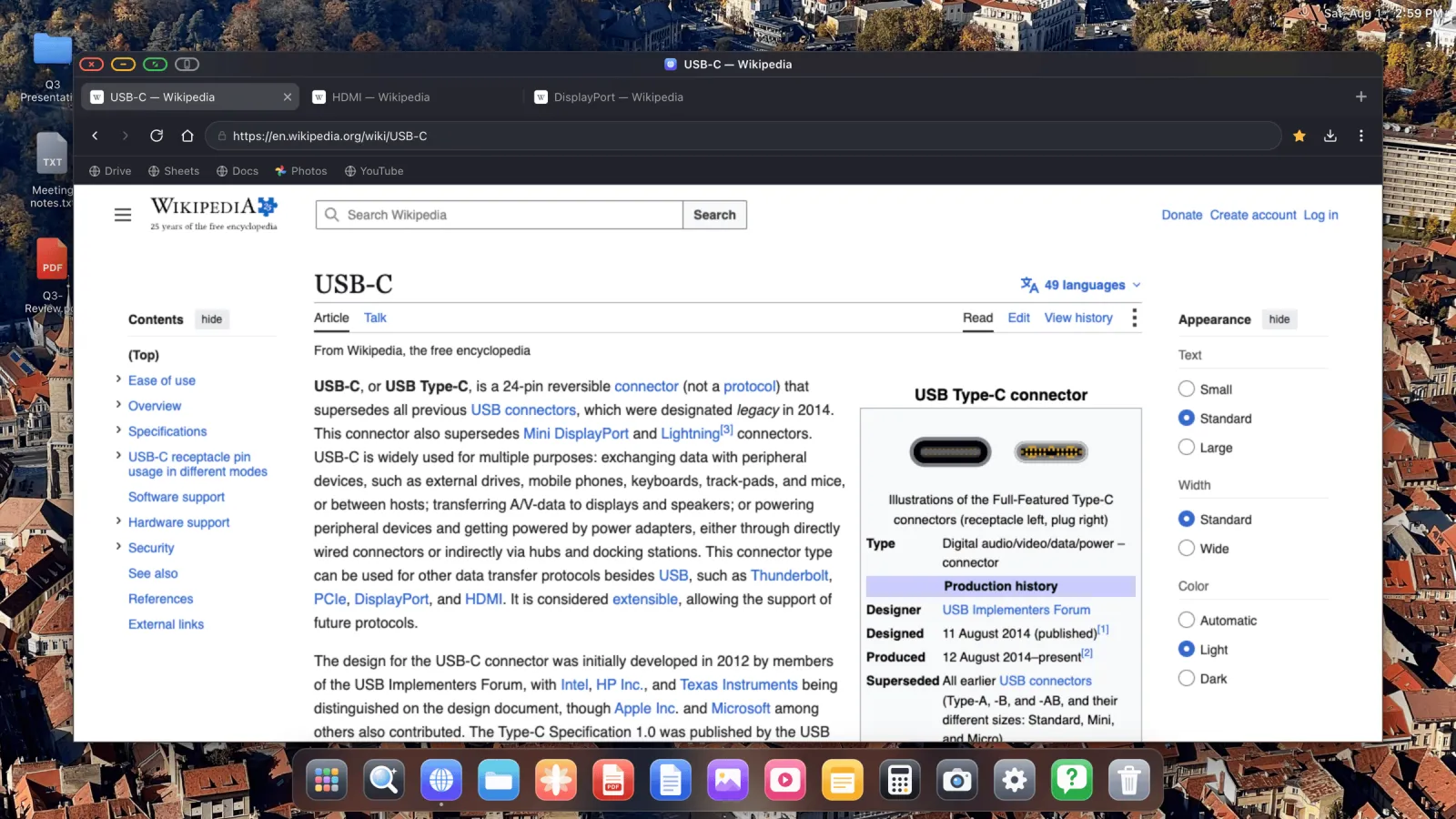
Qué necesitas
- Un iPhone capaz de sacar vídeo, que son casi todos. La lista está abajo.
- Un cable o adaptador para tu puerto, o un receptor AirPlay si prefieres ir sin cables.
- XeOS: External Display Browser desde el App Store.
- Un ratón y un teclado Bluetooth. Opcionales, y lo cambian todo.
| Tu iPhone | Qué comprar |
|---|---|
| iPhone 15 en adelante (USB-C) | Cable USB-C a HDMI, USB-C a USB-C si el monitor recibe vídeo por USB-C, o un hub multipuerto |
| iPhone 5 al 14 (Lightning) | Adaptador AV digital Lightning, y luego cualquier cable HDMI |
| Cualquiera de los anteriores, sin cables | Apple TV o una tele compatible con AirPlay, sin ningún cable |
Si piensas quedarte trabajando más de una hora, compra el hub multipuerto en lugar del cable a secas. Un solo conector te da HDMI, corriente y un puerto USB-A para una unidad o un dongle, y el teléfono se carga mientras controla la pantalla.
Configúralo, paso a paso
- Conecta el teléfono al monitor. El monitor se enciende en unos segundos y muestra el duplicado estándar de iOS, con bandas negras y todo. Ese es el punto de partida, no el resultado.
- Instala XeOS: External Display Browser desde el App Store y ábrelo con la pantalla todavía conectada. Detecta la pantalla por su cuenta.
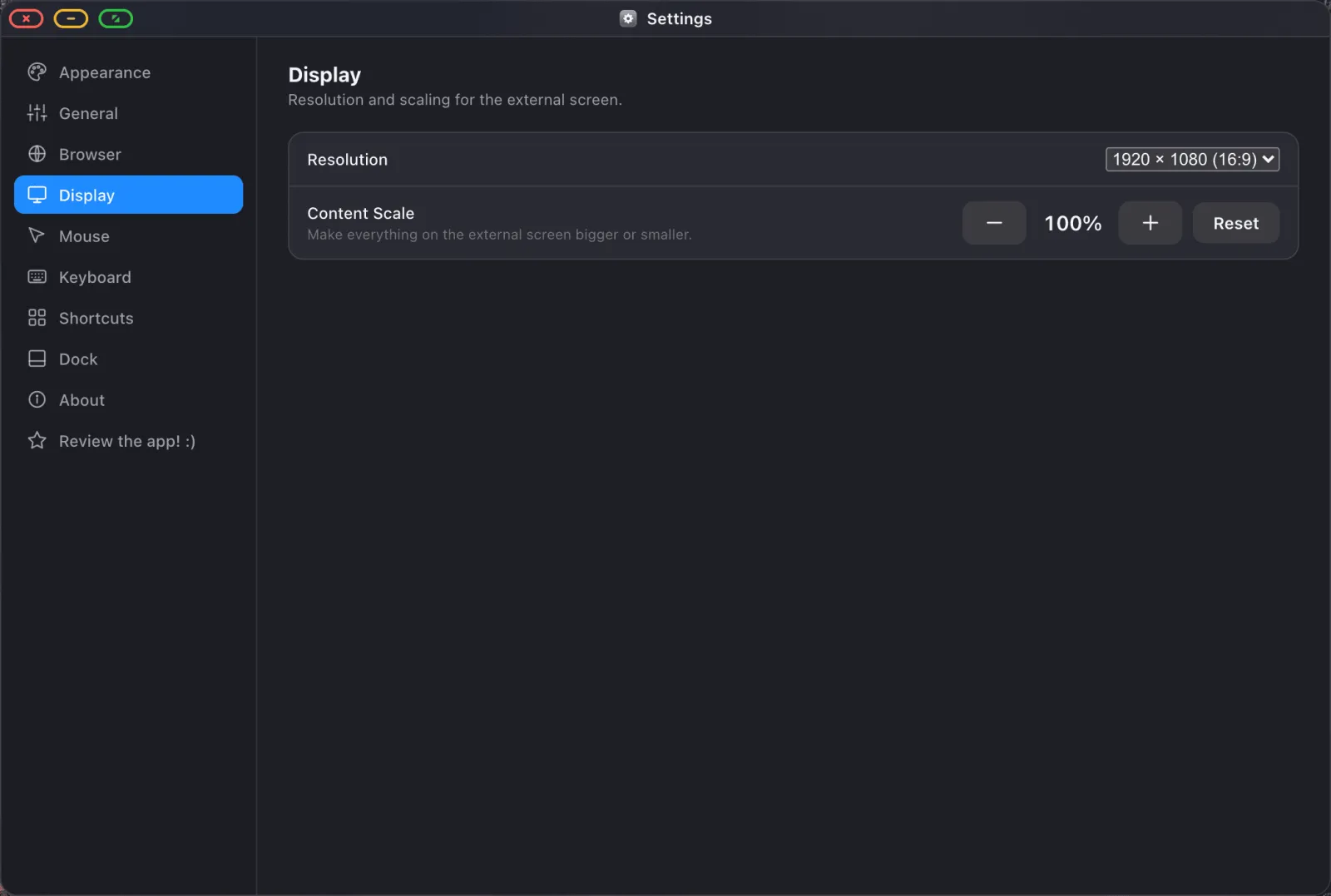
- Elige la resolución. El proceso de primer inicio lee los modos que indica tu monitor y te deja elegir, igual que un sistema operativo de escritorio. 1920 × 1080 es la opción segura por defecto.
- Ajusta la escala del contenido. La resolución decide cuántos píxeles hay, la escala decide cómo de grande se ve todo sobre ellos. 100 % a distancia de escritorio, 130–150 % si la pantalla está al otro lado de una habitación.
- Empareja un ratón y un teclado en Ajustes de iOS › Bluetooth antes de abrir la app. Sin ellos, la pantalla del teléfono se convierte en un trackpad, lo cual funciona, pero un ratón barato convierte esto en un ordenador.
Por qué el duplicado desperdicia la mayor parte de tu monitor
Se reduce a la forma. Una pantalla de iPhone mide aproximadamente 19,5:9 y un monitor 16:9. El duplicado le da a la pantalla una copia de una imagen alta y estrecha y la pantalla rellena los lados de negro para que encaje. Acabas usando alrededor del 60 % del panel, y todo en él está dibujado al tamaño que necesita un teléfono en tu mano en lugar del tamaño que necesita una pantalla a un metro de distancia.
Ningún ajuste de iOS lo arregla, porque iOS no está dibujando nada para el monitor. XeOS no duplica en absoluto. Renderiza su propio escritorio a la resolución nativa de la pantalla y desactiva la compensación de sobrebarrido, así que la imagen llega hasta los bordes del panel.
Qué obtienes en la pantalla grande
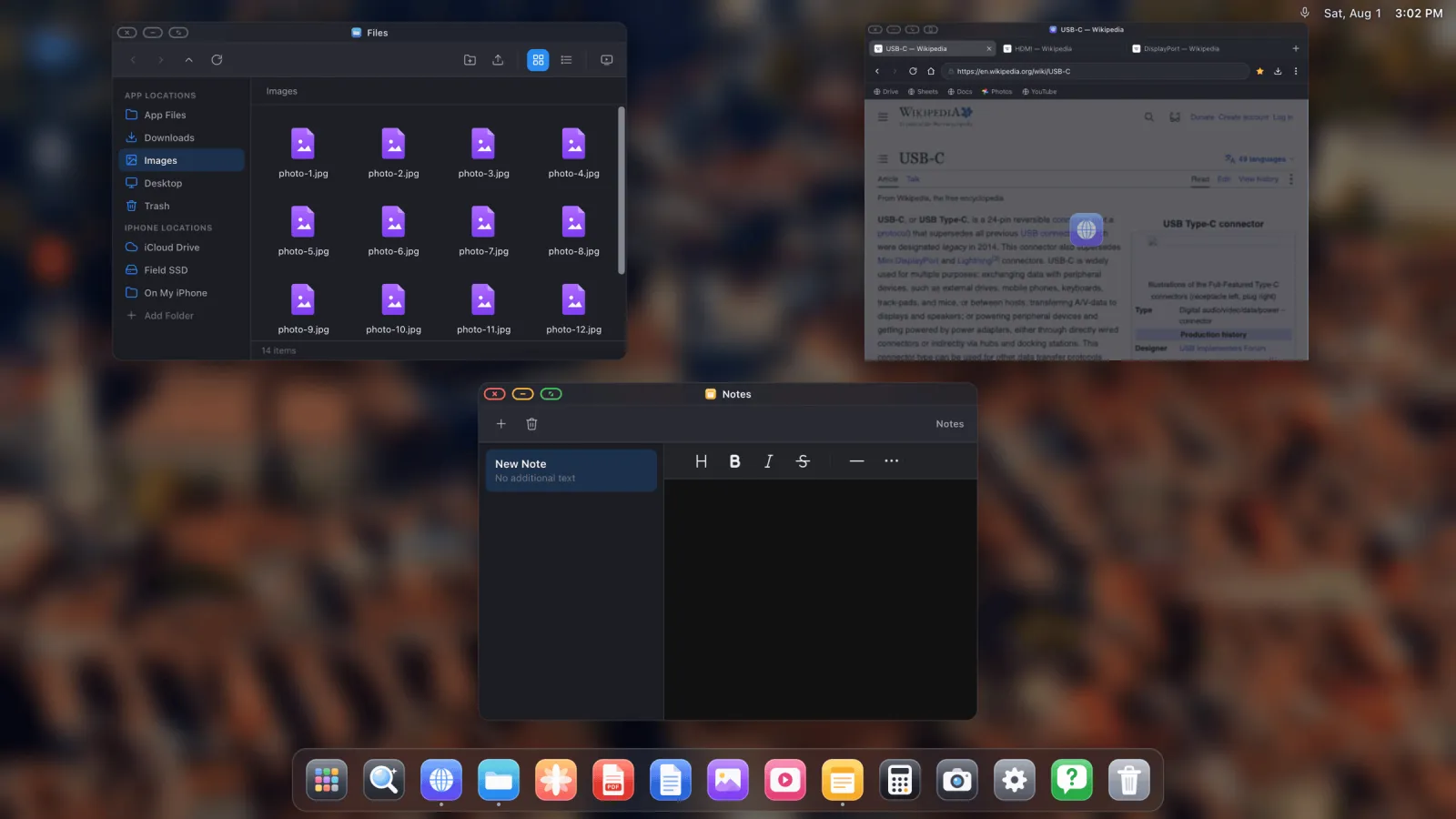
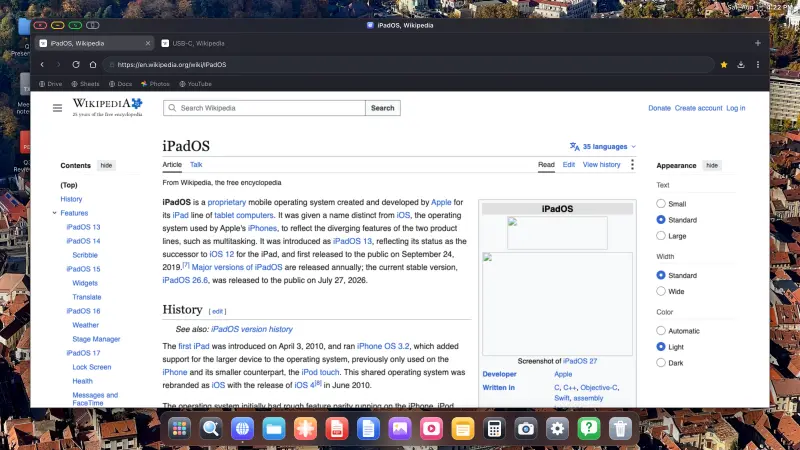
- Un navegador de escritorio con pestañas, barra de marcadores, descargas, un gestor de contraseñas, modo lectura y un bloqueador de anuncios activado por defecto que gestiona los anuncios en vídeo de YouTube. Mira la guía del navegador.
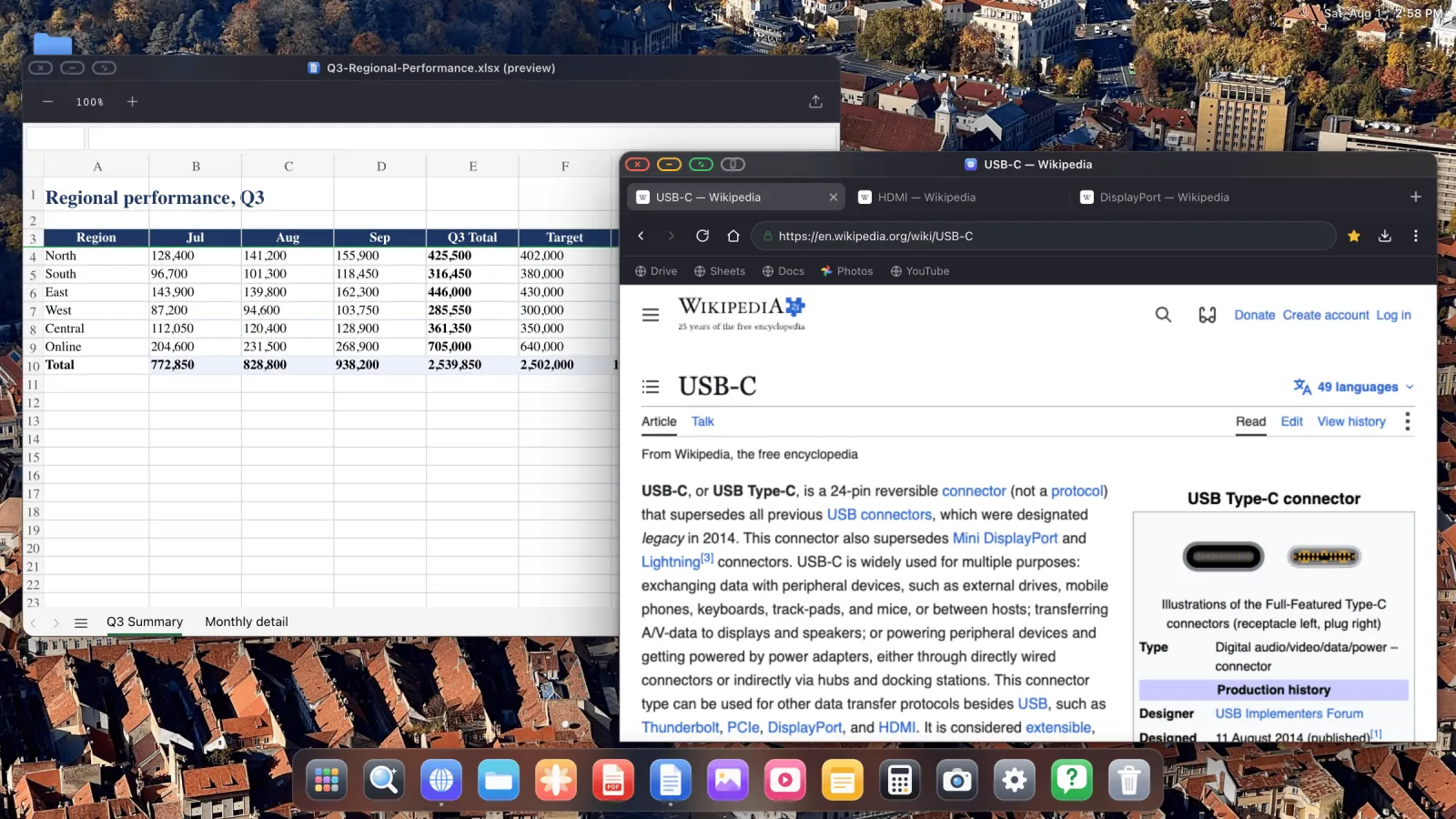
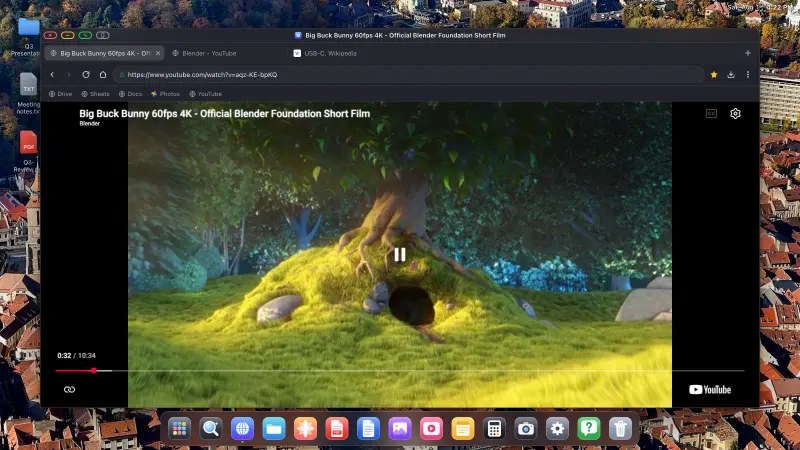
- Pantalla completa de cualquier cosa. El botón verde de la ventana elimina toda la interfaz, así que el vídeo y las diapositivas llenan el panel de esquina a esquina.
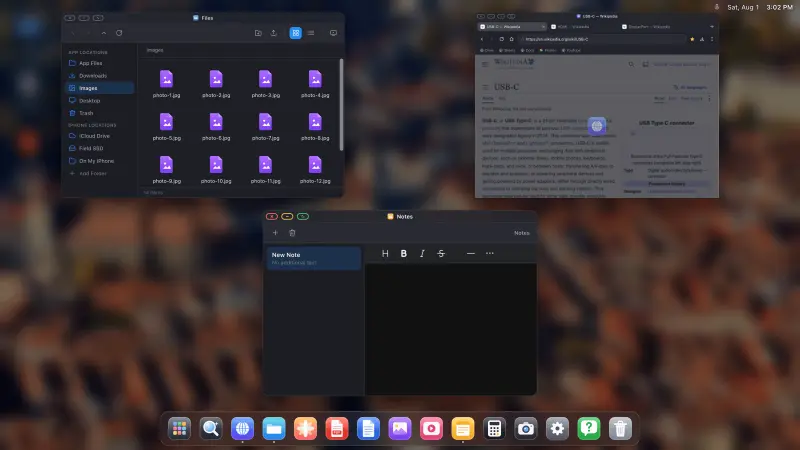
- Un gestor de archivos que puede montar iCloud Drive, carpetas del teléfono y unidades USB.
- Visores de documentos: un visor de PDF con anotación, más vista previa de Word, Excel y PowerPoint.
- Videollamadas, con cámara y micrófono, en Zoom web, Google Meet o Teams.
- Sitios web instalados como apps, así que Gmail o Sheets se colocan en el dock con su propio icono. Mira esa guía.
Los dos botones que usarás
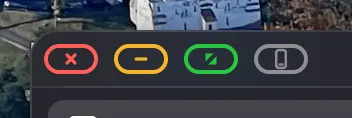
El verde es pantalla completa, y lo usarás constantemente. El gris es la vía de escape. Algunos controles de página incrustados, avisos de consentimiento y ciertos marcos de inicio de sesión y pago, están reforzados deliberadamente contra la entrada programática, y eso atrapa a un cursor que llega desde una segunda pantalla. Toca el gris, haz ese único paso en el teléfono, vuelve directo. Explicación completa aquí.
Modelos de iPhone que pueden sacar vídeo
| Puerto | Modelos |
|---|---|
| Lightning | iPhone 5, 5c, 5s, 6, 6 Plus, 6s, 6s Plus, SE (1.ª gen.), 7, 7 Plus, 8, 8 Plus, X, XS, XS Max, XR, 11, 11 Pro, 11 Pro Max, SE (2.ª gen.), 12 mini, 12, 12 Pro, 12 Pro Max, 13 mini, 13, 13 Pro, 13 Pro Max, SE (3.ª gen.), 14, 14 Plus, 14 Pro, 14 Pro Max |
| USB-C | iPhone 15, 15 Plus, 15 Pro, 15 Pro Max, 16, 16 Plus, 16 Pro, 16 Pro Max, 17, 17 Plus, 17 Pro, 17 Pro Max, 18, 18 Pro, 18 Pro Max |
El iPad funciona igual, incluidos los modelos a los que Apple nunca dio soporte para Stage Manager. Nada aquí depende de un chip serie M.
XeOS: External Display Browser convierte un iPhone o un iPad en un escritorio completo en cualquier monitor, tele o proyector.
Preguntas frecuentes
¿Funciona en un monitor ultrapanorámico o 4K?
Sí. La app lee los modos que indica la pantalla y renderiza en el que elijas, así que los paneles ultrapanorámicos y 4K se llenan correctamente.
¿Puedo usarlo sin ratón?
Sí. Sin ningún ratón conectado, la pantalla del teléfono se convierte en un trackpad, así que puedes apuntar, hacer clic y desplazarte con el pulgar.
¿Se carga el teléfono mientras controla el monitor?
En USB-C, mediante un adaptador multipuerto, sí. En Lightning, usa el puerto Lightning libre del adaptador AV digital.
¿Sigue habiendo un borde negro en mi pantalla?
Eso suele ser el propio ajuste de sobrebarrido de la pantalla, no la app. Configura el tamaño de imagen de la tele o el monitor en «Just Scan», «Screen Fit» o «1:1», y comprueba que la resolución en Ajustes › Pantalla coincide con la que indica el panel.
Toda la configuración, con más detalle y con cada captura de pantalla, está en la guía de conexión.
Más del blog
Prueba XeOS: External Display Browser
Pantalla completa en cualquier monitor externo, tele o pantalla portátil. Sin bandas negras. Descárgalo en el App Store.
