 External Display BrowserSolución de problemas4 min de lectura
El modo de diseño del dispositivo: qué hace el botón gris y por qué a veces lo necesitas
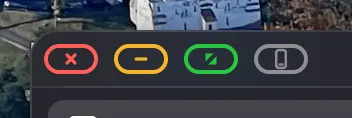
Junto a los botones rojo, amarillo y verde de la ventana hay un cuarto, gris, con forma de teléfono. La mayoría de los días no lo tocarás nunca. Luego aparece una página con un aviso de consentimiento o un cuadro de inicio de sesión que ignora tus clics en la pantalla externa, y el botón gris es la respuesta. Esta página explica qué falla en esas páginas y cómo sortearlo en unos cuatro segundos.
Qué está pasando
Todos los navegadores en iOS, este incluido, están obligados a usar el motor WebKit de Apple. Es una norma de la plataforma, no un atajo que haya tomado nadie. WebKit en iOS hace suposiciones sobre la entrada táctil que dejan de cumplirse cuando la página la maneja un cursor sintético en una segunda pantalla.
La fricción se concentra en los marcos incrustados. Cuando un sitio carga parte de sí mismo dentro de un iframe de otro dominio, ese marco queda aislado y solo recibe eventos a través del propio canal de entrada del motor del navegador. Los gestores de consentimiento de cookies hacen esto. También lo hacen los formularios de pago, los cuadros de inicio de sesión de proveedores de identidad y los reproductores de vídeo incrustados. A veces un clic generado en una pantalla externa no llega a entrar.
Y los sitios tampoco hacen esto por accidente. Aislar los controles sensibles dentro de un marco de otro dominio es un trabajo antifraude deliberado: un script automatizado que corra en la página no puede meterse ahí y pulsar «Pagar» o «Iniciar sesión». Cumple bien su función, y de paso atrapa a un cursor legítimo que llega desde una segunda pantalla junto con todo lo demás.
XeOS hace bastante para que esto sea poco frecuente. Los clics se comprueban a través del Shadow DOM, incluidas las raíces sombra cerradas, lo que cubre la mayoría de los avisos de cookies. El foco se dirige al elemento editable correcto en lugar de a un hijo anidado, así que los campos de texto en chats y apps de notas se comportan bien. Pero un marco de otro origen que rechaza la entrada sintética es un muro que la app no puede saltar.
La solución, en cuatro segundos
En lugar de obligarte a desconectar o a rendirte con la página, XeOS le pasa esa ventana a la pantalla que sí puede controlar a la perfección: la tuya, la del teléfono.
- Haz clic en el botón gris del teléfono en la esquina de la ventana.
- La página aparece en la propia pantalla de tu iPhone o iPad, con su diseño táctil normal.
- Haz la única cosa que no funcionaba. Acepta el aviso, toca el botón de inicio de sesión, rellena el campo de la tarjeta.
- Toca el botón de volver en el teléfono y la ventana regresa a la pantalla externa, exactamente donde estaba.
Nada se recarga. Conservas tu posición, tu desplazamiento y lo que hubieras escrito.
¿Vertical u horizontal?
Tú eliges en qué orientación aparece la página en el teléfono. La configuración inicial lo pregunta, y Ajustes te deja cambiar de opinión más tarde.
Elige horizontal si usas un ratón físico, ya que consigues más ancho útil en el teléfono para el momento en que estás ahí. Elige vertical si usas el trackpad en pantalla, porque es como ya sujetas el dispositivo.
Cuándo lo necesitarás
En la práctica se reduce a unas pocas situaciones. Avisos de cookies y consentimiento de gestores de consentimiento de terceros. Flujos de inicio de sesión que delegan en un proveedor de identidad dentro de un marco, donde los botones «Iniciar sesión con…» son el culpable habitual. Campos de pago, que viven en un marco del procesador de pagos por las mismas razones de antes. Y widgets incrustados de un dominio distinto al de la página que los rodea, como mapas, calendarios de reservas y ventanas de chat.
Todo lo demás, el propio sitio y sus menús, formularios y vídeos, funciona con normalidad en la pantalla externa.
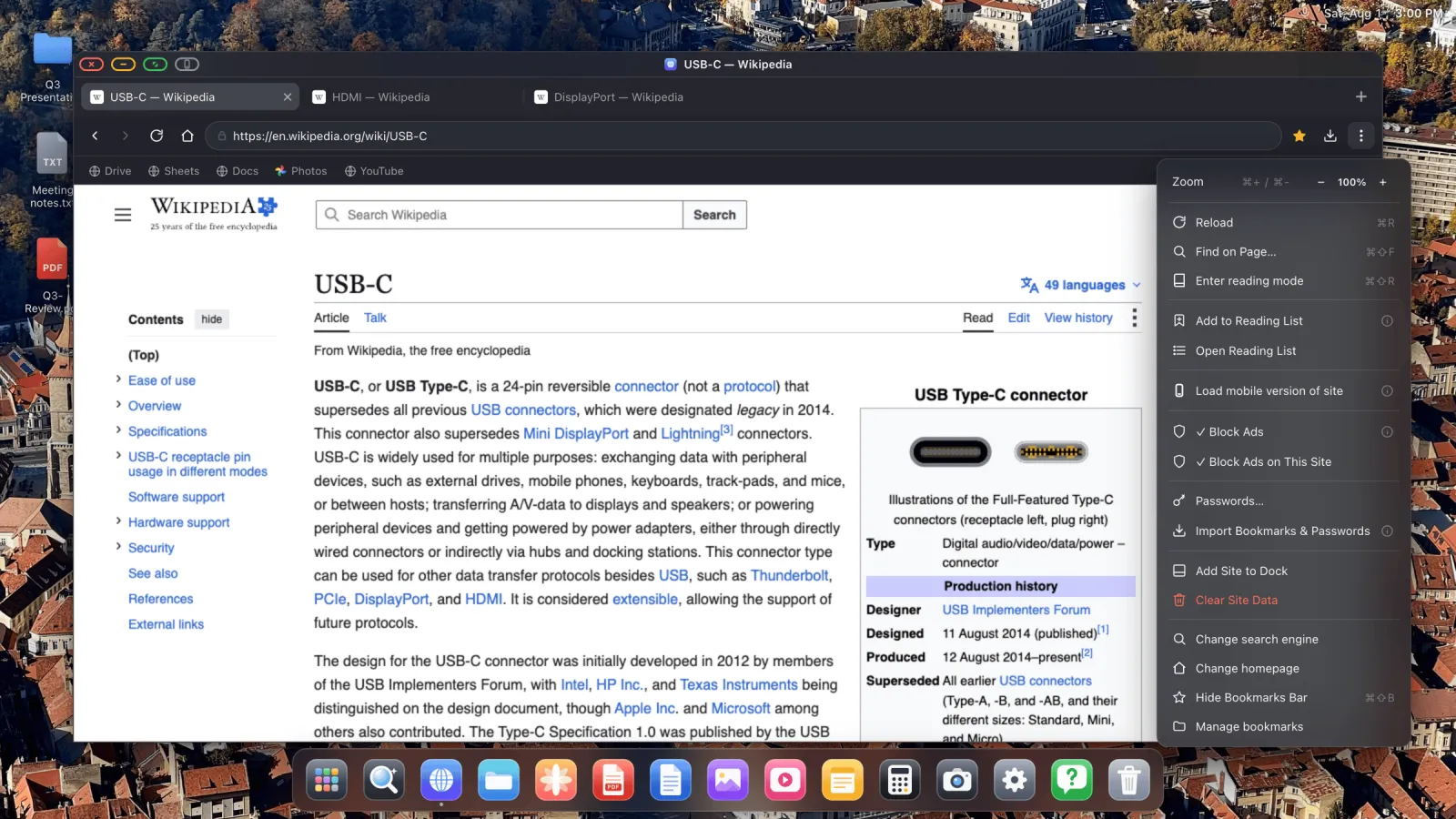
Prueba esto primero. Antes de recurrir al botón gris, hay dos cosas que arreglan una parte sorprendente de las páginas tercas. ⋯ › Cargar versión móvil del sitio a veces cambia un diseño de escritorio cargado de marcos por uno móvil más sencillo, y una simple recarga hace más de lo que parece. Si ninguna de las dos ayuda en unos segundos, usa el botón gris en vez de pelearte con la página.
Por qué esto no es un fallo
Una página que no acepta un clic no es una función que XeOS haya olvidado construir. Es un límite del motor del navegador que toda app de iOS está obligada a usar, y una actualización de esta app no puede moverlo, porque la app no controla esa capa. Lo que sí puede hacer es que el desvío sea corto y sin pérdidas.
Y el desvío es corto. Estás en el teléfono para un solo toque, y luego de vuelta en la pantalla grande.
XeOS: External Display Browser convierte un iPhone o un iPad en un escritorio completo en cualquier monitor, tele o proyector.
Preguntas frecuentes
¿Perderé lo que había escrito al cambiar?
No. La página no se recarga. Se muestra la misma página activa en la otra pantalla y luego se devuelve.
¿Puedo cambiar de una a otra tantas veces como quiera?
Sí, no tiene ningún coste.
¿Esto afecta a todo el escritorio o solo a una ventana?
El botón actúa sobre la ventana en la que lo pulsaste. Todo lo demás se queda en la pantalla externa.
¿Por qué la app no puede simular un clic más realista?
Porque es el propio límite del marco el que lo rechaza, y ese límite existe precisamente para impedir que la entrada programática llegue a controles sensibles. Sortearlo no es posible desde dentro del sandbox, y no es algo que una app legítima deba intentar.
Más guías



Prueba XeOS: External Display Browser
Pantalla completa en cualquier monitor externo, tele o pantalla portátil. Sin bandas negras. Descárgalo en el App Store.
