 External Display BrowserApps3 min de lectura
Cómo instalar sitios web como apps en tu dock
Gmail enterrado seis pestañas para adentro no es la idea que nadie tiene de un ordenador. XeOS te deja instalar un sitio web en el dock, donde consigue su propio icono y su propia ventana. YouTube, Sheets, Netflix, lo que sea que tengas abierto todo el día. Lleva unos segundos por sitio.
Añadir un sitio
- Abre el Navegador y ve al sitio.
- Haz clic en ⋯ en la barra de herramientas.
- Elige Añadir sitio al dock.
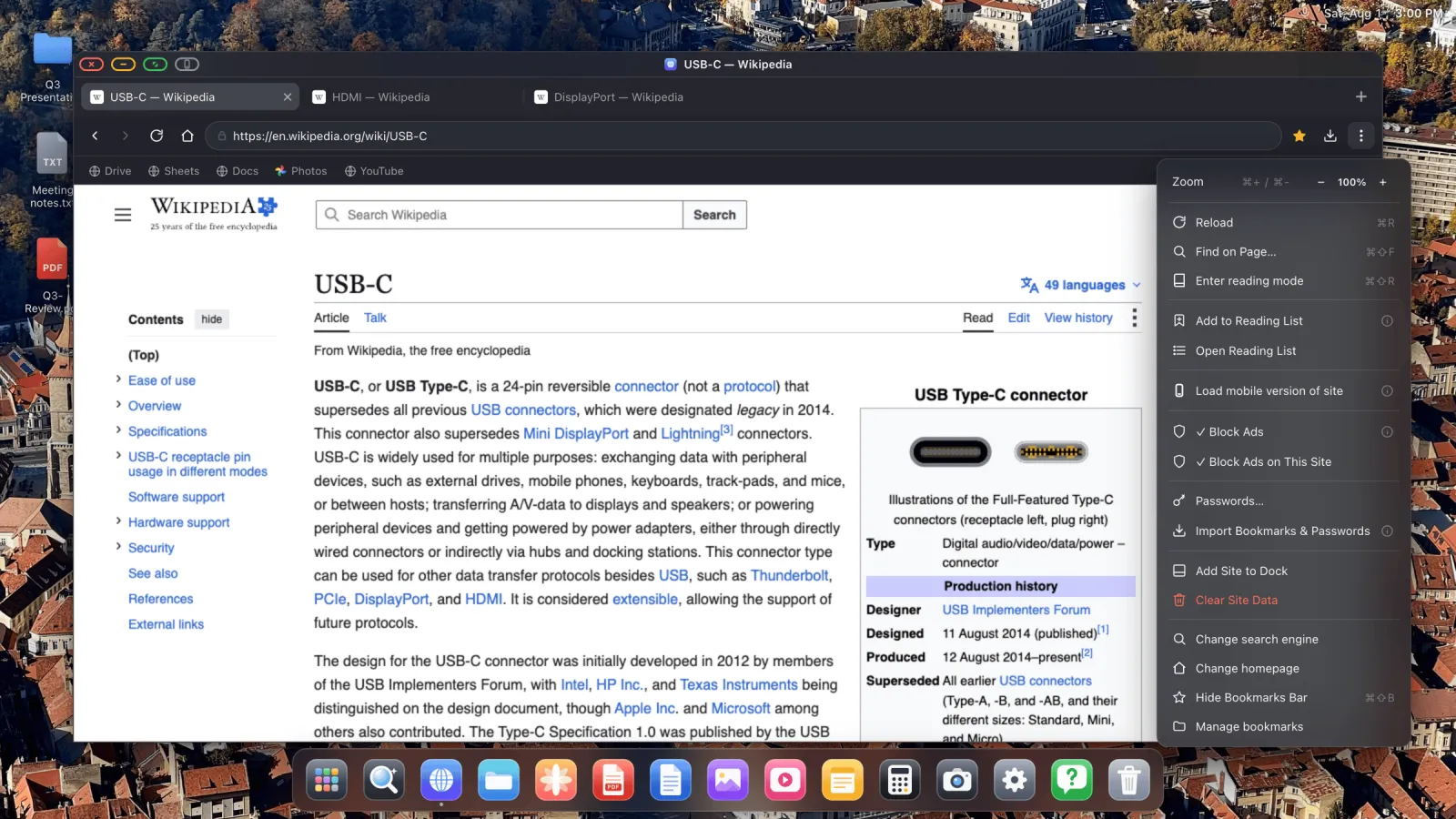
El sitio llega al dock usando su propio favicon como icono. Haz clic y se abre en una ventana propia dedicada, mostrando el sitio sin tira de pestañas ni barra de direcciones alrededor.

Reordenar y personalizar
Haz clic derecho en cualquier elemento del dock para renombrarlo, cambiar su icono, moverlo o quitarlo.
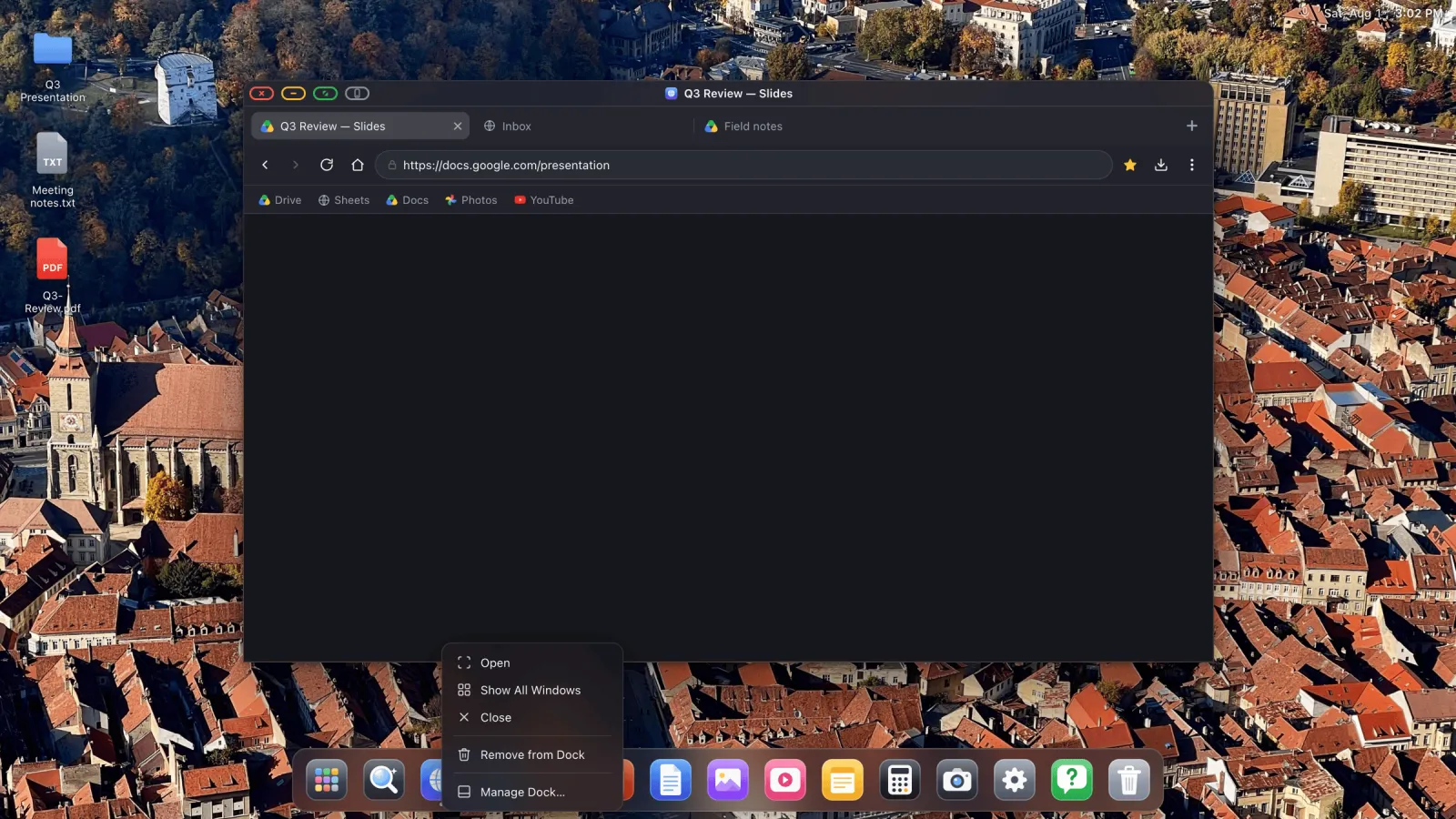
Quitar algo tiene dos intensidades. Ocultar del dock retira el icono pero deja el sitio instalado. Desinstalar sitio lo elimina de verdad.
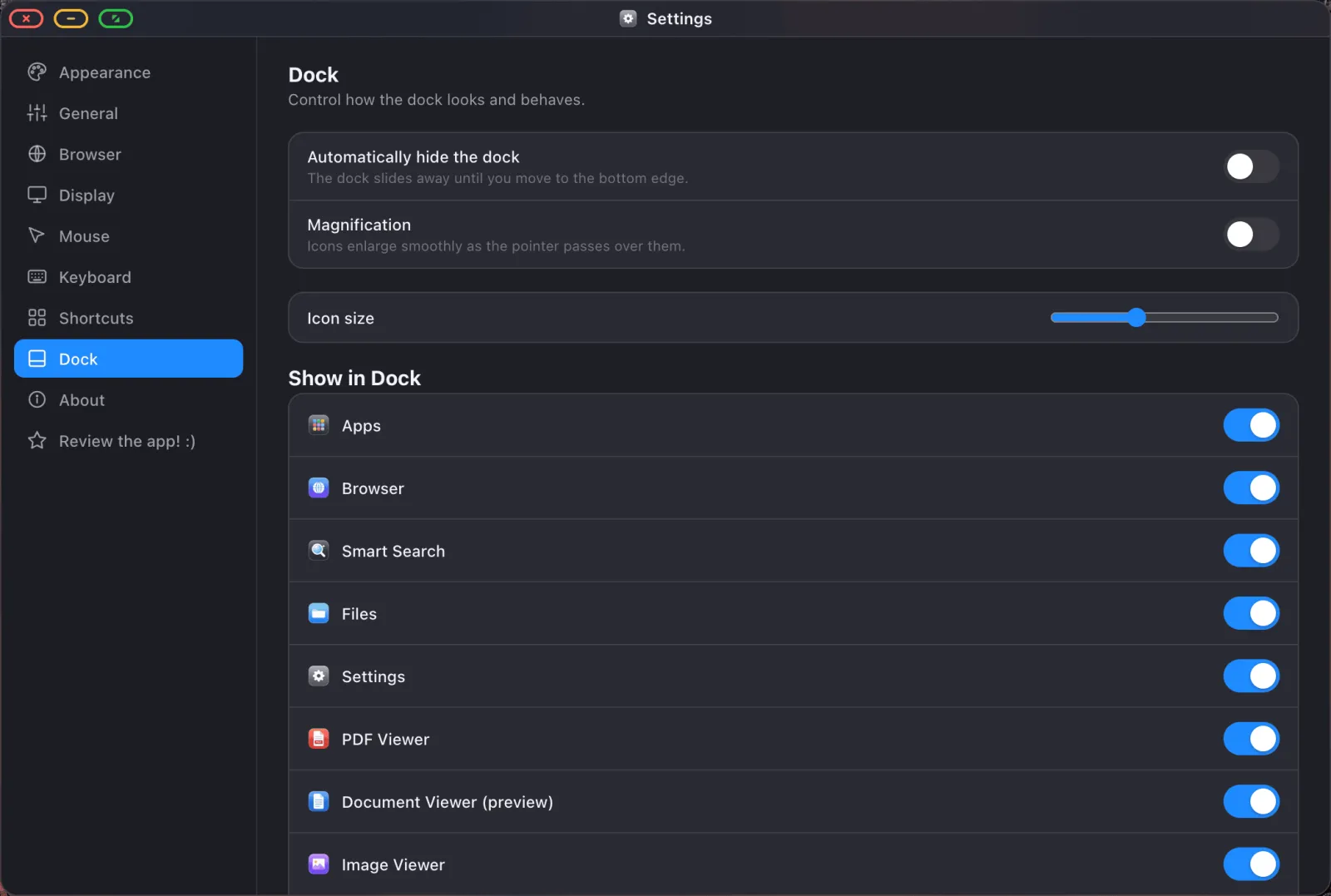
Las apps integradas que nunca tocas se pueden ocultar de la misma forma, y cualquier cosa del dock se puede arrastrar al orden que más te convenga. El tamaño, el aumento y el ocultamiento automático están en Ajustes › Dock.
El cajón de Apps
El primer icono del dock abre el cajón de Apps: todo lo instalado, en una sola cuadrícula, con un cuadro de búsqueda. Útil en cuanto hayas añadido más sitios de los que caben en el dock sin encogerlos hasta la nada.
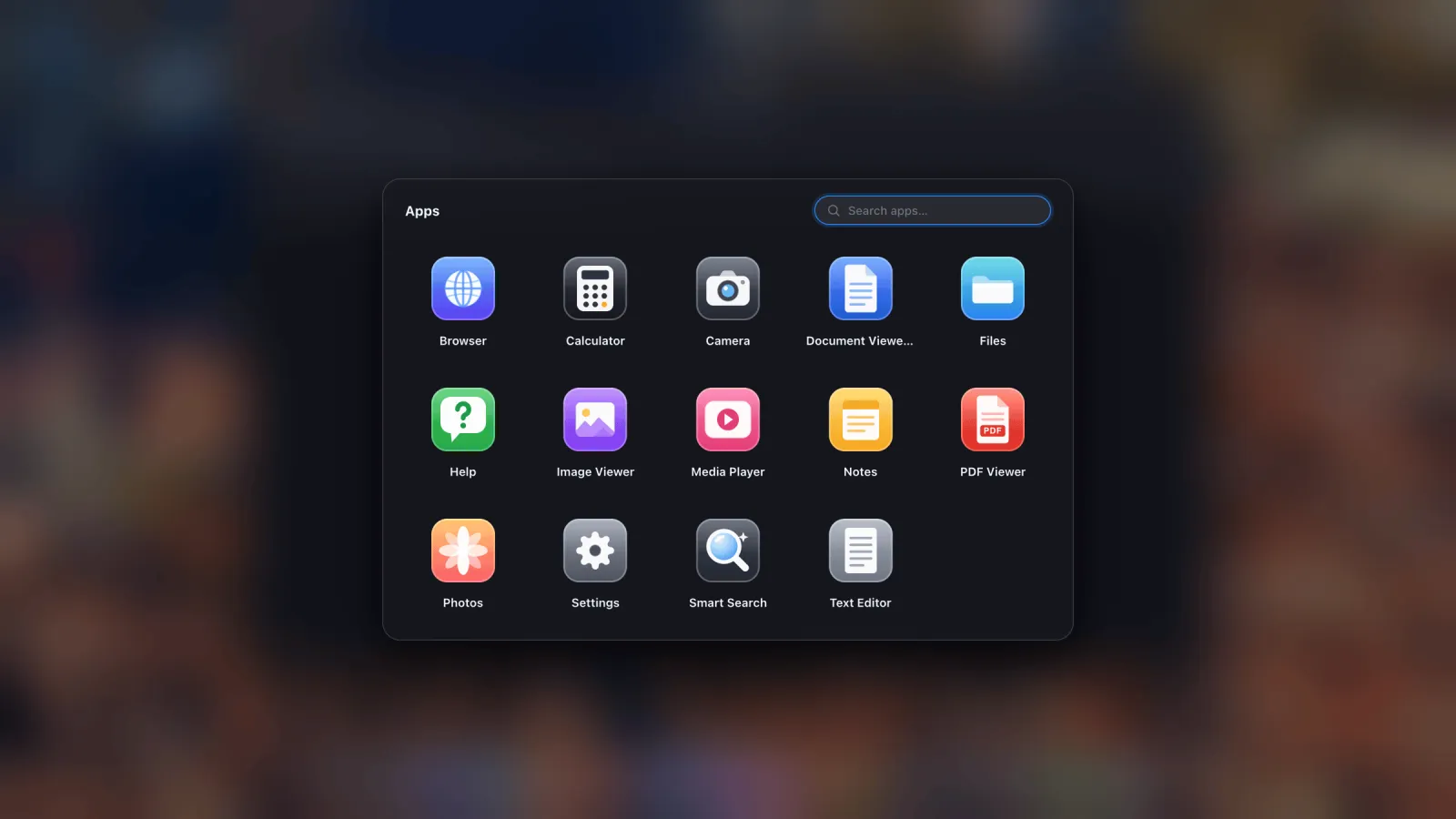
Hacer clic derecho en un icono del cajón te da las mismas opciones de renombrar, cambiar icono, ocultar y desinstalar que el dock.
Ventanas flotantes y pestañas independientes
Cualquier pestaña puede convertirse en una ventana propia. Haz clic derecho y elige Abrir en ventana flotante. Obtienes una ventana separada que puedes mover, redimensionar o poner a pantalla completa, así que un vídeo puede reproducirse en una esquina mientras trabajas en el resto de la pantalla.
Un sitio instalado también se puede configurar para abrirse como ventana flotante por defecto, así que hacer clic en su icono del dock te lleva directamente ahí.
Encontrar cosas rápido
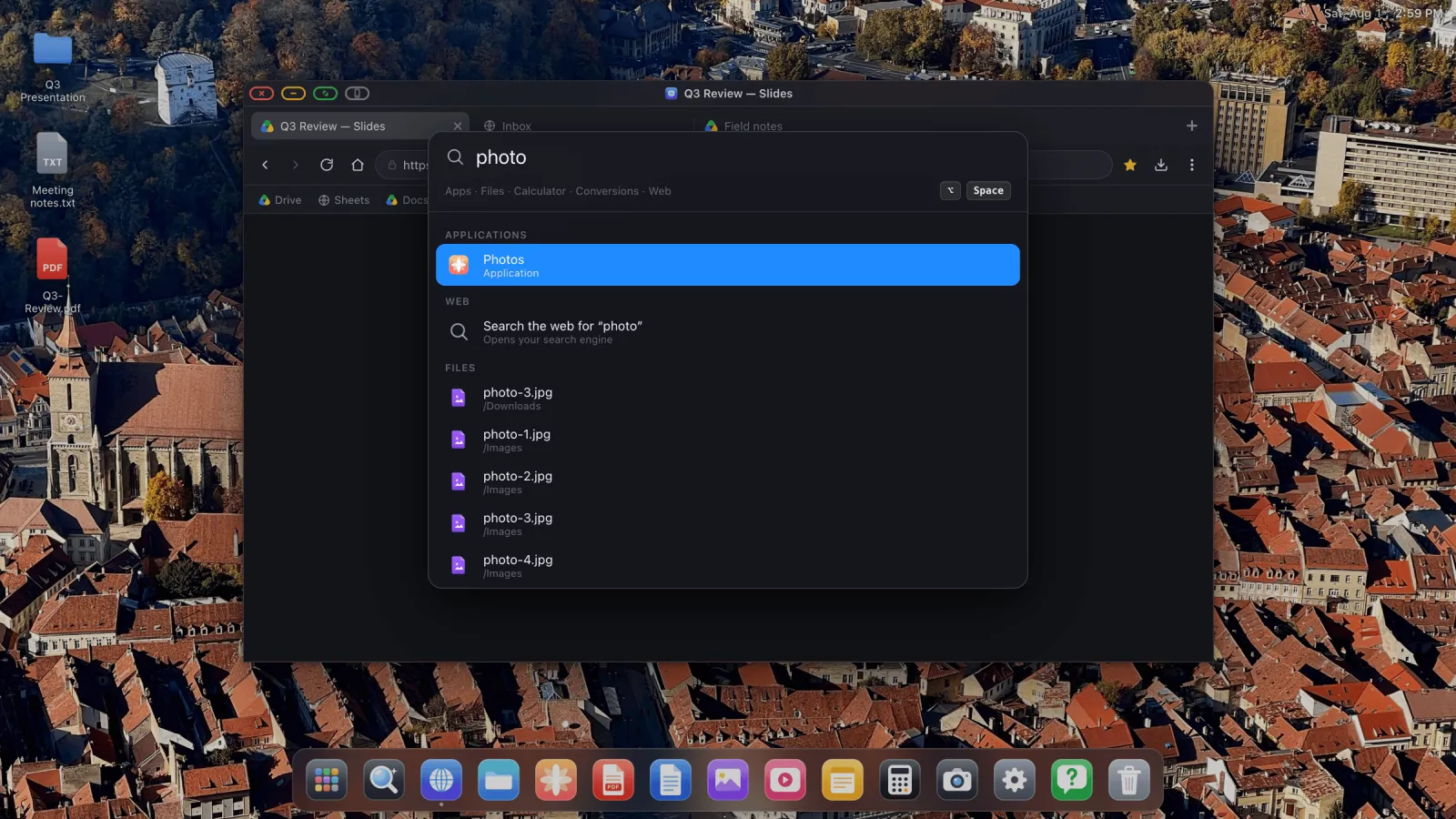
Pulsa Option Espacio para la superposición de búsqueda. Cubre tus apps, tus sitios instalados y tus archivos en todas las ubicaciones montadas. Lo que no reconoce, se lo pasa a una búsqueda web.
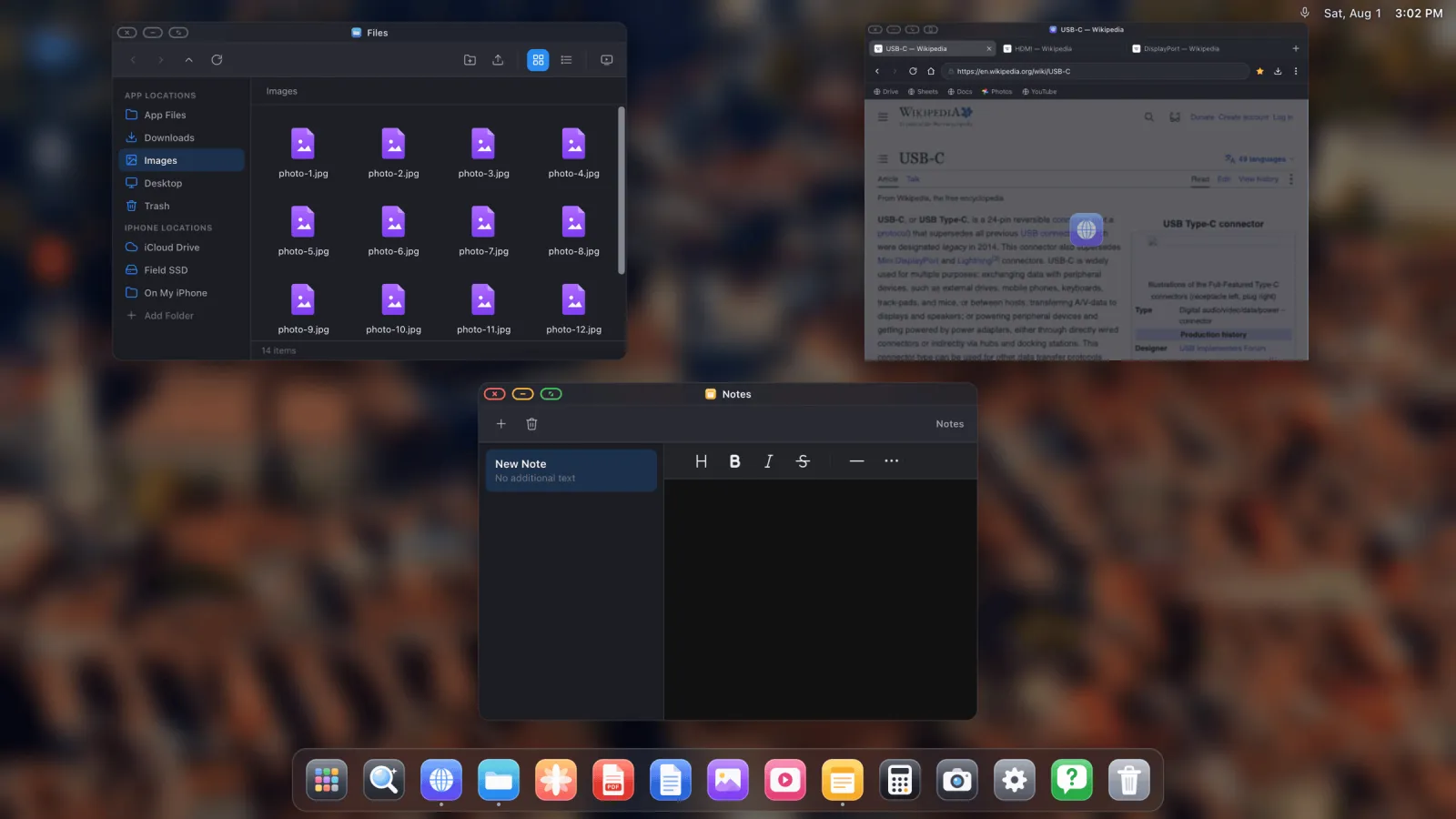
Para ver todo lo que está abierto en ese momento, pulsa Ctrl ↑ (Option ↑ en iPad) para la vista general, o mantén pulsado Ctrl y pulsa Tab para rotar entre ventanas.
Tu sesión vuelve contigo
Deja las ventanas abiertas y vuelven: mismo tamaño, misma posición, mismo lugar en la página, la próxima vez que conectes una pantalla. Sitios instalados y pestañas independientes incluidos. Organizas el escritorio una vez y luego dejas de pensar en ello.
XeOS: External Display Browser convierte un iPhone o un iPad en un escritorio completo en cualquier monitor, tele o proyector.
Preguntas frecuentes
¿Los sitios instalados son independientes de las pestañas del navegador?
Sí, cada uno consigue su propia ventana. Comparten tus inicios de sesión y los datos del sitio, así que no tienes que identificarte dos veces.
¿Puedo cambiar el icono de un sitio instalado?
Sí. Haz clic derecho en el dock o en el cajón de Apps y configura un icono y un nombre personalizados.
¿Cómo recupero una app integrada después de ocultarla?
Ajustes › Dock lista las apps integradas y te deja mostrarlas de nuevo.
¿Puedo anclar también una carpeta al dock?
Sí. Haz clic derecho en una carpeta de la barra lateral de Archivos y elige Anclar al dock.
Más guías



Prueba XeOS: External Display Browser
Pantalla completa en cualquier monitor externo, tele o pantalla portátil. Sin bandas negras. Descárgalo en el App Store.
