 External Display BrowserNavegador4 min de lectura
El navegador de XeOS: pestañas, bloqueo de anuncios, descargas, modo lectura y todo lo demás
El navegador es donde vas a pasar la mayor parte del tiempo en XeOS, y se comporta como un navegador de escritorio, no como uno de móvil. Pestañas que puedes arrastrar. Una barra de marcadores. Una lista de descargas que te dice la velocidad de transferencia. Contraseñas, bloqueo de anuncios, modo lectura, buscar en la página. Esta página es la referencia de todo eso, así que echa un vistazo a los títulos y párate donde te haga falta.
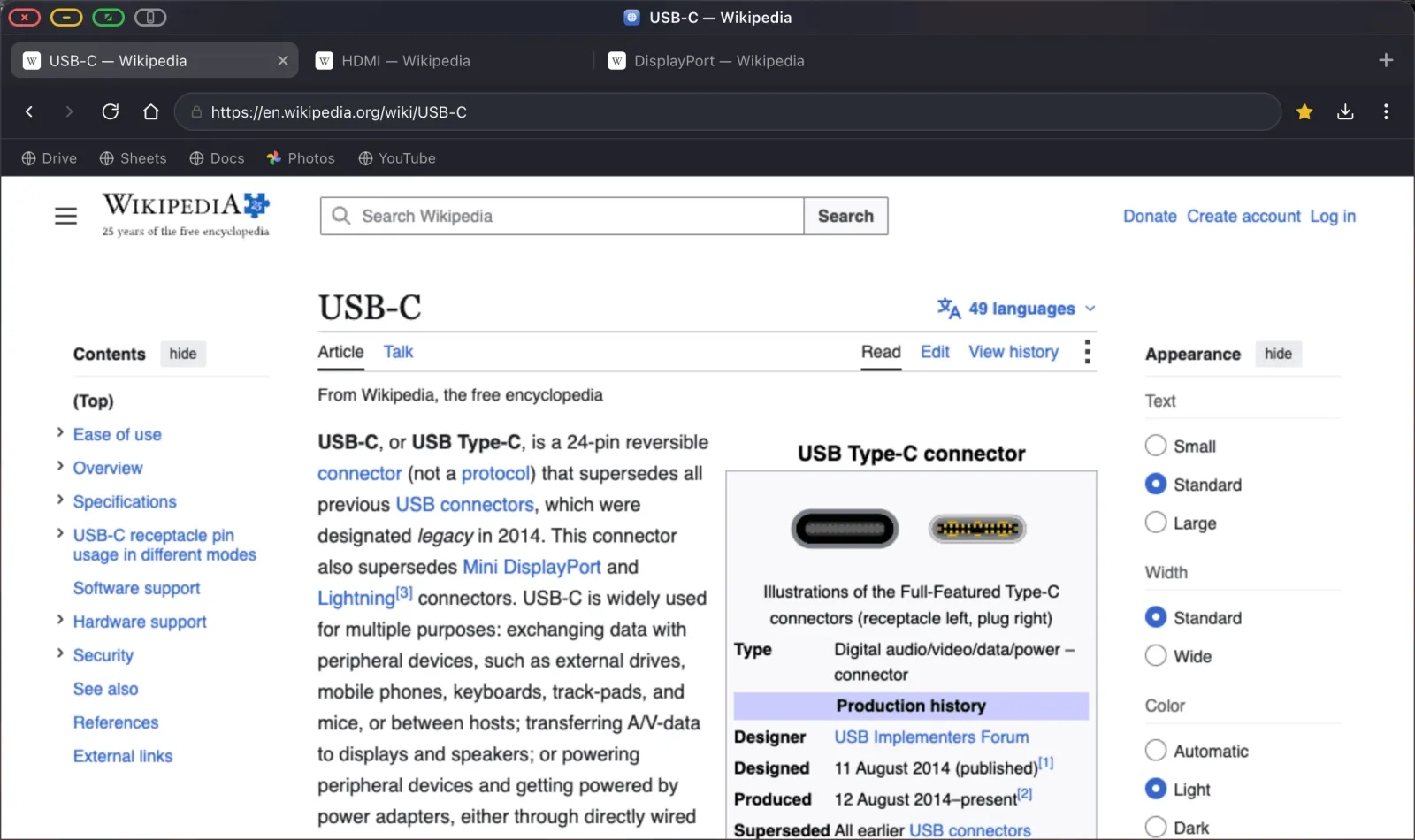
Pestañas
- Cmd T abre una pestaña, Cmd W la cierra, Cmd Shift T reabre la última que cerraste.
- Arrastra las pestañas para reordenarlas. Haz clic con el botón central en una pestaña para cerrarla.
- Haz clic derecho en una pestaña para recargar, duplicar, Abrir en ventana flotante y cerrar.
- Las pestañas se cargan de forma perezosa. Reabrir una sesión con veinte pestañas no carga veinte páginas a la vez.
La barra de direcciones
Escribe una URL o un término de búsqueda. Tú eliges el buscador: ⋯ › Cambiar buscador ofrece Google, DuckDuckGo, Bing, Yahoo, Ecosia, Brave y Startpage. ⋯ › Cambiar página de inicio define a dónde lleva el botón de inicio. Déjalo vacío y el botón de inicio te lleva a tu buscador.
Bloqueo de anuncios
El bloqueador está construido con las listas de filtros de EasyList y uBlock y compilado dentro del motor del navegador, así que no hay ninguna extensión que instalar. Ya está funcionando.
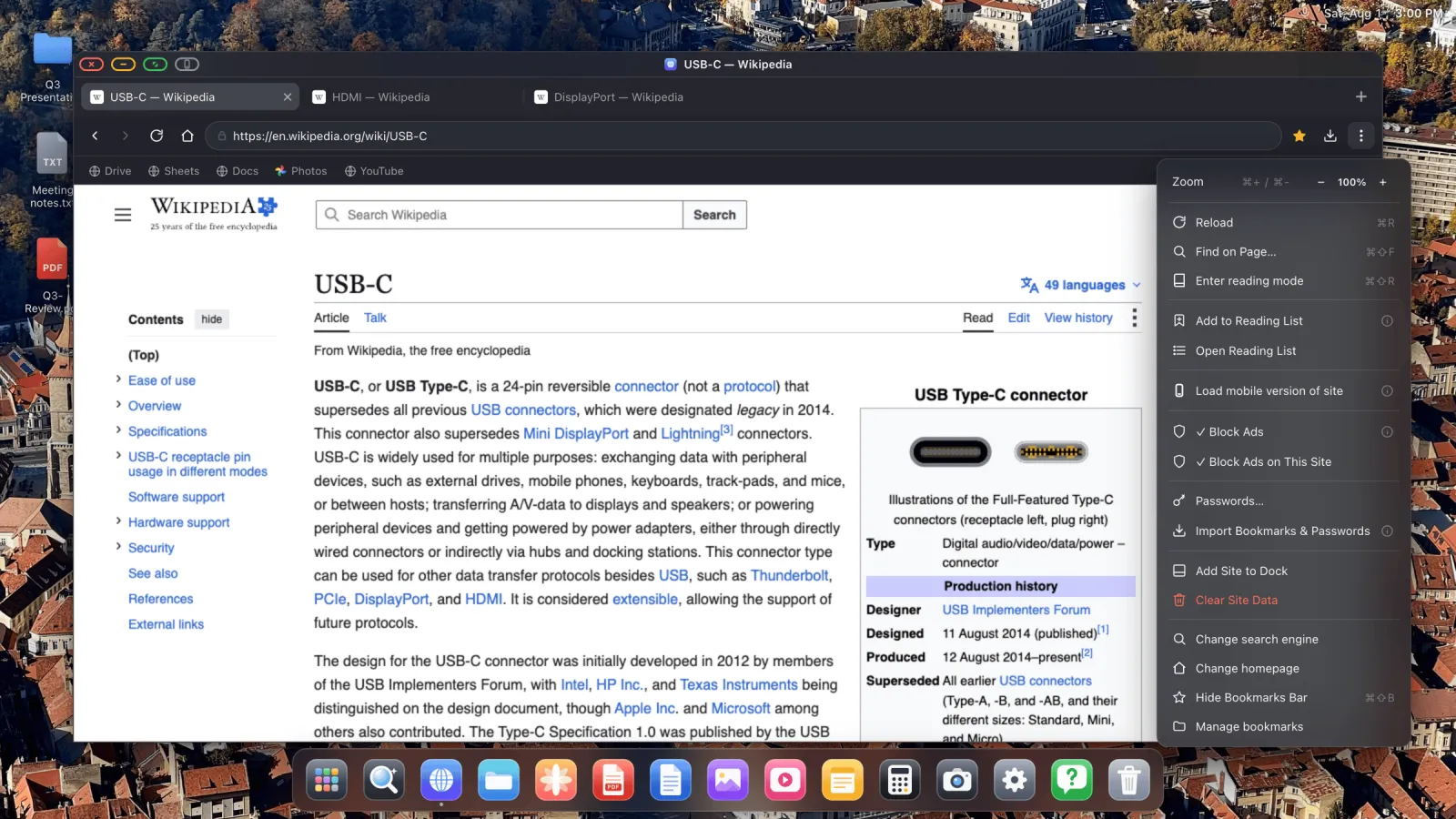
Bloquear anuncios es el interruptor global, y cubre los anuncios en vídeo de YouTube. La página se recarga cuando lo cambias. Bloquear anuncios en este sitio está ahí para el sitio ocasional que se rompe cuando sus anuncios no cargan.
Marcadores
- La estrella de la barra de herramientas marca la página actual.
- Cmd Shift B muestra y oculta la barra de marcadores.
- Arrastra los marcadores de la barra para reordenarlos, o hacia una carpeta para archivarlos.
- Haz clic derecho en un marcador para abrirlo en una pestaña nueva, editarlo o eliminarlo.
- Gestionar marcadores abre el gestor completo en Ajustes, con carpetas y arrastrar y soltar.
Traer los marcadores de otro navegador se explica en la guía de importación.
Contraseñas
⋯ › Contraseñas abre el panel de inicios de sesión guardados, donde puedes buscar, revelar, copiar y eliminar.
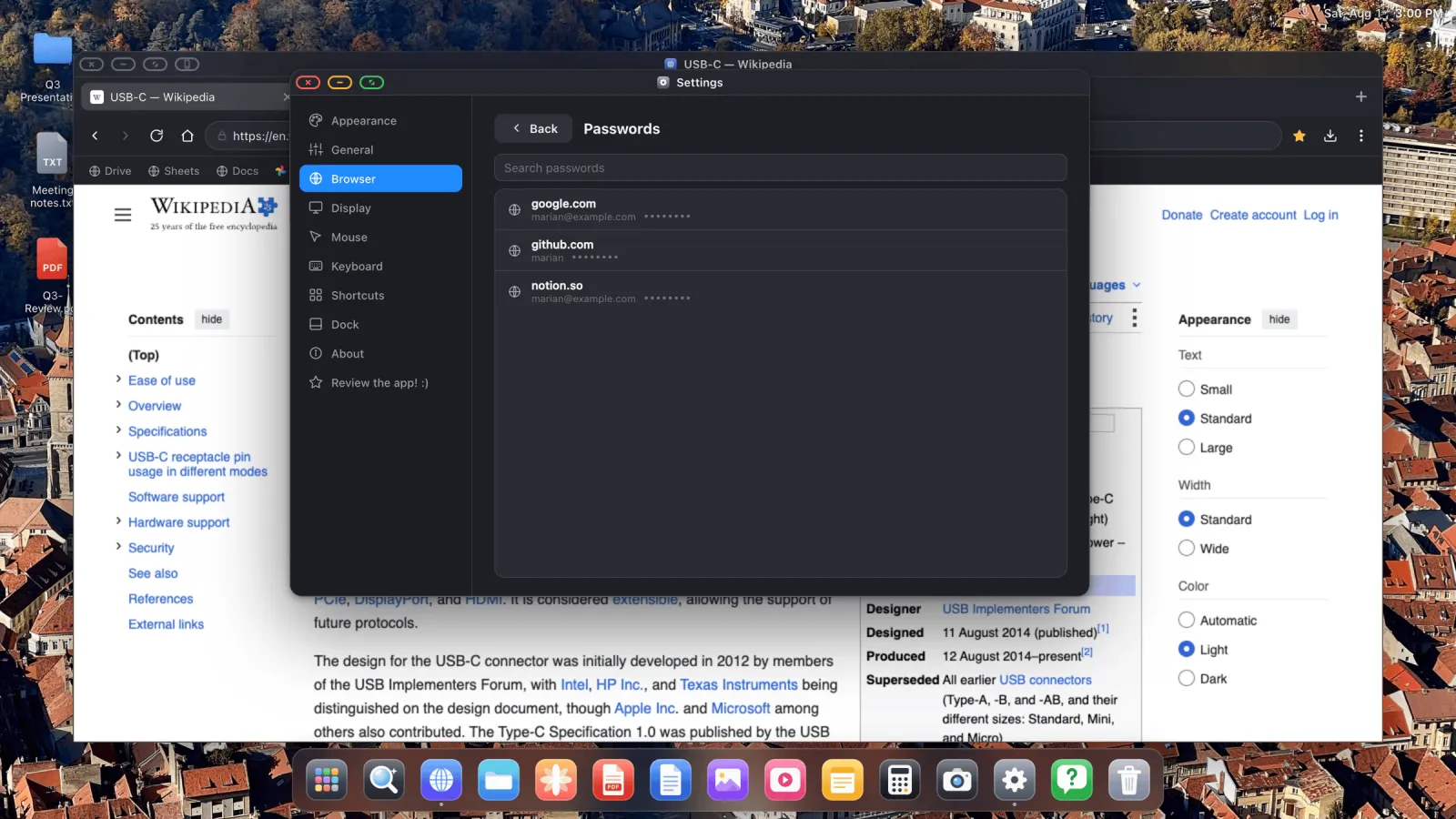
Los inicios de sesión guardados se ofrecen como autorrelleno en los formularios de acceso. Están cifrados en el dispositivo con la clave guardada en el llavero de iOS, y nunca se suben a ningún sitio.
Descargas
El botón de descargas de la barra de herramientas abre una lista de descargas con progreso, velocidad de transferencia, tiempo restante y un botón de cancelar.
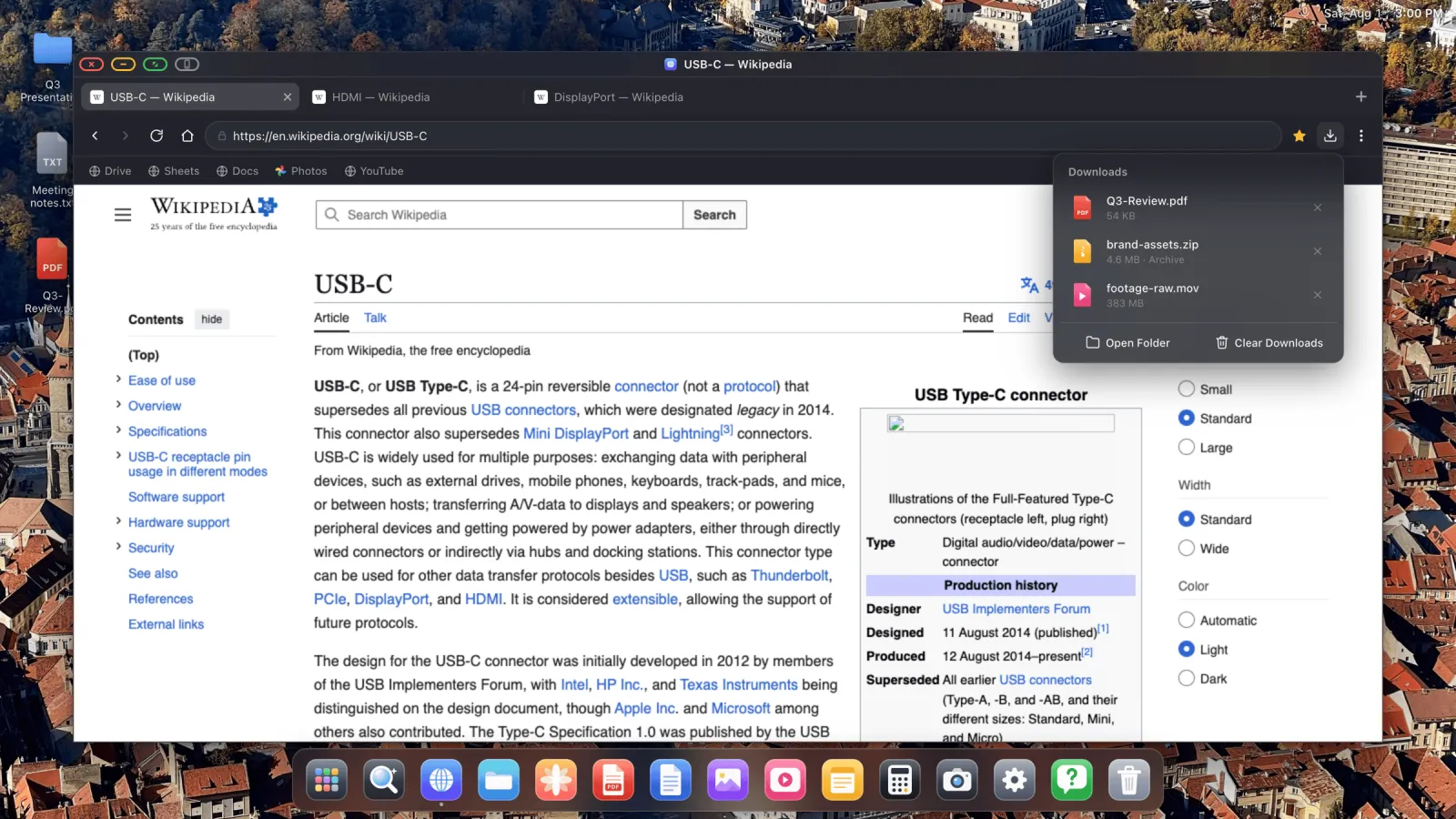
- Los archivos terminados no se abren automáticamente. Tú decides cuándo.
- Los archivos comprimidos tienen una acción de Descomprimir en lugar de Abrir.
- Cancelar una descarga borra el archivo parcial en vez de dejar restos por ahí.
- Abrir carpeta salta directamente a Descargas en Archivos.
Modo lectura
Cmd Shift R, o el botón de lectura de la barra de direcciones cuando una página lo admite, reduce una página a su texto e imágenes. En una pantalla grande y a distancia, esa es la diferencia entre leer un artículo y forzar la vista para verlo.
Lista de lectura
⋯ › Añadir a la lista de lectura guarda una página para más tarde. Abrir lista de lectura muestra lo que has guardado, con un cuadro de búsqueda. Las entradas se abren en una pestaña nueva.
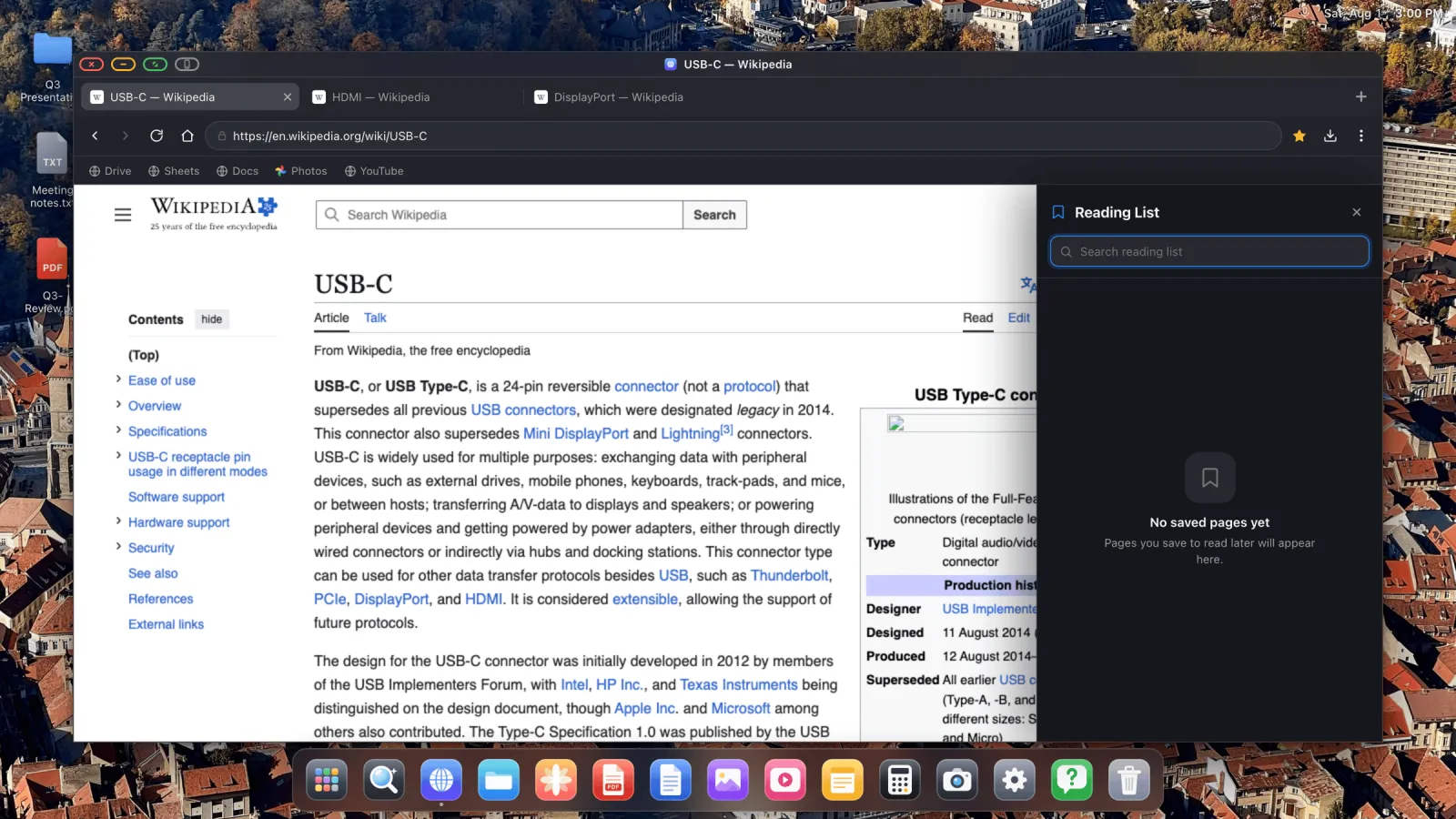
Buscar en la página
Cmd Shift F abre la barra de búsqueda. Intro salta a la siguiente coincidencia, Shift Intro a la anterior.
Zoom
Cmd +, Cmd − y Cmd 0. El zoom se recuerda por sitio y se mantiene al navegar, así que un sitio con letra pequeña se queda ampliado cada vez que lo visitas.
Versiones de escritorio y móvil
Por defecto obtienes la versión de escritorio de los sitios, que es precisamente el sentido de toda la app. Pero ⋯ › Cargar versión móvil del sitio cambia un sitio concreto a su diseño de teléfono, y a veces es la forma más rápida de desatascar una página que se está portando mal.
Guardar una página
Haz clic derecho en una página y elige Guardar como… para conservar una copia completa en Archivos: el HTML más una carpeta con sus recursos. Las páginas guardadas se vuelven a abrir en el navegador.
Borrar los datos de un sitio
⋯ › Borrar datos del sitio elimina todo lo que un sitio ha guardado en el dispositivo, cookies, cachés y almacenamiento local y de sesión, y luego lo recarga desde cero. Es la solución cuando un sitio se queda atascado en un bucle de inicio de sesión.
Mantener la sesión iniciada
Las sesiones de los sitios sobreviven a los reinicios por diseño. Inicias sesión una vez y te quedas conectado, en todos los sitios, aunque desconectes y vuelvas a conectar la pantalla.
Atajos de teclado
| Atajo | Acción |
|---|---|
| Cmd T | Nueva pestaña |
| Cmd W | Cerrar pestaña |
| Cmd Shift T | Reabrir pestaña cerrada |
| Cmd R | Recargar |
| Cmd Shift F | Buscar en la página |
| Cmd Shift R | Modo lectura |
| Cmd Shift B | Mostrar / ocultar barra de marcadores |
| Cmd + / Cmd − / Cmd 0 | Acercar / alejar / restablecer zoom |
| Ctrl Tab | Rotar ventanas |
| Option Espacio | Superposición de búsqueda |
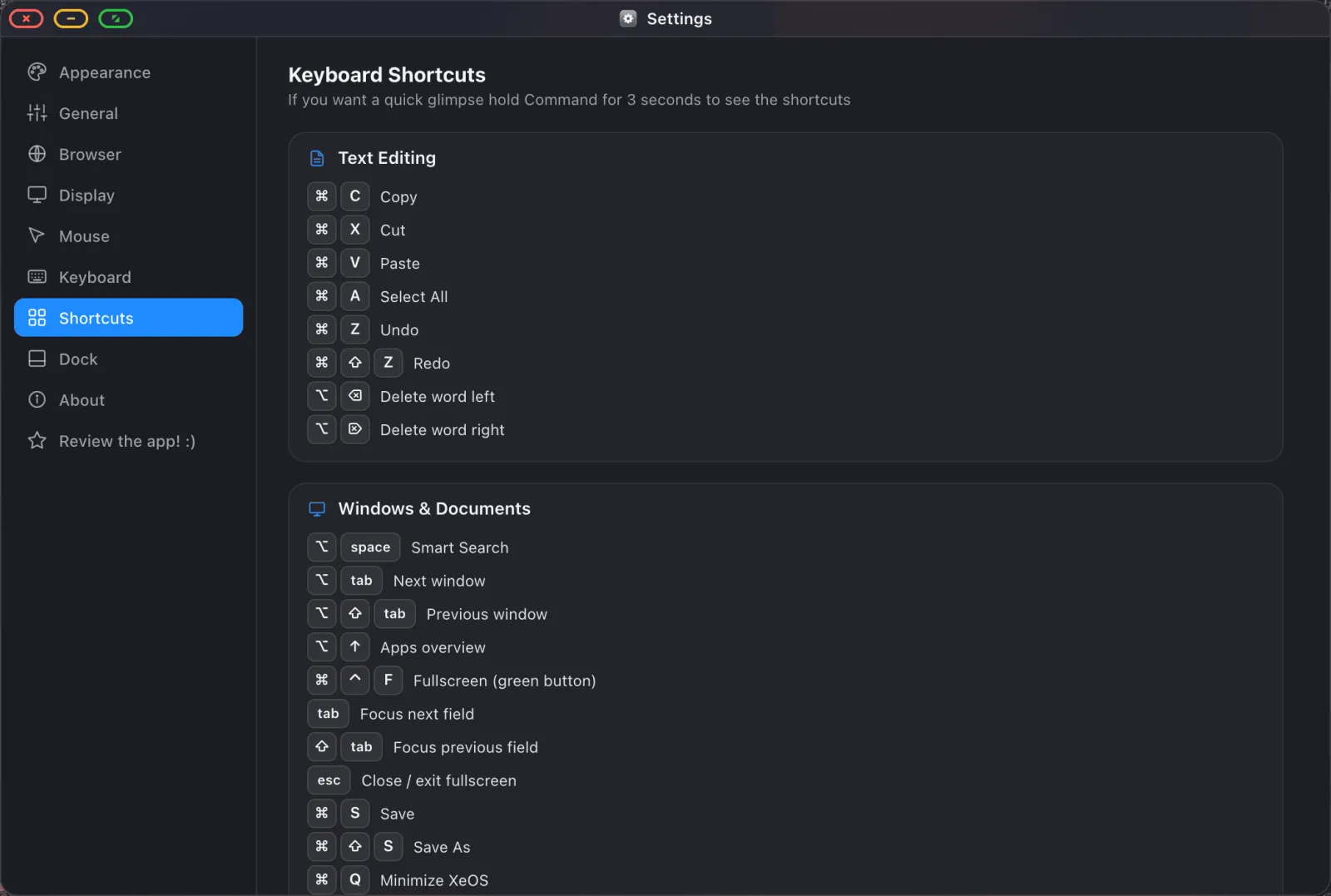
La lista completa, incluido todo lo que puedes reasignar, está en Ajustes › Atajos.
XeOS: External Display Browser convierte un iPhone o un iPad en un escritorio completo en cualquier monitor, tele o proyector.
Más guías



Prueba XeOS: External Display Browser
Pantalla completa en cualquier monitor externo, tele o pantalla portátil. Sin bandas negras. Descárgalo en el App Store.
