 External Display BrowserTrabajo y estudio5 min de lectura
Cómo estudiar y trabajar desde tu iPhone: Google Drive, Docs, Sheets y archivos de Office en una pantalla grande
Escribir un ensayo en un cuadro de texto del tamaño de un teléfono es un suplicio. En un monitor de 24 pulgadas con un teclado de verdad es simplemente escribir. Esta guía cubre usar Google Drive, Docs y Sheets desde un iPhone o iPad, abrir los archivos de Word y Excel que te envían por correo, y guardar tus documentos en un sitio al que puedas acceder.
Configura primero la pantalla con la guía de conexión, e importa tus contraseñas para que iniciar sesión en Google lleve un segundo en lugar de un minuto.
Google Drive, Docs y Sheets
El navegador de XeOS es un navegador de escritorio en una pantalla del tamaño de un escritorio, y eso ya hace la mayor parte del trabajo. Las webapps de Google te dan la interfaz completa en lugar de la reducida versión móvil. Sheets consigue su barra de fórmulas y sus menús completos. Docs consigue la regla, el panel de esquema y atajos de teclado de verdad. Drive consigue su vista de cuadrícula completa.
- Abre el Navegador desde el dock.
- Ve a
drive.google.come inicia sesión. - Abre un documento. Se comporta como en un portátil.
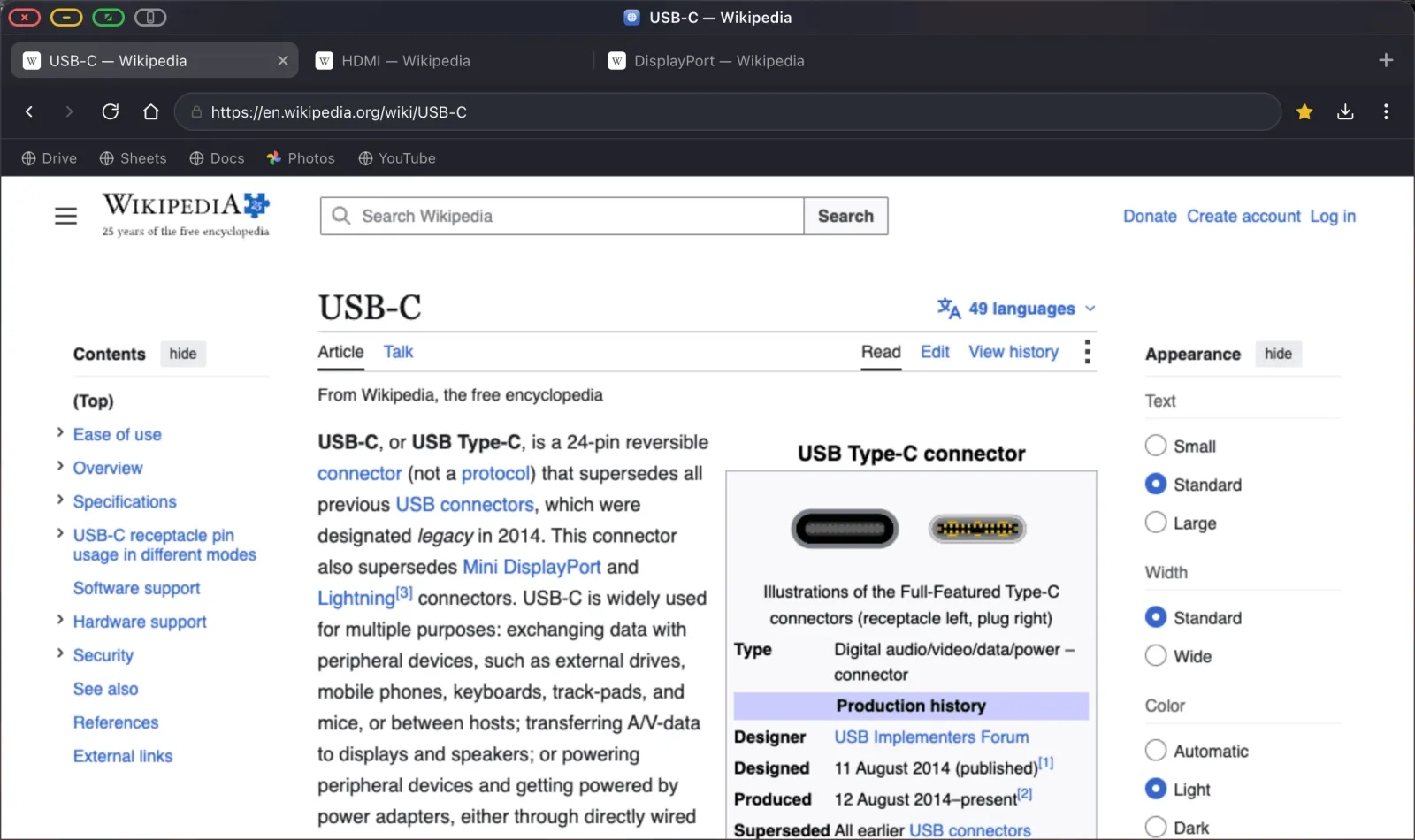
Unos pocos hábitos hacen esto más agradable día a día. Pon Drive, Docs y Sheets en la barra de marcadores (Cmd Shift B la muestra) para que cualquiera de ellos esté a dos clics. Mejor aún, instálalos como apps del dock con ⋯ › Añadir sitio al dock, lo que le da a cada uno su propio icono y ventana para que Sheets no quede enterrado tras seis pestañas. Usa un teclado Bluetooth y los propios atajos de Google, porque de ahí sale la mayor parte de la velocidad. Y recuerda que Cmd + y Cmd − ajustan el zoom por sitio y lo recuerdan, así que una hoja de cálculo se puede dejar a un tamaño legible desde el otro lado de una mesa.
Si un control de la interfaz de Google no acepta un clic, normalmente un paso de inicio de sesión o un complemento incrustado, es la limitación de marcos descrita en Modo de diseño del dispositivo. Botón gris, haz el paso en el teléfono, vuelve directo.
Varias ventanas, una sola pantalla
Aquí es donde una pantalla grande se gana el puesto. Separa una pestaña en su propia ventana flotante y puedes tener tus notas junto a tu fuente, o la hoja de cálculo junto al documento que la cita.
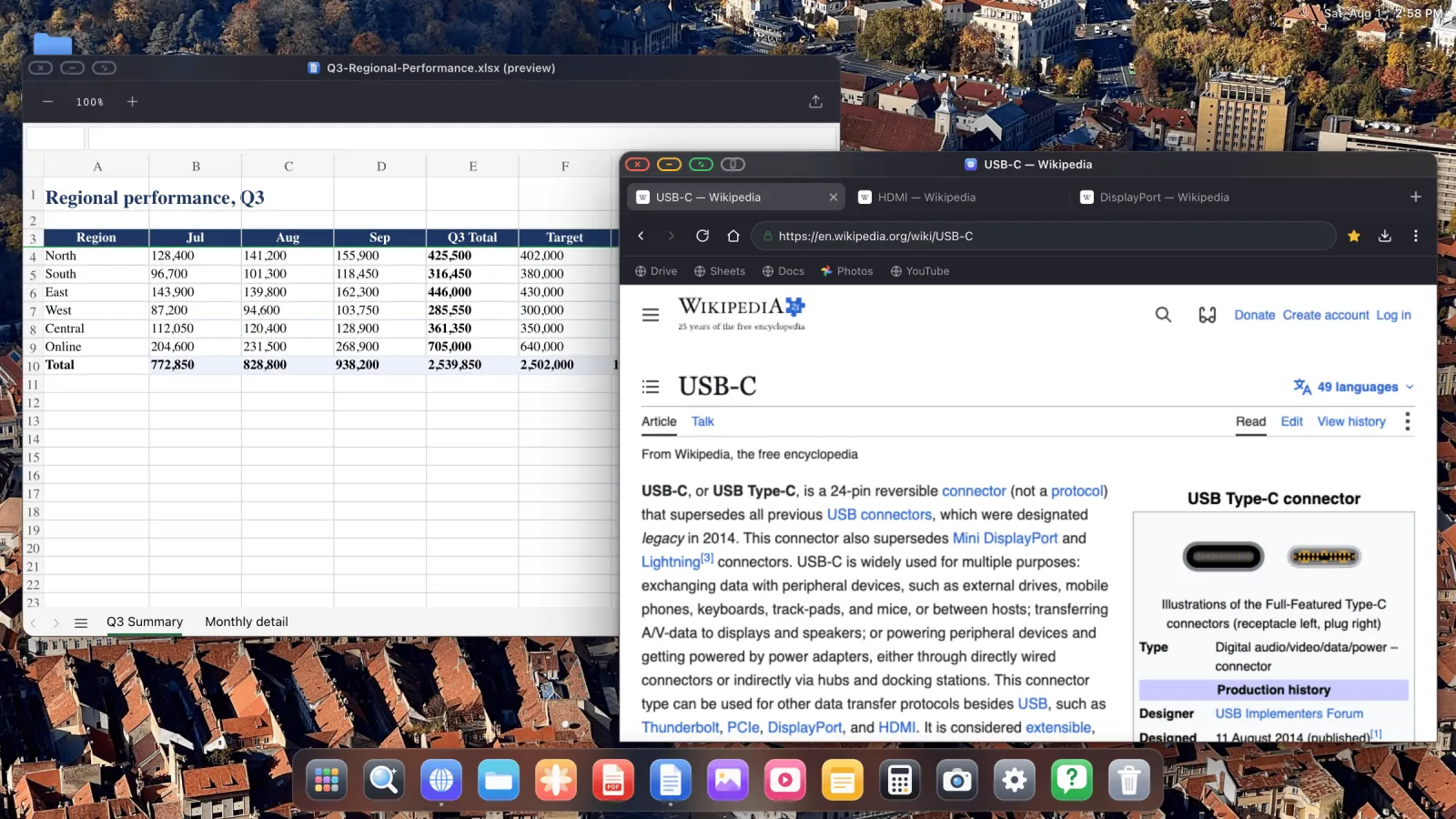
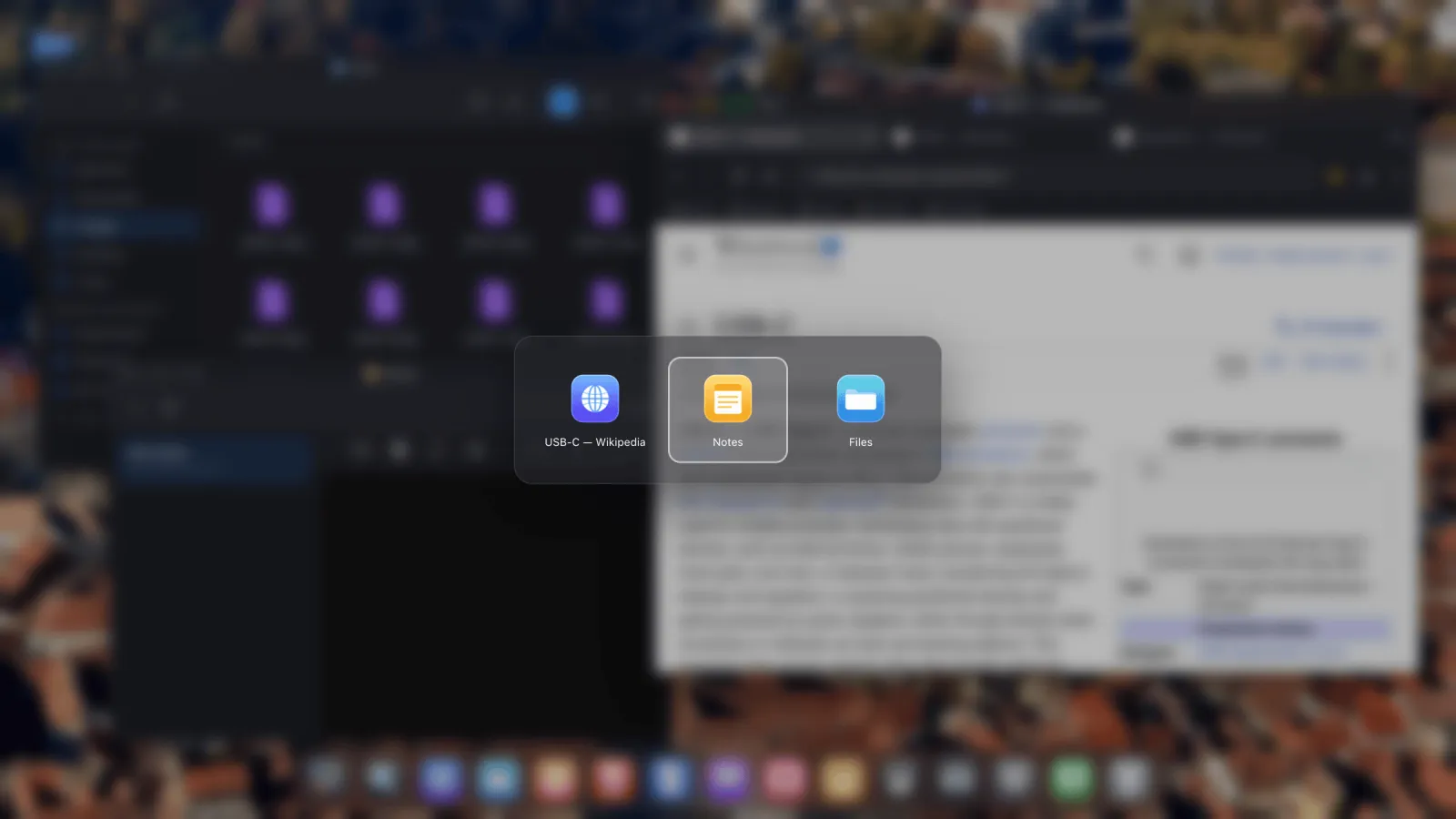
Haz clic derecho en cualquier pestaña y elige Abrir en ventana flotante. Las ventanas se ajustan a los bordes de la pantalla cuando las arrastras hasta ahí, y Ctrl Tab rota entre todo lo que está abierto.
Archivos de Word, Excel y PowerPoint
Para los archivos que te envían por correo, XeOS previsualiza los documentos de Office directamente en el dispositivo, así que no se sube nada y no hace falta ningún inicio de sesión. Haz doble clic en un .docx, .xlsx o .pptx en Archivos y se abre.
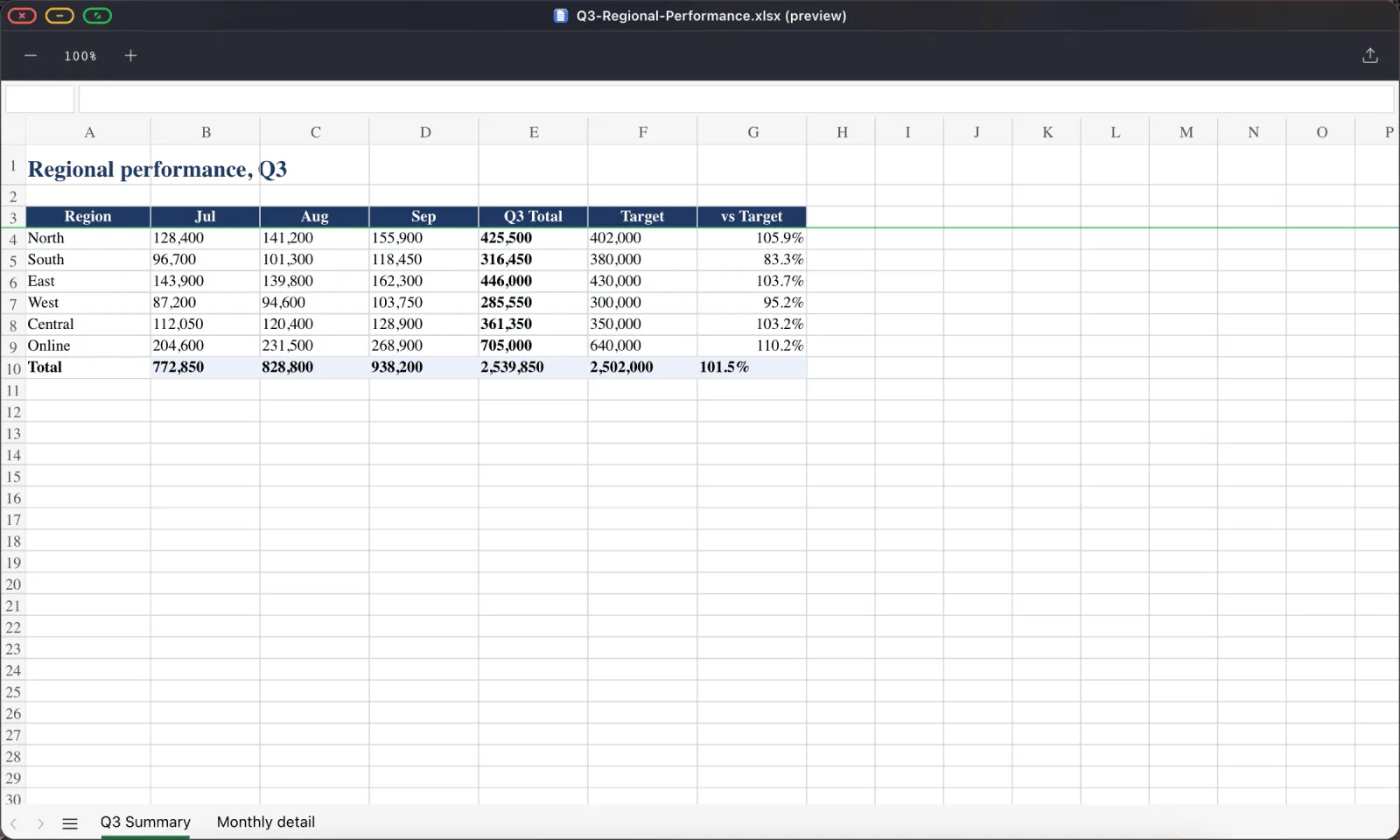
.xlsx con su formato, sus formatos de número y varias hojas, en una pantalla lo bastante grande para leerlo.Las hojas de cálculo conservan sus pestañas de hoja, así que un libro con varias hojas se puede navegar por completo. Los documentos de Word conservan sus títulos, listas y tablas:
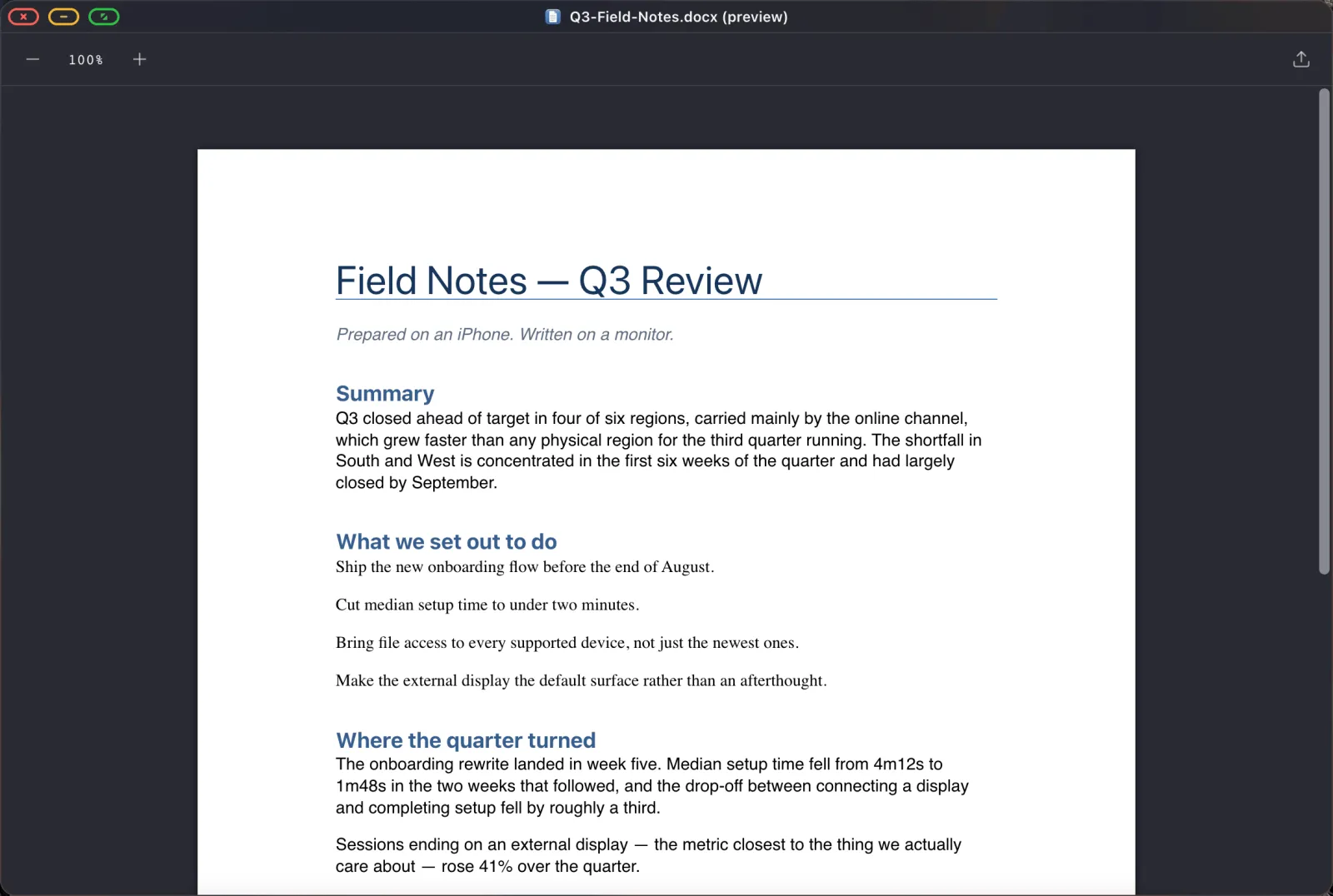
.docx, renderizado con sus títulos, listas y tablas intactos.Eso sí, hay que ser claro con lo que es esto: una vista previa. Está pensada para leer, comprobar y presentar desde ahí, no para edición a fondo. Cuando necesites editar un archivo de Office, ábrelo en Google Docs o Sheets en el navegador, trabaja ahí y expórtalo de vuelta.
PDFs, como es debido
El visor de PDF es uno completo y no una vista previa en miniatura. Miniaturas de página, búsqueda, zoom, selección y copia de texto, y herramientas de anotación.
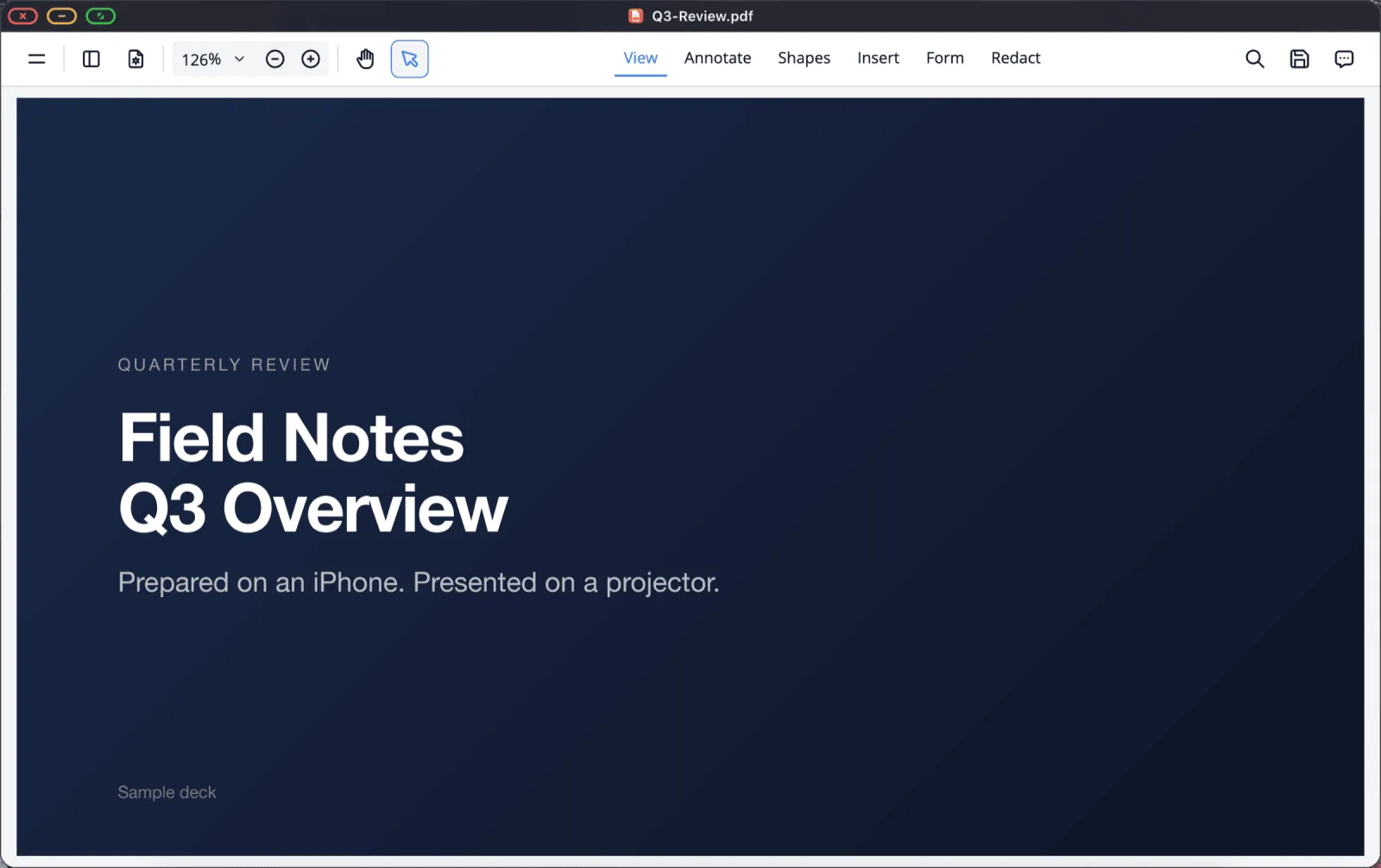
Selecciona texto y cópialo con Cmd C o el menú de clic derecho. Va al portapapeles del sistema, así que se pega directamente en un Google Doc en la ventana siguiente. Las anotaciones y los campos de formulario rellenados se guardan de vuelta en el archivo en su sitio, y Cmd S guarda como cualquier app de escritorio.
Dónde guardar tus documentos
Un solo paso convierte esto de una demostración en un flujo de trabajo: monta la carpeta donde vive tu trabajo.
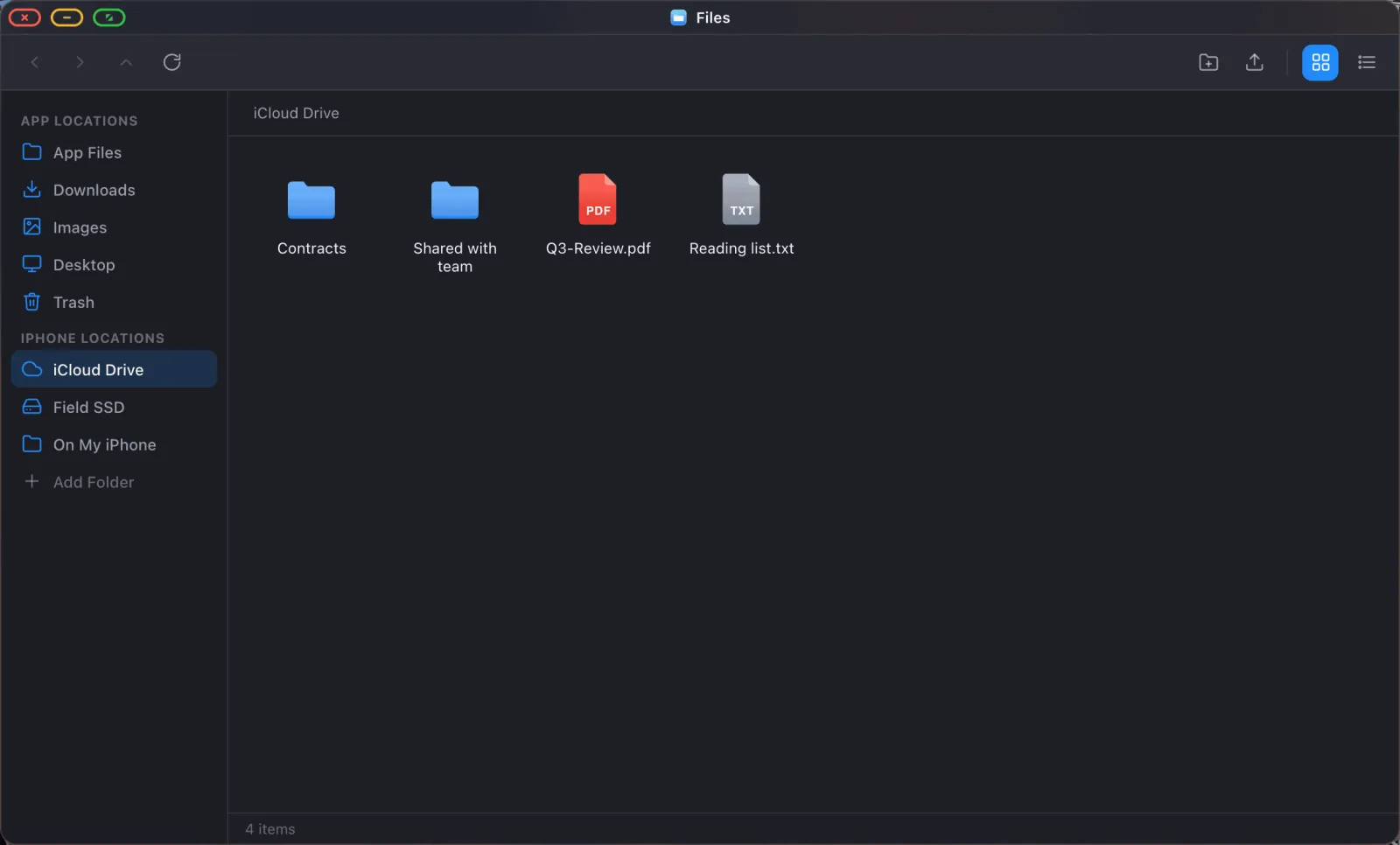
Monta tu carpeta de documentos de iCloud Drive y podrás abrir un archivo, trabajar en él y guardarlo de vuelta, con el cambio sincronizándose a cualquier otro dispositivo que tengas. Lo mismo funciona con una carpeta del teléfono, o una unidad USB para cualquier cosa grande.
Notas y capturas rápidas
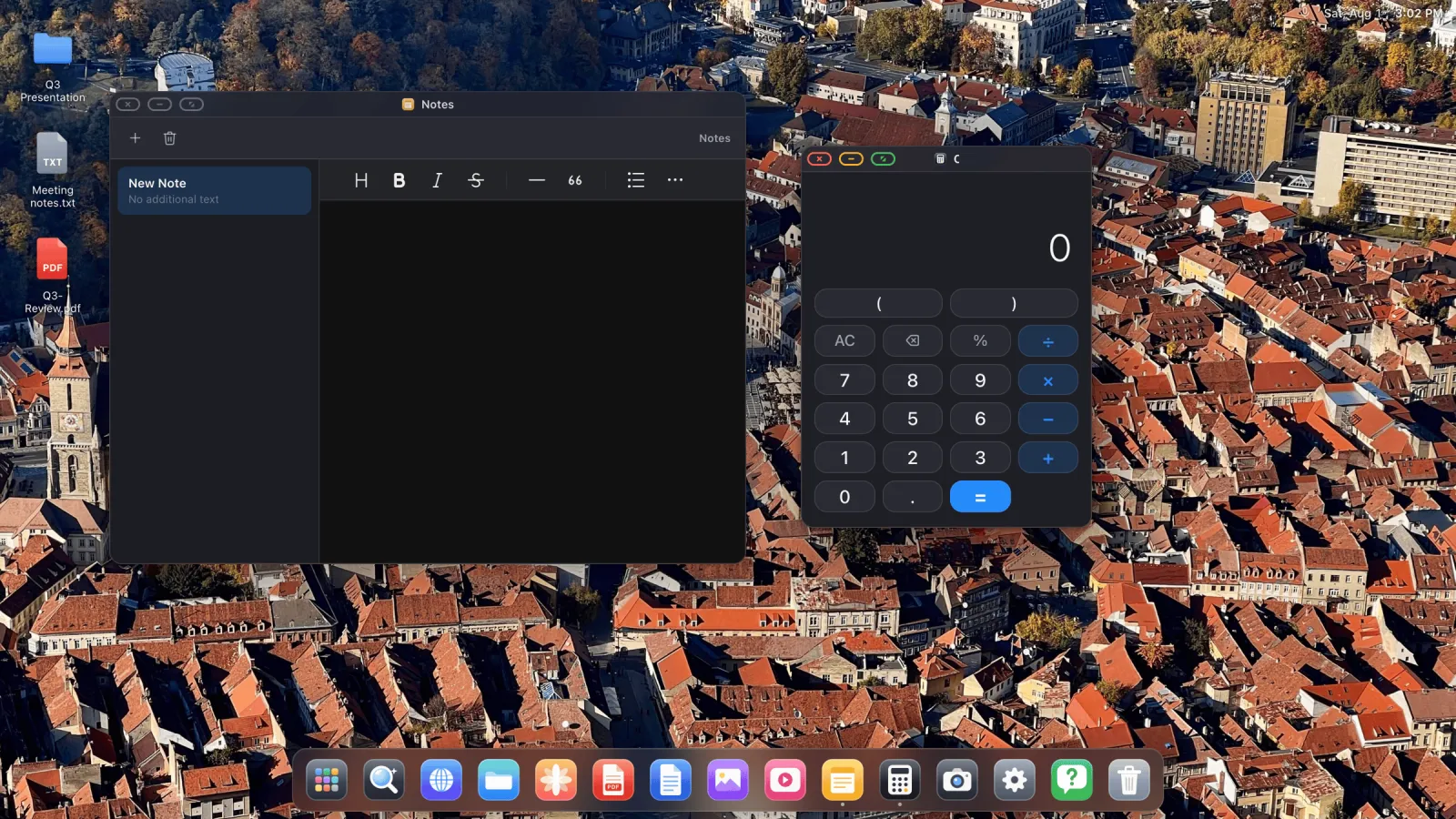
Para cualquier cosa que no merezca un documento, hay una app Notas integrada con formato de texto enriquecido, más un editor de texto plano para código y archivos de configuración.
Una configuración de estudio que funciona
- Monitor, adaptador multipuerto USB-C para que el teléfono se cargue, teclado y ratón Bluetooth.
- Drive, Docs y Sheets añadidos al dock como apps.
- Tu carpeta de trabajo montada desde iCloud Drive.
- El material de lectura guardado en la lista de lectura a medida que lo encuentras.
- Escala del contenido en Ajustes › Pantalla ajustada para que el texto sea cómodo a la distancia de tu escritorio.
Eso es una estación de trabajo que puedes llevar en un bolsillo y conectar a cualquier pantalla que encuentres.
XeOS: External Display Browser convierte un iPhone o un iPad en un escritorio completo en cualquier monitor, tele o proyector.
Preguntas frecuentes
¿Puedo editar archivos de Word directamente?
El soporte de Office integrado es una vista previa, pensada para leer y presentar. Para editar, abre el archivo en Google Docs o Sheets en el navegador.
¿Funciona el modo sin conexión de Google Docs?
El soporte sin conexión propio de Google depende del almacenamiento del navegador, y el almacenamiento del sitio sí persiste aquí. Pero para un trabajo genuinamente sin conexión, un PDF o un archivo local es la opción fiable.
¿Puedo copiar texto de un PDF a un documento?
Sí. Selecciona el texto, Cmd C, pégalo en la otra ventana.
¿Hay una app de hoja de cálculo integrada?
Hay un visor para archivos de Excel, y una calculadora. Para trabajo de hoja de cálculo de verdad, Google Sheets en el navegador es la respuesta.
Más guías



Prueba XeOS: External Display Browser
Pantalla completa en cualquier monitor externo, tele o pantalla portátil. Sin bandas negras. Descárgalo en el App Store.
