 External Display BrowserYouTube5 min de lectura
Cómo ver YouTube a pantalla completa en una tele o un monitor desde tu iPhone o iPad
Tienes una tele, un iPhone y un cable, y quieres que el vídeo llene la pantalla en lugar de quedarse en un rectángulo con forma de móvil en medio de ella. Con XeOS eso lleva unos cinco minutos: inicia sesión, pon la pantalla completa y deja que el bloqueador de anuncios integrado haga su trabajo.
Si tu pantalla todavía no está conectada, haz primero la guía de configuración.
Por qué la duplicación no basta
La duplicación de pantalla de iOS envía a la tele una copia de la pantalla de tu teléfono. Un teléfono mide aproximadamente 19,5:9 y una tele 16:9, así que la tele rellena la diferencia con bandas negras a ambos lados. El propio vídeo de YouTube se coloca entonces dentro de esa imagen rellena, con un segundo enmarcado encima. Tocar el botón de pantalla completa de YouTube no ayuda, porque la limitación está un nivel por encima de YouTube.
XeOS no duplica. Renderiza un escritorio a la propia resolución de la pantalla, así que un vídeo a pantalla completa llena el panel.
Paso 1: inicia sesión en YouTube
Abre el Navegador desde el dock y ve a youtube.com. Inicia sesión con tu cuenta de Google igual que harías en un ordenador. Obtienes el sitio de escritorio: tus suscripciones, tu historial, tu Ver más tarde.
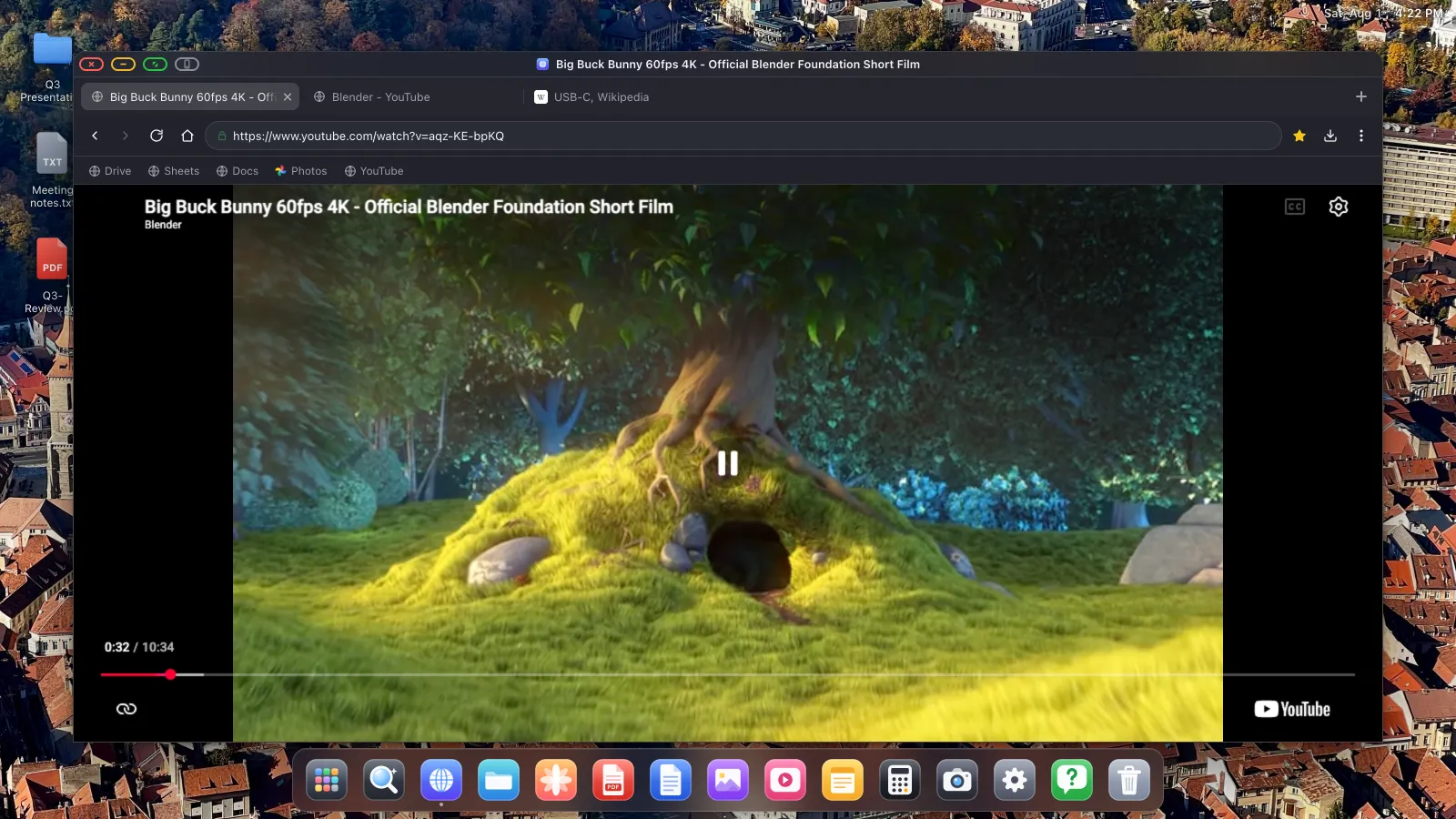
Dos cosas hacen que iniciar sesión sea menos penoso. Primero, importa tus contraseñas de Safari, Chrome, Firefox o Edge, y después iniciar sesión es un toque. Segundo, tu sesión persiste: XeOS mantiene las cookies y el almacenamiento de los sitios a través de los reinicios, así que inicias sesión una vez y no cada vez que conectas.
Si la pantalla de inicio de sesión de Google no acepta un clic en algo, normalmente un cuadro de consentimiento o un marco incrustado, es la limitación del motor de iOS descrita en Modo de diseño del dispositivo. Toca el botón gris, haz ese único paso en la pantalla del teléfono, vuelve directo.
Paso 2: activa el bloqueo de anuncios
XeOS viene con un bloqueador de anuncios construido con las listas de filtros de EasyList y uBlock, compilado dentro del propio motor del navegador. Está activado por defecto, así que normalmente no hay nada que hacer, pero el interruptor está aquí si lo necesitas.
Haz clic en el botón ⋯ a la derecha de la barra de herramientas:
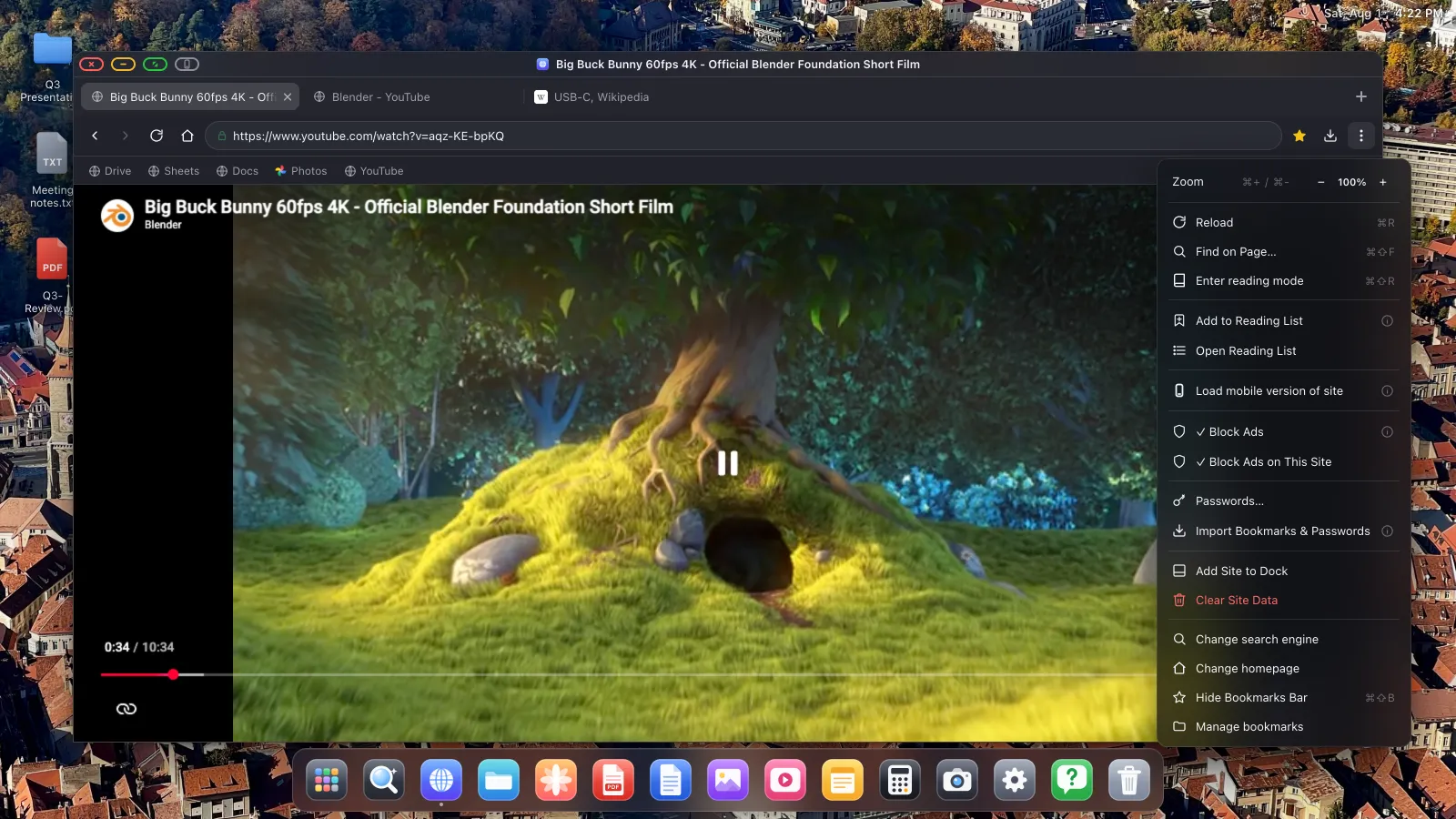
Bloquear anuncios es el interruptor global, y cubre anuncios y rastreadores en todos los sitios, incluidos los anuncios en vídeo de YouTube. La página se recarga cuando lo cambias. Bloquear anuncios en este sitio desactiva el bloqueo solo para un sitio, para cuando algo con lo que cuentas se rompe sin sus anuncios.
En YouTube hay un detalle adicional: cuando aparece un anuncio que se puede saltar, el botón de saltar se pulsa por ti, así que una pantalla desatendida no se queda toda la tarde esperando la cuenta atrás de un anuncio.
Paso 3: ponlo a pantalla completa
Aquí entran en juego dos pantallas completas distintas, y hacen cosas diferentes.
El propio botón de pantalla completa de YouTube
El botón de la esquina inferior derecha del reproductor funciona como en un ordenador, expandiendo el vídeo hasta llenar el área de la página del navegador. XeOS gestiona esto correctamente incluso cuando un sitio reproduce su vídeo dentro de un marco incrustado, algo con lo que muchos navegadores móviles se atascan.
El botón verde de la ventana
Para el resultado más limpio, pon también la ventana a pantalla completa. Haz clic en el botón verde de la esquina superior izquierda:
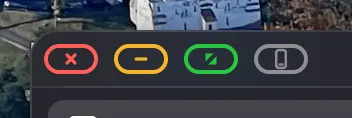
El marco del navegador, el dock y la superposición de estado desaparecen, el reproductor de YouTube llena el navegador, y el navegador llena la pantalla, así que cada píxel de tu tele muestra vídeo.
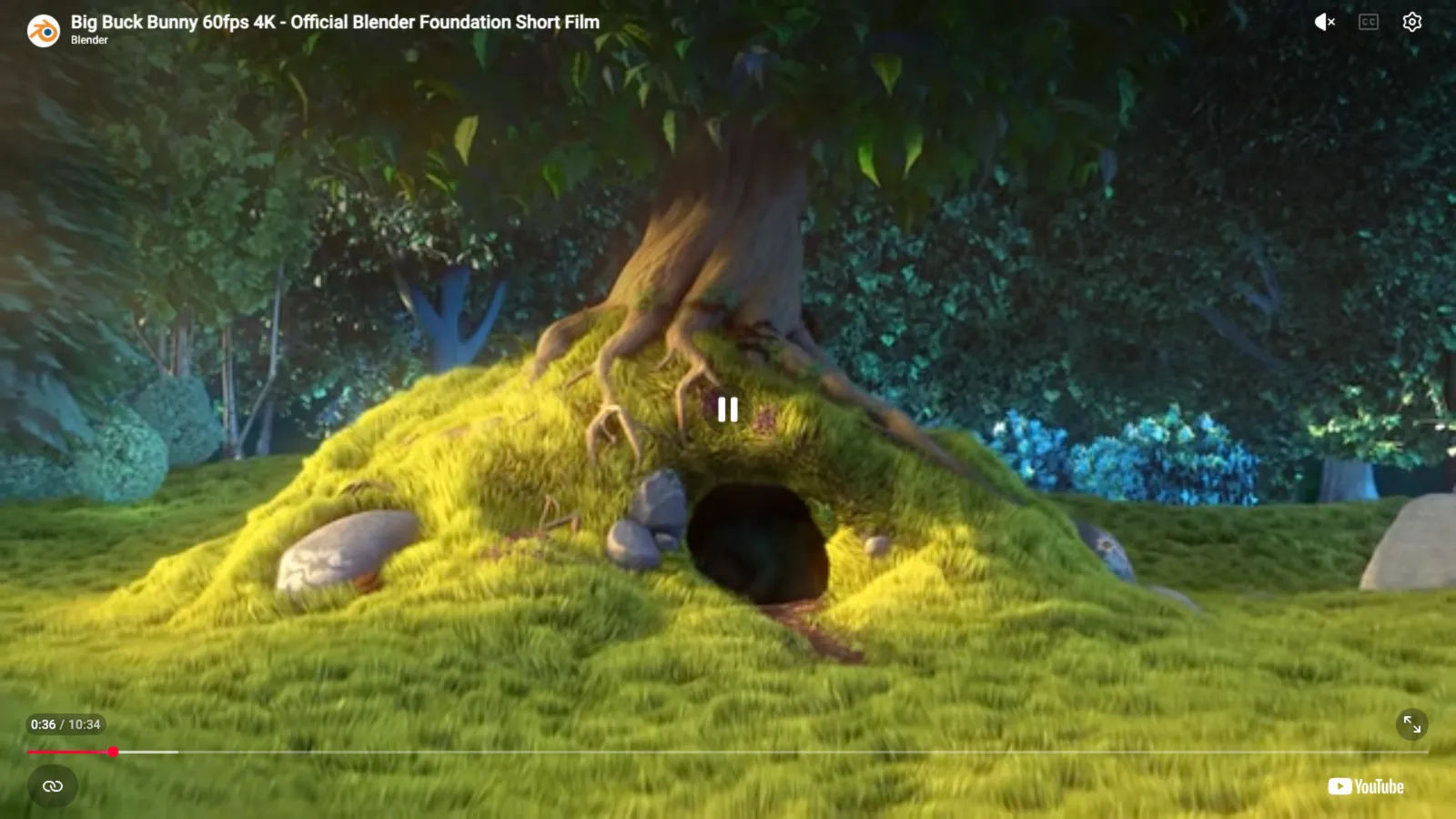

Para volver, mueve el puntero al borde superior de la pantalla. La barra de título baja deslizándose y el botón verde te saca.
Paso 4: consigue que el sonido salga bien
Por HDMI, el audio viaja por el mismo cable que la imagen, así que los altavoces de la tele lo reproducen y no hay nada que configurar. Por AirPlay, el sonido sigue al destino de AirPlay. Si prefieres escucharlo por un altavoz Bluetooth o unos auriculares, conéctalos en iOS como de costumbre; XeOS se mezcla con lo que iOS esté enrutando.
Convertirlo en una experiencia de un solo toque
Si esto se vuelve costumbre, instala YouTube como su propia app del dock. Ábrelo, luego ⋯ › Añadir sitio al dock. Consigue un icono en el dock y se abre en su propia ventana, así que te saltas el navegador por completo.

También puedes separar una pestaña en su propia ventana flotante, lo que te deja mantener un vídeo reproduciéndose en una ventana mientras trabajas en otra.
Extras útiles mientras ves algo
- Zoom. Cmd + y Cmd − ajustan el zoom de la página por sitio, y el ajuste se recuerda. Útil para leer comentarios desde el sofá.
- Modo lectura. Cmd Shift R reduce una página a su texto. Sin uso para vídeo, útil para el artículo que abriste después.
- Lista de lectura. Guarda la página de un vídeo para verla luego desde el menú ⋯.
- Descargas. El botón de descargas de la barra de herramientas mantiene una lista de descargas con progreso y velocidades.
XeOS: External Display Browser convierte un iPhone o un iPad en un escritorio completo en cualquier monitor, tele o proyector.
Preguntas frecuentes
¿El bloqueador de anuncios funciona con los anuncios en vídeo de YouTube?
Sí. El bloqueo está compilado dentro del motor del navegador a partir de las listas de filtros de EasyList y uBlock, y los anuncios que se pueden saltar se saltan por ti cuando aparecen.
¿Funciona con otros sitios de vídeo?
Sí. Cualquier cosa con un sitio web se reproduce de la misma forma. El botón verde lo pone a pantalla completa y la imagen llena el panel.
¿Tengo que iniciar sesión cada vez?
No. Las sesiones sobreviven a los reinicios. Las cookies y el almacenamiento del sitio se conservan deliberadamente, así que te quedas conectado.
¿Puedo usar el teléfono como mando mientras se reproduce?
Sí. Sin ningún ratón conectado, la pantalla del teléfono es un trackpad, así que puedes pausar y avanzar sin tocar la tele.
¿Por qué sigue habiendo un borde negro en mi tele?
Eso suele ser el propio sobrebarrido o ajuste de tamaño de imagen de la tele, no la app. Configura el tamaño de imagen de la tele en «Just Scan», «Screen Fit» o «1:1», y comprueba que la resolución en Ajustes › Pantalla coincide con la que indica la tele.
Más guías


Prueba XeOS: External Display Browser
Pantalla completa en cualquier monitor externo, tele o pantalla portátil. Sin bandas negras. Descárgalo en el App Store.
