 External Display BrowserFotos5 min de lectura
Cómo poner un pase de fotos en una tele desde tu iPhone o iPad, de dos maneras
Fotos de vacaciones en la tele del salón, o una pantalla en bucle en el escaparate de una tienda. En ambos casos no necesitas un ordenador, un reproductor multimedia ni una app de smart TV. Un iPhone, un cable y XeOS llenarán cualquier pantalla con tus fotos. Hay dos vías, tu propia biblioteca de fotos o un álbum de Google Fotos en el navegador, y sirven para trabajos distintos.
Si tu pantalla todavía no está configurada, empieza por conectar tu iPhone o iPad a un monitor o una tele y vuelve luego.
Método 1: la app Fotos, desde tu propia biblioteca
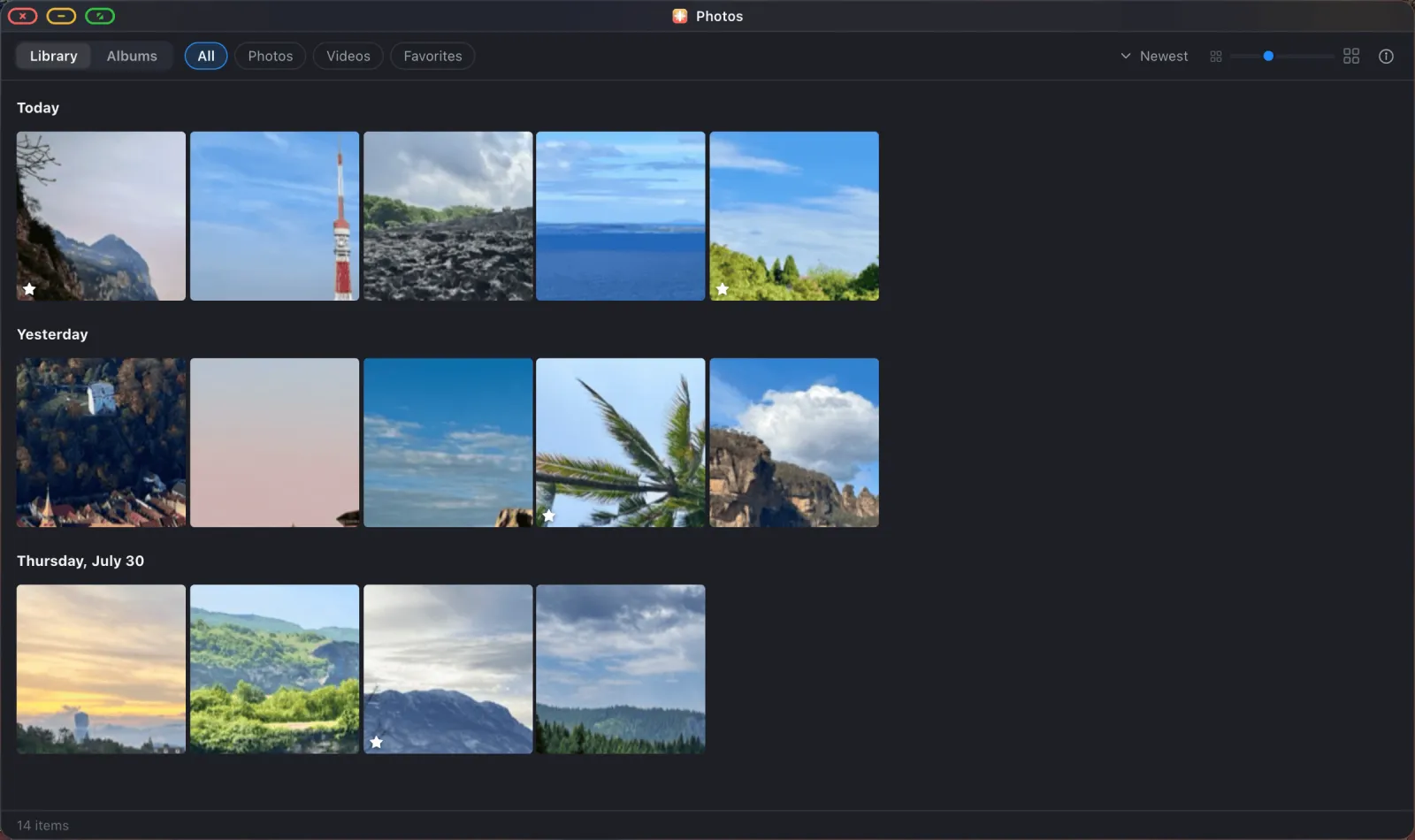
XeOS tiene una app Fotos que lee directamente tu biblioteca de fotos de iOS. Los mismos álbumes, los mismos favoritos, reproducidos a pantalla completa con las opciones que te da la propia app Fotos de Apple.
Concede primero el acceso a las fotos
Abre Fotos desde el dock. La primera vez, iOS te pregunta qué puede ver la app, y quieres acceso completo a la biblioteca de fotos. El acceso limitado, donde eliges a mano unas pocas fotos, no funciona aquí: XeOS solo ve el puñado que elegiste, así que los álbumes y la galería aparecen vacíos. ¿Tocaste la opción equivocada? Ajustes de iOS › Privacidad › Fotos te deja cambiarlo.
Abre el álbum que quieras
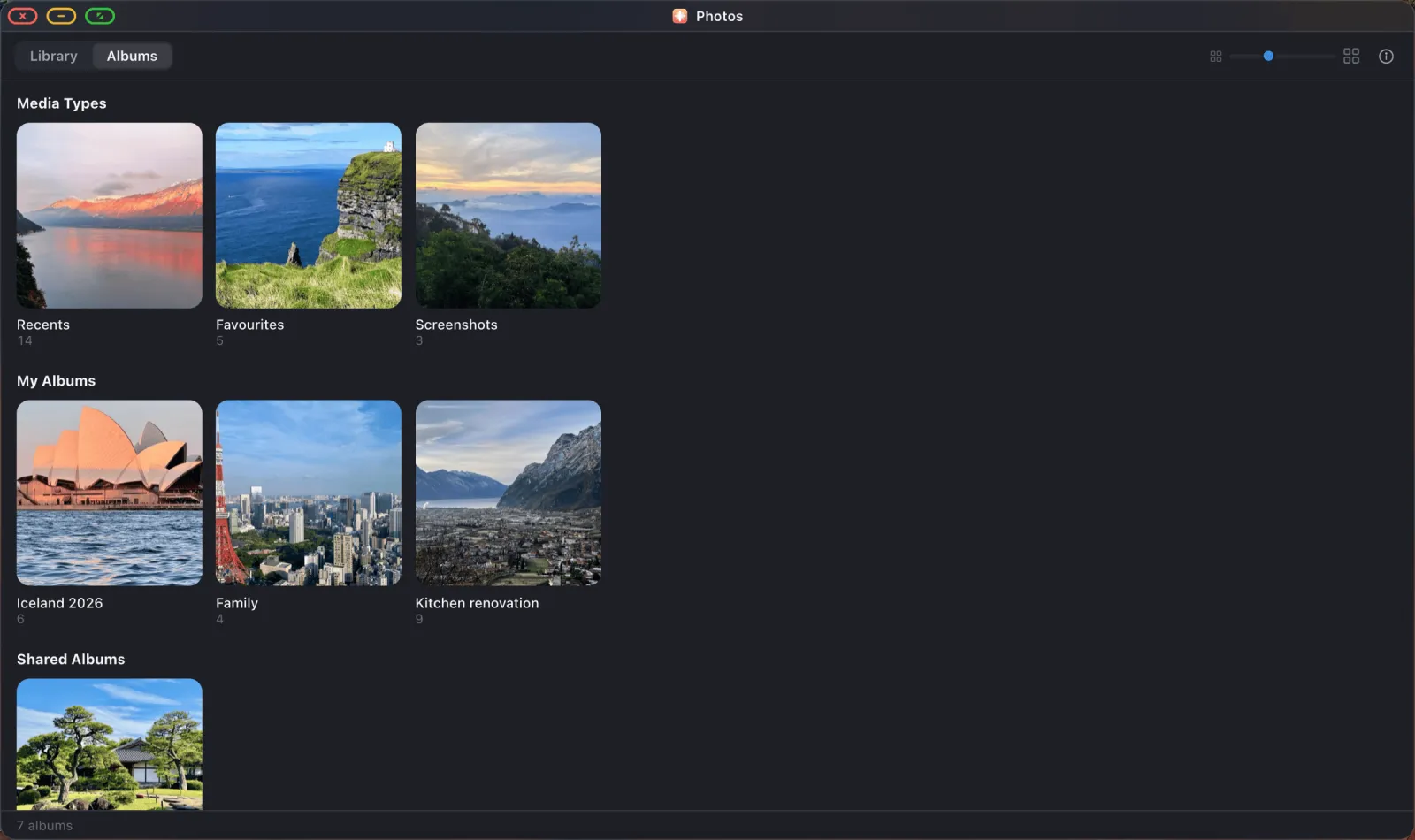
Cambia a la pestaña Álbumes. Tus álbumes inteligentes (Recientes, Favoritos, Capturas de pantalla) y todos los álbumes que has creado en tu teléfono están aquí, cada uno con una portada y un número de fotos.
Configura el pase de fotos
Abre el álbum y luego inicia el pase de fotos. Aparece una hoja de opciones antes de que se reproduzca nada, para que lo ajustes bien de una vez en lugar de andar toqueteando a mitad de la reproducción:
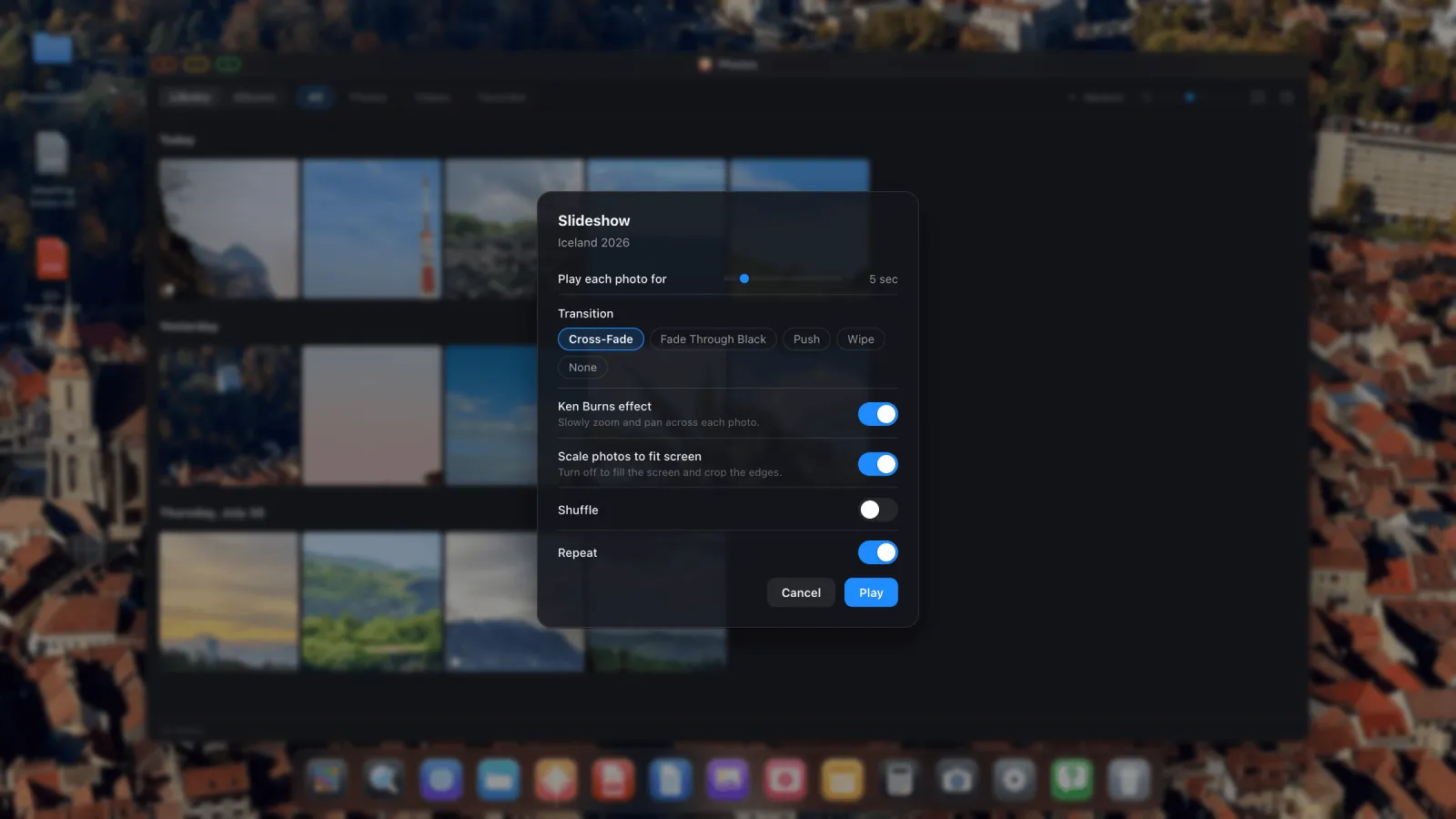
- Mostrar cada foto durante cualquier valor entre 1 y 30 segundos. Cinco es un buen valor por defecto. Para una pantalla desatendida en una tienda, ocho o diez se lee con más calma.
- Transición puede ser Fundido cruzado, Fundido a negro, Empuje, Barrido o Ninguna. El fundido cruzado sirve para casi cualquier mezcla de fotos.
- Efecto Ken Burns acerca y desplaza lentamente cada foto. Bien en un salón. Desactívalo para fotos de producto o documentos, donde ese movimiento distrae.
- Ajustar fotos a la pantalla decide qué pasa cuando la forma de una foto no coincide con la de la pantalla. Activado, añade bandas. Desactivado, la foto llena la pantalla y los bordes se recortan. Para una pantalla comercial en la que no quieras nada de negro, desactívalo.
- Mezclar aleatoriza el orden.
- Repetir reproduce en bucle indefinidamente. Déjalo activado para cualquier cosa desatendida.
Pulsa Reproducir
La reproducción toma el control de toda la pantalla. La barra de controles se desvanece a los pocos segundos sin actividad y vuelve cuando mueves el ratón. Las fotos que solo viven en iCloud se descargan un par de diapositivas por delante, así que un álbum a medio descargar se reproduce igualmente sin cortes.

Para detener, pulsa Escape, o mueve el puntero al borde superior para que vuelva la barra de título y haz clic en el botón verde.
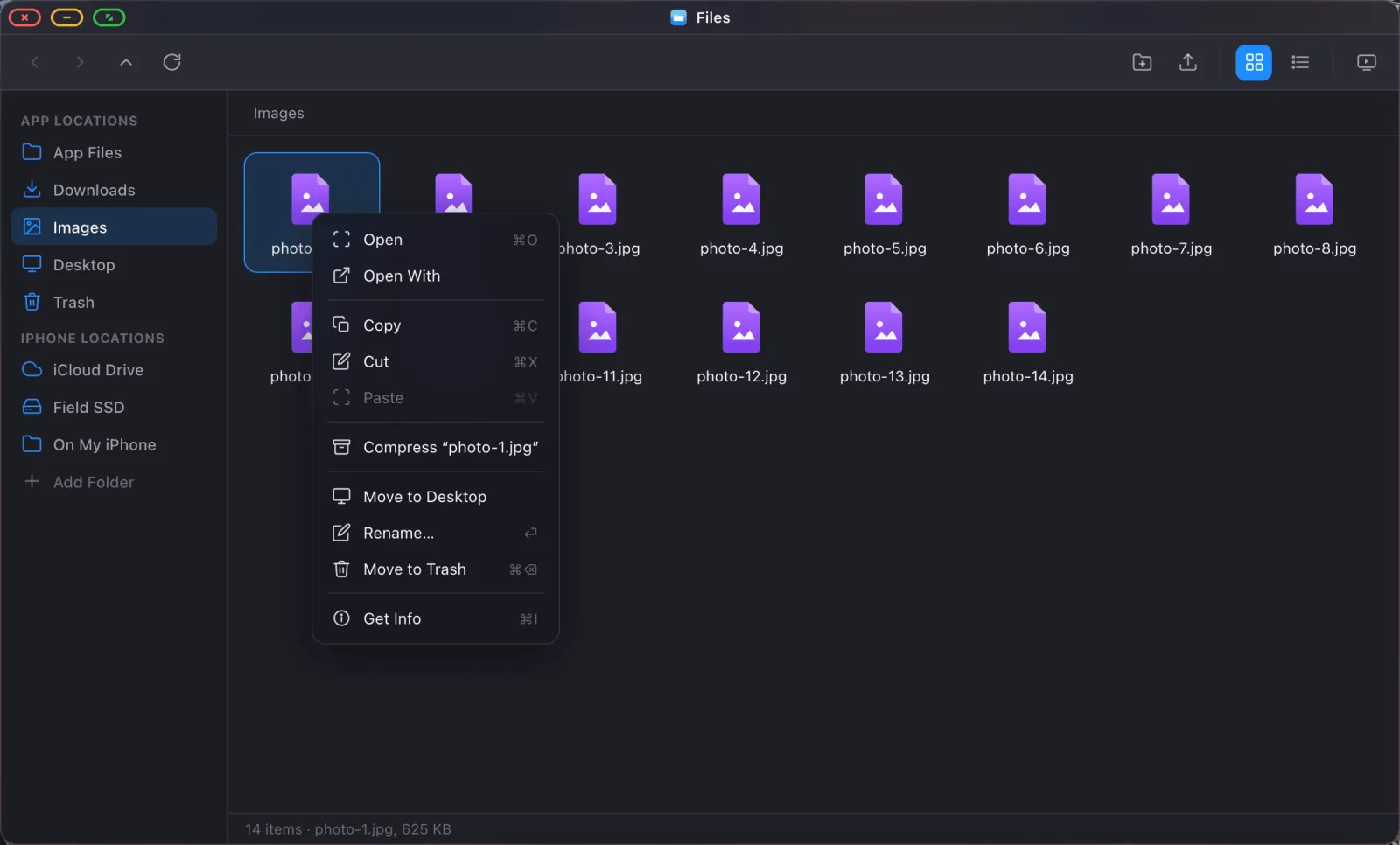
Pase de fotos desde una carpeta, no un álbum. El mismo reproductor funciona desde la app Archivos. Abre cualquier carpeta de imágenes, incluida una en iCloud Drive o una unidad externa, y elige Pase de diapositivas en la barra de herramientas o el menú de clic derecho. Útil cuando las fotos no están en tu biblioteca en absoluto.
Método 2: Google Fotos en el navegador
Si tus fotos viven en Google Fotos, o quieres mostrar un álbum compartido que nunca estuvo en tu teléfono, usa el navegador en su lugar.
- Abre el Navegador desde el dock y ve a
photos.google.com. - Inicia sesión. Si importaste tus contraseñas, son un par de toques.
- Abre el álbum que quieras mostrar.
- Inicia el propio pase de fotos de Google Fotos desde su menú en la primera imagen.
- Haz clic en el botón verde de pantalla completa en la esquina superior de la ventana. La ventana del navegador pierde su barra de título, pestañas y barra de herramientas, y el pase de fotos llena la pantalla.
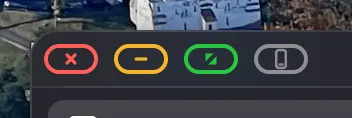
La pantalla completa en XeOS es un estado de la ventana en lugar de algo que el sitio web tenga que pedir, así que esto funciona en cualquier sitio con una vista de galería o de pase de fotos. Google Fotos es solo el caso más habitual.
¿Qué método deberías usar?
| App Fotos | Google Fotos en el navegador | |
|---|---|---|
| Origen | Tu biblioteca de fotos de iOS | Cualquier cosa en tu cuenta de Google, incluidos álbumes compartidos |
| Funciona sin conexión | Sí, para las fotos descargadas | No |
| Control sobre tiempos y transiciones | Total | Lo que ofrezca Google |
| Llena la pantalla sin bordes negros | Sí, desactiva «Ajustar fotos a la pantalla» | Depende de la forma de las fotos |
| Mejor para | Salones, eventos, pantallas desatendidas | Álbumes compartidos, fotos que no están en este teléfono |
Consejos para dejarlo funcionando
- Activa Repetir y desactiva Ajustar fotos a la pantalla para una pantalla desatendida.
- Conecta a un adaptador multipuerto para que el teléfono se cargue mientras reproduce.
- Activa No Molestar para que las notificaciones no interrumpan la pantalla.
- Usa un cable en lugar de AirPlay para cualquier cosa que vaya a estar horas funcionando. Durante un tramo largo, los fallos de red acaban apareciendo.
XeOS: External Display Browser convierte un iPhone o un iPad en un escritorio completo en cualquier monitor, tele o proyector.
Preguntas frecuentes
¿Puedo incluir vídeos en el pase de fotos?
Sí. Los vídeos del álbum se reproducen en su sitio, y hay un interruptor en la hoja de opciones por si prefieres saltártelos.
Mis fotos están en iCloud y no en el teléfono. ¿Funcionará igualmente?
Sí. Cada foto se descarga justo antes de necesitarla, un par de diapositivas por delante, así que la reproducción no se atasca.
¿Por qué la app Fotos dice que solo puede ver unos pocos elementos?
iOS está configurado con acceso limitado a las fotos. Concede acceso completo a la biblioteca de fotos en Ajustes de iOS › Privacidad › Fotos para tener toda tu galería y tus álbumes.
¿Puedo dejar esto funcionando en el escaparate de una tienda todo el día?
Sí, para eso está Repetir. Usa un cable con carga de paso, y desactiva el bloqueo automático en Ajustes de iOS › Pantalla y brillo.
Más guías


Prueba XeOS: External Display Browser
Pantalla completa en cualquier monitor externo, tele o pantalla portátil. Sin bandas negras. Descárgalo en el App Store.
