 External Display BrowserImportar4 min de lectura
Cómo importar tus marcadores y contraseñas desde Safari, Chrome, Firefox o Edge
Escribir contraseñas en la pantalla de una tele es la forma más rápida de abandonar una configuración como esta. Diez minutos de preparación lo arreglan para siempre. Trae tus marcadores e inicios de sesión guardados una vez y entrar en Google, YouTube, tu banco o tus herramientas de trabajo se convierte en un toque. Safari, Chrome, Firefox y Edge tienen todos una vía de entrada, y están todas aquí abajo.
Dónde está la importación
Dos caminos a la misma pantalla. En el navegador es ⋯ › Importar marcadores y contraseñas. En Ajustes es Navegador › Importar marcadores y contraseñas.
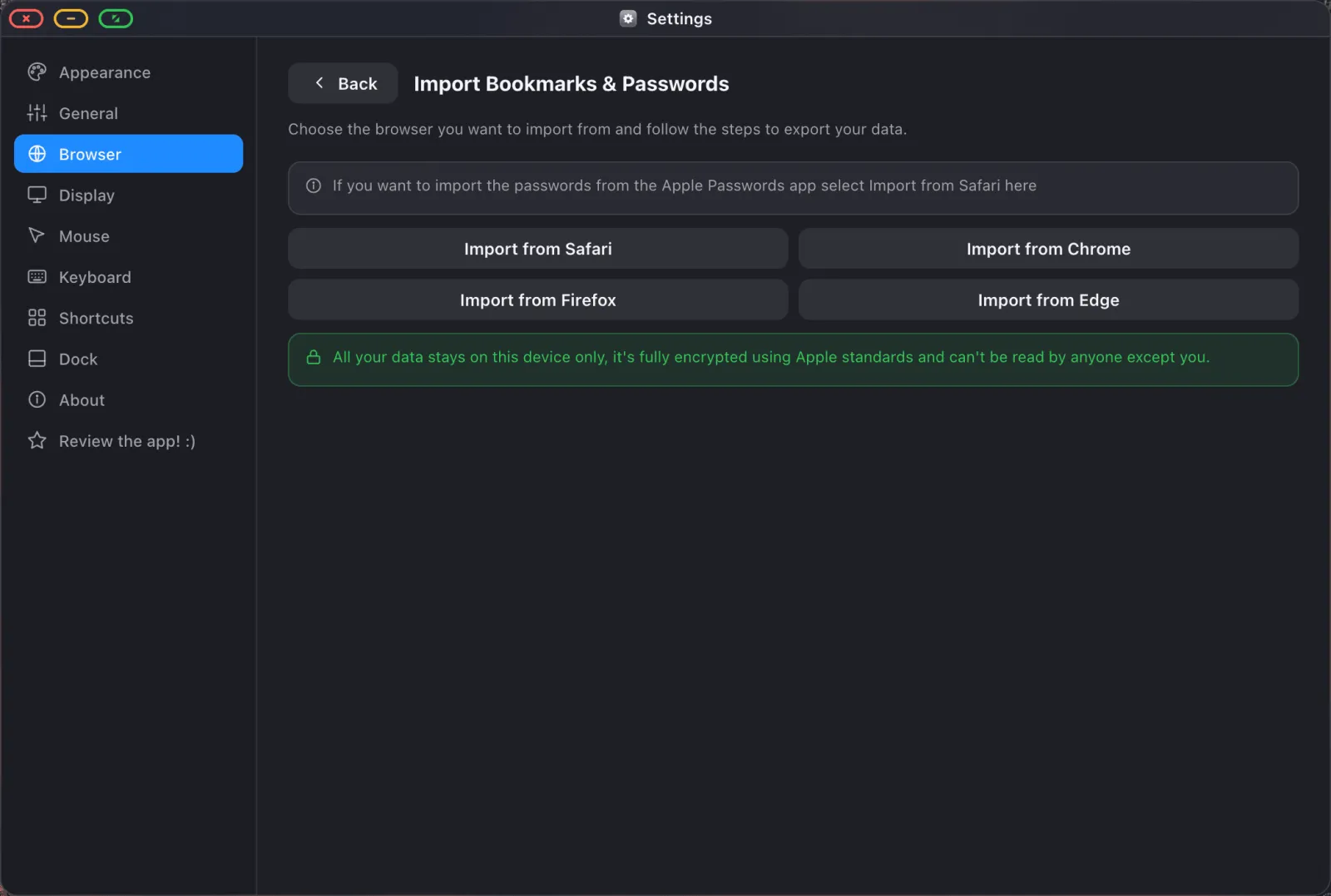
Cada botón te guía por la exportación desde ese navegador, y luego lee el archivo de vuelta. El proceso es el mismo en todos los casos: exportar en el dispositivo donde viven tus datos → llevar el archivo a tu iPhone → abrirlo en XeOS.
A dónde van tus datos. Todo lo importado se queda en el dispositivo. Las contraseñas se cifran con la propia criptografía de Apple, con la clave guardada en el llavero de iOS. No se sube nada a XeOS ni a ningún otro sitio.
Desde Safari, y la app Contraseñas de Apple
Si tus inicios de sesión viven en el llavero de iCloud o en la app Contraseñas de Apple, esta es tu vía. Elige Importar desde Safari.
- En un Mac, abre Safari y elige Archivo › Exportar › Marcadores para los marcadores, y exporta las contraseñas desde la app Contraseñas (o los ajustes de contraseñas de Safari) como CSV.
- Solo con un iPhone o un iPad, abre la app Contraseñas y usa su propia opción de exportar.
- Lleva el archivo exportado a tu dispositivo por AirDrop, iCloud Drive o enviándotelo por correo.
- En XeOS, elige Importar desde Safari y selecciona el archivo.
Desde Chrome
- En un ordenador, abre Chrome y ve a
chrome://password-manager/settings. Elige Exportar contraseñas. Chrome te pide confirmar con la contraseña del dispositivo y luego guarda un CSV. - Para los marcadores, abre Marcadores › Gestor de marcadores, luego el menú ⋮ y Exportar marcadores, que guarda un archivo HTML.
- Transfiere ambos archivos a tu iPhone o iPad.
- En XeOS, elige Importar desde Chrome y selecciona cada archivo.
Desde Firefox
- En Firefox, abre Contraseñas desde el menú, luego el menú ⋯ y Exportar credenciales para guardar un CSV.
- Para los marcadores, abre la Biblioteca, luego Importar y hacer copia de seguridad › Exportar marcadores a HTML.
- Transfiere ambos a tu dispositivo.
- Elige Importar desde Firefox en XeOS.
Desde Edge
- En Edge, abre Configuración › Perfiles › Contraseñas, luego el menú ⋯ y Exportar contraseñas.
- Para los marcadores, abre Favoritos, luego el menú ⋯ y Exportar favoritos.
- Transfiere ambos a tu dispositivo.
- Elige Importar desde Edge en XeOS.
Borra los archivos exportados después. Un CSV de contraseñas exportado es texto sin cifrar. Eso vale para la exportación de cualquier navegador, no es una peculiaridad de este. Cuando la importación haya terminado, borra el archivo de tu dispositivo y de todo aquello por lo que lo hayas transferido.
Qué obtienes después
Marcadores, con las carpetas intactas
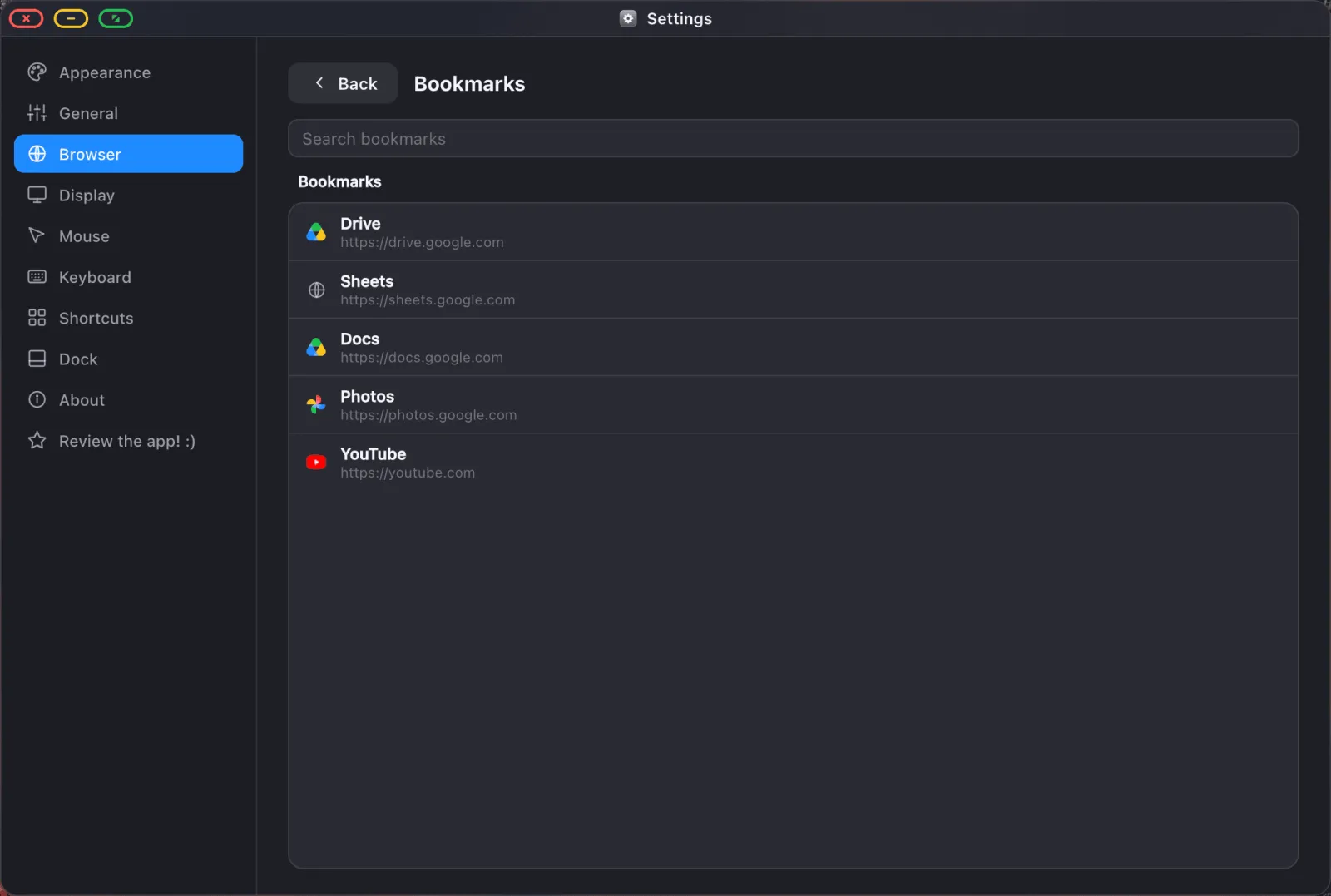
Los marcadores importados conservan su estructura de carpetas. Aparecen en la barra de marcadores bajo la barra de direcciones (Cmd Shift B la activa y desactiva) y en Ajustes › Navegador › Marcadores, donde puedes renombrar cosas, arrastrarlas entre carpetas y crear otras nuevas.
Contraseñas, rellenadas por ti
Los inicios de sesión guardados llegan al panel de contraseñas del navegador (⋯ › Contraseñas), donde puedes buscarlos, revelar uno, copiarlo o eliminarlo.
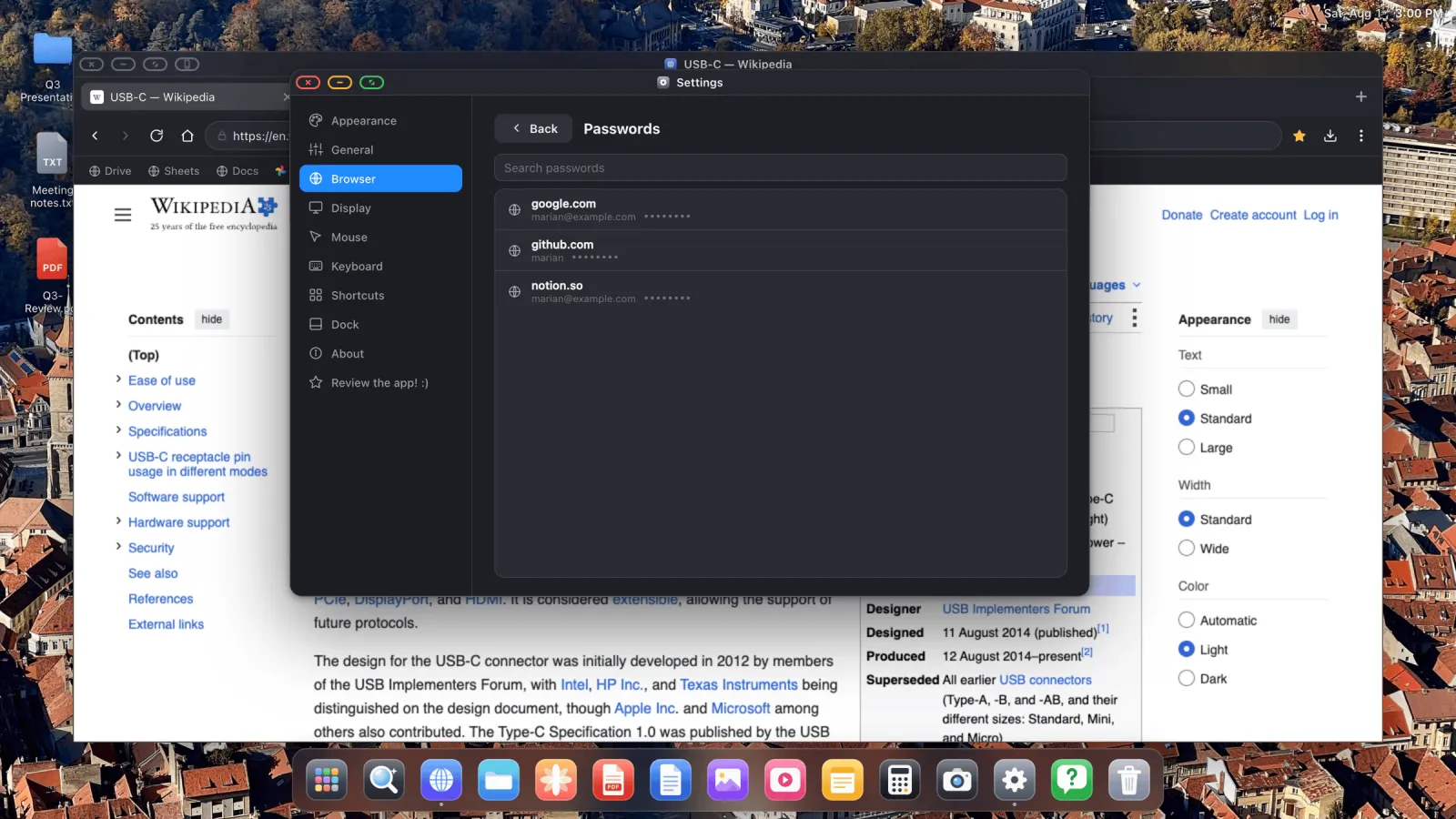
Y lo más útil: se ofrecen como autorrelleno cuando llegas a un formulario de acceso.
Por qué esto importa más de lo que parece
Buena parte de lo que hace que un iPhone conectado a un monitor se sienta como un juguete en lugar de un ordenador es la fricción en la pantalla de inicio de sesión. Escribir una contraseña larga con un trackpad, en una pantalla al otro lado de la habitación, basta para quitarle a cualquiera las ganas. Trae tus inicios de sesión y el resto de guías de aquí dejan de ser aspiracionales: YouTube en la pantalla grande, presentar desde Google Slides, trabajar en Drive y Sheets.
XeOS: External Display Browser convierte un iPhone o un iPad en un escritorio completo en cualquier monitor, tele o proyector.
Preguntas frecuentes
¿Mis contraseñas se envían a algún sitio?
No. Se guardan cifradas en el dispositivo, con la clave de cifrado en el llavero de iOS.
Uso la app Contraseñas de Apple, no Safari. ¿Qué botón toco?
Importar desde Safari. Esa es la vía para el almacén de contraseñas de Apple.
¿Puedo importar marcadores sin importar contraseñas?
Sí. Son archivos separados, pasos separados. Haz uno, o los dos.
¿Puedo importar más de una vez?
Sí. Importar de nuevo añade lo que sea nuevo sin borrar lo que ya había.
¿Puedo seguir usando el selector de contraseñas de mi propio teléfono?
Sí. La hoja de contraseñas del sistema también está disponible en el lado del teléfono, así que no estás atado a una sola opción.
Más guías



Prueba XeOS: External Display Browser
Pantalla completa en cualquier monitor externo, tele o pantalla portátil. Sin bandas negras. Descárgalo en el App Store.
