
 External Display BrowserMonitor portátil4 min de lectura
¿Se puede conectar un iPhone a un monitor portátil? Sí, así se hace bien
Los monitores portátiles ahora son baratos, y la pregunta surge constantemente: ¿funcionará uno con un iPhone? Sí. Un cable USB-C, y muchos monitores portátiles llevarán tanto vídeo como corriente por él. Pero hay una pega que nadie pone en la ficha del producto, y vale la pena conocerla antes de comprar.
La respuesta corta
Si tienes un iPhone USB-C y un monitor portátil USB-C, un solo cable lleva la imagen. Que también lleve corriente depende del monitor y de qué puerto uses. Con un iPhone Lightning necesitas un adaptador AV digital Lightning y la entrada HDMI del monitor.
| Tu iPhone | Entrada del monitor | Qué usar |
|---|---|---|
| USB-C (15 en adelante) | USB-C | Un cable USB-C |
| USB-C (15 en adelante) | Solo HDMI | Cable USB-C a HDMI, o un adaptador multipuerto |
| Lightning (14 y anteriores) | HDMI | Adaptador AV digital Lightning + cable HDMI |
La pega que nadie menciona
Funciona. Luego lo miras, y es un rectángulo alto y estrecho en medio de un panel panorámico con bandas negras a ambos lados.
Eso es el duplicado de iOS. Una pantalla de iPhone mide aproximadamente 19,5:9 y un monitor portátil 16:9, así que iOS le envía al monitor una copia de la pantalla del teléfono y el monitor rellena la diferencia de negro. En un monitor portátil de 15,6 pulgadas acabas usando quizá nueve pulgadas de él, con todo dimensionado para un teléfono sostenido con el brazo extendido.
Ningún ajuste de iOS lo arregla, y ningún cable lo arregla. iOS no está dibujando nada para el monitor en absoluto, está duplicando lo que el teléfono dibuja para sí mismo.
La solución
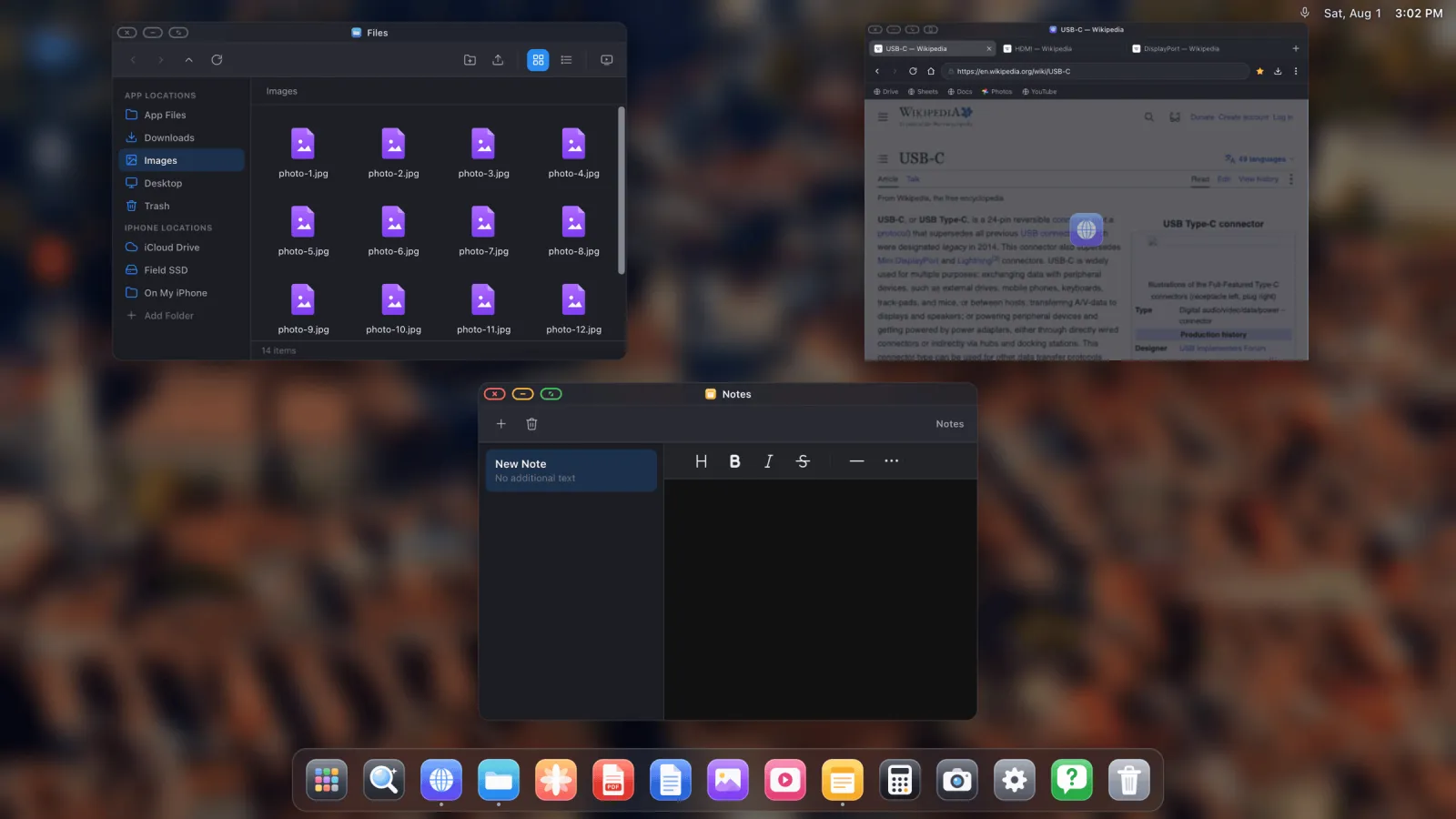
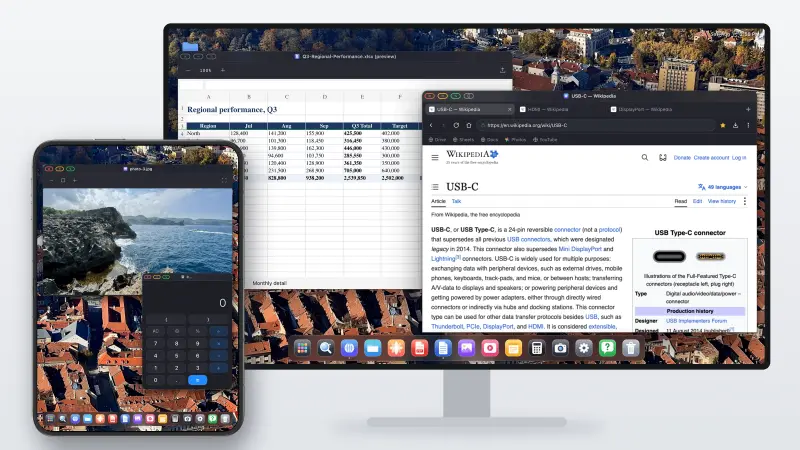
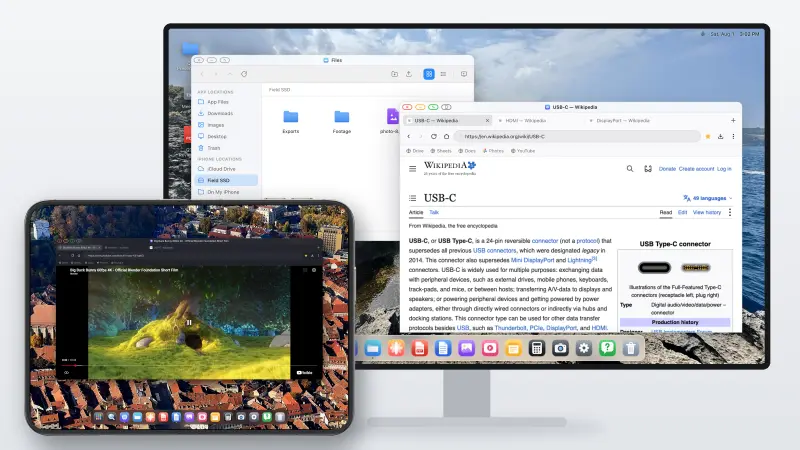
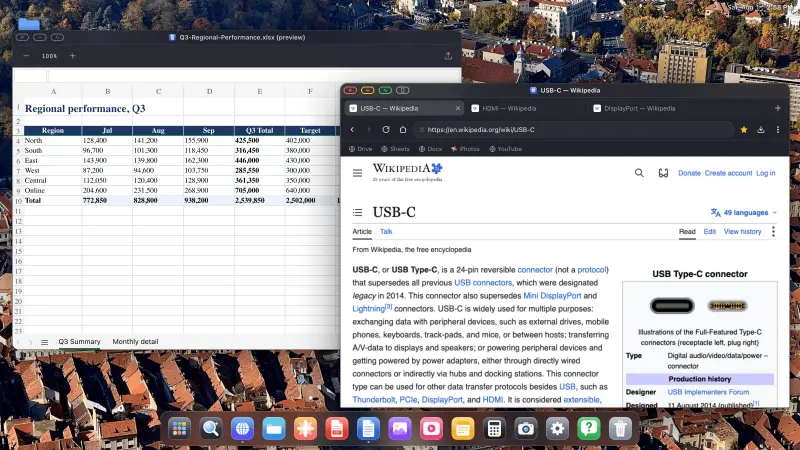
XeOS: External Display Browser toma el control de la pantalla externa y renderiza un escritorio a la propia resolución del monitor, así que un monitor portátil 16:9 obtiene un escritorio 16:9, de borde a borde.
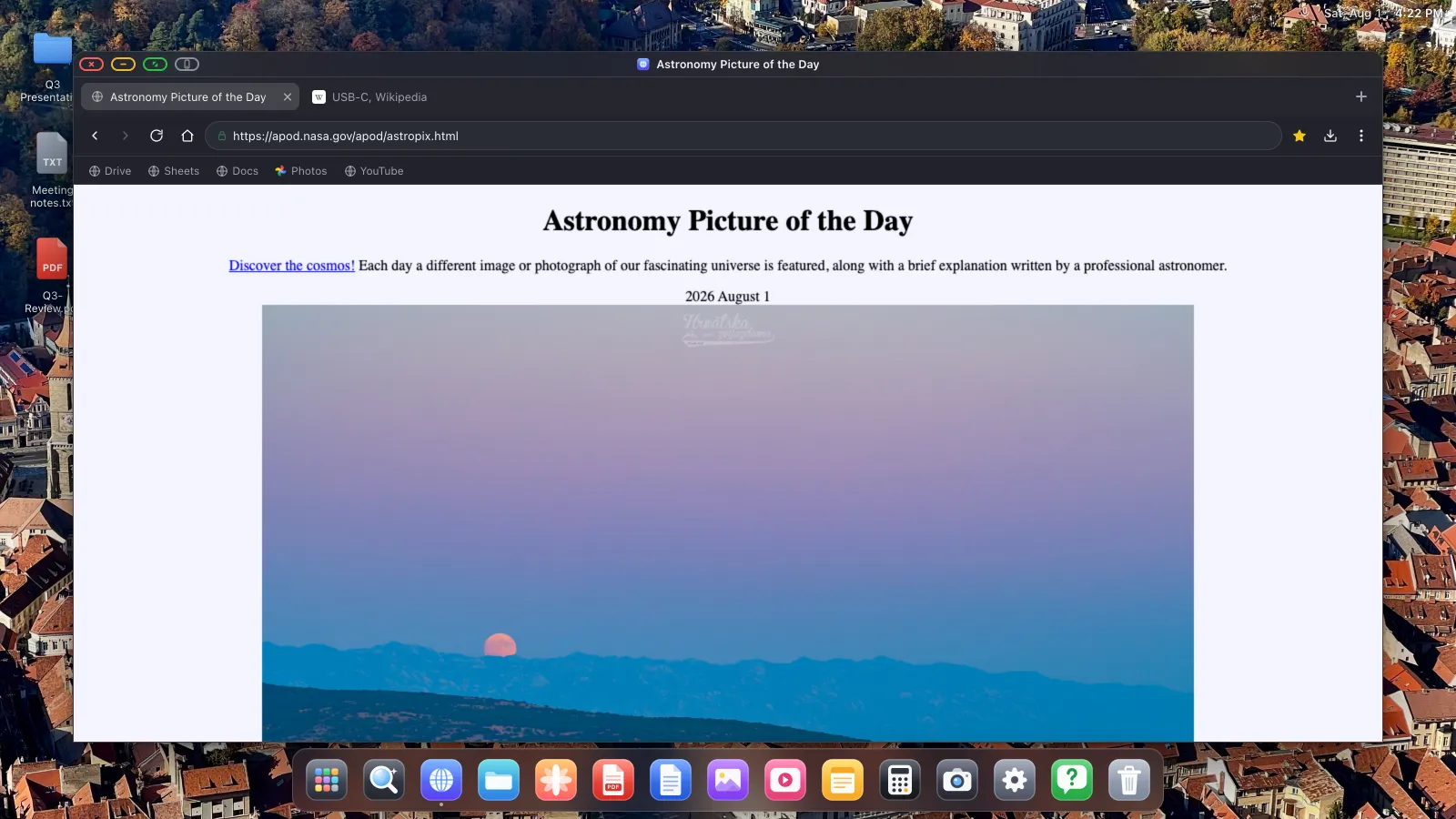
Consigues ventanas, un dock, un gestor de archivos y un navegador de escritorio en lugar de un teléfono ampliado. Empareja un teclado y un ratón Bluetooth pequeños y es una estación de trabajo que puedes montar en la mesa de un tren.
Qué buscar al comprar un monitor portátil
- USB-C con DisplayPort Alt Mode. Algunos monitores baratos tienen un puerto USB-C que es solo de corriente, así que busca que ponga «entrada de vídeo USB-C» o «DP Alt Mode» explícitamente.
- Dos puertos USB-C, o uno más HDMI, para poder llevar vídeo por uno y corriente por el otro. Un monitor que espere sacar su corriente de tu teléfono lo dejará sin batería rápido.
- 1080p es de sobra para un panel de 15 pulgadas a distancia de brazo. El 4K en un monitor portátil sobre todo cuesta batería.
- Altavoces integrados si vas a ver algo. Si no, el audio va al teléfono o a un altavoz Bluetooth.
- Un soporte o funda que mantenga un ángulo. Es de lo que más se quejan los compradores después de la compra.
Configurarlo
- Conecta el monitor y abre XeOS. Detecta la pantalla.
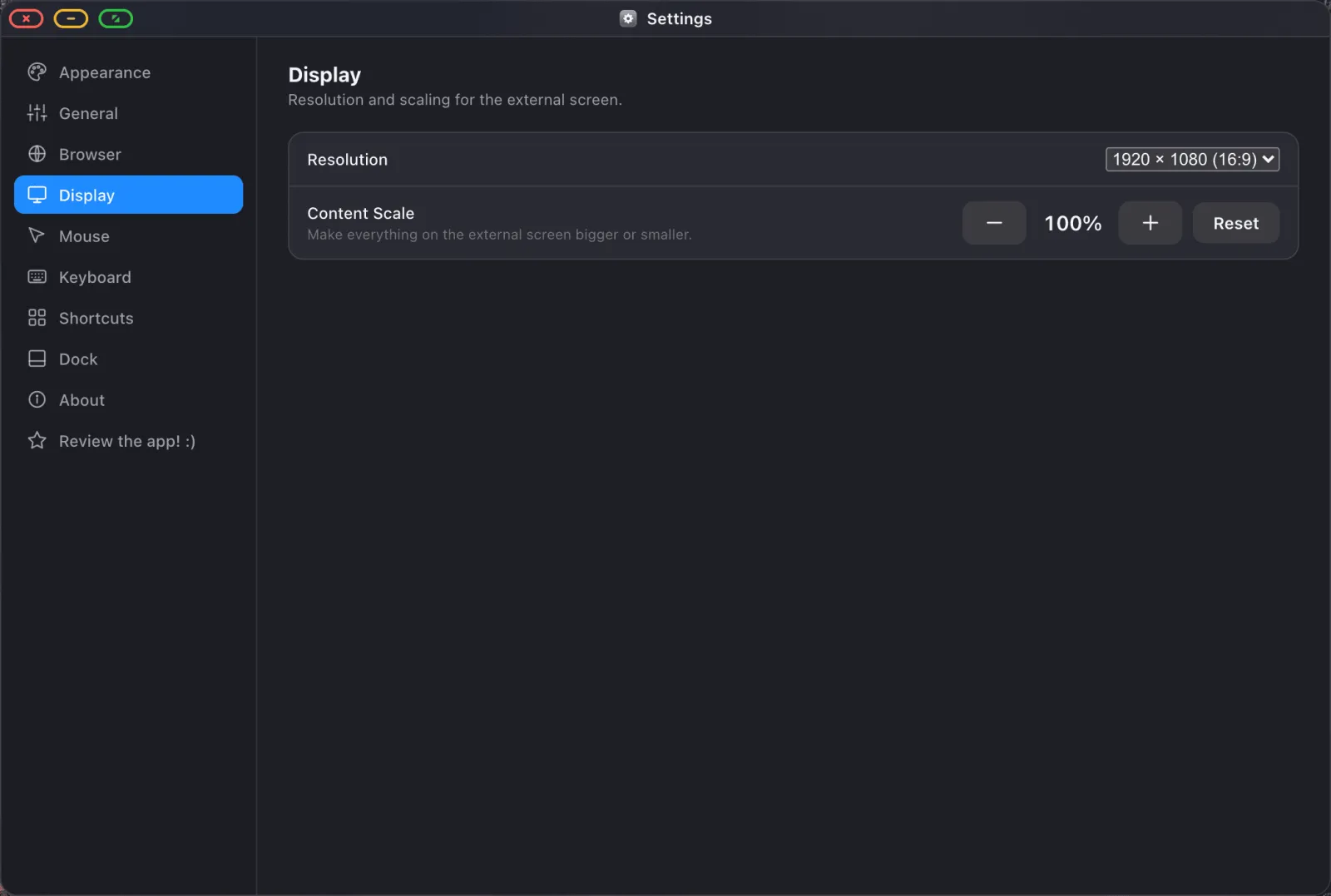
- En Ajustes › Pantalla, elige la resolución que indica el monitor, normalmente 1920 × 1080.
- Ajusta la escala del contenido. A distancia de portátil en un panel de 15 pulgadas, el 100–110 % suele ser lo correcto.
- Empareja un ratón y un teclado Bluetooth, o usa la pantalla del teléfono como trackpad.
El recorrido completo está en la guía de configuración.
Corriente
Controlar una pantalla es una de las cosas más exigentes que puede hacer un teléfono. Si vas a trabajar más de media hora, usa un monitor que suministre corriente de vuelta por USB-C, o un adaptador multipuerto con un puerto de carga de paso y un cargador de verdad. Alimentar un monitor solo con la batería del teléfono da para una sesión corta.
Qué puedes hacer con él
- Google Docs, Sheets y Drive a tamaño de escritorio completo, con un teclado de verdad.
- Un gestor de archivos que monta carpetas de iCloud Drive y unidades USB.
- PDFs con anotación y relleno de formularios.
- Vídeo a pantalla completa con un bloqueador de anuncios integrado.
- Sitios web instalados como apps del dock.
Lo que no puedes hacer es ejecutar tus otras apps de iPhone en el monitor, porque iOS no deja que una app aloje a otra. Consigues el navegador, las apps integradas, y toda la web.
XeOS: External Display Browser convierte un iPhone o un iPad en un escritorio completo en cualquier monitor, tele o proyector.
Preguntas frecuentes
¿De verdad un solo cable USB-C hace vídeo y corriente?
En los monitores que lo admiten, sí. El monitor suministra corriente al teléfono mientras recibe vídeo. Comprueba la ficha técnica, porque no todos lo hacen.
¿Funciona un iPhone antiguo con un monitor portátil?
Sí, mediante un adaptador AV digital Lightning a la entrada HDMI del monitor.
¿Funcionará el tacto si el monitor es una pantalla táctil?
No. iOS no acepta entrada táctil de un panel externo. Usa un ratón, o la pantalla del teléfono como trackpad.
¿Puedo usar un monitor portátil con un iPad de esta forma también?
Sí, incluidos los iPads antiguos sin compatibilidad con Stage Manager. Mira el artículo del iPad.
Más del blog

Prueba XeOS: External Display Browser
Pantalla completa en cualquier monitor externo, tele o pantalla portátil. Sin bandas negras. Descárgalo en el App Store.