XeOS : tout simplement la meilleure expérience d’écran externe pour iPhone/iPad
Mode bureaupour iPhone*ou iPad
Connectez votre iPhone ou iPad à un moniteur, un téléviseur ou un projecteur.
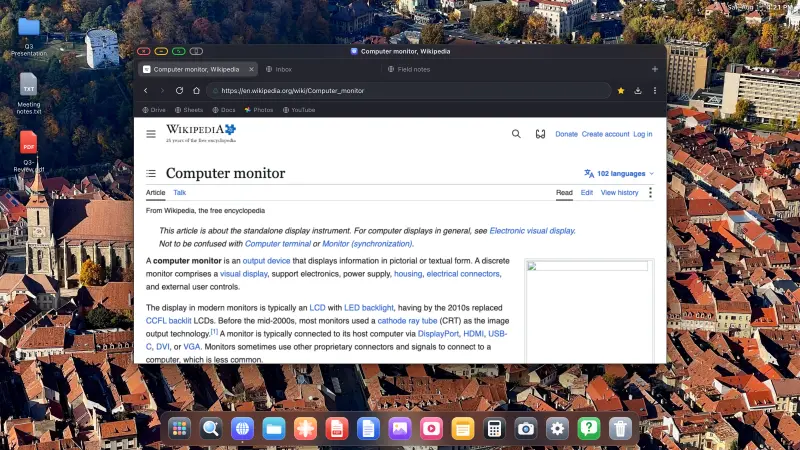
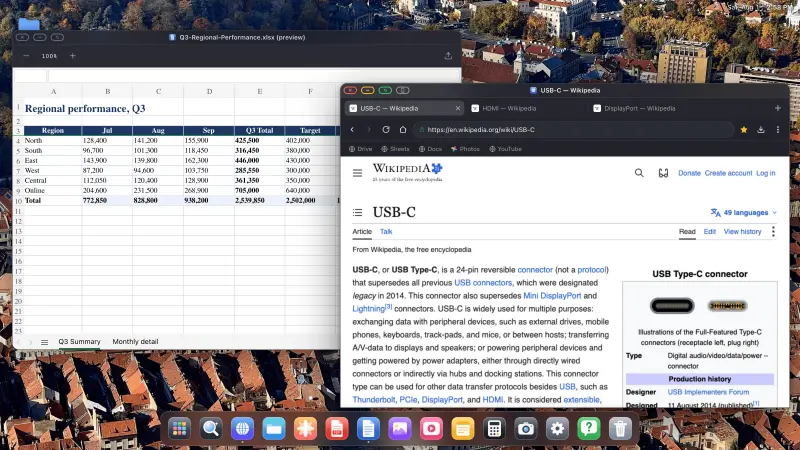
XeOS remplit tout l’écran externe, sans bandes noires.
••••••
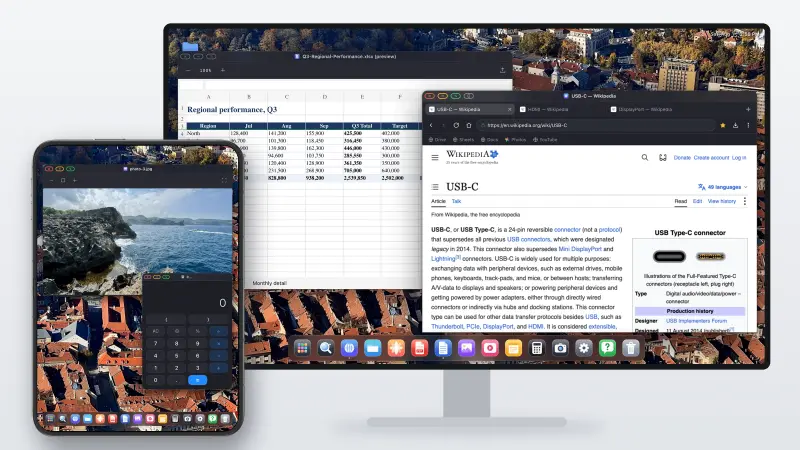
iPhone→Moniteur externe
iPhone
Moniteur externe
Oubliez les bandes noires. Profitez d'un vrai bureau multitâche.
XeOS apporte l'expérience d'un système d'exploitation de bureau à l'iPhone/iPad sur votre écran externe, d'un bout à l'autre.
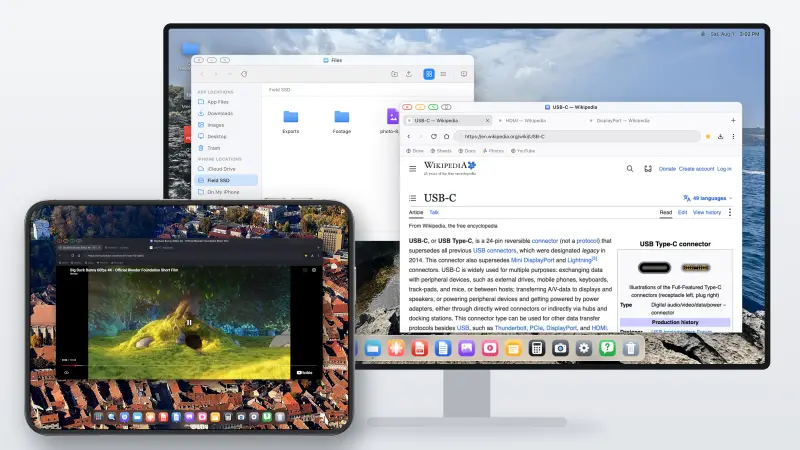
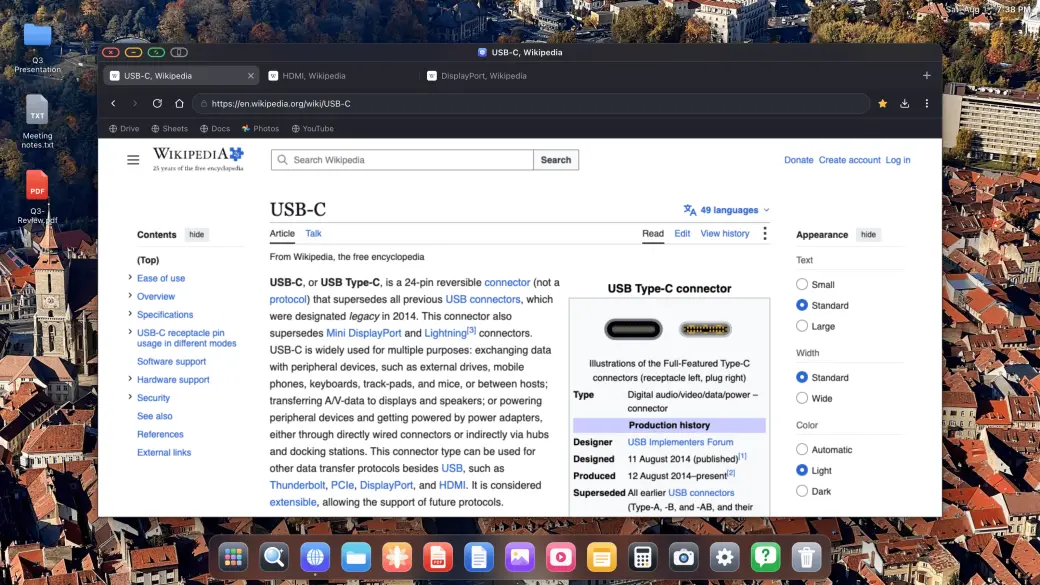
YouTube et vidéo, plein écran
YouTube et vidéo, plein écran
YouTube remplit tout l'écran, sans bandes noires
Tous les sites de streaming : Twitch, Vimeo, etc.
La vidéo intégrée à la page et le mode plein écran fonctionnent tous les deux
Les bandes noires sur un grand moniteur externe ou un écran portable sont vraiment agaçantes. XeOS: External Display Browser remplit tout l'écran d'un bord à l'autre, YouTube, Twitch, Vimeo, tout.
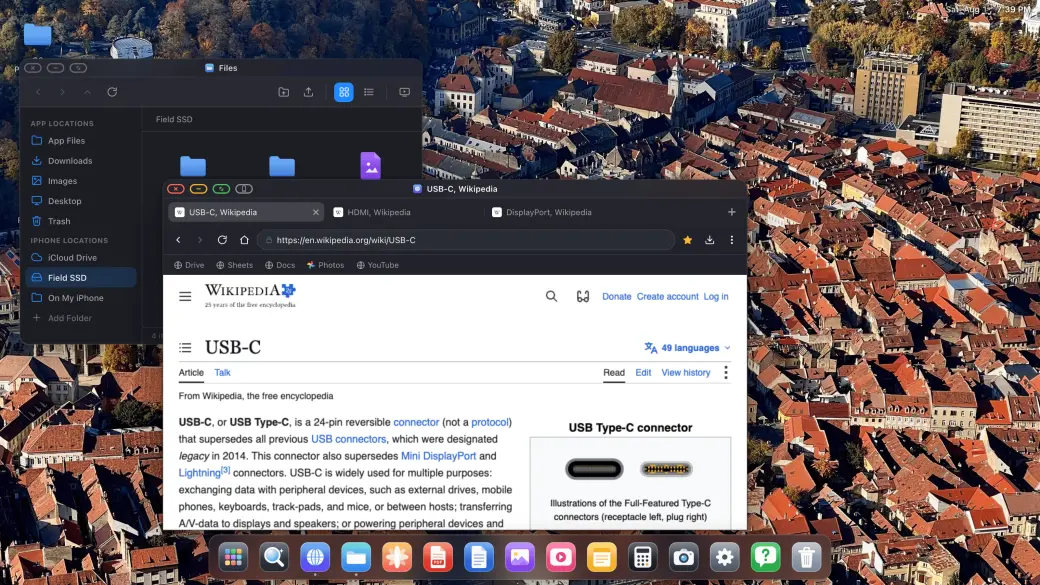
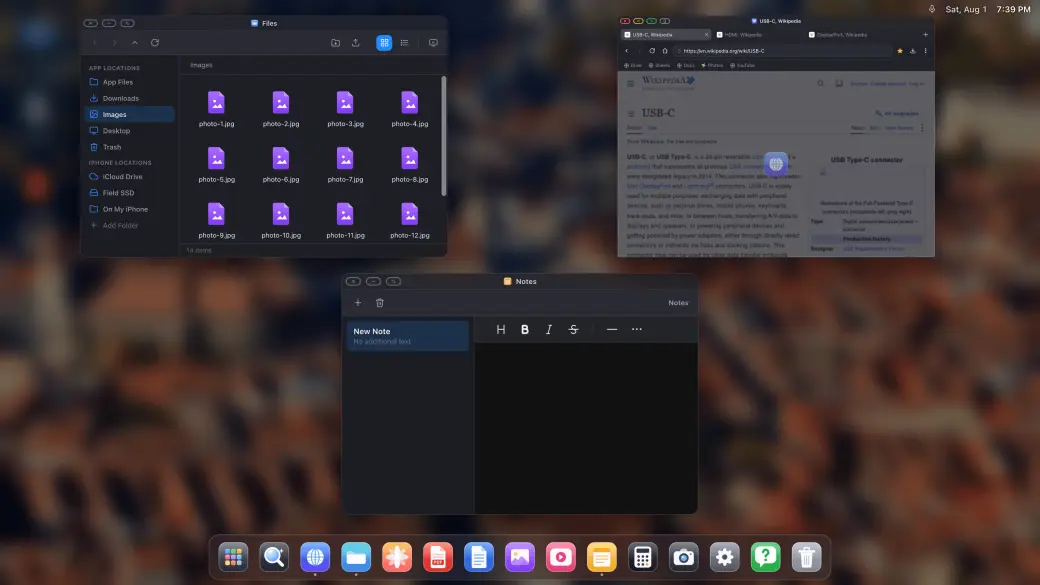
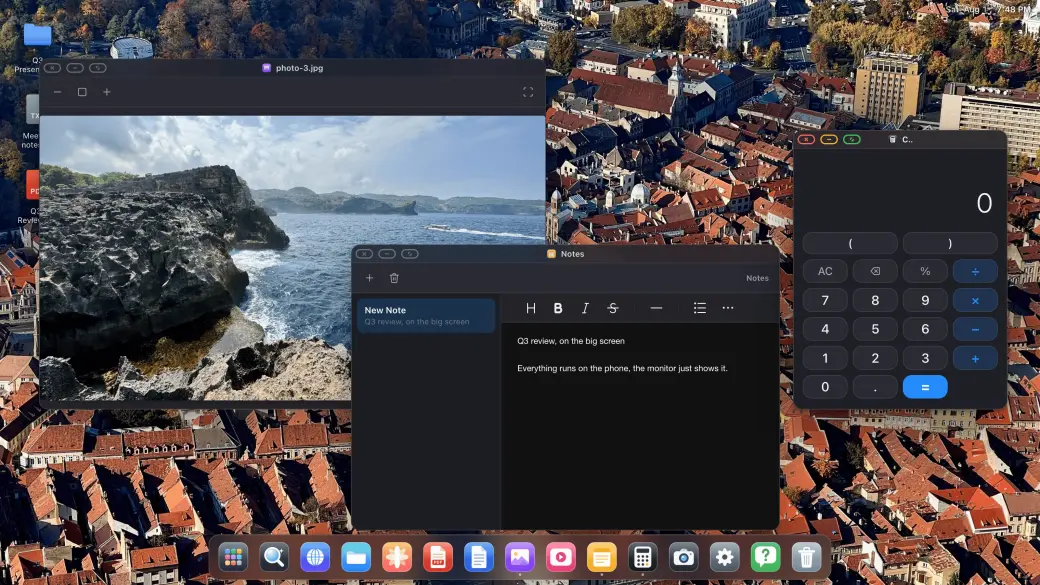
De vraies fenêtres, un vrai multitâche
De vraies fenêtres, un vrai multitâche
Glissez, redimensionnez et empilez de vraies fenêtres
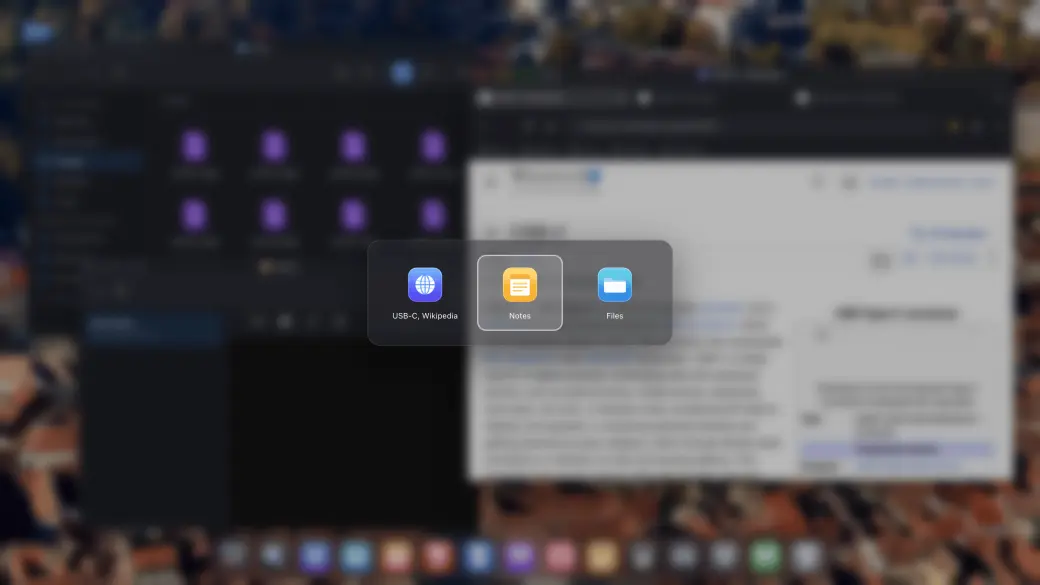
Sélecteur de fenêtres et vue d'ensemble de toutes les fenêtres
Installez n'importe quel site web comme sa propre application
Ouvrez autant de fenêtres que nécessaire et organisez-les comme sur un bureau : glissez, redimensionnez, empilez, passez en plein écran, avec une vue d'ensemble façon Mission Control de tout ce qui est ouvert.
Cloud gaming sur grand écran
Cloud gaming sur grand écran
Xbox Cloud Gaming, Amazon Luna, GeForce NOW et plus encore
Jeu sur tout l’écran externe, sans bandes noires
Associez une manette compatible et commencez à jouer
Ouvrez les services de cloud gaming compatibles dans XeOS et jouez sur tout l’écran externe avec une manette associée.
Compatible souris et clavier
⌘
C
↵
Compatible souris et clavier
Curseur de souris complet sur l'écran externe ou portable
Raccourcis, copier/coller, saisie de texte
La molette et les boutons supplémentaires de la souris fonctionnent aussi
Associez une souris et un clavier Bluetooth, et tout fonctionne : curseur, défilement, raccourcis. C'est ce qui se rapproche le plus de Samsung DeX que l'iPhone ait jamais eu.
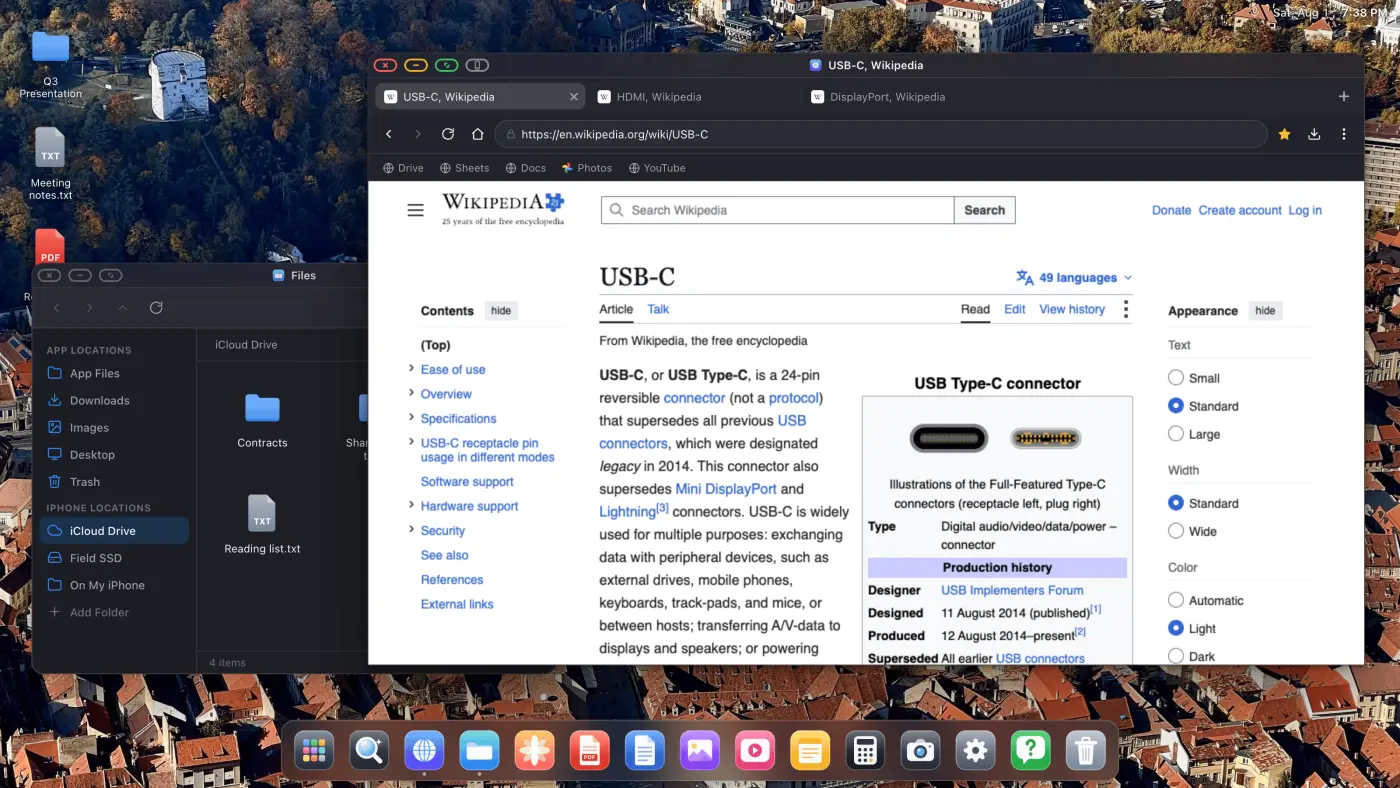
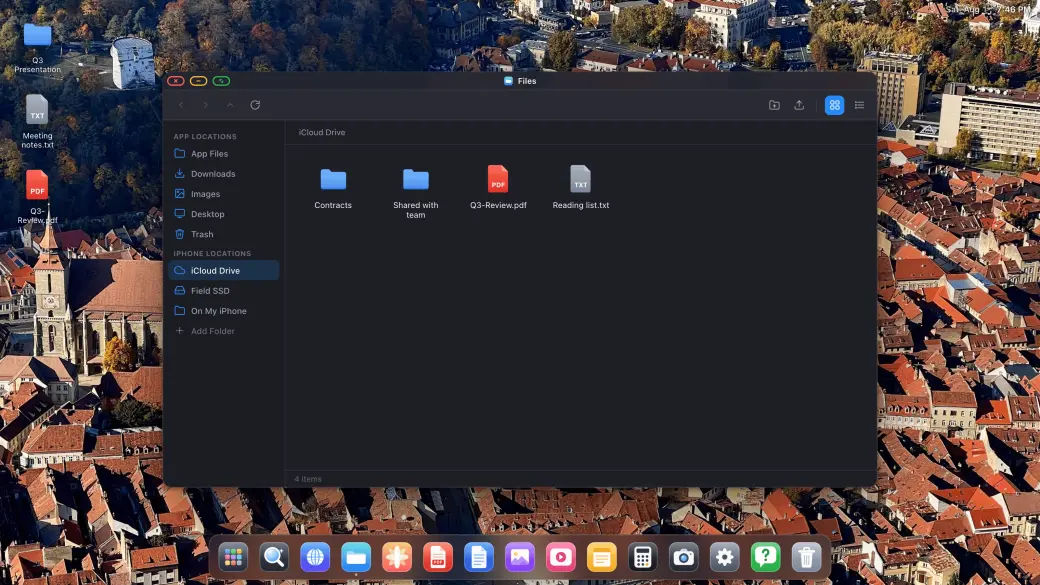
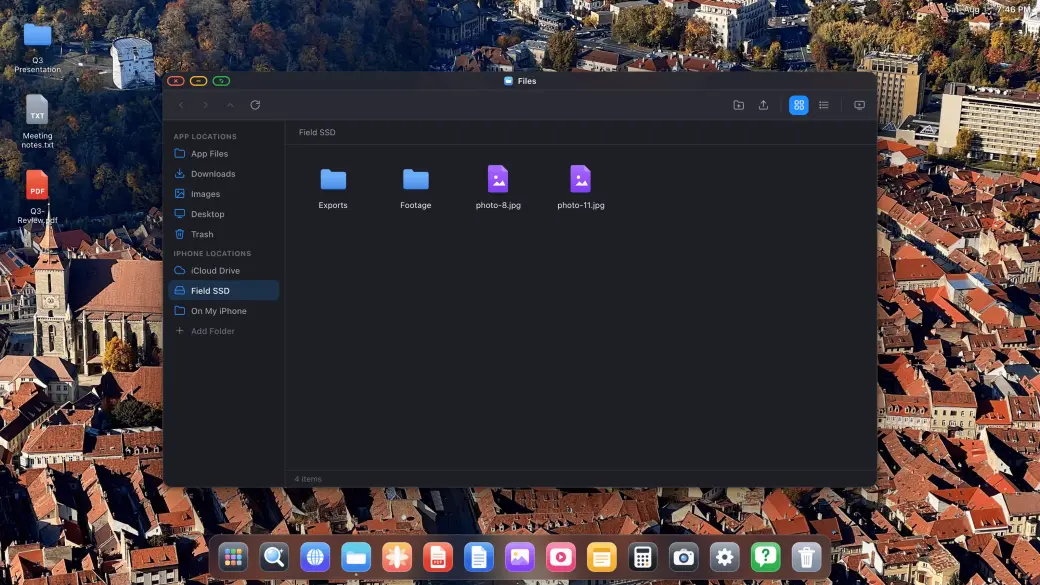
Vos fichiers, vos disques, votre iCloud
Vos fichiers, vos disques, votre iCloud
Montez iCloud Drive, des SSD externes et des dossiers locaux
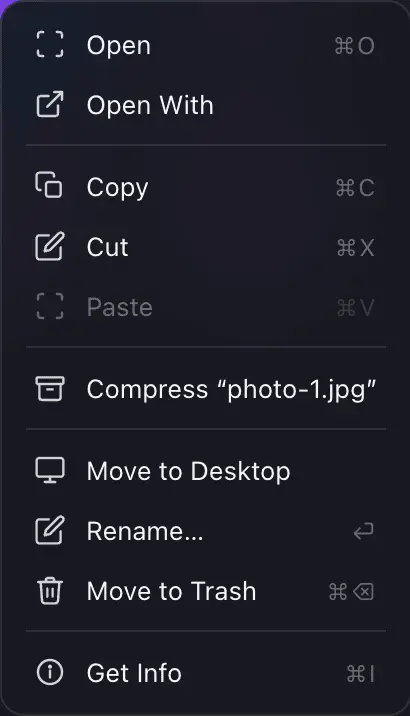
Copiez, déplacez, renommez, compressez et décompressez
Ouvrez n'importe quel fichier dans les visionneuses intégrées
Fichiers est un véritable gestionnaire de fichiers : montez votre iCloud Drive, un SSD USB-C ou un dossier de l'iPhone lui-même, puis copiez, déplacez, compressez et ouvrez n'importe quoi entre eux sur grand écran.
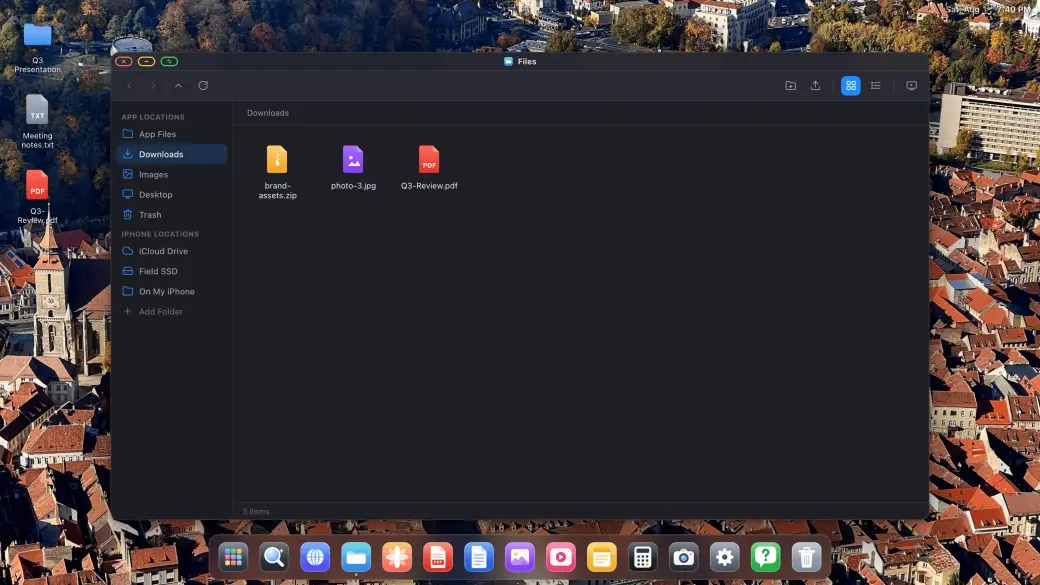
Téléchargements, PDF et fichiers Office
Téléchargements, PDF et fichiers Office
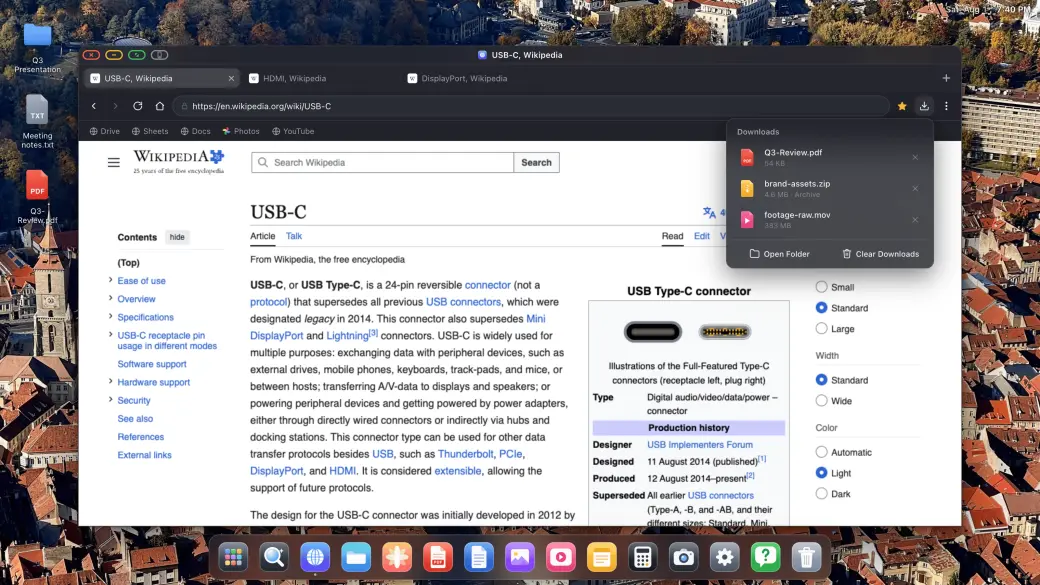
De vrais téléchargements avec suivi de progression, directement dans le système de fichiers
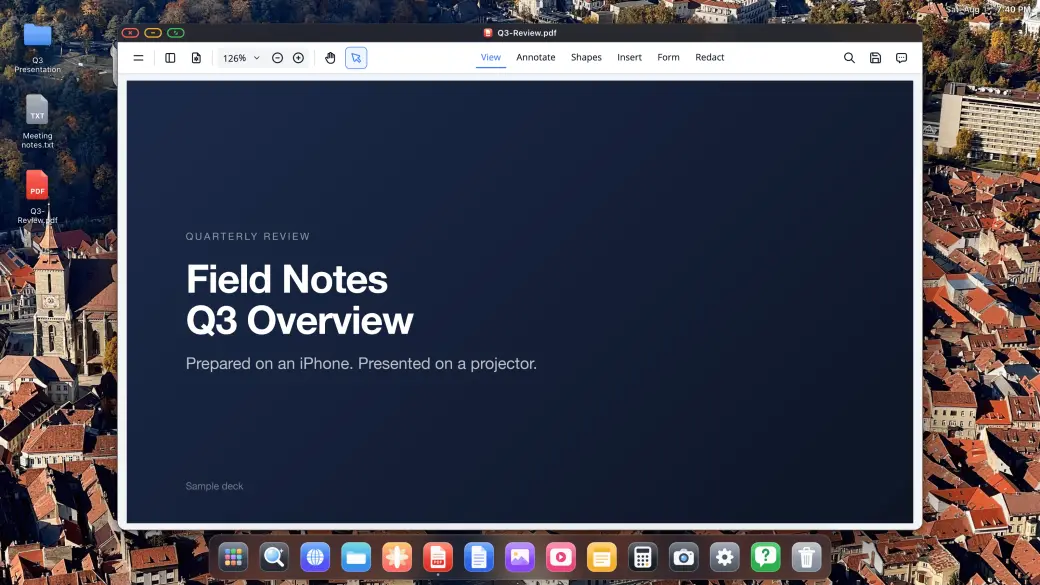
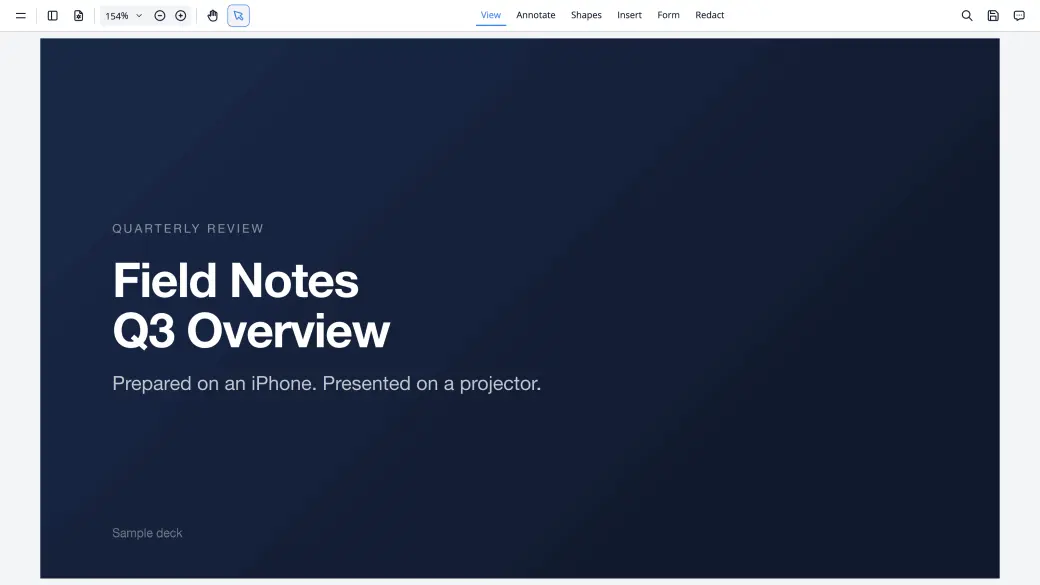
Annotez et signez des PDF, présentez-les en plein écran
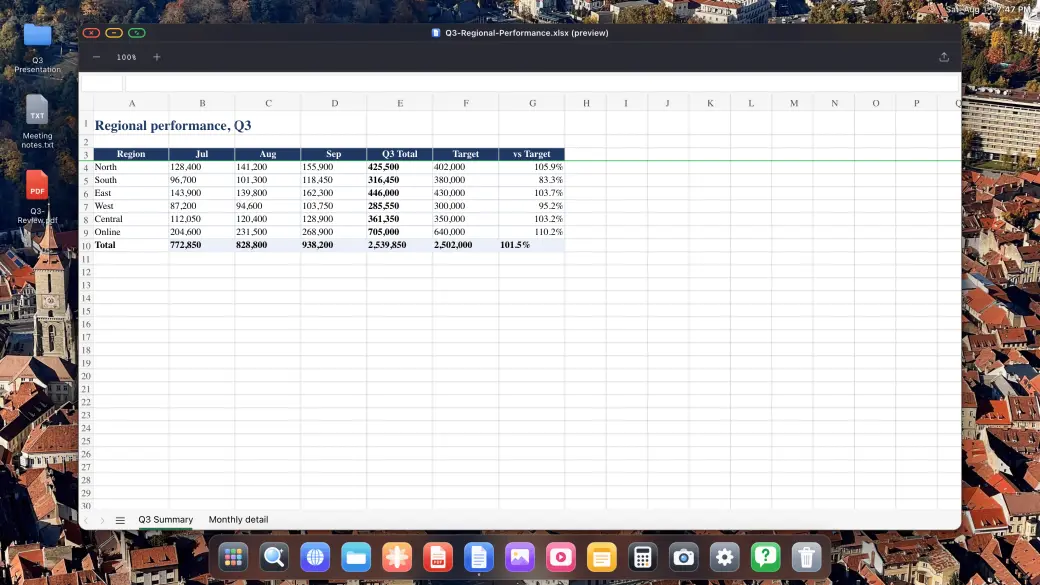
Prévisualisez des documents Word, Excel et PowerPoint
Téléchargez tout ce que le web vous propose et ouvrez-le directement : le lecteur PDF permet d'annoter et de signer, et les fichiers Word, Excel et PowerPoint s'affichent en taille bureau complète.
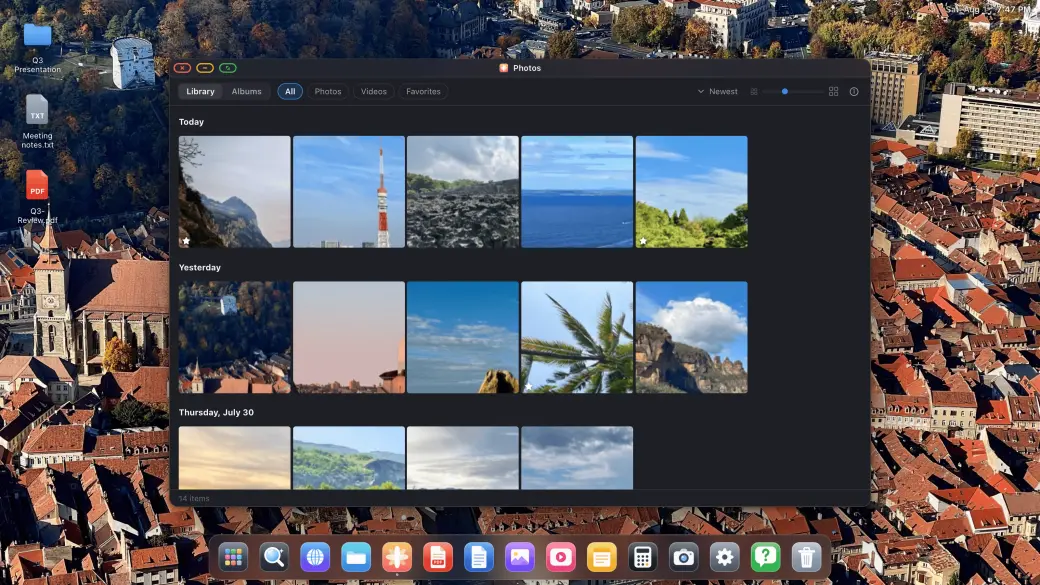
Photos, diaporamas et applications intégrées
Photos, diaporamas et applications intégrées
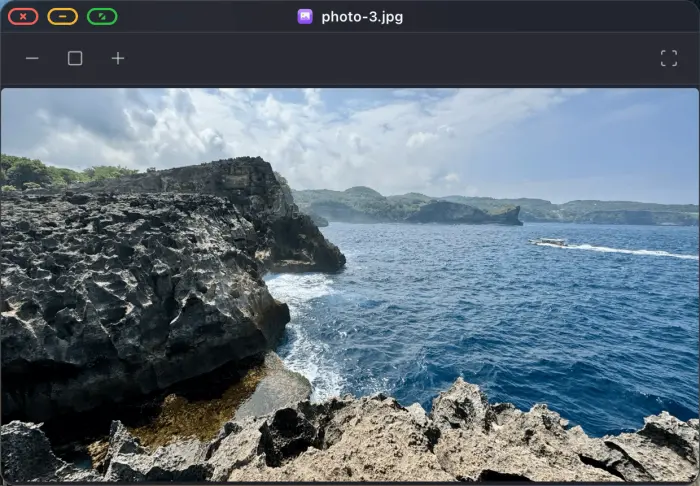
Toute votre photothèque, en diaporamas plein écran
Lecteurs d'image, de vidéo et d'audio intégrés
Notes, Calculatrice et une application Réglages complète
Votre photothèque s'ouvre sur l'écran externe, se lance en diaporama plein écran sur une TV, et les lecteurs d'image, de vidéo et d'audio intégrés, Notes et Calculatrice sont là dès que vous en avez besoin.
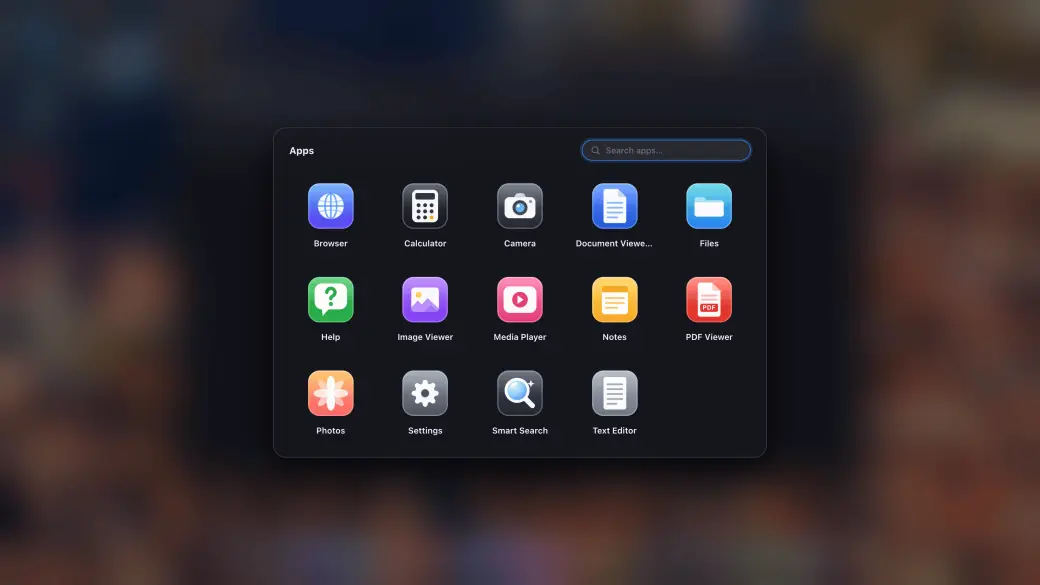
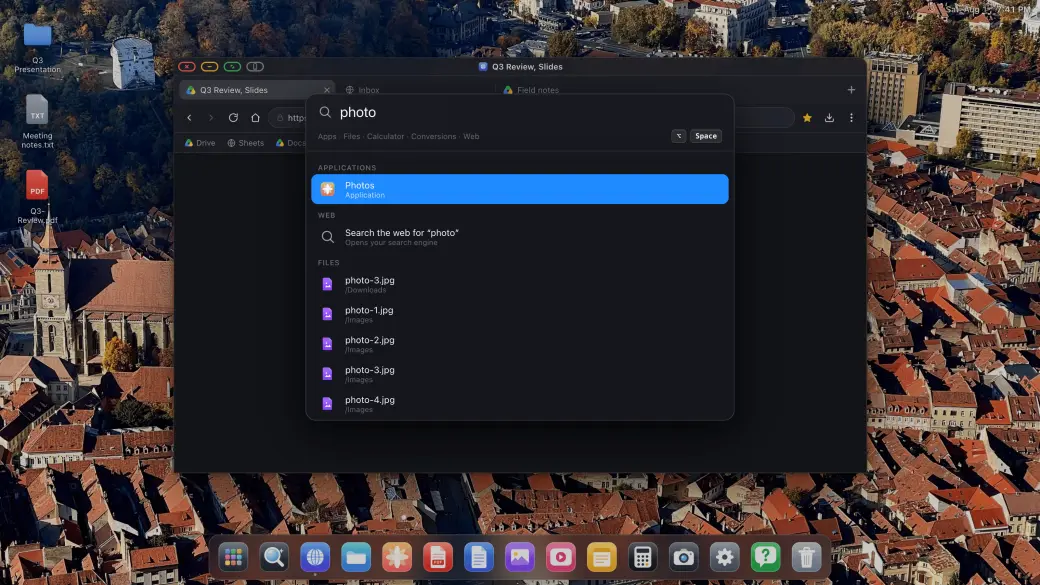
Tiroir d'applications et recherche instantanée
Tiroir d'applications et recherche instantanée
Tiroir d'applications avec vos sites installés
Recherchez fichiers, applications et le web depuis un seul champ
Épinglez tout ce que vous utilisez au dock
Le tiroir d'applications regroupe toutes les applications intégrées et tous les sites que vous avez installés comme applications, et la recherche trouve applications, fichiers et réponses instantanément, sans lever les mains du clavier.
La façon la plus simple d'obtenir une expérience de niveau bureau depuis votre iPhone
Connectez votre iPhone à un moniteur externe, un écran portable, une TV ou un projecteur, et profitez instantanément d'une expérience bureau complète : système de fichiers, applications et navigation plein écran.
Étape 1
Connectez-vous à n'importe quel écran externe ou portable
Branchez votre iPhone ou iPad sur un moniteur externe, un écran portable, une TV ou un projecteur à l'aide d'un adaptateur USB-C vers HDMI ou USB-C vers USB-C. XeOS: External Display Browser détecte automatiquement la connexion et remplit chaque pixel de l'écran.
Étape 2
Ajoutez une souris et un clavier Bluetooth (facultatif)
Associez une souris et un clavier Bluetooth pour une expérience de navigation complète sur votre écran externe, la meilleure alternative à Samsung DeX pour iPhone. Fonctionne aussi très bien avec les commandes à l'écran.
Étape 3
Profitez d'une expérience de niveau bureau
Gérez vos fichiers, annotez des PDF, prévisualisez des documents Office, lisez vos médias et naviguez plein écran. Installez vos sites préférés comme applications autonomes. Sans bandes noires, jamais.
Tout ce dont une app de niveau bureau a besoin
Conçue spécifiquement pour les écrans externes de l'iPhone, avec une suite complète d'applications et d'outils natifs.
Installez des sites comme applications et multitâchez
Installez vos sites web préférés comme applications autonomes. Faites flotter plusieurs fenêtres, glissez-les et redimensionnez-les pour garder tout ce dont vous avez besoin visible en même temps.
YouTube et vidéo, vrai plein écran
Regardez YouTube, Netflix, Twitch ou n'importe quelle vidéo en ligne en plein écran complet sur votre moniteur externe. Sans barres latérales, sans bandes noires, juste une vidéo plein écran qui remplit tout l'affichage.
Lecteurs multimédias et applications de productivité
Lecteurs photo, vidéo et audio intégrés pour vos médias. Restez productif avec les applications Notes et Calculatrice intégrées.
Système de fichiers et aperçu de documents
Un système de fichiers complet pour gérer vos téléchargements. Ouvrez et annotez des PDF, et prévisualisez des documents Word, Excel et PowerPoint directement sur grand écran.
Compatible souris et clavier
Associez une souris et un clavier Bluetooth à votre iPhone et profitez d'une expérience de navigation de bureau complète sur votre moniteur externe. Curseur, défilement, raccourcis, tout est pris en charge.
Tout moniteur externe, écran portable, TV ou projecteur
Se connecte via USB-C ou HDMI à n'importe quel moniteur externe, écran portable, TV ou projecteur. XeOS: External Display Browser s'adapte automatiquement à la résolution native de l'écran pour un affichage net, d'un bout à l'autre, que ce soit sur un poste fixe ou un écran portable en déplacement.
Cloud gaming
Jouez avec votre manette sur tout l’écran externe via des services compatibles, dont Xbox Cloud Gaming, Amazon Luna, GeForce NOW et bien d’autres.
Partage d’écran
Votre Mac dans XeOSXeOS dans n’importe quel navigateur
Partage d’écran
XeOS
Mac avec XeLink
XeOS sur iPhone
Affichez votre Mac dans XeOS
Installez XeLink sur votre Mac, puis ouvrez Partage d’écran dans XeOS. Chaque fenêtre du Mac ou un écran entier devient une fenêtre XeOS où cliquer, faire défiler et taper.
Affichez le bureau XeOS dans n’importe quel navigateur
Activez Recopier XeOS dans Partage d’écran et ouvrez son lien sur un ordinateur, une tablette, un téléphone ou l’écran d’une voiture du même Wi‑Fi. Regardez le bureau en direct et pilotez-le de là.
Ouvrir le client webSafari, Chrome, Edge, Firefox ou l’écran de la voiture · rien à installer
Tout savoir sur l'expérience bureau depuis votre iPhone
Absolument, XeOS: External Display Browser est tout simplement la meilleure façon d'utiliser votre iPhone/iPad sur un écran externe. Rien d'autre ne s'en approche. C'est une expérience totalement immersive, avec des applications personnalisées et un système de fichiers, et le navigateur web est le plus avancé et le plus riche en fonctionnalités de toutes les applications similaires. Il est vrai que les restrictions d'iOS/iPadOS entraînent quelques limitations mineures qu'aucune application ne peut contourner, mais XeOS propose aussi des solutions de contournement uniques pour ces cas. Vous pouvez en savoir plus dans les réponses ci-dessous.
Non, l'application doit respecter les règles de l'App Store d'Apple et les limitations du système iOS, donc aucune application ne peut actuellement afficher des applications iOS natives sur l'écran externe. Si Apple l'autorise un jour, nous serons les premiers à l'implémenter pour vous.
Vous pouvez prévisualiser des documents Office comme Word, Excel, PowerPoint, PDF, texte et d'autres fichiers, mais ils ne sont pas modifiables sauf dans quelques cas (par exemple, vous pouvez annoter/surligner des fichiers PDF). iOS rend cela techniquement difficile, et l'octroi de licences pour une prise en charge Office modifiable ajouterait des frais qui ne conviendraient pas à une application aussi abordable. Vous pouvez toutefois envoyer vos fichiers vers Google Drive, qui offre un excellent support, et les modifier là-bas.
Oui. Vous pouvez monter vos dossiers locaux iPhone/iPad, votre dossier iCloud ou tout disque externe connecté, depuis la barre latérale gauche de l'application Fichiers (sous Emplacements iPhone/iPad) et parcourir leur contenu. Vous pouvez aussi importer n'importe quel fichier iPhone/iPad dans le système de fichiers propre de l'application, ou télécharger des fichiers directement depuis le web, qui seront également stockés dans le système de fichiers interne de l'application. Une fois vos dossiers montés, attendez-vous à un mini-explorateur de fichiers similaire à n'importe quel système d'exploitation que vous connaissez. Il prend en charge les fichiers ZIP, les dossiers, une corbeille pour les fichiers supprimés, et bien d'autres fonctionnalités.
En raison du fonctionnement actuel d'iOS, ce que vous voyez sur l'écran externe n'est pas un environnement natif, mais une "simulation" soigneusement construite de ce que serait un système d'exploitation et un navigateur de bureau. L'application implémente toutes les fonctions du système d'exploitation depuis zéro, ce qui donne l'impression d'un environnement presque réel. Cependant, il existe des cas où des limitations apparaissent. Cela est dû aux restrictions de sécurité, au fonctionnement des navigateurs et aux décisions prises par certains sites pour bloquer les comportements simulés. Ces sites classent ce comportement simulé comme une activité de robot (ce qui, dans ce cas, n'en est clairement pas une) pour se protéger ainsi que leurs revenus. Il existe aussi des cas où des limitations proviennent de sites utilisant des technologies plus anciennes (comme les iframes) qui rendent le comportement simulé presque impossible. Pour tous ces cas, l'application propose une solution pour vous débloquer : "Passer à l'affichage iPhone" (le bouton gris à côté du bouton vert de plein écran). Cela vous fait basculer temporairement vers la recopie native de l'iPhone afin que vous puissiez effectuer l'action souhaitée, puis revenir à l'expérience totalement immersive une fois terminé.
Le navigateur interne de l'application est l'un des plus sûrs qui existent. Toute l'activité de navigation est entièrement locale, et il n'y a absolument aucune télémétrie. Toutes vos données sont également chiffrées selon les normes de sécurité les plus élevées d'Apple, et l'application utilise l'Enclave sécurisée pour les données sensibles (comme les mots de passe importés), afin que personne, y compris Apple ou même d'autres applications de votre téléphone, ne puisse les lire. Toutes ces affirmations peuvent être vérifiées via le rapport de confidentialité de l'app, et l'application est également vérifiée et signée par Apple. Vous êtes donc totalement en sécurité en utilisant ce navigateur ; en réalité, vous êtes même plus en sécurité qu'avec Chrome ou Firefox, qui envoient constamment de la télémétrie et d'autres données à leurs serveurs. Si vous activez l'AdBlock, cela rendra également votre navigation plus sûre en bloquant de nombreux scripts de traçage connus.
Oui, l'application inclut des guides pour vous accompagner dans ce processus, avec des instructions pour les navigateurs les plus populaires. Vous pouvez le faire en accédant à Réglages > Navigateur > Importer.
Les mots de passe importés sont stockés dans l'Enclave sécurisée, selon les normes de sécurité les plus élevées d'Apple. Une fois stockés, ils ne peuvent être lus par personne, pas même Apple, des tiers ou d'autres applications. Le seul moyen de récupérer un mot de passe est de naviguer vous-même vers le site concerné, votre nom d'utilisateur/e-mail et votre mot de passe étant alors remplis automatiquement.
Oui, maintenez la touche Commande enfoncée quelques secondes pour voir tous les raccourcis pris en charge. Parmi les plus utiles : CMD + Flèche haut pour afficher une vue d'ensemble des applications ouvertes, Contrôle + Espace pour ouvrir la recherche intelligente, Contrôle + Tab pour parcourir les applications ouvertes, et bien sûr de nombreux autres raccourcis auxquels vous êtes habitué. Si vous pensez qu'un raccourci courant manque, faites-le-nous simplement savoir via le support.
Oui, c'est pris en charge par l'application, bien que le processus ne soit pas aussi rapide que l'utilisation des mots de passe importés, en raison du fonctionnement d'iOS. Pour remplir automatiquement un mot de passe à l'aide d'un gestionnaire de mots de passe (comme 1Password, Chrome ou Mots de passe Apple), il suffit de toucher un champ de mot de passe, et le navigateur suggérera un remplissage automatique depuis un gestionnaire de mots de passe. Touchez la suggestion, puis basculez vers votre iPhone/iPad, où vous pourrez sélectionner le gestionnaire de mots de passe de votre choix et trouver le mot de passe. Une fois sélectionné, il sera automatiquement inséré sur votre page de connexion.
YouTube bénéficie d'une prise en charge exceptionnelle sur XeOS: External Display Browser. Vous pouvez même sauter les publicités, ce qui est désormais totalement possible ! C'est réellement la meilleure expérience YouTube que vous puissiez avoir sur un écran externe d'iPhone.
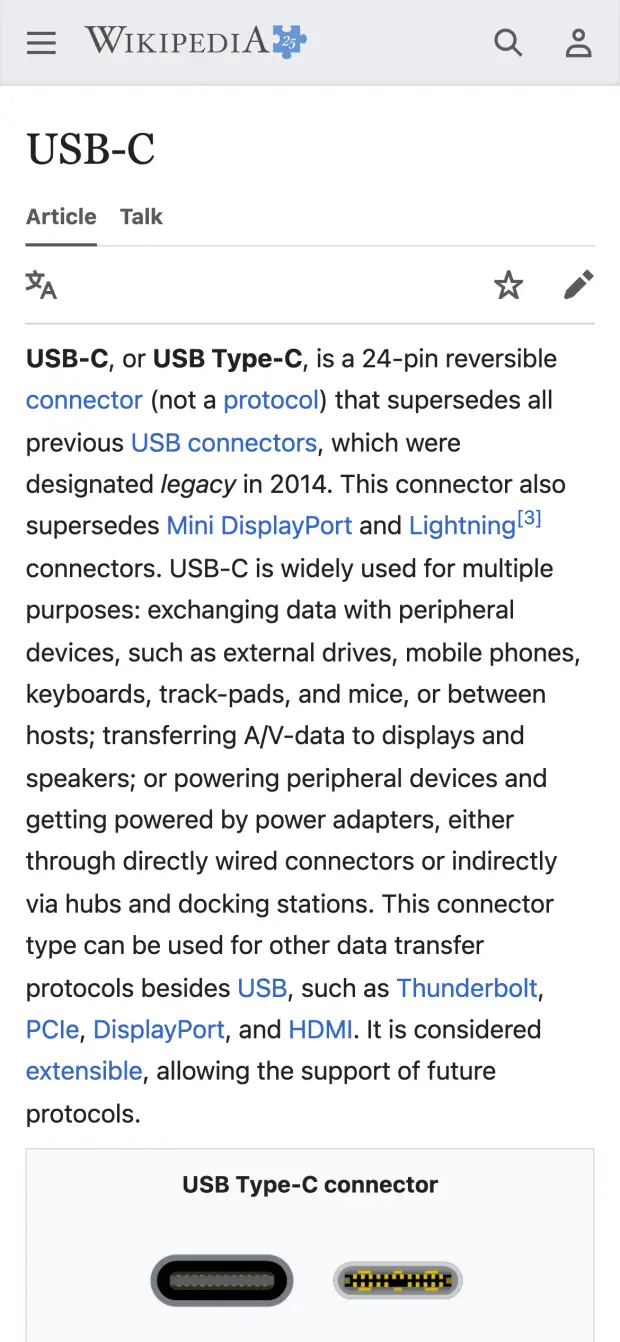
La plupart des applications iPhone, y compris Safari, sont conçues pour le format portrait de l'iPhone. Affichées sur un moniteur externe au format large, elles sont agrandies avec des bandes noires sur les côtés ou en haut/en bas pour combler l'espace inutilisé. XeOS: External Display Browser est conçu spécifiquement pour remplir tout l'écran externe en pleine résolution, d'un bout à l'autre, sans bandes noires.
Utilisez un adaptateur Lightning vers HDMI (pour les iPhone plus anciens) ou USB-C vers HDMI (pour l'iPhone 15 et modèles ultérieurs) pour connecter votre iPhone à n'importe quel moniteur, TV ou projecteur doté d'une entrée HDMI. Une fois connecté, lancez XeOS: External Display Browser qui remplit l'écran en pleine résolution.
Oui ! XeOS: External Display Browser vous permet de regarder YouTube et toute autre plateforme vidéo, Netflix, Twitch, Vimeo, Dailymotion, en vrai plein écran sur votre moniteur externe. Sans bandes noires, sans letterboxing, la vidéo remplit tout l'écran en résolution native.
Absolument. Associez n'importe quelle souris et clavier Bluetooth à votre iPhone, et XeOS: External Display Browser vous offre un curseur complet, des raccourcis clavier, la molette de défilement et le support multi-boutons de la souris, pour une véritable expérience de navigation de niveau bureau sur votre moniteur externe.
Oui. XeOS: External Display Browser inclut la prise en charge complète du microphone et de la caméra, afin que vous puissiez participer à Zoom, Google Meet, Microsoft Teams et à tout autre service de réunion basé sur le web depuis l'écran externe de votre iPhone. Votre image s'affiche en pleine qualité et votre microphone fonctionne exactement comme sur un navigateur de bureau.
XeOS est un environnement de bureau complet. Il comprend un système de fichiers complet, un aperçu de documents (Word, Excel, PowerPoint), un lecteur PDF avec outils d'annotation, des lecteurs photo/vidéo/audio, Notes, Calculatrice et une application Réglages. Vous pouvez aussi installer des sites web comme applications autonomes !
XeOS: External Display Browser fonctionne avec tous les iPhone prenant en charge la sortie vidéo : iPhone 5 et modèles ultérieurs via un adaptateur Lightning vers HDMI, et iPhone 15 et modèles ultérieurs via un câble ou hub USB-C vers HDMI ou USB-C vers USB-C. Compatible avec n'importe quel moniteur, TV ou projecteur HDMI, quelle que soit la résolution.
Oui. XeOS: External Display Browser fonctionne avec tout écran acceptant une entrée HDMI : moniteurs de bureau, téléviseurs, moniteurs portables, projecteurs, écrans de salle de réunion, et bien plus. Le navigateur s'adapte automatiquement à la résolution native de l'écran connecté pour une expérience plein écran parfaite, sans bandes noires, que vous soyez à un bureau ou que vous utilisiez un écran portable en déplacement.
La recopie d'écran affiche l'écran portrait de l'iPhone sur un moniteur au format paysage, ce qui crée des bandes noires des deux côtés. XeOS: External Display Browser envoie directement l'affichage à l'écran externe en orientation paysage et remplit chaque pixel. L'iPhone sert uniquement de contrôleur, tandis que l'expérience de navigation complète s'affiche sur l'écran externe.
Oui, c'est l'alternative ultime à Samsung DeX pour iPhone. Connectez-vous à n'importe quel écran et profitez d'une expérience de bureau complète avec gestion de fichiers, applications natives, multitâche en fenêtres et prise en charge complète de la souris/clavier.
La meilleure façon d'étendre votre iPhone vers une TV ou un moniteur externe est XeOS: External Display Browser associé à un adaptateur USB-C vers HDMI. Branchez le câble, lancez l'application, et elle remplit immédiatement tout l'écran en résolution native, sans bandes noires, sans letterboxing. Ajoutez une souris et un clavier Bluetooth, et vous obtenez une installation plein écran complète à partir de votre seul iPhone et de n'importe quel écran.
Contactez-nous à contact@qod.ee pour toute question ou remarque. Nous lisons et répondons personnellement à chaque message.
À propos d'External Display Browser
La meilleure alternative à Samsung DeX pour iPhone et iPad, avec une expérience bureau qui fonctionne vraiment !
Comment XeOS: External Display Browser élimine les bandes noires
Lorsque vous connectez un iPhone à un moniteur externe ou un écran portable, les applications standard remplissent l'espace inutilisé avec des bandes noires, car elles sont conçues pour l'écran vertical de l'iPhone. XeOS: External Display Browser affiche l'interface du navigateur pour remplir toute la résolution paysage de l'écran connecté, sans bandes noires en haut, en bas ou sur les côtés. Chaque pixel de votre moniteur externe, écran portable, TV ou projecteur est utilisé.
Fonctionnalités du navigateur plein écran pour moniteur externe iPhone
XeOS: External Display Browser regorge de tout ce dont vous avez besoin pour une expérience de navigation plein écran sur l'écran externe de votre iPhone, tout ce qu'une alternative à Samsung DeX pour iPhone devrait offrir :
•Navigation plein écran, sans bandes noires, sur n'importe quel moniteur externe, TV ou projecteur, en résolution native
•YouTube, Netflix, Twitch et toutes les plateformes vidéo en ligne en vrai plein écran sur l'écran externe
•Zoom, Google Meet, Microsoft Teams et réunions web avec prise en charge complète de la caméra et du microphone
•Téléchargez n'importe quel fichier depuis le navigateur et ouvrez des PDF, des documents Word/Excel/PowerPoint et des images/vidéos/audio
•Prise en charge complète de la souris et du clavier Bluetooth pour un contrôle de niveau bureau du navigateur sur l'écran externe de l'iPhone
•Détection automatique de la résolution, s'adapte à n'importe quelle résolution de moniteur, TV ou projecteur HDMI
•Fonctionne avec tous les modèles d'iPhone prenant en charge la sortie vidéo, via des adaptateurs Lightning vers HDMI, USB-C vers HDMI ou USB-C vers USB-C
•iPhone XeOS: External Display Browser d'un bout à l'autre, sans pillarboxing, letterboxing ni bandes noires
•Moteur de navigateur iOS natif, rapide, conforme aux standards et respectueux de la vie privée
Prêt à débloquer l'expérience bureau de votre iPhone ?
Téléchargez XeOS et transformez instantanément n'importe quel moniteur, TV ou projecteur en un poste de travail puissant. La meilleure alternative à Samsung DeX pour iOS.
Système de fichiers • Applications de documents et multimédia • Applications web installables • Plein écran
App Privacy Policy
Last updated: August 13, 2026
1. Introduction
This Privacy Policy applies to XeOS (the "App"), an iPhone Desktop Mode app designed to deliver a full-screen, no-black-bars desktop experience on external monitors, TVs and projectors. The App is developed and operated by a solo independent developer. Your privacy is our top priority, the App is architected from the ground up to collect no personal data and to keep everything on your device.
2. Summary: Your Privacy at a Glance
XeOS: External Display Browser does not collect, store, transmit or share any personal information or data. There are no user accounts, no advertising SDKs, no crash-reporting services, and no third-party tracking of any kind embedded in the App.
No personal information collected
No browsing history recorded or transmitted
Nothing you do on your external display is tracked
No advertising identifiers used
No user accounts or sign-in required
All App preferences stored locally on your iPhone only
Anonymous, general app-usage data may be stored, in line with Apple's guidelines
Verifiable anytime via the App Privacy Report
3. Full-Screen Browsing & External Display
The core feature of the App is rendering a full-resolution browser on an external display connected via USB-C or HDMI. The App uses Apple's native WKWebView to render web content at the full resolution of the connected screen, corner to corner, with zero black bars. All web content is fetched directly by your device using your own internet connection (Wi-Fi or cellular). No browsing activity, visited URLs, page content or interaction data is recorded, logged or sent anywhere by the App.
4. Camera & Microphone (Meetings & Calls)
The App supports web-based video meetings (e.g. Zoom web, Google Meet, Microsoft Teams) on your external display. When you access a website that requests camera or microphone access, iOS will prompt you for permission as it does in any browser. Camera and microphone streams are handled entirely by the underlying web page and Apple's WebKit framework, the App itself never records, stores, processes or transmits any audio or video. Permissions can be revoked at any time in iOS Settings → Privacy & Security → Camera / Microphone.
5. File Downloads & PDF Viewing
XeOS lets you download files (PDFs, images, documents, etc.) from websites you visit. Downloaded files are saved securely and are accessible through the XeOS File System and the iOS Files app. The App does not transmit downloaded files to any external server, index their contents, or retain any record of your downloads. Files remain entirely under your control on your device.
6. Mouse & Keyboard Support
The App supports Bluetooth mouse and keyboard input to deliver a desktop-class browsing experience on your external monitor. Mouse movements, clicks, scroll events and keyboard input are processed locally on your device by Apple's UIKit/WebKit. No input is logged, recorded or transmitted by the App at any point.
7. Built-in Ad Blocker
The App includes a built-in ad blocker to enhance your browsing experience and protect your privacy while browsing on an external display. The ad blocker uses local content-blocking filter lists that are applied entirely on-device via Apple's iOS API. No browsing data is sent to any ad-blocking service or third party. The filter lists are bundled with the App and may be updated via normal App Store updates.
8. Local Storage & App Preferences
Any preferences you set within the App (such as display settings or browser preferences) are stored solely in local device storage (UserDefaults or equivalent). This data never leaves your iPhone and is not synced to any cloud service or external server by the App. Website data such as cookies and local storage from pages you visit are managed by Apple's WebKit on-device, consistent with standard iOS browser behavior.
9. Usage Data Shared with Apple
To help us understand how the App is performing and where it can be improved, basic usage information may be shared between the developer and Apple through Apple's own developer platforms. This exchange happens directly between the developer and Apple, no outside third party is involved, and the data is never sold or passed on to anyone else. By using the App, you agree to this usage data being shared with Apple in this way.
10. Anonymous Usage
In some cases, the App may store completely anonymous, general app-usage information, in line with Apple's own guidelines, for example how many people use the App, or where they might get stuck during setup, so we can keep improving the experience. This data cannot be linked back to you in any way and is limited strictly to how the App itself is used. Nothing you do on your external screen is tracked. And this can always be verified by anyone using Apple's App Privacy Report.
11. App Store & Purchases
The App is distributed through Apple's App Store. Any purchases or payment transactions are handled entirely by Apple. The developer does not receive or process your payment details. Apple's own Privacy Policy governs data collected during App Store transactions. Please refer to Apple's Privacy Policy for details.
12. Third-Party Websites
XeOS is a comprehensive Desktop Mode environment. When you navigate to any website or install a site as an app (YouTube, Netflix, Zoom, Google, etc.), that website's own privacy policy and data practices apply. The App developer has no control over and takes no responsibility for the content or privacy practices of third-party websites you choose to visit. The App itself adds no tracking layer on top of your usage.
13. Children's Privacy
The App does not collect any personal information from users of any age, including children under 13. Since no data is collected, the App complies with COPPA and equivalent regulations by design.
14. Changes to This Policy
If this Privacy Policy is updated, the new version will be posted on this page with a revised "Last updated" date. Continued use of the App after any changes constitutes acceptance of the updated policy. Significant changes will be communicated via App Store release notes.
15. Contact
Questions about this privacy policy or how the App handles data? , we personally read and respond to every message.











 XeOS