 External Display BrowseriPad4 min de lectura
iPad con pantalla externa sin Stage Manager: pantalla completa en cualquier modelo
Si tu iPad no tiene un chip serie M, Apple te da exactamente una opción en un monitor externo: el duplicado. No hay forma de extender el escritorio en lugar de duplicarlo, así que lo que llega al monitor es una copia de la pantalla de tu iPad, con la forma de tu iPad, en un panel que no tiene esa forma. Esto es por qué pasa eso, y cómo conseguir un escritorio a pantalla completa en cualquier iPad sin importar lo que tenga dentro.
La situación de Stage Manager, en breve
Cuando llegó Stage Manager, el soporte para pantalla externa vino con él, y luego se limitó solo a los iPads con M1 en adelante. Todo lo que quedaba por debajo de esa línea se quedó con el duplicado básico. Años después, sigue siendo así:
| iPad | Pantalla externa |
|---|---|
| iPad Pro / Air serie M | Stage Manager: escritorio extendido, ventanas de verdad |
| iPad Pro serie A (2018, 2020…) | Solo duplicado |
| iPad Air (previo a M1), iPad, iPad mini | Solo duplicado |
Un iPad Pro de 2020 es una máquina rápida con un puerto USB-C que puede controlar una pantalla 4K. Simplemente no se le permite poner nada distinto en esa pantalla. Es una línea de software y no de hardware, que es lo que lo hace irritante.
Por qué el duplicado se ve mal en un monitor
Un iPad es 4:3 y un monitor es 16:9. El duplicado le da al monitor una imagen 4:3 y el monitor la enmarca con bandas verticales, negro a ambos lados, a veces un tercio del panel. Todo dentro de ese recuadro está entonces escalado para una tableta sostenida con el brazo extendido en lugar de una pantalla al otro lado de un escritorio.
No puedes arreglarlo en iPadOS, porque iPadOS no está dibujando para el monitor. Duplica la propia pantalla de la tableta.
La solución: una app que dibuja su propio escritorio
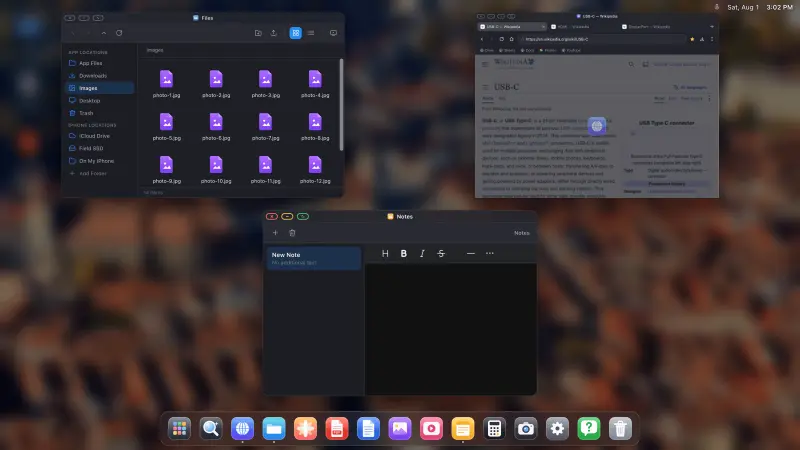
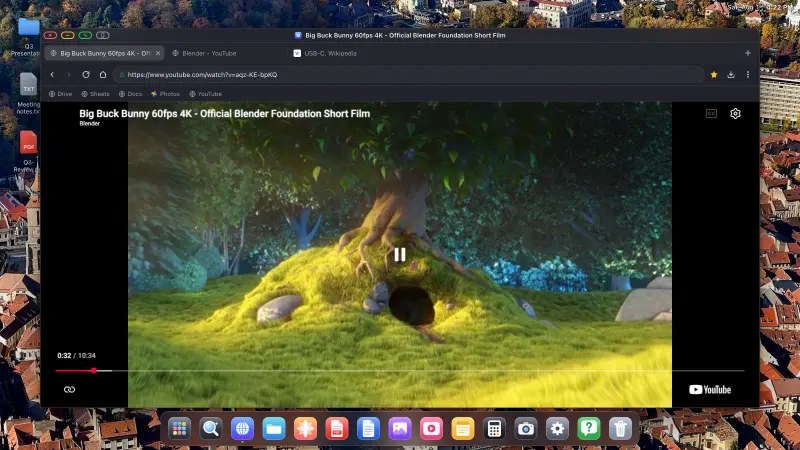
XeOS: External Display Browser no duplica. Toma el control de la pantalla externa y renderiza un escritorio a la propia resolución del monitor, así que un monitor 16:9 obtiene un escritorio 16:9, de borde a borde. La propia forma 4:3 del iPad deja de ser relevante para lo que aparece ahí.
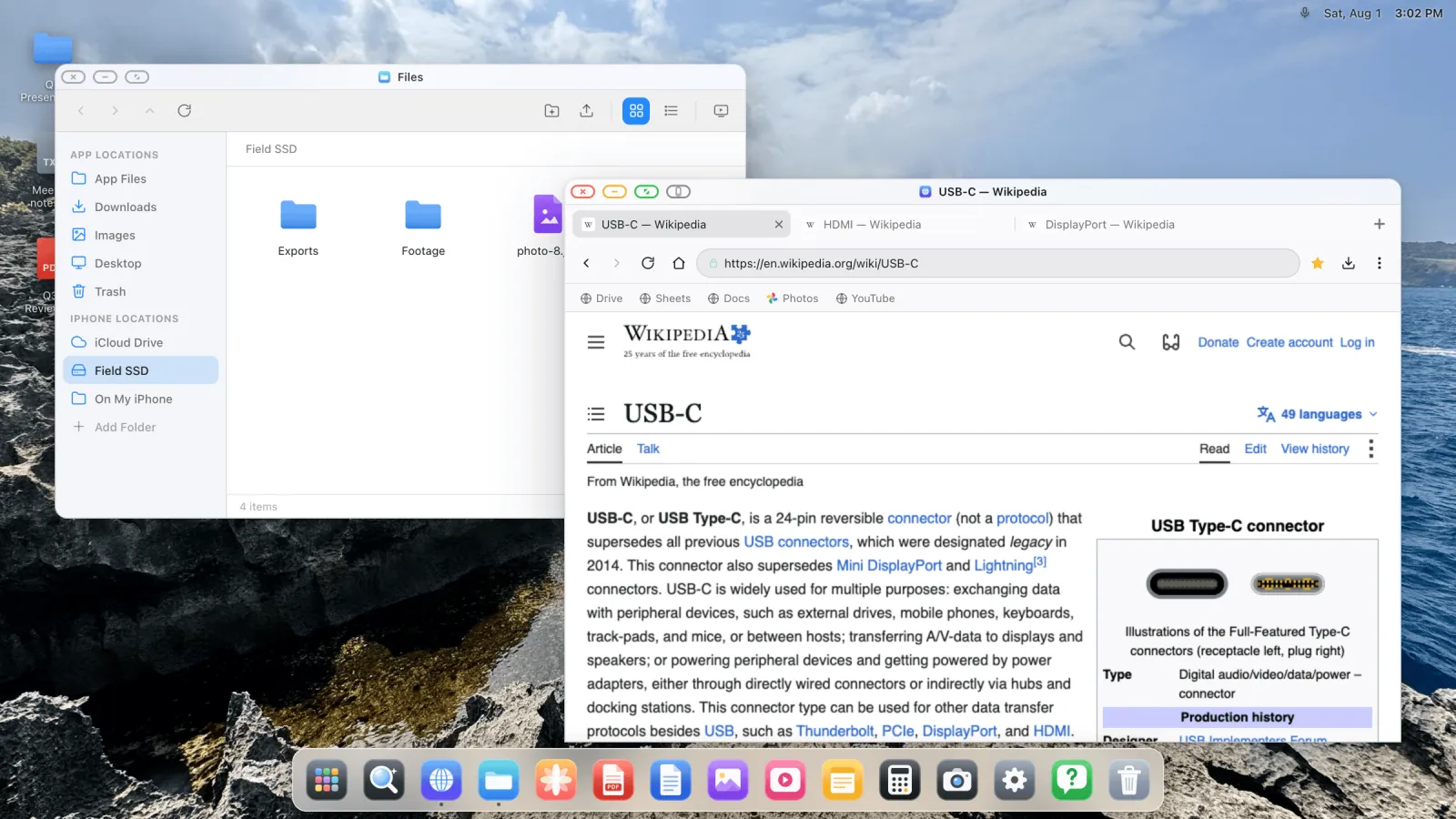
Como dibuja su propio entorno, nunca le pide Stage Manager a iPadOS y no le importa qué chip tengas. Cualquier iPad que pueda sacar vídeo obtiene el mismo resultado.
Qué obtienes
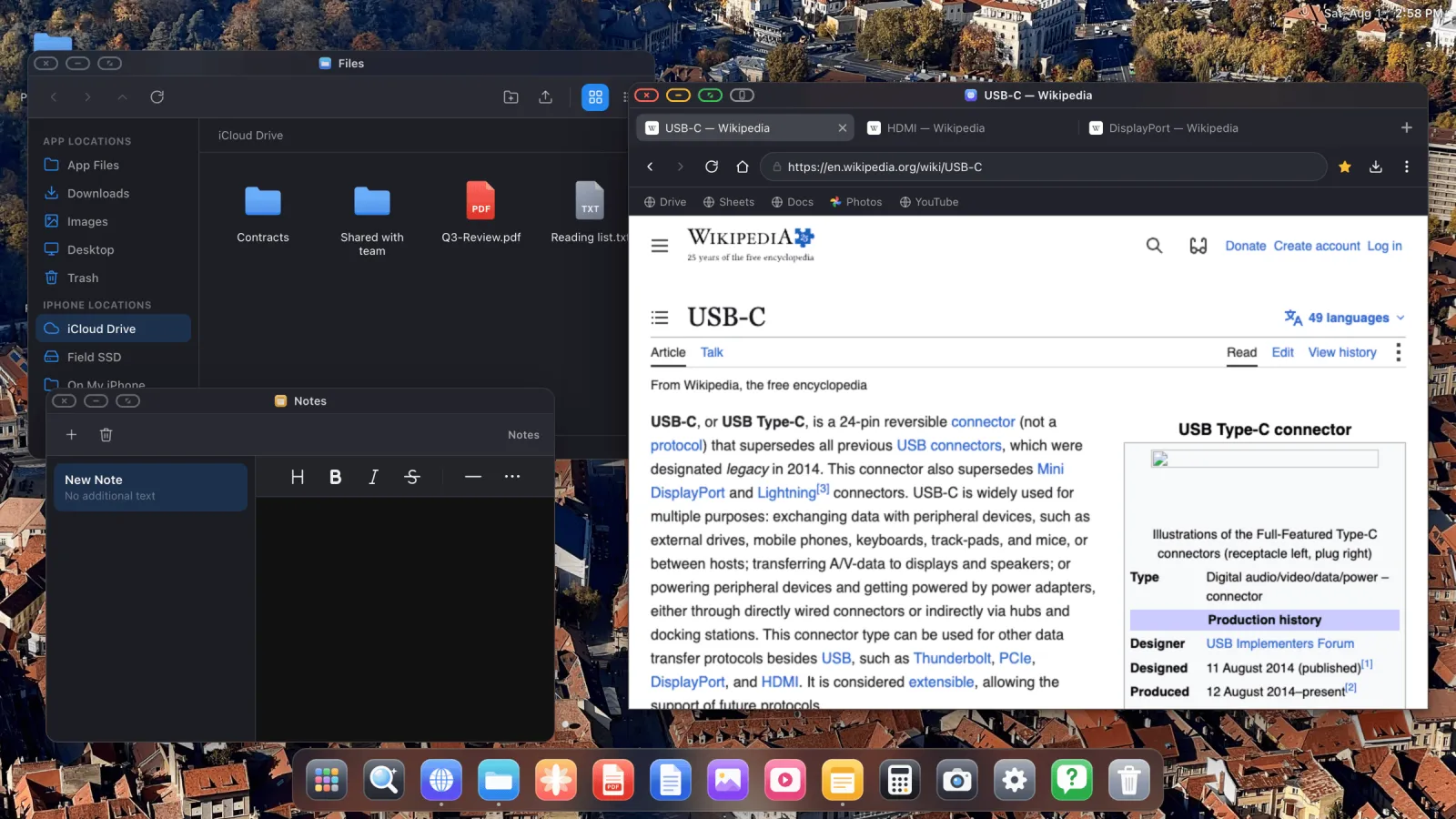
- Ventanas que puedes mover, redimensionar, ajustar a los bordes y poner a pantalla completa, varias a la vez.
- Un navegador de escritorio con pestañas, barra de marcadores, descargas, contraseñas guardadas, modo lectura y un bloqueador de anuncios integrado.
- Un gestor de archivos que monta carpetas de iCloud Drive, carpetas del propio iPad, y unidades USB externas.
- Un visor de PDF completo con anotación, más vista previa de archivos de Office.
- Una app Fotos con un pase de fotos a pantalla completa.
- Sitios web instalables en el dock, cada uno con su propio icono y ventana.
Configurarlo
- Conecta el iPad a la pantalla. USB-C a HDMI, USB-C a USB-C, o un adaptador multipuerto si además quieres corriente y un puerto USB. AirPlay también funciona.
- Abre XeOS. Detecta la pantalla y recorre la configuración.
- Elige la resolución que indica el monitor y ajusta la escala del contenido para tu distancia de visión.
- Empareja un ratón y un teclado Bluetooth, o usa la pantalla del iPad como trackpad.
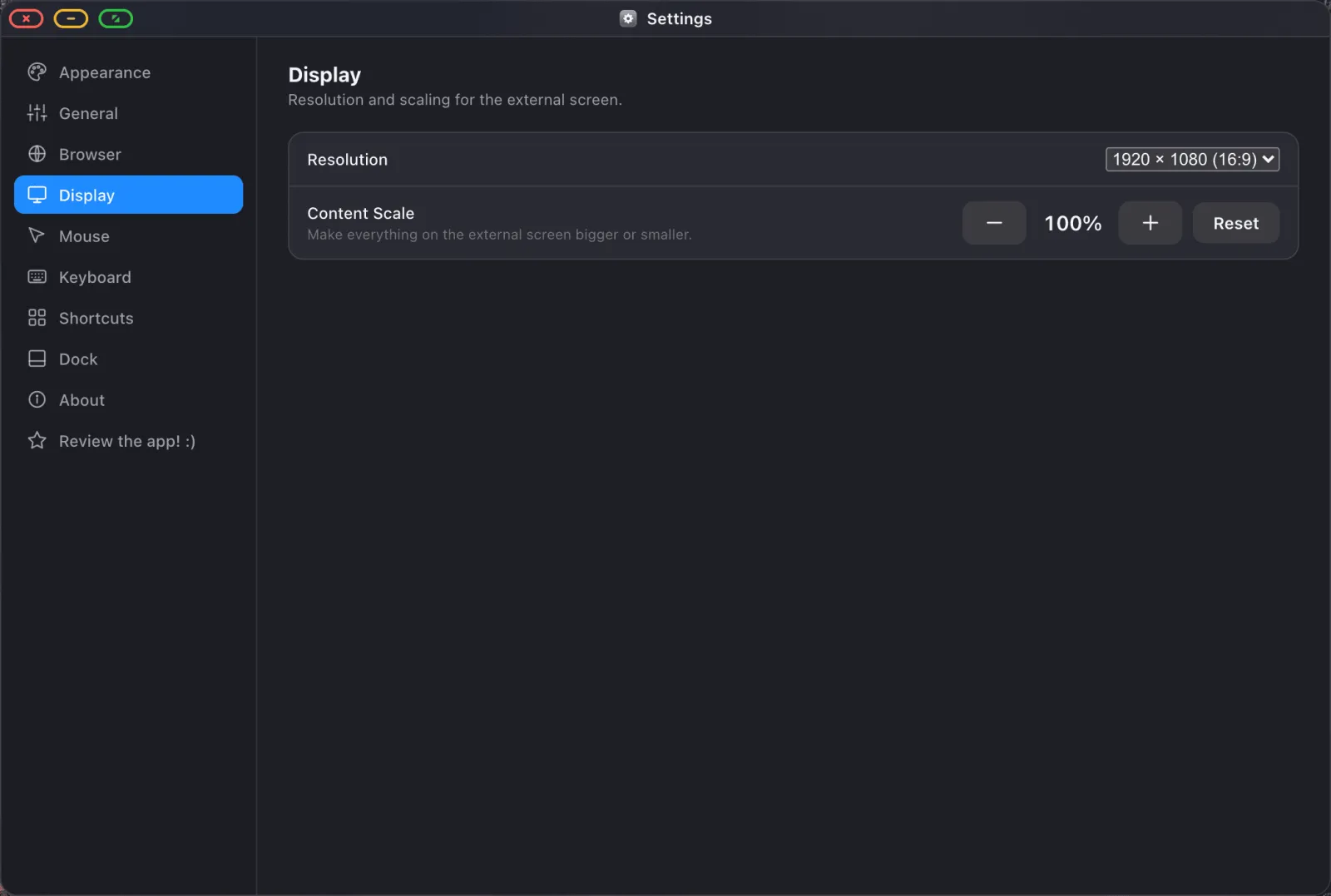
El recorrido completo está en la guía de configuración.
Notas específicas de iPad
La vista general de ventanas es Option ↑ en iPad en lugar de Ctrl ↑, porque iPadOS reserva la combinación con Ctrl. La pantalla más grande de un iPad también hace que la alternativa de pantalla como trackpad sea lo bastante cómoda como para que puedas prescindir de llevar un ratón si quieres. Y un Magic Keyboard, o cualquier teclado Bluetooth, funciona con normalidad: lo que escribes va al campo que tenga el foco en la pantalla externa.
Lo que no es
Es un entorno de escritorio en lugar de iPadOS en un monitor. Tus otras apps de iPad no se ejecutan dentro. Lo que funciona es el navegador, las apps integradas, y cualquier sitio web que instales. Para mucho trabajo eso es todo lo que hace falta. Si necesitas específicamente Procreate o Final Cut en una pantalla grande, esto no es eso.
Y algunos elementos de página incrustados, avisos de consentimiento, ciertos marcos de inicio de sesión y pago, no aceptarán un clic desde la pantalla externa, porque el motor del navegador de iOS refuerza los marcos de otro dominio contra la entrada programática. Hay una solución de un solo toque integrada, descrita en la guía del modo de diseño del dispositivo.
XeOS: External Display Browser le da a cualquier iPad un escritorio a pantalla completa en cualquier monitor, sin Stage Manager, sin necesitar chip serie M.
Preguntas frecuentes
¿Funcionará en un iPad Pro de 2018?
Sí. Cualquier cosa que pueda sacar vídeo a una pantalla funciona.
¿Necesita tener Stage Manager activado?
No, no usa Stage Manager en absoluto.
¿Puedo usarlo también en un iPad serie M?
Sí. Algunas personas lo prefieren ahí por el navegador a pantalla completa y el bloqueador de anuncios integrado.
¿Se cargará el iPad mientras esté conectado?
Solo si la conexión lleva corriente. Eso significa un adaptador multipuerto con carga de paso, o un monitor USB-C que suministre corriente.
Más del blog
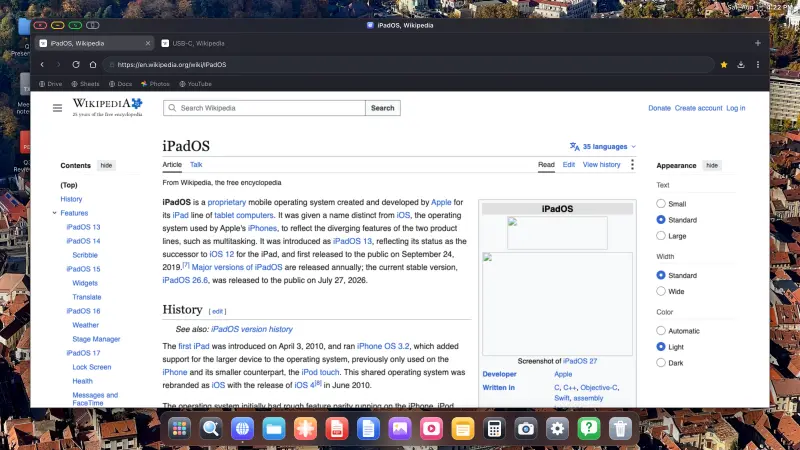
Prueba XeOS: External Display Browser
Pantalla completa en cualquier monitor externo, tele o pantalla portátil. Sin bandas negras. Descárgalo en el App Store.
