
 External Display BrowserAlternativa a DeX4 min de lectura
Ahora hay una alternativa real a Samsung DeX para iPhone
Conecta un Galaxy a un monitor y Samsung DeX te da una barra de tareas, ventanas redimensionables y un cursor. Conecta un iPhone y iOS te da un duplicado. Apple todavía no ha lanzado un modo escritorio, pero el hueco ya no es insalvable: hay una app que pone un escritorio con ventanas en la pantalla externa.
Lo que te da DeX
DeX pone un escritorio con ventanas en la pantalla externa cuando conectas un Galaxy compatible. Barra de tareas, ventanas de app redimensionables, un cursor para cualquier ratón Bluetooth o USB, atajos de teclado. Está lo bastante cerca de un portátil como para que mucha gente lo use como tal, y por eso «¿hay un DeX para iPhone?» se pregunta cada año desde 2017.
Lo que te da iOS en su lugar
Duplicado. La pantalla vertical del teléfono escalada, con bandas negras rellenando los lados de un panel 16:9. Todo se queda como está en el teléfono: una app a la vez, un navegador vertical, y el tacto como única forma de entrada. Está más cerca de un envío de contenido que de un escritorio, y ningún ajuste lo cambia, porque iOS no está dibujando nada para el monitor. Duplica lo que el teléfono dibuja para sí mismo.
Apple restringe lo que las apps pueden hacer con pantallas externas, que es por lo que casi nada en el App Store siquiera lo intenta. XeOS usa lo que iOS sí permite, y dibuja un entorno completo dentro de eso.
Cómo XeOS cierra el hueco
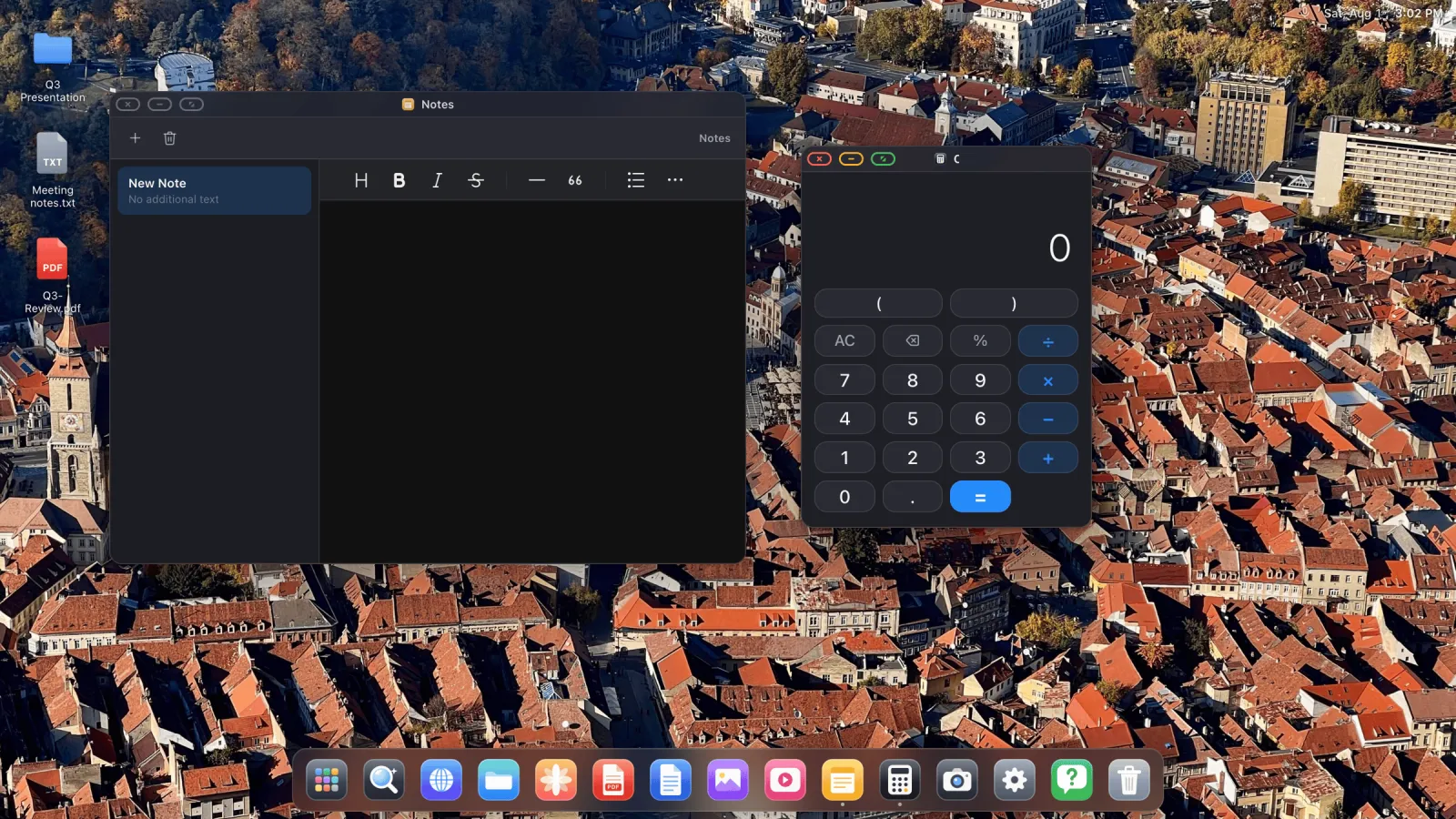
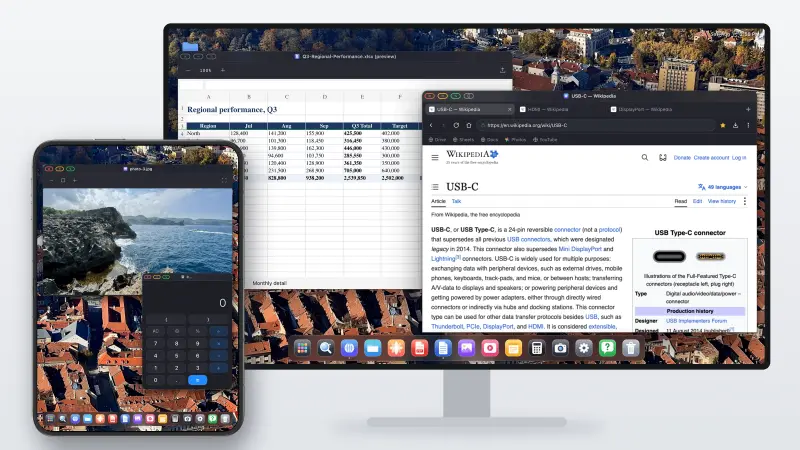
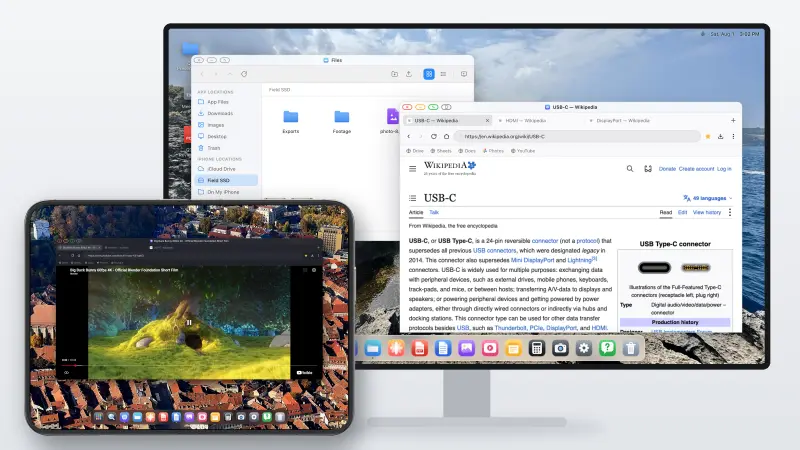
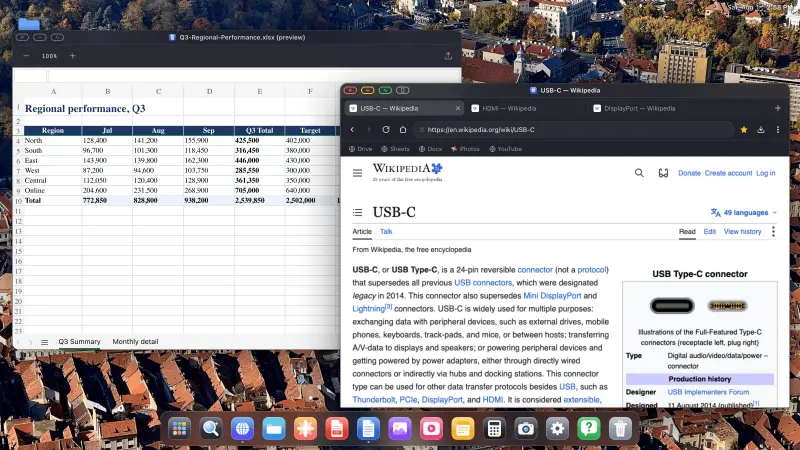
En lugar de duplicar, XeOS: External Display Browser renderiza su propio escritorio a la resolución nativa de la pantalla y controla la pantalla directamente. El teléfono se queda en tu mano como trackpad, o desaparece por completo en cuanto emparejas un ratón.
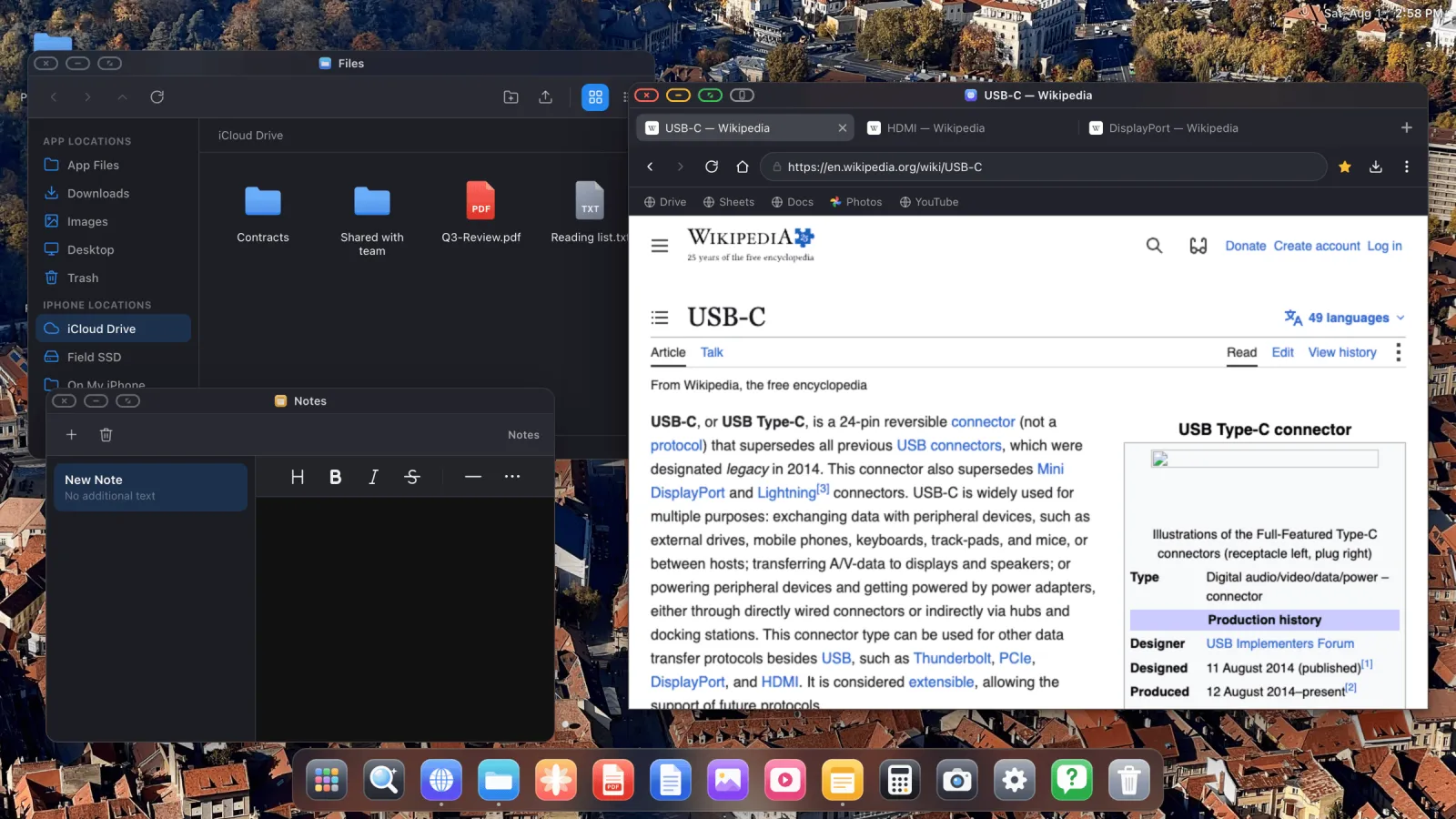
- Un navegador de escritorio con pestañas, barra de marcadores, descargas, contraseñas guardadas, modo lectura, y un bloqueador de anuncios activado por defecto.
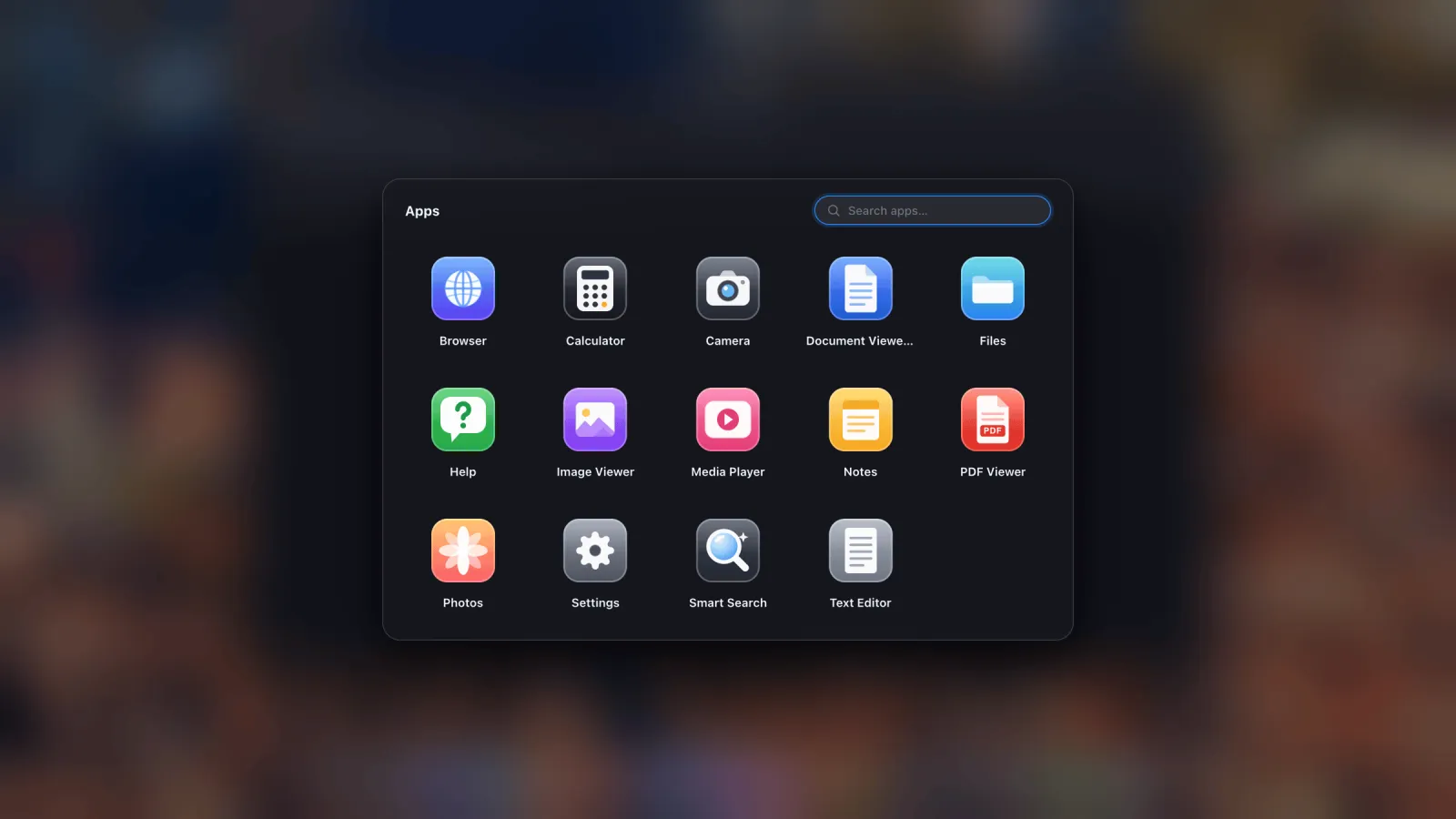
- Apps integradas: Archivos con papelera y soporte de zip, Fotos leyendo tu biblioteca de iOS, un visor de PDF con anotación, vista previa de documentos de Office, Notas, Calculadora, Cámara, un reproductor multimedia.
- Sitios web instalados como apps, así que Gmail, Sheets o YouTube viven en el dock con sus propios iconos y ventanas.
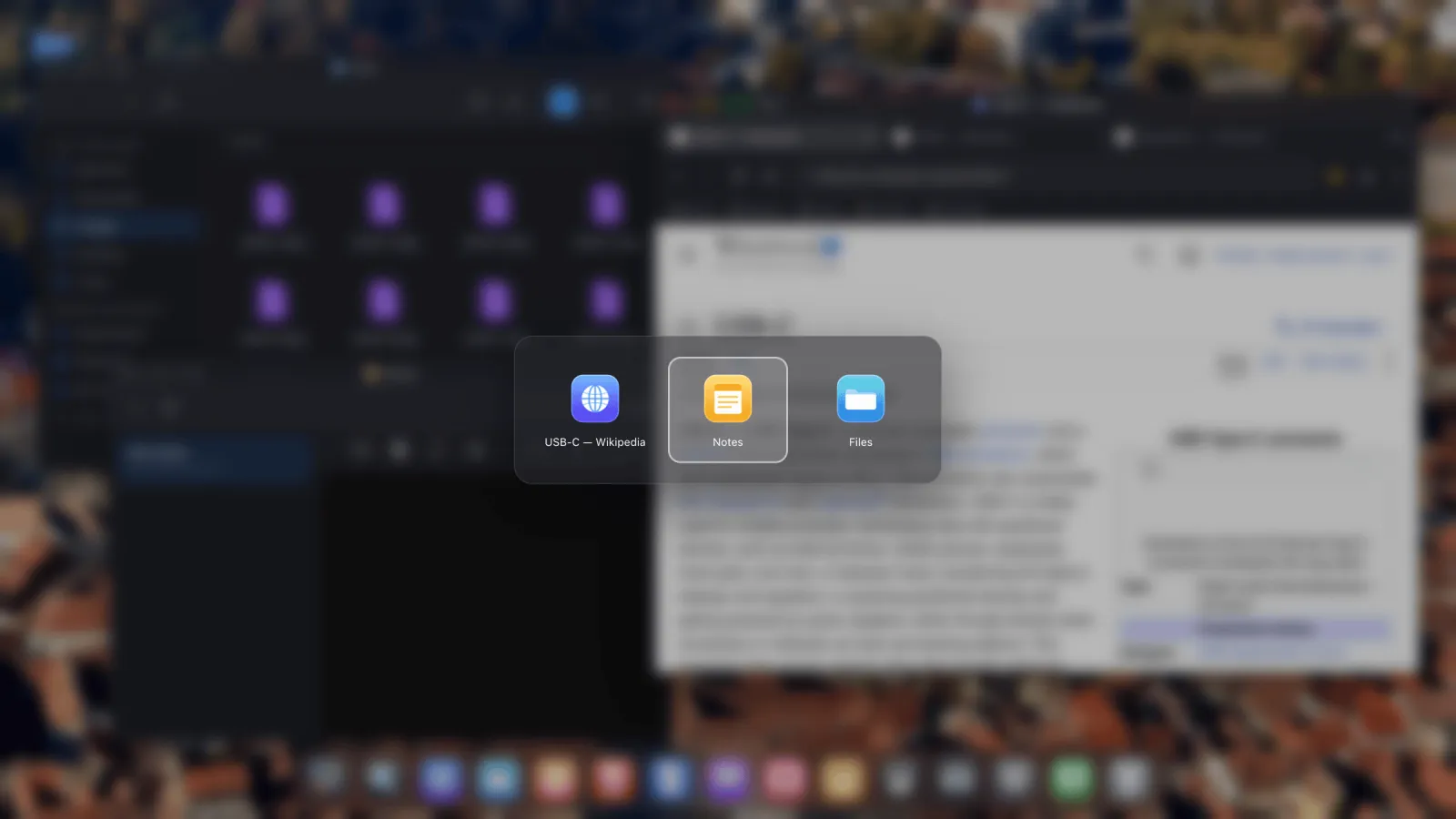
- Ratón, teclado y atajos. Cursor, rueda de desplazamiento, atajos con ⌘, un selector de apps y una vista general, todo cubierto en la guía de entrada.
- Sesiones que sobreviven a un reinicio, así que las ventanas y los inicios de sesión vuelven donde los dejaste.
Comparación directa
| Función | Samsung DeX | XeOS en iPhone/iPad |
|---|---|---|
| Pantalla externa a pantalla completa | Sí | Sí |
| Ventanas redimensionables y superpuestas | Sí | Sí |
| Cursor de ratón y atajos de teclado | Sí | Sí |
| Navegador de escritorio con funciones de nivel extensión | Sí | Sí, más un bloqueador de anuncios integrado |
| Gestor de archivos con unidades externas | Sí | Sí, iCloud, carpetas del teléfono y unidades USB |
| Tus otras apps del teléfono en la pantalla grande | Sí | No, iOS no permite que ninguna app aloje a otra |
| Videollamadas con cámara y micrófono | Sí | Sí, mediante los clientes web |
| Funciona en iPhone | No | Sí, y en iPad sin chip serie M |
La sexta fila es la que los separa. DeX forma parte del sistema operativo, así que puede poner cualquier app de Android instalada en una ventana. Ninguna app de iOS puede hacer eso por otra app de iOS, y ninguna podrá hasta que Apple lo permita. Lo que XeOS te da en su lugar es su propio entorno más toda la web, que para el trabajo de escritorio cubre la mayor parte de lo que la gente abre.
Empezar
- Conecta la pantalla. USB-C a HDMI en el iPhone 15 en adelante, un adaptador AV digital Lightning en modelos más antiguos, o AirPlay si prefieres ir sin cables.
- Abre XeOS con la pantalla conectada. Toma el control de la pantalla en horizontal, a la resolución que elijas.
- Empareja un ratón y un teclado Bluetooth en Ajustes de iOS › Bluetooth. El cursor aparece en la pantalla externa, y lo que escribes va a la ventana que tenga el foco.
- Pon los sitios que usas en el dock para que se abran como apps en lugar de pestañas.
Una cosa que conviene saber de antemano: algunos controles de página incrustados, avisos de consentimiento y algunos marcos de inicio de sesión y pago, están reforzados deliberadamente contra la entrada programática y no aceptarán un clic desde la pantalla externa. El botón gris junto a los semáforos le pasa esa página al teléfono para un toque y te devuelve directamente. Explicado aquí.
XeOS: External Display Browser convierte un iPhone o un iPad en un escritorio completo en cualquier monitor, tele o proyector.
Preguntas frecuentes
¿Lanzará Apple algún día un modo escritorio nativo?
Apareció código sin terminar de algo con forma de Stage Manager en iOS 26.1 y se volvió a cerrar en las betas de 26.2. No se ha lanzado nada desde entonces.
¿Necesita un iPhone reciente?
No. Cualquier iPhone que pueda sacar vídeo funciona, incluidos los modelos Lightning, y también cualquier iPad, incluidos los que Apple nunca dio soporte para Stage Manager.
¿Puedo tener dos ventanas una junto a otra?
Sí, ese es el sentido de todo esto. Las ventanas se mueven, redimensionan, apilan y recuerdan dónde estaban.
¿Tengo que usar un ratón?
No. Sin uno, la pantalla del teléfono se convierte en un trackpad. Con uno, se siente como un ordenador.
Más del blog

Prueba XeOS: External Display Browser
Pantalla completa en cualquier monitor externo, tele o pantalla portátil. Sin bandas negras. Descárgalo en el App Store.