 External Display BrowserPresentaciones4 min de lectura
Cómo presentar un PDF a pantalla completa desde tu iPhone a un proyector
Profesores, estudiantes, y cualquiera a quien le hayan dado alguna vez una sala y un proyector cinco minutos antes de hablar: no necesitas un portátil. Un teléfono, un adaptador y un PDF de tus diapositivas forman una configuración de presentación completa, y a diferencia de la vía del navegador, funciona sin ninguna red.
Por qué un PDF, y por qué importa la pantalla completa
Un PDF es el formato de presentación más fiable que existe. No necesita una cuenta, una señal, ni el Wi-Fi de la sala para funcionar. Tus fuentes están incrustadas y nada se reajusta. Exporta tu presentación a PDF antes de salir y la única variable que queda es el cable.
La parte de pantalla completa es lo que el iOS de serie no te va a dar. Duplica un iPhone en un proyector y obtienes una imagen con forma de móvil flotando en medio de la pantalla con negro a ambos lados, así que tus diapositivas ocupan quizá la mitad de la pared. Eso es un desajuste de forma entre un móvil 19,5:9 y un proyector 16:9, y ningún ajuste de iOS lo arregla, porque iOS está copiando el teléfono en lugar de dibujar para el proyector.
La configuración
XeOS: External Display Browser renderiza su propio escritorio a la resolución del proyector, y cada ventana tiene un botón de pantalla completa que elimina toda la interfaz. Una diapositiva llena la pared.
1. Lleva el PDF al dispositivo
La app Archivos tiene un botón Importar que abre el selector de Archivos de iOS. O monta una carpeta, ya sea en iCloud Drive, el propio teléfono, o una memoria USB en tu adaptador, y abre el archivo en su sitio (la guía de unidades lo explica). O descárgalo desde el correo o la web.
2. Conecta al proyector
| La sala tiene | Necesitas |
|---|---|
| HDMI, iPhone USB-C | Cable USB-C a HDMI, o un adaptador multipuerto |
| HDMI, iPhone Lightning | Adaptador AV digital Lightning |
| Solo VGA (salas antiguas) | Adaptador Lightning a VGA |
| Un Apple TV o pantalla con AirPlay | Nada, duplica desde el Centro de control |
Lleva un cable HDMI corto. Las salas tienen el puerto; el cable normalmente está conectado a otra cosa.
3. Abre el PDF
Haz doble clic en él en Archivos. Se abre el visor integrado, con miniaturas de página, zoom, búsqueda y herramientas de anotación.
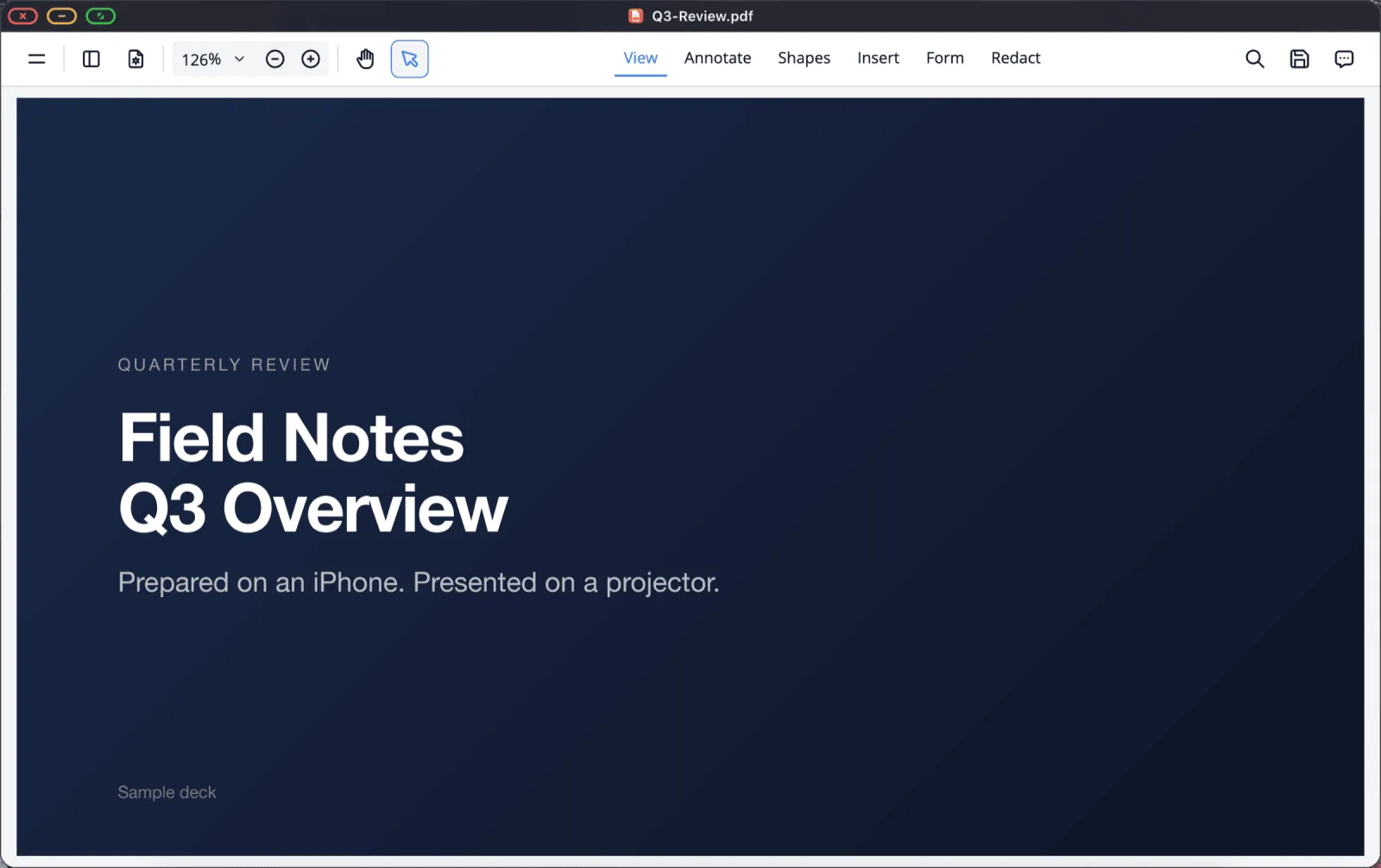
4. Pon la pantalla completa
Haz clic en el botón verde de la esquina de la ventana.

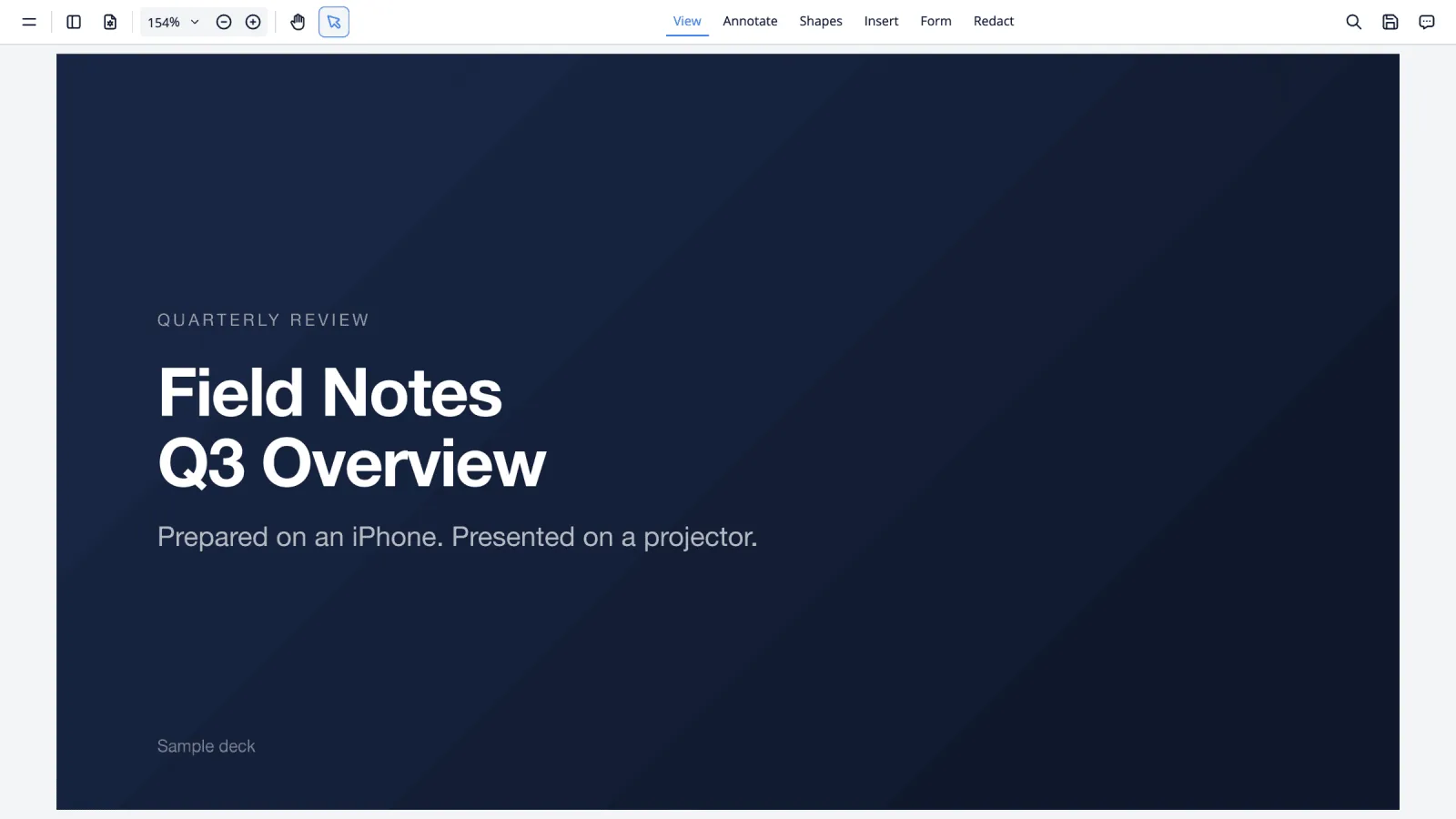
Avanza con las flechas de un teclado Bluetooth, Re Pág / Av Pág, una rueda de ratón, o un deslizamiento en el teléfono como trackpad. Mueve el puntero al borde superior para que vuelva la barra de título al final.
Conseguir que la diapositiva llene el encuadre
Las presentaciones exportadas en 16:9 coinciden exactamente con la mayoría de los proyectores. Una presentación 4:3 tendrá una banda a cada lado, y eso es la forma de la presentación y no algo que haga la app. Si sigue habiendo un borde, comprueba el propio ajuste de tamaño de imagen del proyector buscando «Just Scan», «Screen Fit» o «1:1», porque el sobrebarrido viene activado por defecto en mucho hardware. Luego comprueba Ajustes › Pantalla y elige la resolución que indica el proyector. Los proyectores antiguos están más cómodos en 1280 × 720 o 1920 × 1080.
La otra vía: Google Slides
Si la sala tiene Wi-Fi y tu presentación vive en Google Slides, el navegador te da el sitio de escritorio con sus propios controles de presentación. Abre la presentación, pulsa Presentar, luego el botón verde. Recorrido completo en la guía de presentar.
Usa eso cuando tengas conectividad. Usa el PDF cuando no puedas contar con ella, que en un salón de actos escolar o la sala de reuniones de un cliente es la mayoría de las veces.
Lista de comprobación antes de salir
- Presentación exportada a PDF y en el dispositivo.
- Adaptador y un cable HDMI corto.
- Adaptador multipuerto si la sesión es larga, para que el teléfono se cargue.
- No Molestar activado, para que no aparezca una notificación en una pantalla de cuatro metros.
- Bloqueo automático desactivado en Ajustes de iOS › Pantalla y brillo.
- Escala del contenido comprobada, para que el fondo de la sala pueda leerla.
XeOS: External Display Browser convierte un iPhone o un iPad en un escritorio completo en cualquier monitor, tele o proyector.
Preguntas frecuentes
¿Necesito internet?
No para la vía del PDF. El archivo y la app están ambos en el dispositivo.
¿Puedo anotar durante la charla?
Sí. El visor tiene herramientas de anotación, y los cambios se pueden guardar de vuelta en el archivo.
¿Puedo presentar un archivo de PowerPoint directamente?
Hay una vista previa de archivos de Office que es suficiente para presentar desde ahí, pero el PDF es la apuesta más segura cuando el diseño exacto importa.
¿Funciona esto en un iPad?
Sí, en cualquier iPad que pueda sacar vídeo, sin necesitar Stage Manager.
¿Puedo ver mis notas en el teléfono?
No como una vista de presentador separada, ya que el teléfono está actuando como tu trackpad. Notas en papel o en un segundo dispositivo es la respuesta práctica.
Más del blog
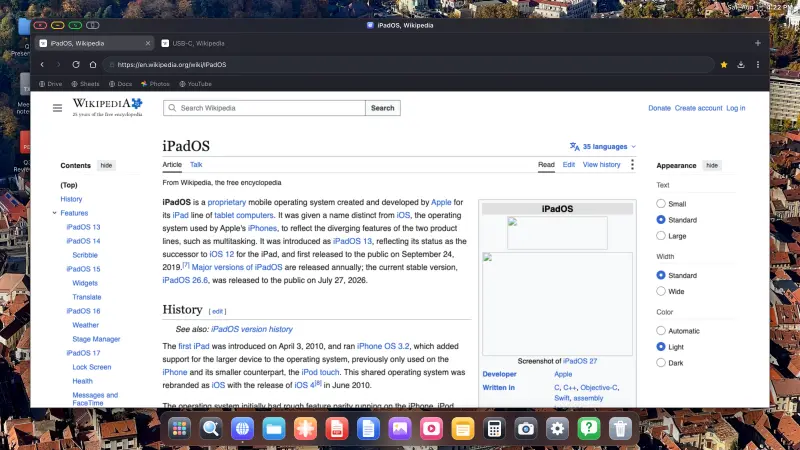
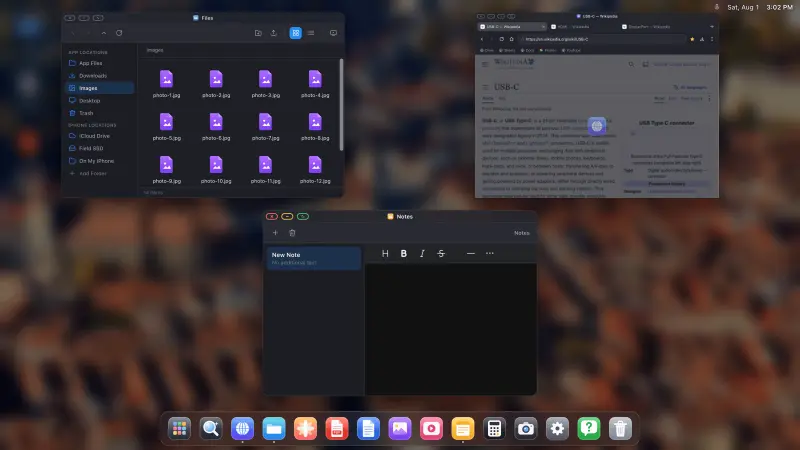
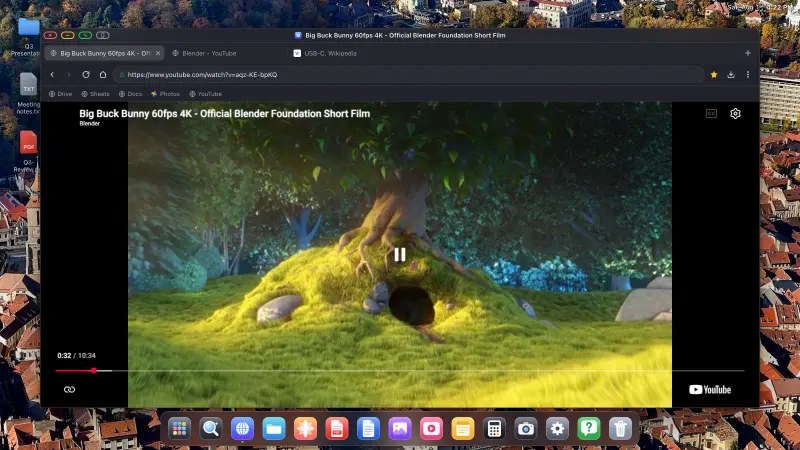
Prueba XeOS: External Display Browser
Pantalla completa en cualquier monitor externo, tele o pantalla portátil. Sin bandas negras. Descárgalo en el App Store.
