
 External Display BrowserTV y monitor4 min de lectura
La mejor forma de extender tu iPhone a una tele o un monitor
AirPlay, un adaptador HDMI, las propias apps de una smart TV. Hay varias formas de llevar un iPhone a una pantalla grande, y la mayoría te dan lo mismo, decepcionante: una imagen con forma de móvil con bandas negras a los lados. Esto es lo que te da cada vía, y cuál llena el panel.
Las tres vías comparadas
1. AirPlay a un Apple TV o una smart TV
Inalámbrico, rápido, y correcto para lanzar un vídeo o un puñado de fotos a una pantalla. Pero duplica: la tele recibe una copia de una pantalla de móvil alta y rellena los lados de negro. También necesitas un receptor AirPlay y una red lo bastante buena para soportarlo.
2. Un adaptador HDMI más el iOS de serie
Con cable, fiable, y sigue siendo duplicado. Safari y la mayoría de apps le dan a la tele la misma imagen con forma de móvil. Un puñado de apps toman la pantalla por su cuenta, reproductores de vídeo y Keynote entre ellas, pero ningún ajuste del sistema hace que la navegación general llene la pantalla.
3. Un escritorio renderizado para la tele
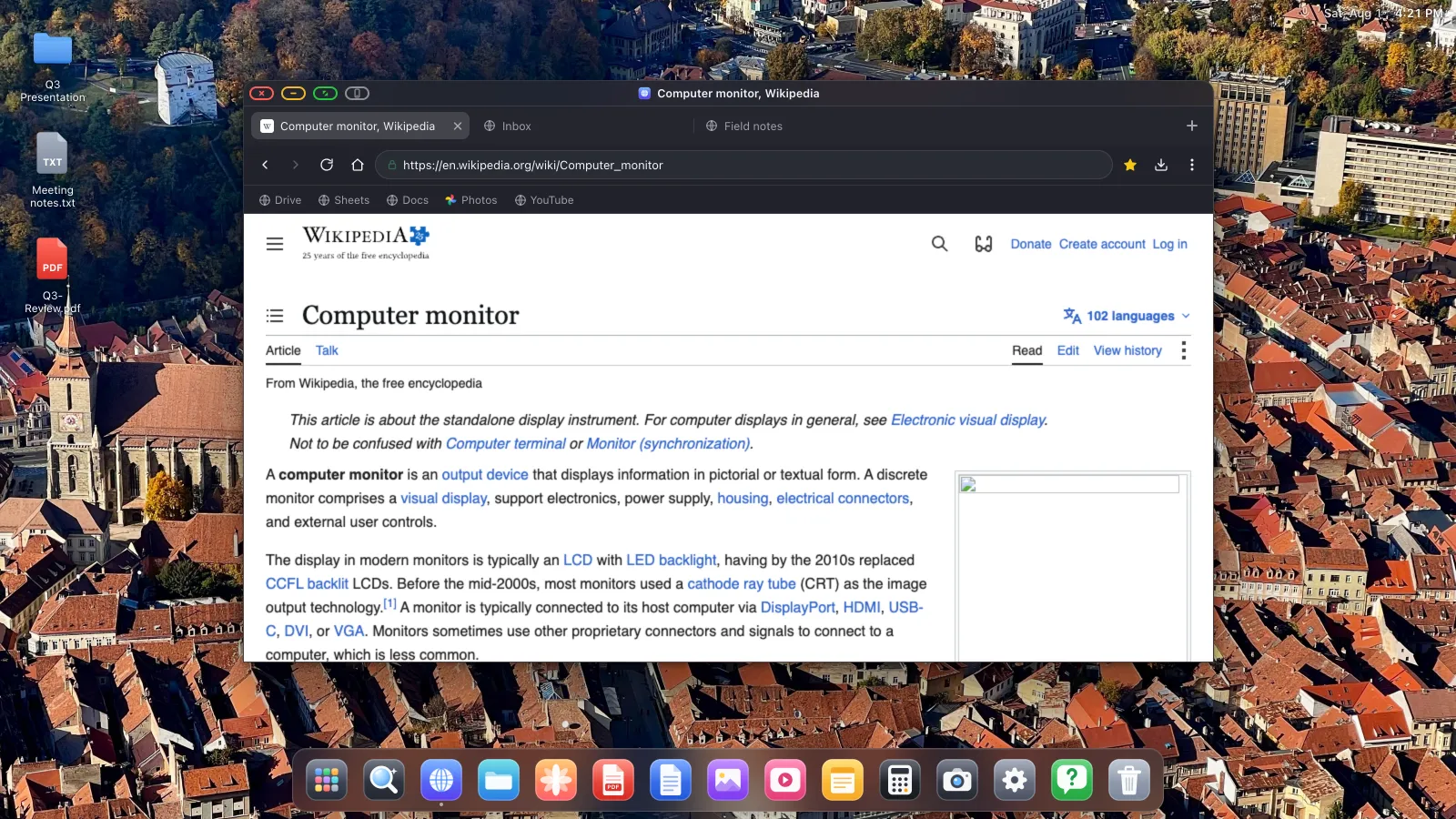
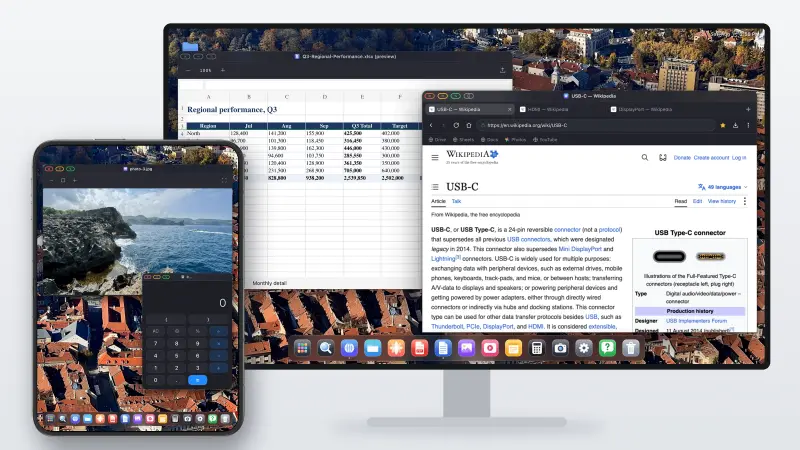
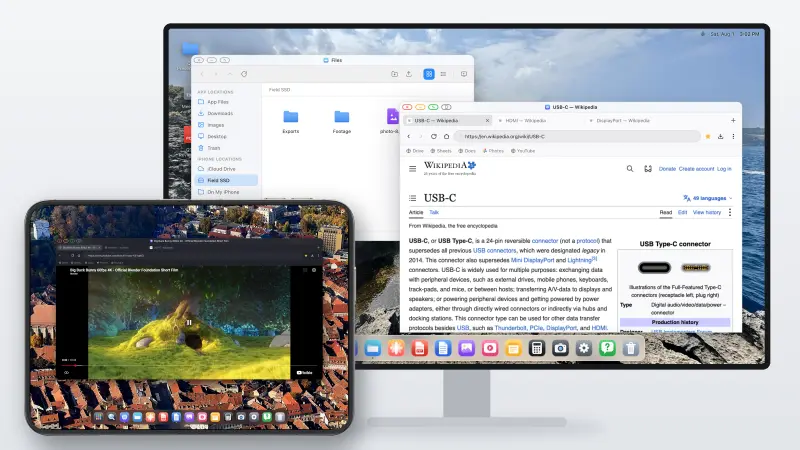
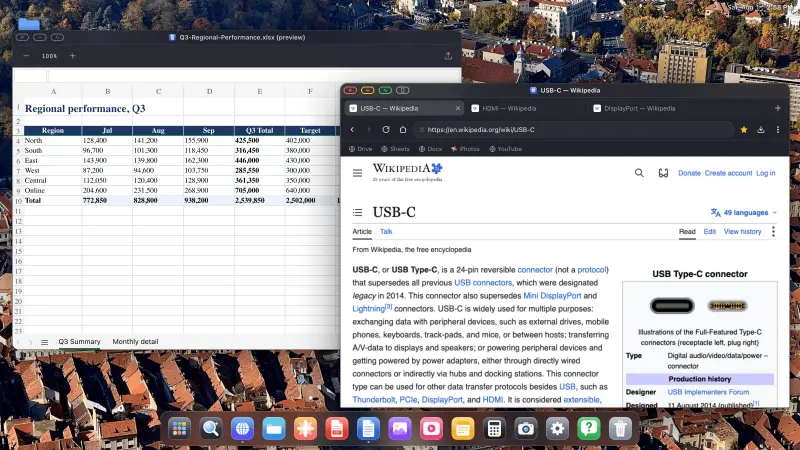
XeOS: External Display Browser toma el otro enfoque. En lugar de copiar la pantalla del teléfono, dibuja su propio escritorio a la resolución de la tele y controla la pantalla directamente, así que no queda nada que enmarcar con bandas. Consigues ventanas, un dock, un navegador de escritorio, reproductores multimedia, visores de documentos, y un cursor en cuanto emparejas un ratón.
| Método | Llena la pantalla | Sin bandas negras | Ratón y teclado | Necesita |
|---|---|---|---|---|
| Duplicado por AirPlay | No | No | No | Apple TV o tele con AirPlay, buen Wi-Fi |
| Adaptador HDMI + iOS de serie | No | No | No | Cable o adaptador |
| XeOS: External Display Browser | Sí | Sí | Sí | Cable o AirPlay, más la app |
XeOS también funciona por AirPlay, así que la vía inalámbrica no queda descartada. Obtienes el escritorio en lugar del duplicado. El cable tiene menos latencia y carga a la vez; AirPlay va bien para vídeo y pases de fotos y te ahorra un cable cruzando la habitación.
Configurar la vía con cable
- Consigue el cable correcto. USB-C a HDMI para el iPhone 15 en adelante y todo iPad con USB-C. Un adaptador AV digital Lightning para el iPhone 5 al 14. Un hub multipuerto USB-C hace HDMI, corriente y USB-A a la vez.
- Conecta y cambia la tele a esa entrada. Primero verás el duplicado estándar, con bandas y todo. Esa es la imagen de antes.
- Abre XeOS con el cable puesto. Detecta la pantalla y la controla en horizontal.
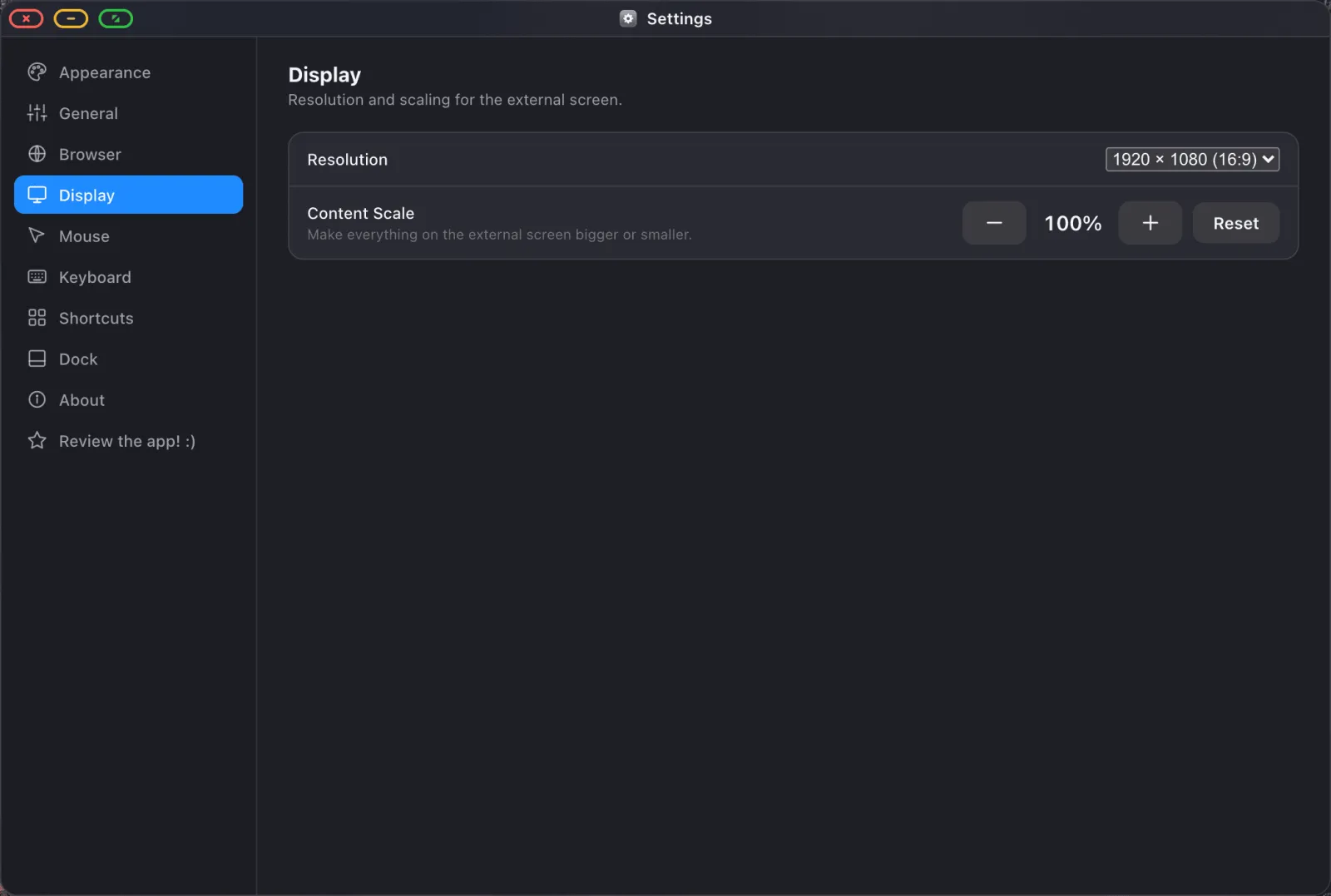
- Elige la resolución que pide la tele, normalmente 1920 × 1080, y sube la escala del contenido al 130–150 % para que el texto se lea desde un sofá.
- Pulsa el botón verde en cualquier ventana para quitar la interfaz por completo cuando estés viendo algo.
Ver cosas en ella
El vídeo es la razón principal por la que la gente conecta un teléfono a una tele. En el navegador, los sitios se comportan como en un ordenador: inicia sesión, elige algo, pulsa pantalla completa, y la imagen llena el panel. El bloqueador de anuncios está compilado en el motor del navegador y activado por defecto, lo que cuenta mucho en una pantalla que ves desde el otro lado de la habitación.

Las fotos funcionan igual. La app Fotos lee tu biblioteca de iOS y ejecuta un pase de fotos configurable a pantalla completa, explicado en la guía del pase de fotos.
Teles grandes, teles antiguas, proyectores
Todo igual. Un panel de 75 pulgadas y un proyector de sala de reuniones informan ambos de los modos que admiten, y la app renderiza en el que elijas. Si sobrevive un borde negro, casi siempre es el propio ajuste de sobrebarrido de la tele. Busca «Just Scan», «Screen Fit» o «1:1» en su menú de imagen.
XeOS: External Display Browser convierte un iPhone o un iPad en un escritorio completo en cualquier monitor, tele o proyector.
Preguntas frecuentes
¿Funciona por AirPlay, o solo con cable?
Ambos. Duplica al Apple TV primero, y luego vuelve a XeOS y detecta la pantalla por su cuenta. El cable tiene menos latencia y carga el teléfono al mismo tiempo.
¿Puedo controlarlo desde el sofá?
Sí. Sin ningún ratón conectado, la pantalla del teléfono es un trackpad, así que pausar y avanzar nunca significa levantarte.
¿Necesito una smart TV?
No. Cualquier tele con una entrada HDMI funciona, incluidas las antiguas sin ninguna app.
¿Y el sonido?
Por HDMI, el audio viaja por el mismo cable hasta los altavoces de la tele. Por AirPlay sigue al destino de AirPlay. Un altavoz Bluetooth o unos auriculares también funcionan.
Más del blog

Prueba XeOS: External Display Browser
Pantalla completa en cualquier monitor externo, tele o pantalla portátil. Sin bandas negras. Descárgalo en el App Store.