XeOS: Simply the best iPhone/iPad external screen experience
Desktop modefor iPhone*or iPad
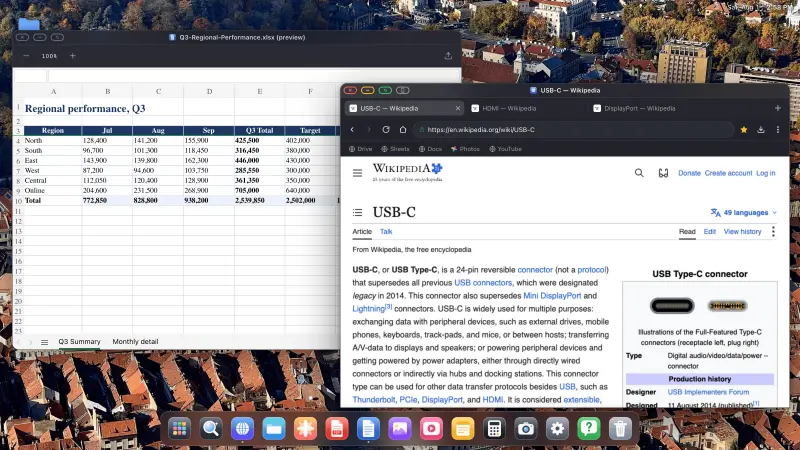
Connect your iPhone or iPad to a monitor, TV, or projector.
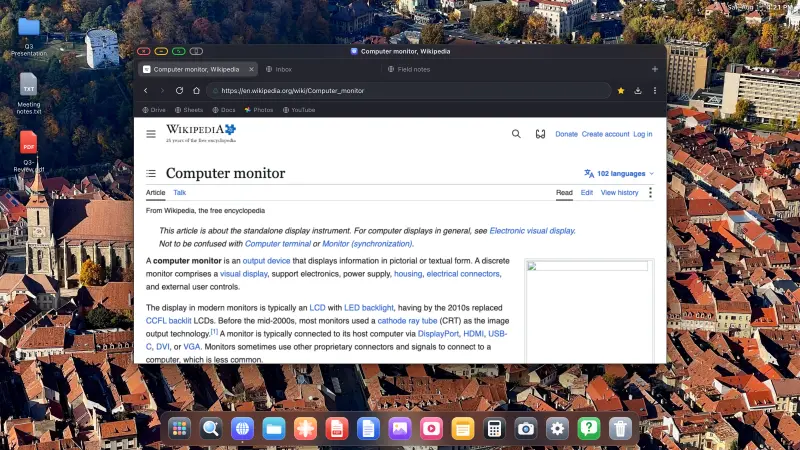
XeOS fills the entire external display, leaving no black bars.
••••••
iPhone→External Monitor
iPhone
External Monitor
What XeOS puts on the external display
Compare standard mirroring with XeOS, then see how windows, files, media, and controls work on the connected screen.
YouTube & Video, Full Screen
YouTube & Video, Full Screen
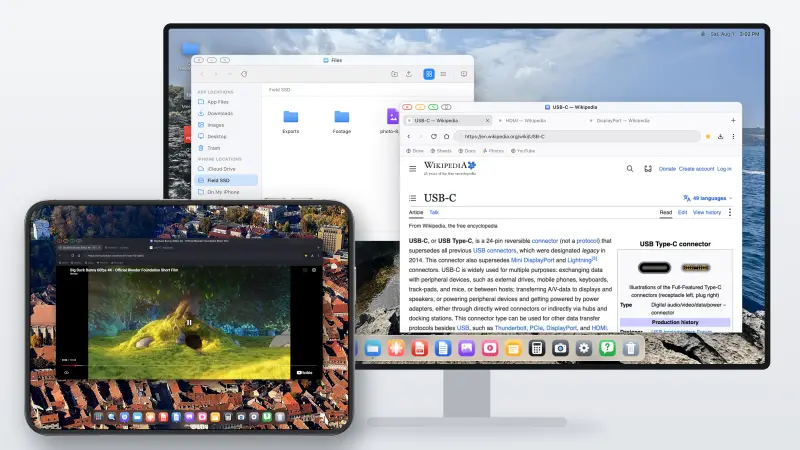
YouTube fills the whole screen, no black bars
Any streaming site: Twitch, Vimeo, etc.
Video in-page and full-screen toggle both work
Black bars on a big external monitor or portable display are genuinely annoying. XeOS: External Display Browser fills the whole screen edge to edge, YouTube, Twitch, Vimeo, everything.
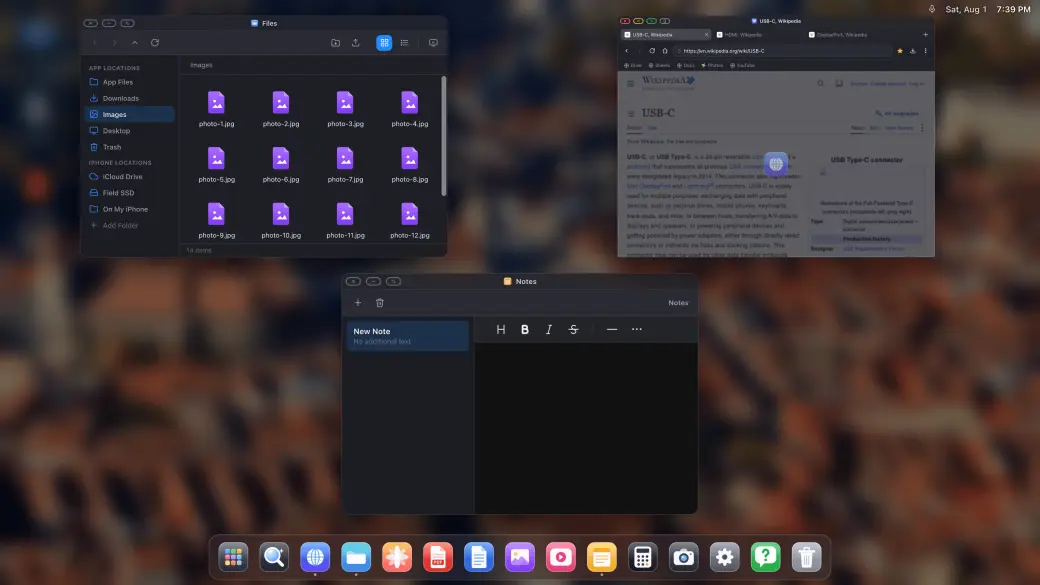
Real Windows, Real Multitasking
Real Windows, Real Multitasking
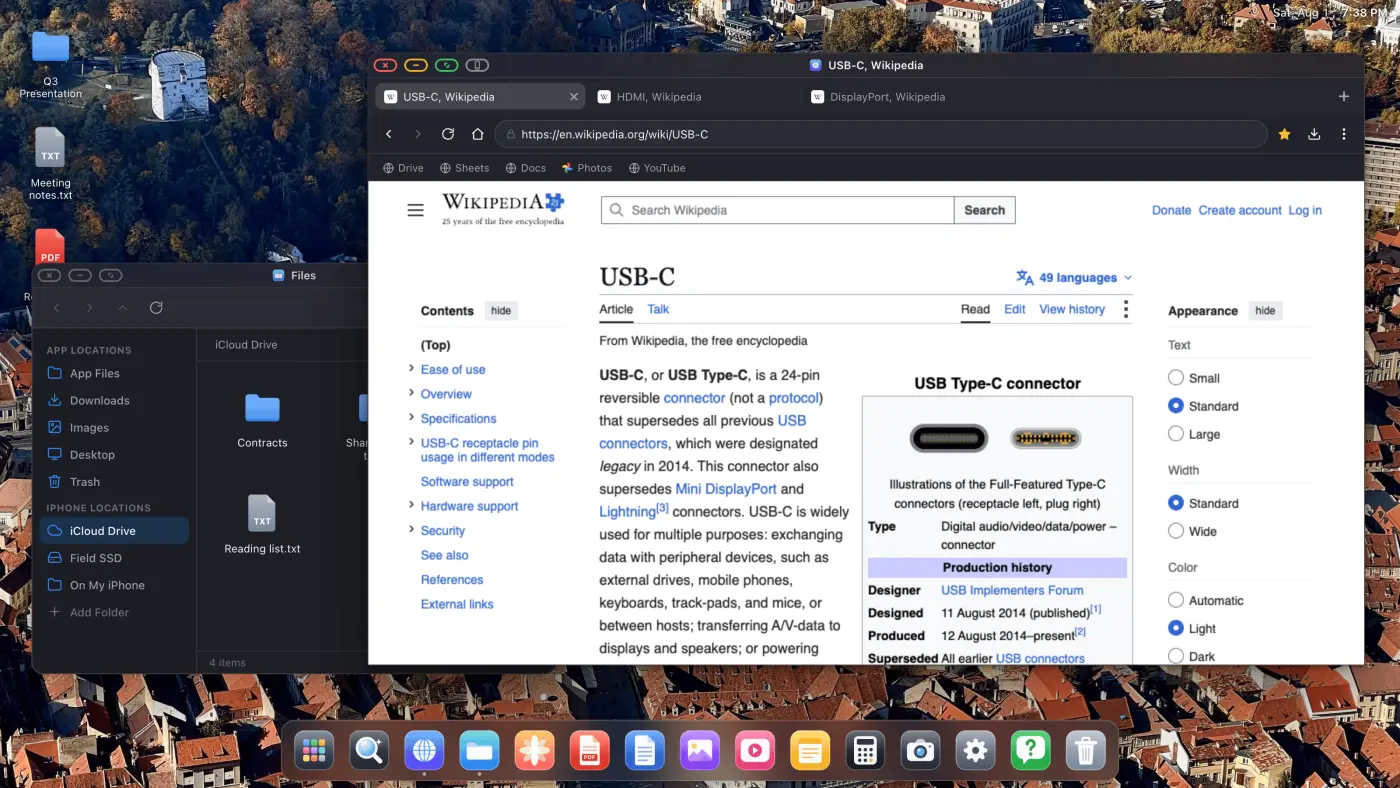
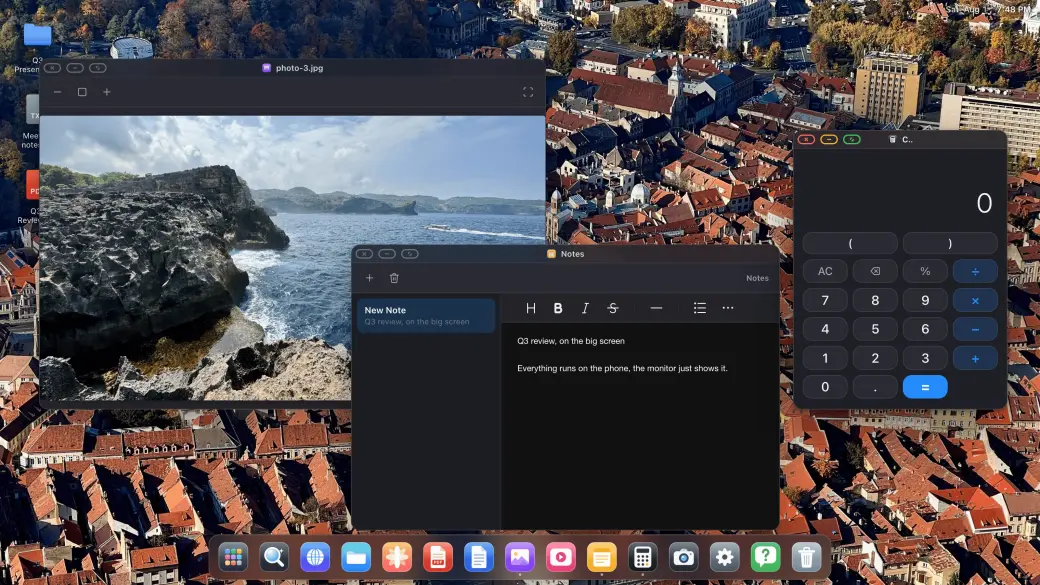
Drag, resize and stack real windows
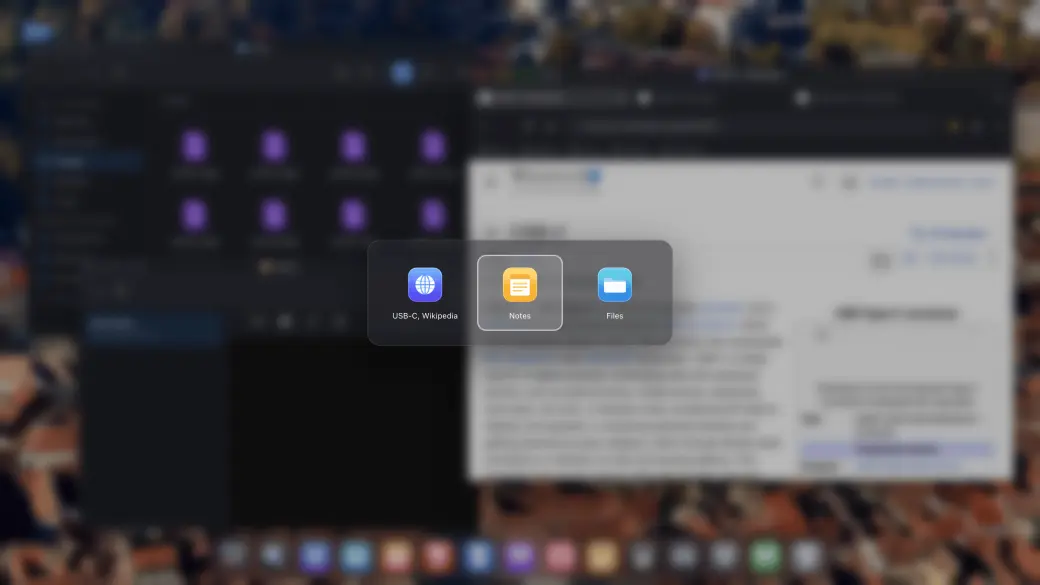
Window switcher and an all-windows overview
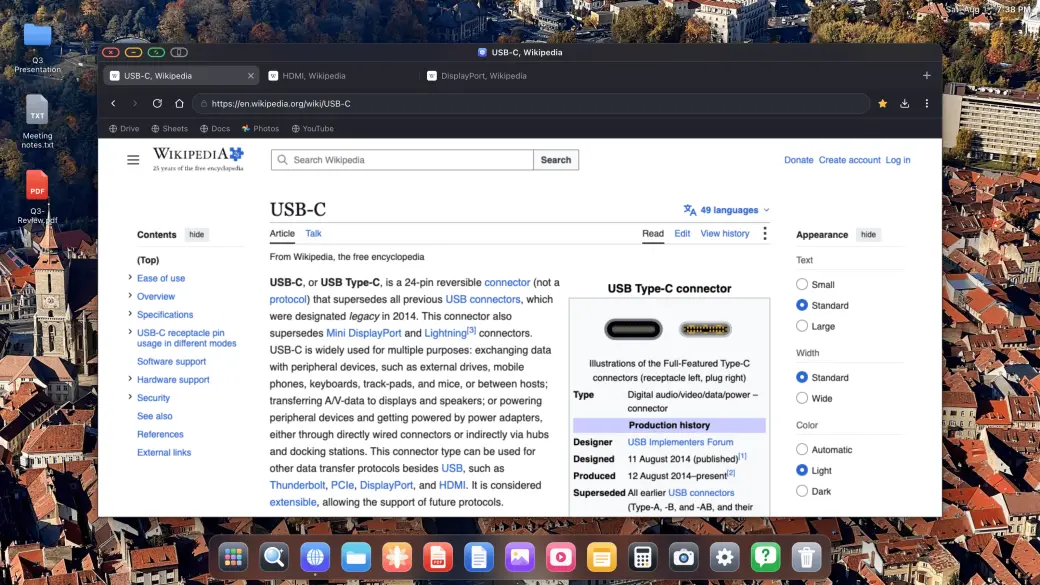
Install any website as its own app
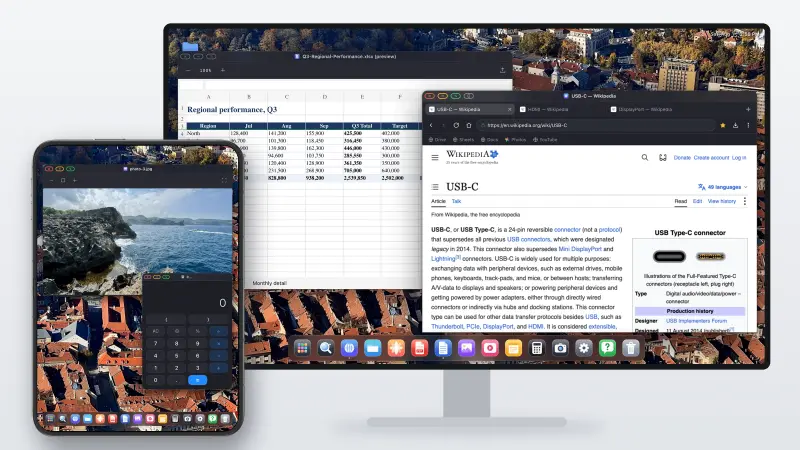
Open as many windows as you need and arrange them the way you would on a desktop: drag, resize, stack, full screen, and a Mission-Control style overview of everything that is open.
Cloud Gaming on the Big Screen
Cloud Gaming on the Big Screen
Xbox Cloud Gaming, Amazon Luna, GeForce NOW, and more
Full external-screen gameplay with no black bars
Pair a compatible controller and start playing
Open supported cloud gaming services in XeOS and play across the whole external display with a paired controller.
Mouse & Keyboard Support
⌘
C
↵
Mouse & Keyboard Support
Full mouse cursor on the external or portable display
Shortcuts, copy/paste, typing
Scroll wheel and extra mouse buttons work too
Pair a Bluetooth mouse and keyboard and it just works: cursor, scrolling, shortcuts. It's the closest thing to Samsung DeX that iPhone has ever had.
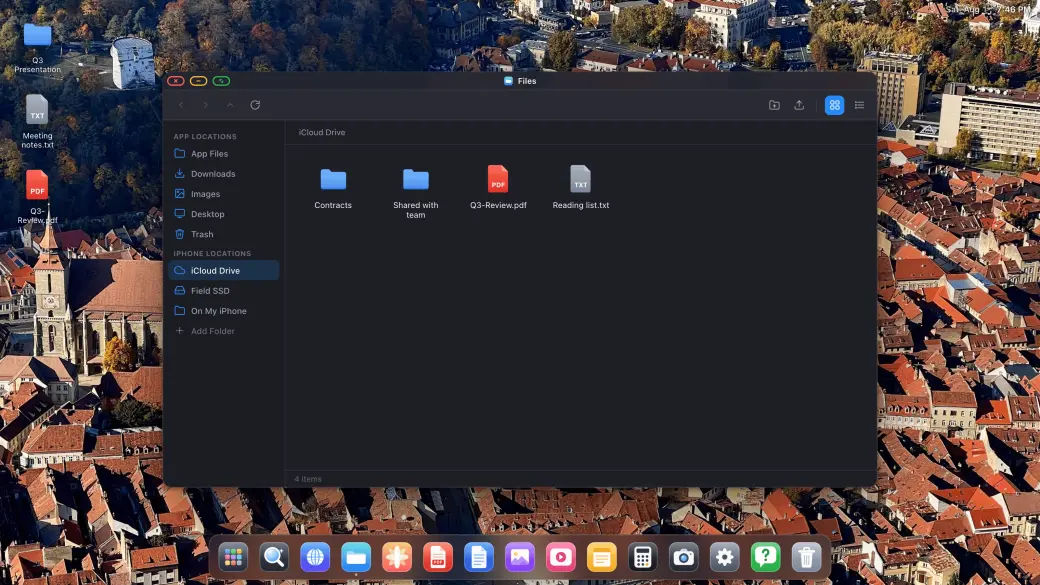
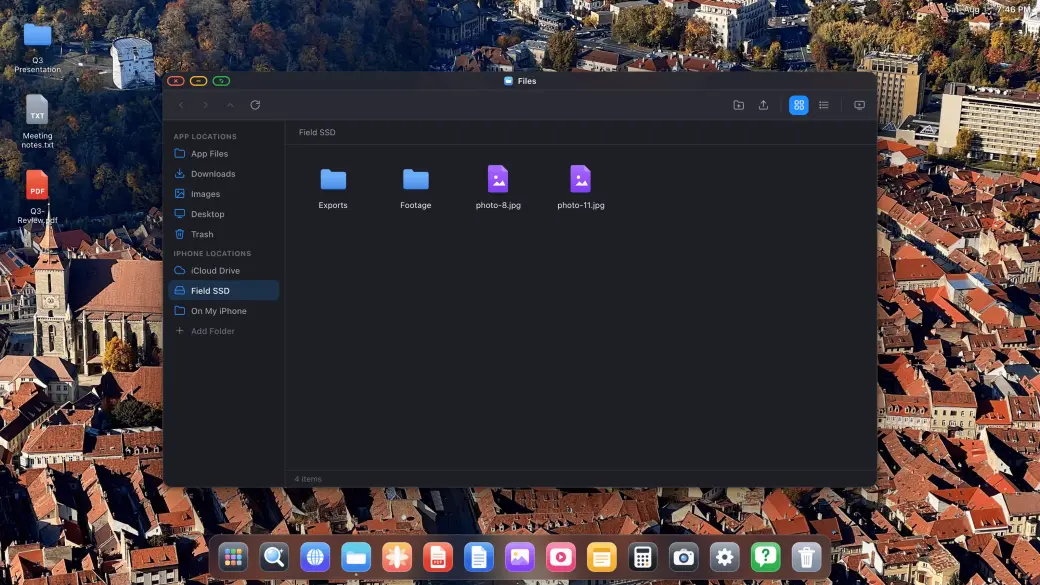
Your Files, Your Drives, Your iCloud
Your Files, Your Drives, Your iCloud
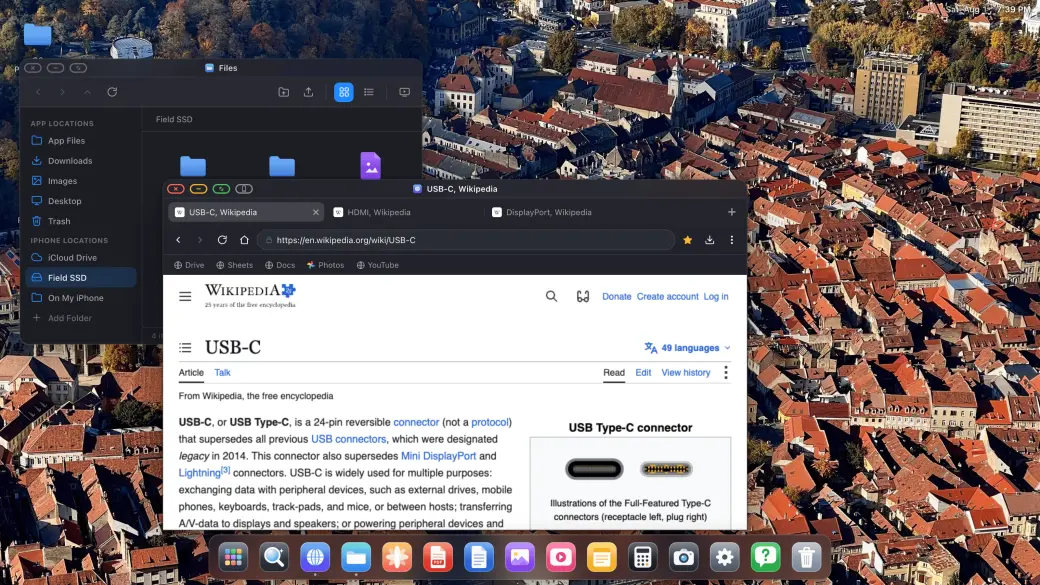
Mount iCloud Drive, external SSDs and local folders
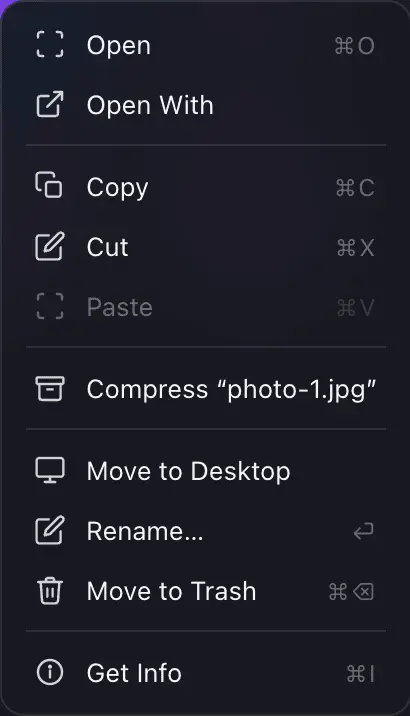
Copy, move, rename, compress and unzip
Open any file in the built-in viewers
Files is a proper file manager: mount your iCloud Drive, a USB-C SSD or a folder on the iPhone itself, and copy, move, compress and open anything across all of them on the big screen.
Downloads, PDFs & Office Files
Downloads, PDFs & Office Files
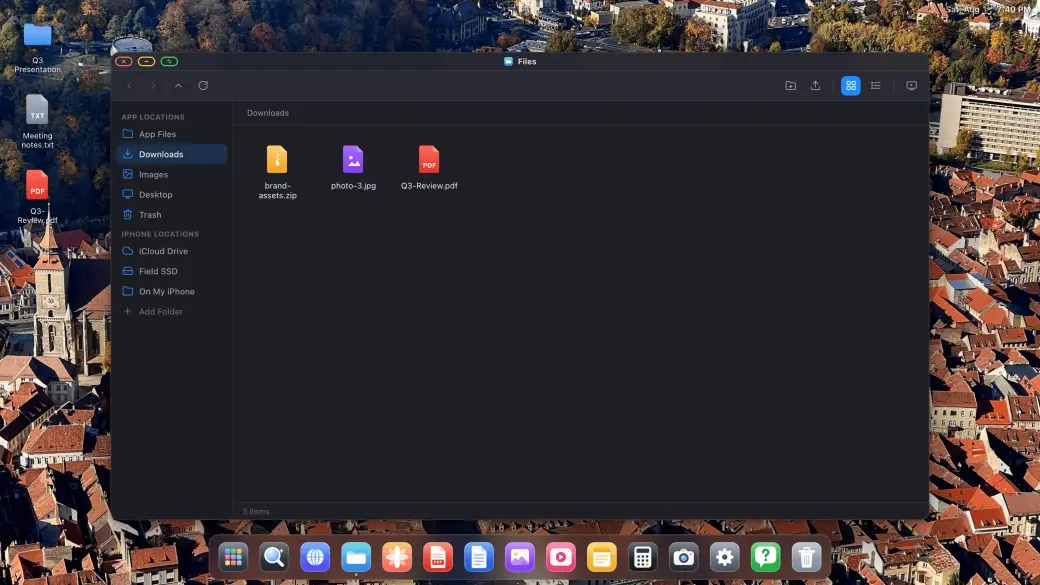
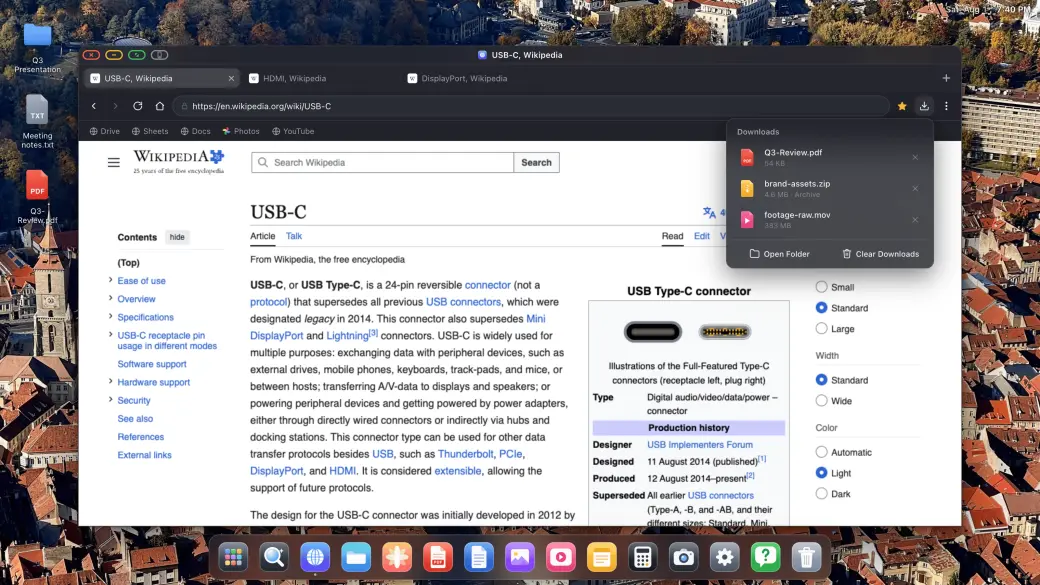
Real downloads with progress, straight into the file system
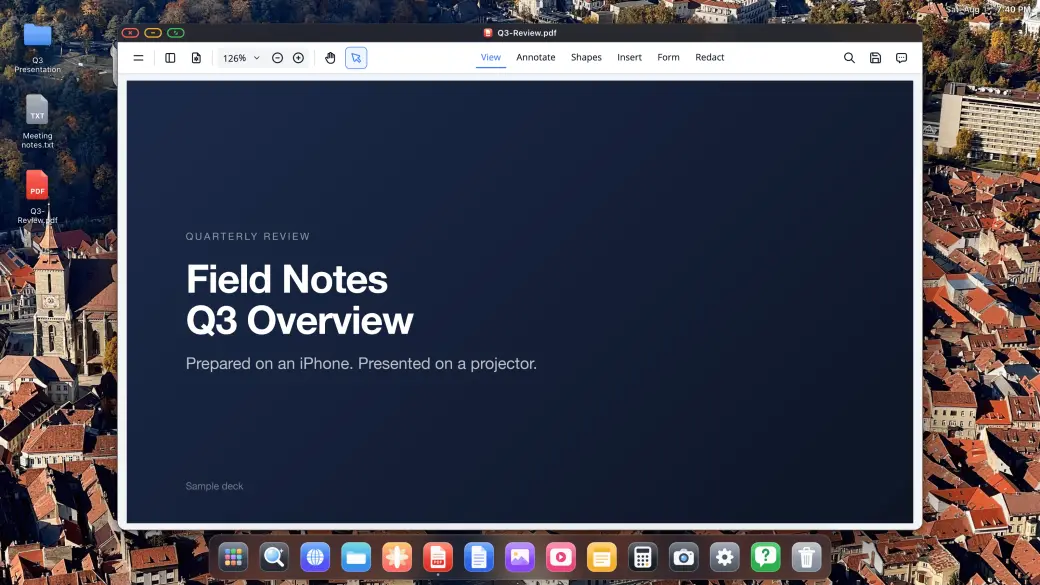
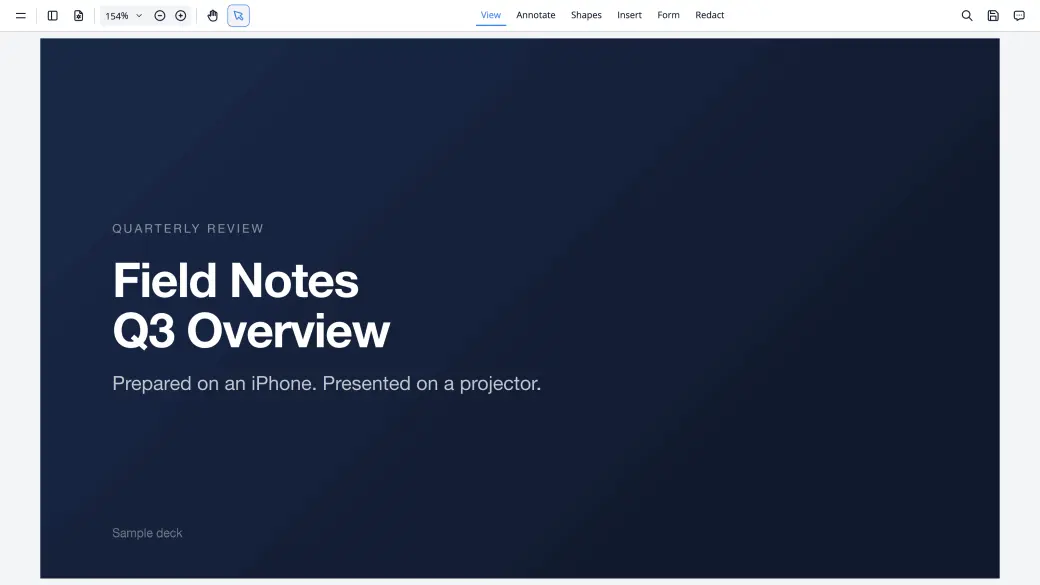
Annotate and sign PDFs, present them full screen
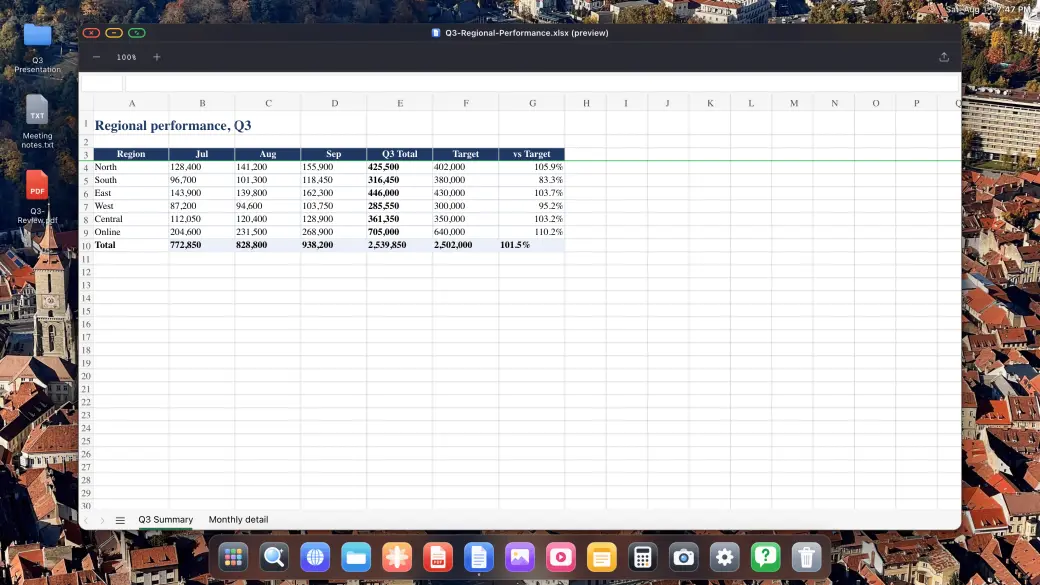
Preview Word, Excel and PowerPoint documents
Download anything the web gives you and open it right there: the PDF viewer annotates and signs, and Word, Excel and PowerPoint files preview at full desktop size.
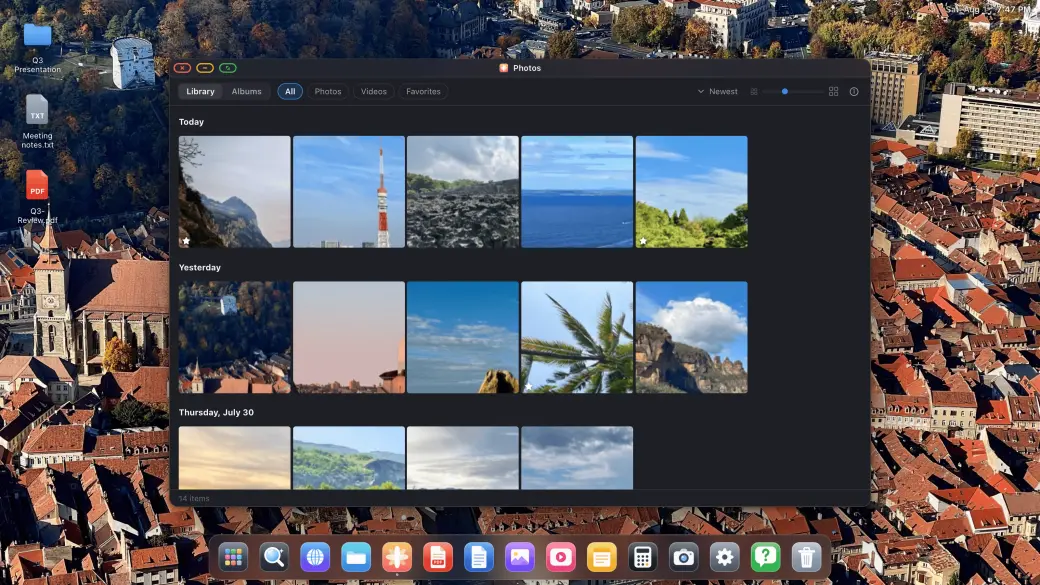
Photos, Slideshows & Built-in Apps
Photos, Slideshows & Built-in Apps
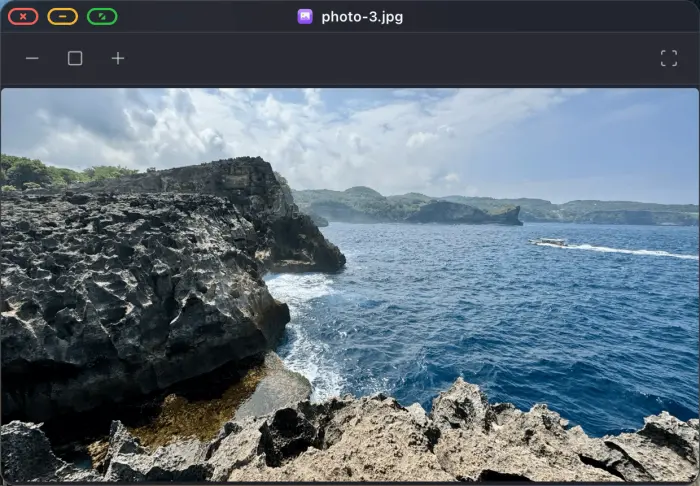
Your whole photo library, full screen slideshows
Image, video and audio players built in
Notes, Calculator and a full Settings app
Your photo library opens on the external display, plays as a full-screen slideshow on a TV, and the built-in image, video and audio players, Notes and Calculator are all there when you need them.
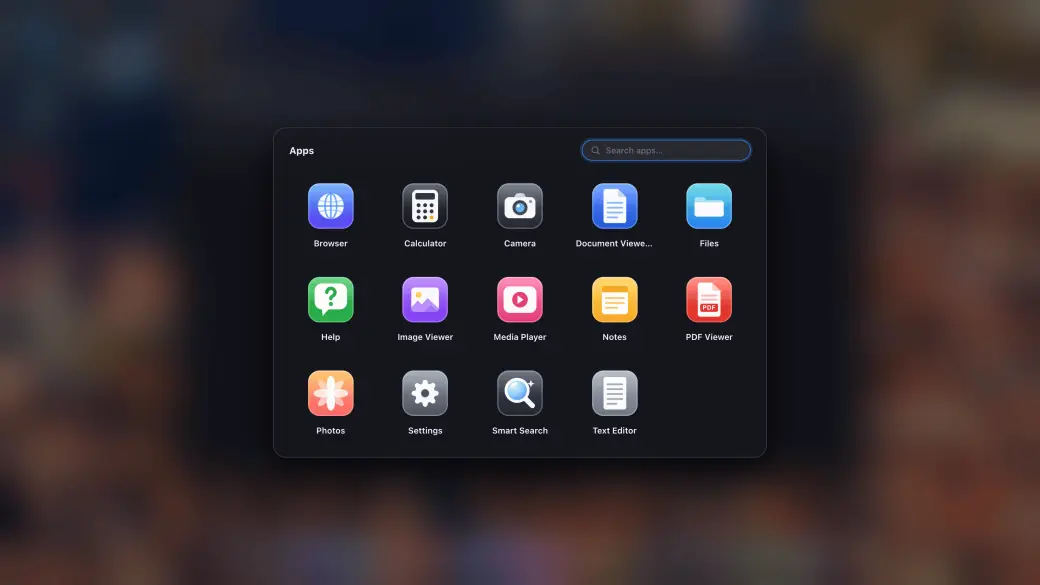
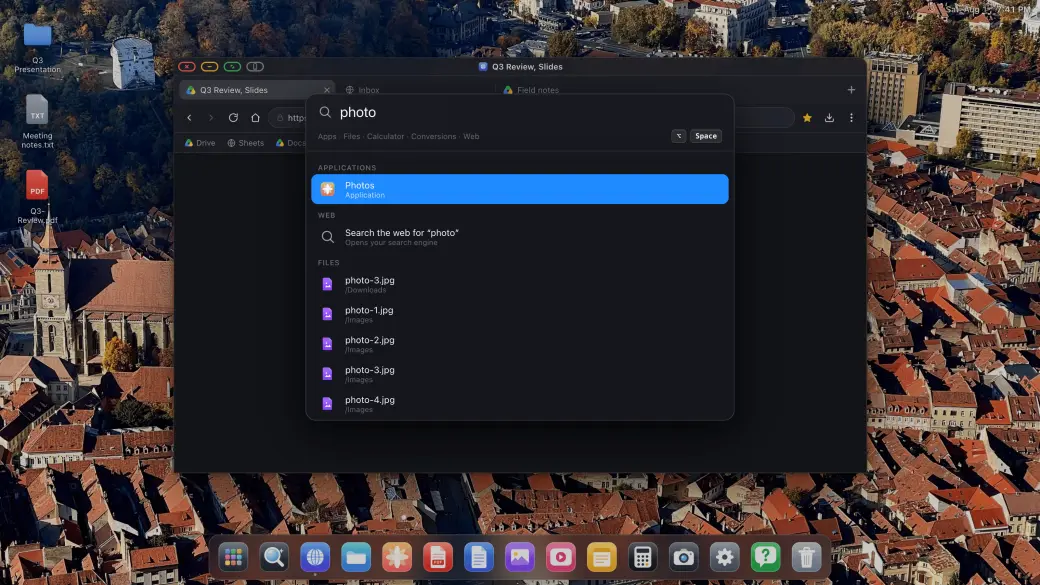
Apps Drawer & Instant Search
Apps Drawer & Instant Search
Apps drawer with your installed sites
Search files, apps and the web from one field
Pin anything you use to the dock
The apps drawer holds every built-in app and every site you installed as an app, and the search overlay finds apps, files and answers instantly, without lifting your hands off the keyboard.
Use a USB-C cable or adapter. Add a Bluetooth mouse and keyboard if you want them; the on-screen controls work too.
Step 1
Connect to Any External or Portable Display
Plug your iPhone or iPad into an external monitor, portable monitor, TV or projector using a USB-C to HDMI or USB-C to USB-C adapter. XeOS: External Display Browser detects the connection automatically and fills every pixel of the screen.
Step 2
Add a Bluetooth Mouse & Keyboard (Optional)
Pair a Bluetooth mouse and keyboard for a full browser experience on your external display, the best Samsung DeX alternative there is for iPhone. Works great with on-screen controls too.
Step 3
Enjoy a Desktop-Class Experience
Manage files, annotate PDFs, preview Office docs, play media, and browse the web full screen. Install your favorite sites as standalone apps. No black bars, ever.
Inside XeOS
Browser windows, files, media, documents, and input controls built for the connected screen.
Install Sites as Apps & Multitask
Install your favorite websites as standalone apps. Float multiple windows, drag and resize them to keep everything you need visible at once.
YouTube & Video, True Full Screen
Watch YouTube, Netflix, Twitch or any online video in complete full screen on your external monitor. No sidebars, no black bars, just pure full-screen video that fills the whole display.
Media Players & Productivity Apps
Built-in photo, video, and audio players for your media. Stay productive with integrated Notes and Calculator apps.
File System & Document Preview
A complete file system to manage your downloads. Open and annotate PDFs, and preview Word, Excel, and PowerPoint documents directly on the big screen.
Mouse & Keyboard Support
Pair a Bluetooth mouse and keyboard to your iPhone and get the full desktop browsing experience on your external monitor. Cursor, scroll, shortcuts, all fully supported.
Any External Monitor, Portable Display, TV or Projector
Connects via USB-C or HDMI to any external monitor, portable monitor, TV or projector. XeOS: External Display Browser automatically adapts to the screen’s native resolution for crisp, corner-to-corner display, whether it’s a permanent desk setup or a portable display on the go.
Cloud Gaming
Play supported cloud gaming services across the full external display with your controller, including Xbox Cloud Gaming, Amazon Luna, GeForce NOW, and more.
Screen Sharing
Your Mac in XeOSXeOS in any browser
Screen Sharing
XeOS
Mac with XeLink
XeOS on iPhone
Mirror your Mac in XeOS
Install XeLink on your Mac, then open Screen Sharing in XeOS. Every Mac window or a whole display becomes a XeOS window you can click, scroll and type in.
Turn on Mirror XeOS in Screen Sharing and open its link on any computer, tablet, phone or car display on the same Wi‑Fi. Watch the desktop live and drive it from there.
Everything about getting a desktop experience from your iPhone
Absolutely, XeOS: External Display Browser is simply the best way to use your iPhone/iPad on an external display. Nothing else even comes close. It's a fully immersive experience, with custom apps and a File System, and the web browser is the most advanced and feature-rich of any similar app. It's true that iOS/iPadOS restrictions bring a few minor limitations that no app can bypass, but XeOS offers unique workarounds for those cases too. You can read more in the answers below.
No, the app has to adhere to Apple App Store rules and iOS system limitations, so no app can currently show native iOS apps on the external display. If this is ever allowed by Apple, we will be the first to implement it for you.
You can preview Office documents like Word, Excel, PowerPoint, PDFs, text, and other files, but they are not editable except in a few cases (e.g., you can annotate/highlight PDF files). iOS makes this technically difficult, and licensing editable Office support would add fees that just don't fit an app this affordable. You can, however, upload your files to Google Drive, which has excellent support, and edit your files there.
Yes. You can mount your iPhone/iPad local folders, iCloud folder or any connected external drive, from the Files app left sidebar (Under iPhone/iPad locations) and browse their contents. You can, also import any iPhone/iPad file into the app's own file system, or you can download files directly from the web, which will also be stored in the app's internal file system. Once your folders are mounted, expect a mini file explorer similar to any operating system you're used to. It has ZIP support, folders, a trash for deleted files, and many more features.
Due to how iOS currently works, what you see on the external screen is not a native environment, but a carefully constructed "simulation" of what a desktop OS and browser would be. The app implements all OS functions from scratch, making it seem almost like a real environment. However, there are cases where limitations start to show up. This is due to security limitations, how browsers work, and decisions made by certain sites to block simulated behavior. These sites categorize this simulated behavior as bot activity (which, in this case, it clearly is not) to protect themselves and their revenue. There are also cases where limitations arise from sites using older technologies (e.g., iframes) that make simulated behavior almost impossible. For all these cases, the app offers a solution so you can get unstuck: "Switch to iPhone layout" (the gray button next to the green fullscreen button). This temporarily switches you to native iPhone mirroring so you can perform your desired action, and then return to the fully immersive experience once you're done.
The app’s internal browser is one of the safest browsers out there. All browsing activity is completely local, and there is absolutely zero telemetry. All your data is also encrypted according to Apple’s highest security standards, and the app uses the Secure Enclave for sensitive data (like imported passwords) so nobody, including Apple or even other apps on your phone, can read it. All claims can be verified with the App Privacy Report, and the app is also verified and signed by Apple. So you’re completely safe using the browser; actually, you’re safer than using Chrome or Firefox, which constantly send telemetry and other data to their servers. If you enable the AdBlock, that will also make your browsing experience safer as it blocks many known site-tracking scripts.
Yes, the app includes guides to help you through this process, with instructions for popular browsers. You can do this by navigating to Settings > Browser > Import.
Imported passwords are stored in the Secure Enclave, following Apple's highest security standards. Once stored, they cannot be read by anyone, not even Apple, third parties, or other apps. The only way to retrieve a password is by navigating to the specific site yourself and having your username/email and password autofilled automatically.
Yes, hold the Command key for a few seconds to see all the supported shortcuts. Some of the coolest ones are: CMD + Up Arrow to show an overview of open apps, Control + Space to open the smart search, Control + Tab to cycle through open apps, and of course, many other shortcuts you're used to. If you feel a common shortcut is not implemented, just let us know at support.
Yes, this is supported by the app, though the process is not quite as fast as using imported passwords due to how iOS works. To autofill a password using a password manager (like 1Password, Chrome, or Apple Passwords), simply tap inside a password field, and the browser will suggest autofilling from a password manager. Tap the suggestion, then switch over to your iPhone/iPad, where you'll be able to select your password manager of choice and find the password. Once selected, it will be autofilled onto your login page.
YouTube has incredible support on XeOS: External Display Browser. You can even skip ads, which is now fully possible! It's genuinely the best YouTube experience you'll get on an iPhone external display.
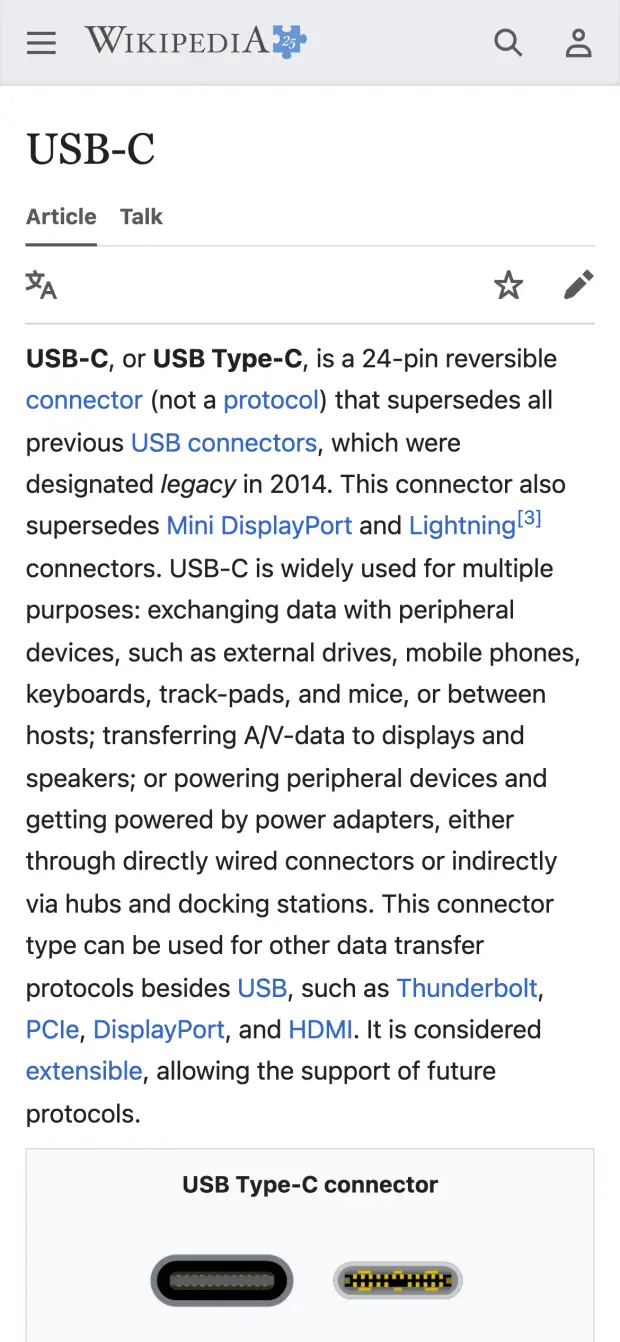
Most iPhone apps, including Safari, are designed for the iPhone’s portrait aspect ratio. When displayed on a widescreen external monitor, they are scaled up with black bars on the sides or top/bottom to fill the unused space. XeOS: External Display Browser is built specifically to fill the entire external screen at full resolution, corner to corner, with no black bars.
Use a Lightning to HDMI adapter (for older iPhones) or a USB-C to HDMI adapter (for iPhone 15 and later) to connect your iPhone to any monitor, TV or projector with an HDMI input. Once connected, launch XeOS: External Display Browser and it fills the screen at full resolution.
Yes! XeOS: External Display Browser lets you watch YouTube and any other video platform, Netflix, Twitch, Vimeo, Dailymotion, in true full screen on your external monitor. No black bars, no letterboxing, the video fills the entire display at native resolution.
Absolutely. Pair any Bluetooth mouse and keyboard with your iPhone and XeOS: External Display Browser gives you full cursor support, keyboard shortcuts, scroll wheel and multi-button mouse functionality, delivering a real desktop-class browsing experience on your external monitor.
Yes. XeOS: External Display Browser includes full microphone and camera support, so you can attend Zoom, Google Meet, Microsoft Teams and any other web-based meeting service from your iPhone’s external display. Your face appears at full quality and your microphone works just like on a desktop browser.
XeOS is a full desktop environment. It includes a complete File System, Document Preview (Word, Excel, PowerPoint), PDF Viewer with annotation tools, Photo/Video/Audio Players, Notes, Calculator, and a Settings app. You can also install websites as standalone apps!
XeOS: External Display Browser works with all iPhones supporting video output: iPhone 5 and later via Lightning-to-HDMI adapter, and iPhone 15 and later via USB-C to HDMI or USB-C to USB-C cable or hub. Works with any HDMI monitor, TV or projector regardless of resolution.
Yes. XeOS: External Display Browser works with any display that accepts HDMI input, desktop monitors, televisions, portable monitors, projectors, conference room displays and more. The browser automatically adapts to the connected screen’s native resolution for a perfect full-screen, no-black-bars experience, whether you’re at a desk or using a portable display on the go.
Screen mirroring shows a portrait iPhone screen on a landscape monitor, resulting in black bars on both sides. XeOS: External Display Browser outputs directly to the external display in landscape orientation and fills every pixel. The iPhone acts purely as the controller while the full browser experience appears on the external screen.
Yes, it is the ultimate Samsung DeX alternative for iPhone. Connect to any display and get a full desktop experience with file management, native apps, windowed multitasking, and full mouse/keyboard support.
The best way to extend your iPhone to a TV or external monitor is XeOS: External Display Browser with a USB-C to HDMI adapter. Connect the cable, launch the app, and it immediately fills the entire screen at native resolution, no black bars, no letterboxing. Add a Bluetooth mouse and keyboard and you have a complete full-screen setup from just your iPhone and any display.
Contact us at contact@qod.ee with any questions or feedback. We personally read and respond to every message.
About External Display Browser
The best Samsung DeX alternative for iPhone and iPad, bringing a desktop experience that actually works!
How XeOS: External Display Browser Removes Black Bars
When you connect an iPhone to an external monitor or portable display, standard apps fill the unused space with black bars because they are designed for iPhone’s portrait screen. XeOS: External Display Browser renders the browser UI to fill the full landscape resolution of the connected display, no black bars on top, bottom or sides. Every pixel of your external monitor, portable display, TV or projector is used.
Full-Screen iPhone External Monitor Browser Features
XeOS: External Display Browser is packed with everything you need for a full-screen browser experience on your iPhone external display, everything a Samsung DeX alternative for iPhone should have:
•Full-screen, no-black-bars browsing on any external monitor, TV or projector at native resolution
•YouTube, Netflix, Twitch and all online video platforms in true full screen on external display
•Zoom, Google Meet, Microsoft Teams and web meetings with full camera and microphone support
•Download any file from the browser and open PDFs, Word/Excel/PowerPoint docs and images/videos/audio
•Full Bluetooth mouse and keyboard support for desktop-class control of the iPhone external display browser
•Automatic resolution detection, adapts to any HDMI monitor, TV or projector resolution
•Works with all iPhone models supporting video output, via Lightning-to-HDMI or USB-C-to-HDMI or USB-C-to-USB-C adapters
•iPhone XeOS: External Display Browser corner-to-corner, zero pillarboxing, letterboxing or black bars
Download XeOS and instantly transform any monitor, TV, or projector into a powerful workstation. The best Samsung DeX alternative for iOS.
File System • Document & Media Apps • Installable Web Apps • Full Screen
App Privacy Policy
Last updated: August 13, 2026
1. Introduction
This Privacy Policy applies to XeOS (the "App"), an iPhone Desktop Mode app designed to deliver a full-screen, no-black-bars desktop experience on external monitors, TVs and projectors. The App is developed and operated by a solo independent developer. Your privacy is our top priority, the App is architected from the ground up to collect no personal data and to keep everything on your device.
2. Summary: Your Privacy at a Glance
XeOS: External Display Browser does not collect, store, transmit or share any personal information or data. There are no user accounts, no advertising SDKs, no crash-reporting services, and no third-party tracking of any kind embedded in the App.
No personal information collected
No browsing history recorded or transmitted
Nothing you do on your external display is tracked
No advertising identifiers used
No user accounts or sign-in required
All App preferences stored locally on your iPhone only
Anonymous, general app-usage data may be stored, in line with Apple's guidelines
Verifiable anytime via the App Privacy Report
3. Full-Screen Browsing & External Display
The core feature of the App is rendering a full-resolution browser on an external display connected via USB-C or HDMI. The App uses Apple's native WKWebView to render web content at the full resolution of the connected screen, corner to corner, with zero black bars. All web content is fetched directly by your device using your own internet connection (Wi-Fi or cellular). No browsing activity, visited URLs, page content or interaction data is recorded, logged or sent anywhere by the App.
4. Camera & Microphone (Meetings & Calls)
The App supports web-based video meetings (e.g. Zoom web, Google Meet, Microsoft Teams) on your external display. When you access a website that requests camera or microphone access, iOS will prompt you for permission as it does in any browser. Camera and microphone streams are handled entirely by the underlying web page and Apple's WebKit framework, the App itself never records, stores, processes or transmits any audio or video. Permissions can be revoked at any time in iOS Settings → Privacy & Security → Camera / Microphone.
5. File Downloads & PDF Viewing
XeOS lets you download files (PDFs, images, documents, etc.) from websites you visit. Downloaded files are saved securely and are accessible through the XeOS File System and the iOS Files app. The App does not transmit downloaded files to any external server, index their contents, or retain any record of your downloads. Files remain entirely under your control on your device.
6. Mouse & Keyboard Support
The App supports Bluetooth mouse and keyboard input to deliver a desktop-class browsing experience on your external monitor. Mouse movements, clicks, scroll events and keyboard input are processed locally on your device by Apple's UIKit/WebKit. No input is logged, recorded or transmitted by the App at any point.
7. Built-in Ad Blocker
The App includes a built-in ad blocker to enhance your browsing experience and protect your privacy while browsing on an external display. The ad blocker uses local content-blocking filter lists that are applied entirely on-device via Apple's iOS API. No browsing data is sent to any ad-blocking service or third party. The filter lists are bundled with the App and may be updated via normal App Store updates.
8. Local Storage & App Preferences
Any preferences you set within the App (such as display settings or browser preferences) are stored solely in local device storage (UserDefaults or equivalent). This data never leaves your iPhone and is not synced to any cloud service or external server by the App. Website data such as cookies and local storage from pages you visit are managed by Apple's WebKit on-device, consistent with standard iOS browser behavior.
9. Usage Data Shared with Apple
To help us understand how the App is performing and where it can be improved, basic usage information may be shared between the developer and Apple through Apple's own developer platforms. This exchange happens directly between the developer and Apple, no outside third party is involved, and the data is never sold or passed on to anyone else. By using the App, you agree to this usage data being shared with Apple in this way.
10. Anonymous Usage
In some cases, the App may store completely anonymous, general app-usage information, in line with Apple's own guidelines, for example how many people use the App, or where they might get stuck during setup, so we can keep improving the experience. This data cannot be linked back to you in any way and is limited strictly to how the App itself is used. Nothing you do on your external screen is tracked. And this can always be verified by anyone using Apple's App Privacy Report.
11. App Store & Purchases
The App is distributed through Apple's App Store. Any purchases or payment transactions are handled entirely by Apple. The developer does not receive or process your payment details. Apple's own Privacy Policy governs data collected during App Store transactions. Please refer to Apple's Privacy Policy for details.
12. Third-Party Websites
XeOS is a comprehensive Desktop Mode environment. When you navigate to any website or install a site as an app (YouTube, Netflix, Zoom, Google, etc.), that website's own privacy policy and data practices apply. The App developer has no control over and takes no responsibility for the content or privacy practices of third-party websites you choose to visit. The App itself adds no tracking layer on top of your usage.
13. Children's Privacy
The App does not collect any personal information from users of any age, including children under 13. Since no data is collected, the App complies with COPPA and equivalent regulations by design.
14. Changes to This Policy
If this Privacy Policy is updated, the new version will be posted on this page with a revised "Last updated" date. Continued use of the App after any changes constitutes acceptance of the updated policy. Significant changes will be communicated via App Store release notes.
15. Contact
Questions about this privacy policy or how the App handles data? , we personally read and respond to every message.











 XeOS