 External Display BrowserRatón y teclado4 min de lectura
Ratón, teclado y atajos: hacer que se sienta como un ordenador de verdad
Un escritorio en un monitor es solo la mitad de la historia. La otra mitad es la entrada: un puntero que va donde esperas, atajos que hacen lo obvio, y algo funcional para la noche en que te dejaste el ratón en casa. Esta página cubre cómo se comporta todo eso en XeOS, incluido un ajuste de iOS que pilla a casi todo el mundo desprevenido.
Usar un ratón Bluetooth
Empareja en Ajustes de iOS › Bluetooth antes de abrir XeOS. Una vez conectado tienes un puntero en la pantalla externa, con estados al pasar por encima, menús de clic derecho y una rueda de desplazamiento que funciona.
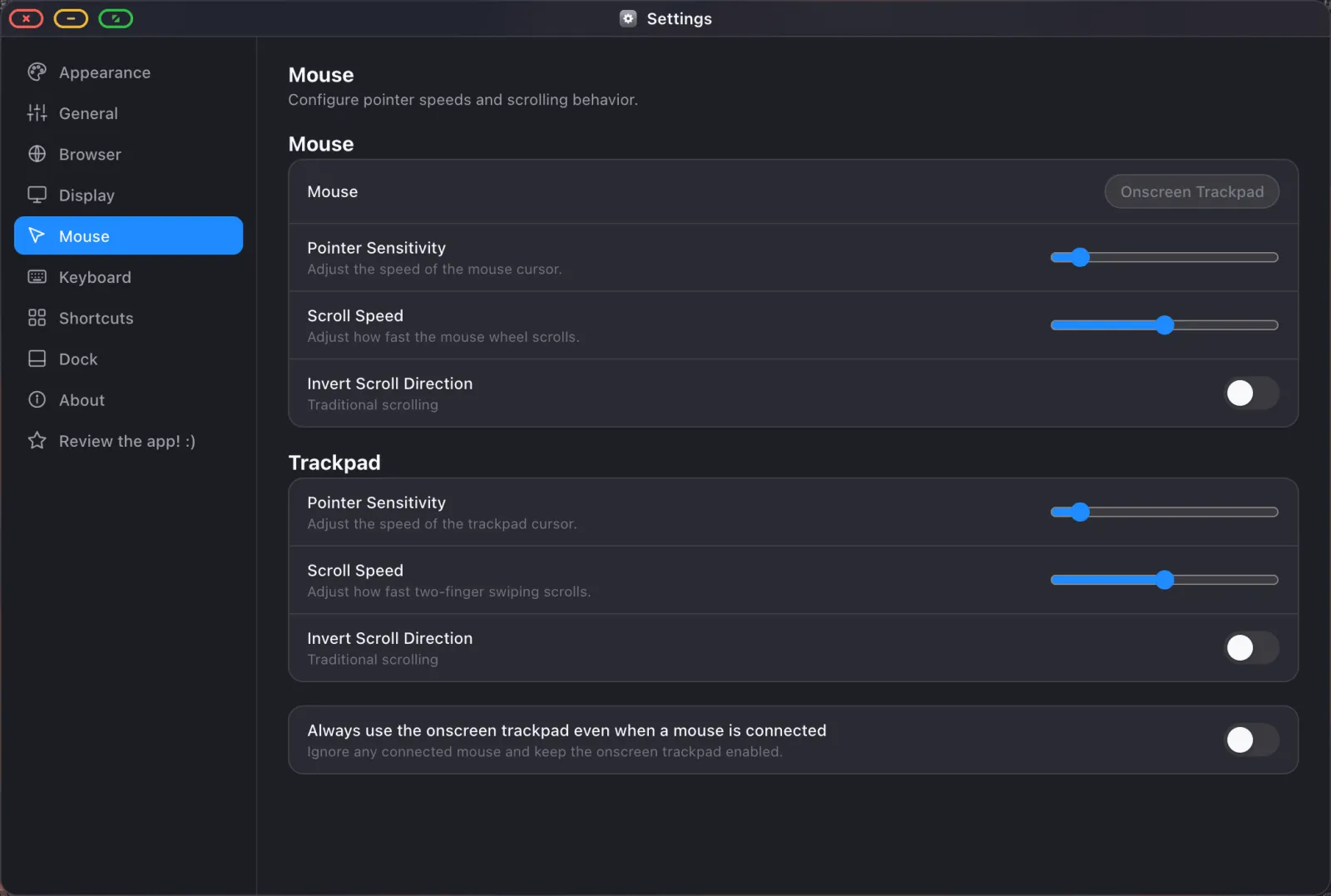
Si el cursor te parece lento en cualquier ajuste, esta es la razón. iOS aplica su propia velocidad de seguimiento de accesibilidad por debajo de la de la app, y las dos se multiplican. Pon primero Ajustes de iOS › Accesibilidad › Control del puntero › Velocidad de seguimiento alta, y luego baja la sensibilidad en XeOS hasta que se sienta bien. Hazlo al revés y estarás ajustando contra un techo que no puedes ver.
El clic derecho funciona en todas partes donde debería. En las páginas te da el menú contextual del navegador, en los archivos las operaciones de archivo, en pestañas, elementos del dock y entradas de la barra lateral sus propios menús, y en cualquier campo de texto Cortar, Copiar, Pegar y Seleccionar todo.
Usar tu teléfono como trackpad
¿Sin ratón? La pantalla de tu dispositivo se convierte en uno. Desliza para mover el puntero, toca para hacer clic, desplázate con dos dedos.
Arrastrar funciona con pulsación larga y luego arrastre: mantén pulsado hasta que el arrastre se active, y luego mueve. Es deliberadamente distinto de tocar dos veces y arrastrar, que se dispara por accidente con demasiada frecuencia. La pulsación larga es como mueves ventanas, las redimensionas y arrastras archivos.
Usar un teclado Bluetooth
Empareja en Ajustes de iOS › Bluetooth. Lo que escribes va al campo que tenga el foco en la pantalla externa, y todos los atajos de abajo funcionan.
El teclado en pantalla
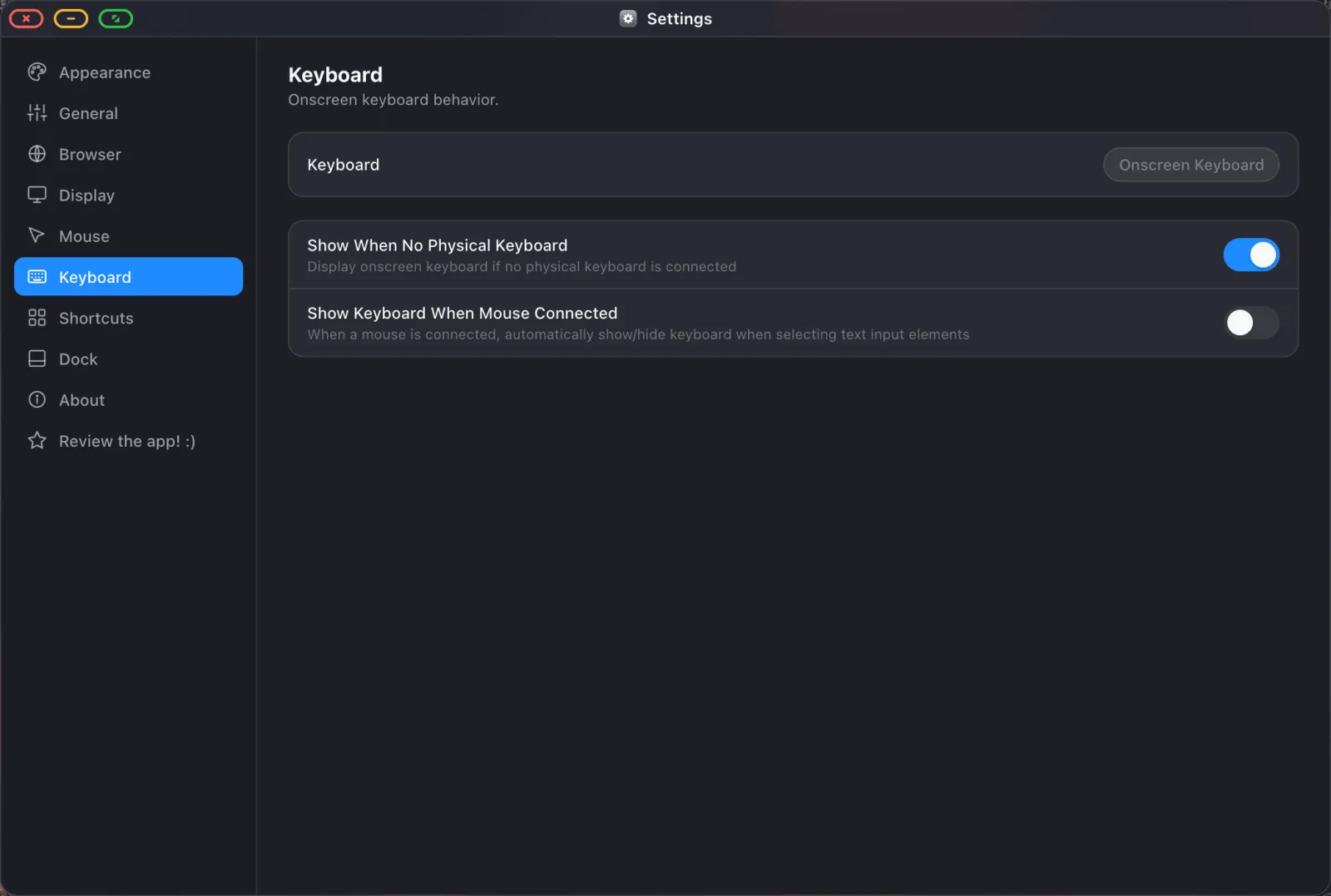
Sin teclado físico, tocar un campo de texto levanta el teclado en pantalla en tu teléfono mientras el propio campo se queda en la pantalla grande. Con un ratón conectado, el teclado en pantalla se suprime por defecto, asumiendo que también tienes un teclado. Cuando esa suposición es incorrecta, el símbolo de teclado en la barra de estado lo activa, y hay un ajuste para mantenerlo disponible siempre que haya un ratón conectado.
Dictado
El símbolo de micrófono en la barra de estado inicia el reconocimiento de voz, y lo que dices se escribe en el campo que tenga el foco en la pantalla externa. Más rápido que un trackpad para una búsqueda larga o un mensaje.
Atajos
| Atajo | Qué hace |
|---|---|
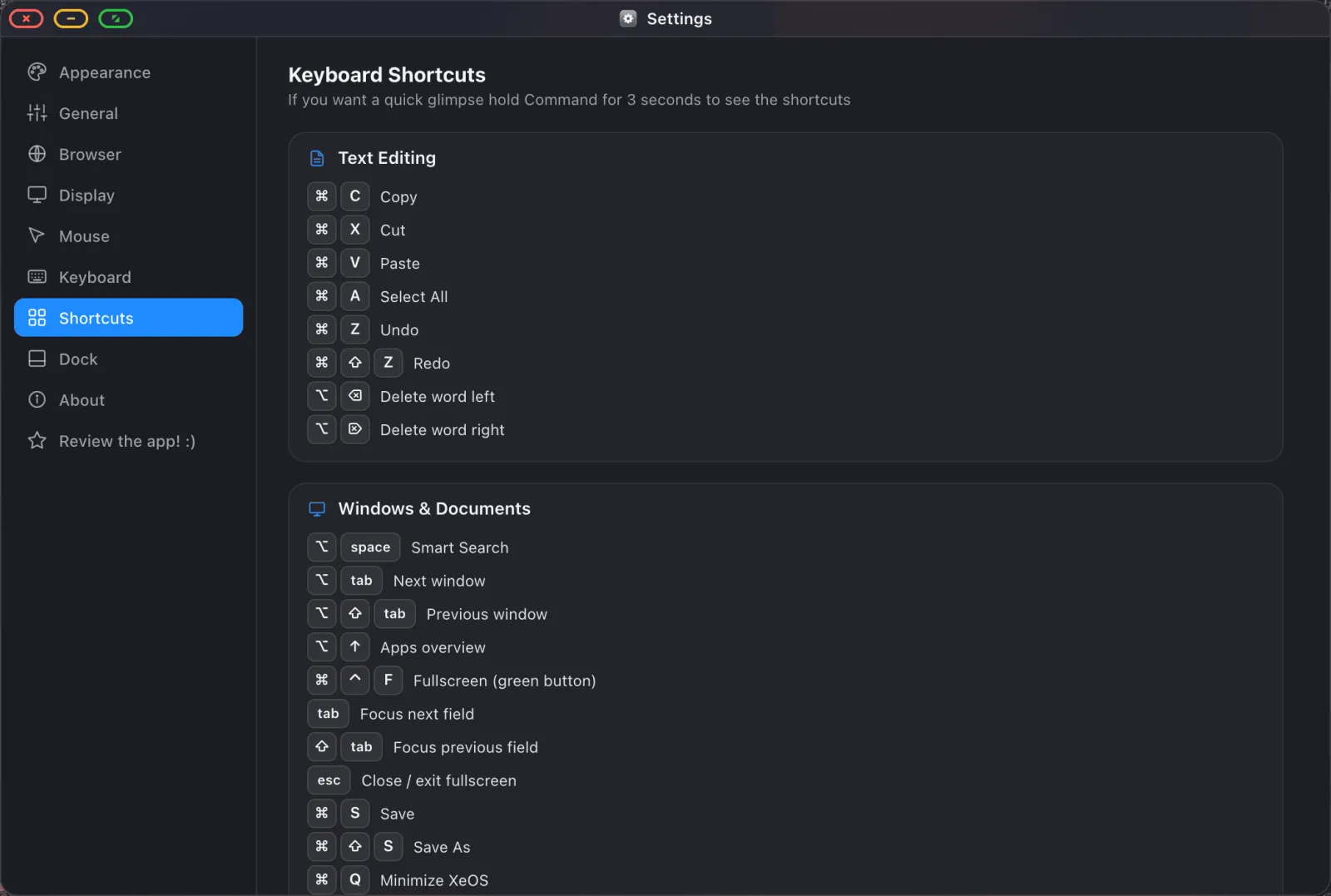
| Option Espacio | Superposición de búsqueda, apps, sitios, archivos, web |
| Ctrl Tab / Ctrl Shift Tab | Rotar entre ventanas abiertas |
| Ctrl ↑ (Option ↑ en iPad) | Vista general de cada ventana abierta |
| Cmd T / Cmd W / Cmd Shift T | Nueva pestaña / cerrar / reabrir cerrada |
| Cmd N | Nueva ventana de la app con el foco |
| Cmd R | Recargar |
| Cmd Shift F | Buscar en la página |
| Cmd Shift R | Modo lectura |
| Cmd Shift B | Mostrar / ocultar barra de marcadores |
| Cmd + / − / 0 | Acercar / alejar / restablecer zoom |
| Cmd S | Guardar (documentos, PDFs, notas) |
| Cmd X / C / V / A | Cortar, copiar, pegar, seleccionar todo |
Ventanas
- Arrastra una barra de título para mover una ventana; arrastra un borde o una esquina para redimensionarla.
- Arrastra una ventana hasta el borde de la pantalla para ajustarla a esa mitad o esquina.
- Haz doble clic en una barra de título para maximizar.
- Las ventanas se mantienen dentro de la pantalla. Cambia la resolución y nada se queda perdido fuera del borde.
- Lo que esté abierto cuando desconectes se vuelve a abrir donde estaba la próxima vez.
Hacerlo a tu gusto
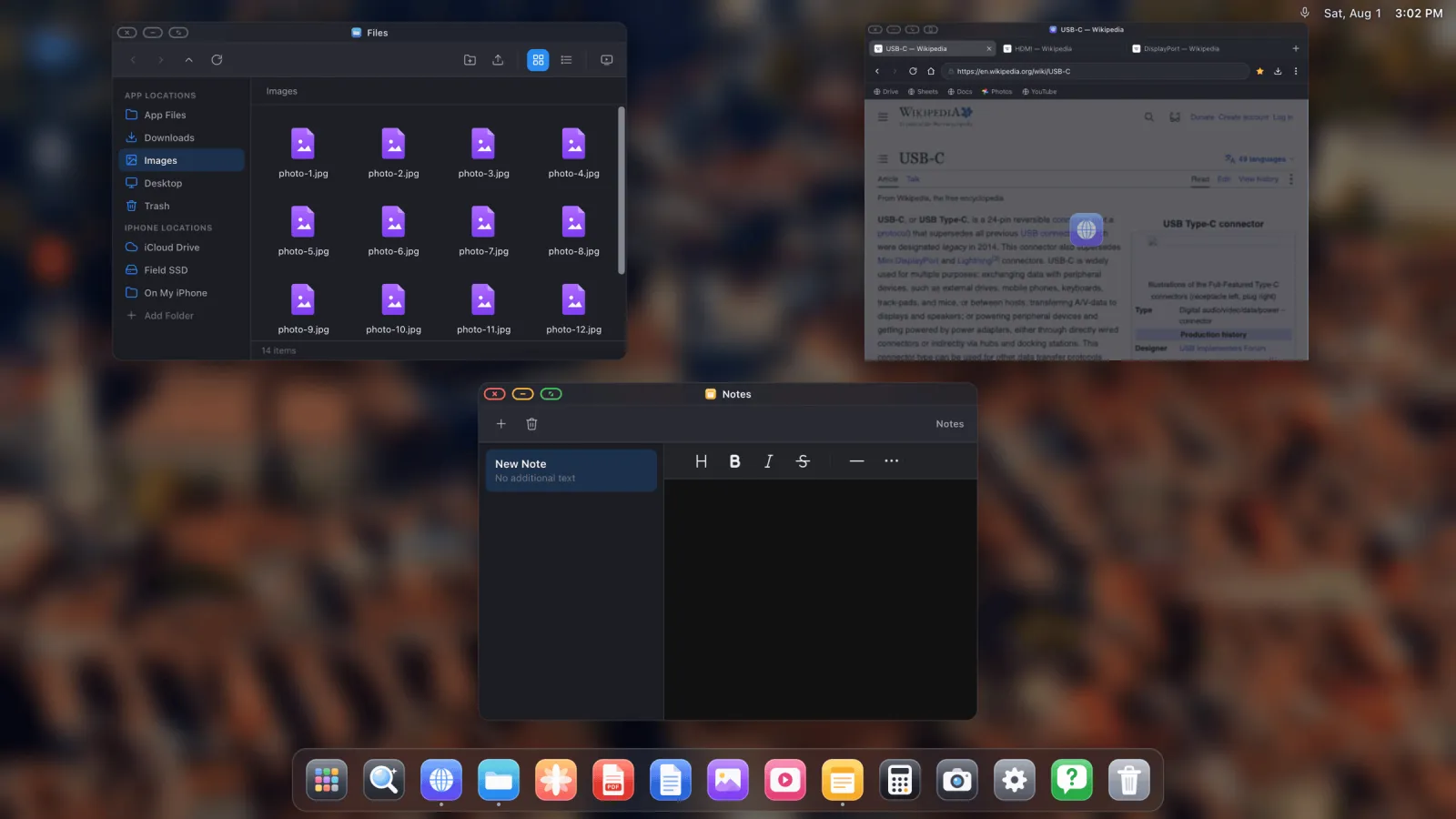
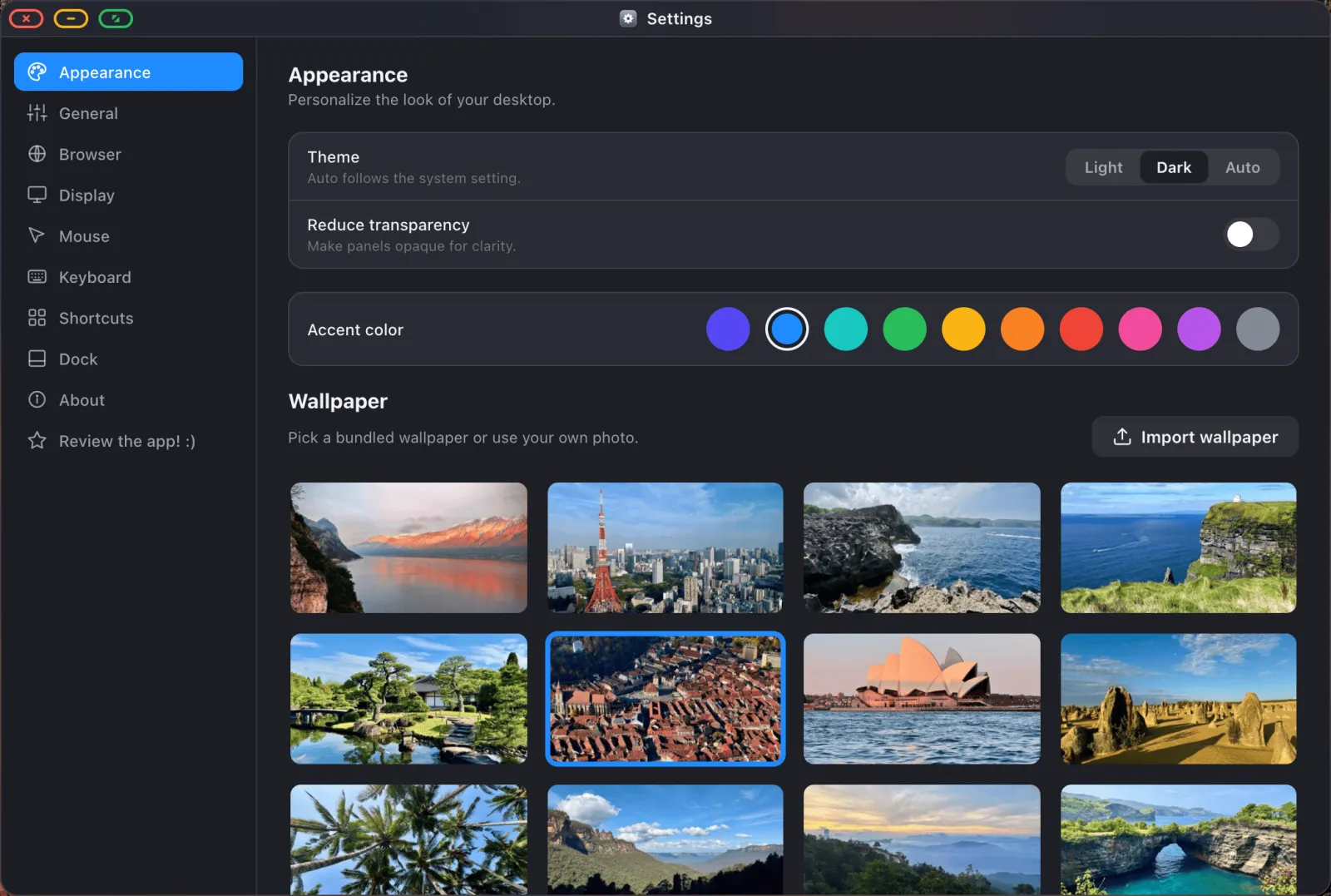
Ajustes › Apariencia cubre el tema (oscuro, claro o automático), el color de acento, el fondo de escritorio y la transparencia reducida. Si vienes de Windows, los botones de ventana también se pueden mover al lado derecho ahí.
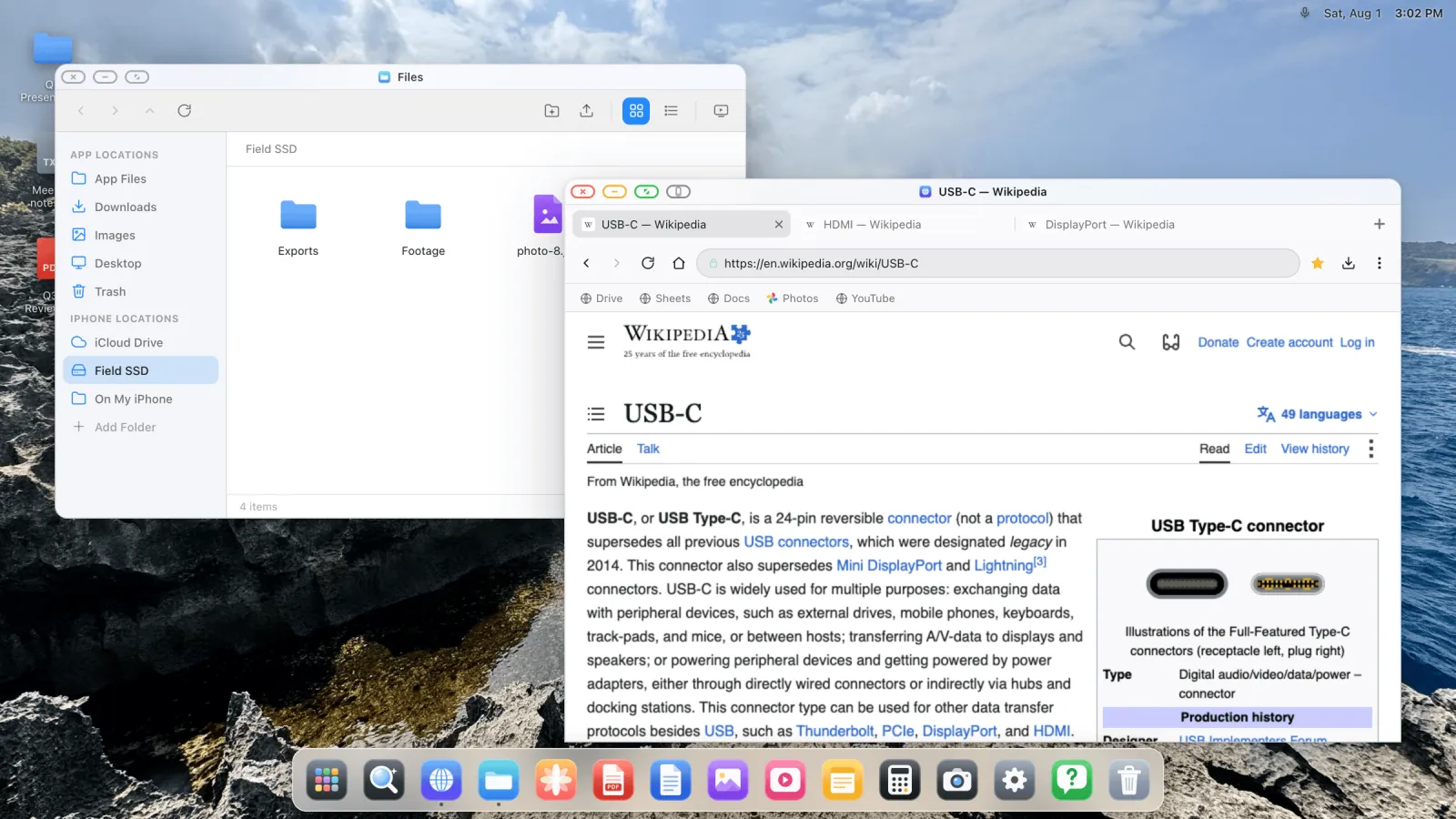
XeOS: External Display Browser convierte un iPhone o un iPad en un escritorio completo en cualquier monitor, tele o proyector.
Preguntas frecuentes
¿Funciona cualquier ratón Bluetooth?
Sí, cualquiera con el que el propio iOS se empareje.
¿Puedo ocultar el círculo del puntero de iOS en el iPhone?
No. En el iPhone, el indicador del puntero de AssistiveTouch no se puede ocultar desde ninguna app a través de ninguna API pública. Es una restricción de iOS, no un descuido.
¿Puedo usar un teclado sin ratón?
Sí, y el teléfono como trackpad sigue funcionando junto a él.
¿Por qué salta el cursor cuando cambio la resolución de la pantalla?
Se está reanclando a la nueva geometría de la pantalla. Las ventanas se reajustan al mismo tiempo para quedarse dentro de la pantalla.
Más guías



Prueba XeOS: External Display Browser
Pantalla completa en cualquier monitor externo, tele o pantalla portátil. Sin bandas negras. Descárgalo en el App Store.
