 External Display BrowserHubs USB-C4 min de lectura
iPhone + hub USB-C + SSD externo: la configuración para usuarios avanzados que trabajan desde un teléfono
Un teléfono con un solo puerto te obliga a elegir: pantalla, o almacenamiento, o corriente. Un hub elimina esa elección, y en cuanto puedes montar una unidad junto a un monitor has dejado de usar un teléfono y has empezado a usar un pequeño ordenador. Qué comprar, qué evitar, y cómo funcionan las unidades montadas.
Qué estás montando
La configuración objetivo: teléfono → hub USB-C → monitor por HDMI, SSD externo por USB, cargador por suministro de corriente. Un conector en el teléfono, tres cosas conectadas, y el teléfono cargándose todo el tiempo.
Elegir un hub
Tres cosas importan y nada más:
| Función | Qué buscar |
|---|---|
| Salida HDMI | 4K30 es de sobra; 4K60 si tu monitor es de alta frecuencia y te importa |
| Corriente de paso | No negociable. Controlar una pantalla y una unidad agota un teléfono rápido |
| Puerto de datos USB | USB-A y USB-C funcionan ambos; velocidades USB 3 si vas a mover archivos grandes |
Puedes ignorar Ethernet, ya que tu teléfono tiene plan de datos. Ignora los lectores de SD a menos que grabes con tarjetas. Ignora cualquier cosa que anuncie «doble pantalla», porque un teléfono controla una pantalla externa y punto.
Ten cuidado con la gama más baja del mercado. Los hubs sin marca muy baratos son la causa habitual de un monitor que parpadea o una unidad que se desconecta constantemente. Este es el único componente en el que la gama media supera a la baja por un margen amplio.
Elegir una unidad
Los SSD alimentados por bus son la respuesta correcta: pequeños, rápidos, sin fuente de alimentación aparte, y un teléfono puede suministrar lo que necesitan. Las unidades grandes de disco mecánico a menudo no se pueden alimentar desde un teléfono en absoluto y querrán su propia fuente. En cuanto a formato, exFAT es la opción universal segura, FAT32 funciona para unidades pequeñas, y APFS y HFS+ suelen funcionar también. Como regla general, si la app Archivos de iOS puede ver la unidad, XeOS puede montarla.
Hacer la unidad utilizable
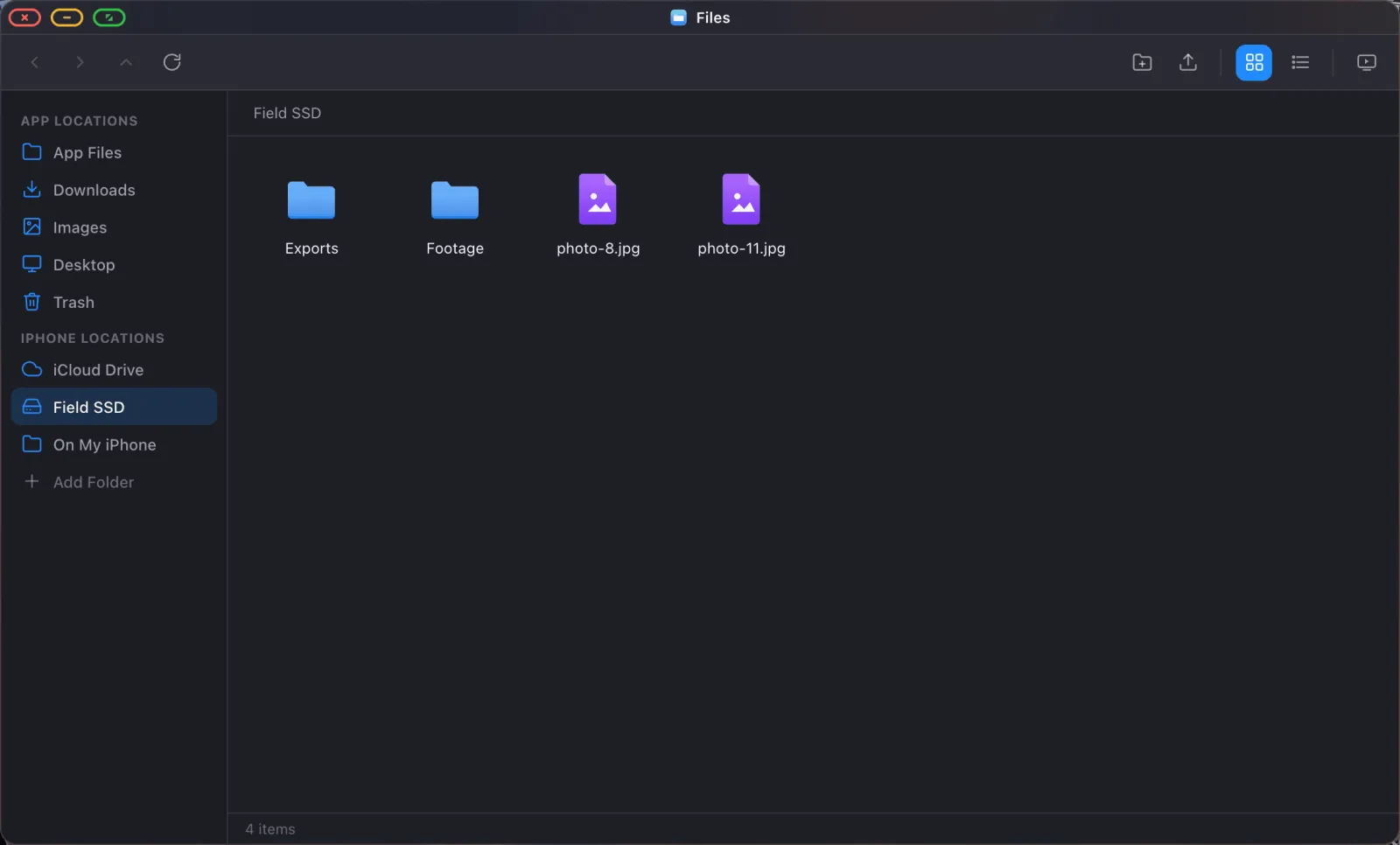
iOS puede ver una unidad en su app Archivos, pero eso es un selector y no un espacio de trabajo. XeOS: External Display Browser monta carpetas de verdad. Consiguen un lugar permanente en una barra lateral, sobreviven a los reinicios, y los archivos dentro se abren en visores reales en lugar de vistas previas rápidas.
- Conecta la unidad al hub.
- Abre Archivos en XeOS y haz clic en Añadir carpeta en la barra lateral.
- Navega hasta la unidad en el selector y elige la carpeta que quieras.
- Aparece en la barra lateral con un icono de unidad, y se queda ahí.
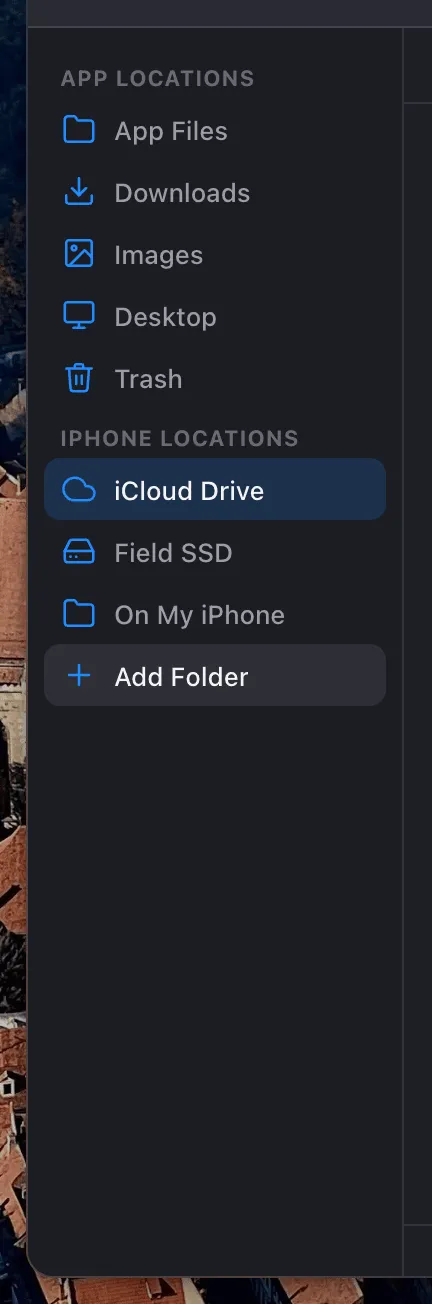
Desconecta la unidad más tarde y la ubicación no se pierde. Se marca como no disponible, con una acción Comprobar de nuevo para cuando la vuelvas a conectar.
Montar también iCloud Drive
El mismo mecanismo monta una carpeta de iCloud Drive, y aquí es donde deja de tratarse de una unidad y empieza a tratarse de un flujo de trabajo. Tu carpeta de trabajo de iCloud a un lado, el SSD al otro, arrastrar y soltar entre ambos.
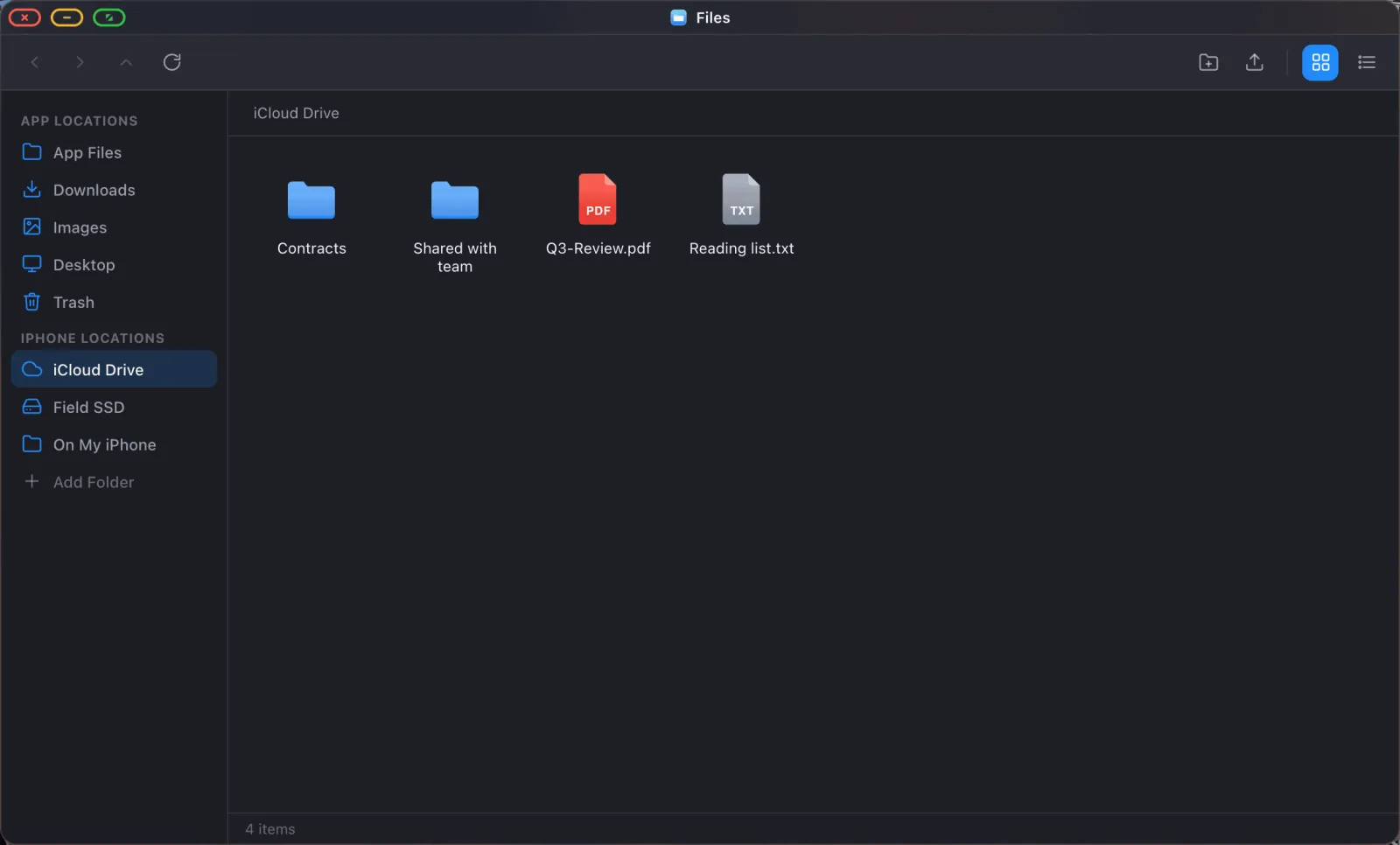
Los archivos que todavía no se han descargado de iCloud siguen apareciendo en el listado y se obtienen cuando los abres.
Una regla de iOS que conviene saber. No puedes montar todo el almacén «En mi iPhone», porque iOS lo trata como una raíz de proveedor que las apps no pueden enumerar. Monta el nivel de abajo, En mi iPhone › Documentos por ejemplo, y todo funciona. iCloud Drive no tiene este problema: se monta bien desde la raíz.
Qué puedes hacer una vez montada
- Abre PDFs, imágenes, vídeo, texto y archivos de Office en su sitio, en visores reales.
- Arrastra y suelta entre ubicaciones, con progreso para copias grandes.
- Comprime y descomprime sin herramientas aparte. Hacer doble clic en un
.ziplo extrae en su sitio. - Renombra, duplica, comprime y elimina desde el menú de clic derecho.
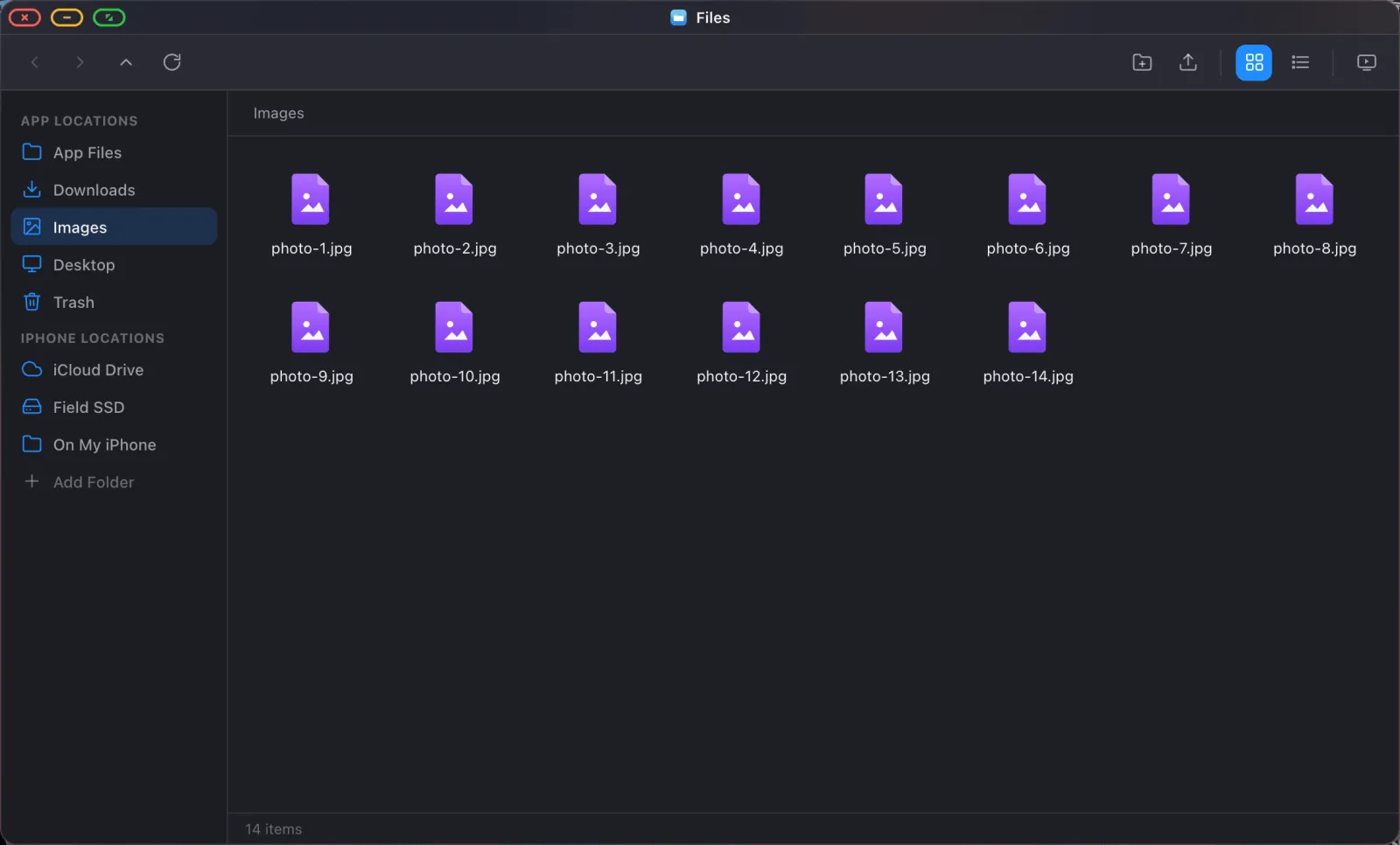
- Reproduce un pase de fotos a pantalla completa de una carpeta de imágenes.
- Busca en todas las ubicaciones montadas desde la superposición de Option Espacio.
- Ancla una carpeta al dock para que esté a un clic de distancia.
Un día realista de usuario avanzado
- Teléfono al hub. Monitor, SSD y cargador al hub.
- XeOS se abre en el monitor con las ventanas de la última sesión ya en su sitio.
- El contenido de la tarjeta o el SSD montado en una barra lateral, la carpeta de trabajo de iCloud en otra.
- Copia entre ambos, revisa a pantalla completa, anota un PDF, escribe las notas que lo acompañan en una ventana de navegador al lado.
- Desconecta. Todo está en el SSD y en iCloud.
Límites
Tus otras apps de iPhone no se ejecutan dentro del escritorio. Consigues el navegador, las apps integradas, y los sitios web que instales. Un teléfono también suministra corriente de bus limitada, y dos dispositivos exigentes en un hub barato es exactamente donde empiezan los problemas. Las transferencias grandes y sostenidas están limitadas por el hub y la unidad al menos tanto como por cualquier cosa del teléfono.
XeOS: External Display Browser convierte un iPhone o un iPad en un escritorio completo en cualquier monitor, con gestión de archivos real para iCloud Drive, carpetas locales y unidades externas.
Preguntas frecuentes
¿Tengo que volver a dar acceso a la unidad cada vez?
No. Una ubicación montada se recuerda a través de los reinicios.
¿Qué formato de unidad debería usar?
exFAT es la opción universal más segura. Si la app Archivos de iOS puede leer la unidad, esto puede montarla.
¿Funcionará un disco duro, o solo los SSD?
Los SSD alimentados por bus son la opción fiable. Las unidades grandes de disco mecánico normalmente necesitan su propia fuente de alimentación.
¿Puedo editar un archivo directamente en la unidad?
Sí. Estás trabajando sobre el archivo real, y los guardados se escriben de vuelta en su sitio.
Más del blog
Prueba XeOS: External Display Browser
Pantalla completa en cualquier monitor externo, tele o pantalla portátil. Sin bandas negras. Descárgalo en el App Store.
