
 External Display BrowserAdiós a las bandas negras4 min de lectura
Cómo quitar las bandas negras de la pantalla externa de tu iPhone
Conectas un teléfono a un monitor y obtienes una pequeña ventana vertical flotando en un mar de negro. El monitor no está roto, el cable no está mal, y no hay ningún ajuste oculto de iOS que se te haya pasado. Las bandas negras son un comportamiento del software, y exactamente dos cosas las causan. Ambas se pueden arreglar.
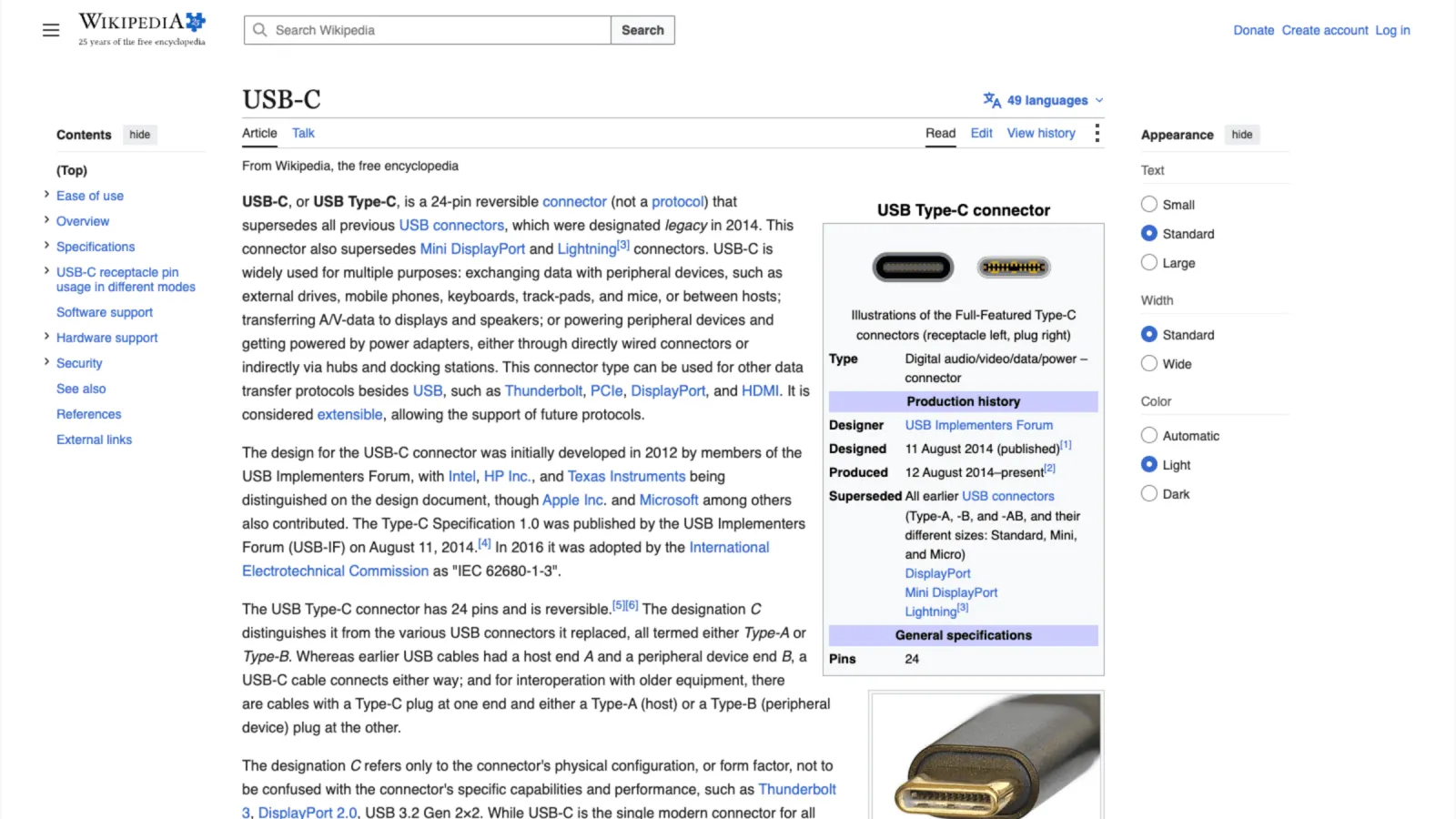
Causa uno: el duplicado tiene la forma equivocada
Una pantalla de iPhone mide aproximadamente 19,5:9, alta y estrecha. Un monitor o una tele es 16:9. Cuando iOS duplica, escala la imagen del teléfono todo lo que puede manteniendo sus proporciones, y luego rellena lo que sobra de negro. En un panel 16:9 eso te cuesta alrededor del 40 % de la pantalla.
Las apps estándar no pueden evitarlo. Safari no tiene forma de decirle a iOS «renderiza esto para la pantalla externa en horizontal», así que lo que llega al monitor es siempre una copia de lo que el teléfono está dibujando para sí mismo. Las bandas vienen del comportamiento por defecto, no de tu hardware.
Causa dos: el propio sobrebarrido de la pantalla
La segunda causa es la pantalla y no el teléfono. Las teles, en particular, vienen de fábrica con el sobrebarrido activado, un resto de la emisión analógica, que recorta los bordes de la imagen entrante y los vuelve a rellenar. Eso se nota como un marco negro fino todo alrededor incluso cuando la fuente es correcta.
Si ves un borde fino en los cuatro lados en lugar de dos bandas gruesas, eso es sobrebarrido. Busca en el menú de imagen de la tele algo como «Just Scan», «Screen Fit», «Full Pixel» o «1:1» y actívalo.
La solución: deja de duplicar
XeOS: External Display Browser no copia la pantalla del teléfono. Renderiza su propio escritorio directamente para la pantalla externa, en horizontal, a la resolución que indique el panel, y desactiva por su parte la compensación de sobrebarrido para que la imagen llegue a los bordes. La pantalla del teléfono se convierte en un trackpad y un mando mientras el monitor recibe el entorno.
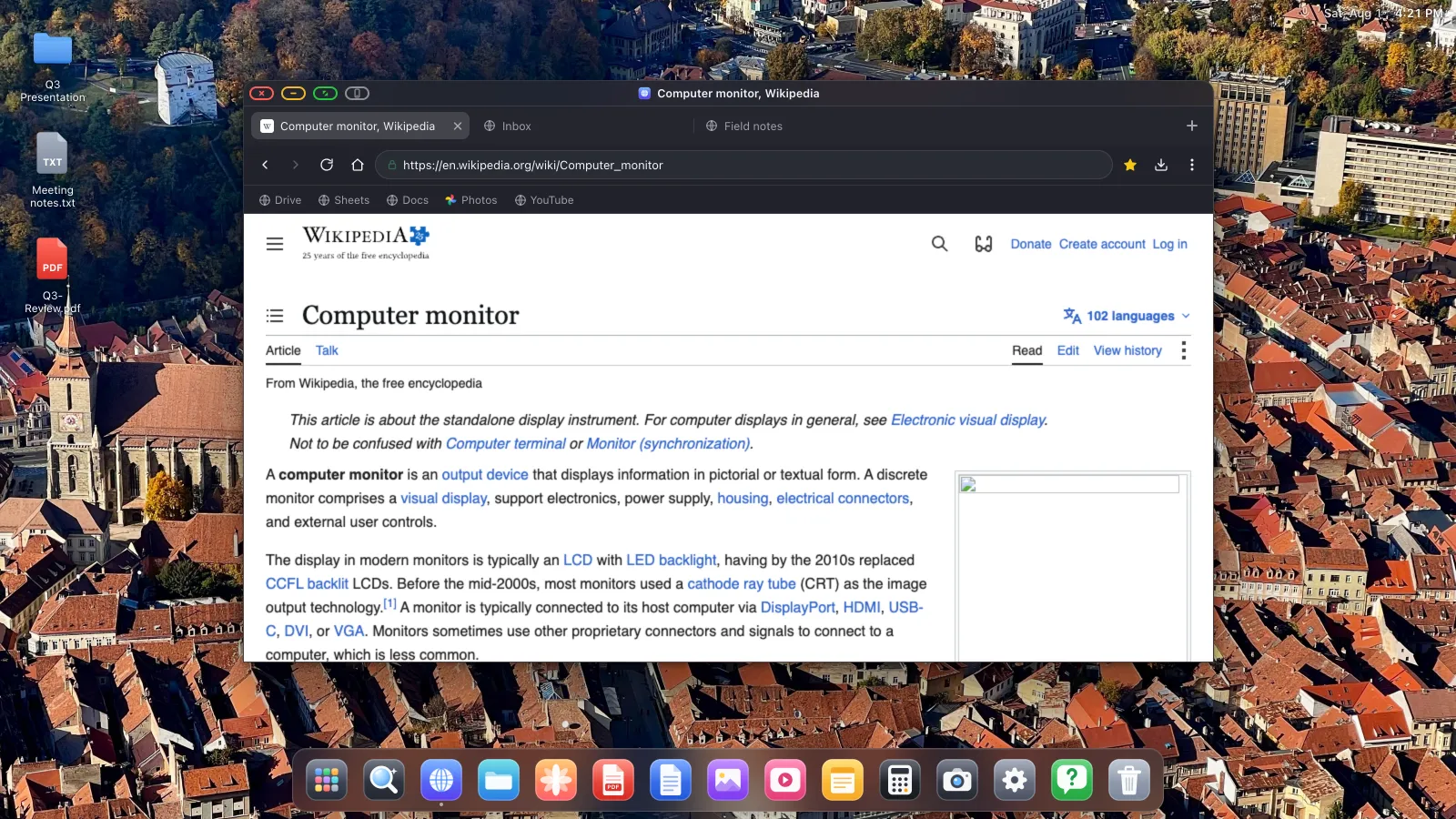
- Conecta la pantalla con un cable USB-C a HDMI (iPhone 15 en adelante, todo iPad USB-C), un adaptador AV digital Lightning (iPhone 5 al 14), o AirPlay.
- Abre XeOS con la pantalla conectada. Detecta la pantalla y toma el control.
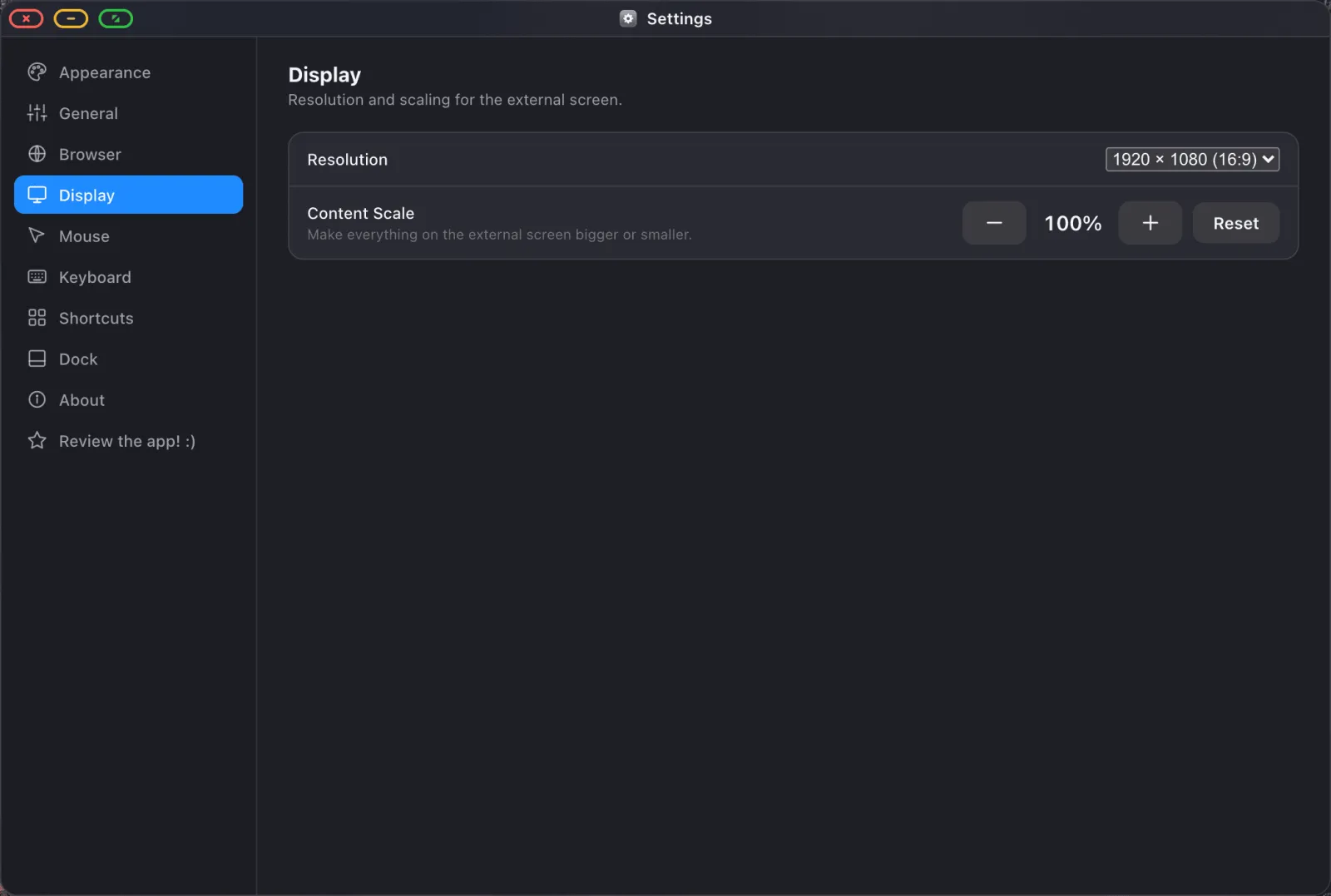
- Elige la resolución que indica el panel en Ajustes › Pantalla, normalmente 1920 × 1080. Elegir un modo que la pantalla entienda de forma nativa es lo que quita el relleno.
- Ajusta la escala del contenido para que el texto sea del tamaño correcto según a qué distancia estés sentado: 100 % en un escritorio, 130–150 % al otro lado de una habitación.
- Si queda un marco fino, arregla el ajuste de tamaño de imagen de la tele. Ese último punto está en la pantalla, no en el teléfono.
Ir más allá de «sin bandas»
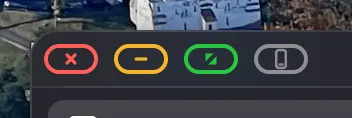
Una vez que la imagen llena el panel, el botón verde de cualquier ventana también le quita la interfaz, así que la barra de título, las pestañas, el dock y la superposición de estado desaparecen y el contenido ocupa cada píxel. Así es como deberían verse los vídeos y las diapositivas.
Y como es un escritorio en lugar de un duplicado, puedes usar la pantalla que acabas de recuperar: ventanas una junto a otra, un gestor de archivos, visores de documentos, un navegador con un bloqueador de anuncios activado por defecto.
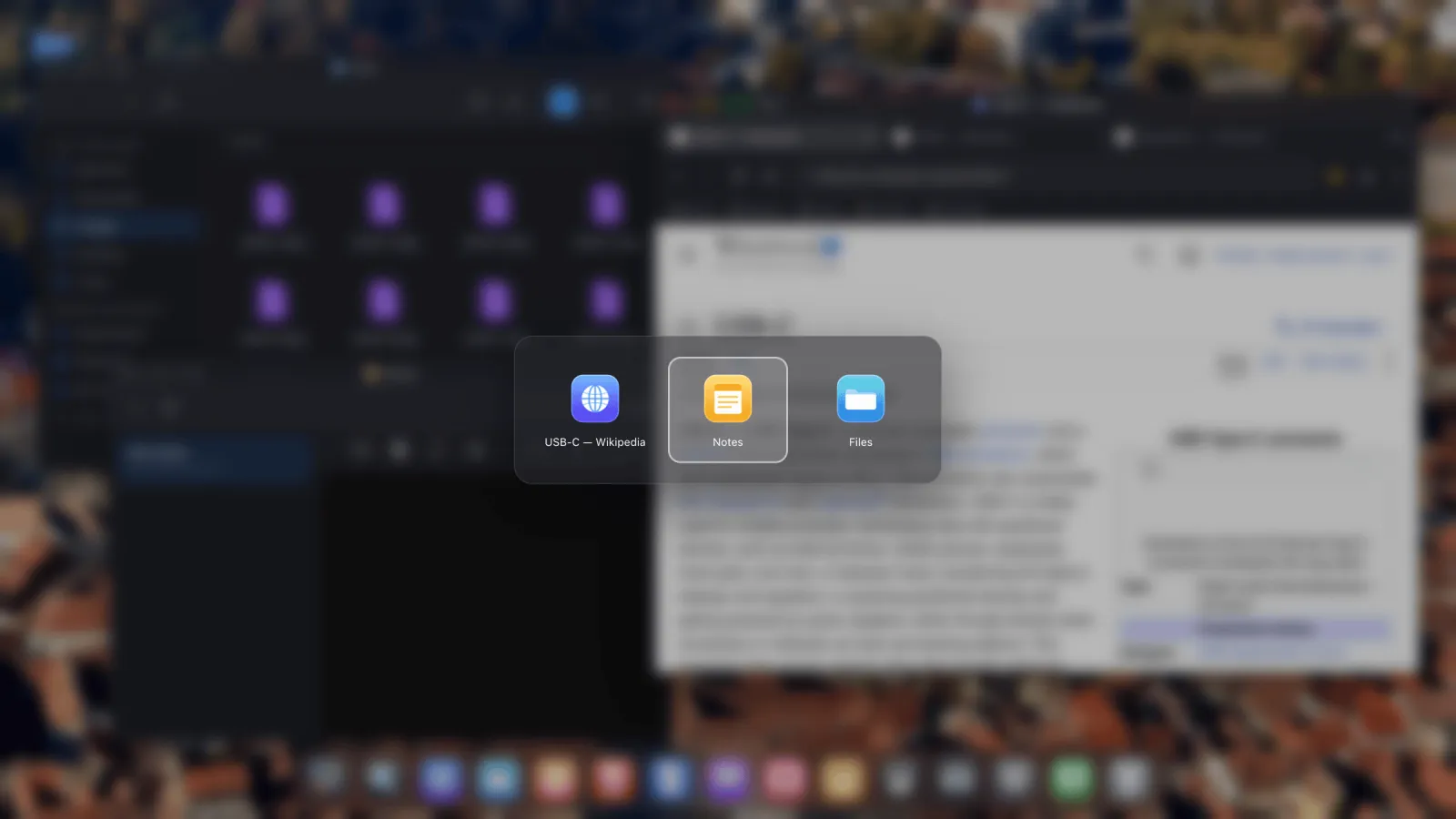
XeOS: External Display Browser convierte un iPhone o un iPad en un escritorio completo en cualquier monitor, tele o proyector.
Preguntas frecuentes
¿Necesito un cable distinto o un teléfono más nuevo?
No. Cualquier iPhone o iPad que pueda sacar vídeo es suficiente, y el cable que ya tienes vale. Las bandas nunca fueron un límite del hardware.
¿Esto también funciona por AirPlay?
Sí. Duplica al Apple TV primero, y luego vuelve a XeOS y detecta la pantalla y dibuja su propio escritorio en ella. Un cable tiene menos latencia y carga al mismo tiempo.
¿Por qué un sitio concreto sigue mostrando bandas?
Eso es el propio reproductor de vídeo del sitio enmarcando con bandas un contenido que no es 16:9, lo cual es un comportamiento correcto. Un vídeo 4:3 genuinamente no tiene nada que poner en las esquinas. La propia salida de la app no tiene bandas.
¿Volverán después de desconectar?
No. La elección de resolución se recuerda por pantalla, así que la próxima vez que conectes la misma pantalla vuelves directamente a la imagen completa.
Todo el proceso de conexión, con cada captura de pantalla, está en la guía de configuración.
Más del blog
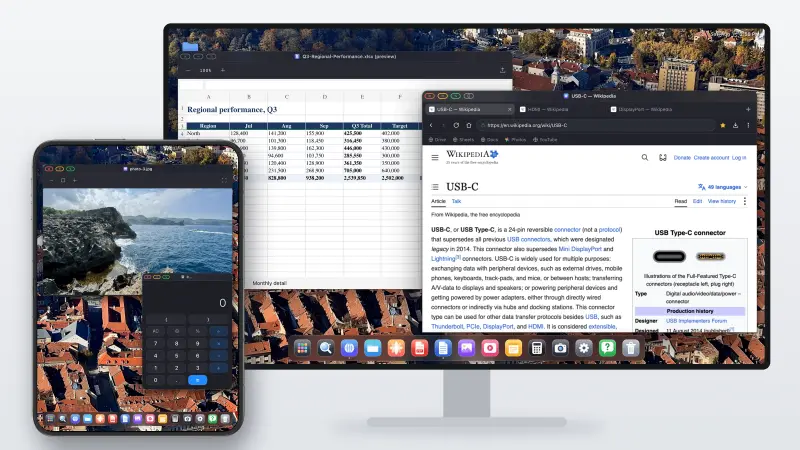
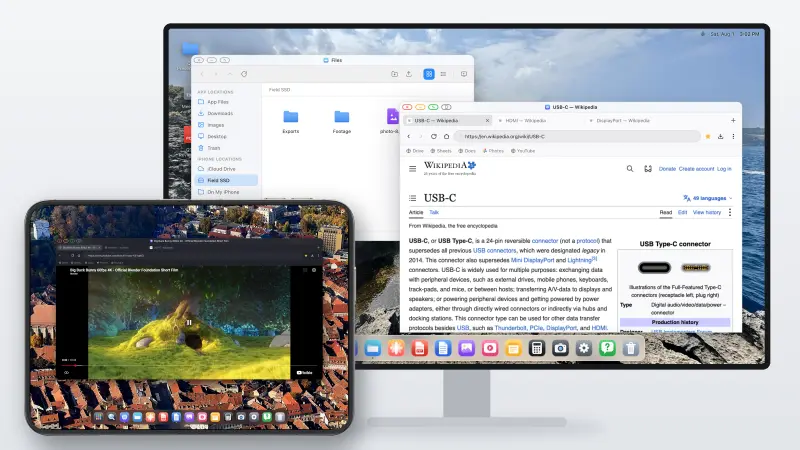
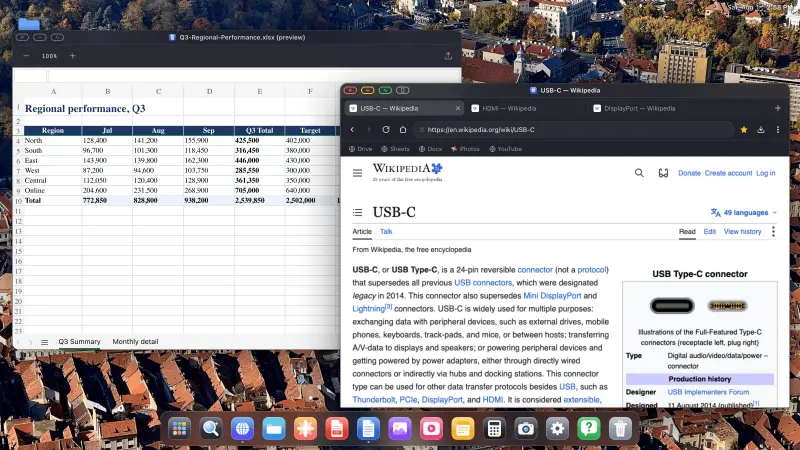

Prueba XeOS: External Display Browser
Pantalla completa en cualquier monitor externo, tele o pantalla portátil. Sin bandas negras. Descárgalo en el App Store.