
Desktop mode for iPhone*or iPad
Connect your iPhone or iPad to a monitor, TV, or projector. XeOS fills the entire external display, leaving no black bars.

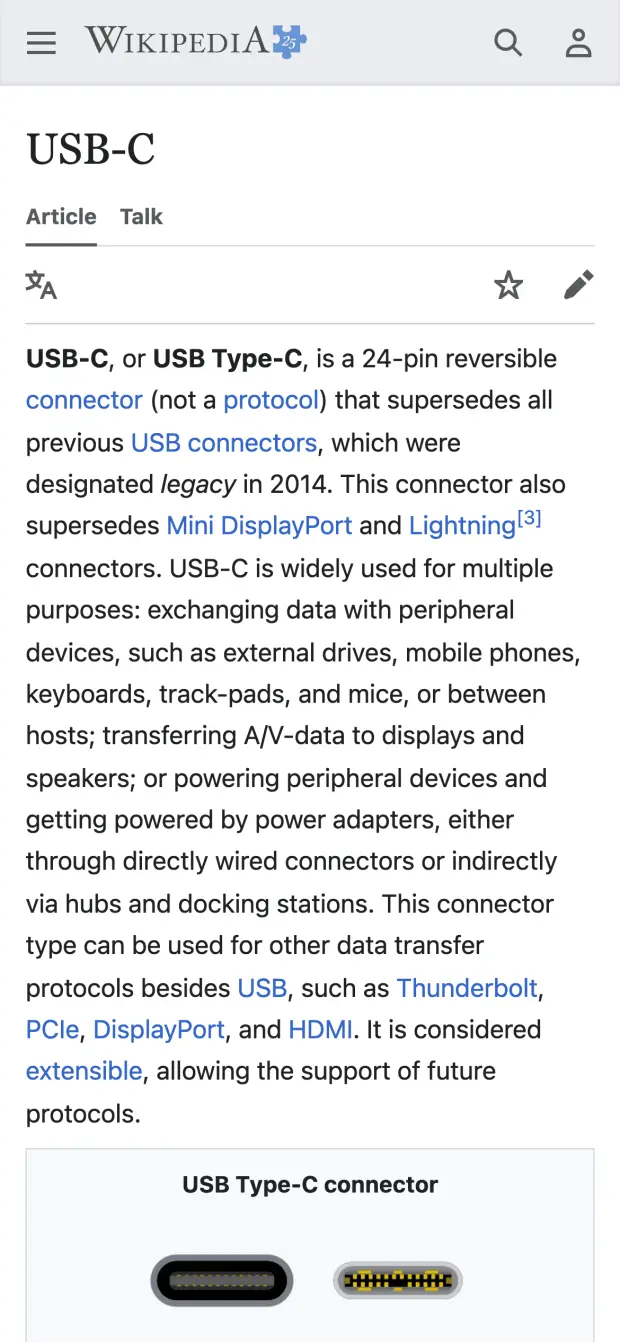

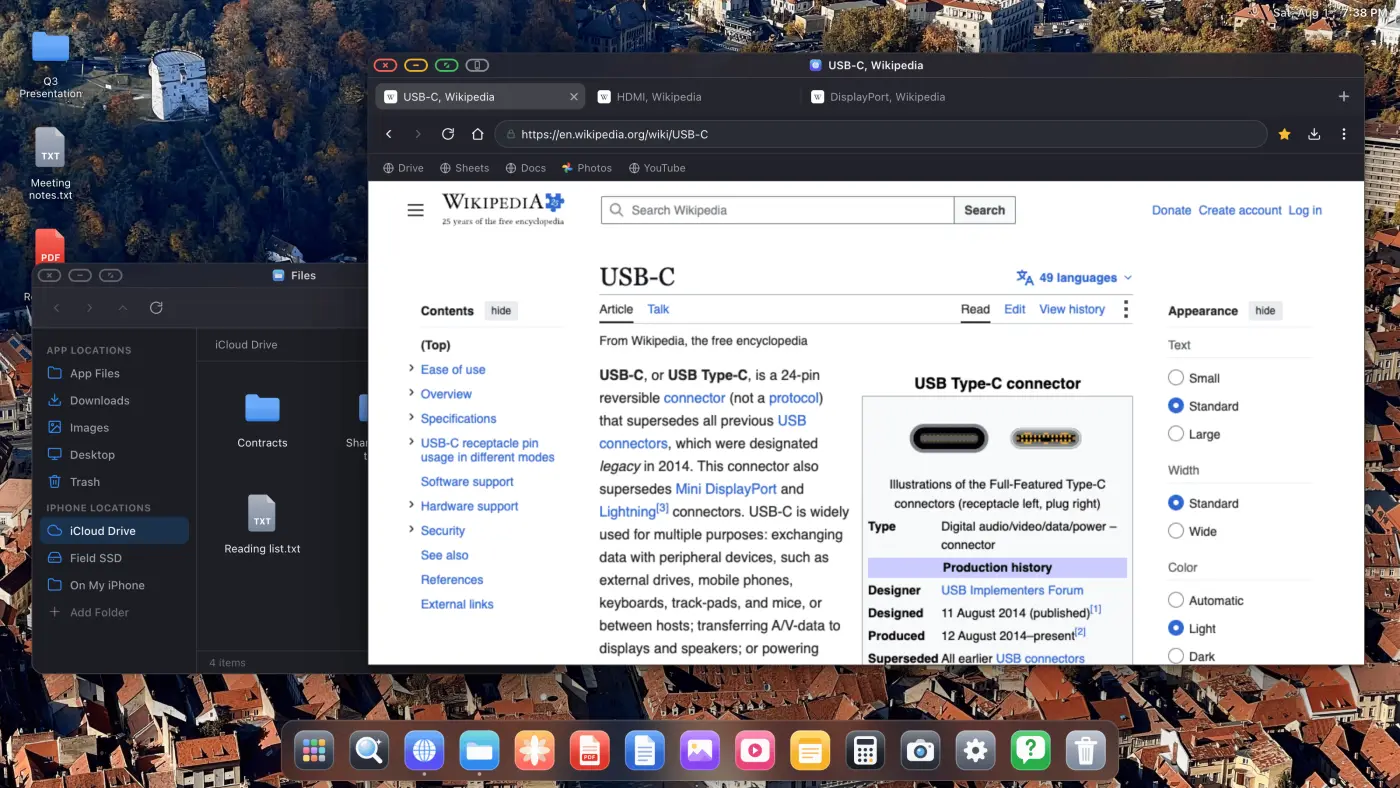
What XeOS puts on the external display
Compare standard mirroring with XeOS, then see how windows, files, media, and controls work on the connected screen.
YouTube & Video, Full Screen

YouTube & Video, Full Screen
- YouTube fills the whole screen, no black bars
- Any streaming site: Twitch, Vimeo, etc.
- Video in-page and full-screen toggle both work
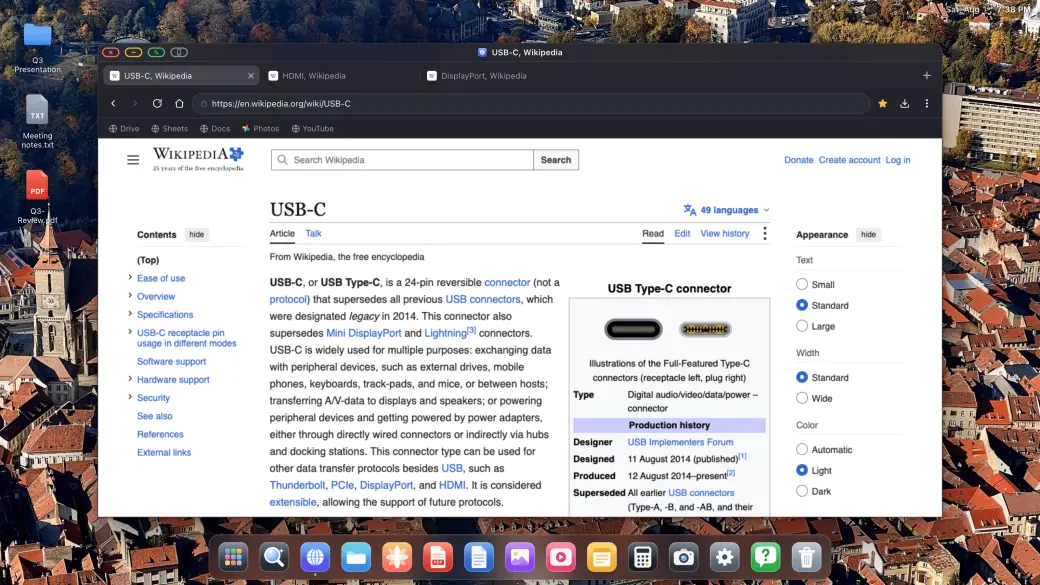
Black bars on a big external monitor or portable display are genuinely annoying. XeOS: External Display Browser fills the whole screen edge to edge, YouTube, Twitch, Vimeo, everything.
Real Windows, Real Multitasking
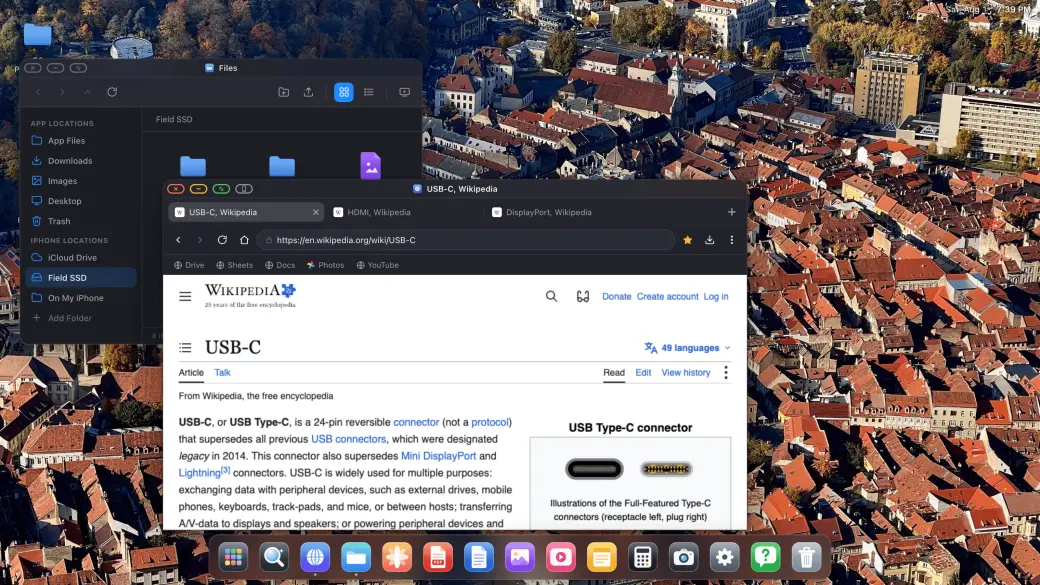
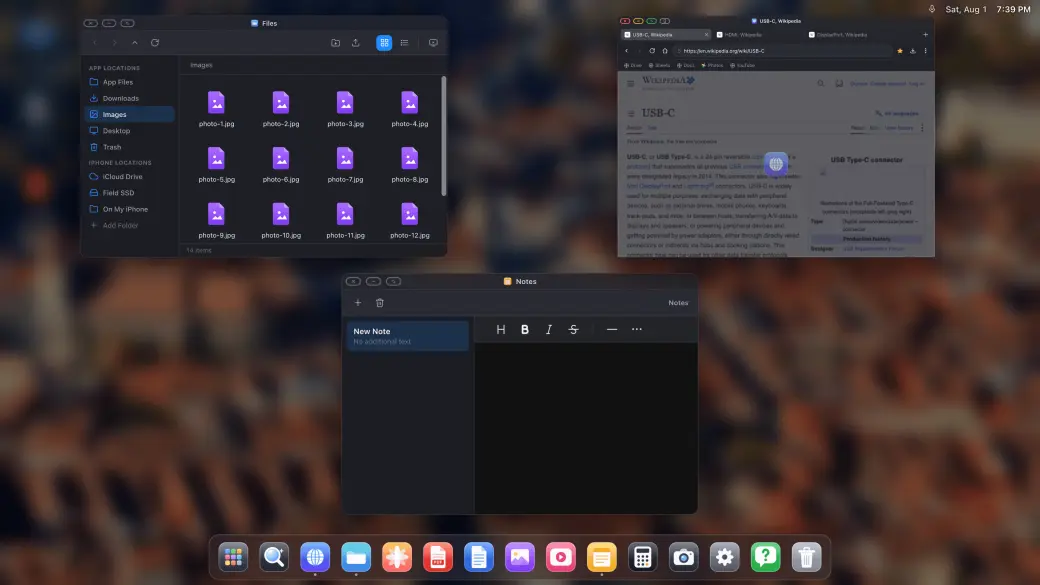
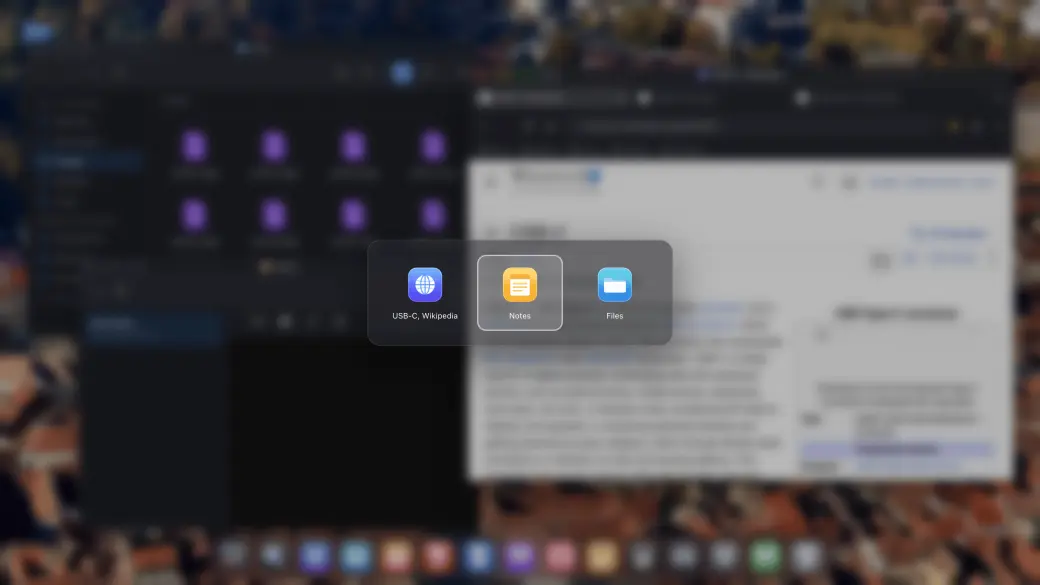
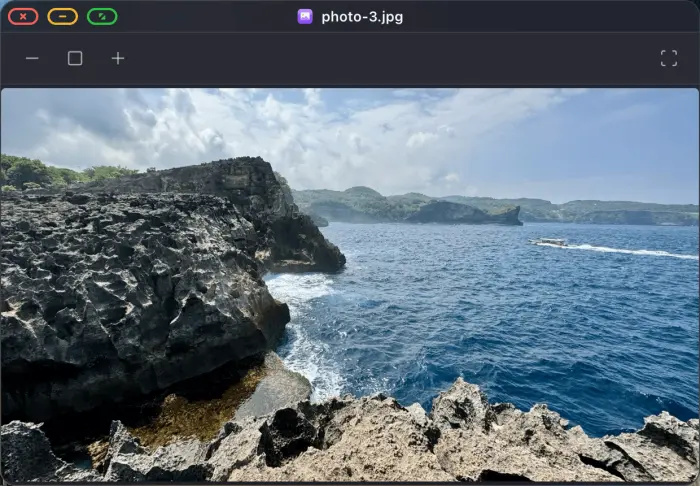
Real Windows, Real Multitasking
- Drag, resize and stack real windows
- Window switcher and an all-windows overview
- Install any website as its own app
Open as many windows as you need and arrange them the way you would on a desktop: drag, resize, stack, full screen, and a Mission-Control style overview of everything that is open.
Cloud Gaming on the Big Screen


Cloud Gaming on the Big Screen
- Xbox Cloud Gaming, Amazon Luna, GeForce NOW, and more
- Full external-screen gameplay with no black bars
- Pair a compatible controller and start playing
Open supported cloud gaming services in XeOS and play across the whole external display with a paired controller.
Mouse & Keyboard Support
Mouse & Keyboard Support
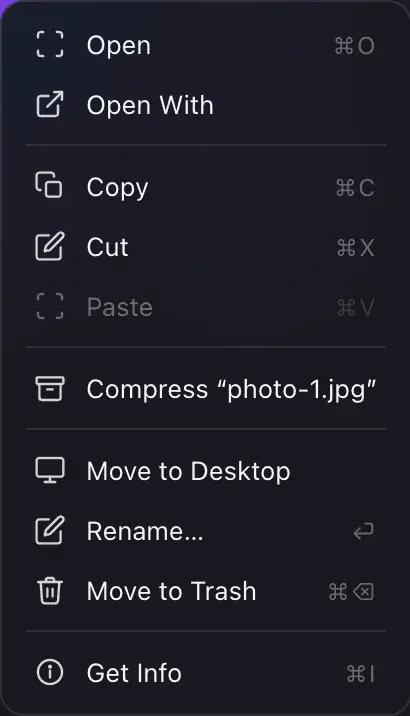
- Full mouse cursor on the external or portable display
- Shortcuts, copy/paste, typing
- Scroll wheel and extra mouse buttons work too
Pair a Bluetooth mouse and keyboard and it just works: cursor, scrolling, shortcuts. It's the closest thing to Samsung DeX that iPhone has ever had.
Your Files, Your Drives, Your iCloud
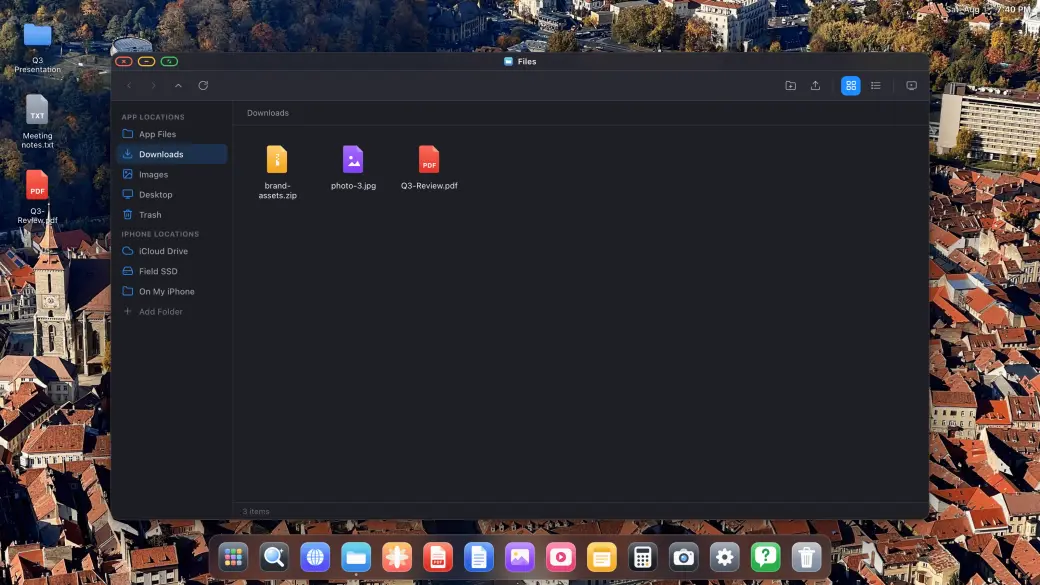
Your Files, Your Drives, Your iCloud
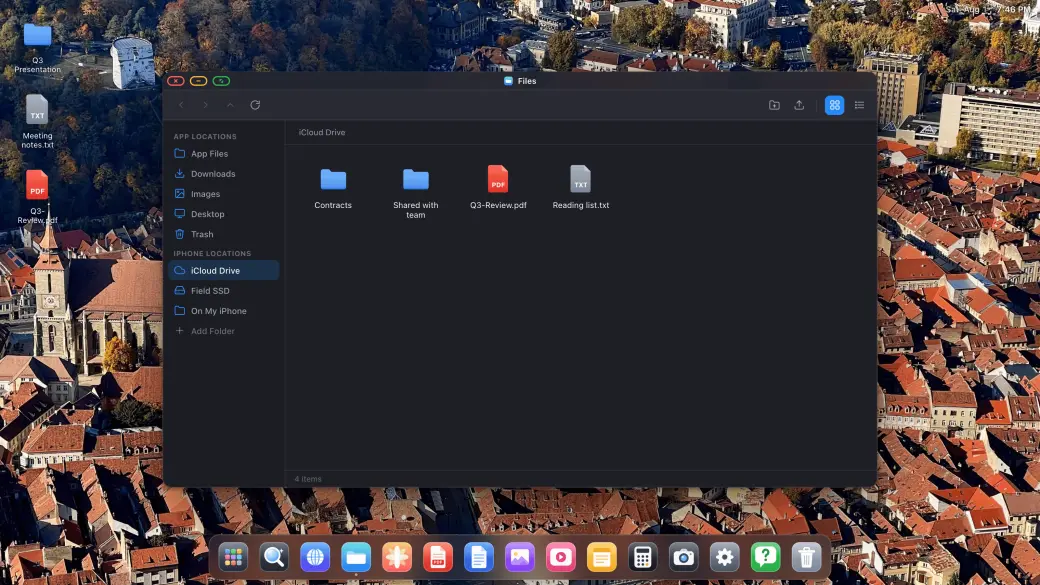
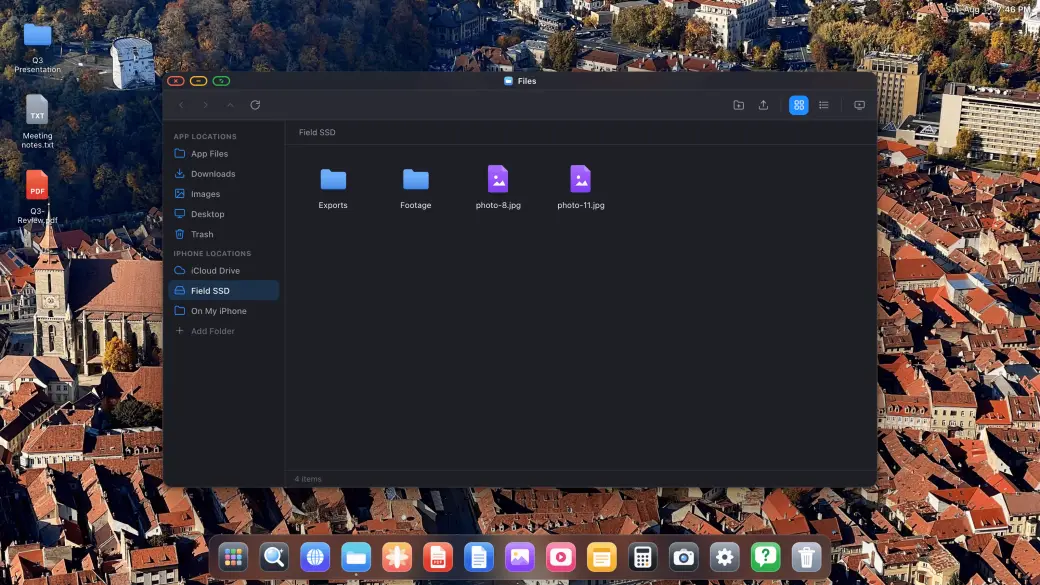
- Mount iCloud Drive, external SSDs and local folders
- Copy, move, rename, compress and unzip
- Open any file in the built-in viewers
Files is a proper file manager: mount your iCloud Drive, a USB-C SSD or a folder on the iPhone itself, and copy, move, compress and open anything across all of them on the big screen.
Downloads, PDFs & Office Files
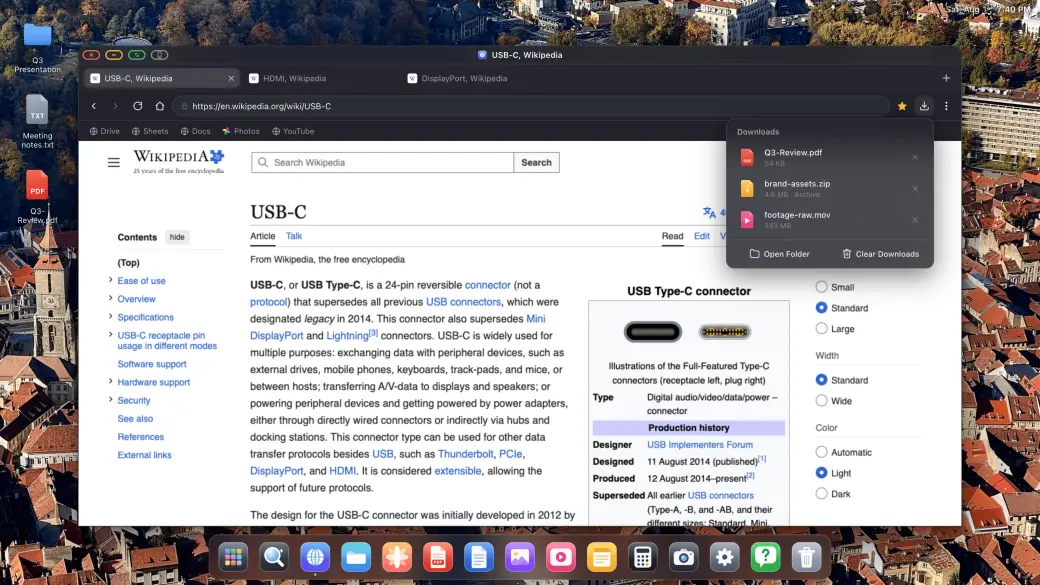
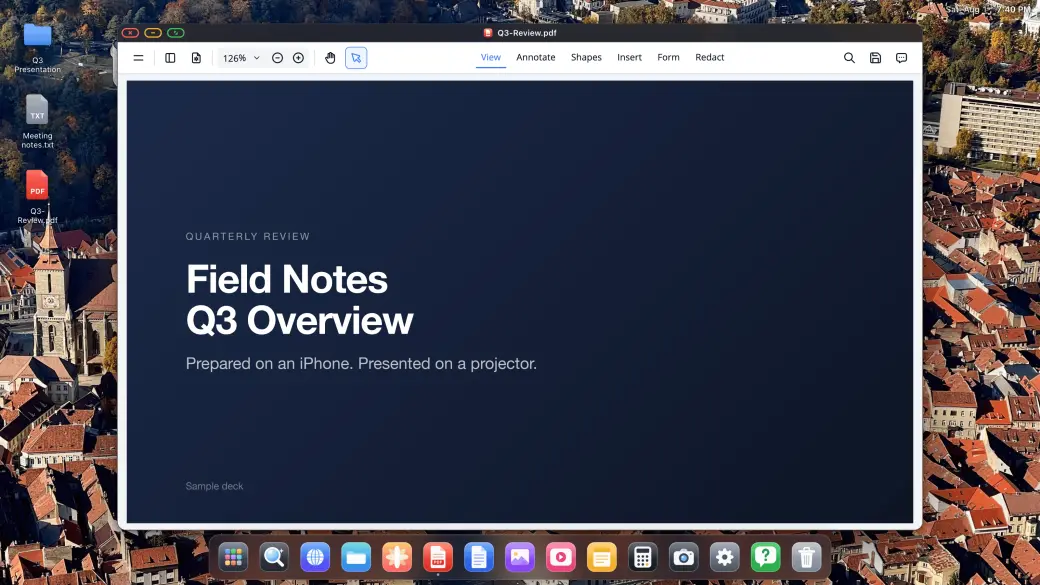
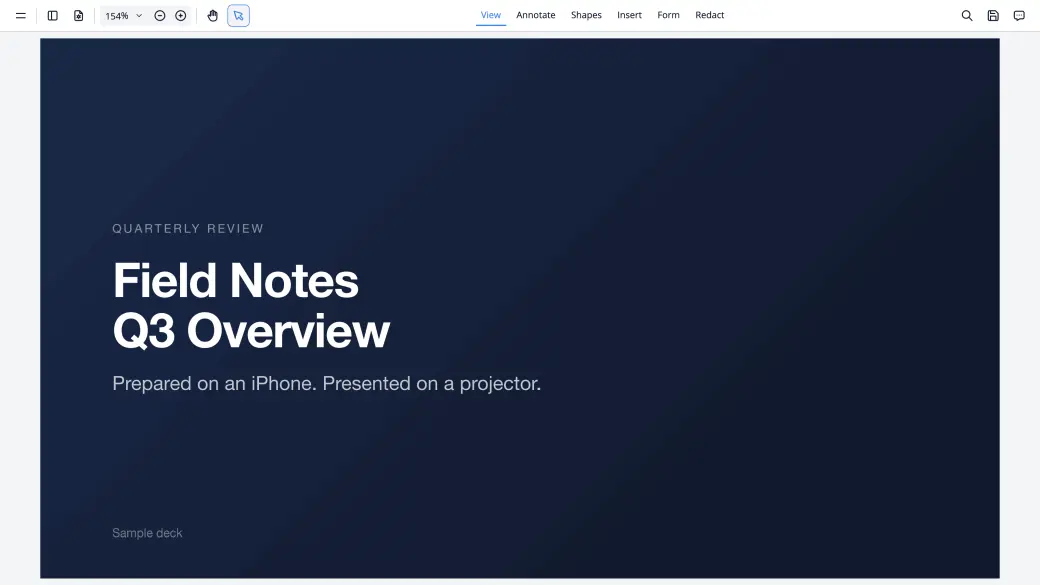
Downloads, PDFs & Office Files
- Real downloads with progress, straight into the file system
- Annotate and sign PDFs, present them full screen
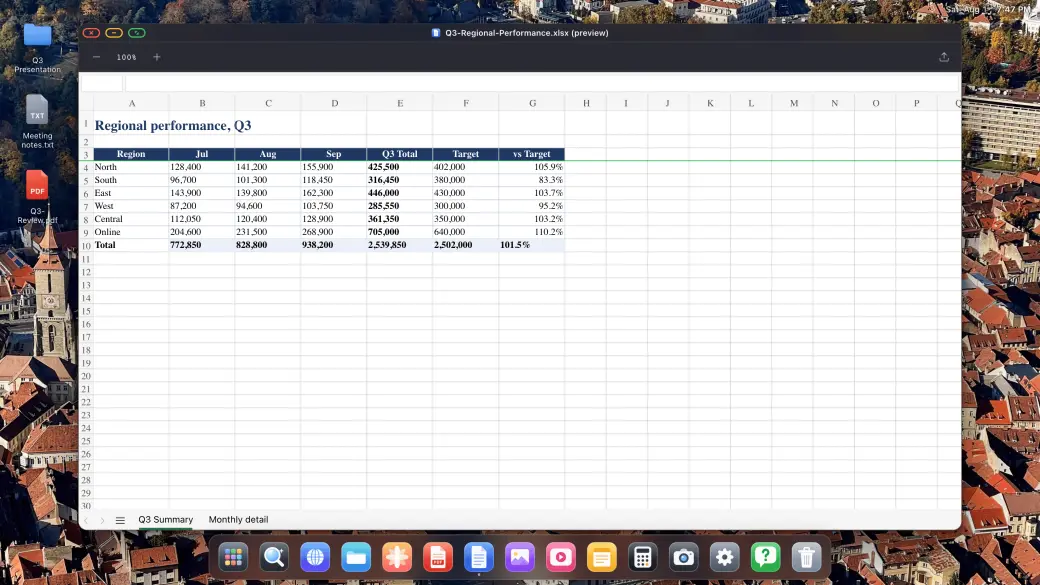
- Preview Word, Excel and PowerPoint documents
Download anything the web gives you and open it right there: the PDF viewer annotates and signs, and Word, Excel and PowerPoint files preview at full desktop size.
Photos, Slideshows & Built-in Apps

Photos, Slideshows & Built-in Apps
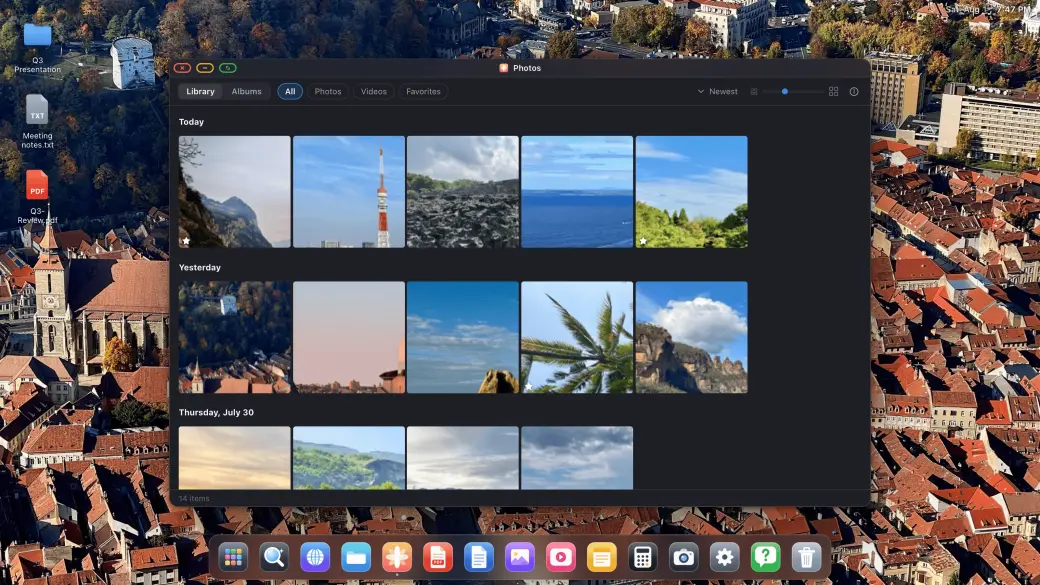
- Your whole photo library, full screen slideshows
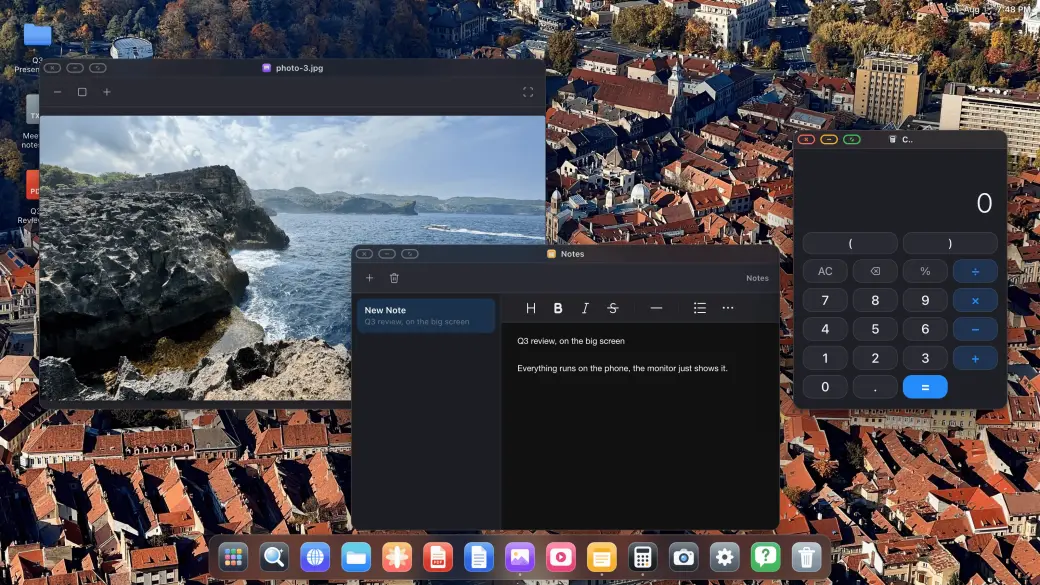
- Image, video and audio players built in
- Notes, Calculator and a full Settings app
Your photo library opens on the external display, plays as a full-screen slideshow on a TV, and the built-in image, video and audio players, Notes and Calculator are all there when you need them.
Apps Drawer & Instant Search
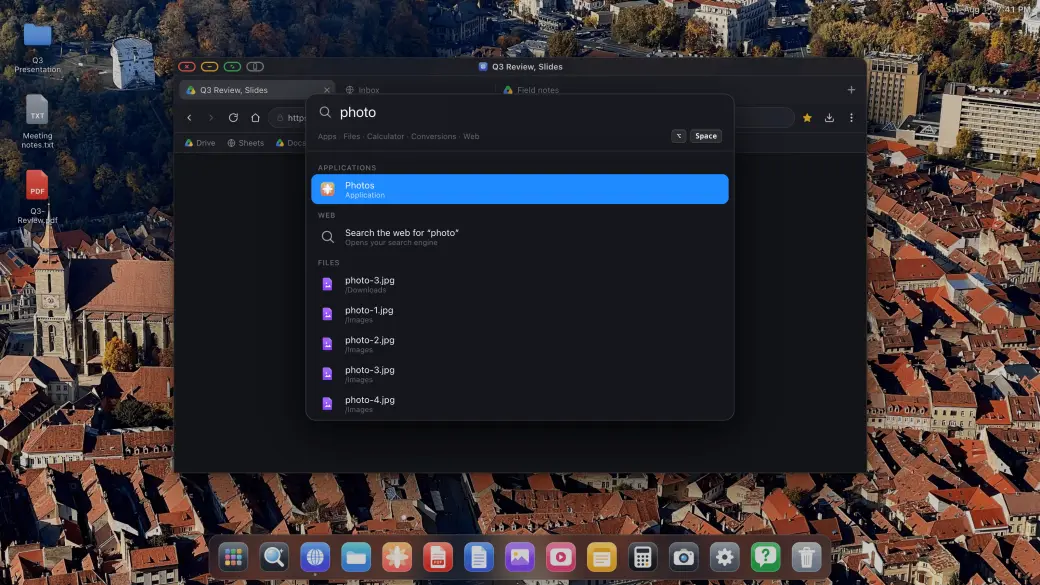
Apps Drawer & Instant Search
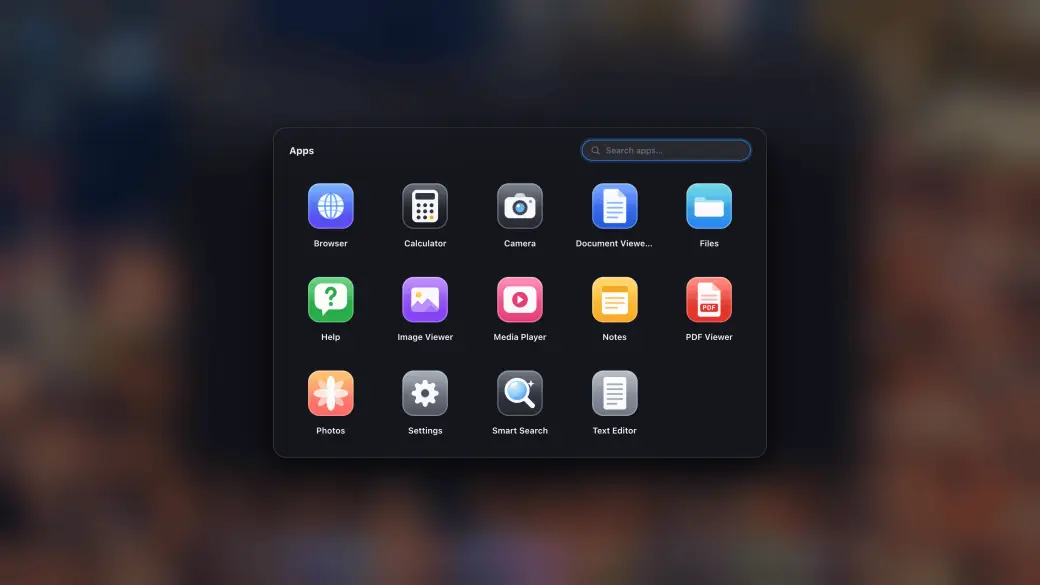
- Apps drawer with your installed sites
- Search files, apps and the web from one field
- Pin anything you use to the dock
The apps drawer holds every built-in app and every site you installed as an app, and the search overlay finds apps, files and answers instantly, without lifting your hands off the keyboard.

Connect the display. Open XeOS.
Use a USB-C cable or adapter. Add a Bluetooth mouse and keyboard if you want them; the on-screen controls work too.
Connect to Any External or Portable Display
Plug your iPhone or iPad into an external monitor, portable monitor, TV or projector using a USB-C to HDMI or USB-C to USB-C adapter. XeOS: External Display Browser detects the connection automatically and fills every pixel of the screen.
Add a Bluetooth Mouse & Keyboard (Optional)
Pair a Bluetooth mouse and keyboard for a full browser experience on your external display, the best Samsung DeX alternative there is for iPhone. Works great with on-screen controls too.
Enjoy a Desktop-Class Experience
Manage files, annotate PDFs, preview Office docs, play media, and browse the web full screen. Install your favorite sites as standalone apps. No black bars, ever.
Inside XeOS
Browser windows, files, media, documents, and input controls built for the connected screen.
Install Sites as Apps & Multitask
Install your favorite websites as standalone apps. Float multiple windows, drag and resize them to keep everything you need visible at once.
YouTube & Video, True Full Screen
Watch YouTube, Netflix, Twitch or any online video in complete full screen on your external monitor. No sidebars, no black bars, just pure full-screen video that fills the whole display.
Media Players & Productivity Apps
Built-in photo, video, and audio players for your media. Stay productive with integrated Notes and Calculator apps.
File System & Document Preview
A complete file system to manage your downloads. Open and annotate PDFs, and preview Word, Excel, and PowerPoint documents directly on the big screen.
Mouse & Keyboard Support
Pair a Bluetooth mouse and keyboard to your iPhone and get the full desktop browsing experience on your external monitor. Cursor, scroll, shortcuts, all fully supported.
Any External Monitor, Portable Display, TV or Projector
Connects via USB-C or HDMI to any external monitor, portable monitor, TV or projector. XeOS: External Display Browser automatically adapts to the screen’s native resolution for crisp, corner-to-corner display, whether it’s a permanent desk setup or a portable display on the go.
Cloud Gaming
Play supported cloud gaming services across the full external display with your controller, including Xbox Cloud Gaming, Amazon Luna, GeForce NOW, and more.
How to
Guides

How to Connect Your iPhone or iPad to a Monitor, TV or Projector, and Fill the Screen
Plugging an iPhone into a TV is easy. Getting a usable screen out of it is the hard part. Stock iOS mirrors your phone, so a 16:9 monitor shows a tall phone-shaped picture floating between two black bars. XeOS replaces that mirror with a desktop that uses every pixel the panel has. Do the setup on this page once and the rest of the guides here will assume you've done it.
Read the full guide
How to Watch YouTube Full Screen on a TV or Monitor From Your iPhone or iPad
You have a TV, an iPhone and a cable, and you want the video to fill the screen rather than sit in a phone-shaped rectangle in the middle of it. With XeOS that takes about five minutes: sign in, go full screen, and leave the built-in ad blocker doing its job.
Read the full guide
How to Run a Photo Slideshow on a TV From Your iPhone or iPad, Two Ways
Holiday photos on the living room TV, or a looping display in a shop window. Either way you don't need a computer, a media player or a smart TV app. An iPhone, a cable and XeOS will fill any screen with your photos. There are two routes, your own photo library or a Google Photos album in the browser, and they suit different jobs.
Read the full guideFrom the blog
Articles
Everything you need to know about using your iPhone with an external display.
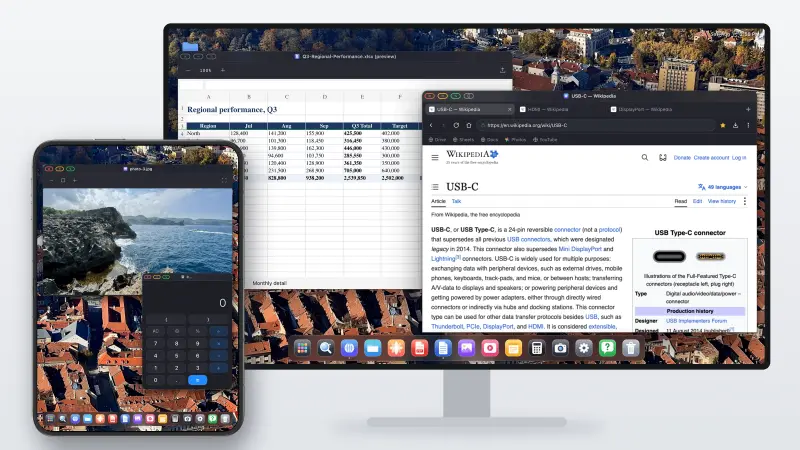
Does iPhone Duo Support Desktop Mode? What Changed, and What Didn't
Short version: no. The iPhone Duo brought Split View to the iPhone for the first time, so you can have two apps open side by side on the inner screen. That's it for multitasking. Plug it into a monitor and you still get a mirror of the phone, two windows at most, scaled up and surrounded by black space. Below is what the Duo actually adds, what happens on an external display, and how the XeOS app finally gives you a real multi-screen desktop mode.
Read the article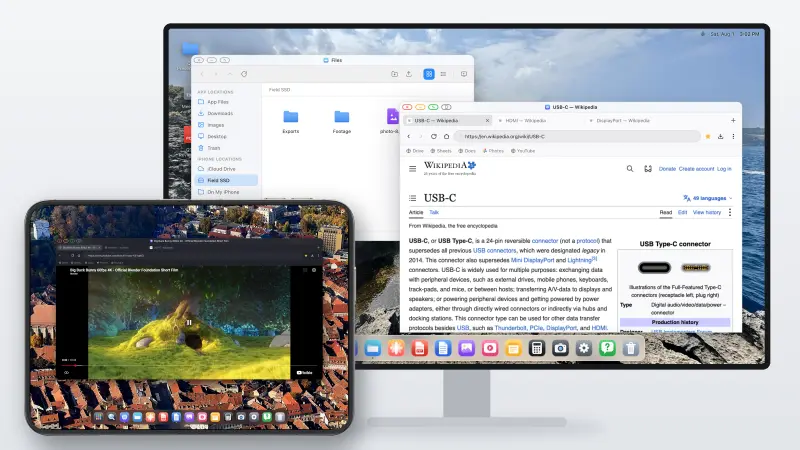
iPhone Duo: Here's an Alternative to Samsung DeX
The iPhone Duo finally lets an iPhone show two apps at once. What it still doesn't do is what Samsung DeX has done since 2017: turn the phone into a desktop when you plug it into a monitor. Here's where the Duo stops, and how to get a DeX-style desktop on an external display with it today, with the Duo's own screen working as a second display alongside.
Read the article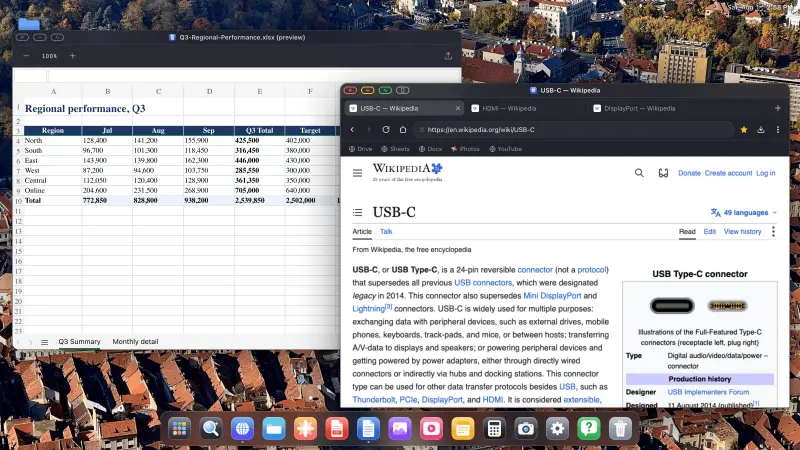
Did iOS 27 Add Desktop Mode to the iPhone? The Real Answer, and What to Use Instead
Short version: no. iOS 27 did add a few multitasking features, but only for the iPhone Duo, and nothing for any other iPhone. Plug a regular iPhone into a monitor with iOS 27 and you still get a mirror, phone-shaped, floating between two black bars. Below is what iOS 27 actually changed, what it didn't, and how to get a desktop on a big screen without waiting for Apple.
Read the articleFrequently Asked Questions
Everything about getting a desktop experience from your iPhone
About External Display Browser
The best Samsung DeX alternative for iPhone and iPad, bringing a desktop experience that actually works!
How XeOS: External Display Browser Removes Black Bars
When you connect an iPhone to an external monitor or portable display, standard apps fill the unused space with black bars because they are designed for iPhone’s portrait screen. XeOS: External Display Browser renders the browser UI to fill the full landscape resolution of the connected display, no black bars on top, bottom or sides. Every pixel of your external monitor, portable display, TV or projector is used.
Full-Screen iPhone External Monitor Browser Features
XeOS: External Display Browser is packed with everything you need for a full-screen browser experience on your iPhone external display, everything a Samsung DeX alternative for iPhone should have:
- •Full-screen, no-black-bars browsing on any external monitor, TV or projector at native resolution
- •YouTube, Netflix, Twitch and all online video platforms in true full screen on external display
- •Zoom, Google Meet, Microsoft Teams and web meetings with full camera and microphone support
- •Download any file from the browser and open PDFs, Word/Excel/PowerPoint docs and images/videos/audio
- •Full Bluetooth mouse and keyboard support for desktop-class control of the iPhone external display browser
- •Automatic resolution detection, adapts to any HDMI monitor, TV or projector resolution
- •Works with all iPhone models supporting video output, via Lightning-to-HDMI or USB-C-to-HDMI or USB-C-to-USB-C adapters
- •iPhone XeOS: External Display Browser corner-to-corner, zero pillarboxing, letterboxing or black bars
- •Clean, native iOS browser engine, fast, standards-compliant, private
Ready to Unlock Your iPhone's Desktop Experience?
Download XeOS and instantly transform any monitor, TV, or projector into a powerful workstation. The best Samsung DeX alternative for iOS.
File System • Document & Media Apps • Installable Web Apps • Full Screen