 External Display BrowserApps6 min read
How to Open Files in Installed Web Apps
Any website or web app can live in the XeOS dock. If that app can open and save files in a desktop browser, you can let it open your files in XeOS too: double-click a document and it opens in the app, and Save writes it straight back. It works through open web standards, and it's off until you turn it on for an app.
First, install the web app
A web app is simply a website that works like an application: an editor, a drawing tool, a spreadsheet, a markdown notebook. Any of them can be installed in XeOS the same way as any other site. Open it in the Browser, click ⋯ and choose Add Site to Dock. It gets its own icon and its own window. Installing websites as apps covers this step in detail.
To follow along, you can use the small Text Editor sample on this site. It opens and saves plain text files, and it's what the screenshots below show.
Let the app open files
Installed apps can't touch your files by default. You allow it one app at a time:
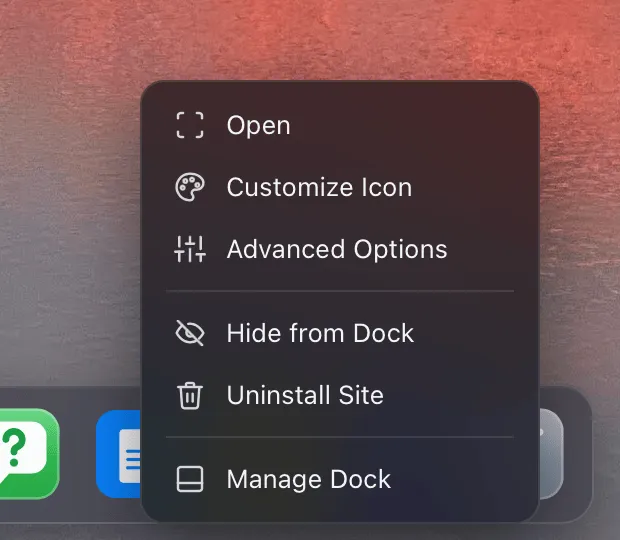
- Right-click the app in the dock (or in the Apps drawer).
- Choose Advanced Options.
- Turn on Allow Opening Files.
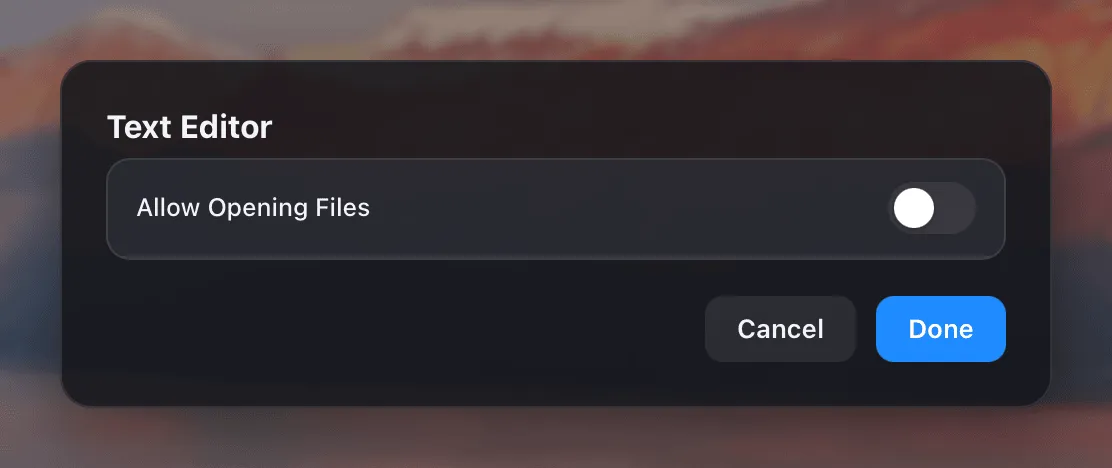
Many web apps publish a list of the file types they support. When an app does, XeOS fills the types in for you as soon as you turn on Allow Opening Files, and turns on Open These File Types by Default. If the app doesn't publish a list, tick the types yourself. Either way, you can add or remove types whenever you like, including your own under Custom.
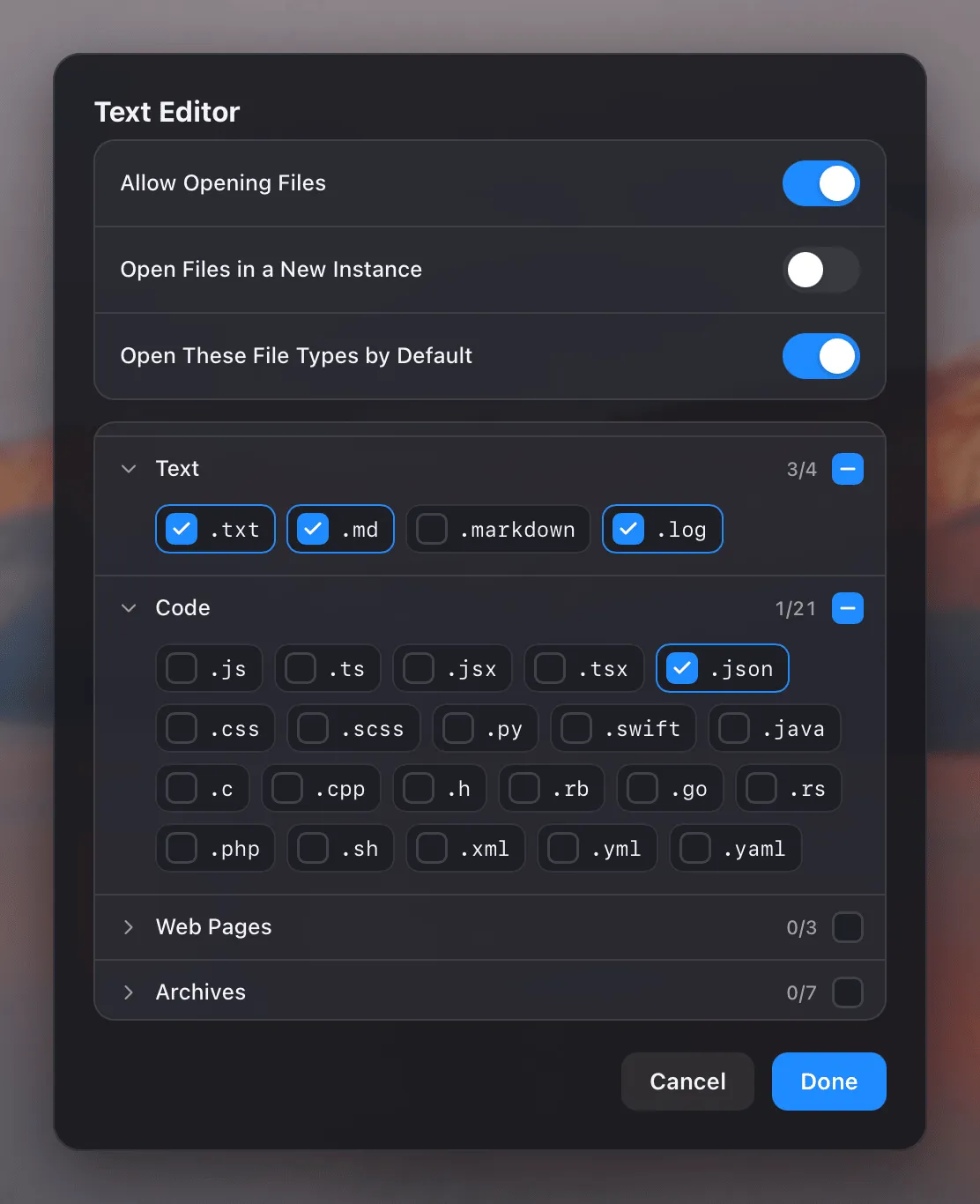
Two more settings are in the same dialog:
- Open These File Types by Default makes the app the default for the ticked types, so a double-click opens them there. Each file type has one default app. If you tick a type that another app had, the latest choice wins.
- Open Files in a New Instance opens every file in a new window of the app. Off, a file goes to the app's last used window.
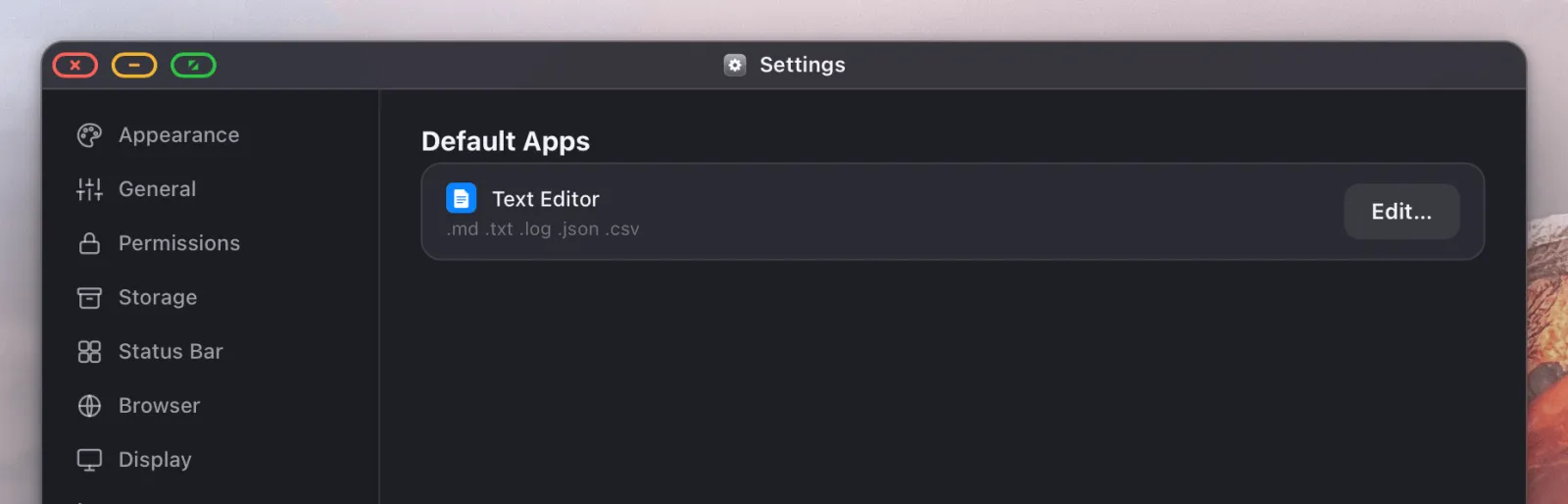
Every app you've allowed is listed in Settings › Default Apps, with the types it opens. Edit takes you back to its Advanced Options.
Opening a file
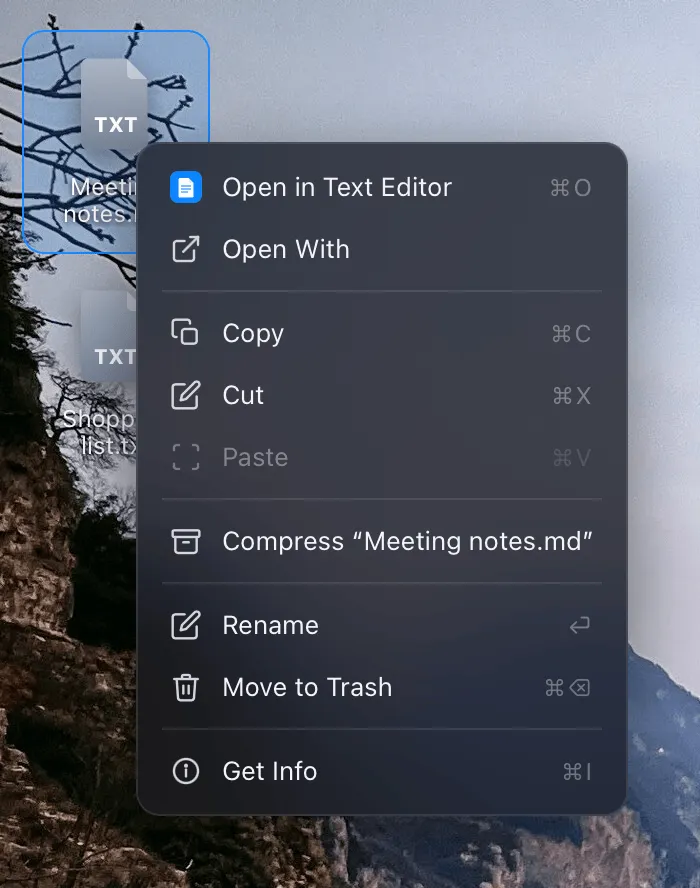
Right-click any file on the desktop or in Files. The first row always says which app a double-click will use. Open With lists every other app that can open it, including installed web apps you've allowed.
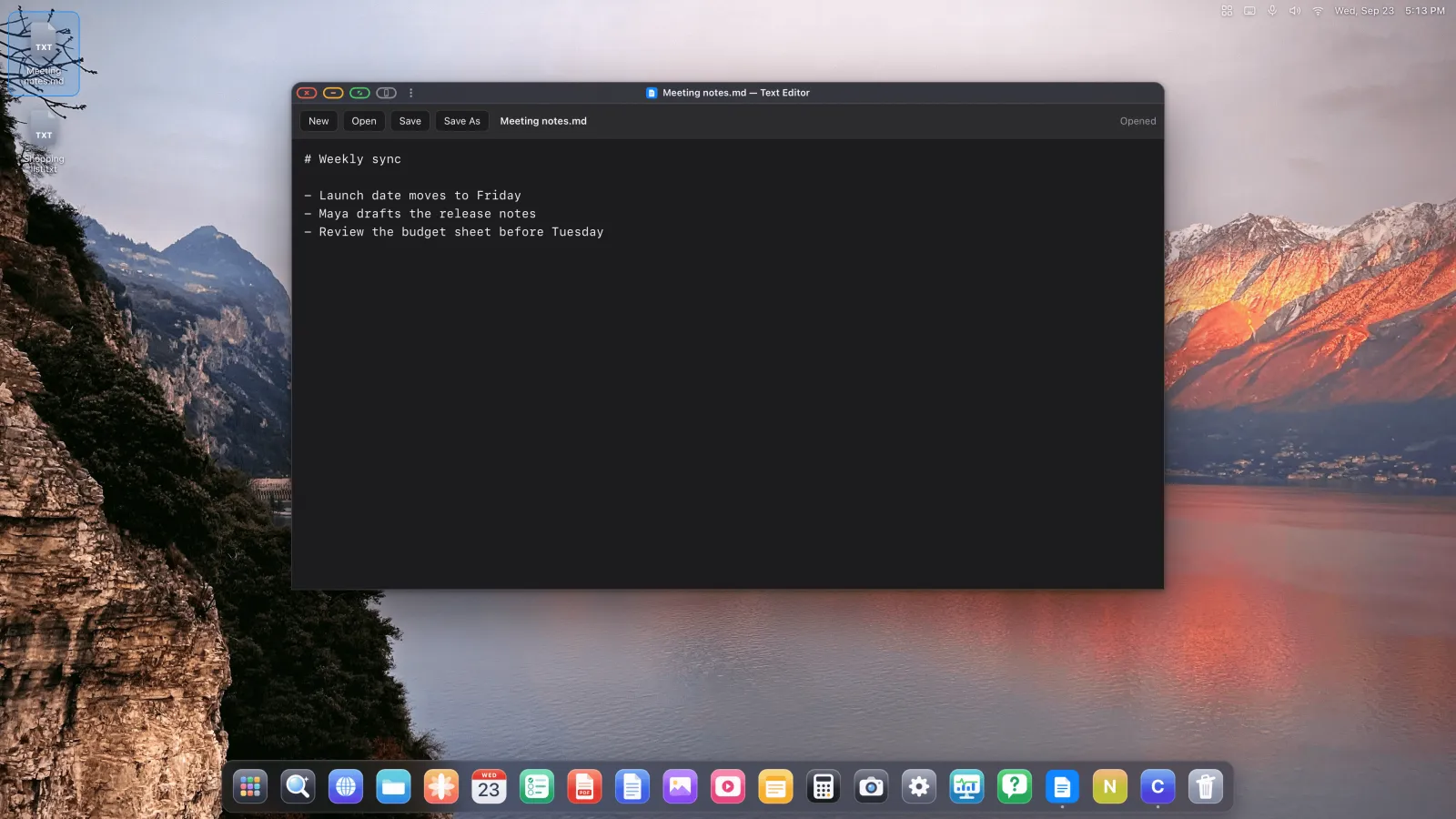
The app opens with the file loaded. If it's already open, the file goes to its last used window.
Saving, and unsaved changes
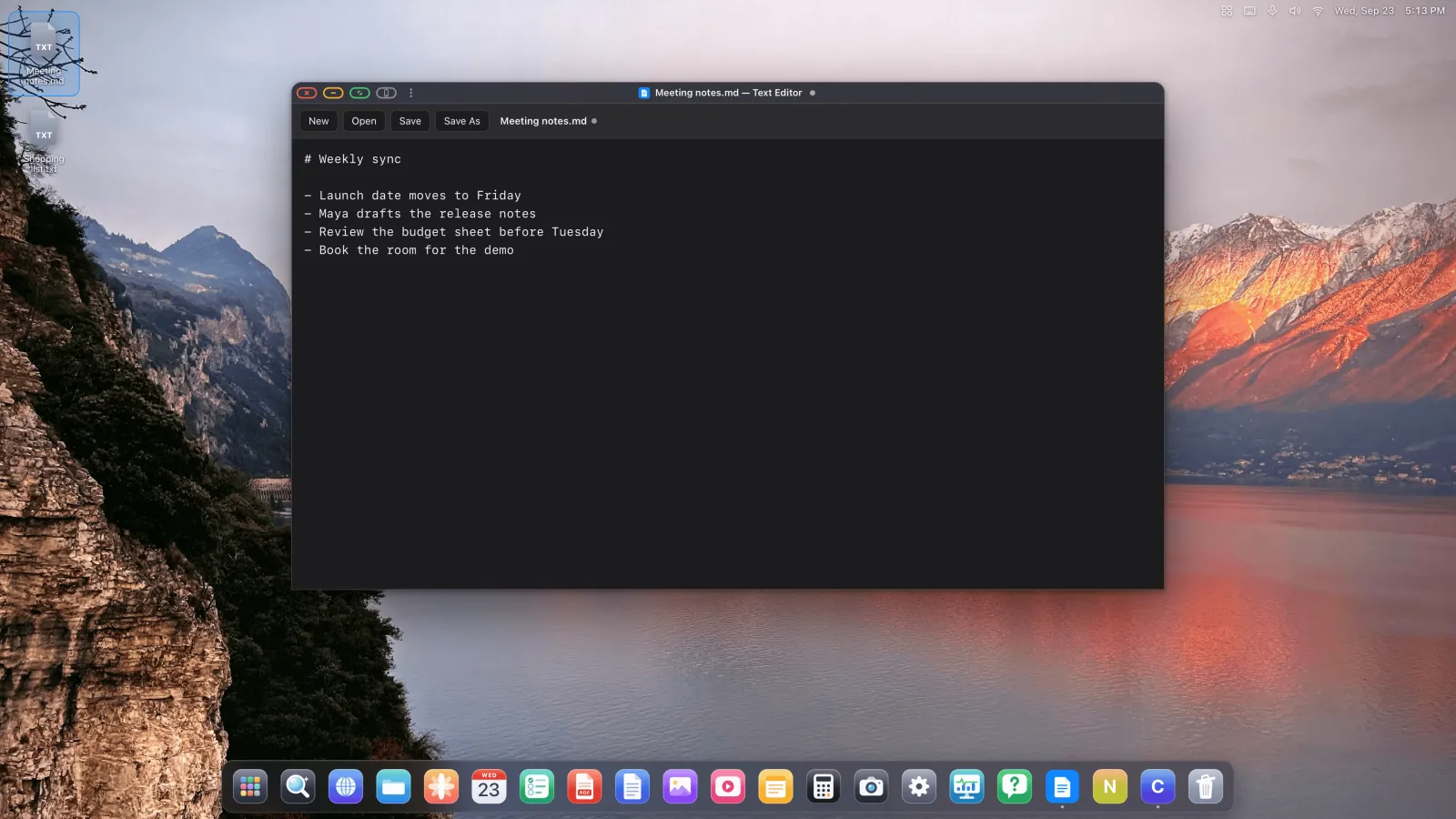
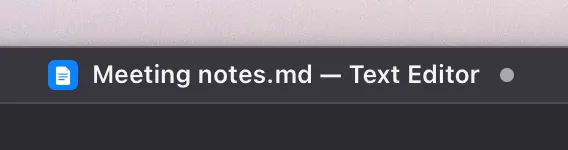
From here the web app works like any desktop app. Save writes the file you opened. Save As and Open show the XeOS Save and Open panels. As soon as you make a change, a dot appears next to the window's title. If you close the window before saving, you're asked whether to save.
For web developers: it's all web standards
There's nothing specific to XeOS to build. Web apps open and save files through open standards that desktop browsers such as Chrome and Edge already support: the File Handling API, the File System Access API (specification) and the HTML beforeunload event. An app written for them works in XeOS unchanged.
The difference is who decides. In XeOS these APIs aren't available to any site by default. A page only gets them once someone installs it and turns on Allow Opening Files for it. Every other site you visit sees none of them.
List the file types you open
Add file_handlers to your web app manifest. XeOS reads it when someone allows your app to open files and ticks those types. action is the page a new window opens.
{
  "name": "Text Editor",
  "start_url": "/texteditor/",
  "file_handlers": [{
    "action": "/texteditor/",
    "accept": {
      "text/plain": [".txt", ".log"],
      "text/markdown": [".md"]
    }
  }],
  "launch_handler": { "client_mode": "focus-existing" }
}
launch_handler sets the default for Open Files in a New Instance: navigate-new turns it on, focus-existing leaves it off.
Receive the files the user opens
When someone opens a file with your app, it arrives through launchQueue. This is what happened when Meeting notes.md opened in the Text Editor above.
if ("launchQueue" in window) {
  launchQueue.setConsumer(async (params) => {
    if (!params.files.length) return;
    const handle = params.files[0];          // a FileSystemFileHandle
    const file = await handle.getFile();
    editor.value = await file.text();
  });
}
Open: showOpenFilePicker()
Shows the XeOS Open panel, limited to the types you pass. Cancelling rejects with an AbortError, as in any browser.
const [handle] = await showOpenFilePicker({
  types: [{ description: "Text", accept: { "text/plain": [".txt", ".md"] } }],
});
const text = await (await handle.getFile()).text();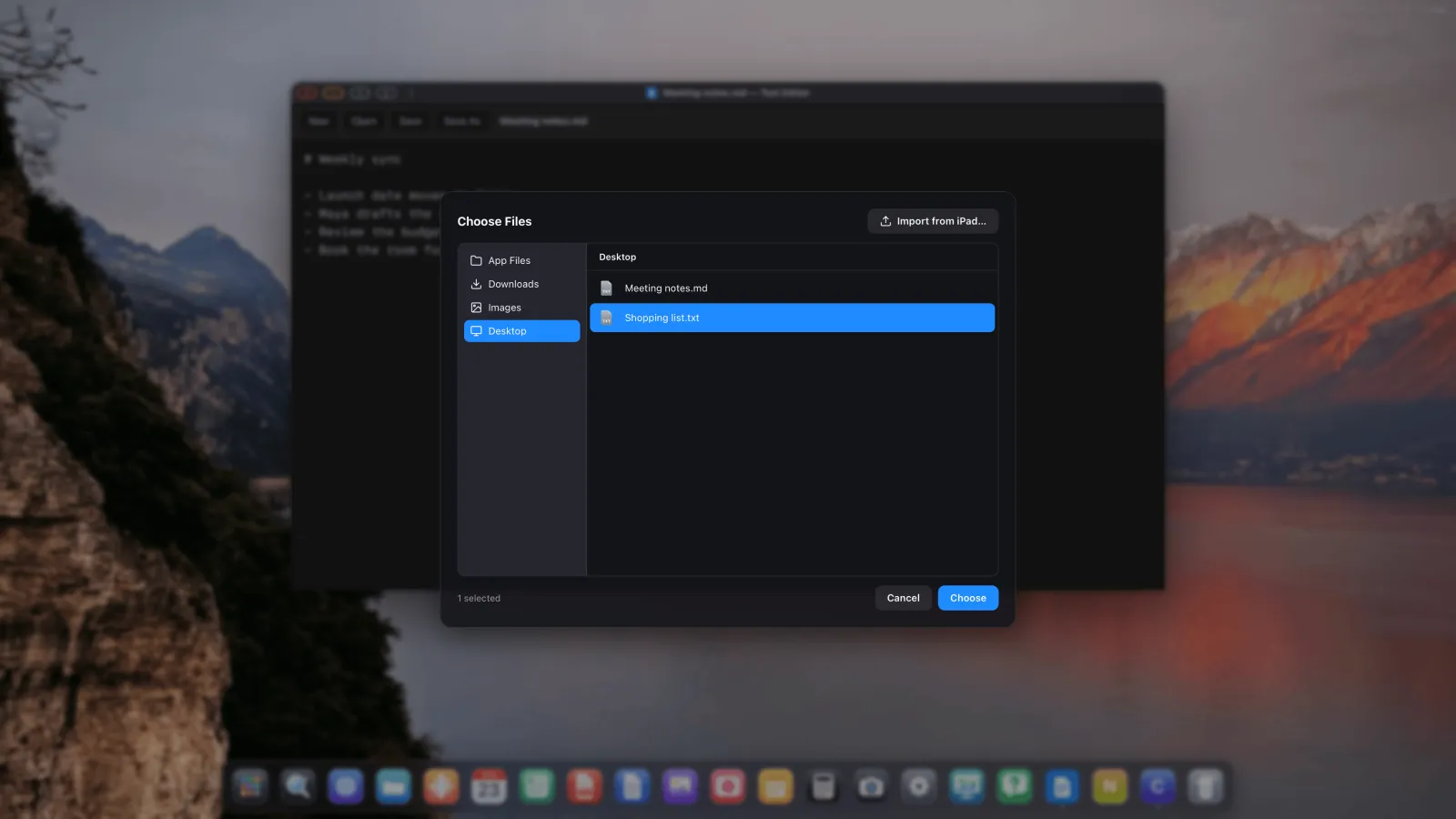
showOpenFilePicker() in XeOS: the Open panel.Save: createWritable()
Writes back to the file the handle points at. Nothing changes on disk until close(). The window shows a checkmark when the save lands.
const writable = await handle.createWritable();
await writable.write(editor.value);
await writable.close();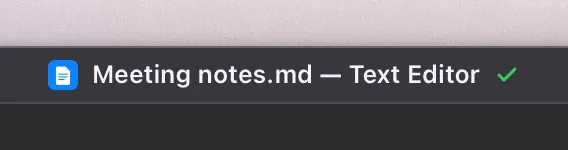
seek(), truncate(), positioned writes, keepExistingData and piping a stream into the writable work as the standard describes.
Save As: showSaveFilePicker()
Shows the XeOS Save panel, with your suggested name. If a file with that name already exists, XeOS asks before replacing it. You get a new handle to write to.
const handle = await showSaveFilePicker({
  suggestedName: "Meeting notes copy.md",
  types: [{ description: "Markdown", accept: { "text/markdown": [".md"] } }],
});
const writable = await handle.createWritable();
await writable.write(editor.value);
await writable.close();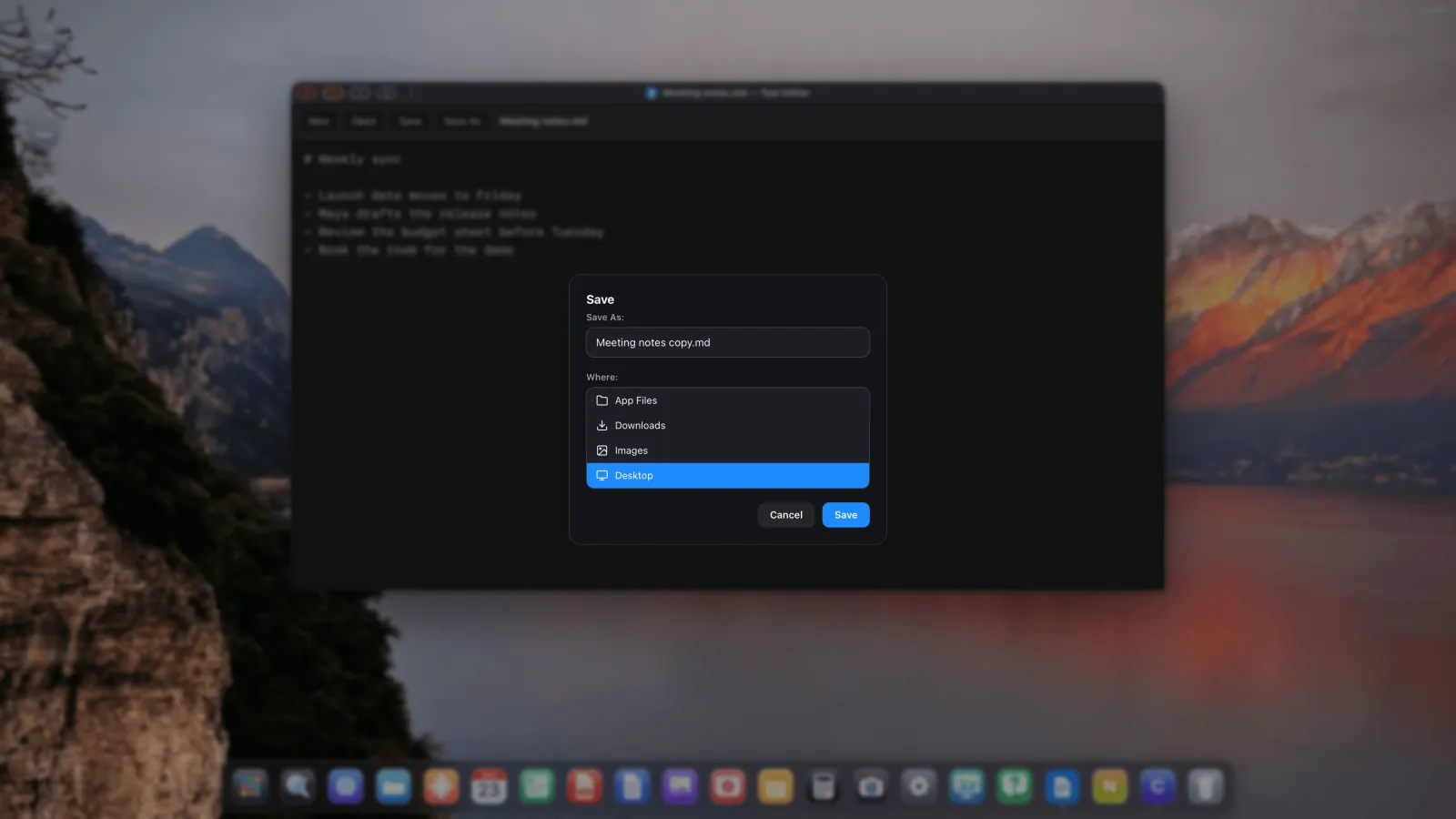
showSaveFilePicker() in XeOS: the Save panel.Unsaved changes: beforeunload
Warn in beforeunload while your document has unsaved changes, the same way you'd ask a browser to confirm before a tab closes. XeOS uses that to show the dot next to the window title, and asks Save, Discard Changes or Cancel when the window is closed.
window.addEventListener("beforeunload", (event) => {
  if (!hasUnsavedChanges) return;
  event.preventDefault();
  event.returnValue = "";
});
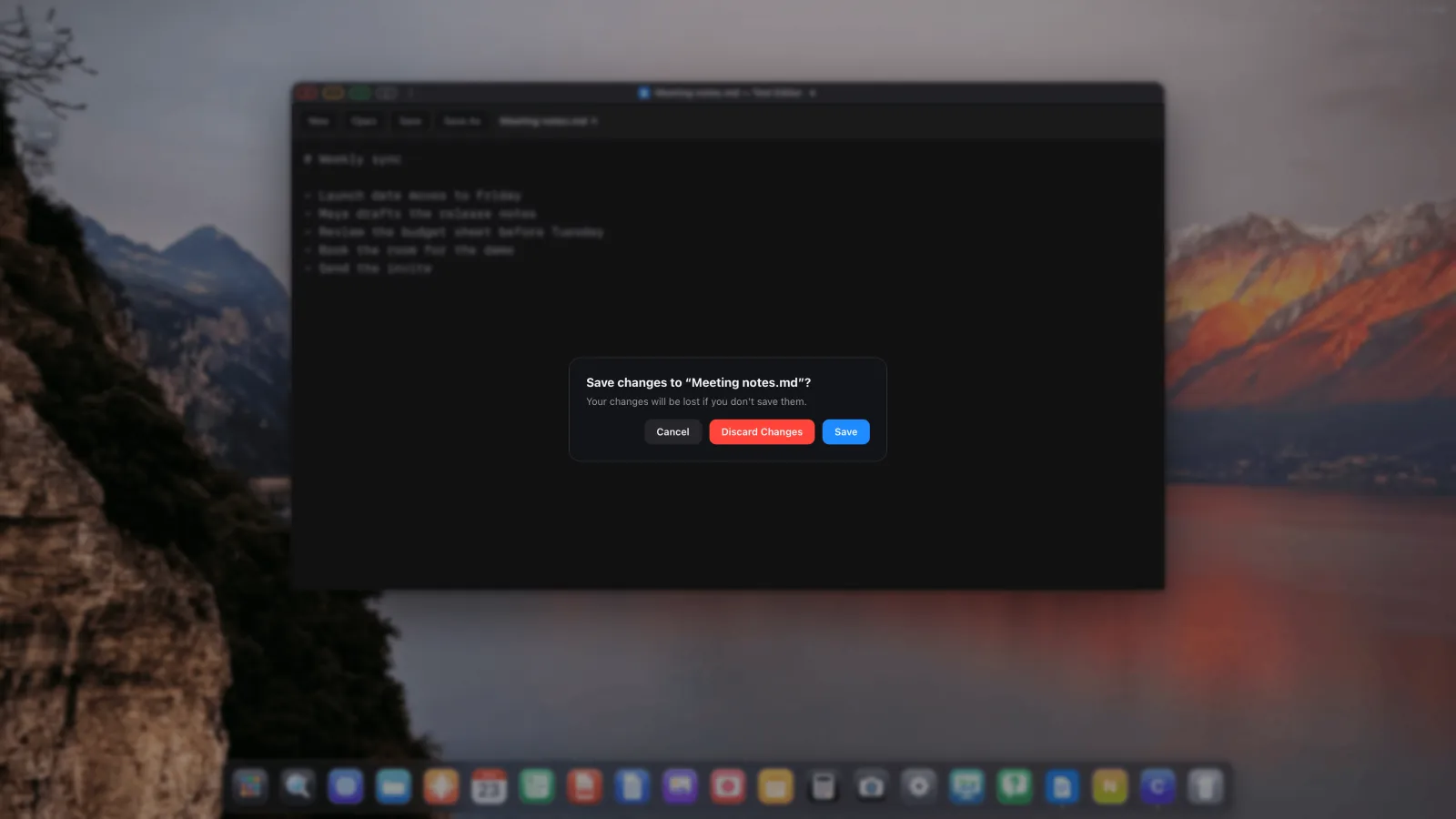
The dialog's Save sends your app ⌘S (and Ctrl+S if nothing handled it), so give your app a save shortcut. The window closes once your save has been written.
No file APIs at all?
An app that uses none of this still gets the file, the way a person would hand it over: XeOS puts it into the app's file input, or drops it onto its drop zone. If the app then downloads a file of the same type, XeOS offers to save it over the original. The standard APIs give the best result, though, and they're what Chrome and Edge use too.
A word on which apps you install
XeOS isn't affiliated with any of the web apps you can install. They're ordinary websites, the same ones any browser can open, and XeOS lets you put them in your dock. Know what an app is before you let it open your files, just as you would with any website in any other browser. An app only ever sees the files you open in it or pick in the Open and Save panels. It never sees your folders, and you can turn Allow Opening Files off again at any time.
XeOS: External Display Browser turns an iPhone or iPad into a full desktop on any monitor, TV or projector.
Common questions
Which web apps can open files?
Any web app that opens and saves files through the web's File Handling and File System Access APIs, the ones Chrome and Edge support. Many apps that don't use them can still take a file through their own Open button or drop zone.
Why is opening files off by default?
So that no website can reach your files unless you decide it should. You allow it one app at a time, and only for apps you've installed.
Can an app see all my files?
No. It gets only the files you open in it, or pick yourself in the Open and Save panels.
The app didn't fill in any file types. Why?
It doesn't publish a list of the types it supports. Tick them yourself in Advanced Options, or add any extension under Custom.
How do I stop an app from opening files?
Right-click it in the dock, choose Advanced Options and turn off Allow Opening Files. Uninstalling the app removes its settings too.
他のガイド




XeOS: External Display Browserを試してみる
外部モニター、テレビ、ポータブルディスプレイでフルスクリーン表示。黒帯なし。App Storeでダウンロード。